
How to pay a vendor in advance for a purchase order
To pay a vendor before you receive the bill, create a vendor payment in Invoicing ‣ Vendors ‣ Payments and select the confirmed purchase order in Purchases Orders. The payment is then shown on the purchase order, and when you confirm the bill of that order you deduct the advance from it with Add under Outstanding debits. You choose how much of the advance goes to each bill.
Who |
Accountants or buyers with the Invoicing access right Invoicing or higher (needed to create payments and see them on purchase orders) |
App |
Purchase, Invoicing (or Accounting) |
Before you start
Install the Purchase Advance Payment module (step 1 below). It works with Purchase and Invoicing, which Purchase installs.
Create and confirm the purchase order. A payment can only be linked to confirmed purchase orders, not to RFQs.
Set up the bank or cash journal you pay from in Invoicing.
How do I turn on advance payments?
Go to Purchase ‣ Configuration ‣ Settings. In Viindoo Purchase Features, tick Purchase Advance Payment and click Save. Viindoo installs the module. (You can also install Purchase Advance Payment from Apps.)
![Purchase Advance Payment option in the Viindoo Purchase Features section of the Purchase settings]()

How do I record an advance payment for a purchase order?
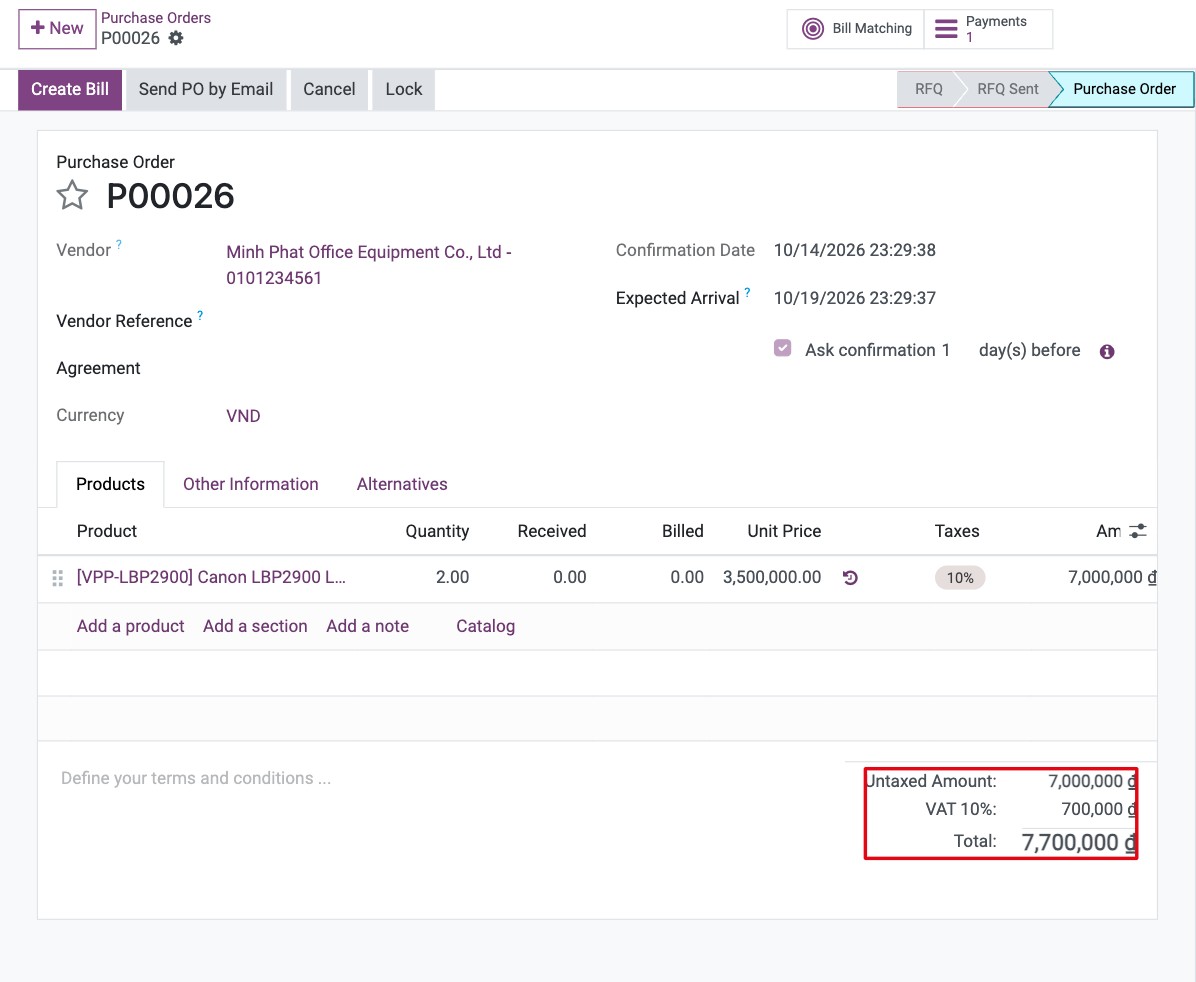
Open the purchase order and check that its status is Purchase Order (click Confirm Order if it is still an RFQ). Note the order number and its total.
![Confirmed purchase order that will receive an advance payment]()
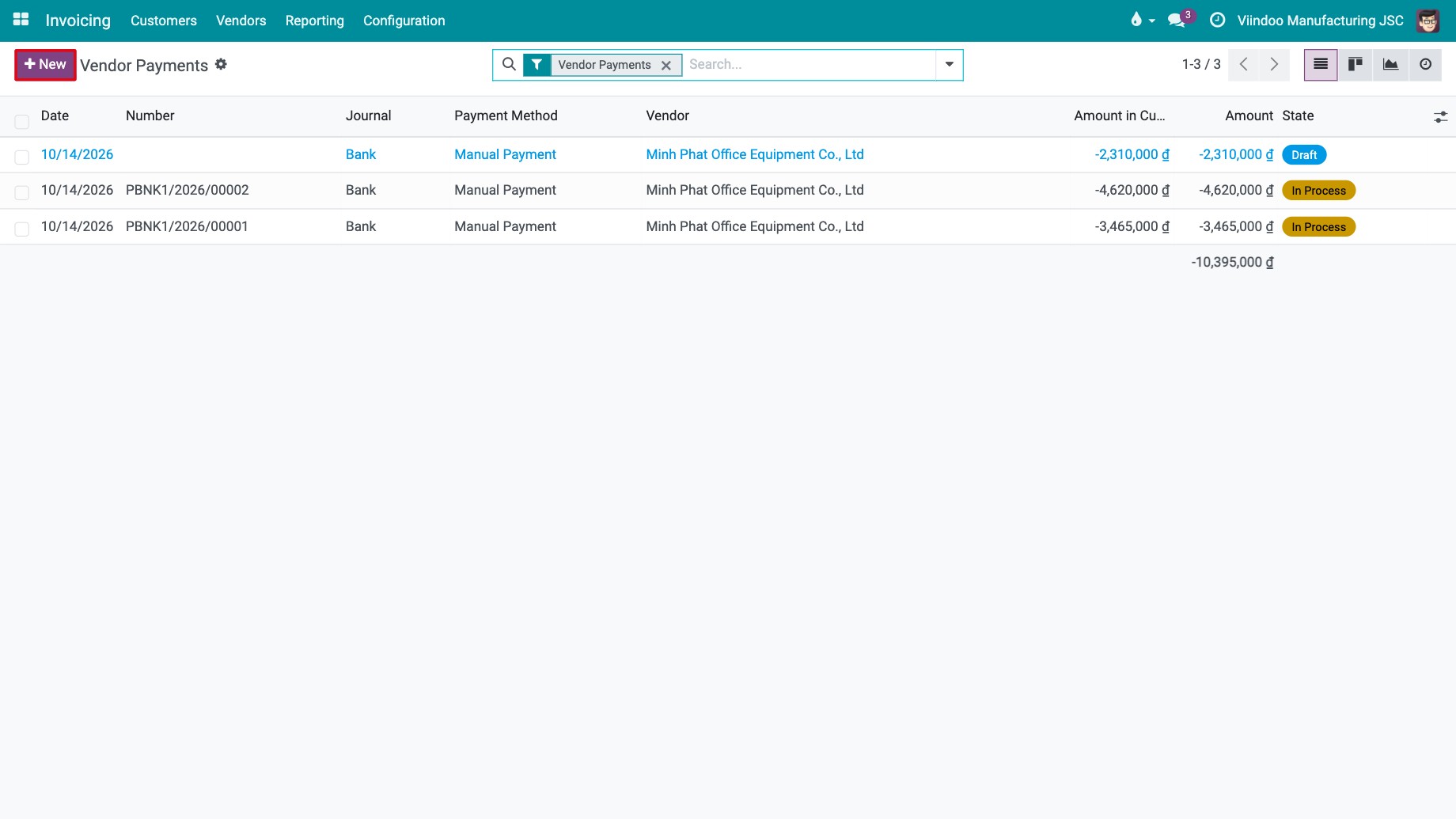
Go to Invoicing ‣ Vendors ‣ Payments (Accounting ‣ Vendors ‣ Payments if you use the Accounting app) and click New.
![Vendor payments list with the New button]()
Fill in the payment (see the table below). When you select the purchase order, Viindoo fills in the vendor and proposes the amount still to pay on the order.
![Vendor payment form with the Purchases Orders field]()
Click Confirm. The payment gets its number and its status changes from Draft to In Process (or Paid when the journal posts directly to the bank account).
![Confirm button of a draft vendor payment]()
Open the purchase order again. The Payments button at the top shows the advance payments linked to the order; click it to open them.
![Payments button on the purchase order showing the linked advance payment]()


To link a confirmed payment to another order of the same vendor, open the payment and click Add next to Purchases Orders.
Which payment fields matter?
Field |
What it does |
If left wrong or empty |
|---|---|---|
Payment Type |
Choose Send: you pay money out. |
With Receive, the payment is a customer payment and cannot be linked to purchase orders. |
Vendor |
The vendor you pay. Filled in from the purchase order. |
Changing the vendor clears Purchases Orders. |
Purchases Orders |
The confirmed orders of this vendor that the advance pays for. You can choose several. |
Without an order, the payment is an ordinary vendor payment and is not shown on any order. |
Amount |
Proposed as the order total minus what is already paid or advanced on the order. Change it to the amount you actually pay, for example 30% of the order. |
An amount above the order total leaves the excess unused after the bill is paid. |
Date, Journal |
Payment date and the bank or cash journal you pay from. |
The payment is recorded on the wrong account or date. |
Recipient Bank Account |
Vendor bank account for a transfer, taken from the vendor contact. |
Empty if the vendor has no bank account on their contact. |
Memo |
Text shown on the payment, for example Advance 30% P00012. |
Harder to recognise the payment later. |
How do I deduct the advance from the vendor bill?
On the purchase order, click Create Bill, fill in the Bill Date and click Confirm. The bill shows You have outstanding debits listed below for this vendor.
![Vendor bill with the message about outstanding debits for this vendor]()
Below the totals, under Outstanding debits, click Add next to the advance payment. Only payments linked to this bill’s purchase orders, or linked to no order, are listed.
![Add link next to the advance payment under Outstanding debits]()
In the window that opens, enter the Amount of the advance to use for this bill (by default the whole remaining advance) and click Add.
![Window to enter the amount of the advance payment assigned to the bill]()


You should now see a Paid on line with the advance under the bill total and a lower Amount Due. If the advance covers the whole bill, the bill shows In Payment (then Paid once the payment is matched with the bank statement); otherwise it shows Partial and you register the rest as usual. On the purchase order, Reconciled Payments Amount shows how much has been deducted.

Common errors
Message |
What to do |
|---|---|
The purchase order is not offered in Purchases Orders. |
Only confirmed orders of the selected vendor are offered. Confirm the RFQ first, and check the vendor and Payment Type (Send). |
The partner on payment ‘…’ and the purchase order should be the same. |
Select orders of the vendor of the payment only. |
There is no invoiceable line. If a product has a control policy based on received quantity, please make sure that a quantity has been received. |
The bill is created from received quantities. Enter the received quantity on the order lines (or receive the goods in Inventory), or bill on ordered quantities, see How to control when vendor bills are created. |
The Bill/Refund date is required to validate this document. |
Fill in Bill Date before clicking Confirm on the bill. |
The amount that is assigned to invoice must be greater than 0! |
Enter an amount above zero in the window. |
The amount that is assigned to invoice is greater than the amount for advance payment …! |
Enter at most the amount still unused on that advance payment. |
You can not reconcile entries those belong to different purchase orders. Please add the purchase order ‘…’ to the payment ‘…’ to reconcile. |
The payment is linked to other orders than the bill. Open the payment, click Add next to Purchases Orders and add the order of the bill. |
Next steps
How to control when vendor bills are created: decide whether bills follow ordered or received quantities.
Process of vendor invoicing, payment and reconciliation: pay the rest of the bill.
Version notes
The module is turned on from Purchase ‣ Configuration ‣ Settings ‣ Viindoo Purchase Features; you no longer need to search for it in Apps.
A confirmed payment now shows the status In Process until it is matched with the bank statement.