
How to deliver goods in two steps (pick, then deliver)
In the two-step flow, goods first move from the stock location to the output location, where you gather them, and then to the customer. Set the warehouse to Pick then Deliver (2 steps), validate the Pick transfer, then validate the Delivery Orders transfer that Viindoo creates from the output location to the customer.
Who |
Users with the Inventory User access right. Changing the warehouse flow needs the Inventory Administrator access right. |
App |
Inventory ‣ Operations |
Before you start
Install the Inventory app.
Turn on Multi-Step Routes (see How to choose the delivery flow of a warehouse).
Have the products in stock in the warehouse. If you also install the Sales app, Viindoo creates the Pick transfer when you confirm a sales order.
How do I set a warehouse to deliver in two steps?
Go to and open the warehouse.
On the Warehouse Configuration tab, choose Pick then Deliver (2 steps) under Outgoing Shipments, then click Save.
![Pick then Deliver (2 steps) selected under Outgoing Shipments on the warehouse form]()
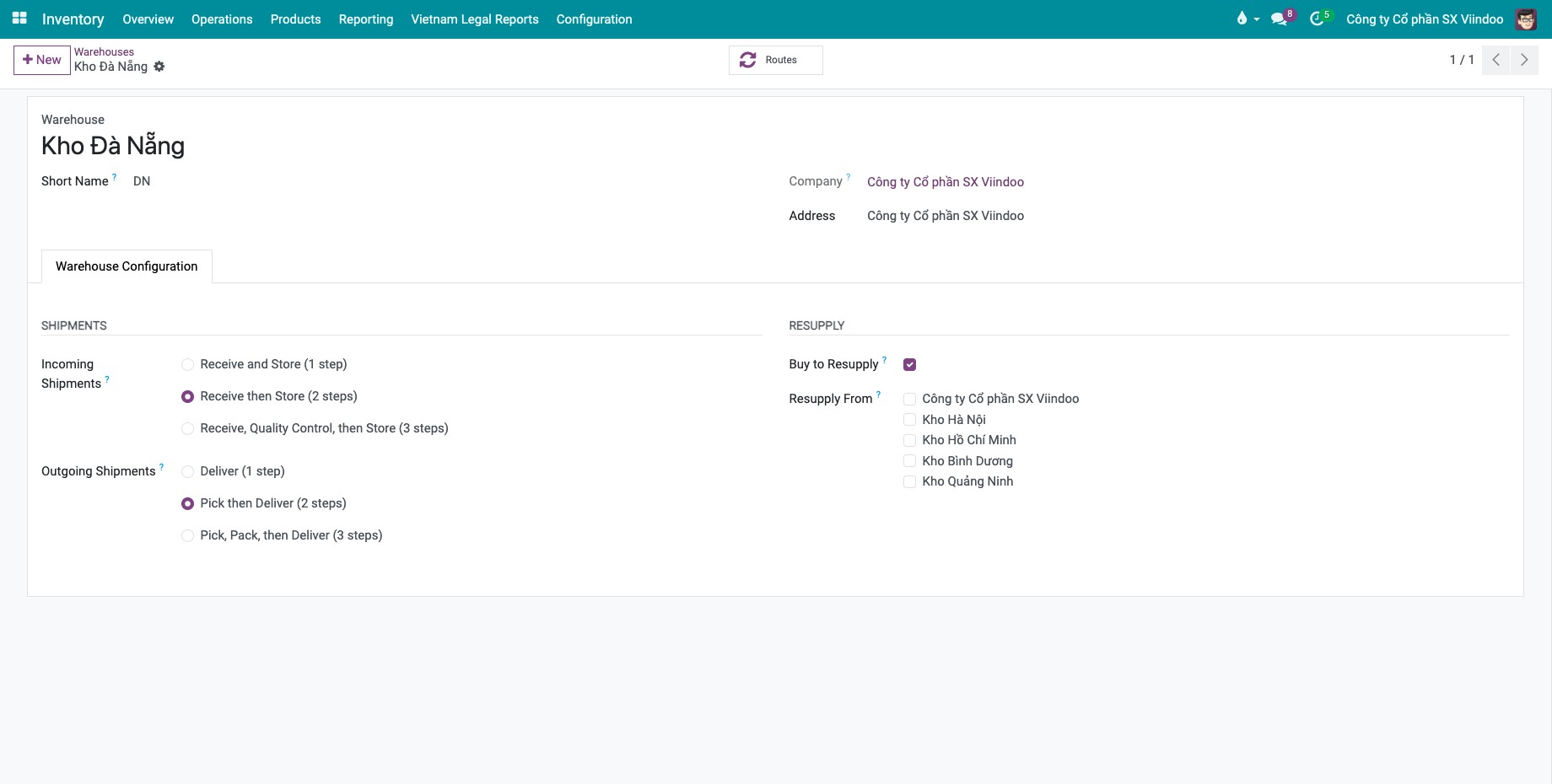
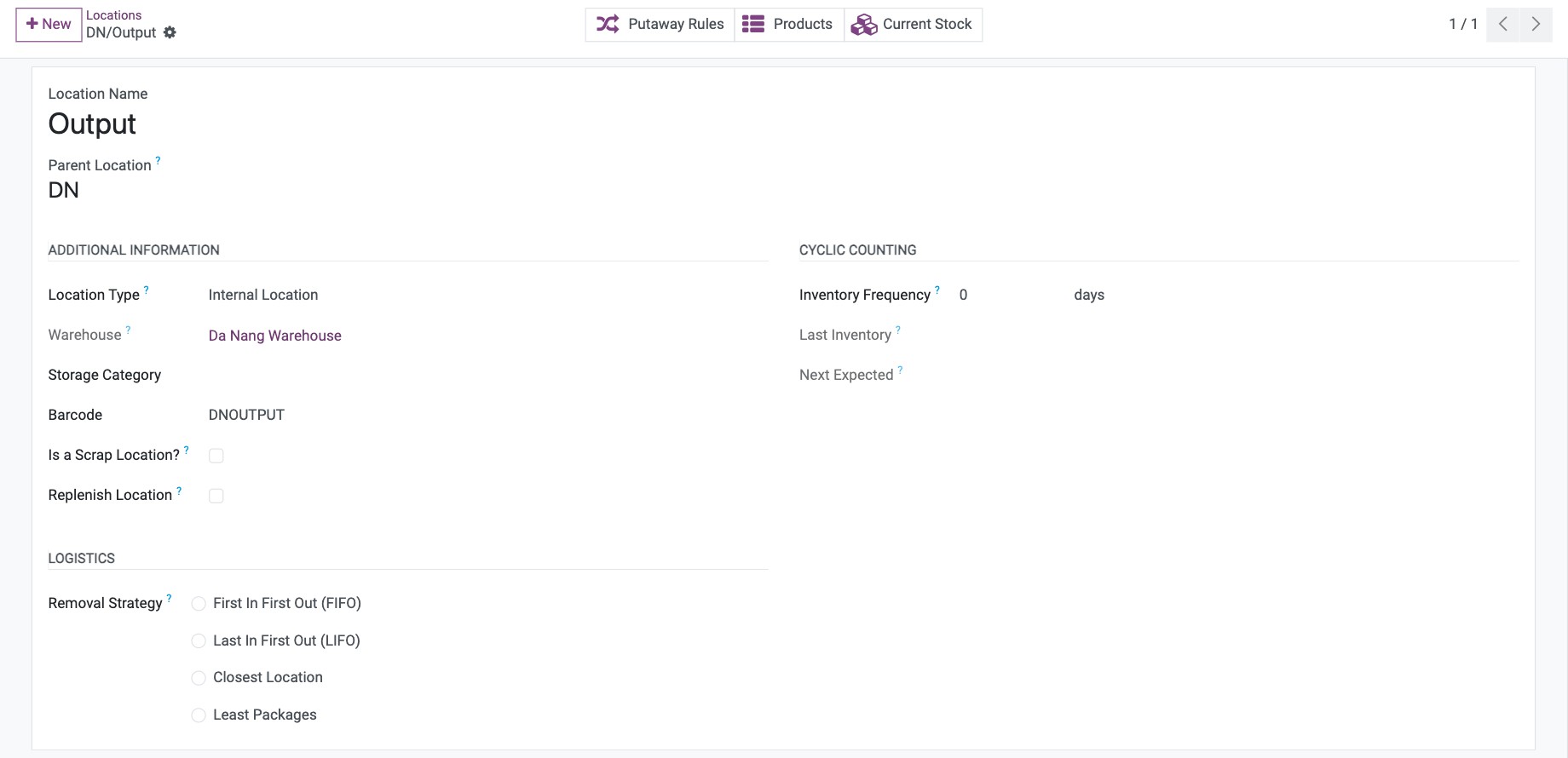
Viindoo turns on the output location of the warehouse (for example WH/Output) and the Pick operation type. To rename the output location or change its settings, go to and open it.
How do I create the pick?
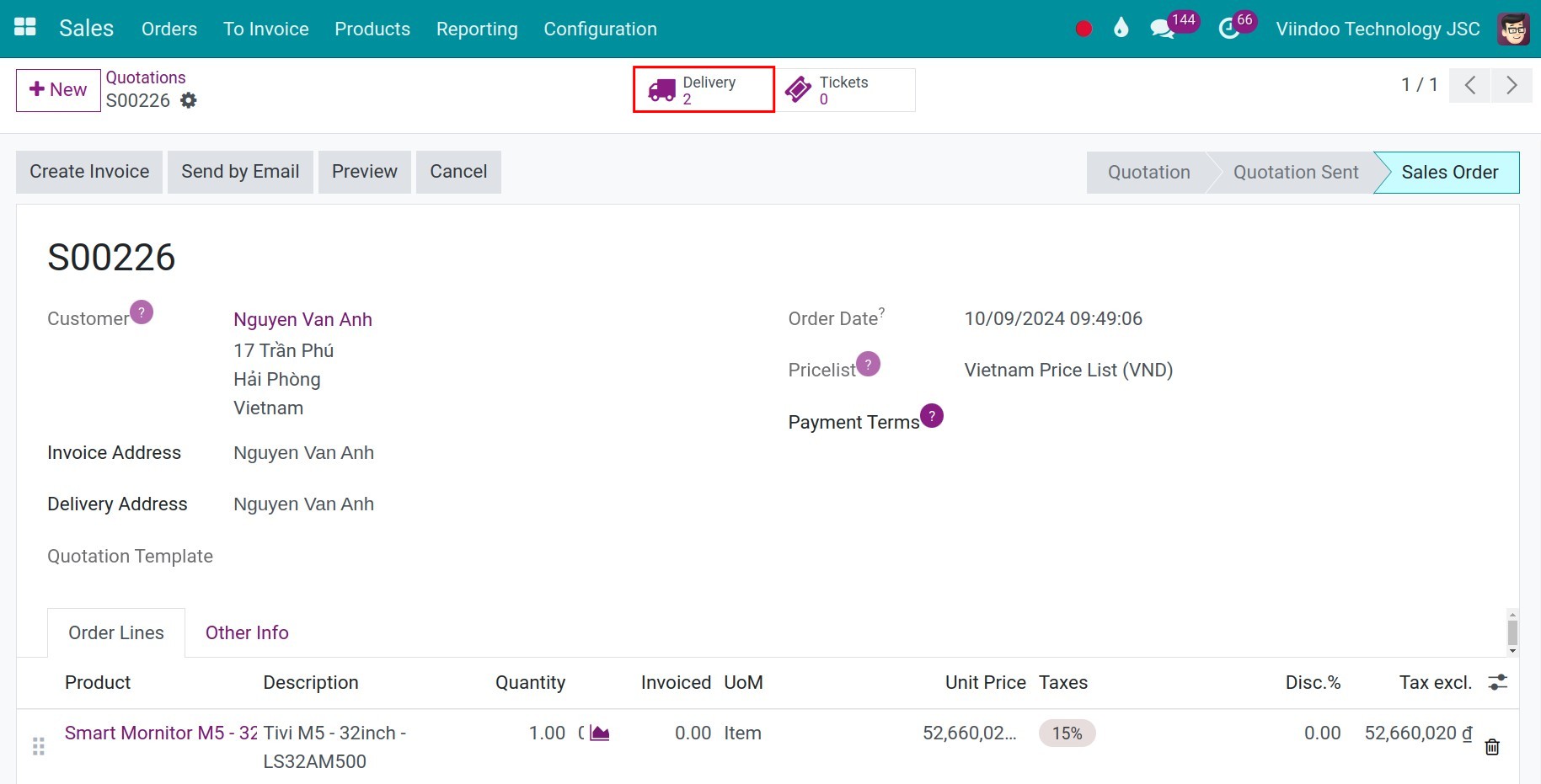
If you also install Sales, confirm the sales order: Viindoo creates the Pick transfer linked to it, and you open it with Delivery on the order.
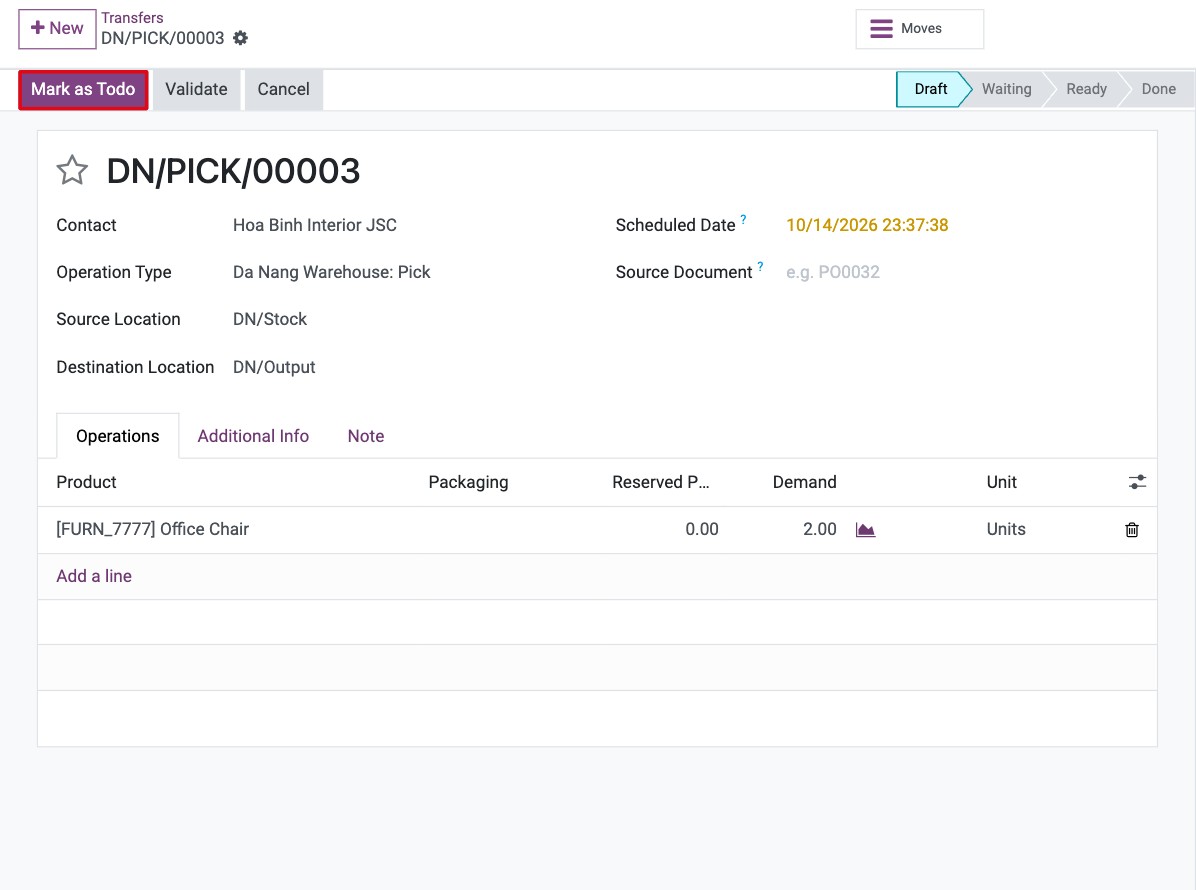
Without Sales, create the pick yourself:
Go to , find the Pick card of the warehouse and click it, then click New.
Choose the customer in Contact. The source location is the stock location and the destination is the output location.
On the Operations tab, click Add a line, choose the product and enter the Demand, then click Mark as Todo. If the stock covers the demand, the pick becomes Ready.
![New Pick transfer with the customer, the Pick operation type and a product line]()
How do I pick the goods?
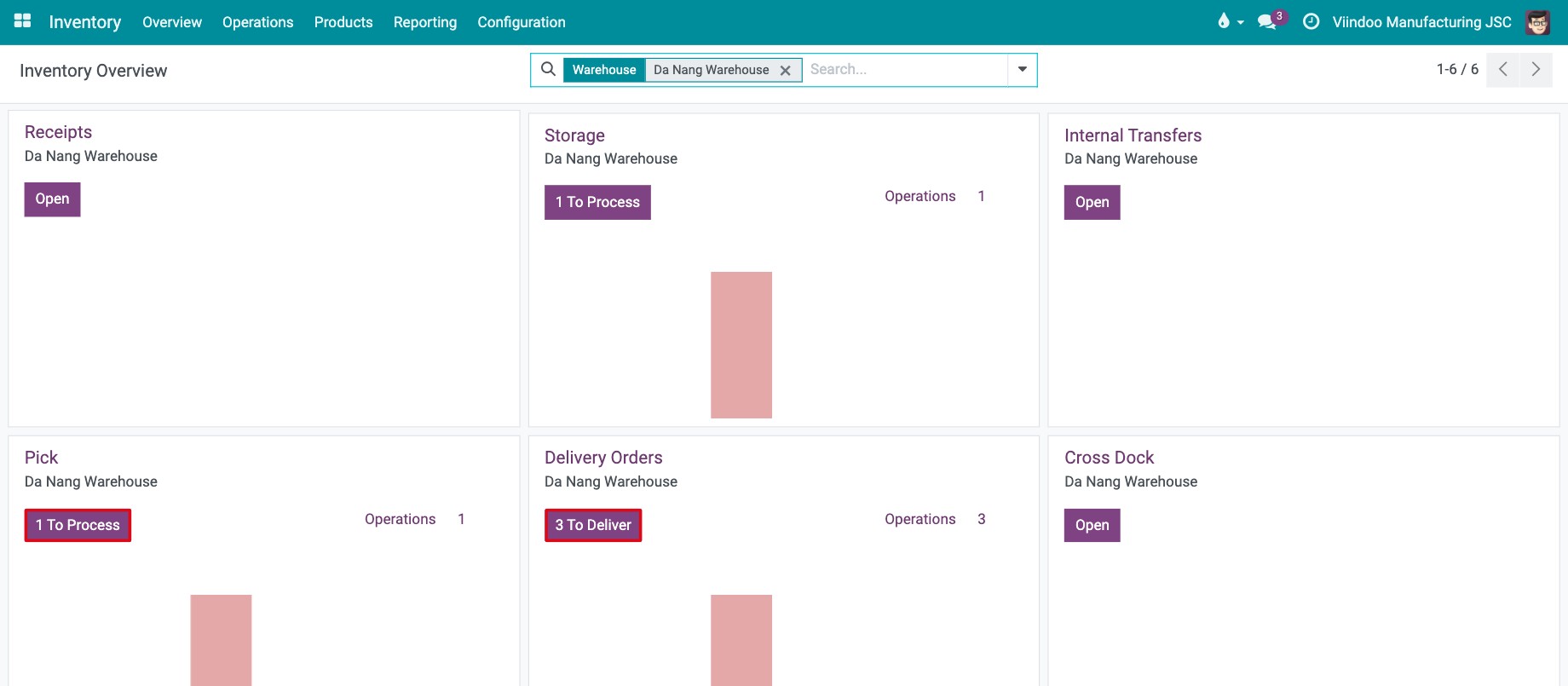
Go to . The Pick card shows the transfers to process and the Delivery Orders card shows the deliveries.
![Pick and Delivery Orders cards of the warehouse in the Inventory overview]()
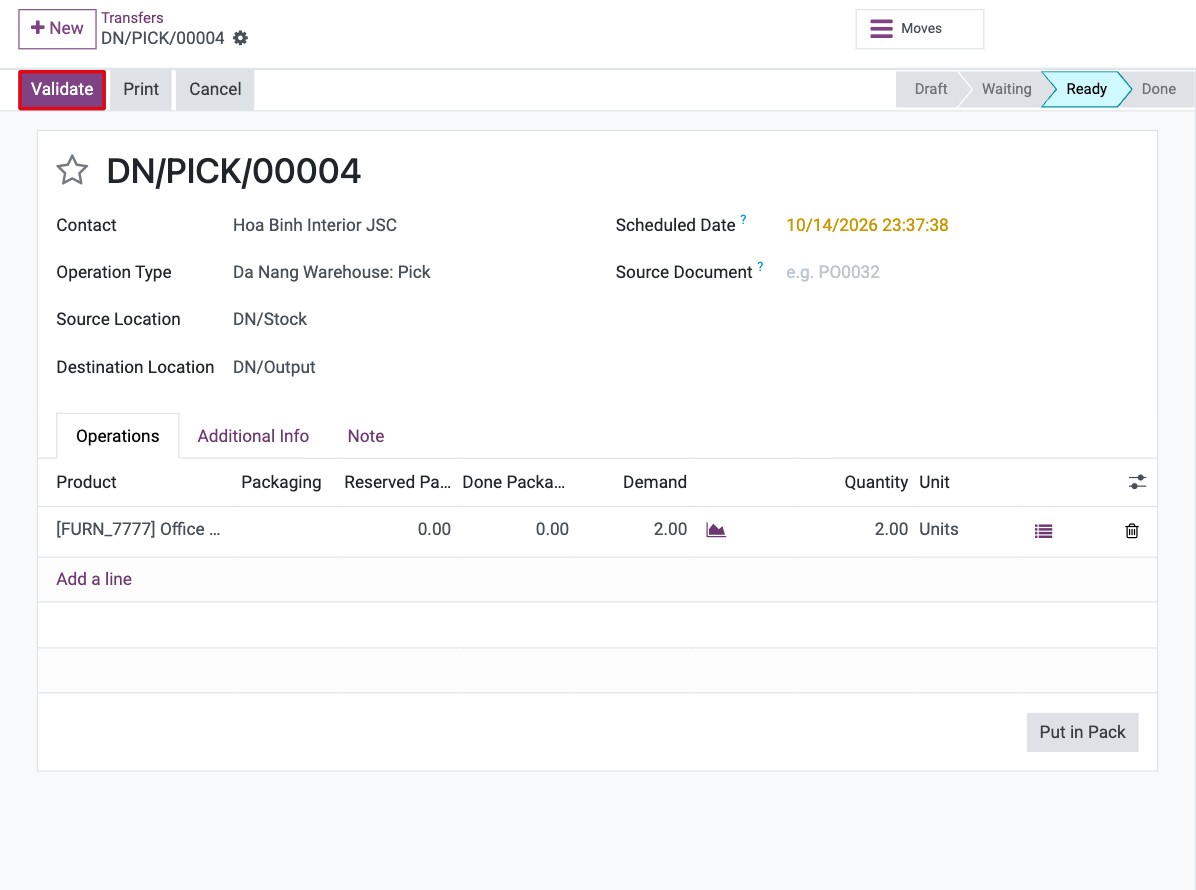
Open the Pick transfer, check the Quantity of each line and click Validate.
![Validate button on a Pick transfer in the Ready state]()
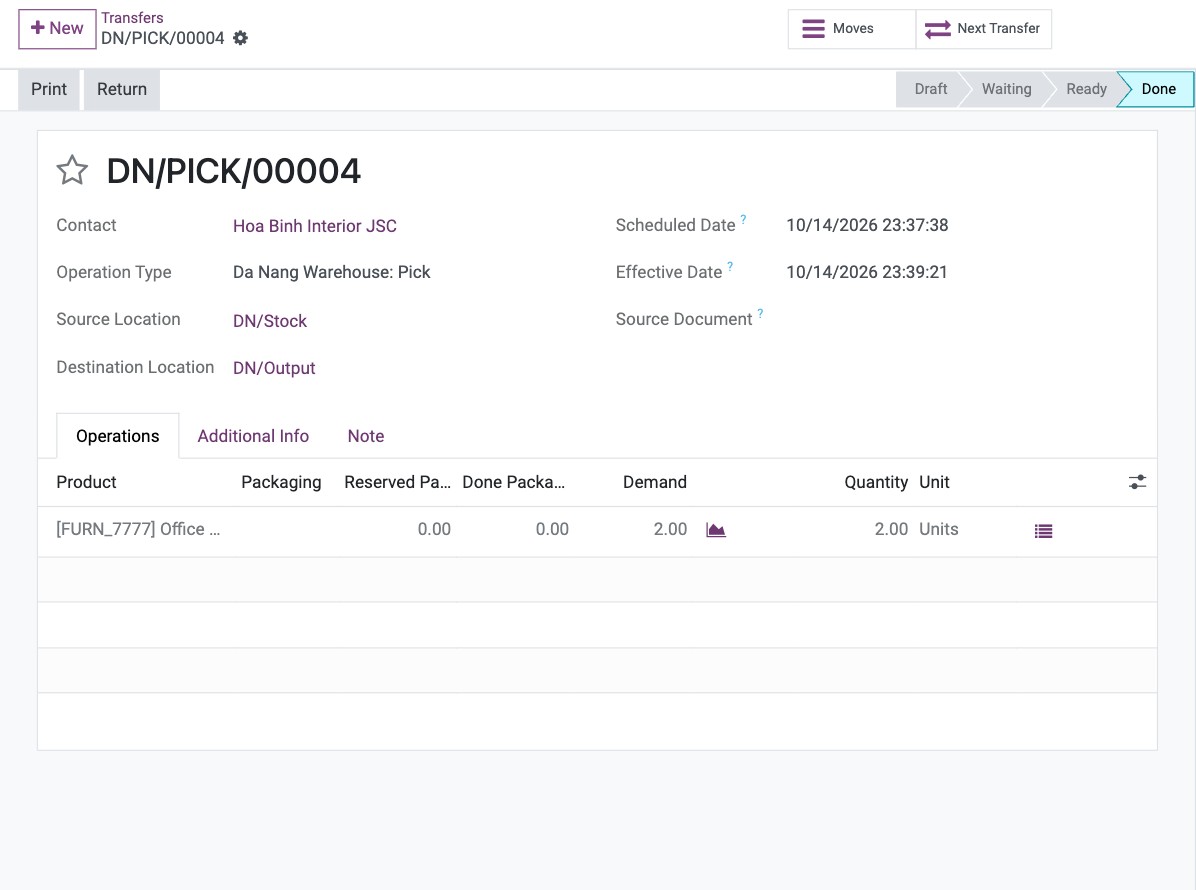
You should now see the Pick transfer in the Done state: the goods are in the output location.
How do I deliver the goods to the customer?
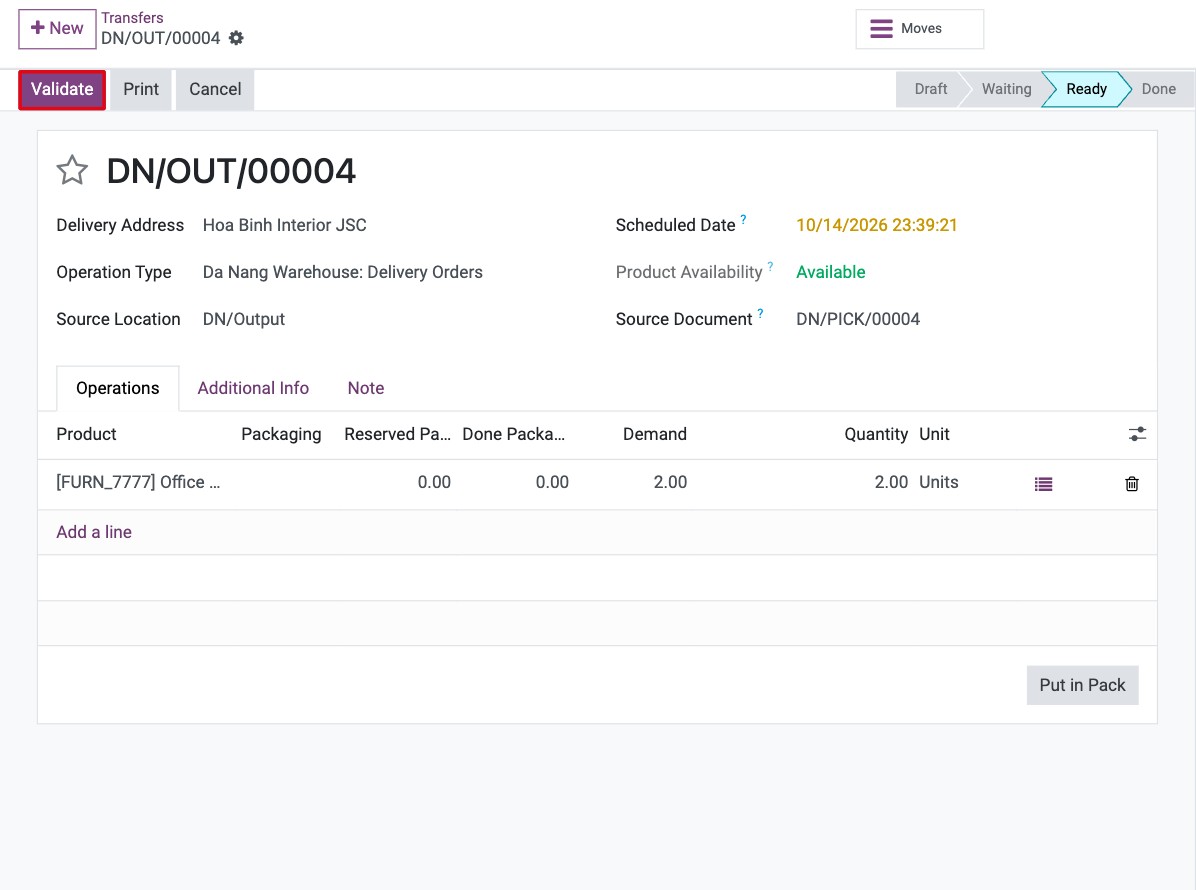
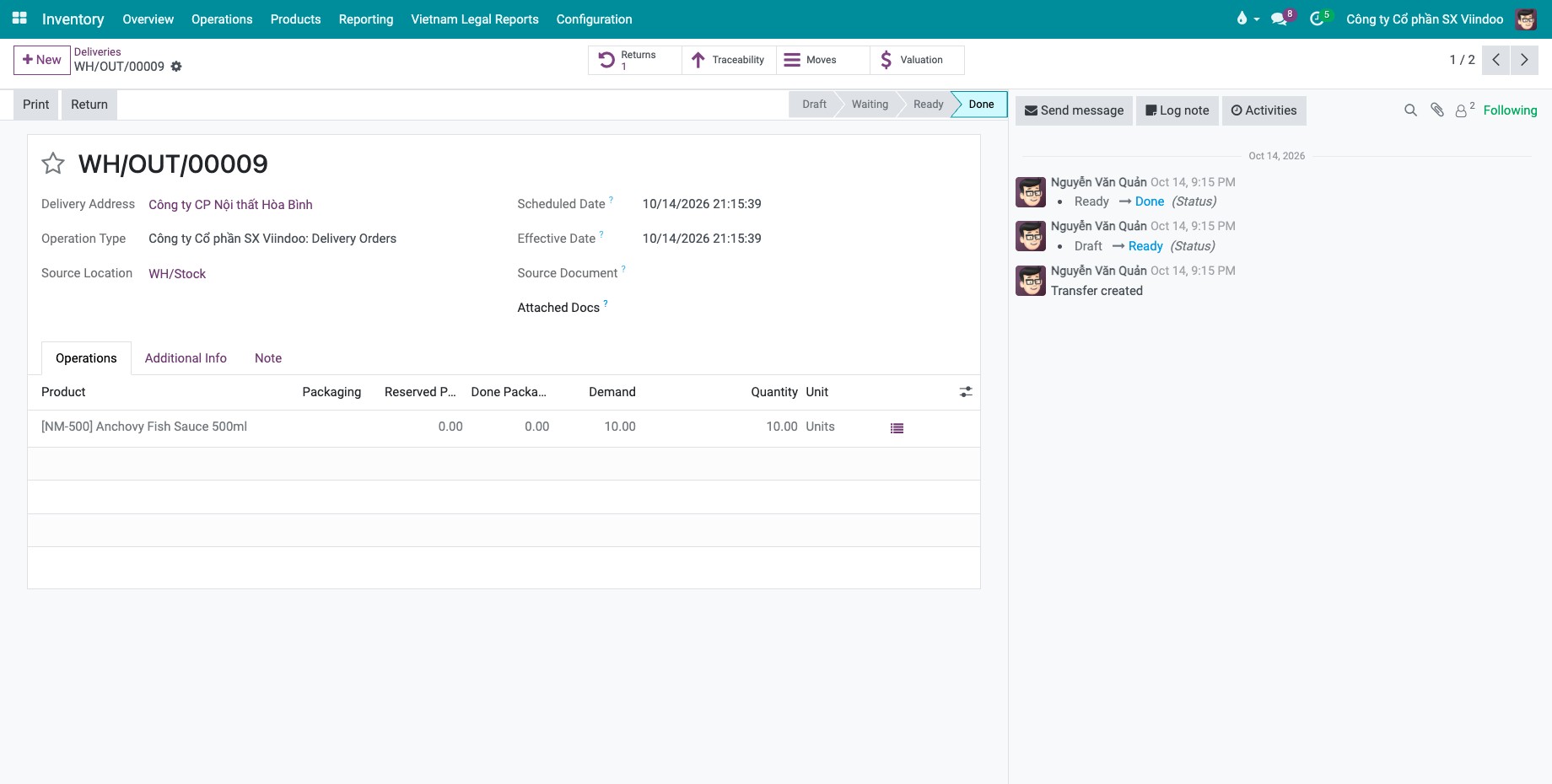
When you validate the pick, Viindoo creates a Delivery Orders transfer from the output location to the customer, already Ready. Its Source Document is the pick (or the sales order).
Click the To Deliver button of the Delivery Orders card in , or use .
Open the delivery order and click Validate.
![Validate button on the Delivery Orders transfer from the output location to the customer]()
You should now see the delivery order in the Done state: the goods have left the warehouse.
Which fields matter?
Field |
Effect |
If wrong or empty |
|---|---|---|
Outgoing Shipments (warehouse) |
Decides whether deliveries start with a Pick transfer to the output location. |
With one step, goods go straight from stock to the customer. |
Contact (Pick) |
The customer. Viindoo copies it to the delivery order it creates. |
The delivery order has no customer address. |
Source Document (Delivery Orders) |
The pick or the sales order the delivery follows. |
Search with it to find the two transfers of one order. |
Common errors
Message |
What to do |
|---|---|
You cannot validate a transfer if no quantities are reserved, or if only non-reserved moves are picked.To force the transfer, encode quantities. |
The pick is Waiting because the stock does not cover it. Receive the products and click Check Availability. |
You can’t disable locations WH/Output because they still contain products. |
You tried to go back to one step while goods are still in the output location. Validate the Delivery Orders transfers first, then change the flow again. |
Version notes
The Delivery Orders transfer is created when you validate the pick, not when the sales order is confirmed. Until then, only the pick appears in the Inventory overview.
Next steps
How to deliver goods in three steps (pick, pack, then deliver): add a packing step.
How to deliver from vendor to customer with Dropship: let the vendor deliver to your customer.