
How to buy from a vendor with a blanket order
A blanket order is a long-term agreement with one vendor: the products, the prices and the total quantities you plan to buy during a period. In Viindoo, go to Purchase ‣ Orders ‣ Purchase Agreements, create an agreement of type Blanket Order, add the products with their agreed Quantity and Unit Price, then click Confirm. Each time you need goods, click New Quotation on the agreement: the RFQ gets the agreed prices and you only enter the quantities. The agreement shows how much has been ordered until you Close it.
Who |
A Purchase user. Enabling Purchase Agreements in the settings requires the Purchase Administrator. |
App |
Purchase |
Before you start
Install the Purchase app.
Enable Purchase Agreements (see below). This installs the Purchase Agreements module (
purchase_requisition).Know how to create a purchase order.
How do I enable purchase agreements?
Go to Purchase ‣ Configuration ‣ Settings.
In the Orders section, tick Purchase Agreements (Manage blanket orders and purchase templates) and click Save.
![Purchase Agreements option in the Purchase settings]()

The menu Purchase ‣ Orders ‣ Purchase Agreements appears.
How do I create a blanket order?
Go to Purchase ‣ Orders ‣ Purchase Agreements and click New.
Keep Agreement Type on Blanket Order, choose the Vendor and fill in the other fields (see the table below). On the Products tab, add each product with the total Quantity you plan to buy and the agreed Unit Price.
![New blanket order with vendor, agreement validity and products with quantities and prices]()
Click Confirm. The status becomes Confirmed.
![Confirm button on a draft blanket order]()

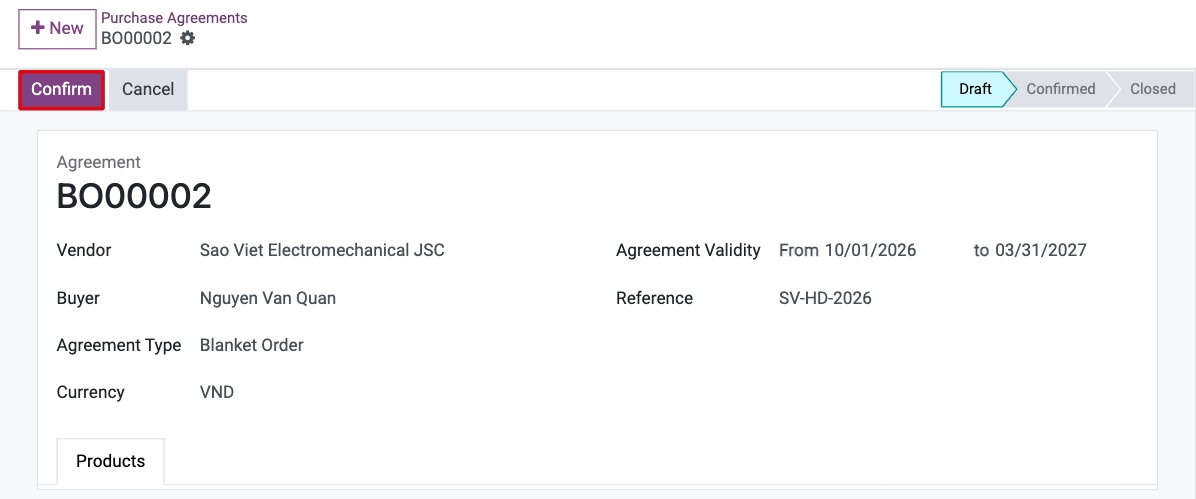
The agreement gets its number (BO followed by a sequence) as soon as it is created. On
confirmation, Viindoo adds the agreed prices to the vendor price list of the products, so RFQs
to this vendor can take these prices while the agreement is open.

Which fields matter on a blanket order?
Field |
What it does |
|---|---|
Vendor |
The vendor of the agreement. Required for a blanket order and locked once confirmed. If the vendor already has a confirmed blanket order, Viindoo warns you and suggests completing that one instead. |
Buyer |
The purchaser in charge; copied to the RFQs created from the agreement. |
Agreement Type |
Blanket Order for this guide. It can only be changed while the agreement is a draft. |
Agreement Validity |
The period of the agreement (from - to). RFQs created from it are not dated before the start date. The end date cannot be earlier than the start date. |
Reference |
The vendor’s contract number or your own reference. |
Quantity, Unit Price (Products tab) |
The total quantity planned and the agreed price of each product. Both are required to confirm. The Ordered column shows the quantity already on confirmed purchase orders. |
Terms and Conditions (Products tab) |
Copied to the RFQs created from the agreement. |
How do I order from the blanket order?
Open the confirmed agreement and click New Quotation.
![New Quotation button on a confirmed blanket order]()
The RFQ opens with the vendor, the Agreement, the agreed prices and the terms filled in. Every line starts with a quantity of 0: enter the Quantity you need now and delete the lines you do not order.
![Request for quotation created from the blanket order with the Agreement field and quantities to fill in]()
Send the RFQ to the vendor if needed, then click Confirm Order.
![Confirm Order button on the request for quotation linked to the blanket order]()

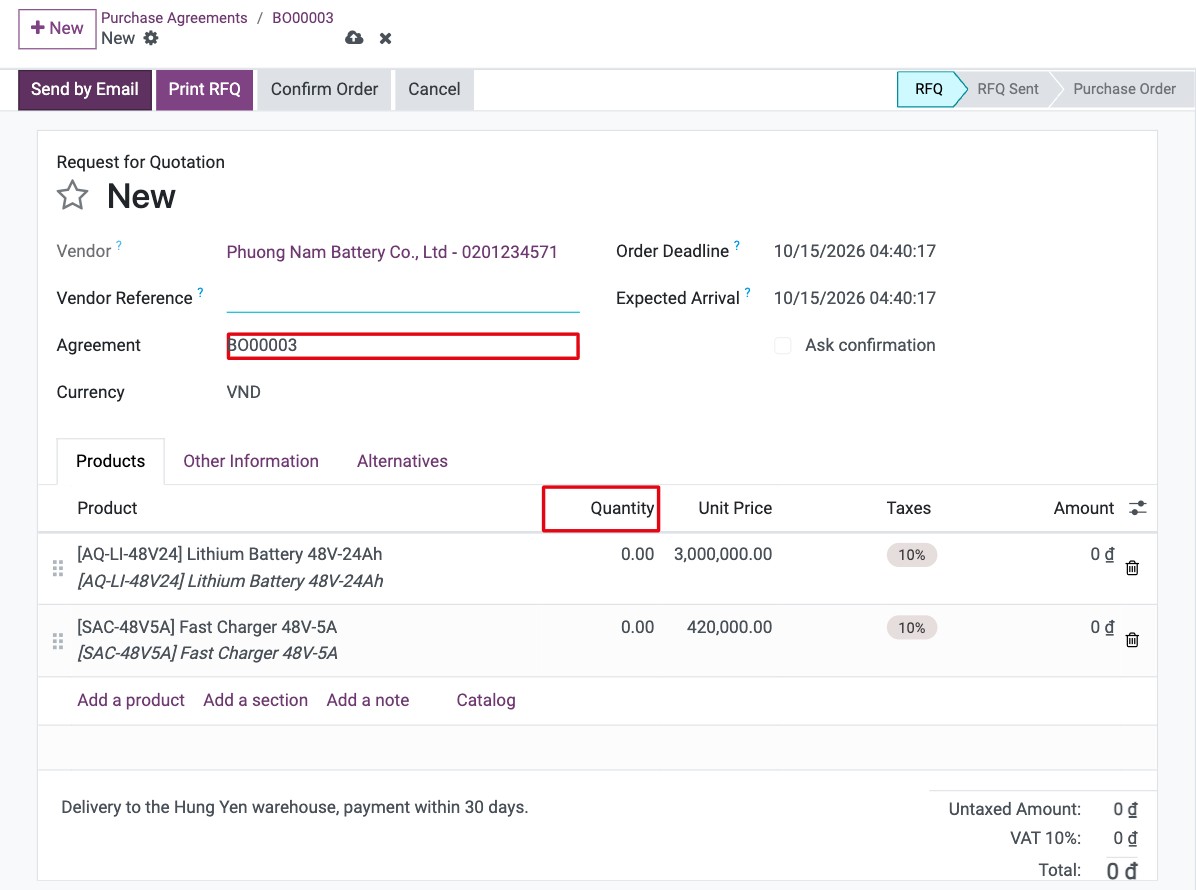

You can also link an RFQ you created yourself: choose the agreement in its Agreement field. Only confirmed agreements of this vendor, or without a vendor, are proposed.
The RFQs/Orders button on the agreement counts the RFQs and orders linked to it, and the Ordered column shows what has been ordered so far.

How do I close a blanket order?
At the end of the agreement, check that every linked RFQ is confirmed or cancelled.
Click Close on the agreement.
![Close button on a confirmed blanket order]()
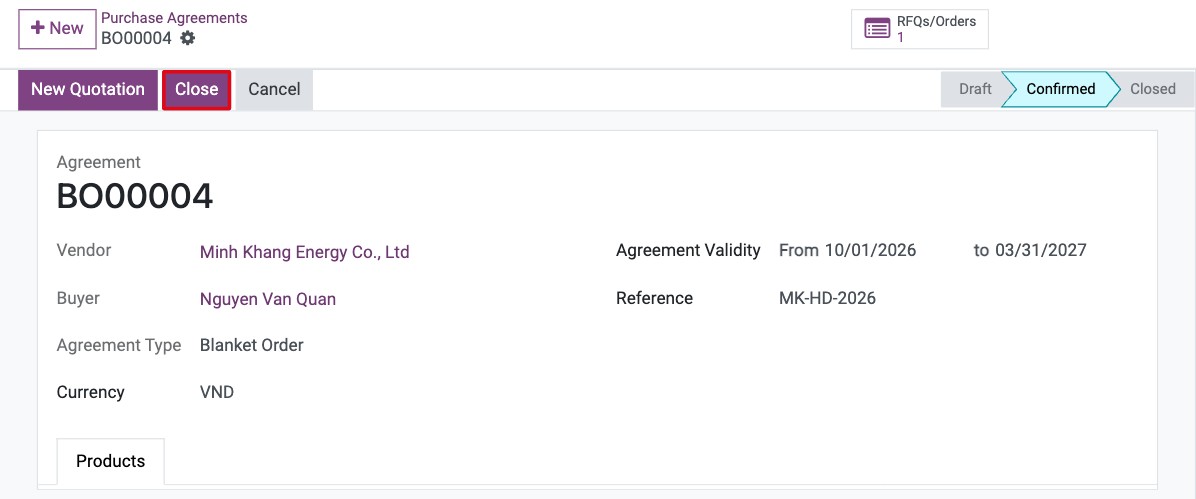
The status becomes Closed and the agreed prices are removed from the vendor price lists. The purchase orders already confirmed are not changed.

Warning
Cancel on the agreement also cancels every RFQ and purchase order linked to it (an order with a confirmed vendor bill blocks the cancellation). Use Close to end an agreement normally.
Common errors
Message |
What to do |
|---|---|
You cannot confirm agreement ‘…’ because it does not contain any product lines. |
Add the products on the Products tab, then confirm. |
You cannot confirm a blanket order with lines missing a price. / … missing a quantity. |
Enter a Unit Price and a Quantity greater than 0 on every line. |
To close this purchase requisition, cancel related Requests for Quotation. |
Confirm or cancel the RFQs still linked to the agreement, then click Close. |
You cannot have a negative or unit price of 0 for an already confirmed blanket order. |
Enter a price greater than 0 on the line. |
End date cannot be earlier than start date. Please check dates for agreements: … |
Correct the Agreement Validity dates. |
You can only delete draft or cancelled requisitions. |
Cancel the agreement first, or close it instead of deleting it. |
Next steps
How to compare vendor offers (call for tenders): compare offers from several vendors.
How to control when vendor bills are created: bill the orders created from the agreement.
How to create vendor bills for many orders: bill many orders at once.
Related apps: Purchases Lines Numbering, Purchase Confirmation Backdate, Inter-Company Rule for Sale/Purchase, Purchase Advance Payment.
Version notes
Compared with the version 17 guide, the menu is Purchase Agreements (no separate Blanket Orders menu), and agreement types are no longer configured: the Agreement Type is either Blanket Order or Purchase Template, without the selection, lines and quantities options.
The agreement number is given when it is created, not when it is confirmed.