
How to use the Inventory overview to see what to do
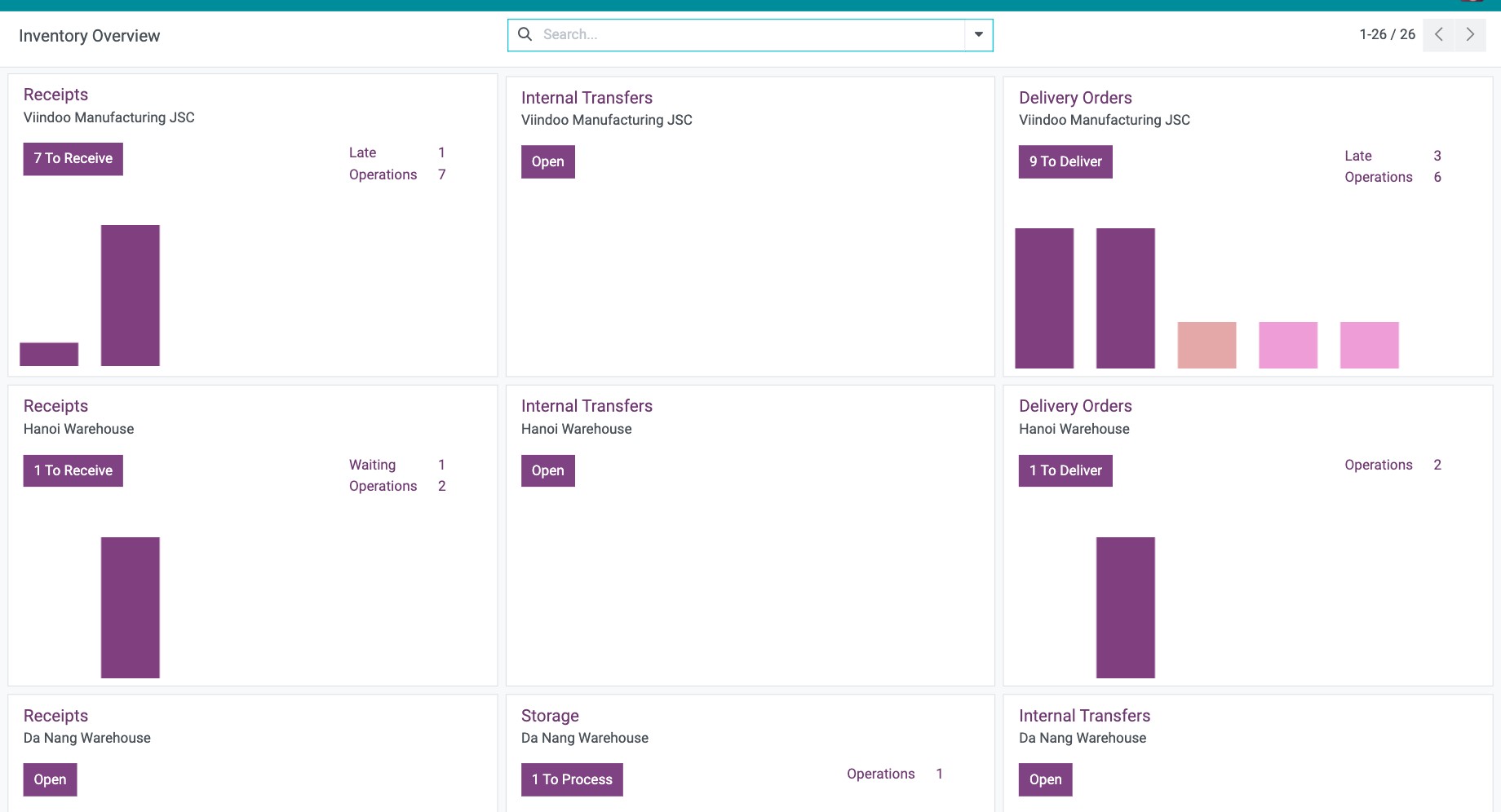
When you open Inventory, the Inventory Overview shows one card per operation type, for example Receipts, Internal Transfers and Delivery Orders of each warehouse. Each card tells you how many transfers are ready, waiting or late. Click the card to open those transfers, or open its ⋮ menu to create a new transfer or open the operation’s configuration.
Who |
Any user with the Inventory User access right. Only an Inventory Administrator sees the card colors and Configuration. |
App |
Inventory ‣ Overview |
Before you start
Install the Inventory app and give users access to it (see How to install Inventory and give users access to it).
To get the Internal Transfers card, turn on Storage Locations in .
What does an operation card show?
An operation type is a kind of transfer of a warehouse, such as receiving goods or delivering them. The overview opens as a kanban view with one card per operation type.

On the card |
Meaning |
|---|---|
Operation type and warehouse |
The name of the operation, with the warehouse below it when you use several warehouses. |
Blue button |
The number of transfers that are ready: To Receive for receipts, To Deliver for deliveries and To Process for other operations. The button reads Open when no transfer is ready. Click it to see those transfers. |
Waiting, Late, Back Orders |
The number of transfers waiting for another operation or for stock, transfers past their scheduled date, and back orders. Click a line to open them. A line is not shown when its count is 0. |
Operations |
The number of stock moves that are ready to be processed. |
Bar chart |
Transfers of the operation type grouped by scheduled date: earlier, yesterday, today, the next two days and later. |
How do I open or create transfers from a card?
Click the card name, or the blue button, to open the transfers of the operation type.
To work from the card instead, move the pointer over it and click ⋮.
![Menu of an operation card in the Inventory Overview with View, New, Reporting, colors and Configuration]()
Choose what you need:
View: open All the transfers of the operation type, only the Ready ones or only the Waiting ones. On the internal transfers card this section is named Transfers.
New: create a new transfer for this operation type.
Reporting: open the stock moves analysis of this operation type.
Add to Favorites: cards marked as favorite are listed first.
Configuration (Administrator only): open the operation type to change its settings.

How do I tell the warehouses apart on the overview?
Each warehouse has its own color. When you create a warehouse, Viindoo gives all of its operation types the next color that no other warehouse uses. An Inventory Administrator can change the color of one card in its ⋮ menu by clicking another color.
Common problems
Problem |
What to do |
|---|---|
There is no Internal Transfers card. |
Turn on Storage Locations in and save. |
The ⋮ menu has no colors or Configuration. |
Only an Inventory Administrator sees them. See How to install Inventory and give users access to it. |
You do not see the card of a warehouse. |
Check that the warehouse belongs to a company selected in the company menu at the top right. |
Next steps
How to create a warehouse and its locations: create the warehouses and locations behind the cards.
How to choose the receipt flow of a warehouse: choose how receipts are processed.
If you also install Manufacturing or Point of Sale, each of them adds its own operation cards to the overview.
Version notes
The card menu also has Reporting and Add to Favorites. Favorite cards are listed first.