
How to process a cash discount
Give a cash discount by putting it on the payment term of the invoice: tick Early Discount and enter the percentage and the number of days. When the customer pays within that period, click Pay on the invoice: Viindoo proposes the discounted amount, and when you click Create Payment it posts the discount in the accounting entry and marks the invoice as Paid. If the customer pays later, the full amount is proposed and there is no discount.
Who |
Accountants, or any user with the Invoicing access right in Accounting. An accounting administrator sets the discount accounts in Settings. |
App |
Accounting |
Before you start
Install the Accounting & Finance app.
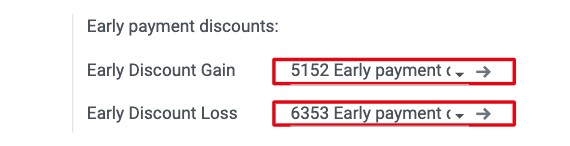
Check the two accounts that record the discounts in Accounting ‣ Configuration ‣ Settings, section Early payment discounts: Early Discount Gain (discounts you receive from your suppliers) and Early Discount Loss (discounts you grant to your customers). The Vietnamese chart of accounts fills them in with 5152 Early payment discounts received and 6353 Early payment discounts granted.
![Early payment discounts accounts in the Accounting settings]()
Know how a payment term splits an invoice into installments.
How do I set up a payment term with a cash discount?
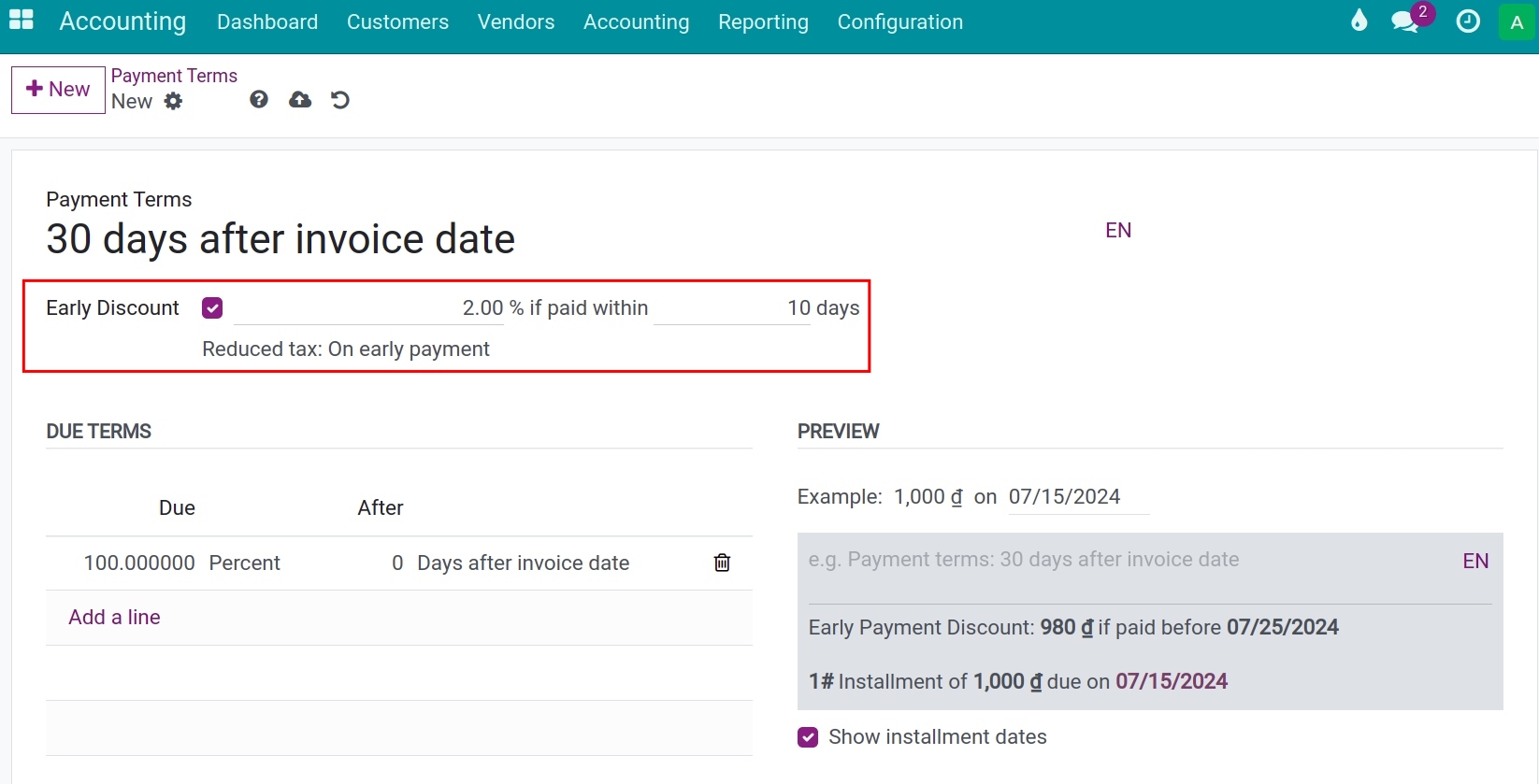
The example below gives 2% to a customer who pays within 10 days of the invoice date, and otherwise expects payment within 30 days.
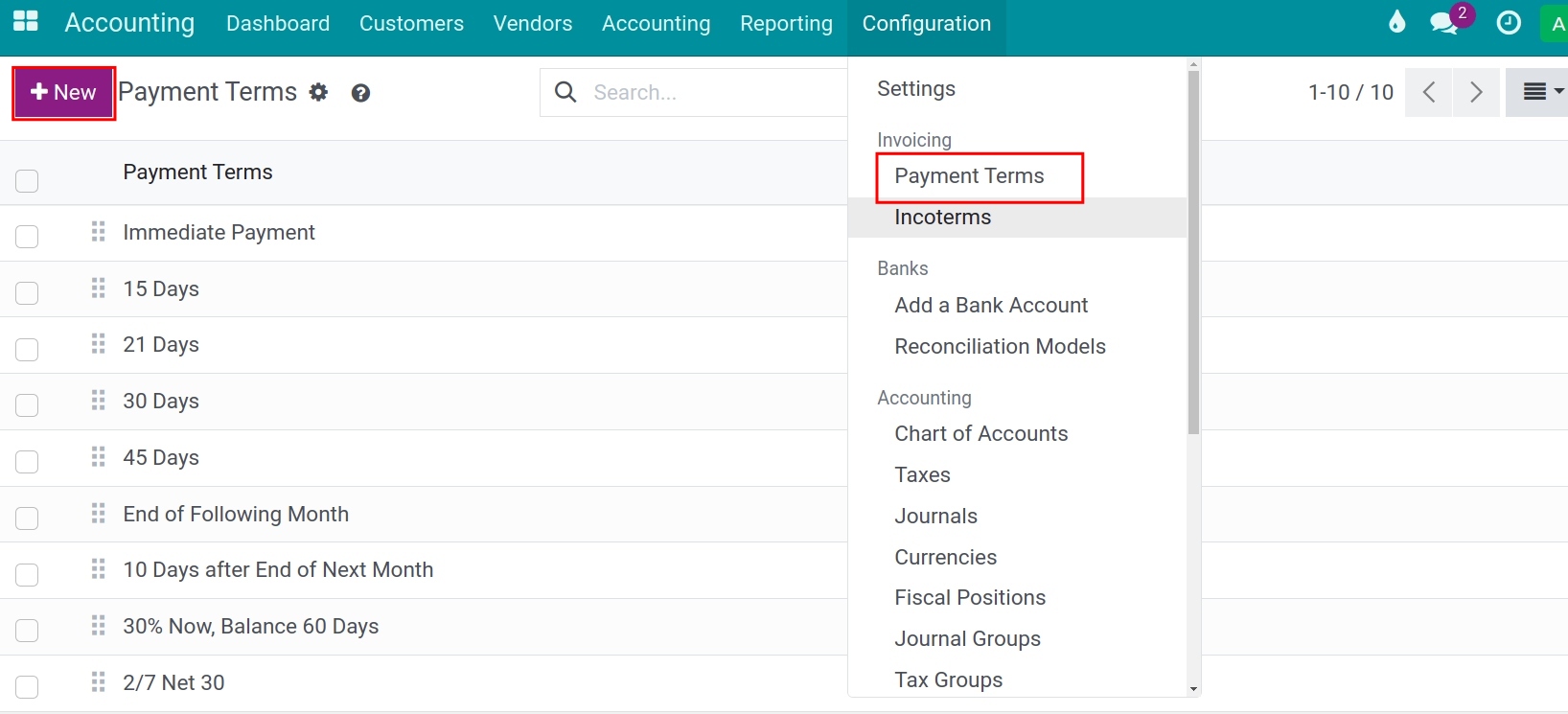
Go to Accounting ‣ Configuration ‣ Invoicing ‣ Payment Terms and click New.
![Payment Terms list with the New button]()
Enter the name and, in Due Terms, one line: 100% after 30 days.
Tick Early Discount, then enter the percentage (2) and the number of days (10).
Choose how the tax is reduced (see the table below).
![Payment term with an early discount of 2% if paid within 10 days]()
Which fields matter in the payment term?
Field |
What it affects |
If left empty or wrong |
|---|---|---|
Early Discount |
Switches the discount on. The percentage, the days and the tax option then appear. |
Not ticked: no discount is ever proposed. |
% if paid within … days |
The percentage of the discount and the number of days, counted from the Invoice Date, during which it is granted. |
Payment after the last day: the full amount is proposed. |
Reduced tax |
How the tax follows the discount. See the next table. |
The default of the Vietnamese localization is On early payment. |
Due Terms |
The normal due date and installments of the invoice. |
For an invoice of 11,000,000 VND (10,000,000 before 10% VAT) and a discount of 2%:
Reduced tax |
What Viindoo does |
Customer pays within 10 days |
|---|---|---|
On early payment |
The discount is 2% of the total, and the VAT is reduced in the same proportion when the discount is applied. |
10,780,000 |
Never |
The discount is 2% of the amount before tax; the VAT stays as invoiced. |
10,800,000 |
Always (upon invoice) |
The invoice itself already shows the VAT reduced by the discount (total 10,980,000); the discount is 2% of the amount before tax. |
10,780,000 |
How do I register a payment that gets the discount?
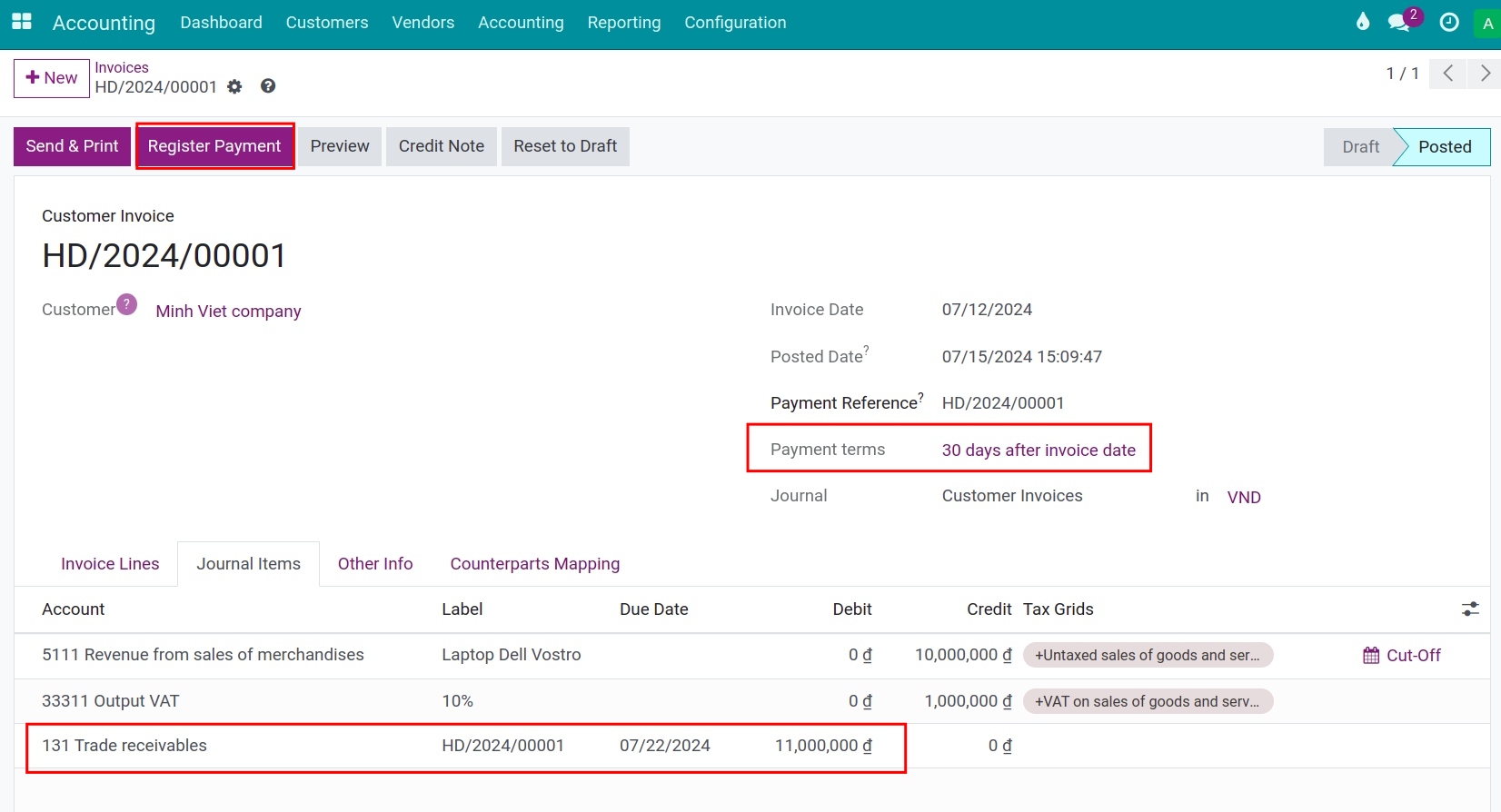
Open the posted invoice that uses the payment term and click Pay.
![Pay button on an invoice whose payment term has an early discount]()
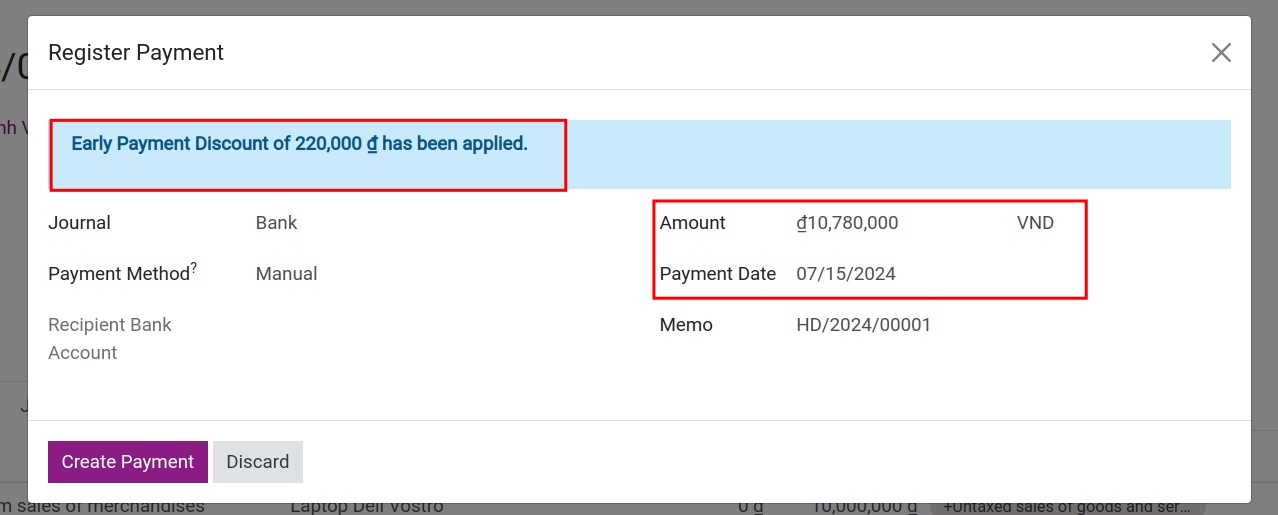
In the Pay pop-up, the message Early Payment Discount of 220,000 has been applied appears and Amount shows the discounted amount. Check the other fields:
Journal: the bank or cash journal that receives the money.
Payment Date: the date on which you receive the money. It decides whether the discount is still granted, so enter the real date.
Memo: the number of the invoice, to find the payment later.
![Pay pop-up with the discounted amount and the early payment discount message]()
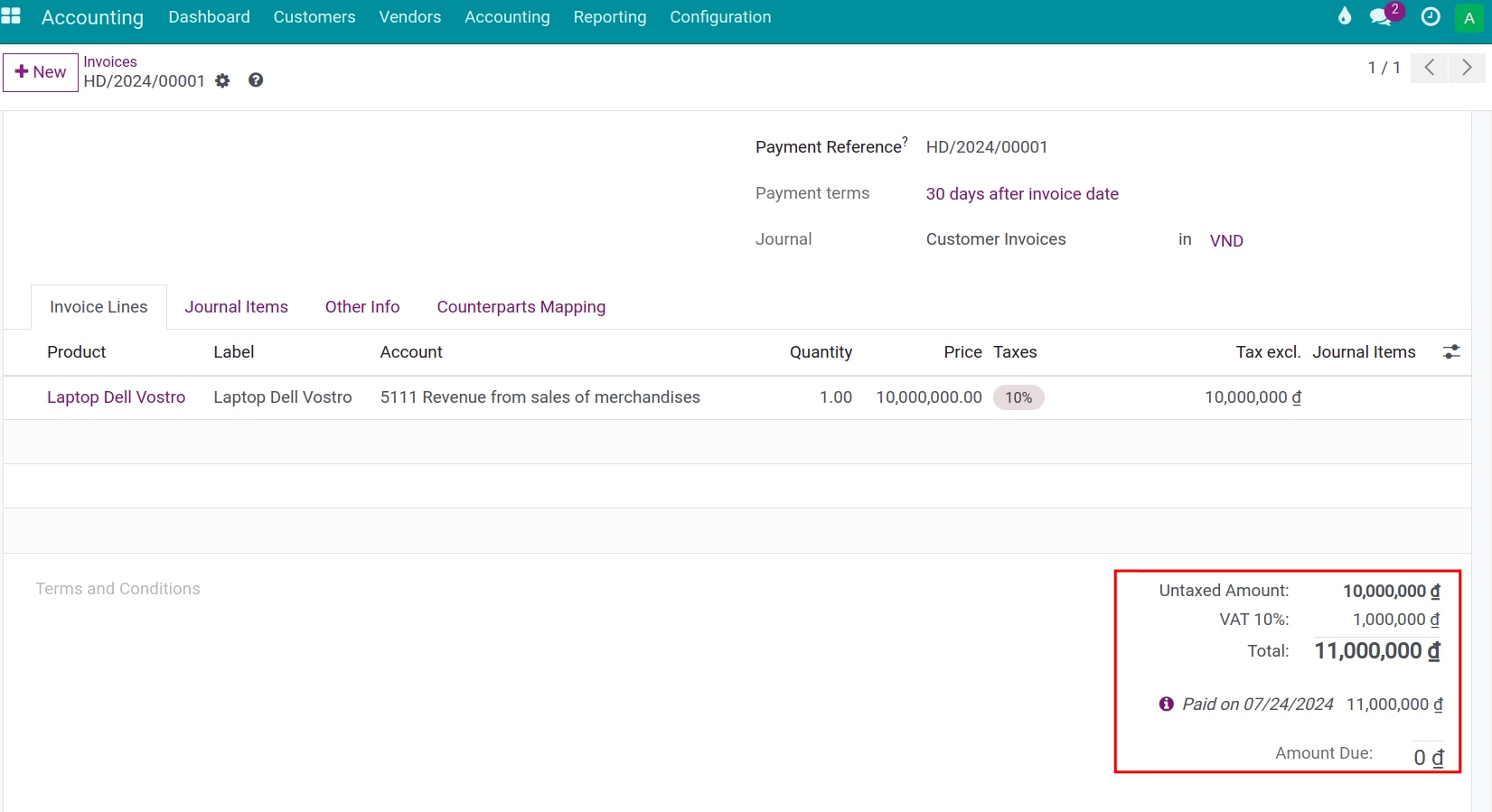
Click Create Payment. The invoice is Paid: the discount is not left as an amount due.
![Paid invoice after a payment with an early discount]()
How is the discount recorded?
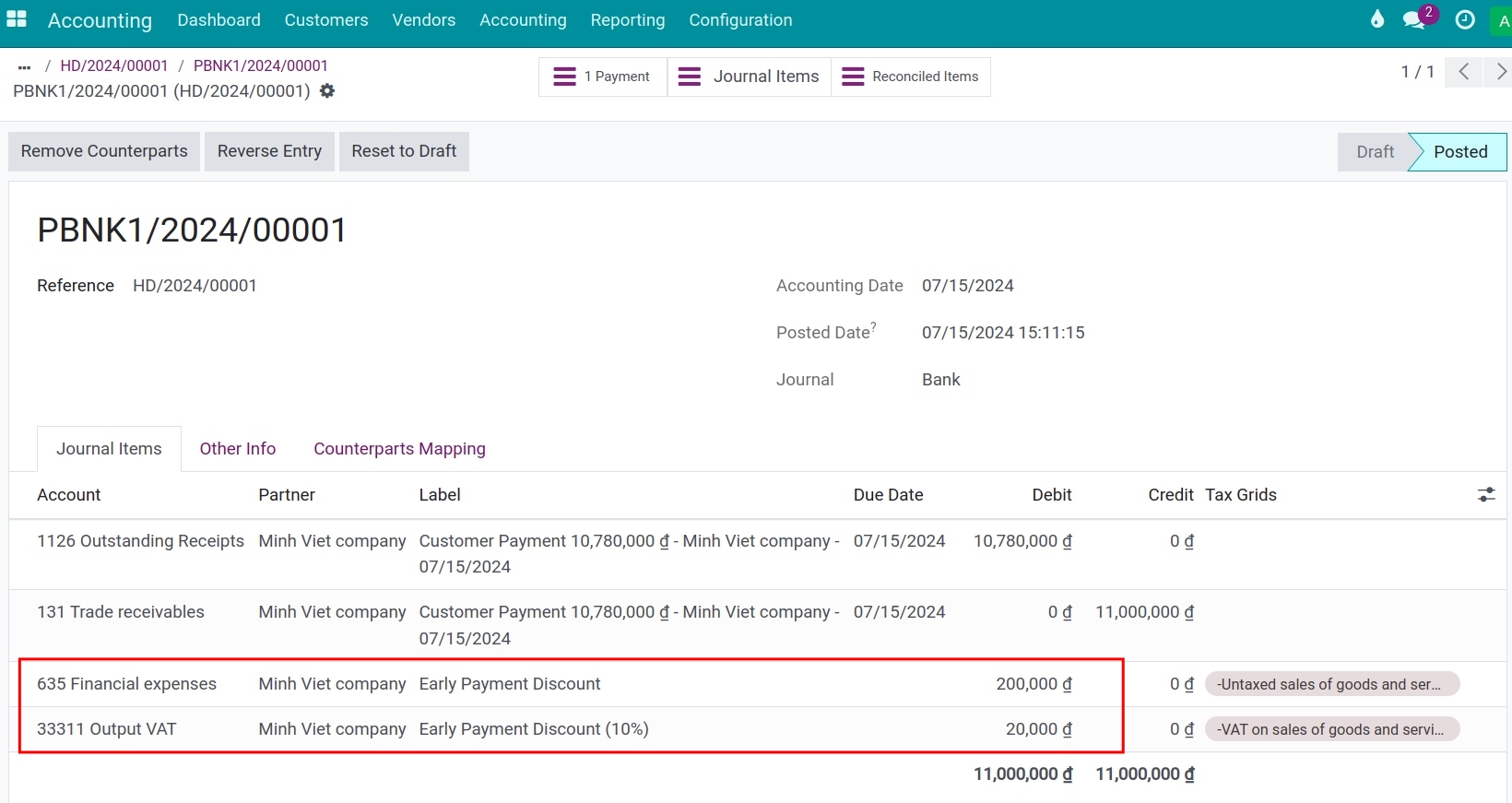
Open the Payment button of the invoice, then its Journal Entry: Viindoo has reconciled the receivable (131) in full, and posted the discount on the account Early Discount Loss. With the option On early payment it also reduces the VAT account (33311) by the part of the tax that the discount covers.
What happens if the customer pays after the discount period?
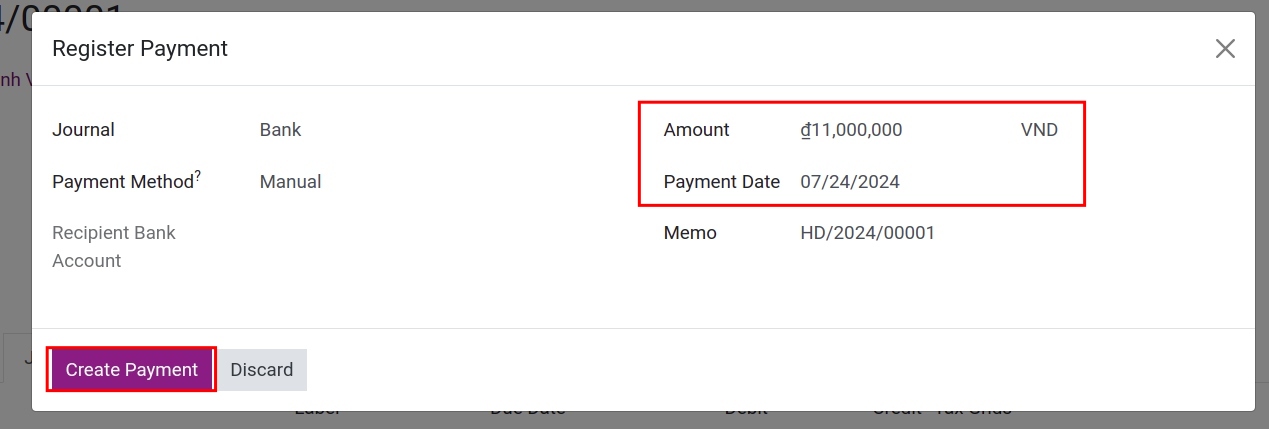
Viindoo does not grant the discount: the Pay pop-up proposes the full amount of the invoice and shows no early payment message. Click Create Payment as usual.
Tip
You can also register the payment from Accounting ‣ Customers ‣ Payments. In that case the discount is not proposed: record it with a journal entry or a reconciliation model.
Expected result
The invoice is Paid and its receivable is fully reconciled.
The payment of a discounted invoice is smaller than the invoice; the difference is posted on the Early Discount Loss account (and on the VAT account with On early payment).
A payment after the discount period has no discount line.
Common errors
Symptom |
What to do |
|---|---|
The Pay pop-up does not show the discount. |
Check that the payment term of the invoice has Early Discount ticked and that the Payment Date is within the days of the discount, counted from the invoice date. |
The discount is not proposed when paying from Customers ‣ Payments. |
Register the payment from the invoice with Pay, so that Viindoo can apply the discount. |
The discount account of the entry is not the one you expected. |
Check Early Discount Loss in Accounting ‣ Configuration ‣ Settings. |
Next steps
How to set up payment terms: split an invoice into installments.
How to record customer payments: all the ways to record a customer payment.
How to configure the cash rounding method: round the amount to the smallest banknote in use.
Version notes
The Pay button replaces Register Payment of earlier versions.
The discount is proposed only when you pay from the invoice with Pay.