
How to track products by lot number
To track products by lot, turn on Lots & Serial Numbers in the Inventory settings, set the product to Track Inventory ‣ By Lots, then enter a lot number for every receipt line. Viindoo keeps the stock per lot, so you can count each lot separately and open the Traceability report to see where a lot came from and which customers received it.
Who |
Inventory Administrator to turn on the setting and edit products; Inventory User to assign lot numbers on transfers and count stock. |
App |
Inventory |
Before you start
Install the Inventory app.
Not sure whether you need lots or serial numbers? Read How to choose between lots and serial numbers.
How do I turn on lot tracking?
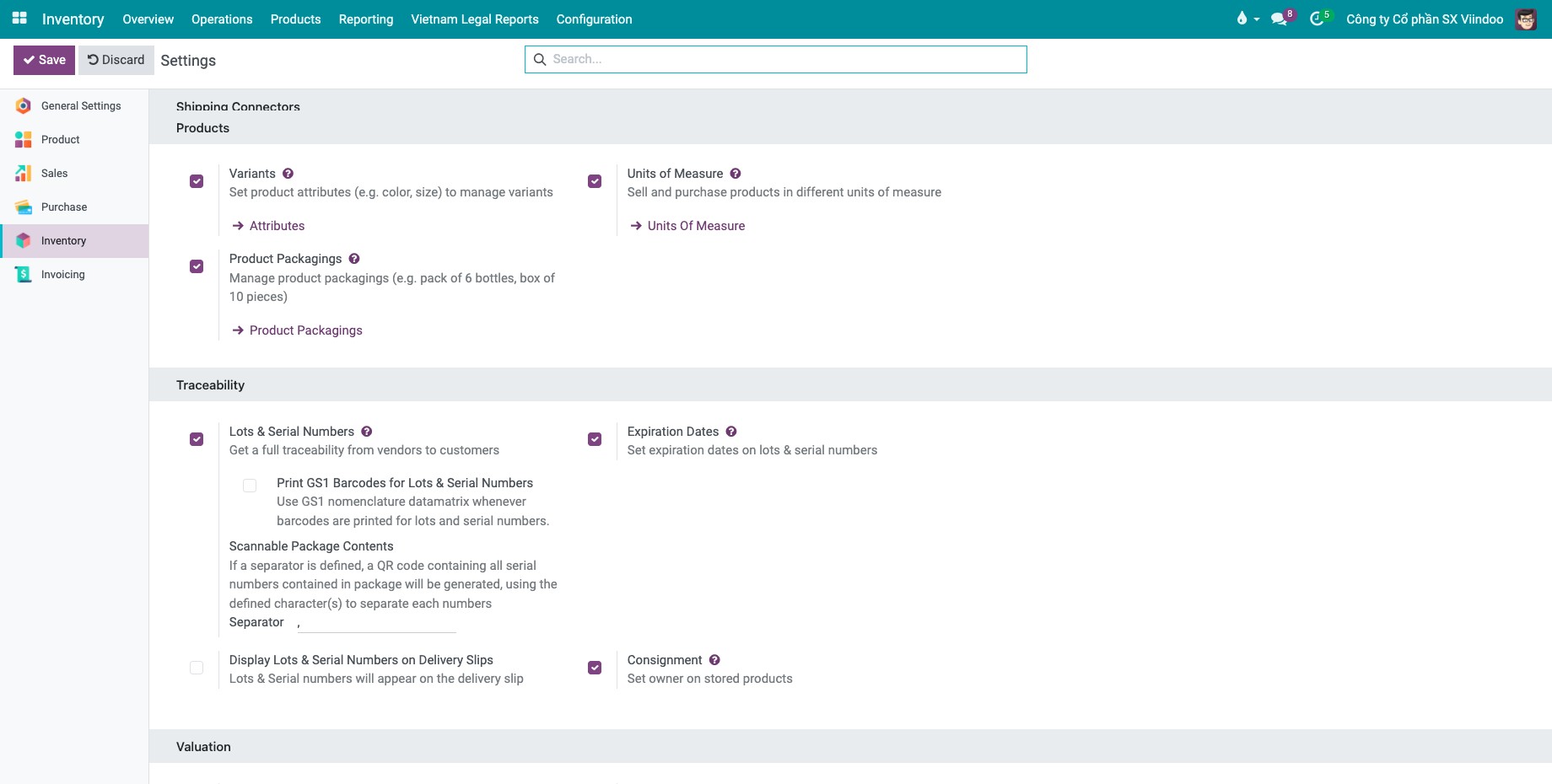
Go to Inventory ‣ Configuration ‣ Settings.
In the Traceability block, tick Lots & Serial Numbers, then click Save.
![Lots & Serial Numbers setting ticked in the Traceability block of the Inventory settings]()
How do I decide when lot numbers are created or reused?
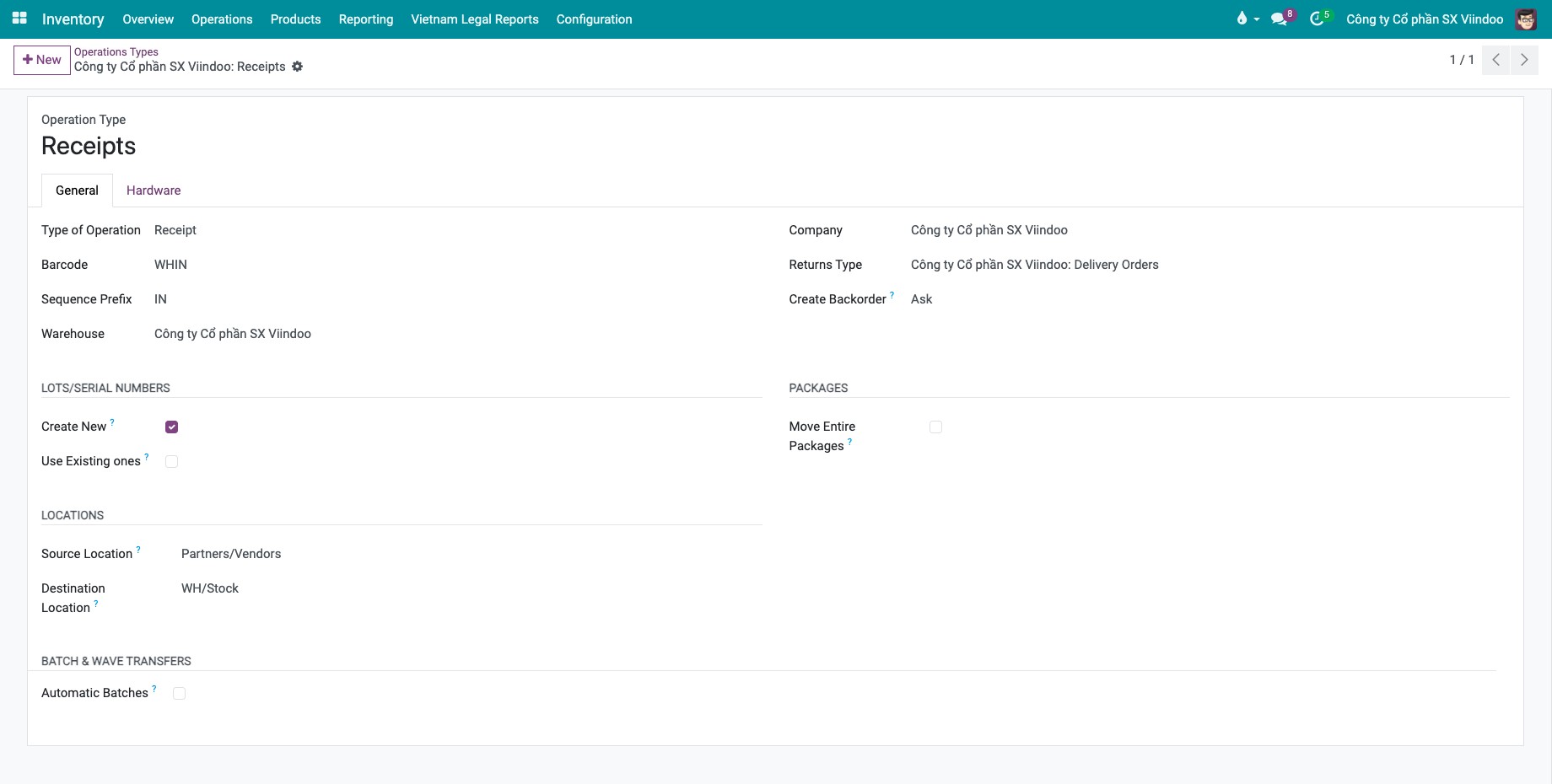
Each operation type tells Viindoo whether staff may create new lot numbers or must pick existing ones.
Go to Inventory ‣ Configuration ‣ Warehouse Management ‣ Operations Types and open an operation type, for example Receipts.
In the Lots/Serial Numbers section, tick the option you need:
![Create New and Use Existing ones options on the Receipts operation type]()
Create New: staff can type a new lot number on the transfer. Keep it ticked on receipts.
Use Existing ones: staff can only pick a lot that already exists. Keep it ticked on delivery orders and internal transfers.
Click Save.
How do I set a product to be tracked by lot?
Go to Inventory ‣ Products ‣ Products and open the product.
On the General Information tab, make sure Product Type is Goods and tick Track Inventory.
In the field next to it, choose By Lots, then click Save.
![Product form with Track Inventory ticked and By Lots selected]()

Note
Stock received before you set the tracking has no lot number. Count it again per lot (see below).
How do I enter lot numbers when receiving goods?
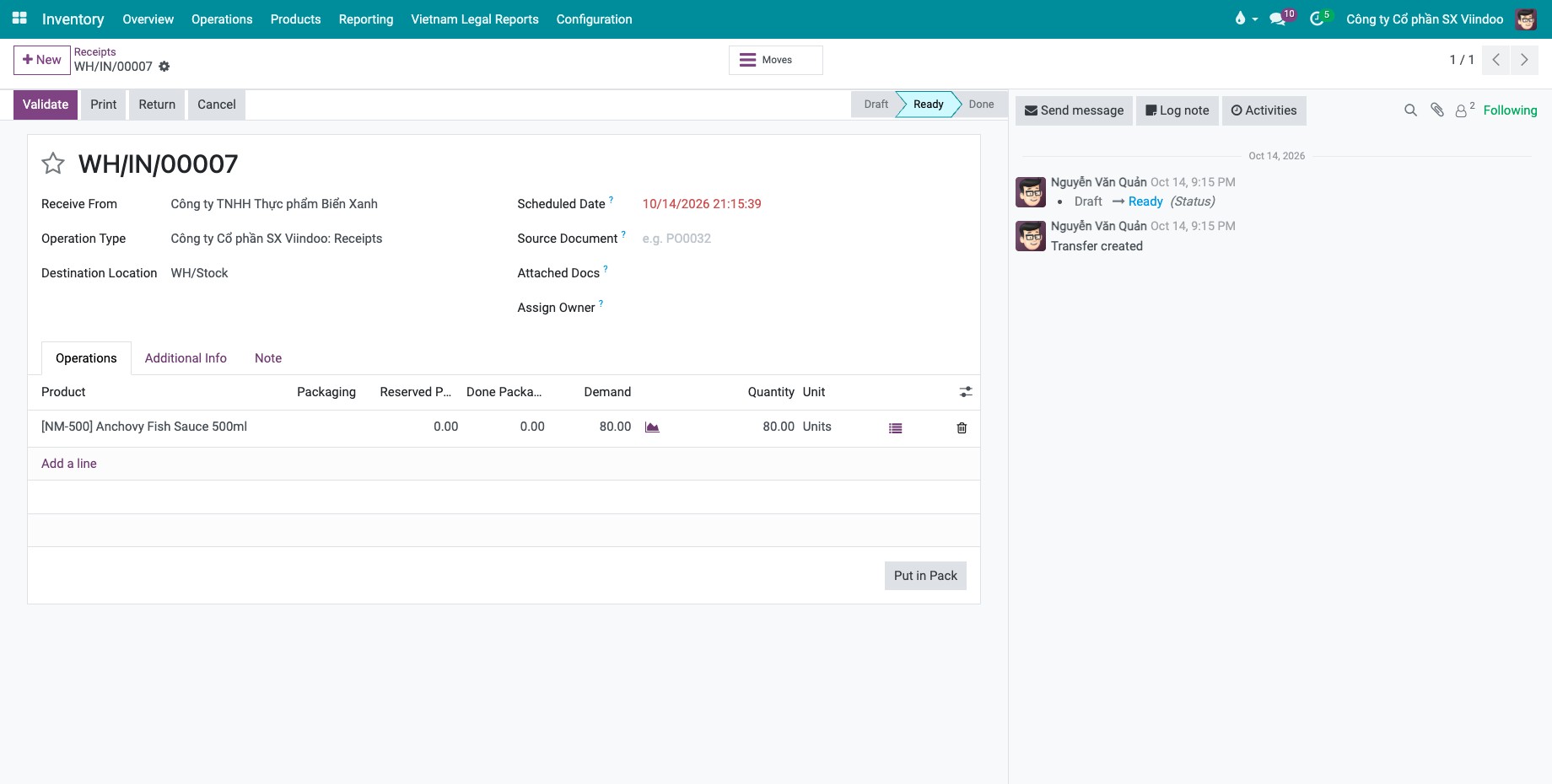
Go to Inventory ‣ Operations ‣ Transfers ‣ Receipts and open the receipt (or click New).
On the product line, click the list icon at the end of the line to open the Detailed Operations window of that line.
![Receipt in the Ready state with one product line of 80 units and the list icon at the end of the line]()
Enter the lots in one of three ways:
Click Add a line, type the number in Lot/Serial Number and the received Quantity.
Click Generate Serials/Lots, fill the table below and click Generate.
Click Import Serials/Lots, paste one lot per line (a tab or semicolon followed by a quantity is accepted) and click Generate.
Field in Generate Serials/Lots
What it does
First Lot Number
The first lot number. It must contain at least one digit; Viindoo counts up from the last number in it (NM261003, NM261004, …).
Quantity per Lot
How many units go into each lot. The last lot takes the remainder.
Quantity Received
Total quantity of the product you received.
Keep current lines
Tick to keep the lines already entered; leave empty to replace them.
![Detailed Operations window with two lot numbers generated for 80 units]()
Click Save, then Validate on the receipt.

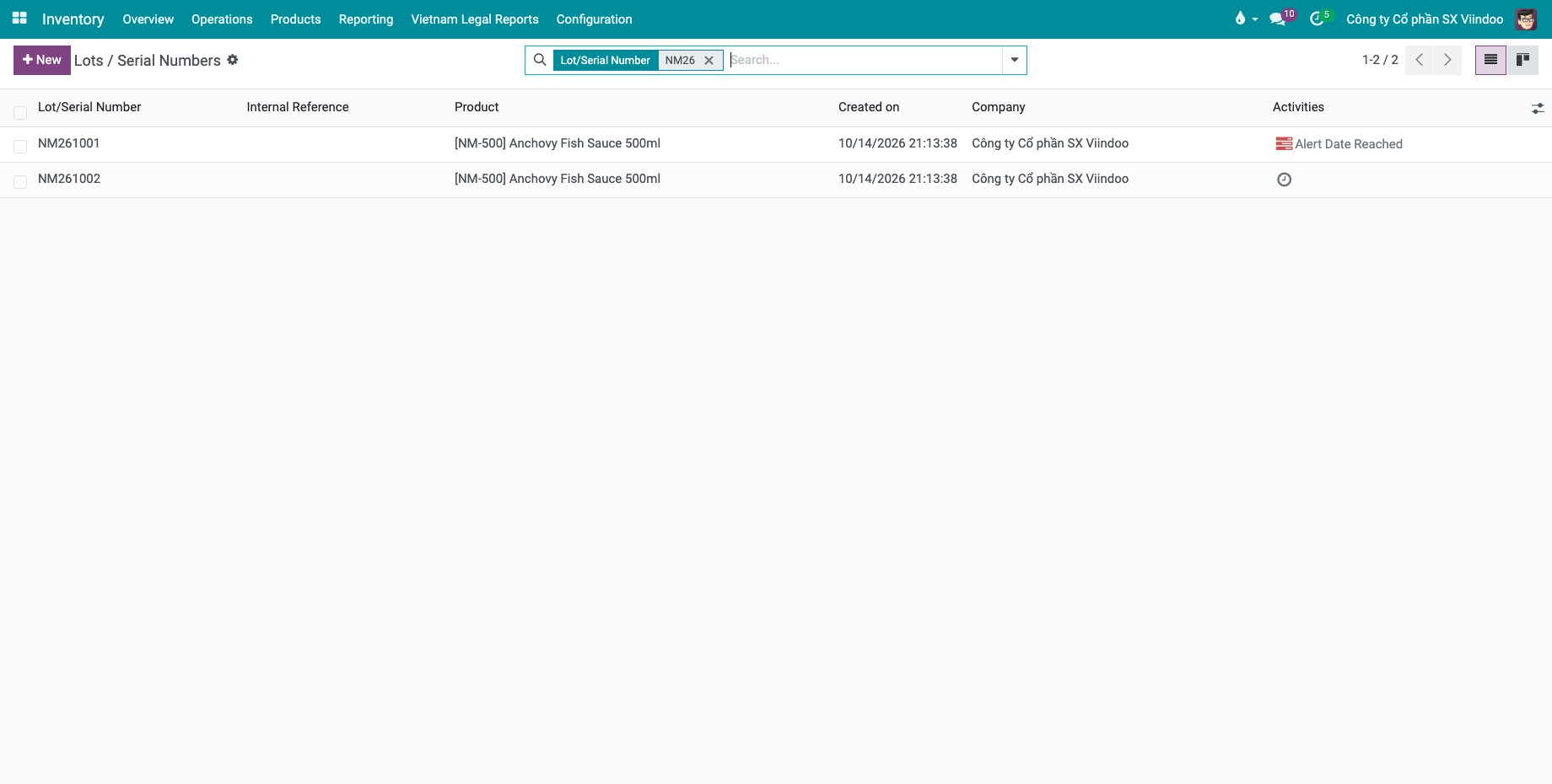
You should now see each lot with its quantity under Inventory ‣ Products ‣ Lots / Serial Numbers.
Tip
Use a code you can read at a glance, for example NM261001: NM for the product, 26 for the year, 10 for the month and 01 for the batch of the month.
How do I count stock per lot?
Go to Inventory ‣ Operations ‣ Adjustments ‣ Physical Inventory. Each lot has its own line with its Lot/Serial Number. Enter the counted quantity of each lot in Counted Quantity, then click Apply on the line.
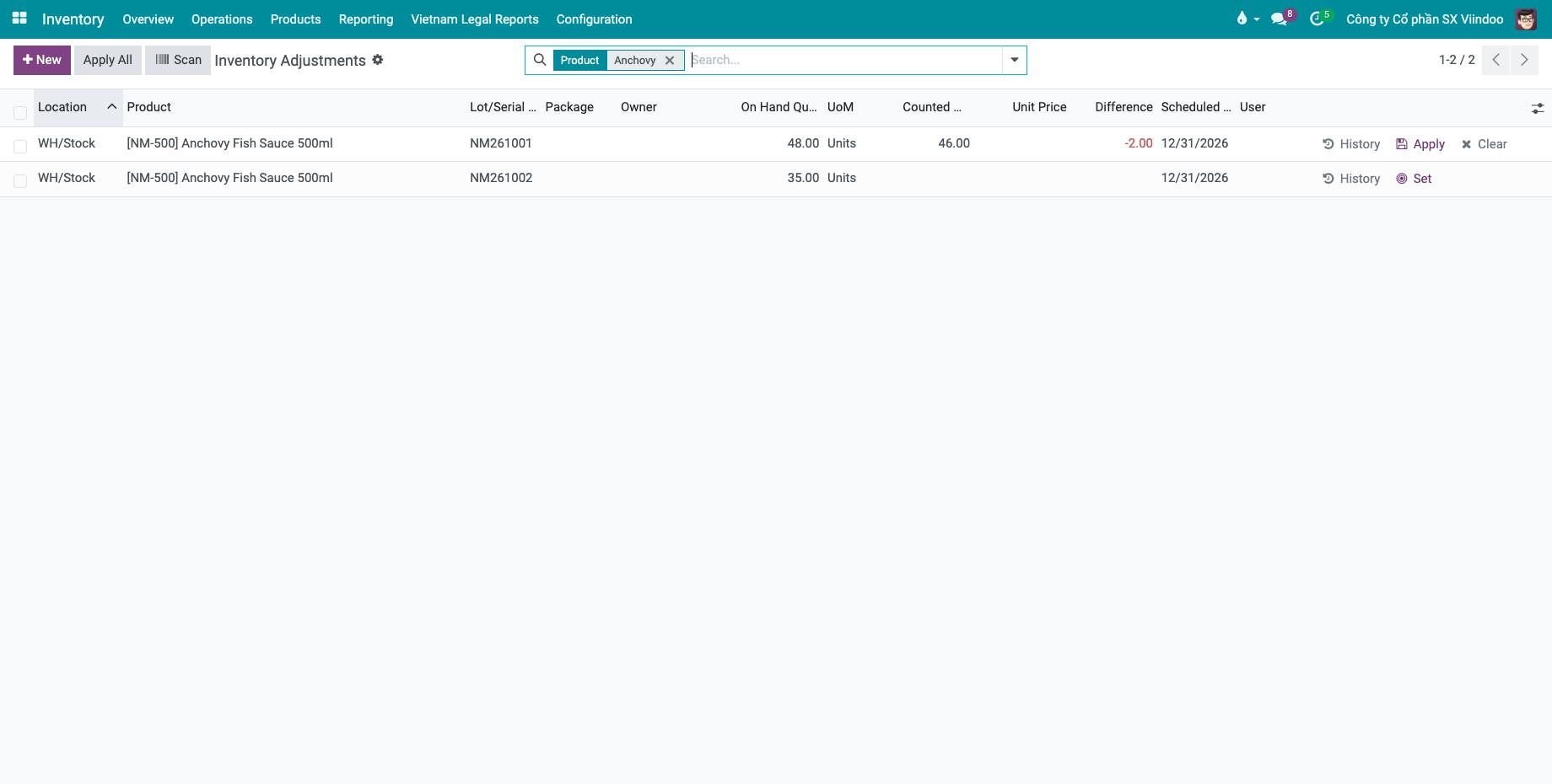
For all the options of this screen, see How to process an inventory adjustment.
How do I trace a lot?
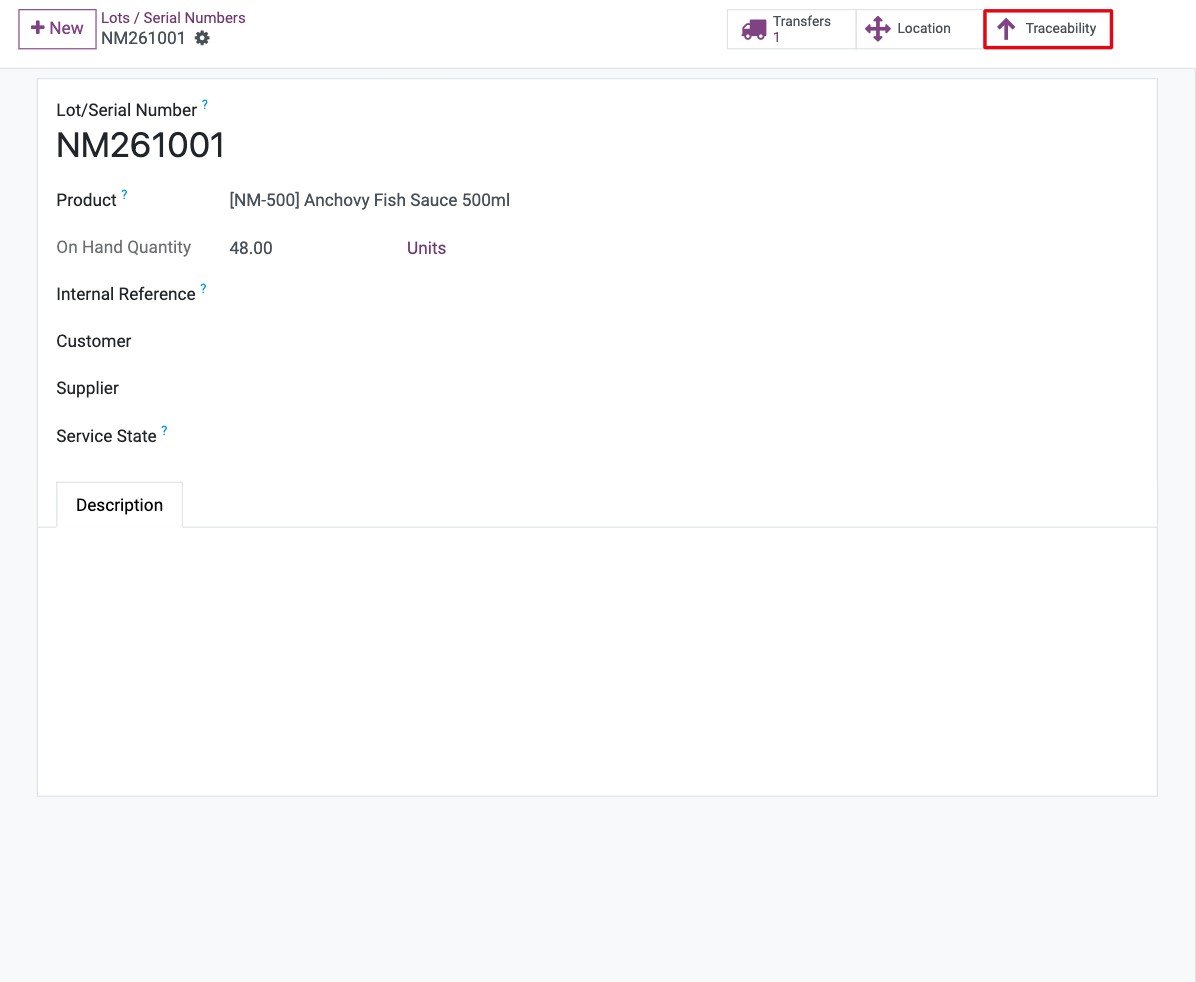
Go to Inventory ‣ Products ‣ Lots / Serial Numbers and open the lot.
Use the buttons at the top of the lot:
Traceability: the movements of this lot, from the vendor receipt to the customer delivery.
Location: where the stock of the lot is now and how many units are there.
Transfers: the transfers that contain this lot (shown once the lot is on a transfer).
![Lot form with the Traceability button highlighted]()
Click Traceability to open the Traceability Report: one line per movement with the reference, date, source, destination and quantity.
![Traceability Report of lot NM261001 with the receipt from the vendor and the delivery to the customer]()
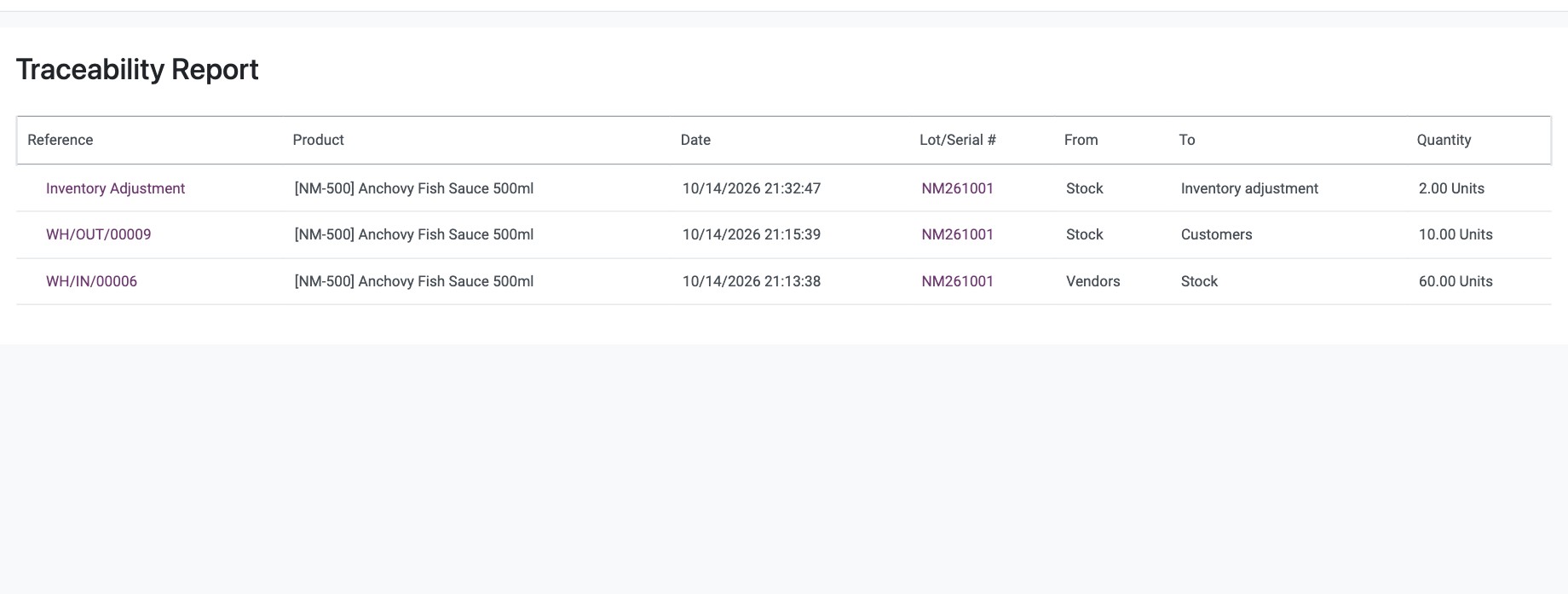
Viindoo also fills the Customer, Supplier and Service State fields of the lot from its transfers.
Common errors
Message |
What to do |
|---|---|
You need to supply a Lot/Serial number for products … |
You clicked Validate while a tracked product has no lot. Open the line details and enter the lot numbers. |
The combination of lot/serial number and product must be unique within a company … |
The lot number already exists for this product. Type a different number, or pick the existing lot if the operation type is Use Existing ones. |
You are not allowed to create a lot or serial number with this operation type … |
The operation type does not allow new lots. Tick Create New on the operation type, or choose an existing lot. |
Next steps
How to manage product expiration dates: give each lot an expiration date.
How to track products by serial number: track every unit one by one.
How to receive goods in one step: the full receipt flow.
Version notes
Track Inventory and the tracking choice are on the General Information tab of the product.