
Guideline to timesheet in the project
Viindoo software allows recording employee’s timesheet in multiple different ways, approving timesheet, and managing employee’s timesheet. Afterward, managers can clearly understand the capabilities of each employee as well as the cost of that project.
Requirements
This tutorial requires the installation of the following application:
OmniApproval™ - Timesheet Approvals (only to approve timesheets)
Recording Timesheets
Using the timesheet feature
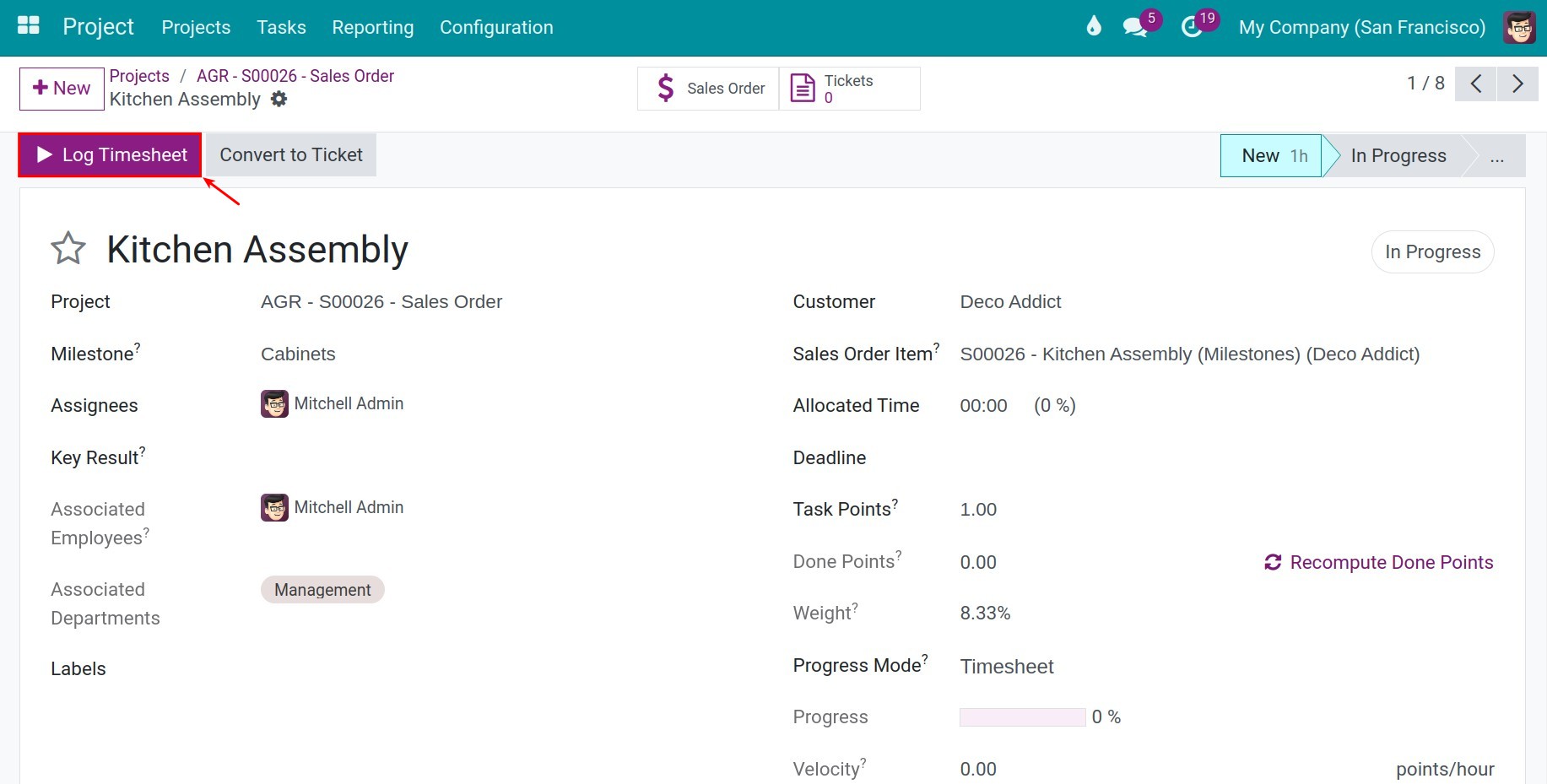
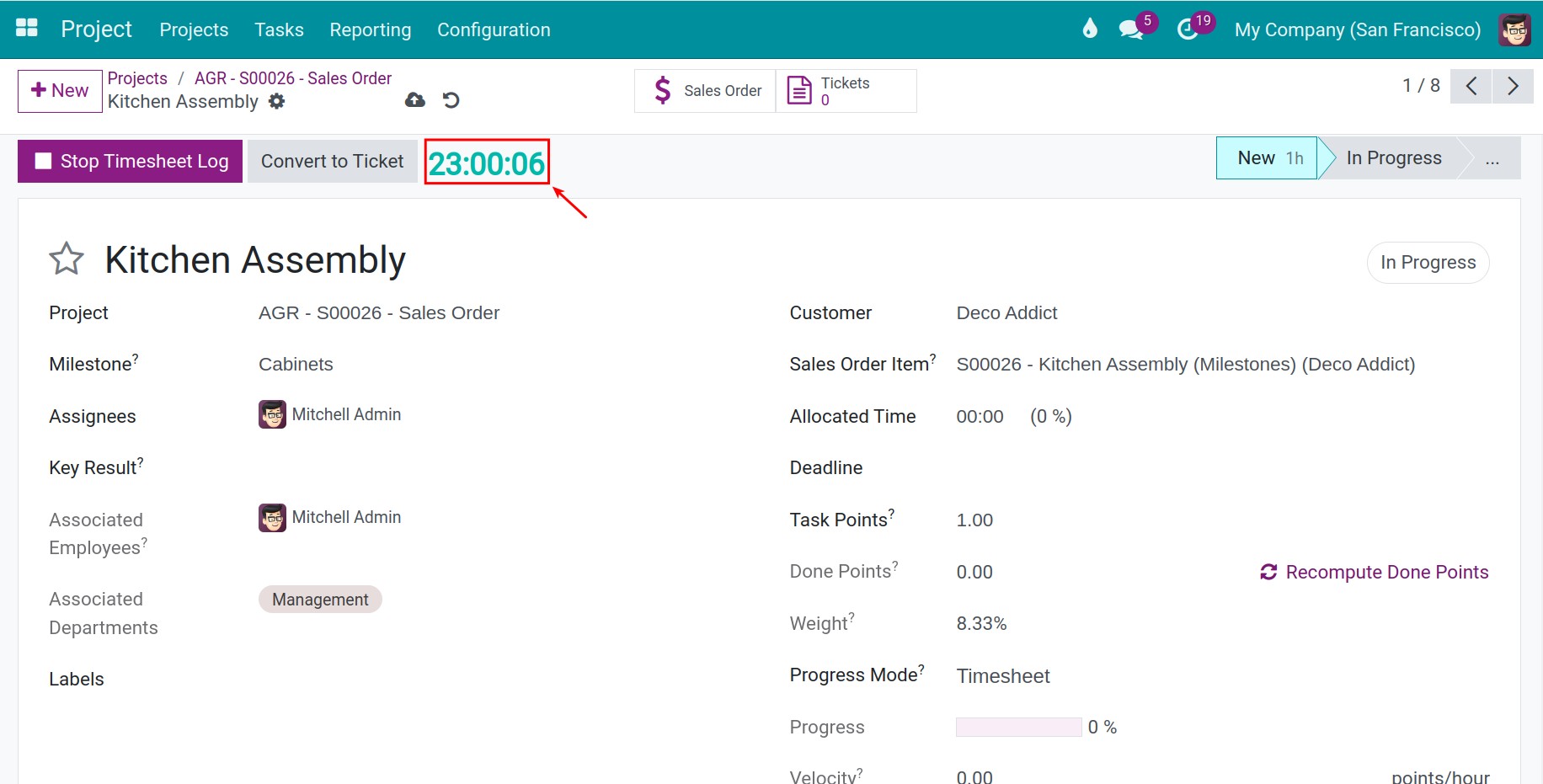
You go to any task in project application. You press the Log Timesheet button. Then, you will see the time automatically start running on this interface. If you have already logged time on this task, the clock continues from the total of your finished entries.
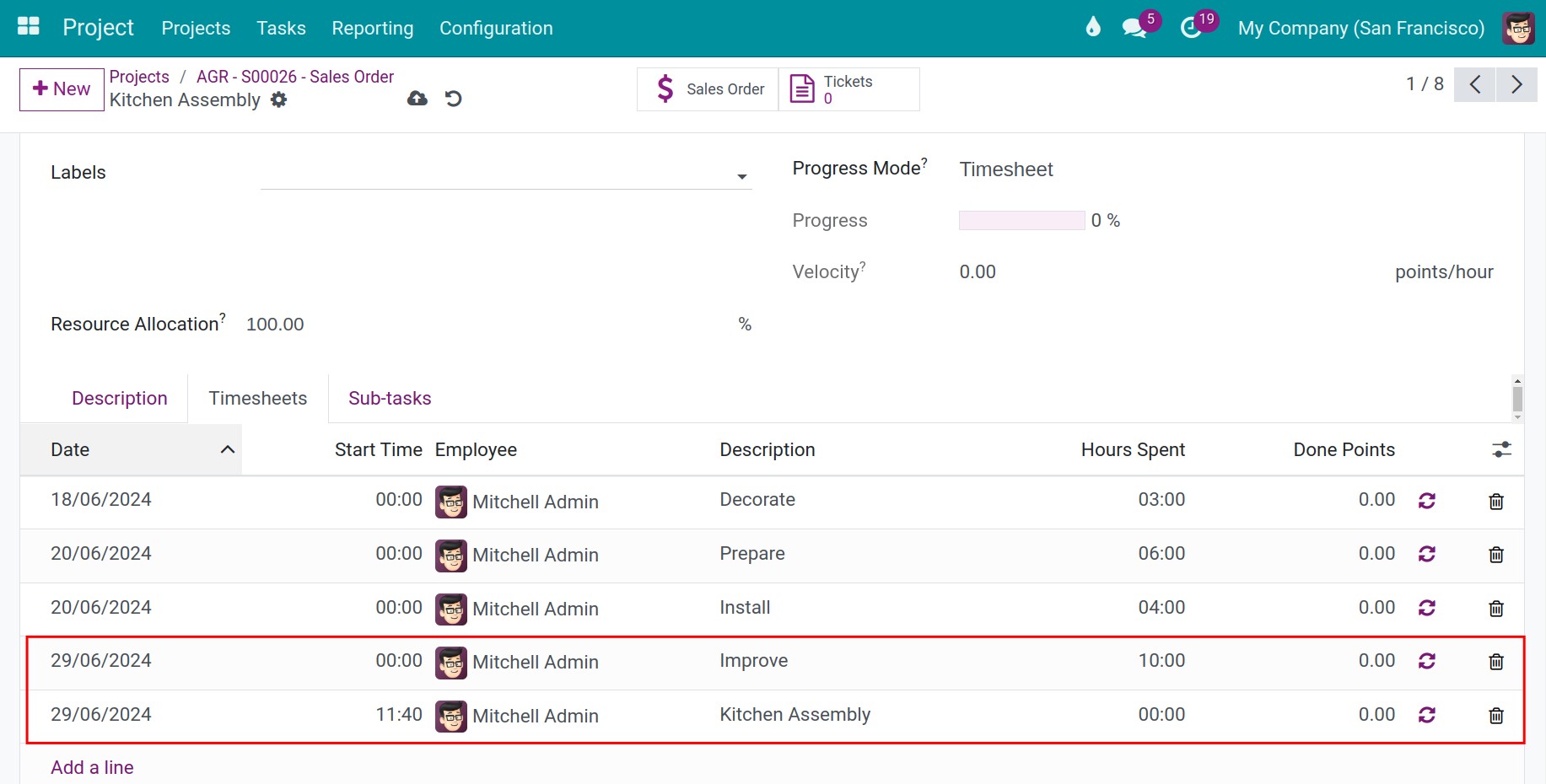
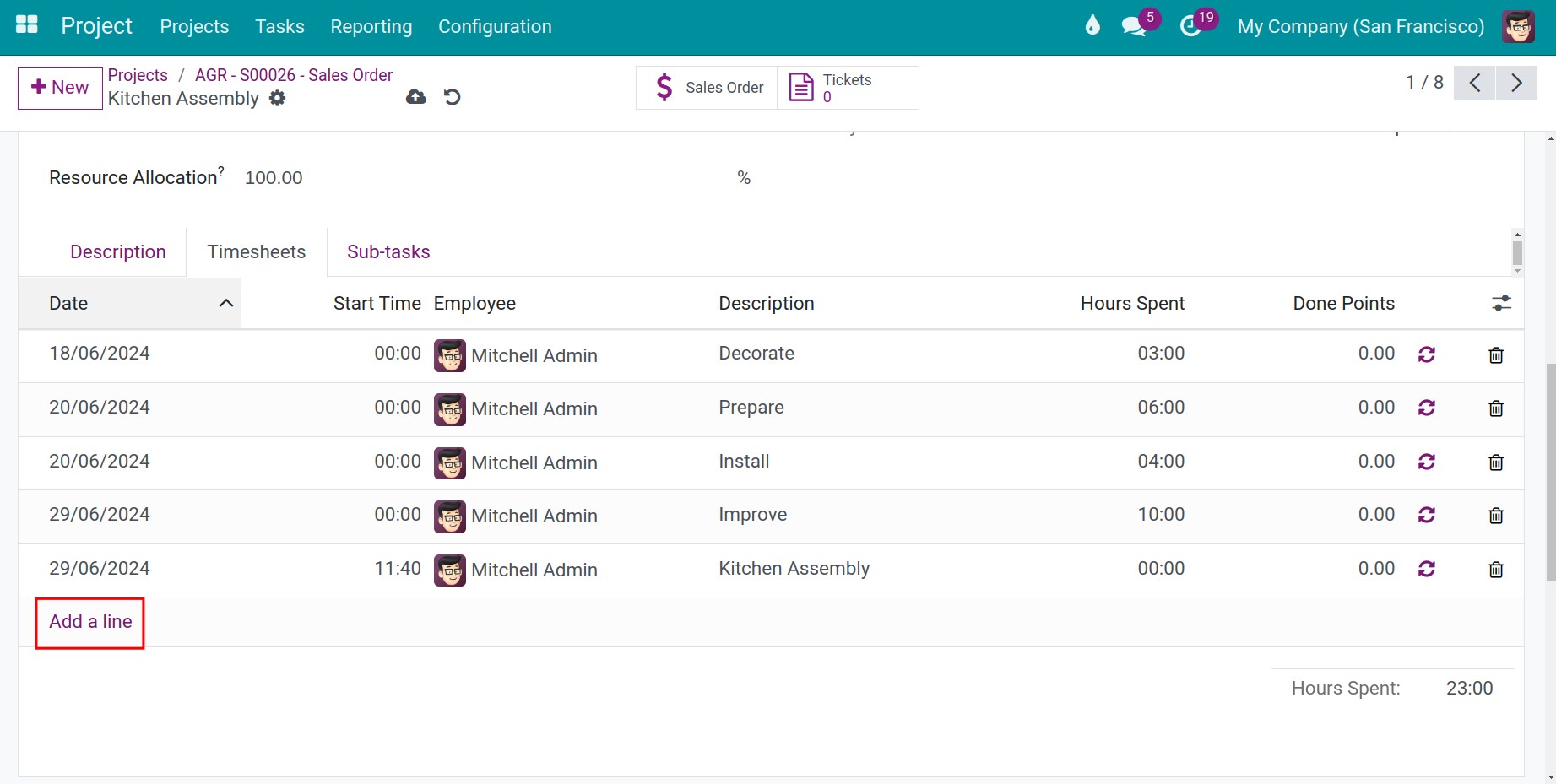
Furthermore, when you click on Timesheets tab, you will see the system automatically generate a timesheet line entry with zero hours which is displayed on Time Spent field. In this line, there are some fields you need to notice as follow:
Date: The day you want to log in your timesheet.
Employee: Employee’s name you want to log in timesheet. With a employee normally, you will only see your own name.
Description: Describe this timekeeping line
Time Spent: The time you want to log in.
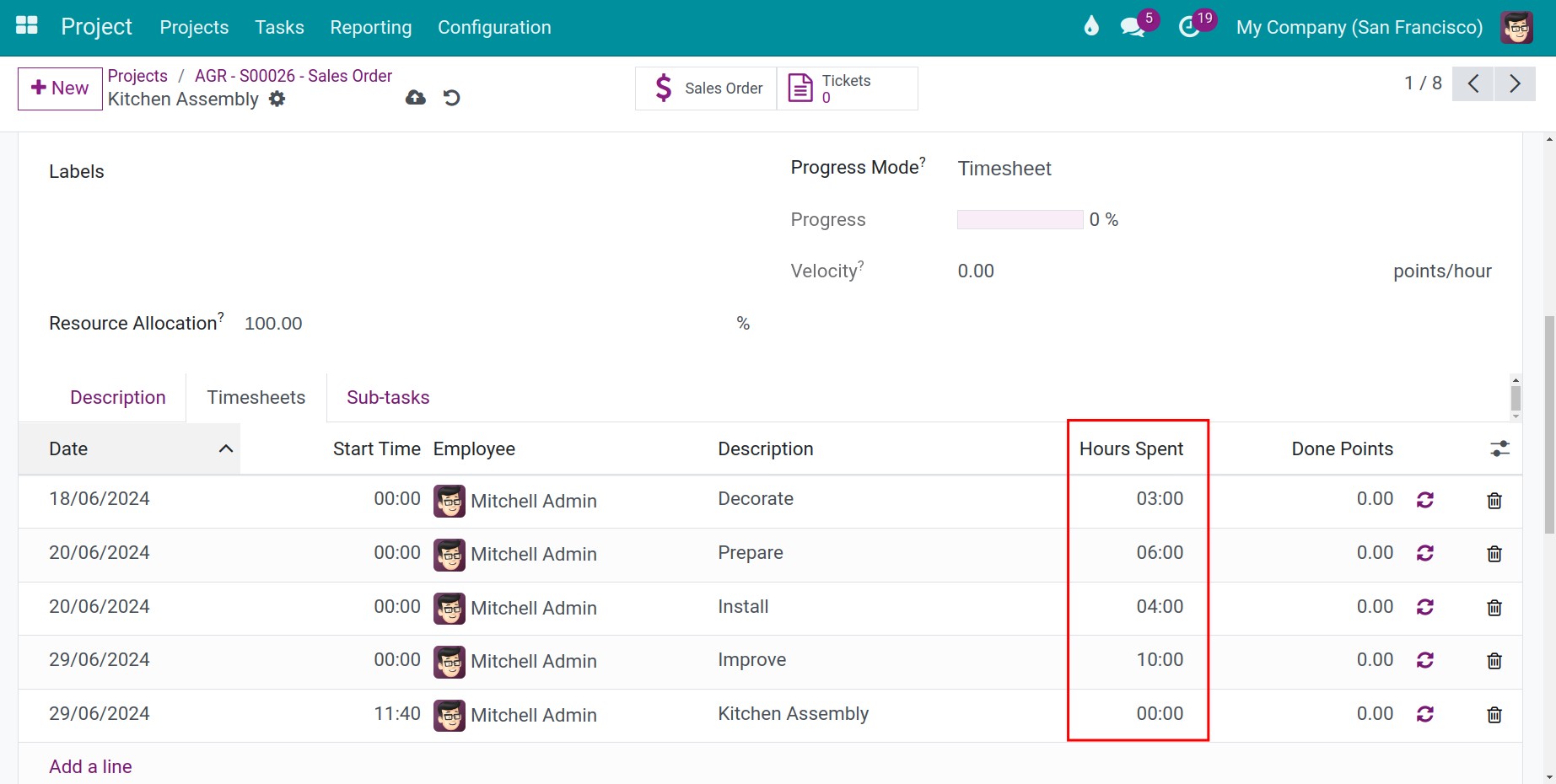
However, when you press the Stop Timesheet Log button, the timesheet line will update and you can see the change by Time Spent field.
Recording timesheets proactively
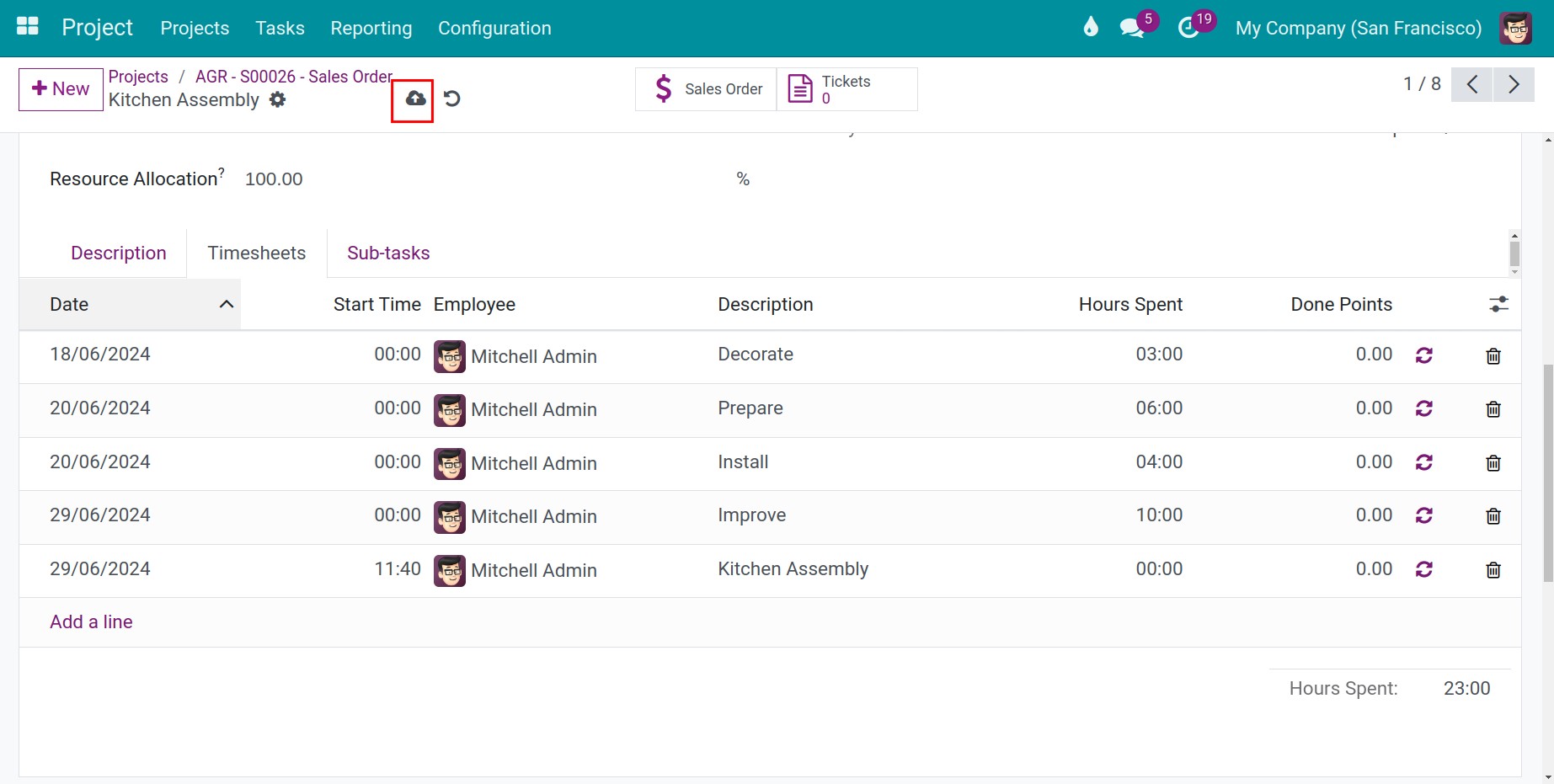
At Timesheets tab in this interface, you click on the Add a line button. Then, you start entering the detailed information for your timesheet entry and click on the save icon
Employee Timesheet Management
Timesheet approval is handled by the OmniApproval engine of the Approval app. Employees pick the timesheet lines they want to send and click Get Approved; Viindoo creates one approval request for all of those lines and asks the approvers one after the other. When every required approver has approved, the timesheet lines become Approved.
Who |
Employees send their own timesheets. The project manager and the employee’s direct manager approve: they need the Approvals access right of Team Approver or higher and the Timesheets access right User: all timesheets or higher. Setting up the approval type needs Approvals ‣ Administrator. |
App |
Timesheets or Project, with Approval |
Before you start
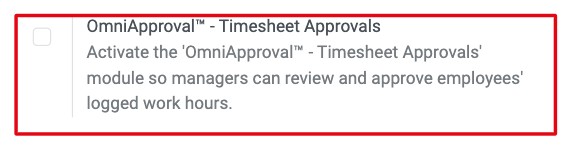
Install the module OmniApproval™ - Timesheet Approvals: go to Approval ‣ Configuration ‣ Settings, find OmniApproval™ - Timesheet Approvals in the Integration block, tick it and click Save. Viindoo creates the approval type Timesheet for you.
![The OmniApproval Timesheet Approvals option in the Approval settings]()
Make sure each employee has a direct manager who has a user account, and that the project has a project manager.
Read which timesheets need approval: employees whose contract does not require approval have their timesheets approved automatically.
How do I send my timesheets for approval?
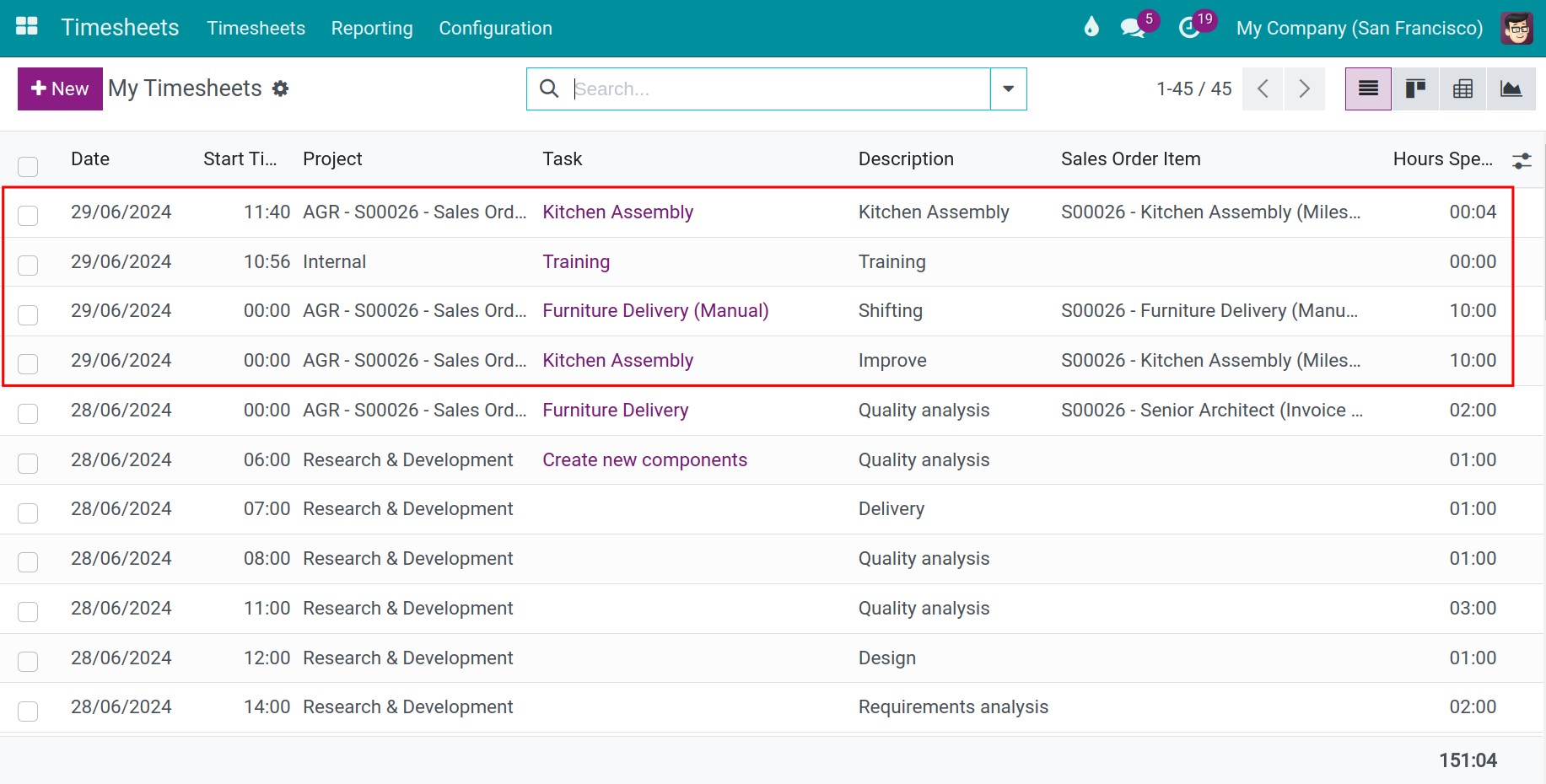
Go to Timesheets ‣ Timesheets ‣ My Timesheets (or open the Timesheets list of a project). Tick the lines in Draft that you want to send, then click Actions ‣ Get Approved.
![Timesheet lines ticked in the list with the Get Approved action in the Actions menu]()
Note
Get Approved only appears when every ticked line can be approved: the line must have an employee and a project, must be in Draft, and must not come from a time off request.
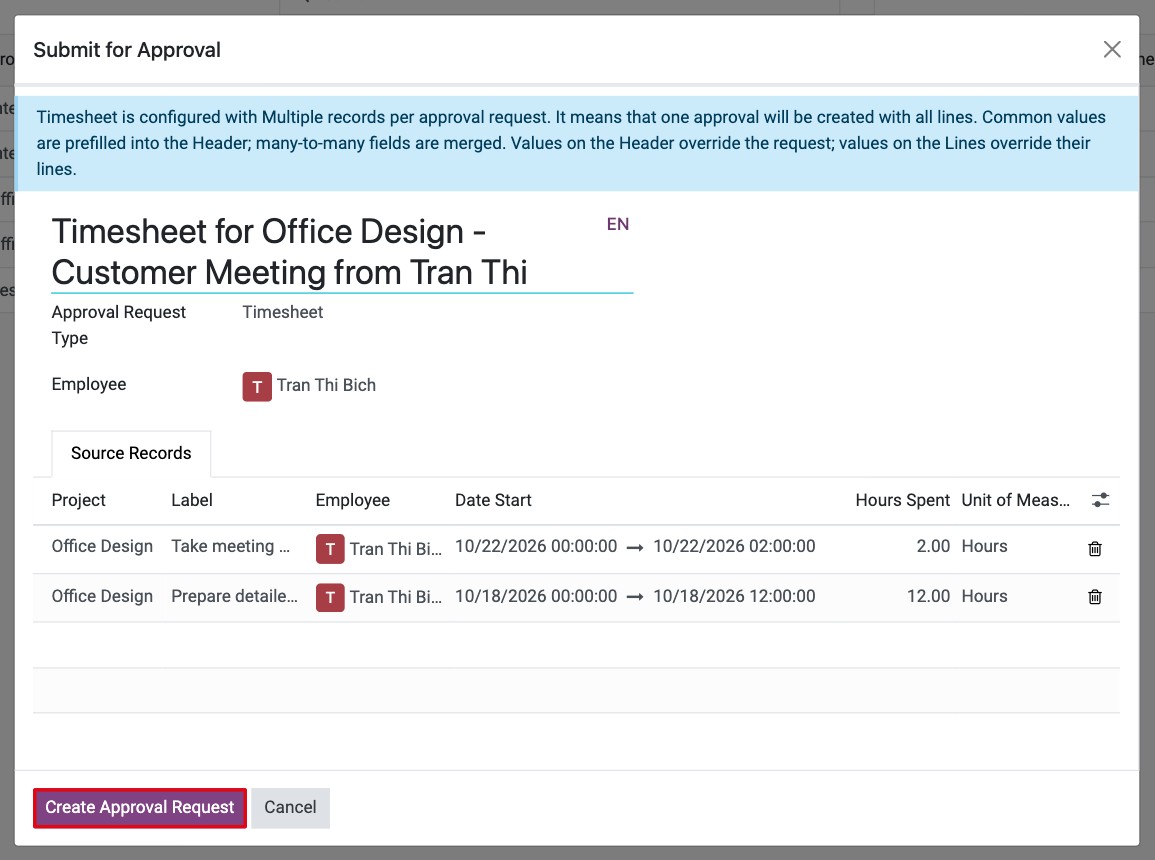
In the Submit for Approval window, check the title and the lines, then click Create Approval Request. The window shows one approval request for all the lines; you can remove a line with the bin icon.
![The Submit for Approval window listing the timesheet lines of the request]()
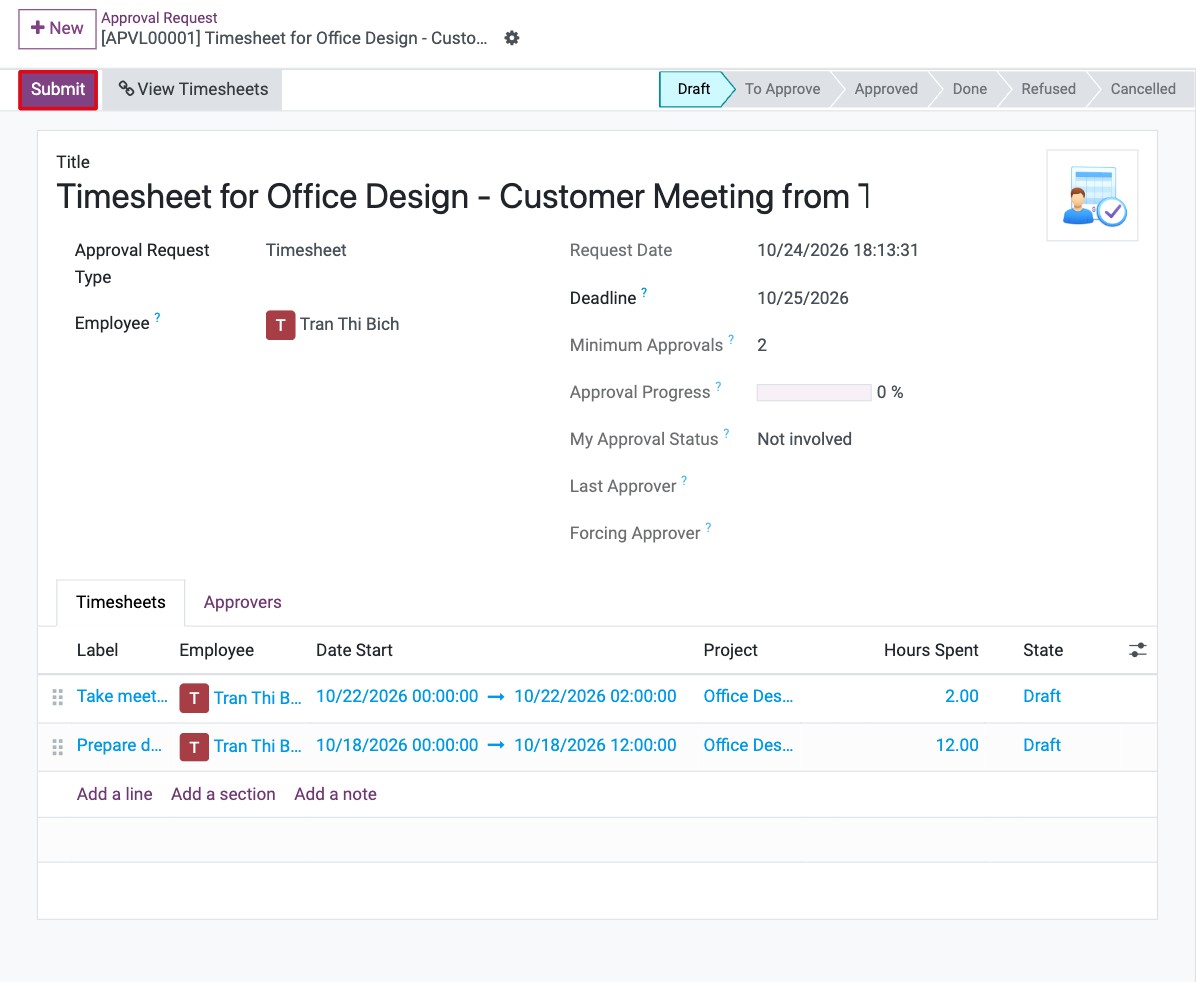
The request opens in Draft. Click Submit.
![The approval request in Draft with the Submit button highlighted]()
The request moves to To Approve. Open the Approvers tab to see who must approve and in which order. The Next Approver(s) field shows who is expected to act now.
![The Approvers tab of the timesheet approval request]()
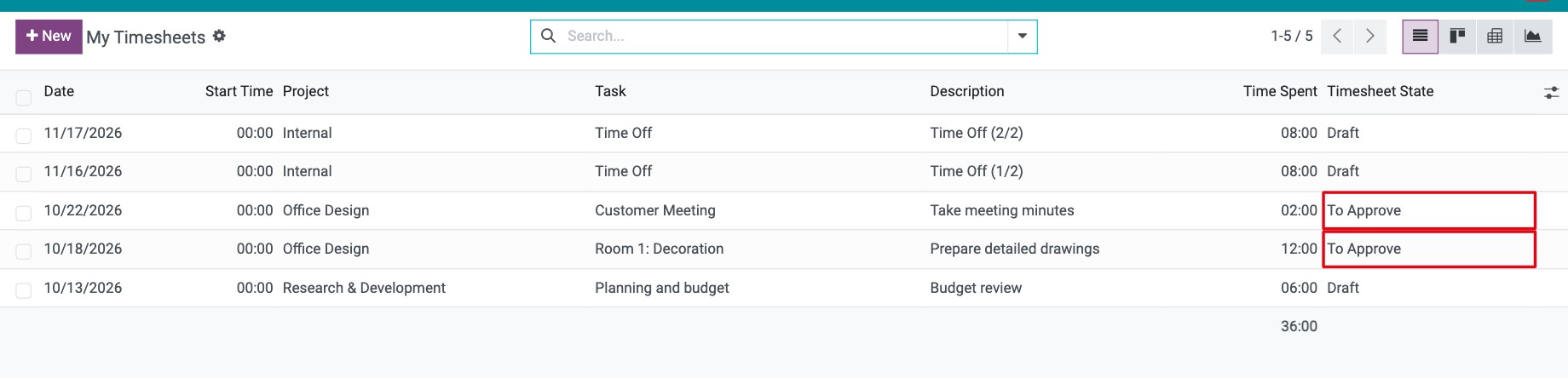
Back in Timesheets, the Timesheet State of the lines is now To Approve. The lines stay open: see how to correct them.
![Timesheet lines in the To Approve state]()

Can I correct my hours while the request is pending?
Yes. Timesheet lines stay open while their request is waiting for approval. You can change a line, for example its hours, or delete it, and the approval carries on. Each change is written in the discussion thread of the request as a note listing the old and the new value, so the approver always sees what moved after submission. Deleting a line leaves the request in place and adds a note that a linked document was deleted.
How do approvers approve timesheets?
The approvers are the project manager (optional by default), the employee’s direct manager (required by default) and any extra approvers set in the approval type. With the default Sequential Approvals setting they are asked in this order: project manager, then direct manager.
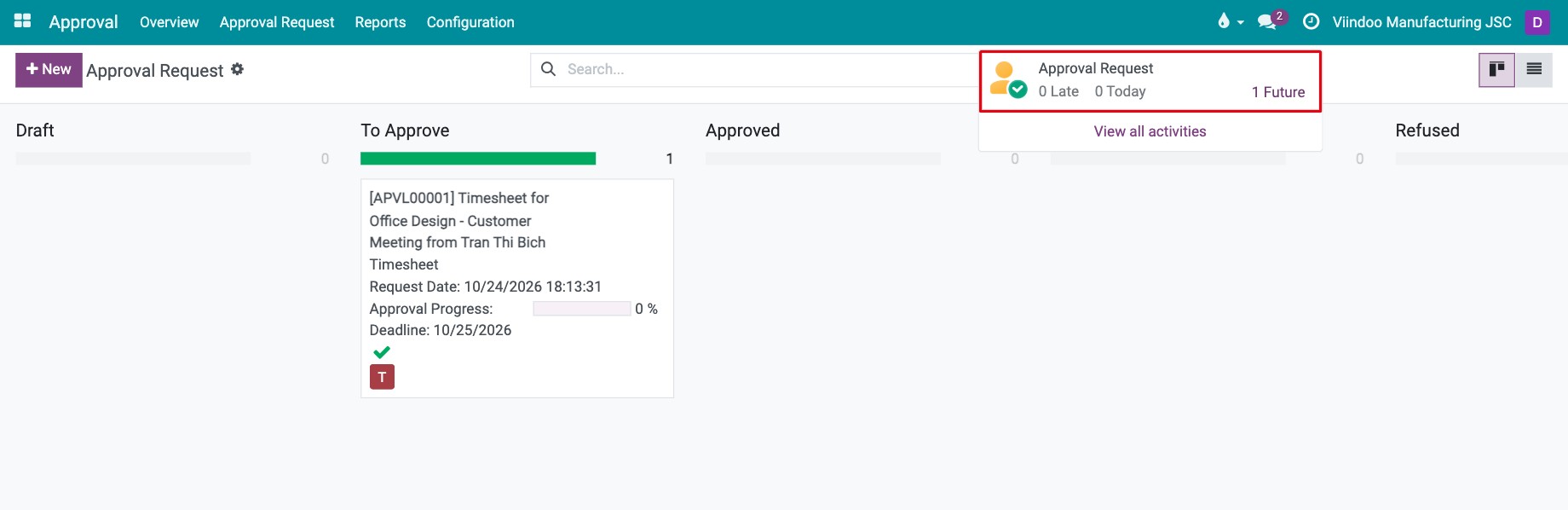
Each approver receives a scheduled activity of the approval request. Open it from the clock icon in the top bar, or go to Approval ‣ Approval Request.
![The approval request activity in the top bar of the first approver]()
Open the request, review the timesheet lines, then click Approve.
![The project manager clicking Approve on the timesheet approval request]()
The next approver sees the Approve button only after the previous one has acted. The Approvers tab shows who has already approved. When the last required approver clicks Approve, the request moves to Approved.
![The direct manager approving after the project manager]()
![The timesheet approval request in the Approved state]()
The employee can follow the result in Timesheets: the Timesheet State of the lines is now Approved.
![Timesheet lines in the Approved state]()
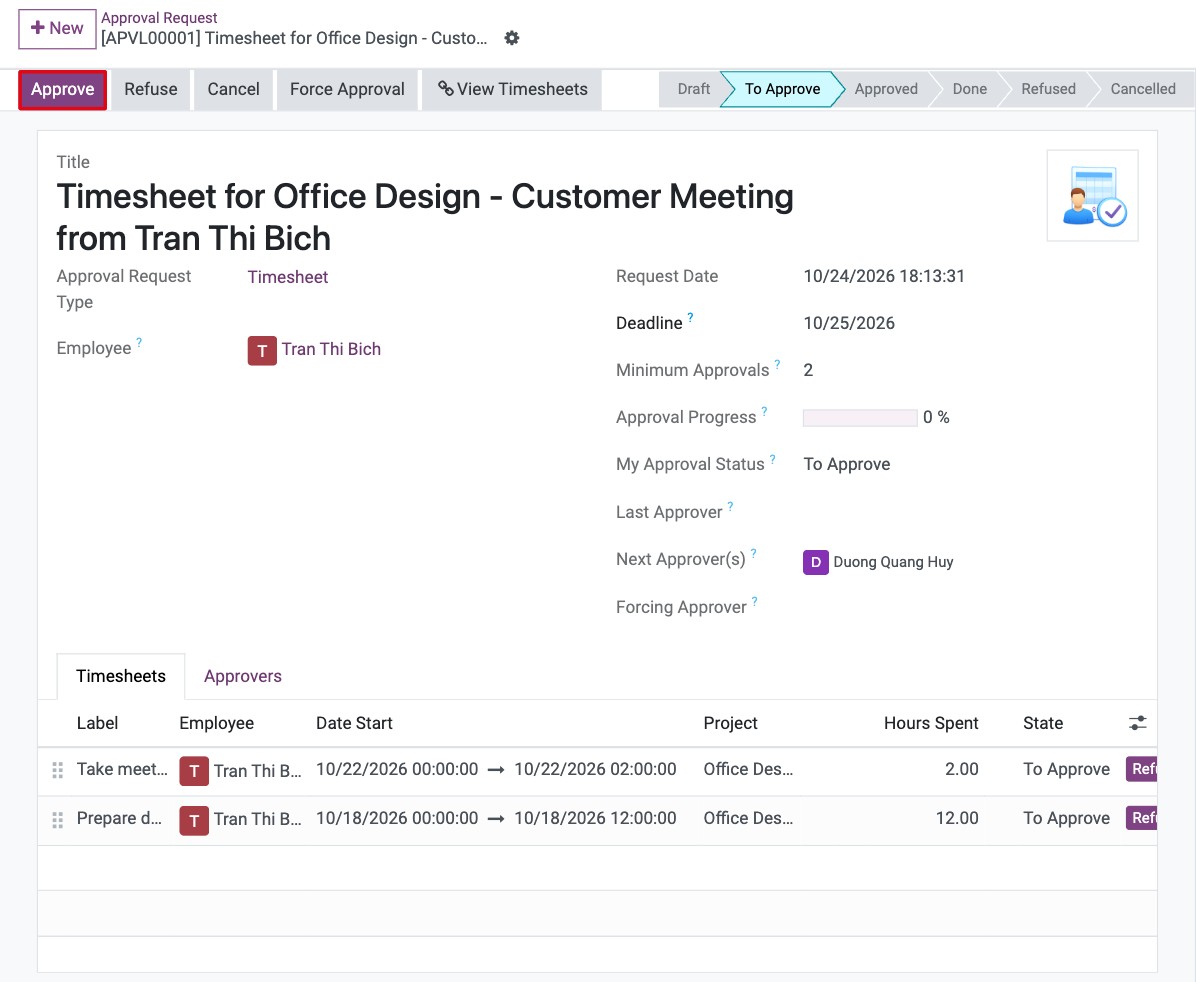
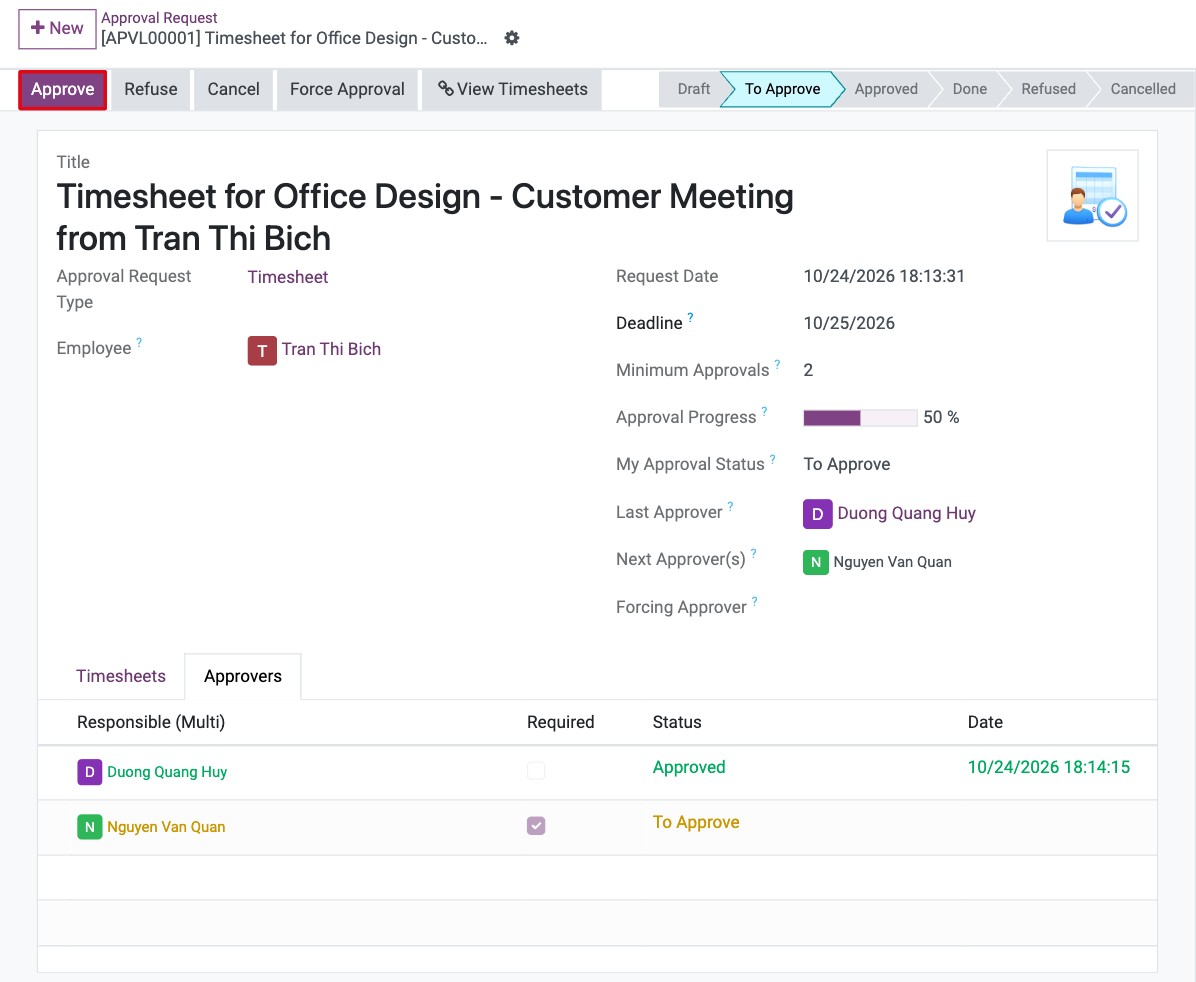
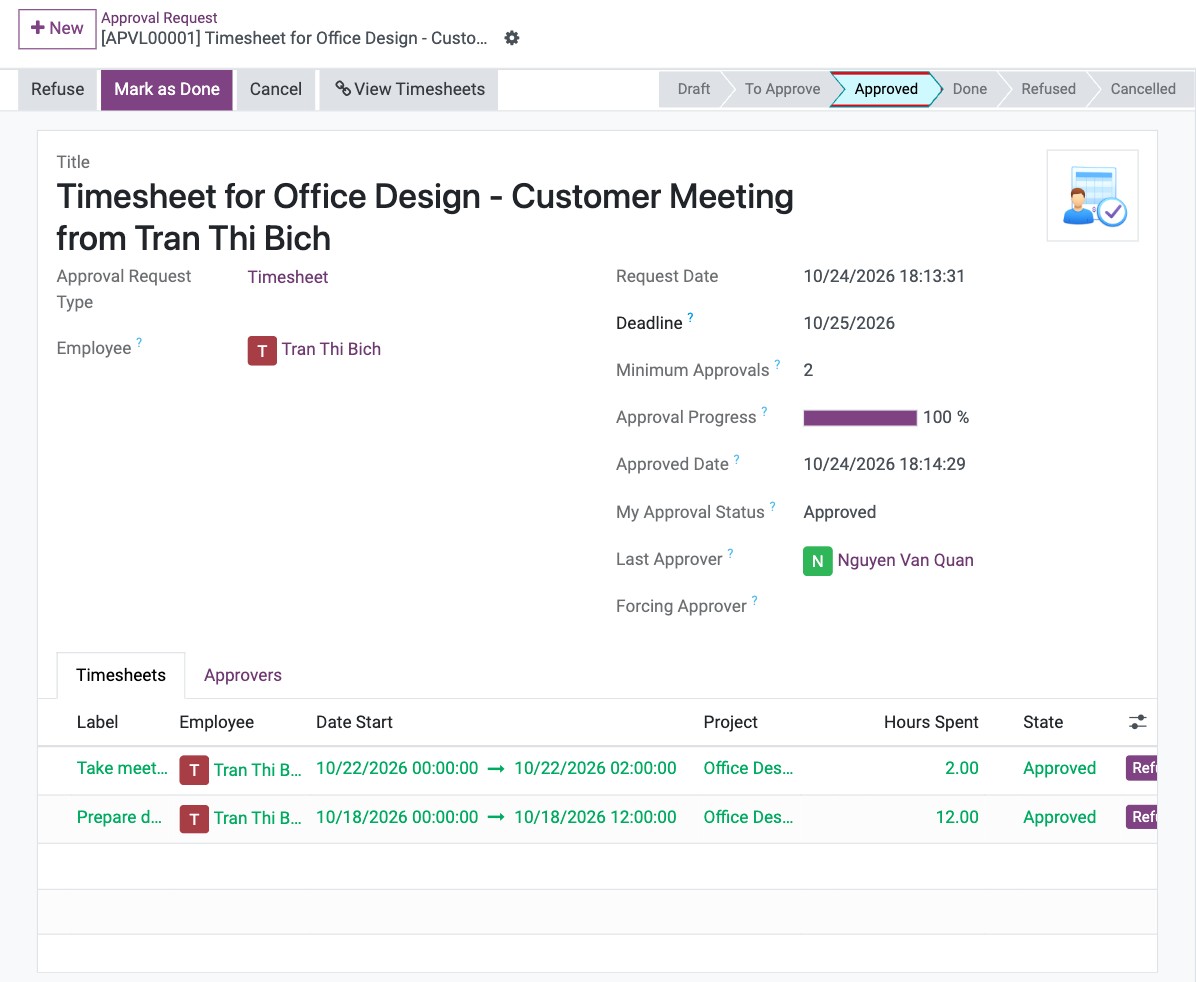
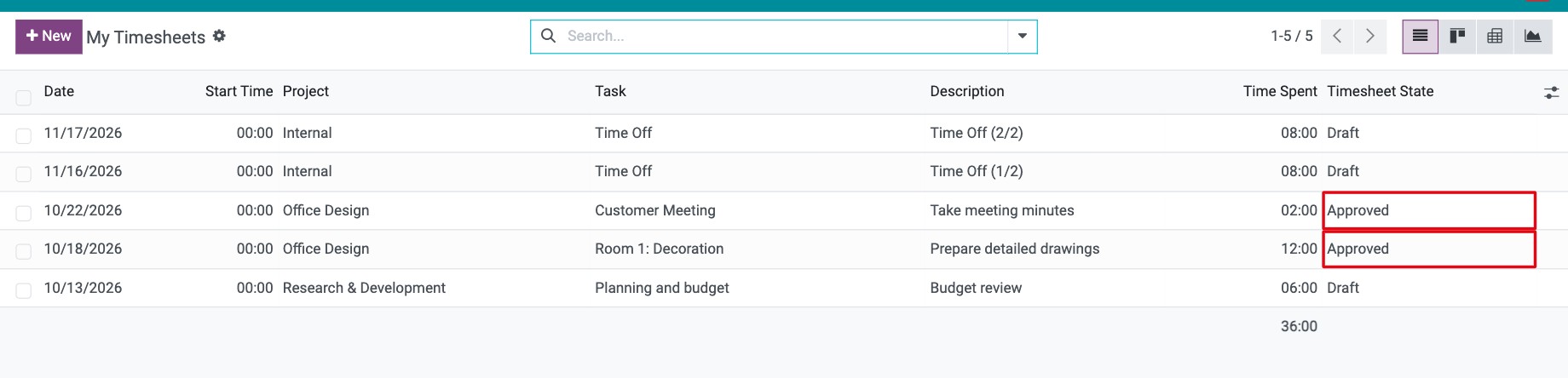
How do I refuse timesheets?
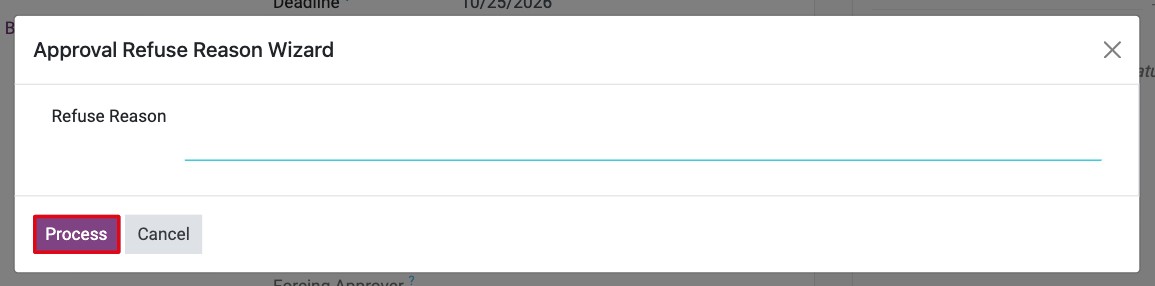
To refuse the whole request, click Refuse at the top of the request, write the reason and click Process. The request moves to Refused.
![The refuse window where the approver writes the reason]()
To refuse only some lines, click Refuse at the end of each line on the Timesheets tab. The line becomes Refused and the other lines keep going through the approval.
A refused request can still be approved later by an approver who changes their mind: Approve stays available in the Refused status.
After the request is Approved, the employee who sent it, the employee’s direct manager (as an approver) or an Approvals ‣ Administrator can click Mark as Done to close it. To undo a request that is still waiting or refused, the employee or the direct manager clicks Cancel, then Reset to Draft to edit it again.
Which timesheets need approval?
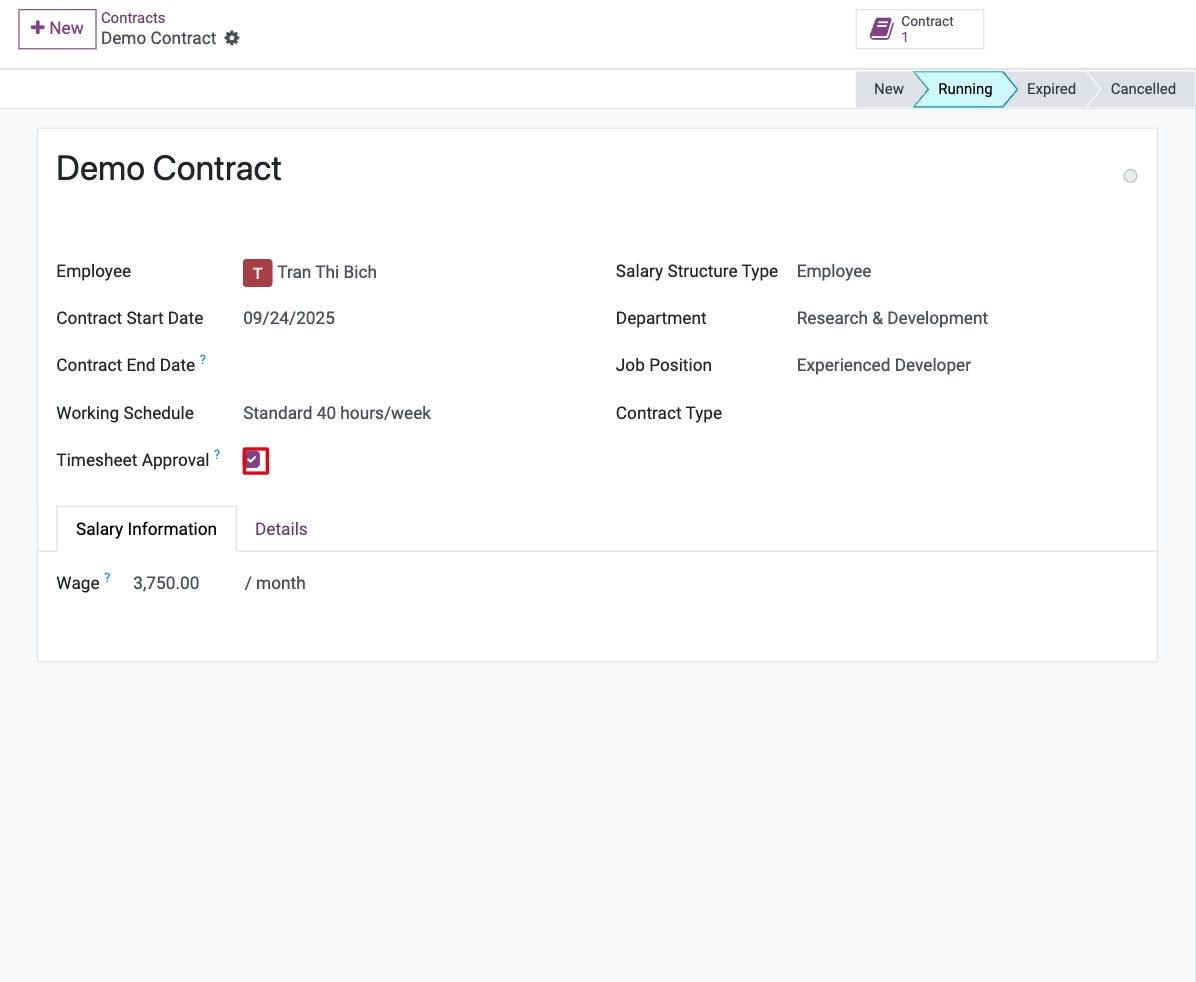
Viindoo decides when the line is created. A line is approved automatically when the employee has a running or closed contract that covers the date of the line and that contract does not require timesheet approval. All the other lines start in Draft and must be approved.
The Timesheet Approval option exists on the department, the job position and the contract. The contract takes its value from the job position or the department while it is in New; after that, change it on the contract itself.
To change who approves, how many approvals are needed or whether approvers are asked one after another, edit the approval type Timesheet in Manage Approval Types.
Employee Timesheet Analysis
The way to review employee’s timesheets
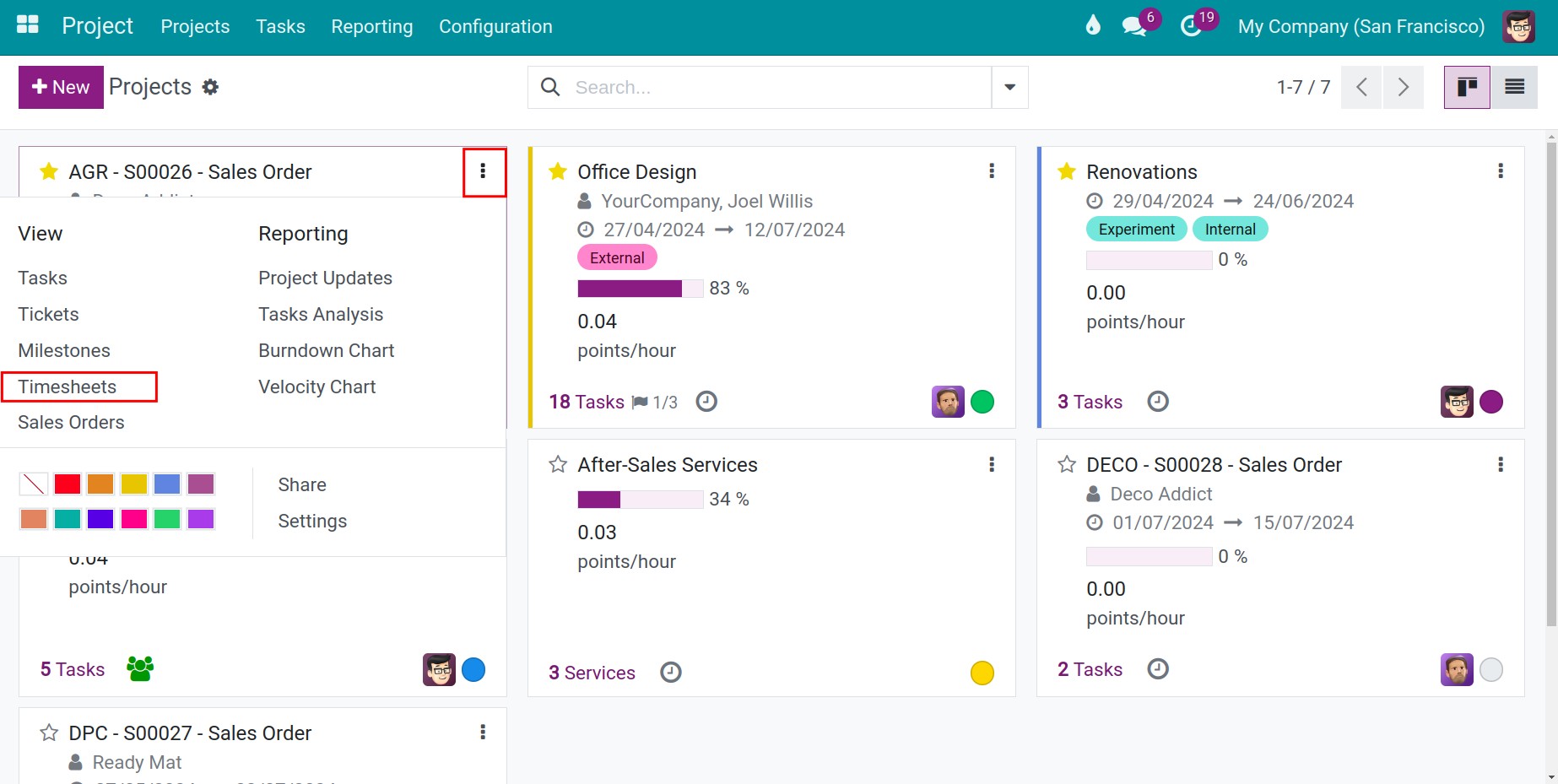
There are multiple ways to manage employee’s timeksheet. Firstly, you can access the project application, click on the three-dot icon of the project, and then select Timesheets.
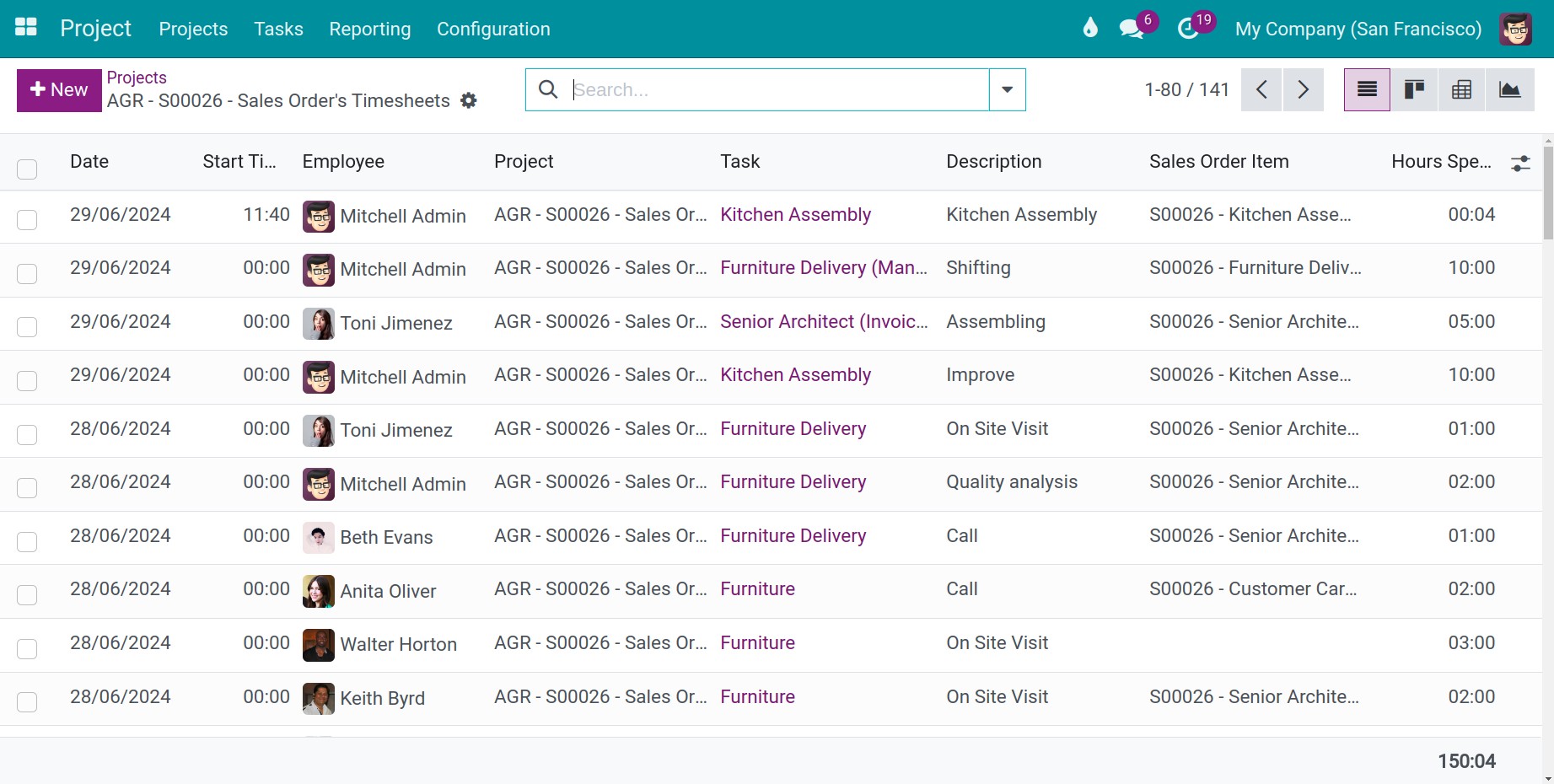
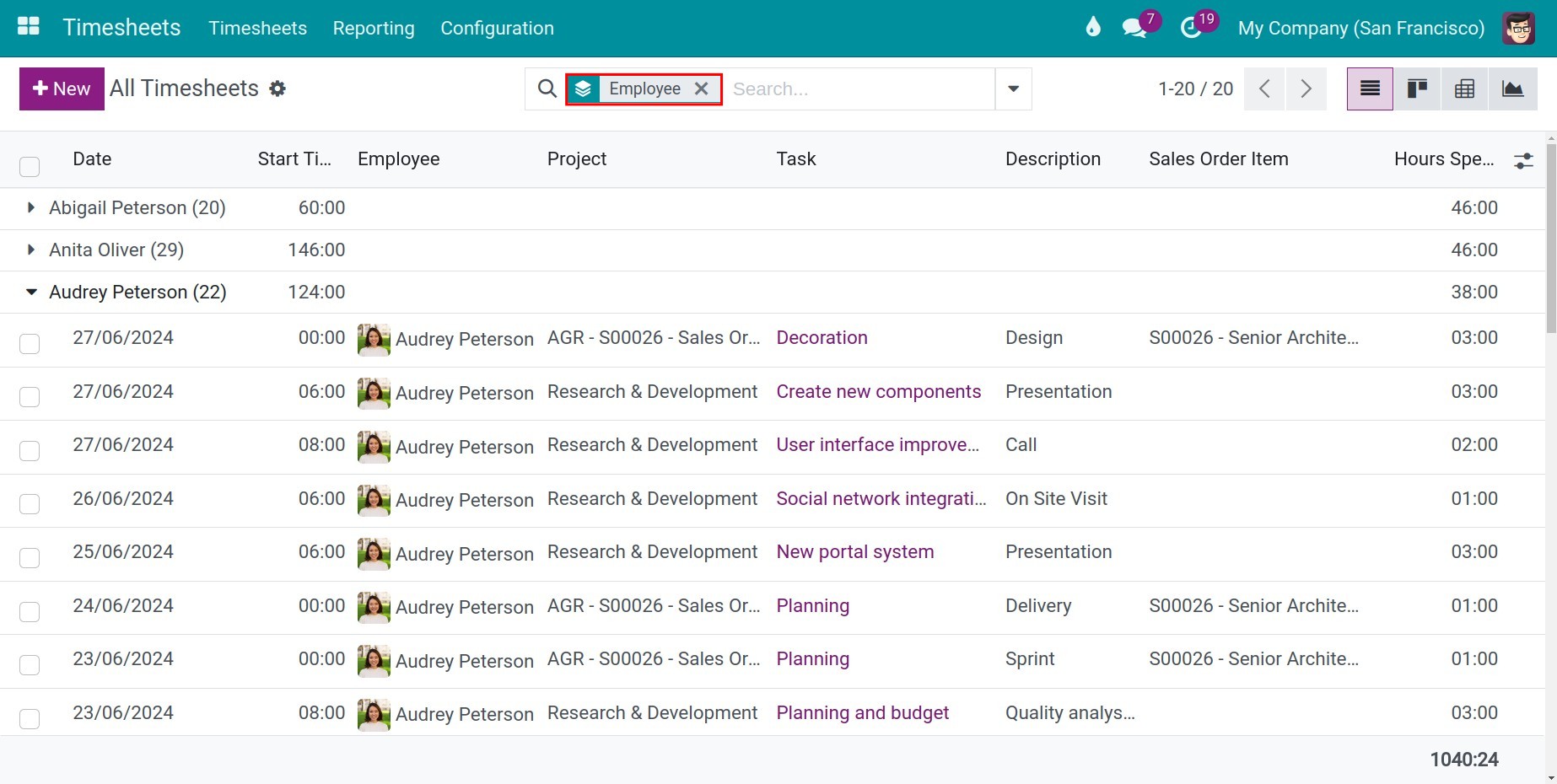
Secondly, you can access the Timesheets ‣ Timesheets ‣ All Timesheets, then group the list by Employee
Add timesheet for employees
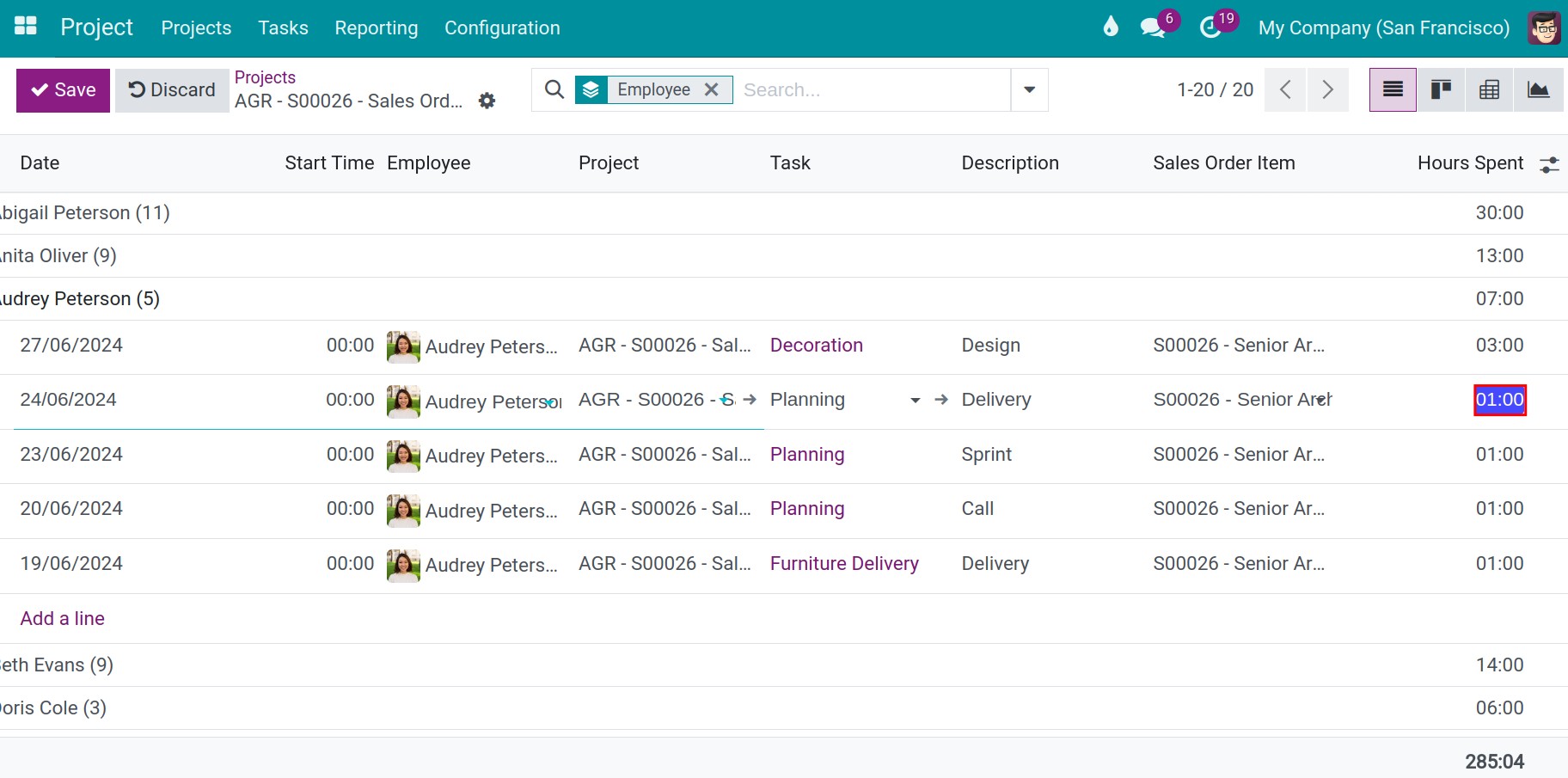
At the interface of timesheet table on Timesheets/Project application, you can edit timesheet for employees by clicking on the respective information line. In additon, if you want to add timesheet, you can click on the Add a line field.
See also
Related articles:
Record project cost (Integrated with Expenses, Timesheets, Accounting)
Project support requests handling tools (Integrated with Helpdesk)
Optional modules: