
How to move goods between warehouses with an internal transfer
To move goods from one warehouse or location to another, create an internal transfer: open the Internal Transfers card of the source warehouse in , click New, choose the source and destination locations and the products, click Mark as Todo, then Validate. The quantities leave the source location and arrive in the destination location.
Who |
Users with the Inventory User access right. |
App |
Inventory ‣ Operations |
Before you start
Install the Inventory app.
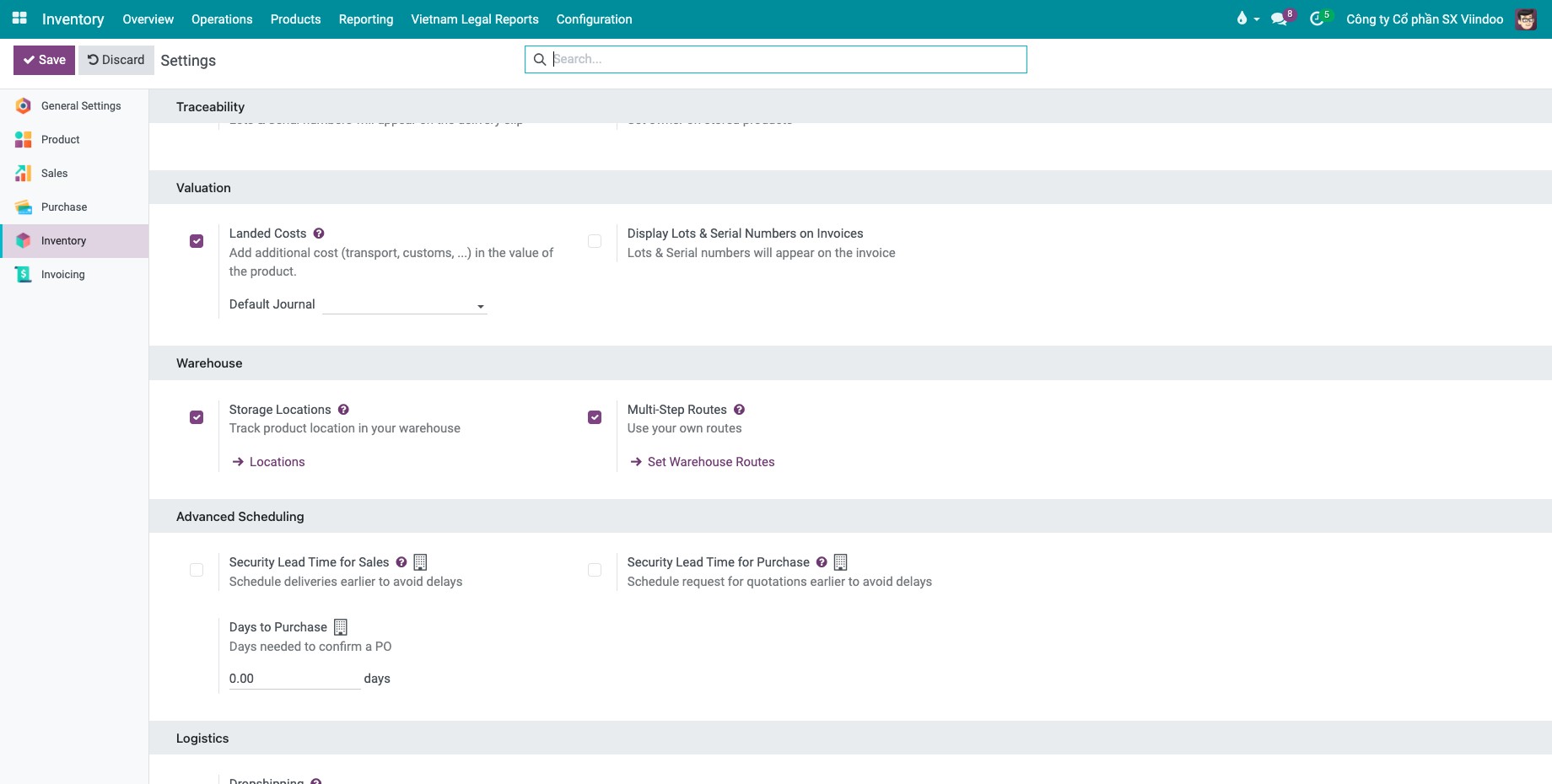
Turn on Storage Locations in . This shows the Internal Transfers cards and the source and destination locations.
Have at least two warehouses or locations (see How to create a warehouse and its locations) and the products in stock at the source.
How do I turn on internal transfers?
Go to , tick Storage Locations in the Warehouse section and click Save.
How do I create an internal transfer?
Go to and click the Internal Transfers card of the source warehouse. You can also go to .
![Internal Transfers card of the source warehouse in the Inventory overview]()
Click New. Choose the Source Location (where the products are now) and the Destination Location (where you want them).
On the Operations tab, click Add a line, choose the product and enter the Demand.
Click Mark as Todo.
![New internal transfer with the source location, the destination location and a product line]()

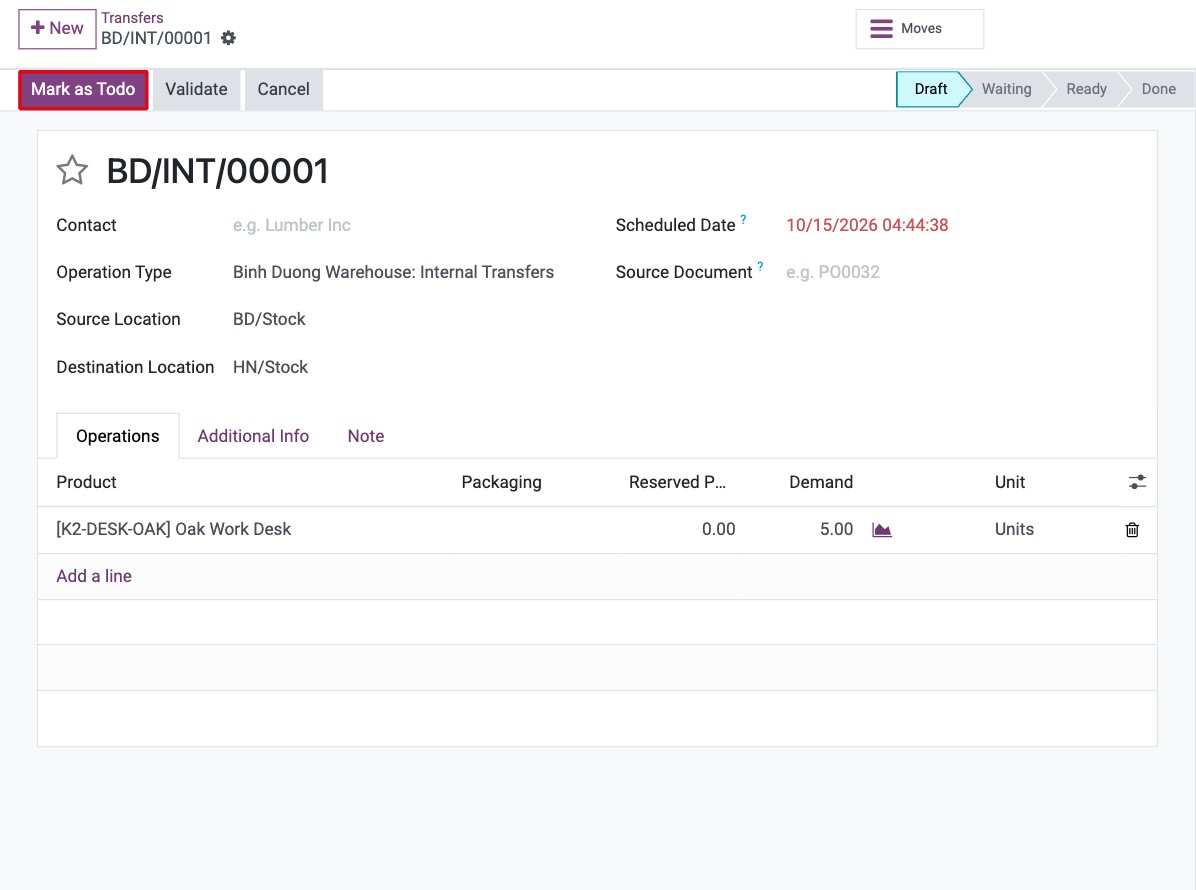
If the source covers the demand, the transfer becomes Ready and the quantities are reserved. If not, it is Waiting: click Check Availability once the products arrive.
How do I validate the transfer?
Open the transfer, check the Quantity of each line (it is filled with the reserved quantity) and click Validate.
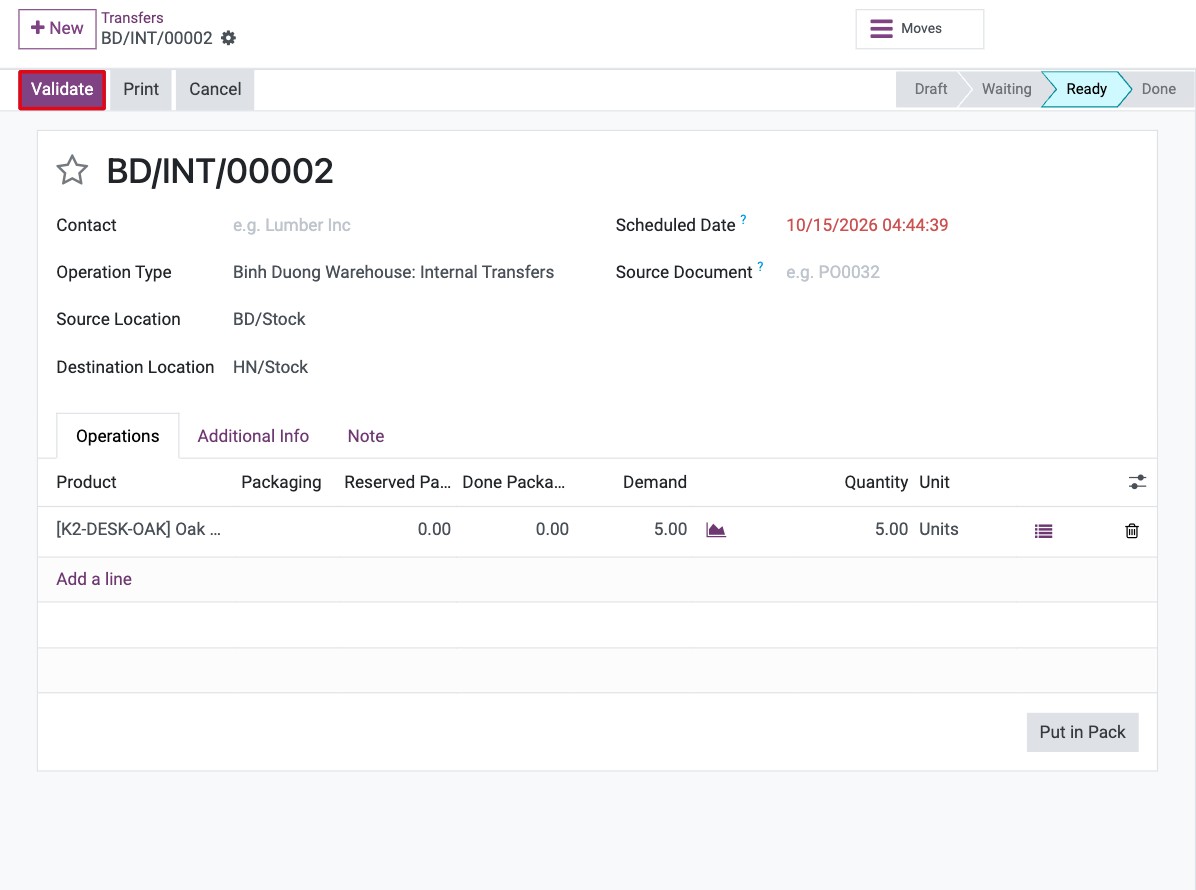
You should now see the transfer in the Done state, and the stock report shows the products in the destination location. Check it in .

If you also install Stock Inter-Warehouse Transfer, a done receipt gets a Transfer to button that creates an internal transfer of the received products to the location you choose.
Which fields matter?
Field |
Effect |
If wrong or empty |
|---|---|---|
Source Location |
Where Viindoo reserves and takes the products. |
Nothing is reserved if the products are not there. |
Destination Location |
Where the products arrive. |
A putaway rule may send them to a sub-location (see How to configure putaway rules in a warehouse). |
Demand and Quantity |
Demand is what you plan to move; Quantity is what you reserve and move. |
A smaller Quantity opens the backorder window when you validate. |
Common errors
Message |
What to do |
|---|---|
You cannot validate a transfer if no quantities are reserved, or if only non-reserved moves are picked.To force the transfer, encode quantities. |
The transfer is Waiting because the source lacks the products. Move or receive them first, then click Check Availability. |
You need to supply a Lot/Serial number for products … |
The product is tracked by lot or serial number. Choose the number on each line (see How to track products by lot number). |