
How to install Employees and give users access to employee data
To start using employee management, install the Employees app from Apps, then set each user’s access level for Employees in Settings > Users & Companies > Users. Three levels exist: no access level (Blank), Officer: Manage all employees and Administrator.
Who does this |
Application |
|---|---|
The system administrator |
Apps and Settings |
Installation
How do I install the Employees app?
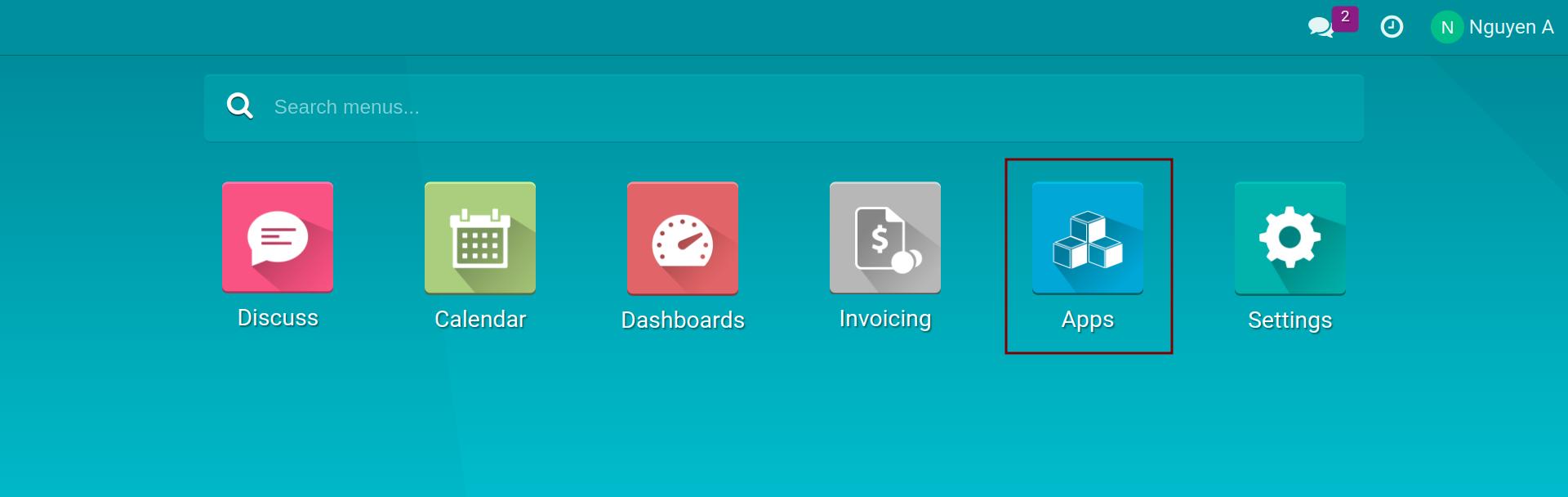
Open the Apps application.
![The list of applications in Apps]()
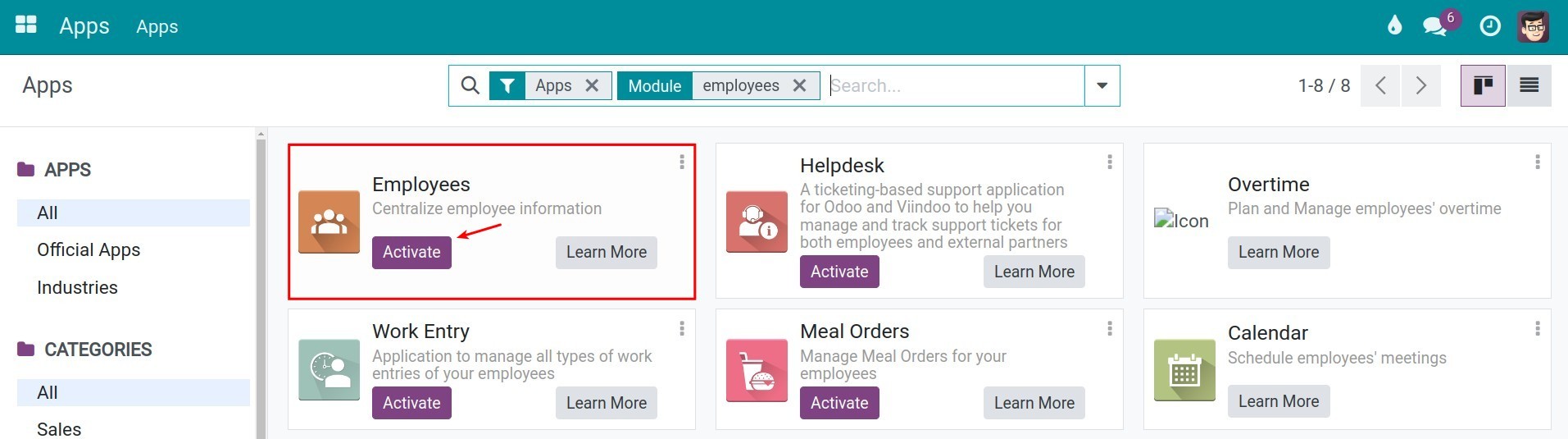
Type Employee in the search bar. On the Employees card, click Activate. When the app is already installed, its card has no Activate button, as in the example below.
![Apps filtered by the word Employee; the other cards show the Activate button]()
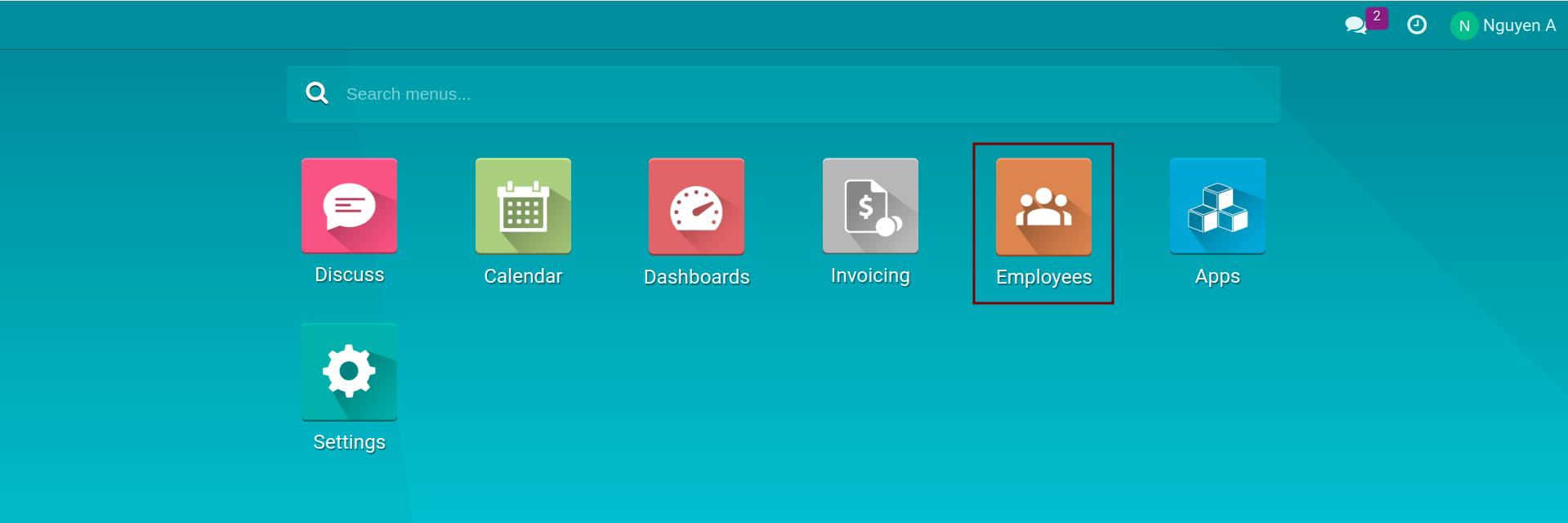
When the installation finishes, the Employees application appears in the application menu.
![The Employees application in the application menu]()
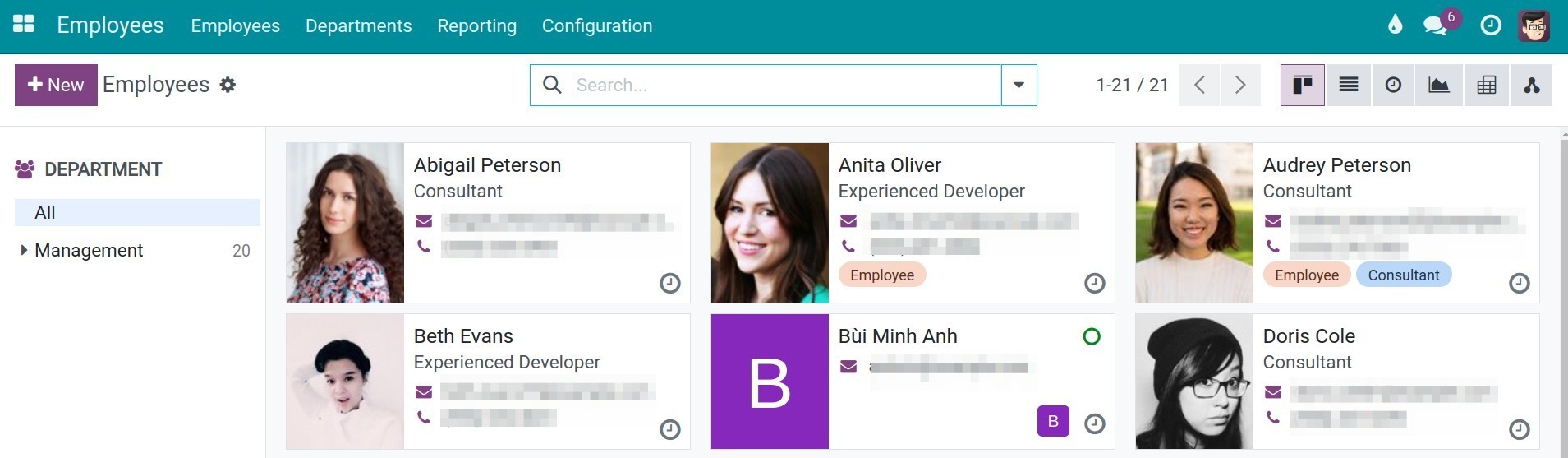
Open Employees. The employee cards are displayed, with the department tree on the left.
![Employees application overview with the department panel]()
User access rights
How do I choose what a user can do in Employees?
Granting access rights requires a user who can open Settings.
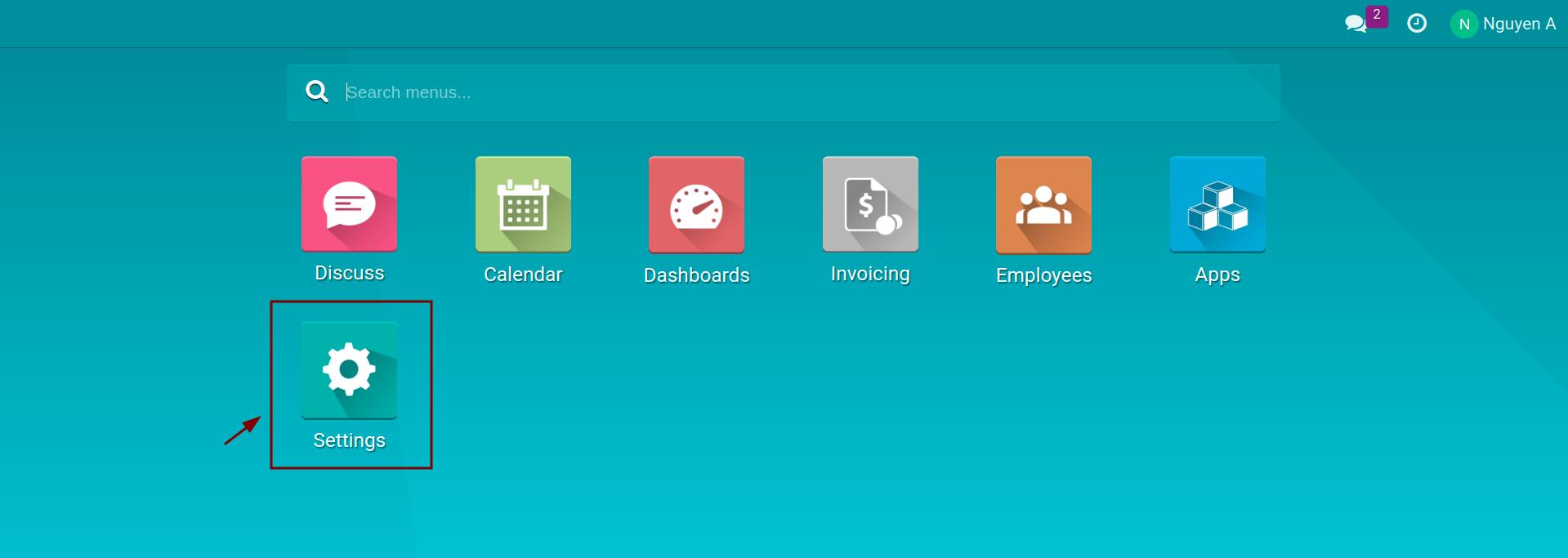
Open Settings.
![The Settings application]()
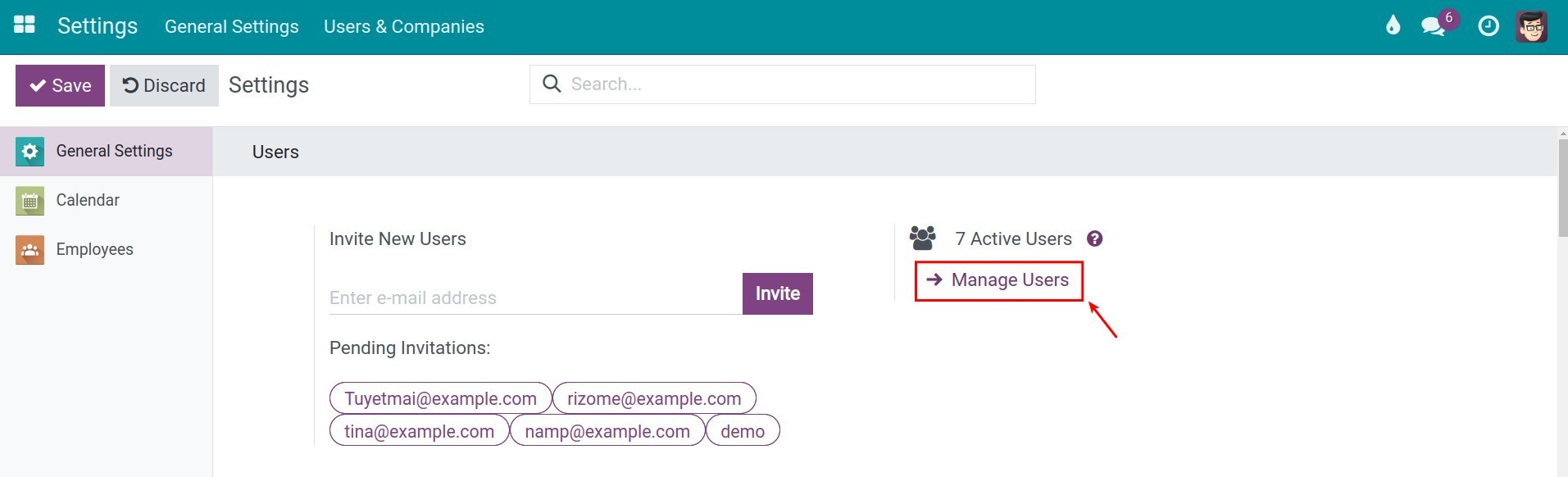
In the Users block, click Manage Users.
![Manage Users link in the Users block of Settings]()
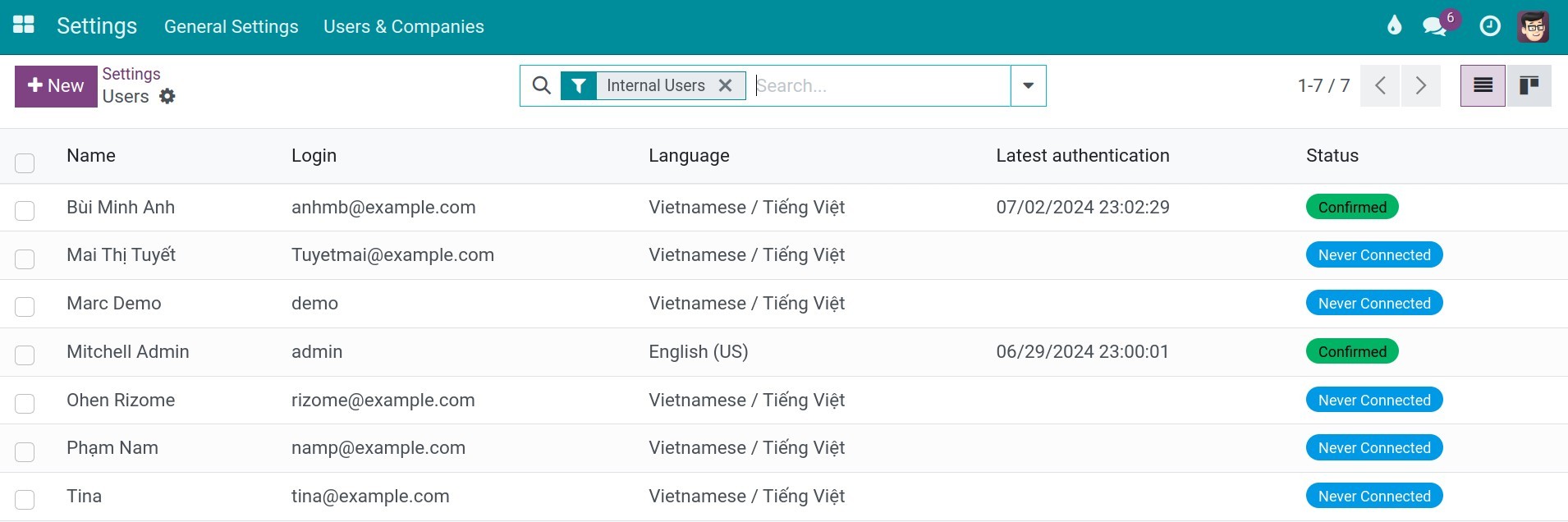
Search for the user and click on the user’s name. The list shows internal users by default.
![The users list filtered by the user's name]()
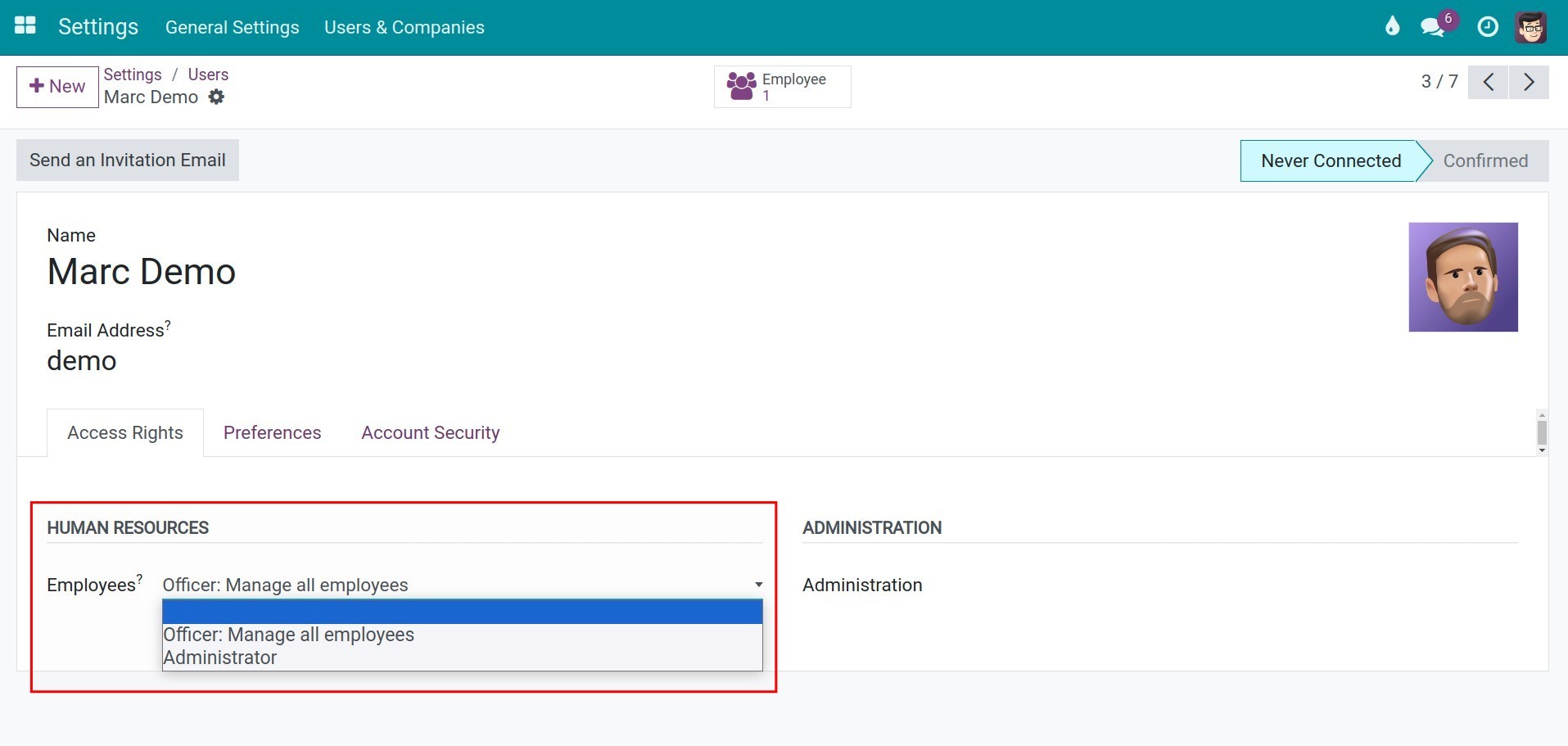
On the Access Rights tab, find the Employees field in the Human Resources section and choose one of the options below.
![The Employees field in the Human Resources section with its two options]()
Save the user.
Option |
What the user can do |
|---|---|
Blank (nothing selected) |
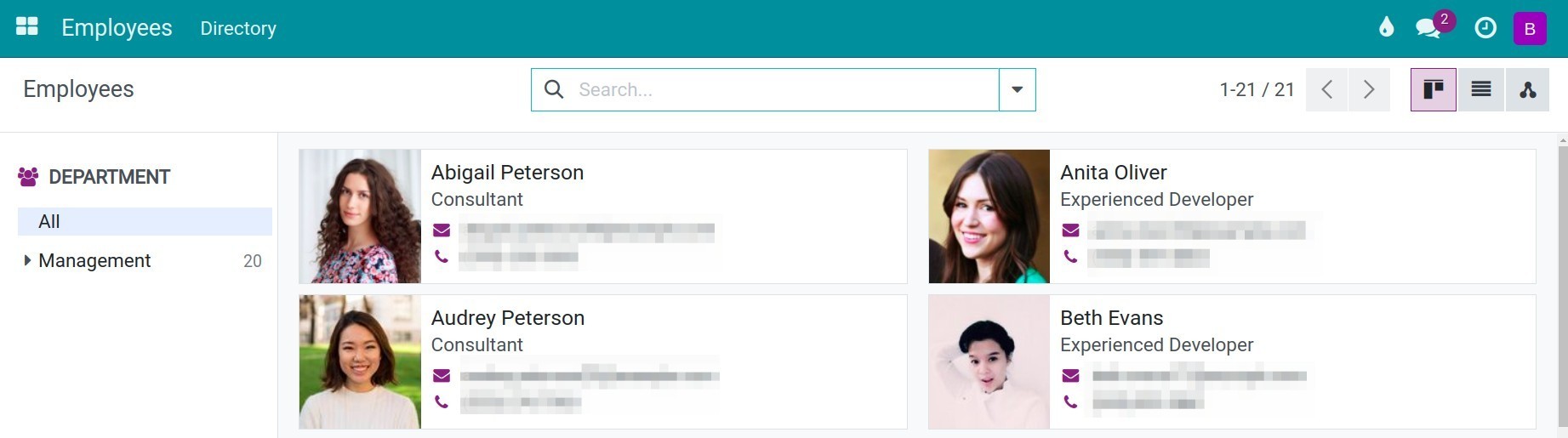
Open a read-only list of employee profiles. The user cannot create or change employee records and does not get the Configuration menu. |
Officer: Manage all employees |
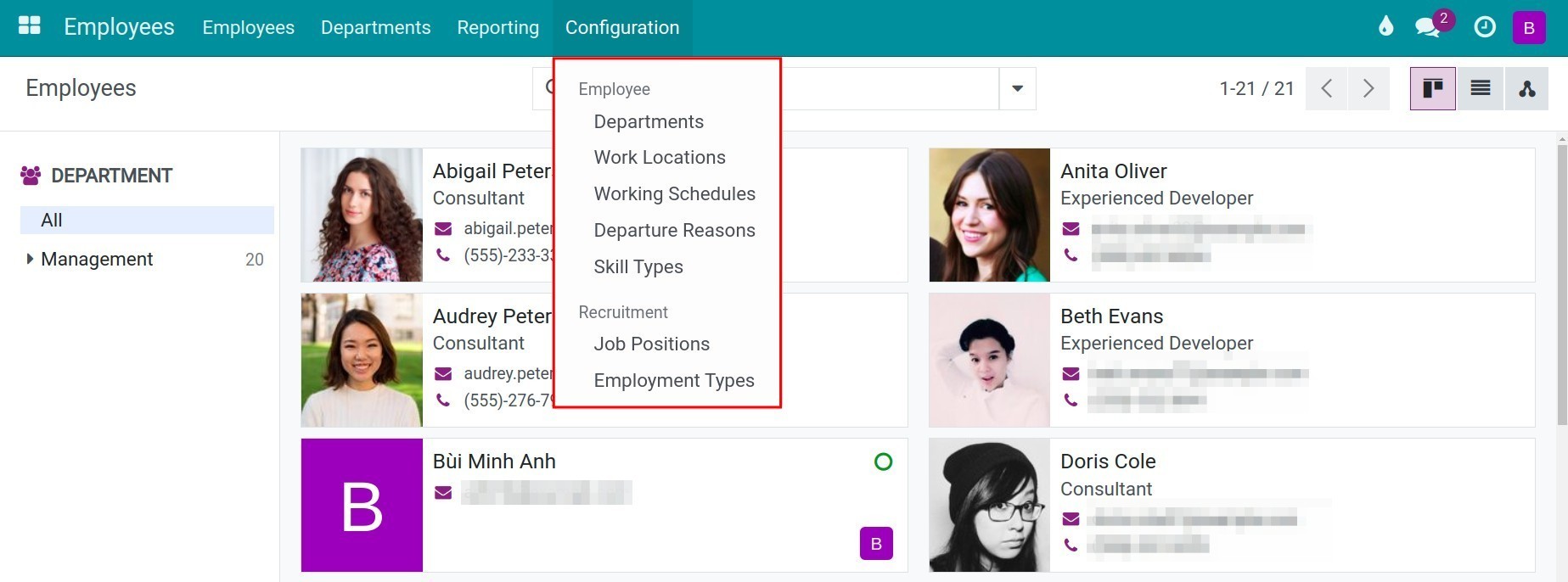
Create, edit and delete employees and departments, and use Configuration for Departure Reasons, Job Positions, Employment Types and Working Schedules. Work Locations can be viewed but not changed. |
Administrator |
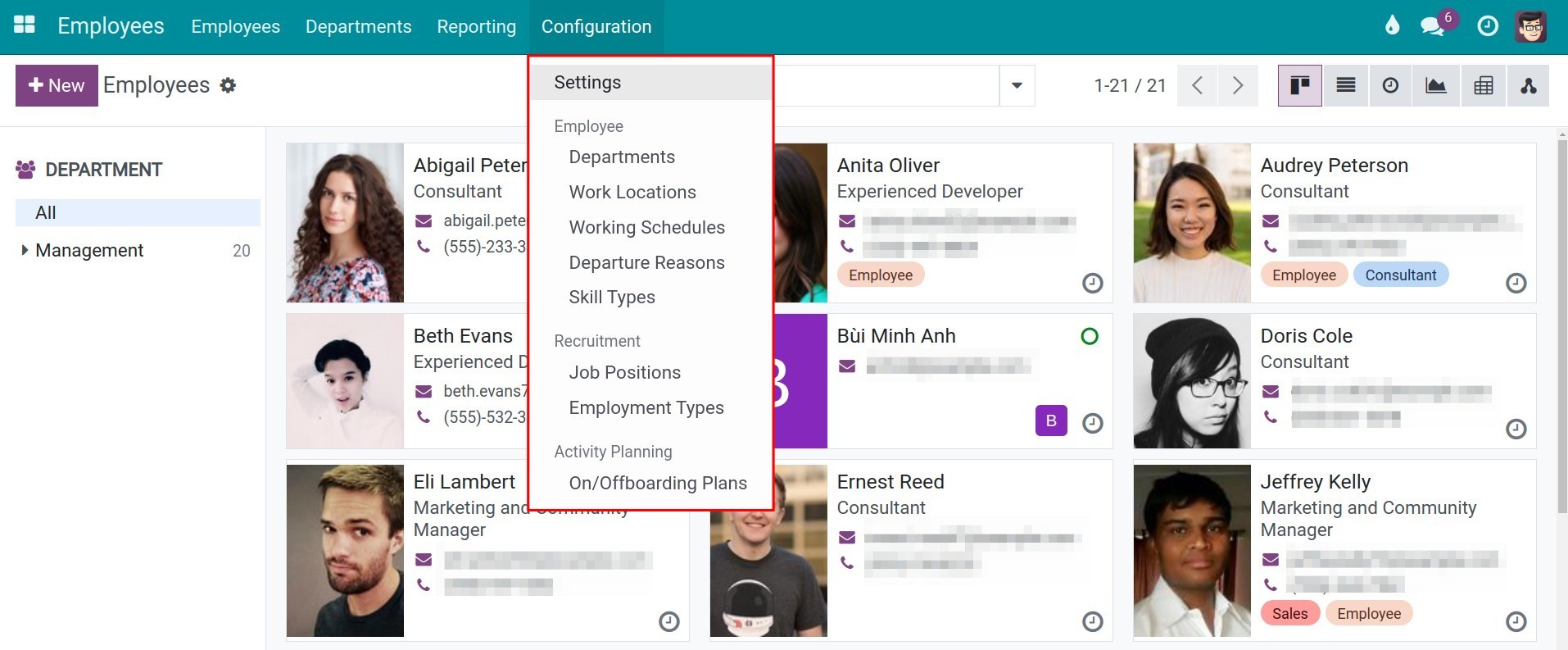
Everything an Officer can do, plus managing Work Locations and Activity Plans. |
Blank: the user has no Employees access level.
Officer: Manage all employees:
Administrator:
Expected result
The user opens Employees and sees the menus that match the chosen level. An Officer or Administrator sees Employees, Departments, Reporting and Configuration; an Administrator also sees Activity Plan under Configuration.
Common problems
Problem |
Cause |
What to do |
|---|---|---|
The user cannot create an employee. |
The Employees field is empty. |
Set it to Officer: Manage all employees and save. |
The Configuration menu is missing. |
The user is not an Officer or an Administrator. |
Set the Employees field to Officer or Administrator. |
The user is not in the users list. |
The list shows internal users only, and the user may be archived. |
Remove the Internal Users filter or check the archived users. |
See also
Related article
Optional module