
How to organize cross-docking in a warehouse
Cross-docking moves goods from the receiving area straight to the shipping area, without storing them in stock. In Viindoo, set the warehouse to receive and deliver in two or more steps, tick the Cross-Dock route on the product, then validate a receipt of that product: Viindoo creates a Cross Dock transfer from the input location to the output location and a delivery order to the customer.
Who |
Users with the Inventory Administrator access right to configure the route; Inventory User to process the transfers. |
App |
Inventory ‣ Configuration, Inventory ‣ Operations |
Before you start
Install the Inventory app.
Turn on Multi-Step Routes in .
The warehouse receives in two or three steps and delivers in two or three steps (see How to choose the receipt flow of a warehouse). The Cross-Dock route stays archived until both are set.
How do I turn on the Cross-Dock route?
Go to , tick Multi-Step Routes in the Warehouse section and click Save.
![Multi-Step Routes ticked in the Warehouse section of the Inventory settings]()
Open the warehouse in . On the Warehouse Configuration tab, choose Receive then Store (2 steps) under Incoming Shipments and Pick then Deliver (2 steps) under Outgoing Shipments, then click Save.
![Two-step receipt and two-step delivery selected on the warehouse form]()
Go to and open the route Cross-Dock of the warehouse. Its rules take goods from the vendor and push them from the input location to the output location.
![Cross-Dock route with its two rules]()
Under Applicable On, tick Products, then click Save. Without it, you cannot choose the route on a product.


How do I use cross-docking for a product?
Open the product in . On the Inventory tab, tick the Cross-Dock route of the warehouse under Routes, then click Save. Every receipt of this product in that warehouse now follows the route, including receipts created from purchase orders if you also install Purchase.
![Cross-Dock route ticked under Routes on the Inventory tab of a product]()
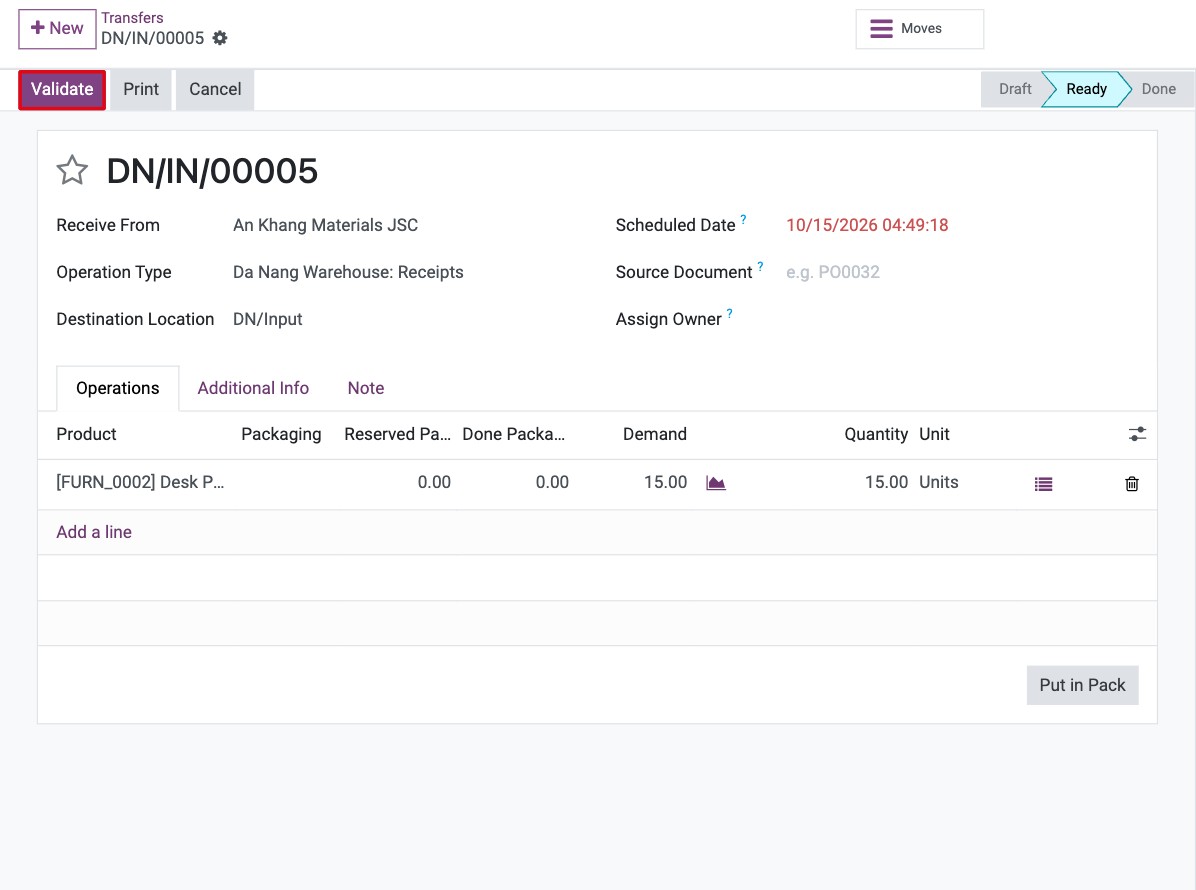
Receive the product: create a receipt, as in How to receive goods in two steps (receive, then store), and click Validate. The goods enter the input location.
![Validate button on a receipt of the cross-dock product]()
Viindoo creates a Cross Dock transfer from the input location to the output location instead of a Storage transfer. Open it from and click Validate.
![Validate button on the Cross Dock transfer from the input location to the output location]()
Viindoo creates the Delivery Orders transfer from the output location to the customer. Open it from the Delivery Orders card and click Validate.
![Validate button on the Delivery Orders transfer from the output location to the customer]()



You should now see the delivery order Done. The goods never entered the stock location.

If you also install Sales, tick the option for sales order lines under Applicable On on the route to choose it on the lines of a sales order.

Which fields matter?
Field |
Effect |
If wrong or empty |
|---|---|---|
Incoming Shipments and Outgoing Shipments (warehouse) |
Two or three steps on both sides keep the Cross-Dock route active. |
With one step on either side, the route is archived. |
Applicable On ‣ Products (route) |
Lets you choose the route on products. |
The route does not appear on the product form. |
Routes (product) |
Receipts of the product are pushed to the output location instead of stock. |
Goods are stored as usual. |
Common errors
Symptom |
What to do |
|---|---|
There is no Cross-Dock route on the product form. |
Check the warehouse steps, then tick Products under Applicable On on the route. |
The receipt creates a Storage transfer instead of a Cross Dock transfer. |
The route is not ticked on the product, or the receipt belongs to another warehouse than the one of the route. |