
How to follow customer invoicing, payment and reconciliation
An invoice goes through six steps in Viindoo: you create it, confirm it, send it, record the customer’s payment, reconcile that payment with the bank statement, and follow what is still unpaid in the reports. This page shows the whole chain in one place and links to the detailed article of each step.
Who |
Accountants, or any user with the Invoicing access right in Accounting. A salesperson creates draft invoices from the sales order. |
App |
Accounting (invoices from orders: Sales) |
Before you start
Install the Accounting & Finance app. To create invoices from sales orders, also install the Sales app.
Create the customers in Contacts and the products in Products.
Set up a Bank journal (Bank Setup on the Accounting dashboard) to reconcile payments.
Which invoicing policy can I choose?
Each company, and even each product, has its own rules, so Viindoo does not force one flow. You can issue the invoice before delivering or after delivering, issue one invoice per order or several invoices for one order, and collect one payment for several invoices or several payments for one order.
With the Sales app, the Invoicing Policy of each product decides when the customer is invoiced:
Ordered quantities: the customer is invoiced as soon as the sales order is confirmed.
Delivered quantities: the customer is invoiced only for what has been delivered.
How do I create a draft invoice?
From a sales order (Sales app): the salesperson opens the confirmed order and clicks Create Invoice. The draft invoice inherits the lines, the payment terms and the delivery information of the order. See How to create a customer invoice.
Directly in Accounting: go to Accounting ‣ Customers ‣ Invoices and click New. An invoice created here is not linked to a sales order.

A draft invoice has no effect on the accounting numbers. Only a confirmed invoice does.
What happens when I confirm the invoice?
Click Confirm. Viindoo gives the invoice its number, which is unique in the whole system, and posts one journal entry. Open the Journal Items tab to see it: revenue and tax on the credit side, the customer’s receivable on the debit side.

To also follow the number of the VAT invoice in your tax reports, install the Legal Invoice Number module. See Tax reports using tax grids.
How do I send the invoice to the customer?
On the confirmed invoice, click Send. The Print & Send pop-up opens.
Keep by Email ticked, check the recipient, the subject and the message. Viindoo writes the message in the language set on the customer’s contact. You can edit it, or save it as a new email template.
Click Send. The customer receives the email with the invoice in PDF.

How do I record the customer’s payment?
Click Pay on the invoice, check the journal, the amount and the payment date, then click Create Payment.
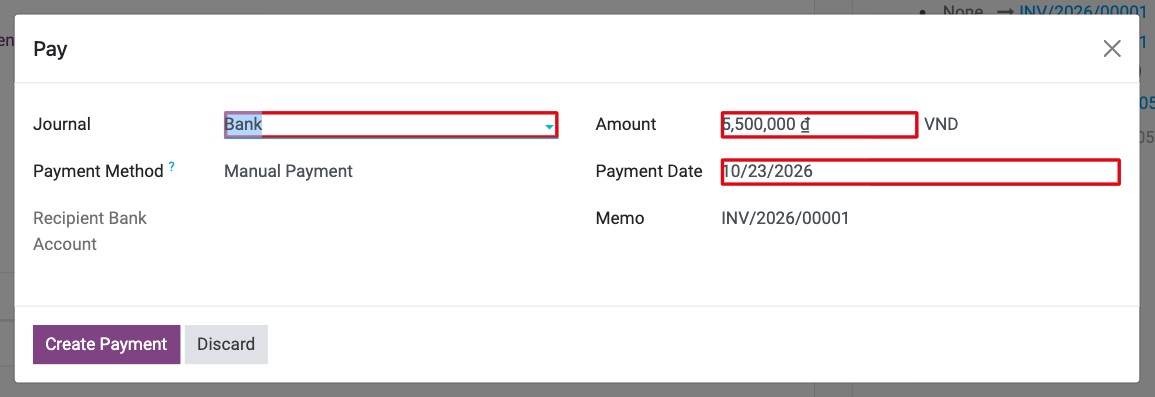
There are two ways to record a payment, described in How to record customer payments:
directly from the invoice, as above;
as a stand-alone payment in Accounting ‣ Customers ‣ Payments, for example for an advance.
How do I reconcile the payment with the bank statement?
The payment is first recorded in an Outstanding Receipts account. It is reconciled when the money appears on the bank statement.
Go to the Accounting dashboard. On the Bank card, click Transactions to enter the bank lines by hand, or Import Statement to import them from a CSV, XLSX or RJE file.
![Bank card of the Accounting dashboard with Transactions, Import Statement and Reconcile]()
When there are lines to reconcile, the card shows Reconcile N Items. Click it.
Select a bank line. In Match Existing Entries, Viindoo proposes the payment or the invoice that matches the line. Check it, then click Validate.
![Bank Reconciliation screen with the matching payment and the Validate button]()


For the detailed rules, see Steps in the bank reconciliation process and Manage Bank Statements.
How do I follow what customers still owe?
To reduce late payments, follow the balance of each customer and contact them in time.
Go to Accounting ‣ Customers ‣ Customers and open the customer.
![Partner Ledger button on the customer form]()
Click Partner Ledger to see every debit and credit of the customer and the balance that remains to be collected.
![Partner Ledger of a customer in Viindoo Accounting]()


For all customers at once, open Accounting ‣ Reporting ‣ Partner Reports ‣ Aged Receivable. It splits what is due by age (at date, 1-30, 31-60, 61-90, 91-120 days and older). Click a customer to see each invoice, or export the report to PDF or XLSX.

Expected result
The invoice is Posted, then Paid once the payment is recorded.
The bank line is reconciled and the Reconcile counter of the Bank card goes down.
The Partner Ledger and the Aged Receivable report no longer show the paid amount.
Common errors
Symptom |
What to do |
|---|---|
The invoice cannot be confirmed. |
See the errors in How to create a customer invoice. |
There is no Reconcile button on the Bank card. |
There is no bank line to reconcile yet: enter it with Transactions or import the statement with Import Statement. |
A paid invoice still shows in the Aged Receivable report. |
The payment is not reconciled with the invoice. Open the invoice and check that it is Paid; if not, record or reconcile the payment. |
Next steps
How to set up payment terms: set the due dates and installments.
How to process a cash discount: give a discount for early payment.
How to configure the cash rounding method: round the invoice total.
How to issue a credit note for a customer invoice: correct or cancel a posted invoice.
Version notes
The Pay button replaces Register Payment of earlier versions.
The Send button opens the Print & Send pop-up. The first time an administrator clicks it, Viindoo asks to configure the document layout of the company.
The Bank card of the dashboard has the buttons Transactions and Import Statement.