How to use Question bank
Survey Viindoo system provides the Question bank feature to accelerate the survey creation. When creating a new survey, users only need to choose questions from the available question banks and they will be imported automatically to the survey form.
Requirements
This tutorial requires the installation of the following applications/modules:
Install and create a question bank
Question bank installation
To install the Question bank feature, do the following steps:
Access to Viindoo Apps;
Enter Create Exams Using Surveys in the searching toolbar;
Choose Create Exams Using Surveys and click on the Activate button.
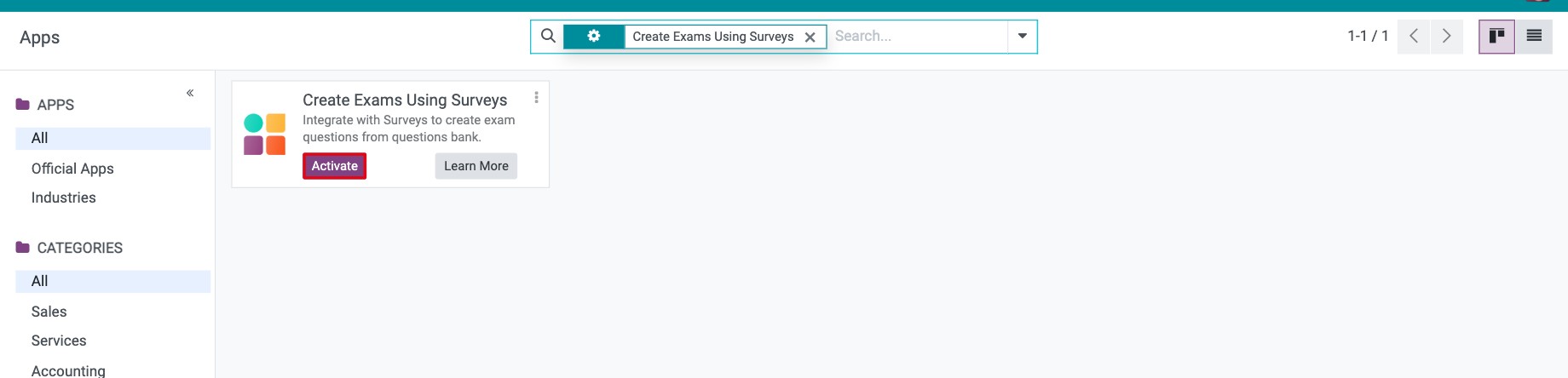
You can also install it from Surveys ‣ Settings: tick Create Exams Using Surveys in the Survey Feature Add-ons block, then click Save.
Create a question bank
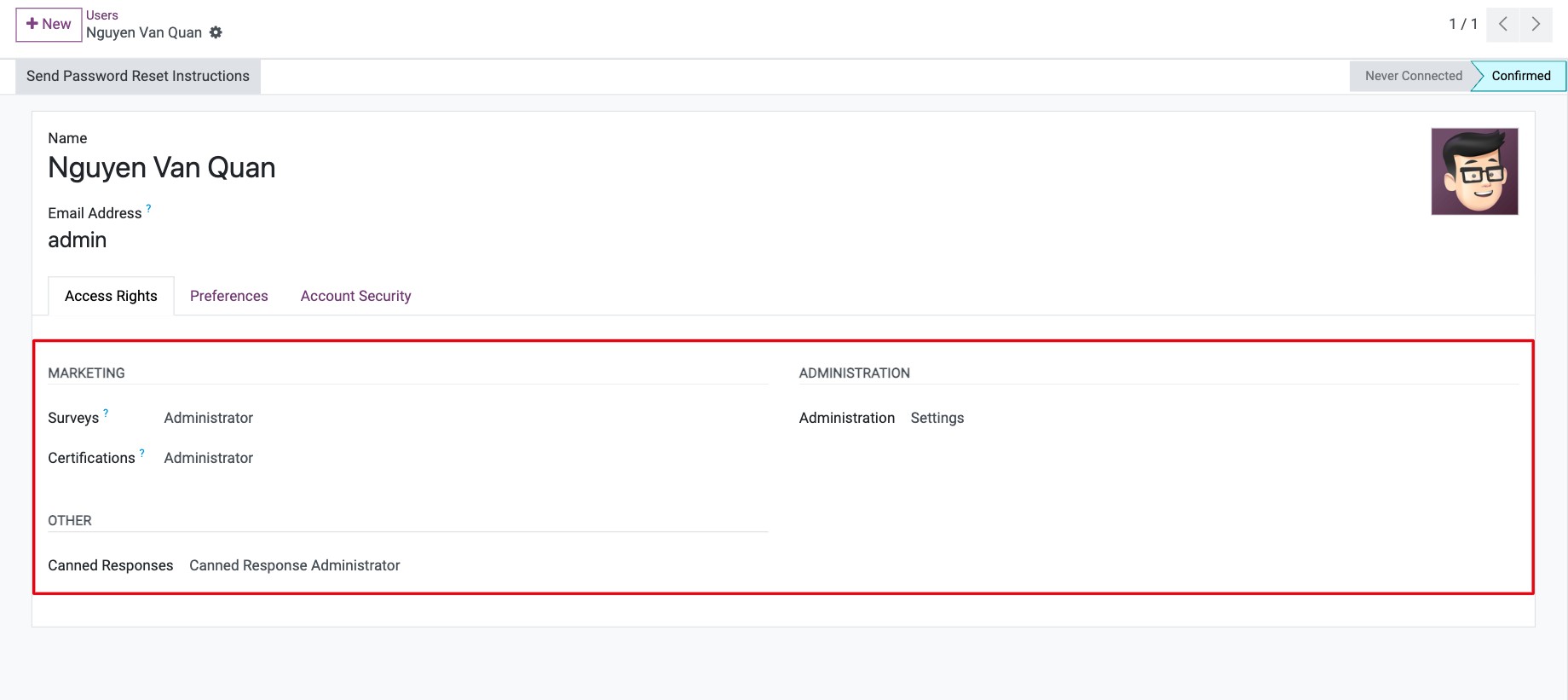
The Question Bank menus are available to the Survey Administrators. Users who have the Administrator right of the Surveys application (Settings ‣ Users ‣ Access Rights tab, Marketing section) automatically get the Survey Exam Manager right, so you do not need to grant it separately. Users who only have the User right of the Surveys application cannot see the Question Bank menus.
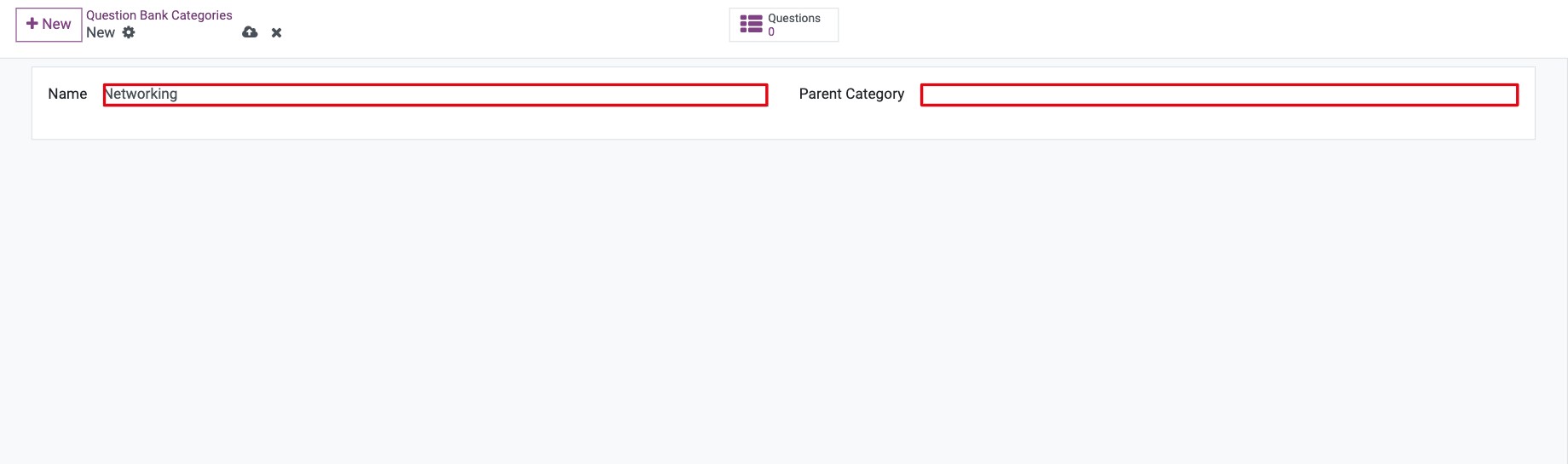
First, create a Question Bank Category:
Navigate to Surveys ‣ Questions & Answers ‣ Question Bank Categories.
Click on New.
Fill in the information and press Save button.
Next, create a Questions Bank:
Navigate to Surveys ‣ Questions & Answers ‣ Questions Bank.
Click on New.
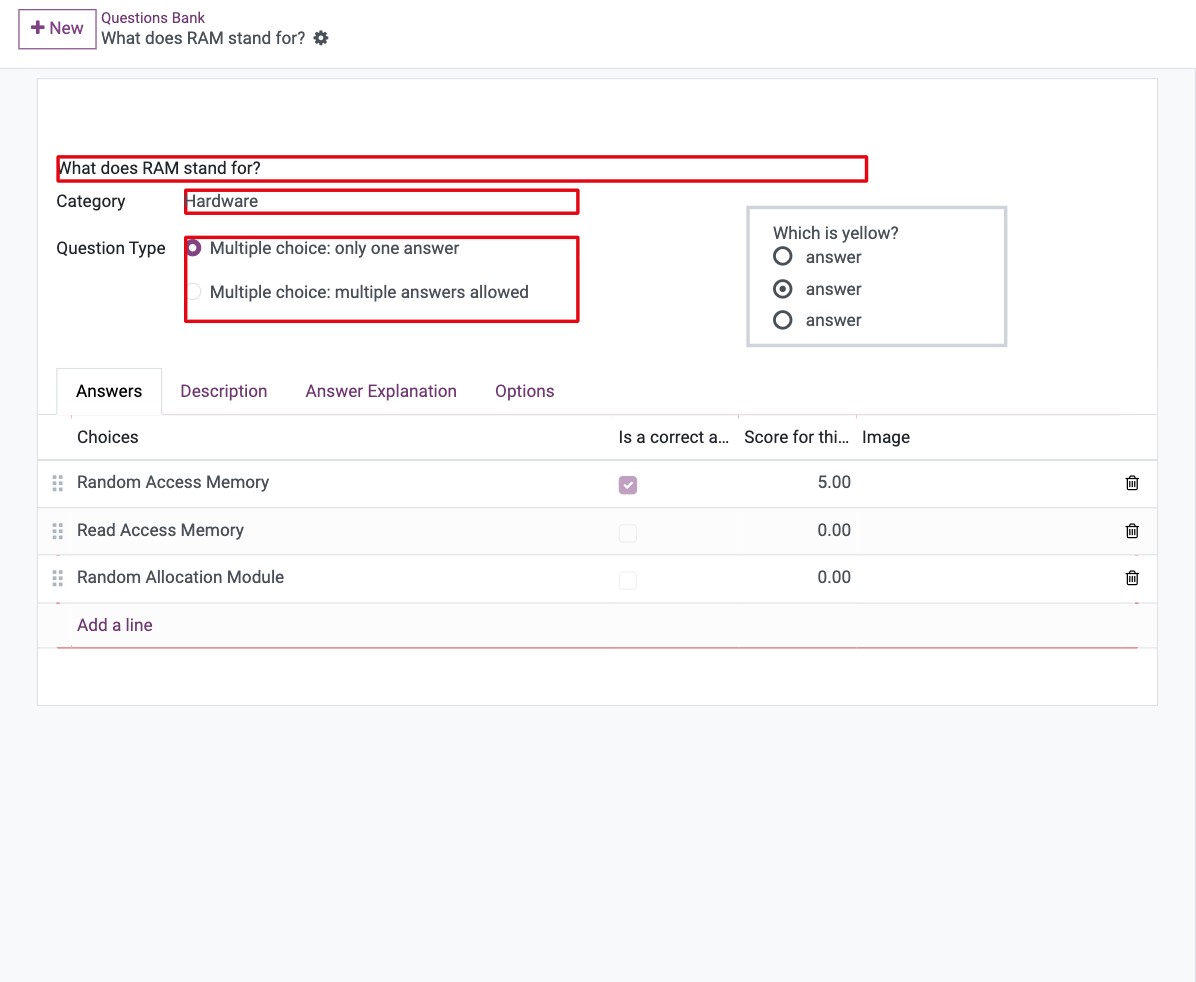
In the creation form, add the desired question.
Choose a category for this question.
Select one of the available question types: Choose only one answer or multiple answers allowed.
Create answers for this question by clicking on Add a line, define the correct answer, and score for this selection.
Check the information before pressing Save button.
Note
You can configure other options for a question following instructed steps in the create and manage online surveys article.
You can also set time limit for surveys, which allows enterprises to create more challenging tests and create live survey sessions.
Use Questions Bank in survey generation
To create a survey using the questions bank, you need to do the following:
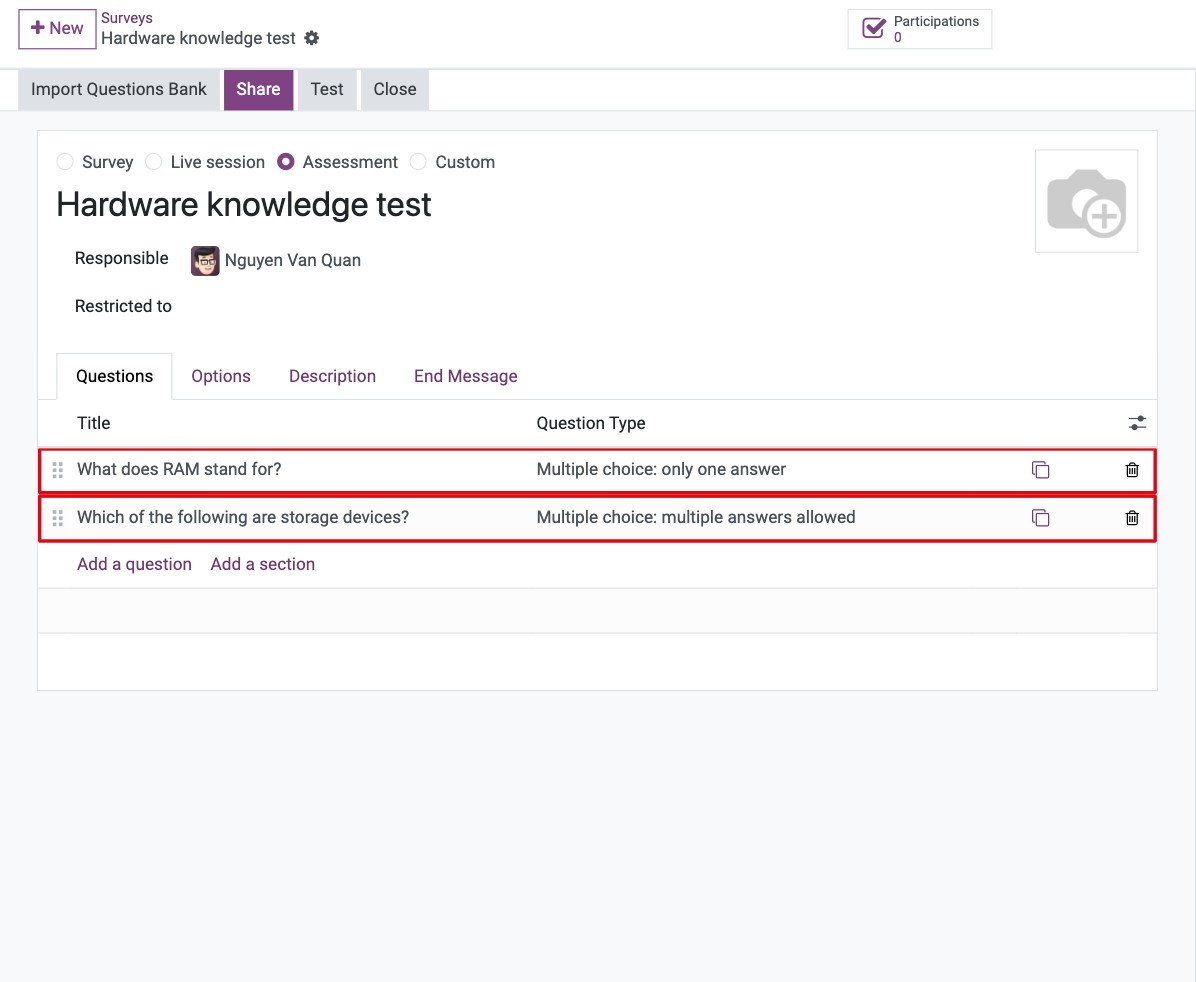
Create a survey and press Save button. The Import Questions Bank button is available once the survey is saved.
Press Import Questions Bank to display the Import Questions window.
Click on Add a line to select the questions created previously from the question bank and press Import.
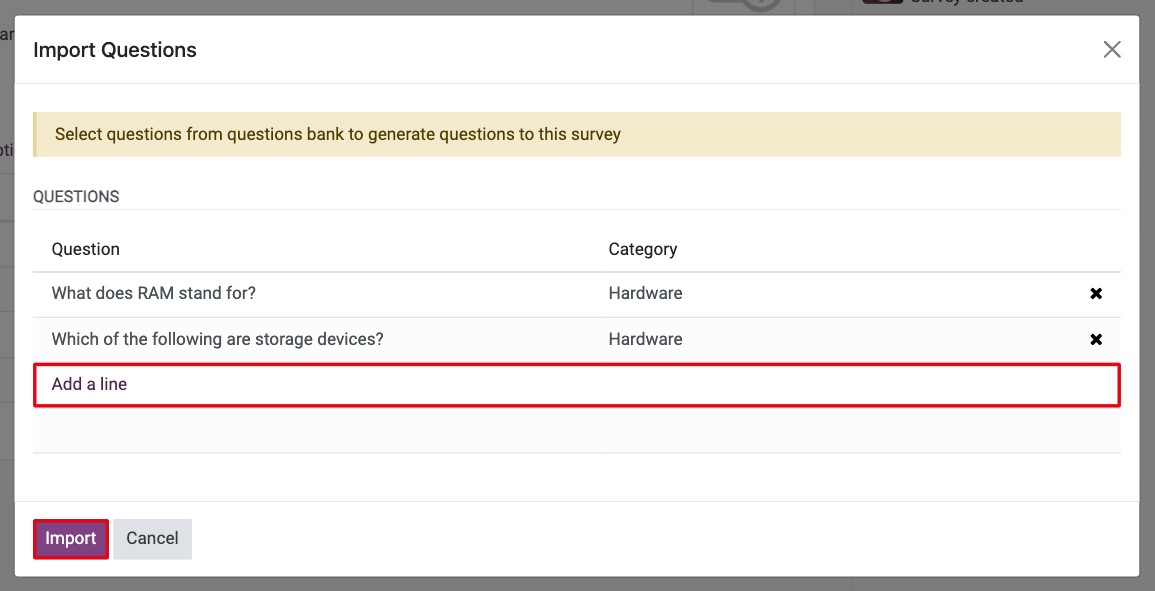
The new question will be imported to the Questions section of the surveys.