
How to create a time off allocation
To give employees days of time off, go to Time Off ‣ Management ‣ Allocations, click New, choose the time off type and the employee, enter the number of days and click Save. The allocation is approved by the person set on the time off type. Employees can then request time off within their balance.
Who |
Users with the Time Off ‣ Officer: Manage all requests access right (create and approve), employees (send an allocation request when the type allows it). |
App |
Time Off |
Before you start
Install the Time Off app, see How to install Time Off and set up access rights.
Create a time off type with Requires allocation set to Yes.
How do I allocate days to an employee?
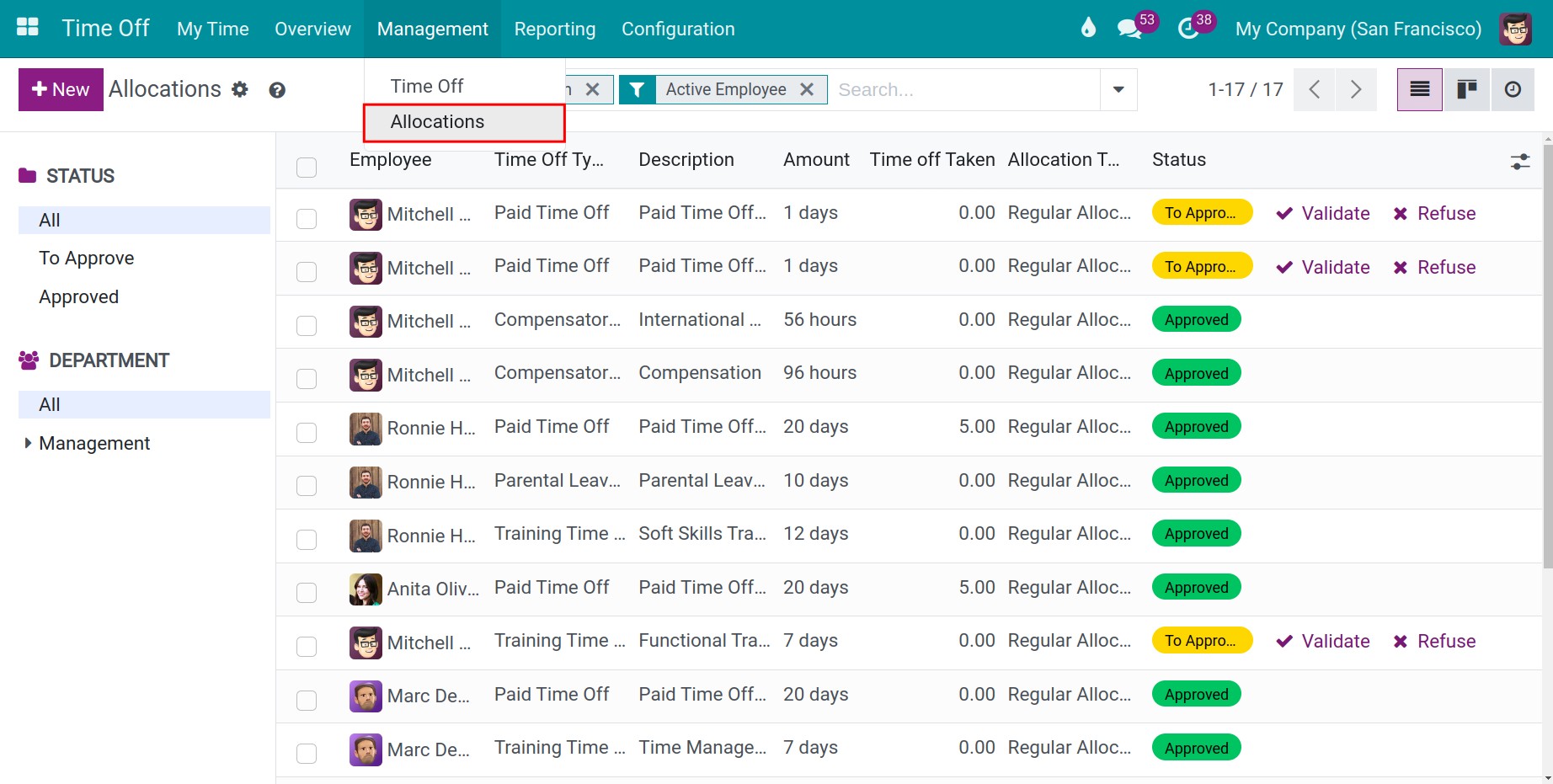
Go to Time Off ‣ Management ‣ Allocations. The list opens with the filters First Approval and My Team, so you only see the allocations waiting for you. Click New.
![The list of allocations with the New button]()
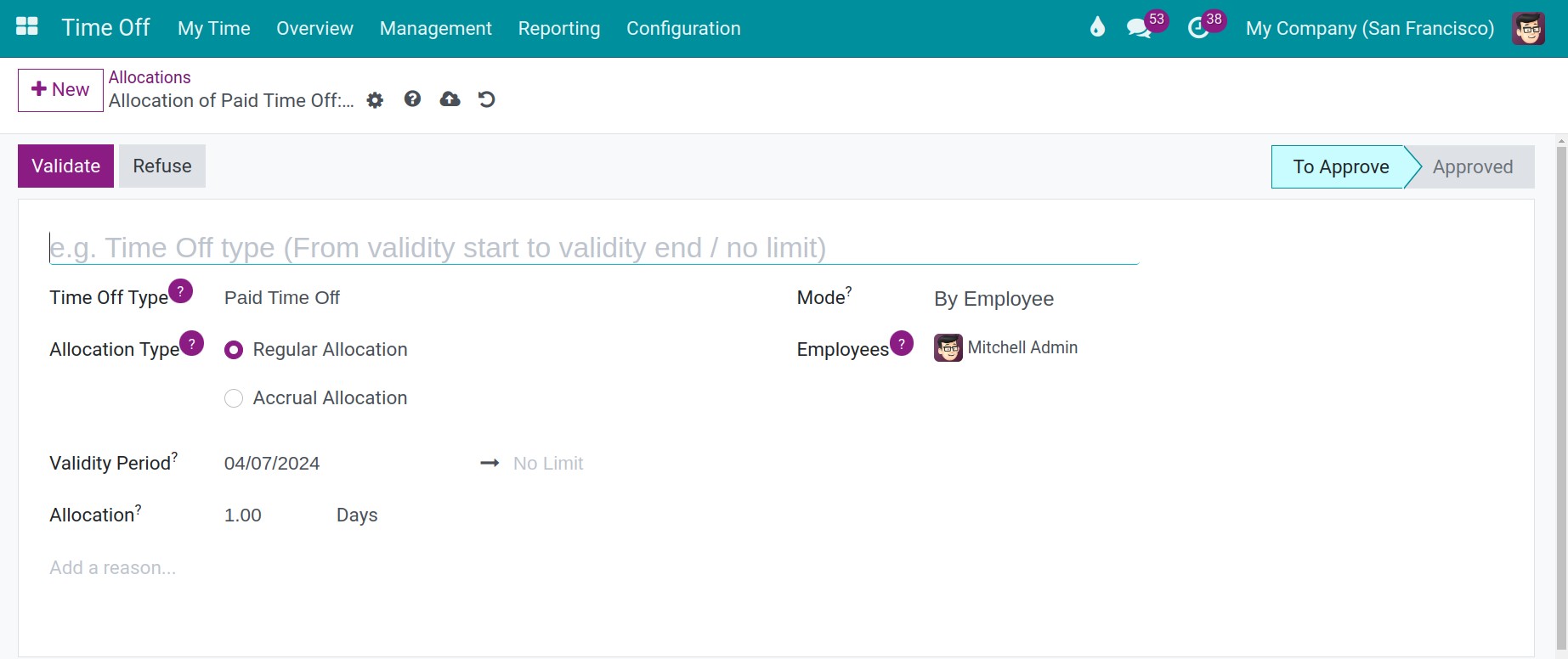
Fill in the allocation and click Save.
![An allocation of 12 days of annual leave for an employee]()
Field
What it does
If it is wrong
Title (top of the form)
The name of the allocation, for example Annual leave 2026.
None.
Time Off Type
The kind of leave the days belong to.
The employee cannot use the days for another type.
Employee
The employee who receives the days.
The days go to the wrong person.
Allocation Type
Regular Allocation: a fixed number of days. Accrual Allocation: days earned over time by an accrual plan, see How to allocate annual leave.
The employee gets all the days at once, or none.
Validity Period
The dates between which the days can be used. Leave the end date empty for no limit.
Days expire too early, or never.
Allocation
The number of days (or hours, depending on the type).
The balance is wrong.
Reason (bottom of the form)
Why the days are allocated.
None.
The allocation has the status To Approve. Viindoo schedules an Allocation Approval activity for the approver. Click Approve to confirm it, or Refuse.
![An allocation with the Approve button and the planned approval activity]()
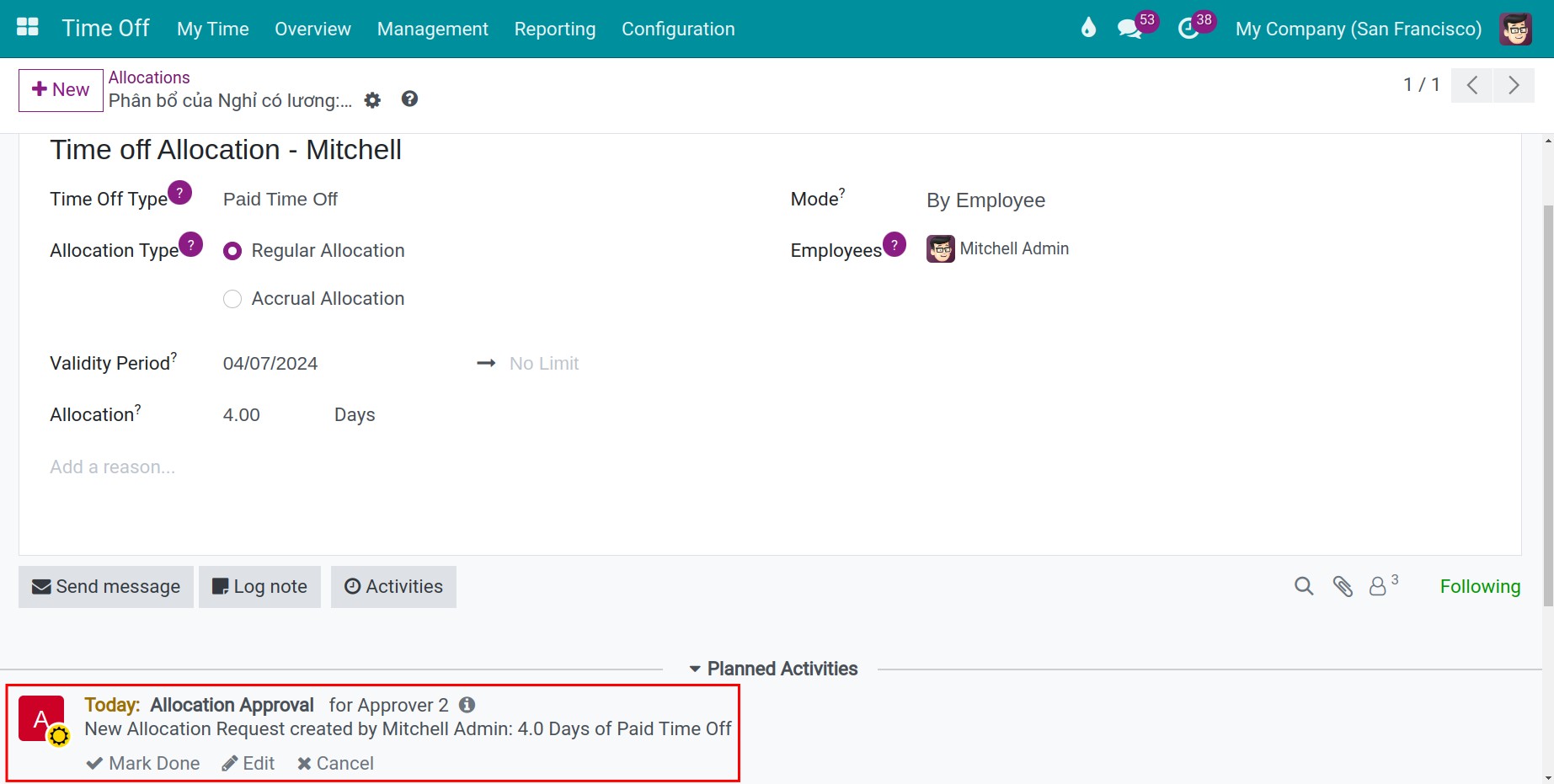
The approver depends on the Allocation Approval of the time off type, see How to create a time off type.
How do I allocate days to many employees at once?
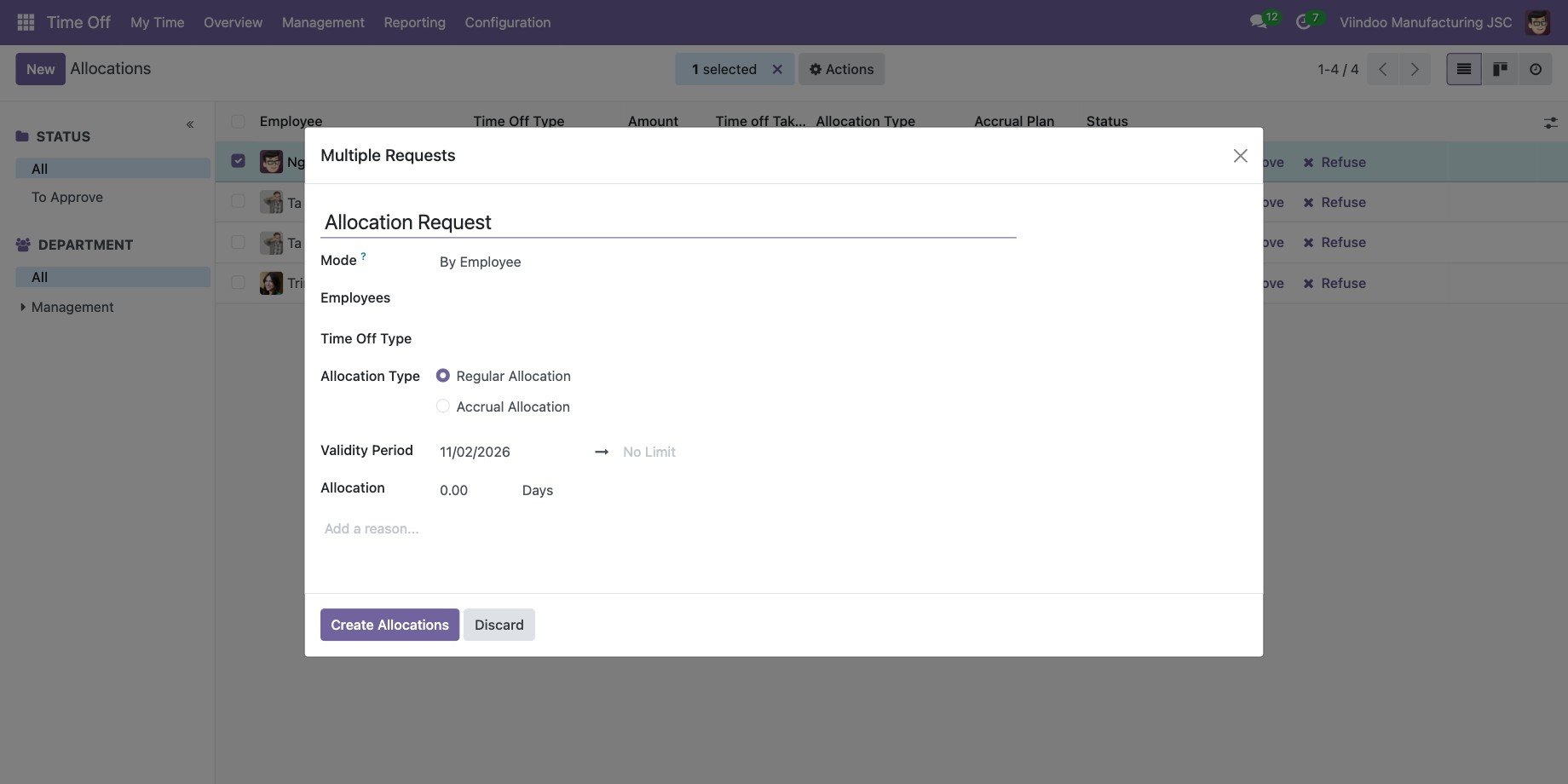
In Time Off ‣ Management ‣ Allocations, select an allocation in the list and open Actions ‣ Multiple Requests.
Name the allocation, choose the Mode: By Employee, By Company, By Department or By Employee Tag, and choose the employees, the time off type, the type of allocation, the validity period and the number of days.
Click Create Allocations.
How does an employee request an allocation?
When Employee Requests of the time off type is Extra Days Requests Allowed, an employee can ask for more days.
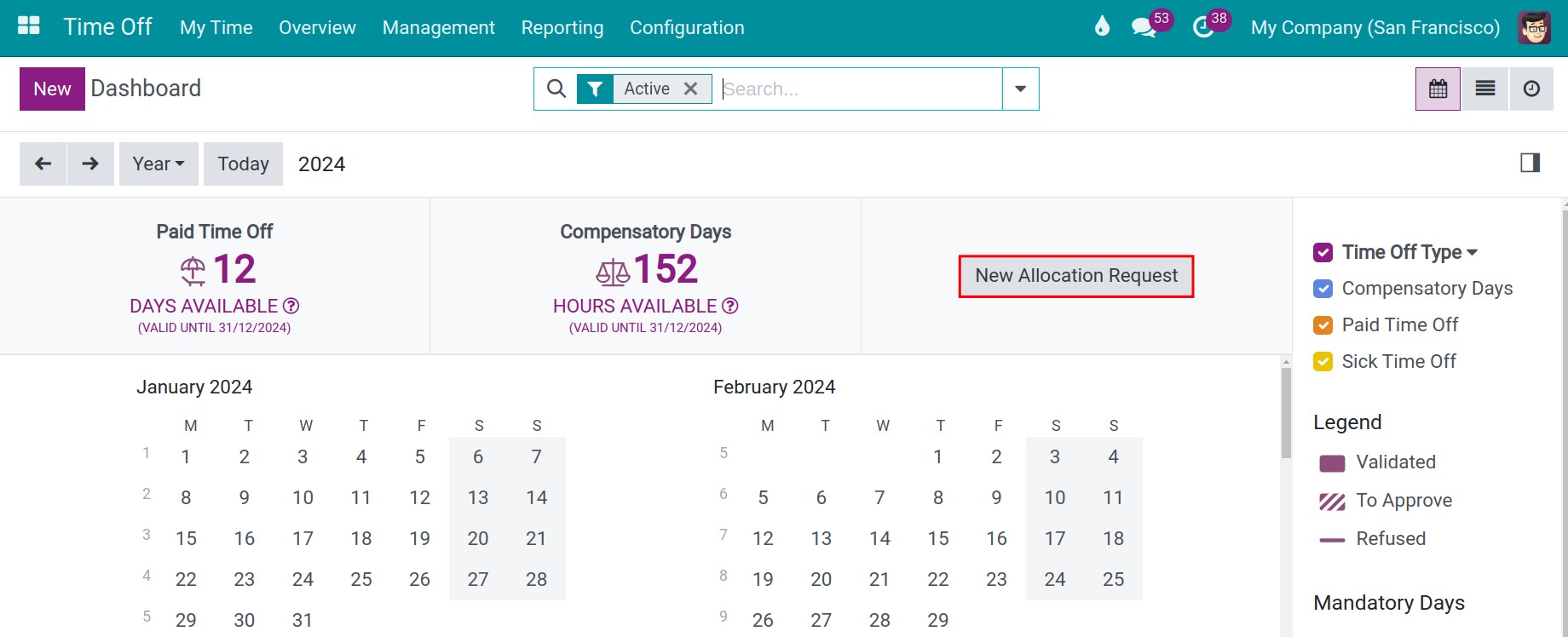
Go to Time Off ‣ My Time ‣ Dashboard and click New Allocation Request.
![The dashboard with the New Allocation Request link]()
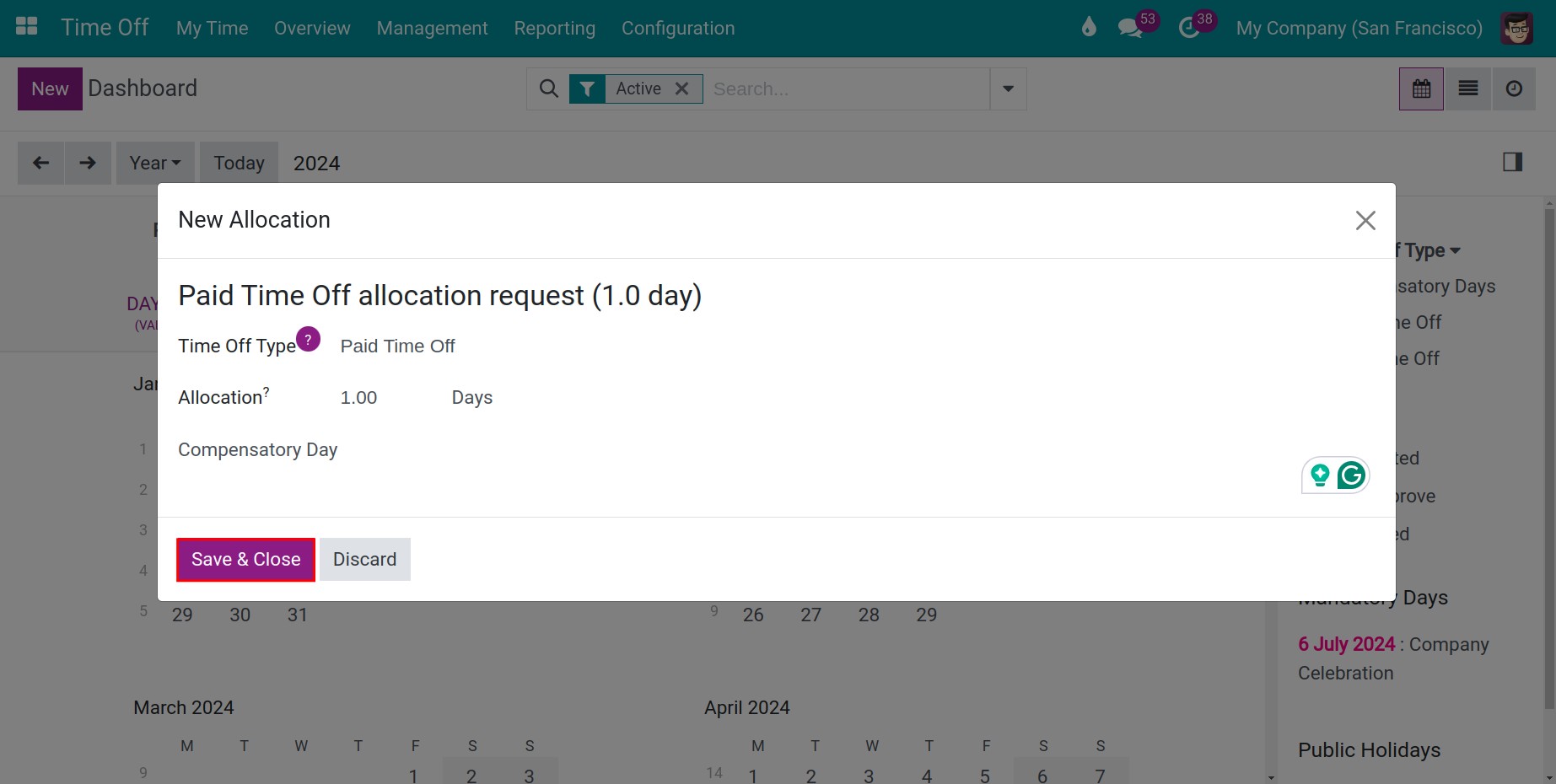
Choose the time off type, the number of days and the reason, then click Save & Close.
![The window to request an allocation]()
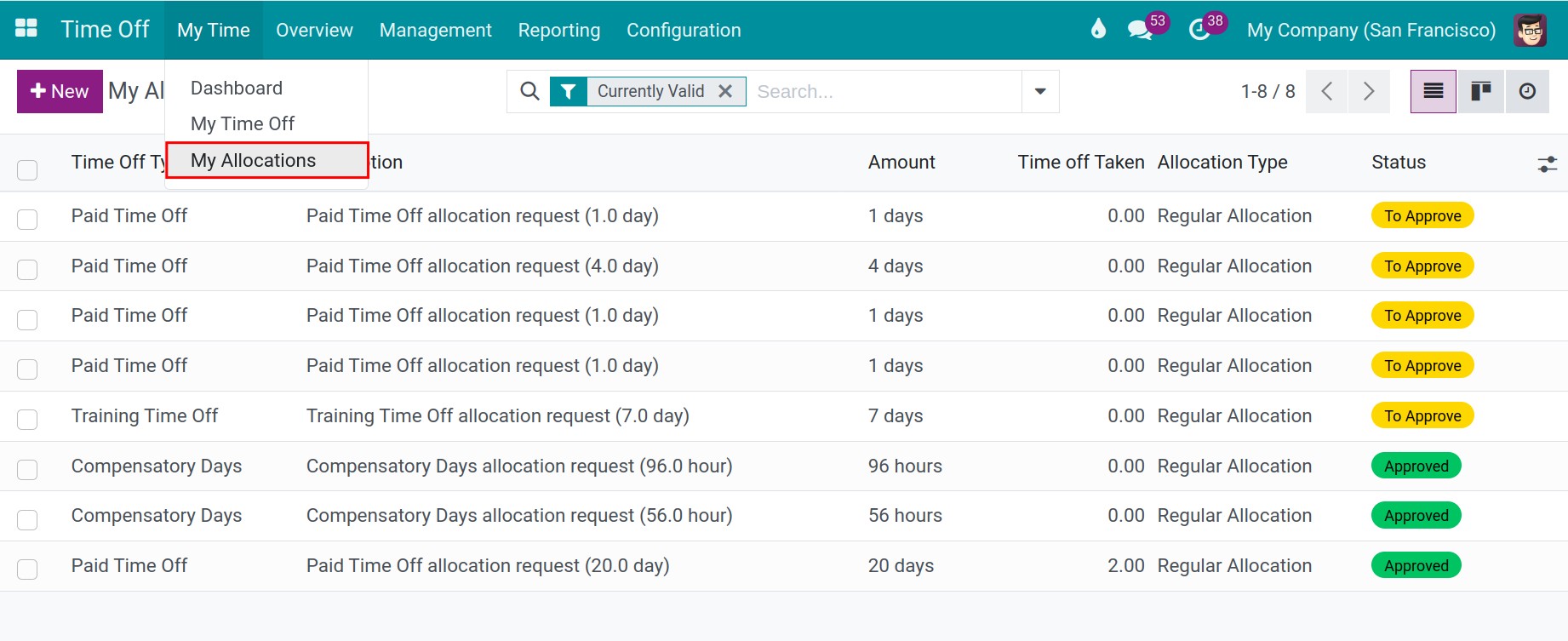
To follow the request, go to Time Off ‣ My Time ‣ My Allocations.
![The list of my allocations]()
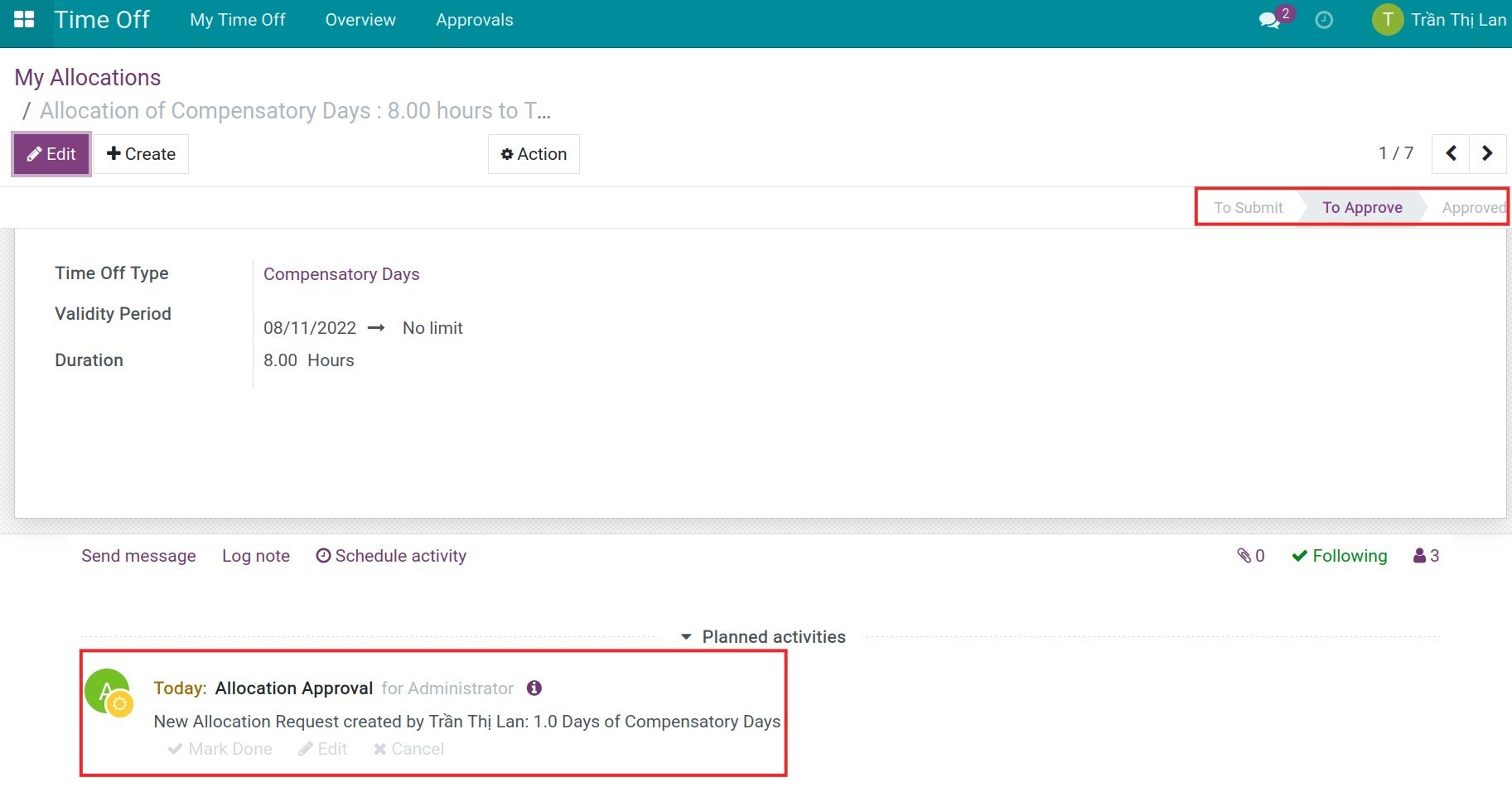
Open a request to see its status.
![An allocation request waiting for approval]()
Status |
Meaning |
|---|---|
To Approve |
The request is sent and waits for the approver. |
Approved |
The days are added to the balance of the employee. |
Refused |
The approver refused the request. |
Once the request is approved, the employee can request time off.
Common errors
Problem |
What to do |
|---|---|
The new allocation is missing in the list. |
The list is filtered on First Approval and My Team. Remove the filters. |
The employee has no balance after the allocation. |
Approve the allocation: the days count once its status is Approved. |
An employee cannot request extra days of a type. |
Set Employee Requests of the type to Extra Days Requests Allowed. |
Next steps
How to allocate annual leave: allocate annual leave automatically.
How to request time off: request time off with the allocated days.