
How to search, filter, group and save searches
To find records in any Viindoo list, kanban or report, type a keyword in the search bar and pick the field to search in. Click the caret at the right of the search bar (Toggle Search Panel) to apply Filters, Group By fields and saved Favorites. Save a search you use often with Save current search, so you or your whole team can reopen it in one click.
Who |
Any user. |
App |
All apps (the examples below use Contacts) |
Before you start
Have a Viindoo database: see How to sign up and create your Viindoo instance.
How do I find a menu quickly?
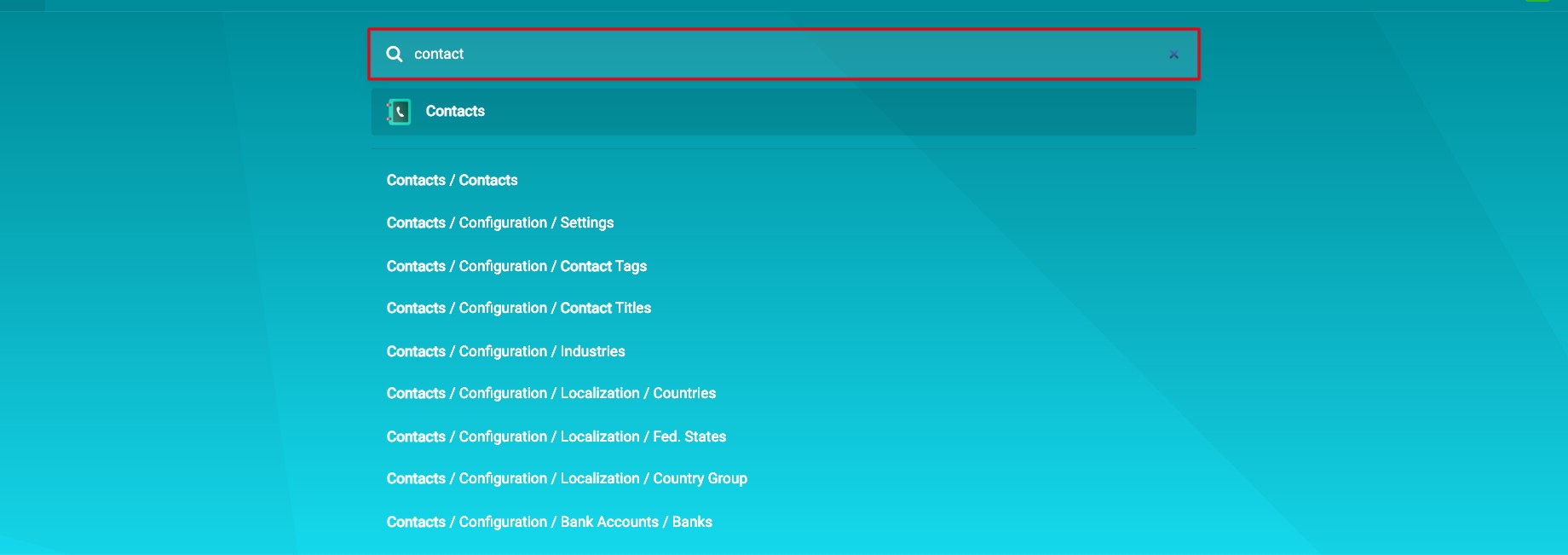
Click the Home Menu grid icon in the top left corner and start typing, for example contact. Viindoo lists the matching menus of all your apps; click one to open it.
![Typing a keyword on the Home Menu to find a menu]()
How do I search records by a field?
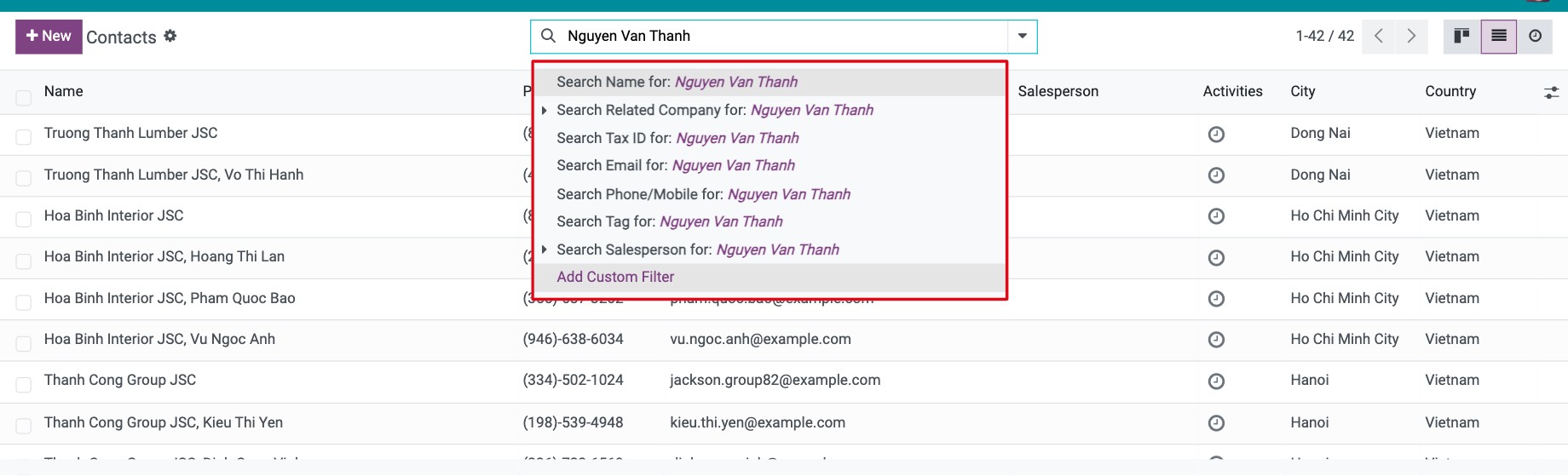
Type a keyword in the search bar at the top of the view. Viindoo suggests the fields that can contain it, for example Search Name for, Search Email for or Search Related Company for. Pick the one you mean and press Enter.
![Field suggestions in the search bar after typing a keyword]()
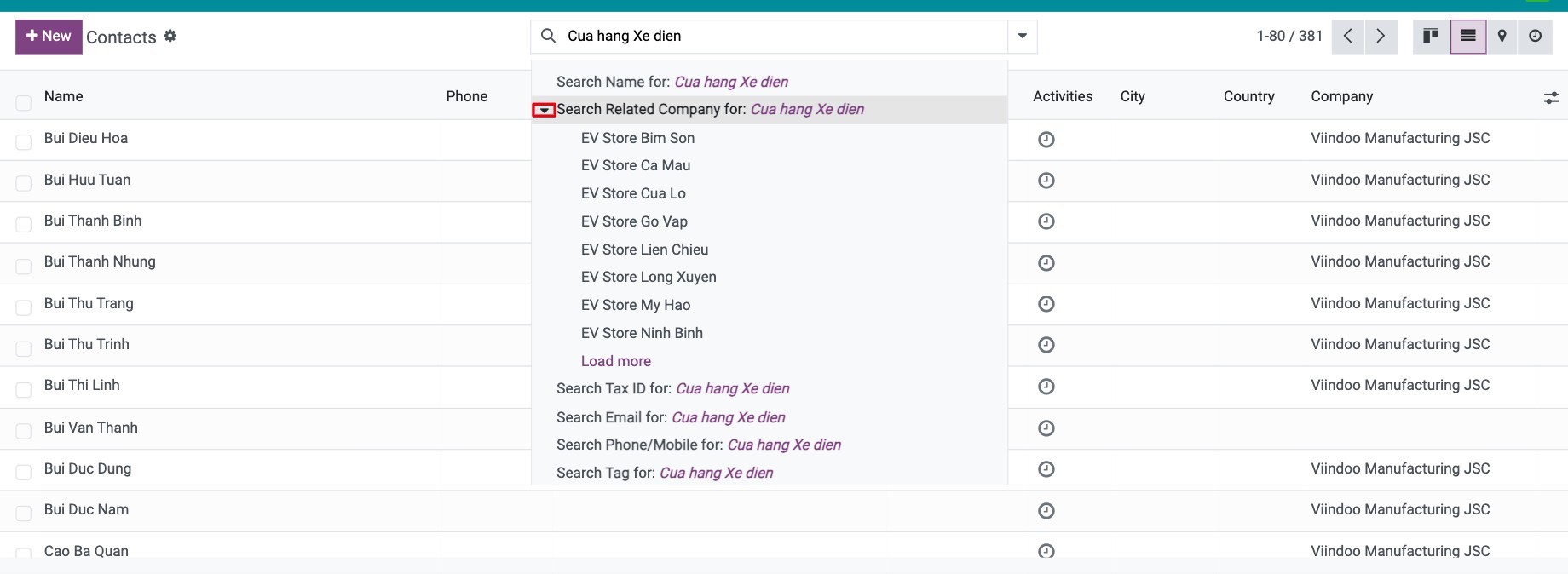
Some suggestions have an arrow. Click it to see the matching values and pick an exact one.
![Matching values listed under a field suggestion]()
Each choice is shown as a tag (a facet) in the search bar. Click the x on a facet to remove it.
How do I use a ready-made filter?
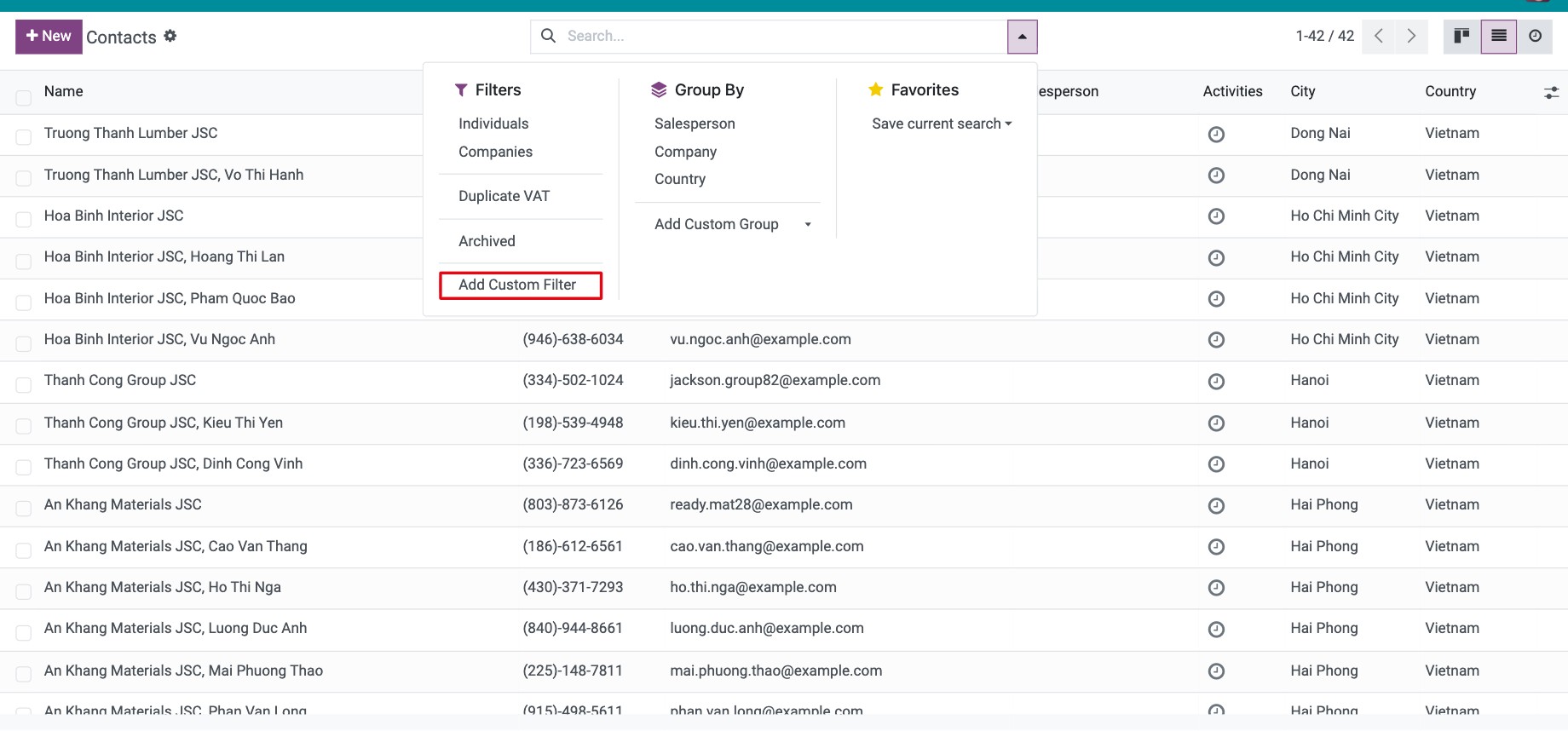
Click the caret at the right of the search bar (Toggle Search Panel). The Filters column lists the filters of the view, for example Individuals or Companies in Contacts. Click one to apply it; click it again to remove it.
![Filters column of the search panel in Contacts]()
Filters in the same block of the Filters column are combined with or (records that match either filter); filters from different blocks are combined with and (records must match both).
How do I create a custom filter?
Use a custom filter when no ready-made filter matches what you need.
In the search panel, click Add Custom Filter at the bottom of the Filters column.
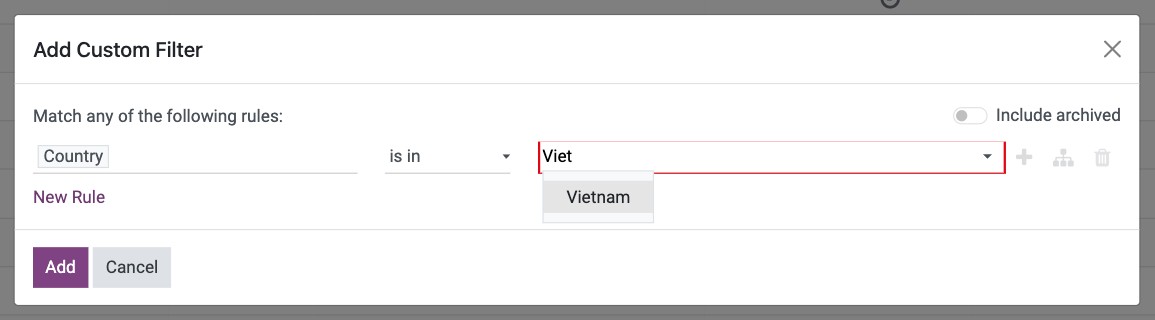
In the Add Custom Filter window, choose the field, the operator and the value of the rule (see the table below).
![Add Custom Filter window with a field, an operator and a value]()
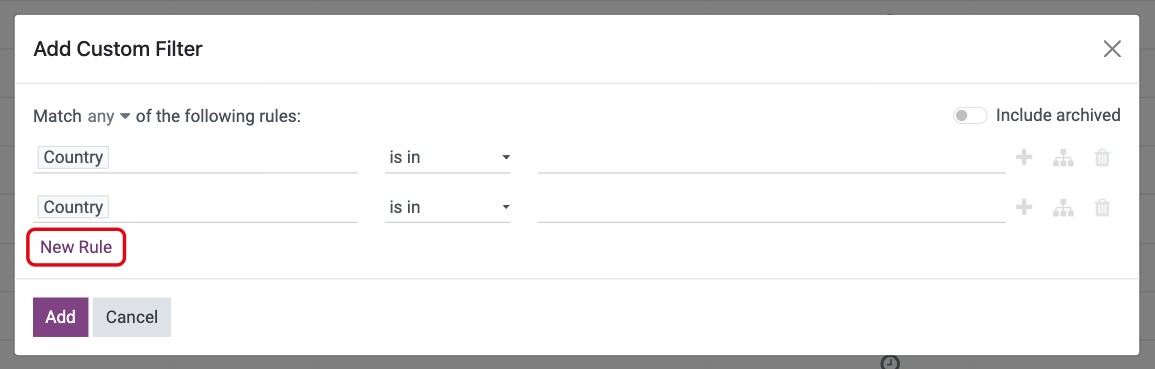
To add another rule, click New Rule.
![Two rules in the Add Custom Filter window]()
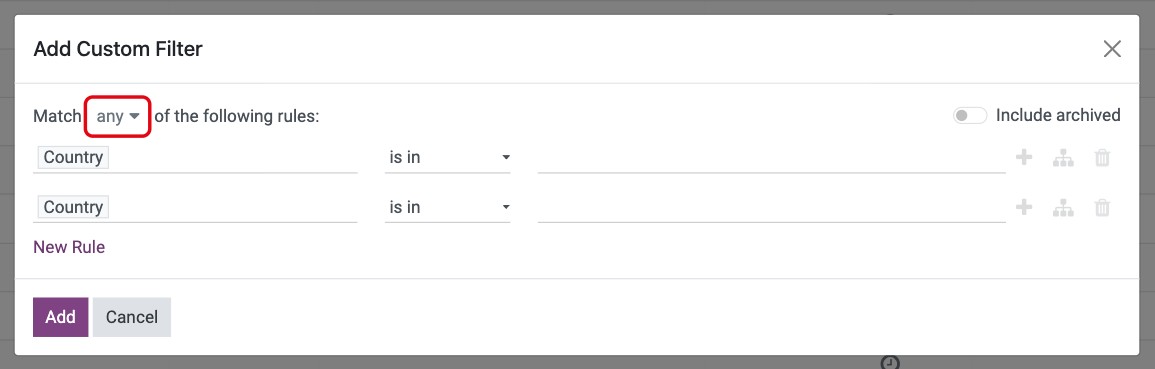
With several rules, choose any (records matching at least one rule, the default) or all (records matching every rule) in Match … of the following rules.
![Choosing any or all in Match of the following rules]()
Click Add. The custom filter is applied together with the filters already in the search bar (records must match all of them).
Operator |
What it finds |
|---|---|
contains / does not contain |
Records whose field includes (or does not include) the text you type, anywhere in it. |
is in / is not in |
Records whose field is exactly (or is not) one of the values you enter. |
is set / is not set |
Records where the field is filled in (or empty). No value is needed. |
The icons at the end of a rule help you build more complex filters:
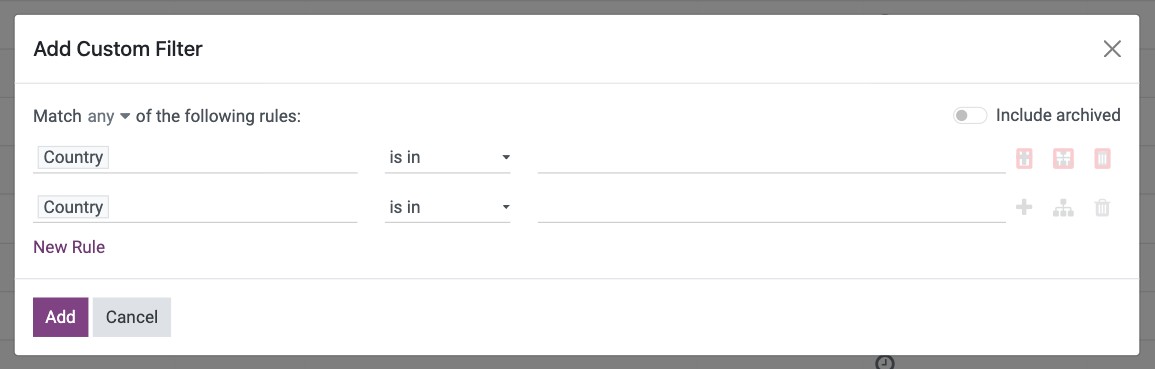
Add New Rule (plus icon): adds a rule below, like New Rule.
Add branch (branch icon): adds a group of nested rules with its own any / all choice, for example country is Vietnam and (city is Hanoi or city is Hai Phong).
Delete icon: removes the rule.
How do I group records?
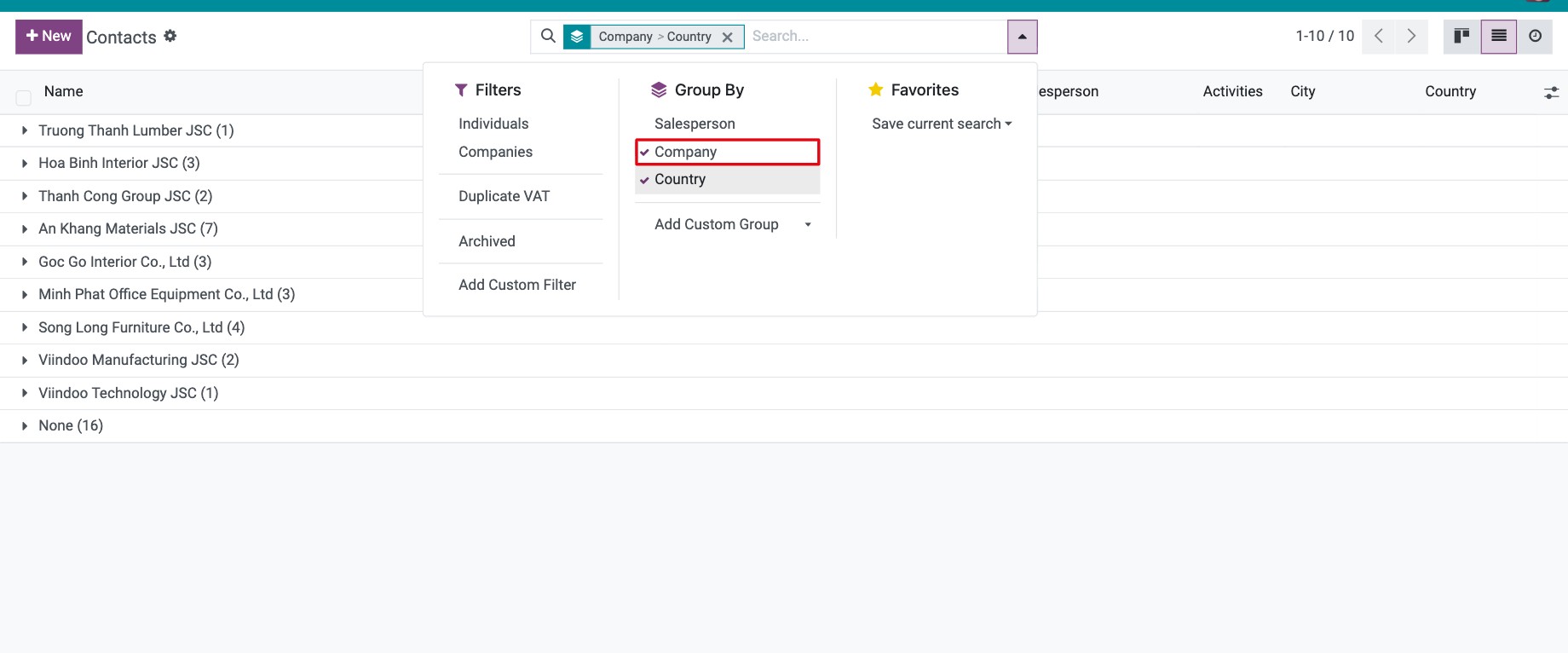
In the search panel, click a field in the Group By column, for example Company. Click another field, for example Country, to split each group further. The order you click is the order of the levels.
![Contacts grouped by Company, then by Country]()
To group by a field that is not listed, choose it in Add Custom Group at the bottom of the Group By column.
How do I save a search to reuse or share?
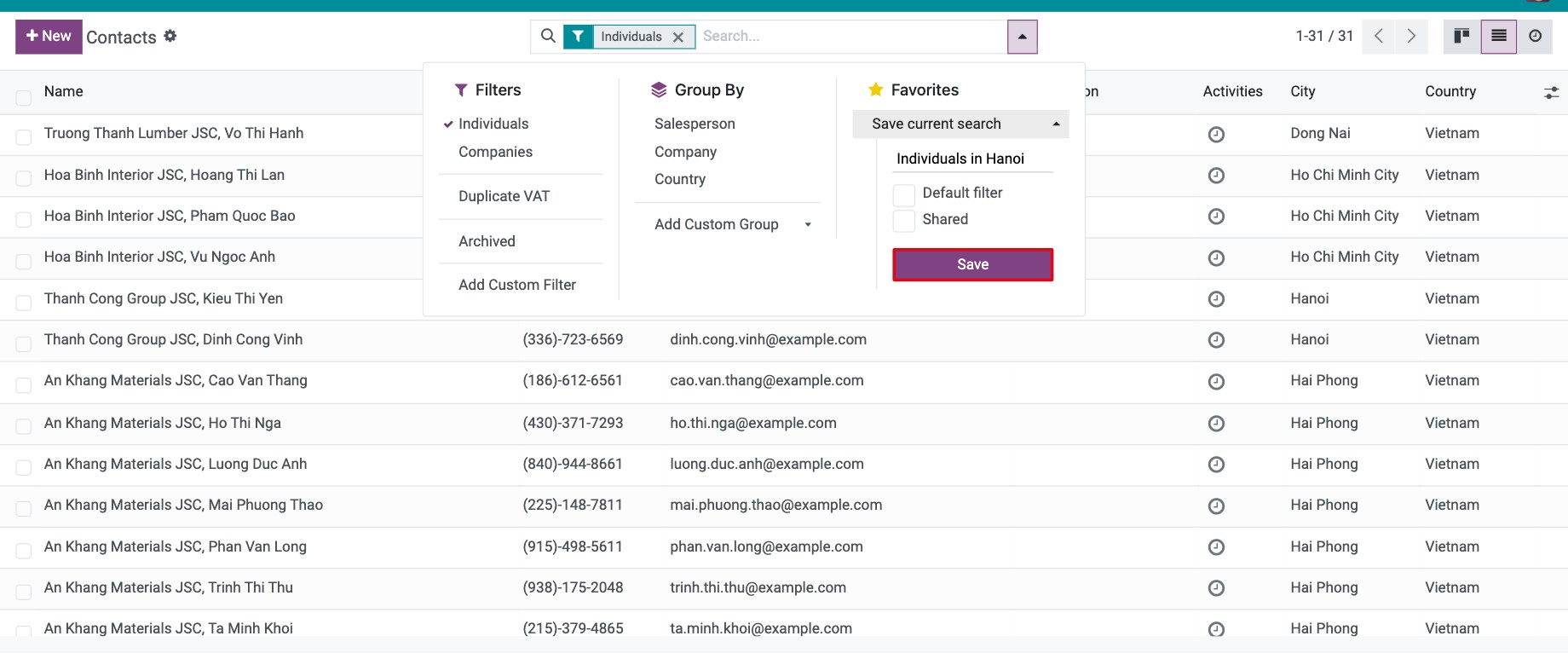
Set up the search, filters and groups you want, then in the Favorites column click Save current search. Enter a name, tick the options you need (see the table below) and click Save.
![Save current search with the Default filter and Shared options]()
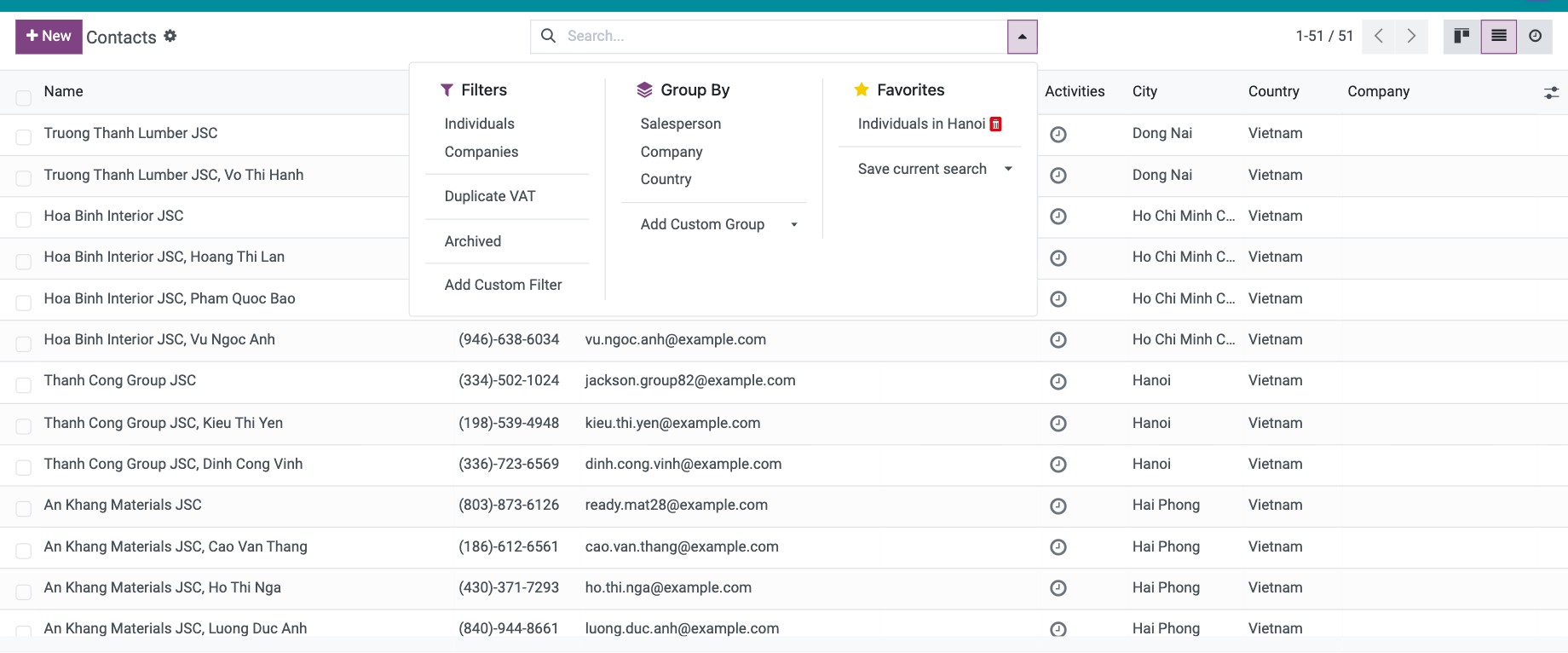
Your saved search now appears in Favorites. Click it to apply it. To delete it, click the trash icon next to its name and confirm with Delete Filter.
![Saved search in Favorites with its trash icon]()
Option |
What it does |
|---|---|
Default filter |
Applies this search automatically every time you open the view. |
Shared |
Makes the search available to all users. Without it, only you see it. |
Common problems
Problem |
What to do |
|---|---|
The list is empty or shows fewer records than expected. |
Look at the facets in the search bar: a default filter may still be applied. Remove the facets you do not need. |
A custom filter with several rules returns too many records. |
The rules are matched with any by default. Switch to all. |
The Add button of Add Custom Filter is greyed out. |
The filter has no rule. Add at least one rule. |
Next steps
Views and reports: which view should I use?: switch between list, kanban, pivot and graph views of the filtered records.
How to export and import data in Viindoo: export the filtered records to a spreadsheet.