
How to replenish stock with automatic or manual reordering rules
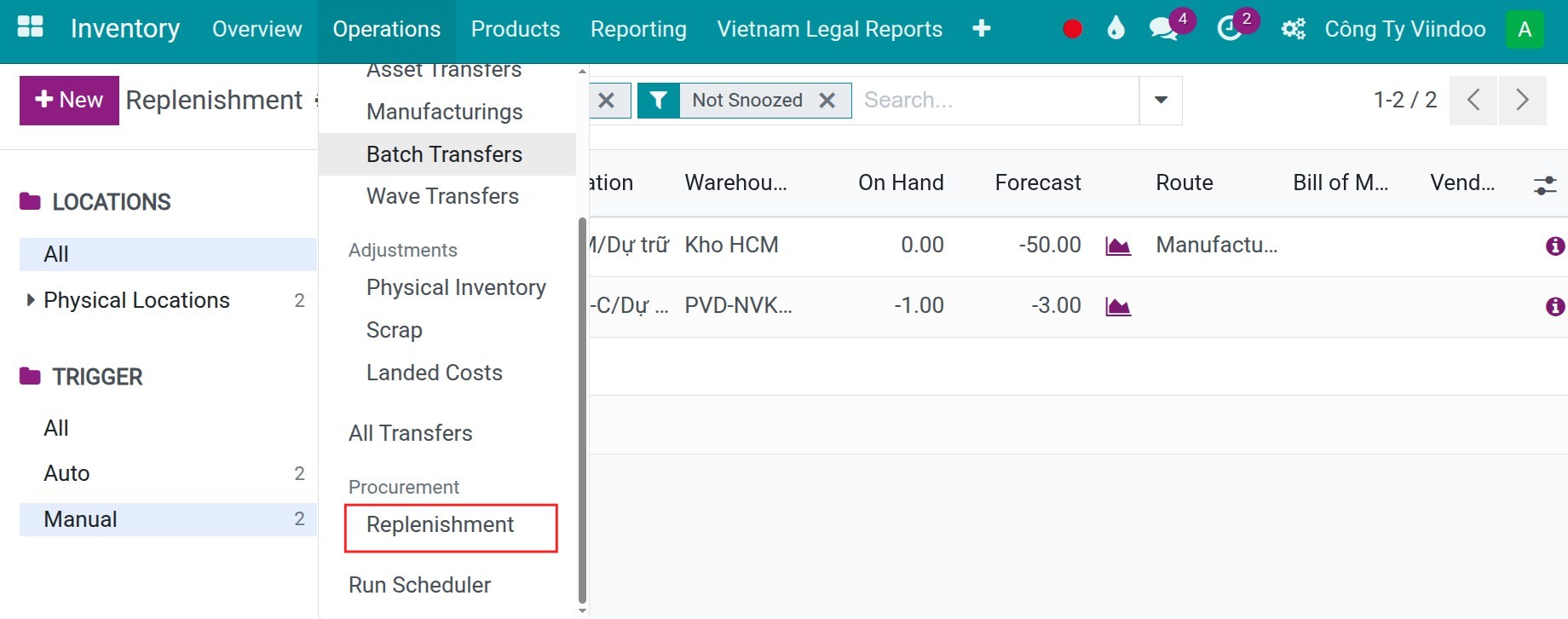
A reordering rule has a Trigger. With Auto, Viindoo creates the replenishment by itself when the daily scheduler finds the forecast below the minimum. With Manual, the rule appears in and you review it and click Replenish ‣ Order. Choose Auto for stable products, Manual when you want to control each order.
Who |
Inventory Administrators. |
App |
Inventory ‣ Operations ‣ Procurement |
Before you start
Create the reordering rule (see How to set up replenishment rules: minimum stock and make to order).
The product has a route that can supply it: a vendor and the Buy route if you install Purchase, a bill of materials and the Manufacture route if you install Manufacturing, or a resupply route between warehouses.
Which trigger should I choose?
Trigger |
Best for |
What you do |
|---|---|---|
Auto |
Stable demand and reliable supply, such as consumables and basic raw materials. |
Nothing: Viindoo orders when the scheduler runs. To Order cannot be edited. |
Manual |
Several warehouses with different needs, or a changing market where you adjust each order. |
Review the Replenishment list and order each line. |
How do I set up an automatic rule?
In the Replenishment list, create the rule and keep the Trigger at Auto, which is the default.
![Replenishment list with a reordering rule whose trigger is Auto]()
Make sure the product or its category has the route to use, or choose the Route in the rule. If a product has several routes and the rule has none, Viindoo takes the route with the lowest sequence.

The scheduler runs once a day by default. Change its time in (developer mode), or run it now with .
How do I replenish with manual rules?
Create the rule and set Trigger to Manual.
![Replenishment list with a reordering rule whose trigger is Manual]()
Open . Every rule whose forecast is below its minimum is listed.
![Replenishment list with the products to reorder, their forecast and the quantity to order]()
Review each line. The icons next to Forecast help you decide:
Forecast report (chart icon): the expected receipts and demand behind the forecast.
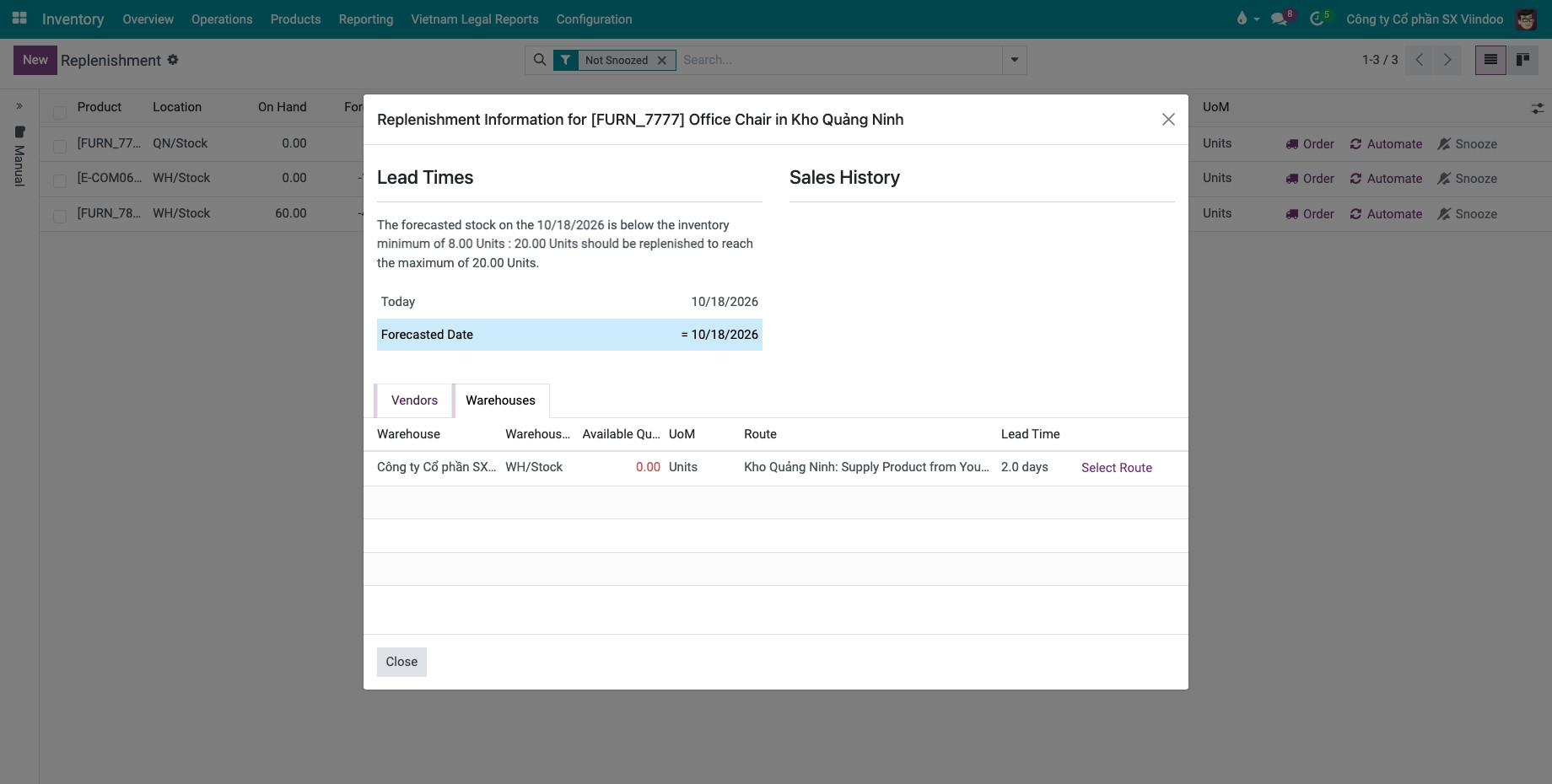
Replenishment Information (i icon): the lead times, the replenishment history and, on the Warehouses tab, the quantity available in other warehouses with a Select Route button to resupply from one of them. If you also install Purchase, a vendor tab lets you switch vendor with Set as Supplier.
![Replenishment Information window with the lead times and the warehouses tab]()
Adjust the line if needed. Show more columns with the column selector:
Route: the route for this rule. It takes priority over the routes of the product.
Group (procurement group): groups the replenishments of one demand, for example a sales order, so that the resulting orders and transfers are linked to it.
To Order: you can change the proposed quantity. The undo icon restores the computed value.
Select the lines, then click Replenish ‣ Order to order the To Order quantity, or Replenish ‣ Order To Max to order up to the maximum. Click Snooze to hide a manual line until a date.
![Replenish menu with the Order and Order To Max choices on selected lines]()


Viindoo shows a notification with a link to the operations it created.
Tip
Use the left panel to filter by location, trigger or product category.
Warning
Viindoo never orders a manual rule by itself. If you have many manual rules, check the Replenishment list regularly.
Each line also has an Automate button that changes its trigger to Auto.
What should I see when it works?
After you click Order, the line shows a To Order of 0 because the forecast is back above the minimum, and the purchase order, manufacturing order or transfers appear in their apps.
Common problems
Message or problem |
What to do |
|---|---|
You can only snooze manual orderpoints. You should rather archive ‘auto-trigger’ orderpoints if you do not want them to be triggered. |
Set the trigger to Manual to snooze, or archive the rule. |
You can not create a snoozed orderpoint that is not manually triggered. |
Snoozing is only for manual rules. |
No rule has been found to replenish “…” in “…”. Verify the routes configuration on the product. |
The product has no route that can supply it. Add the route and its vendor or bill of materials, or choose a Route in the rule. |
Next steps
How to read the product forecast report: read the forecast behind a rule.
How to plan receipts, deliveries and production with lead times: understand the lead times used by the forecast.
Version notes
In this version there is no separate Reordering Rules menu: the rules are in Replenishment.
If you also install Procurement Approvals, employees can request supply approvals.