
How to get started with the Payroll app
To start using Payroll management, install the Payroll app from Apps, review its options in , then give each user the right Payroll access level in . Once this is done, the app is ready to compute payslips from the contract, the working schedule and the approved time off of each employee.
Who |
|
App |
Payroll |
How do I install the Payroll app?
On the main menu, open the Apps application (see Apps and modules).
![The Apps screen with the list of applications]()
Use the search bar to look for Payroll, then click Activate on its card. Once the app is installed, its card no longer shows Activate.
![The Payroll card found in the Apps screen]()
Open the main menu again: Payroll is now in the list of applications.
![The main menu listing the Payroll application]()


How do I set up the Payroll app for the first time?
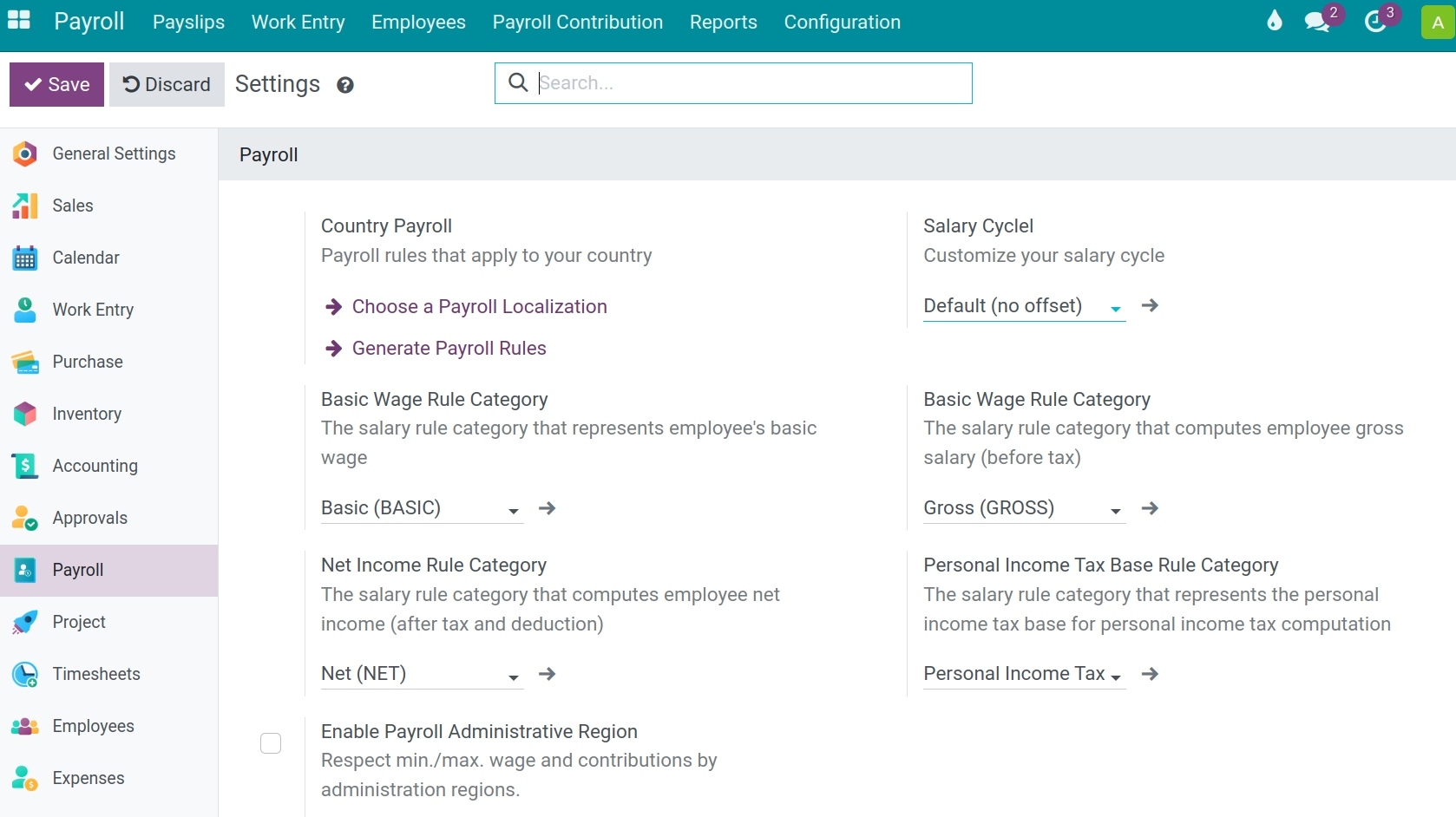
Go to . The screen opens on the Payroll tab and is split into four blocks: Payroll, Accounting, Automation and Integrations.

Payroll block
Country Payroll: the payroll rules that apply to your country.
Choose a Payroll Localization: opens Apps on the payroll localization modules, where you can install the one that matches your country (for example the Vietnamese payroll).
![The payroll localization modules available in Apps]()
Generate Payroll Rules: creates the default payroll rules of your company, namely the salary structure with its salary rules, the salary rule categories, the contribution registers and the advantage templates. The system first asks you to confirm and reminds you to set a proper country for your company.
Salary Cycle: the default salary cycle of your company. This field is required.
Basic Wage Rule Category: the salary rule category that represents the basic wage of an employee.
Gross Salary Rule Category: the category that computes the gross salary of an employee, before tax.
Net Income Rule Category: the category that computes the net income of an employee, after tax and deductions.
Personal Income Tax Base Rule Category: the category that holds the base of the personal income tax computation.

Accounting block
Payroll Accounting: tick it to post the payslips in accounting and create the journal entries automatically (see accounting configuration for salary rules). Once it is active, two more settings appear:
General Employee Payable Account: the payable account used for the employee payable entries, for example in the aggregate mode or when the employee has no payable account.
Payroll Accounting Mode: Per Employee creates one journal entry per payslip, with the employee as the payable partner. Aggregate creates one consolidated journal entry per payslip batch, so accounting does not see the individual salaries. In this mode you also choose the Salary Payable Summary Partner.
Automation block
Payslips Automation: tick it to let the system generate the payslips periodically from the settings of the contracts (see payslip batches). Once it is active:
Update for All Contracts copies this option to every contract of the company that is not cancelled, so that you do not have to do it contract by contract.
Payslips Generation Schedule sets the day of the salary cycle on which the payslips are generated, the Generation mode (Payslip Batch Period gives all payslips the period of the batch, Contract Validity limits each payslip to the validity of its contract) and the Generation language.
Integrations block
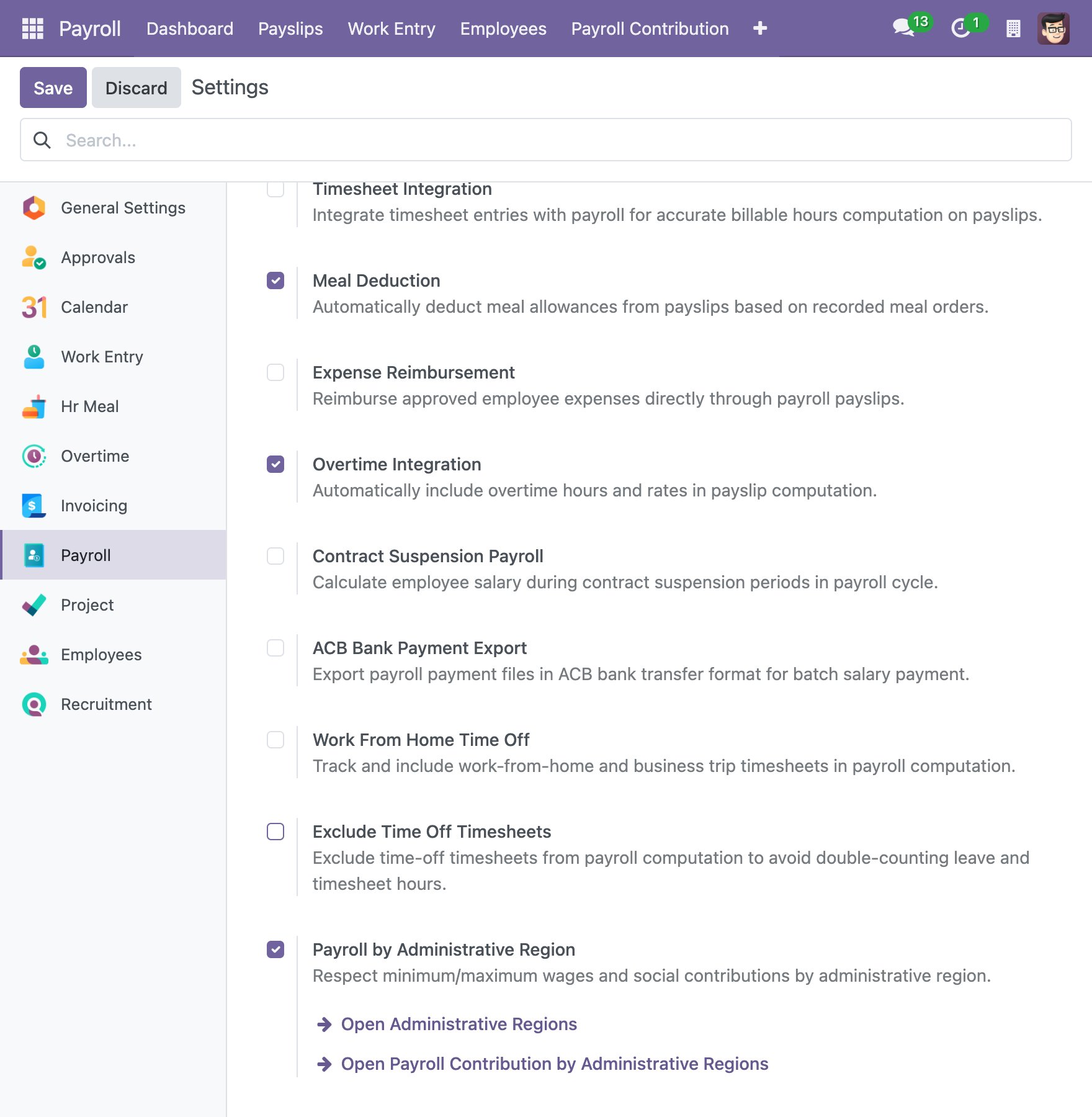
Each integration is an optional module that you activate by ticking its box. If a module is not available in your system, the setting shows a Purchase or Learn more link instead of a box.

Attendance Integration and Timesheet Integration: compute the worked hours of the payslips from the attendance records or from the timesheets.
Meal Deduction: deduct the meal allowances from the payslips, based on the recorded meal orders.
Expense Reimbursement: reimburse the approved employee expenses through the payslips.
Overtime Integration: include the overtime hours and rates in the payslips (see calculating overtime salary).
Contract Suspension Payroll: pay the employee during the suspension periods of the contract.
ACB Bank Payment Export: export the payment files in the ACB bank transfer format.
Work From Home Time Off: include the work-from-home and business trip timesheets in the payroll.
Exclude Time Off Timesheets: leave the time-off timesheets out of the payroll, so that leave and timesheet hours are not counted twice.
Payroll by Administrative Region: apply the minimum wage and the payroll contributions of each administrative region. Once it is active, two links appear: Open Administrative Regions and Open Payroll Contribution by Administrative Regions.
![The Payroll by Administrative Region setting with its two links]()
How do I grant Payroll access rights to a user?
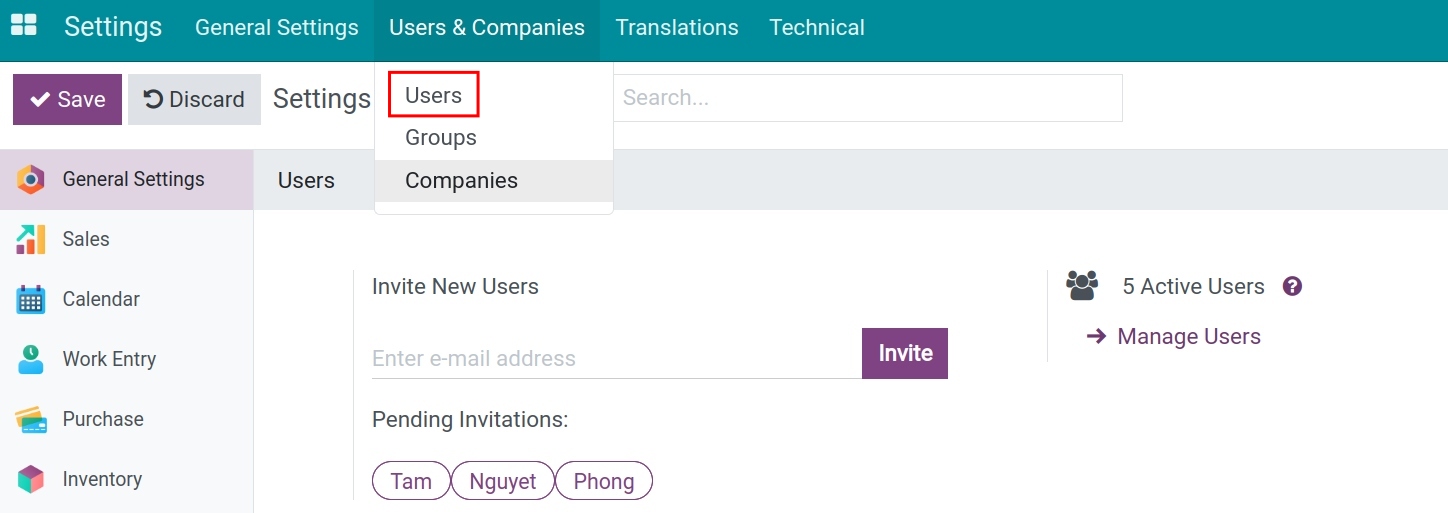
Go to (see user accounts).
![The list of users in Settings]()
Open the user, go to the Access Rights tab and, in the Human Resources section, choose a level in the Payroll field.
![The Payroll access right of a user in the Human Resources section]()

The Payroll field offers four levels:
Level |
What the user can do |
|---|---|
Empty |
See only their own payslips and their own personal income tax analysis. |
Team Leader |
See the payslips of the employees who report to them or who work in the departments they manage, and the payroll analysis and personal income tax analysis of these employees. |
Officer |
See all payslips and payslip batches, create and edit them, create and manage employees, create and see the payroll contributions and see the payroll analysis. The contracts are read-only for an Officer. The Officer level also gives the Officer access right of the Employees app. |
Administrator |
Full access to the Payroll app, including the Configuration menu and the access to all the contracts. |
Common errors
Problem |
What to check |
|---|---|
The Settings menu is missing under Payroll > Configuration |
You need both the Payroll Administrator access right and the Administration Settings access right. |
Generate Payroll Rules asks for a confirmation |
This is expected. Check that the country of your company is set before you confirm. |
An integration shows Purchase or Learn more instead of a box |
The module of this integration is not available in your system. Follow the link to get it. |
A user sees only their own payslips |
Their Payroll access right is empty. Raise it to Team Leader or Officer. |
Next steps
Define the salary cycle of your company.
Build your salary structures.
Then create payslips.
See also
Optional module