
How to keep email threads together and move them
The Mail Route app keeps email conversations in the right place. It does two things:
When two companies both use Viindoo (for example to handle tickets together), replies by email land on the same ticket, task or opportunity on both sides, provided each side adds the other’s email alias as a follower before replying.
Move Message Thread moves all the messages of a record to another record, and routes future replies there too. Use it when a conversation was started on the wrong record or on a duplicate.
Who |
Any user for email threads. Moving a thread requires the Move Message Thread right. |
App |
Mail Route (with Helpdesk, Project or CRM) |
Before you start
Mail Route is installed. It is installed automatically with the email features; to check, search for Mail Route in Apps.
The ticket examples use the Helpdesk app; the same steps apply to the records of Project and CRM. Move Message Thread itself works on any record that has a chatter.
Incoming emails work and an alias domain is set: How to connect Viindoo to your own mail servers.

When do I need this?
Tickets of two companies that support each other (Helpdesk).
Tasks of two companies working on the same project (Project), or a task on one side and a ticket on the other.
A purchase order on one side and a lead or opportunity on the other (Purchase and CRM).
Where do I find the email alias of a team or project?
Each side needs the email alias that receives emails for the record type.
Record |
Where the alias is |
|---|---|
Ticket |
Helpdesk ‣ Configuration ‣ Helpdesk Teams, open the team, Emails tab (shown once an alias domain is set). |
Task |
Project ‣ Configuration ‣ Projects, open the project, Settings tab. |
Lead or opportunity |
CRM ‣ Configuration ‣ Sales Teams, open the team (the alias is shown when the team uses leads or opportunities). |

How do I keep a conversation between two Viindoo databases in one thread?
Example: Company A (company-a.viindoo.cloud, helpdesk alias
support@company-a.viindoo.cloud) asks Company B (company-b.viindoo.cloud, helpdesk alias
support@company-b.viindoo.cloud) for help on a ticket.
Company A creates a ticket, adds as follower a contact with Company B’s helpdesk alias (
support@company-b.viindoo.cloud) and sends the message.![Company A ticket with Company B's alias as follower and the first message]()
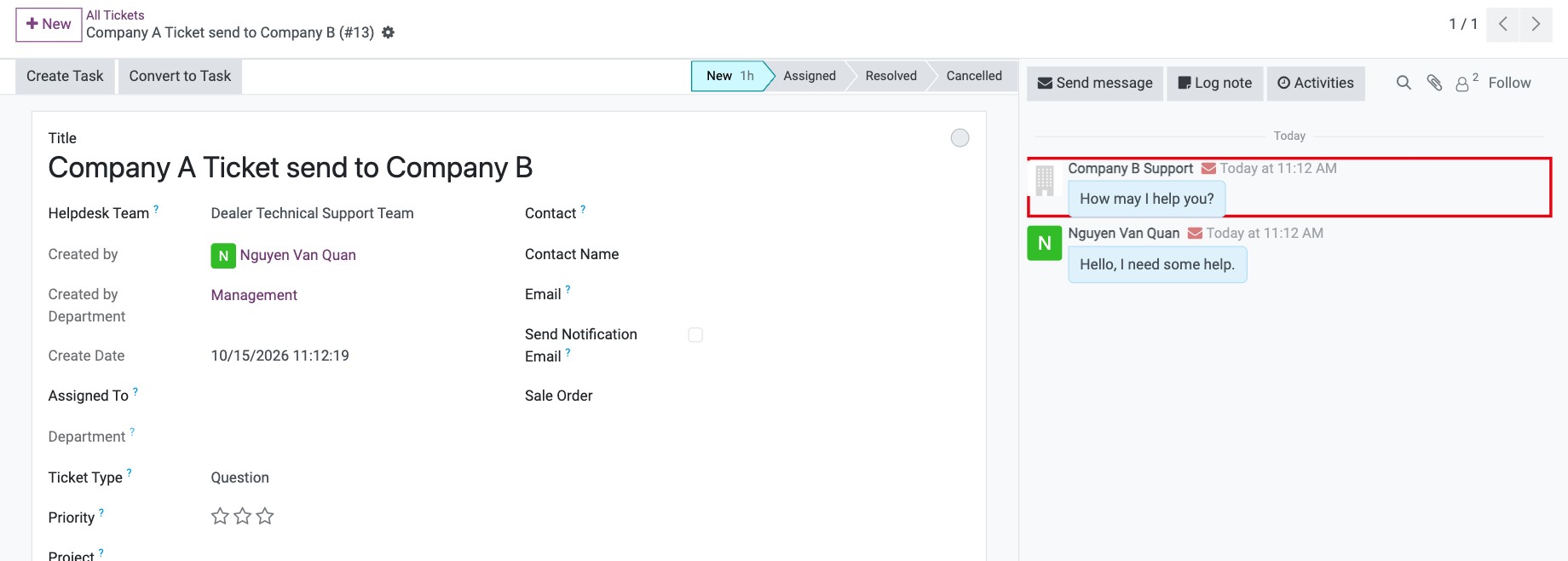
Company B’s Viindoo creates a ticket from the email. Before replying, Company B adds as follower Company A’s helpdesk alias (
support@company-a.viindoo.cloud). This alias must be the alias of the team set in Helpdesk Team on Company A’s ticket.![Company B ticket with Company A's helpdesk alias added as follower]()
Company B replies from the ticket.
![Company B replying from its ticket]()


The reply arrives on Company A’s original ticket, and the whole conversation stays in one thread on both sides.
The receiving side always adds the sender’s alias before replying: the helpdesk team’s alias for a ticket, the project’s alias for a task, the sales team’s alias for a lead or opportunity.
How do I allow a user to move message threads?
Turn on developer mode.
Go to Settings ‣ Users & Companies ‣ Users and open the user. In the Access Rights tab, Technical section, tick Move Message Thread.
![Move Message Thread right in the Technical section of the user's access rights]()

How do I move a thread to another record?
Warning
Moving a thread cannot be undone. All messages leave the current record, and future replies go to the new record.
Open the record that holds the messages, click the gear icon (Actions) and choose Move Message Thread.
![Move Message Thread in the Actions menu of a record]()
In Move To, choose the type of record and the record that should receive the messages.
![Move Message Thread window with the Move To field]()
Click Apply, then confirm.
![Confirmation before moving the thread]()


Viindoo opens the target record: its chatter now holds the messages of both records.

Common errors
Problem |
What to do |
|---|---|
Move Message Thread is not in the Actions menu. |
The user does not have the Move Message Thread right, or the record has no chatter. |
This move was not confirmed, so nothing has been moved. Check that “Move To” is filled in, then click Apply again and confirm when asked. |
Fill in Move To, click Apply and confirm. |
The other company’s reply created a new ticket instead of reaching the original one. |
The receiving side did not add the sender’s alias as follower before replying, or the alias is not the one of the team on the original ticket. |
Next steps
How to connect Viindoo to your own mail servers: set up the alias domain and incoming emails.
Chatter: follow records, log notes and send messages: send messages and add followers.