
How to use IoT devices in Manufacturing
A work center has no way to say which scale or label printer stands at it, so operators walk to a shared printer, read a weight off a display and type it in, or retype a label by hand. IoT Manufacturing lets you attach registered IoT devices to a work center - a label printer, a scale and a footswitch - and then use them from the work order form of that station:
Print Label sends the label of the output that was recorded but not yet labelled to the station’s own label printer.
Read Scale takes one fresh reading from the station’s scale and puts it into the quantity of the manufacturing order.
Reprint Last Label lets a team leader send the last label again after a jam or an empty roll.
A footswitch starts, pauses or finishes the work order hands-free.
A work center with no device attached, and a database without this module, work exactly as before.
Who |
The Production Manager attaches the devices; the Production Operator uses them; the Team Leader reprints labels. |
App |
IoT Manufacturing (with Manufacturing and Internet of Things) |
Before you start
Pair your IoT boxes first: follow Set up and manage IoT boxes. A device can only be attached to a work center once its box has registered it.
How the work flows
Production in progress - the production operator weighs the produced quantity with Read Scale. Next: the same operator.
Output recorded, label printed - the production operator prints the label with Print Label. Next: the production manager or team leader, only if the label did not come out.
Label did not come out - the production manager or team leader sends it again with Reprint Last Label.
Who uses IoT Manufacturing
Role |
What they do |
Access right to assign |
|---|---|---|
IT / System Administrator |
Installs the IoT apps, pairs the boxes and decides in Settings whether IoT Manufacturing is on. |
Internet of Things (IoT) / Administrator, and the Settings access of Administration |
Production Operator |
Runs the work orders of a station: reads the scale, prints labels, uses the footswitch. |
Manufacturing / User |
Production Manager / Team Leader |
Attaches devices to work centers and chooses the label printer, scale and footswitch of each station; does everything the operator does, plus reprinting the last label. |
Manufacturing / Administrator (it brings Internet of Things (IoT) / User with it) |
How do I install IoT Manufacturing?
Open Apps.
Search for
IoT Manufacturing.Click Activate. The apps IoT and Manufacturing are required and are installed with it if they are missing.
The module also switches itself on as soon as IoT and Manufacturing are both installed. To turn it off, open Settings ‣ IoT ‣ IoT Integrations and clear the IoT Manufacturing box.
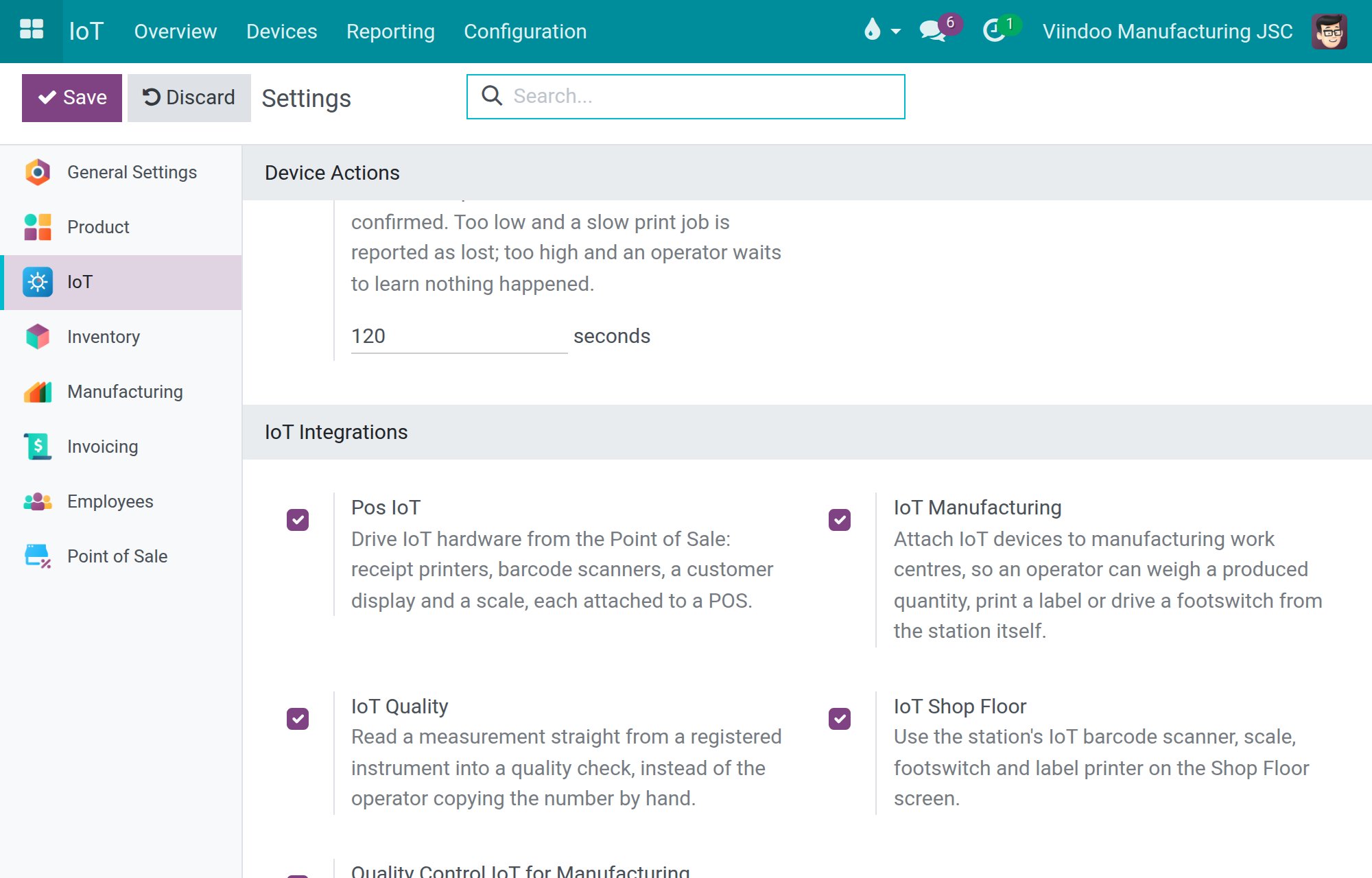
If your work orders are printed on a label printer, check Device Action Timeout (seconds) under Settings ‣ IoT. It is the time the system waits for the box to confirm a print before it records that the print was never confirmed. The default is 120 seconds.
How do I give the access rights?
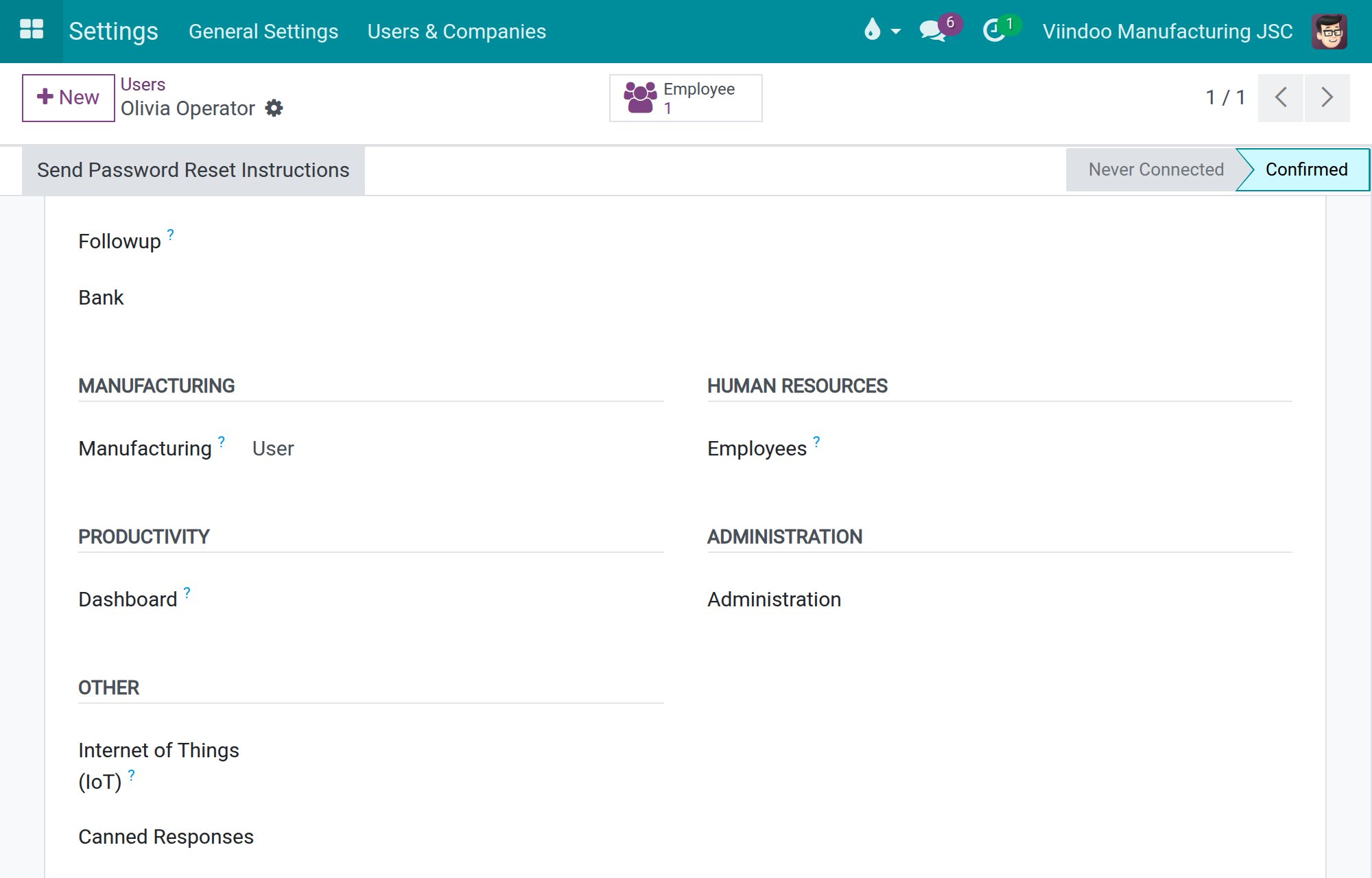
Open Settings ‣ Users & Companies ‣ Users, open a user and go to the Access Rights page.
For each production operator, set Manufacturing to
User.For each team leader or production manager, set Manufacturing to
Administrator. This right brings Internet of Things (IoT) / User with it, so the manager sees the boxes and devices to choose from; there is nothing else to set.
Operators do not need any IoT access right: printing a label or reading a scale from the work order needs only the right to open the work order. Manufacturing / User cannot change a work center, so it cannot attach devices either.
If you uninstall IoT Manufacturing, Manufacturing / Administrator no longer brings Internet of Things (IoT) / User with it, but the people who already hold it keep it. Remove it by hand from those who no longer need it.
How do I attach the devices of a station?
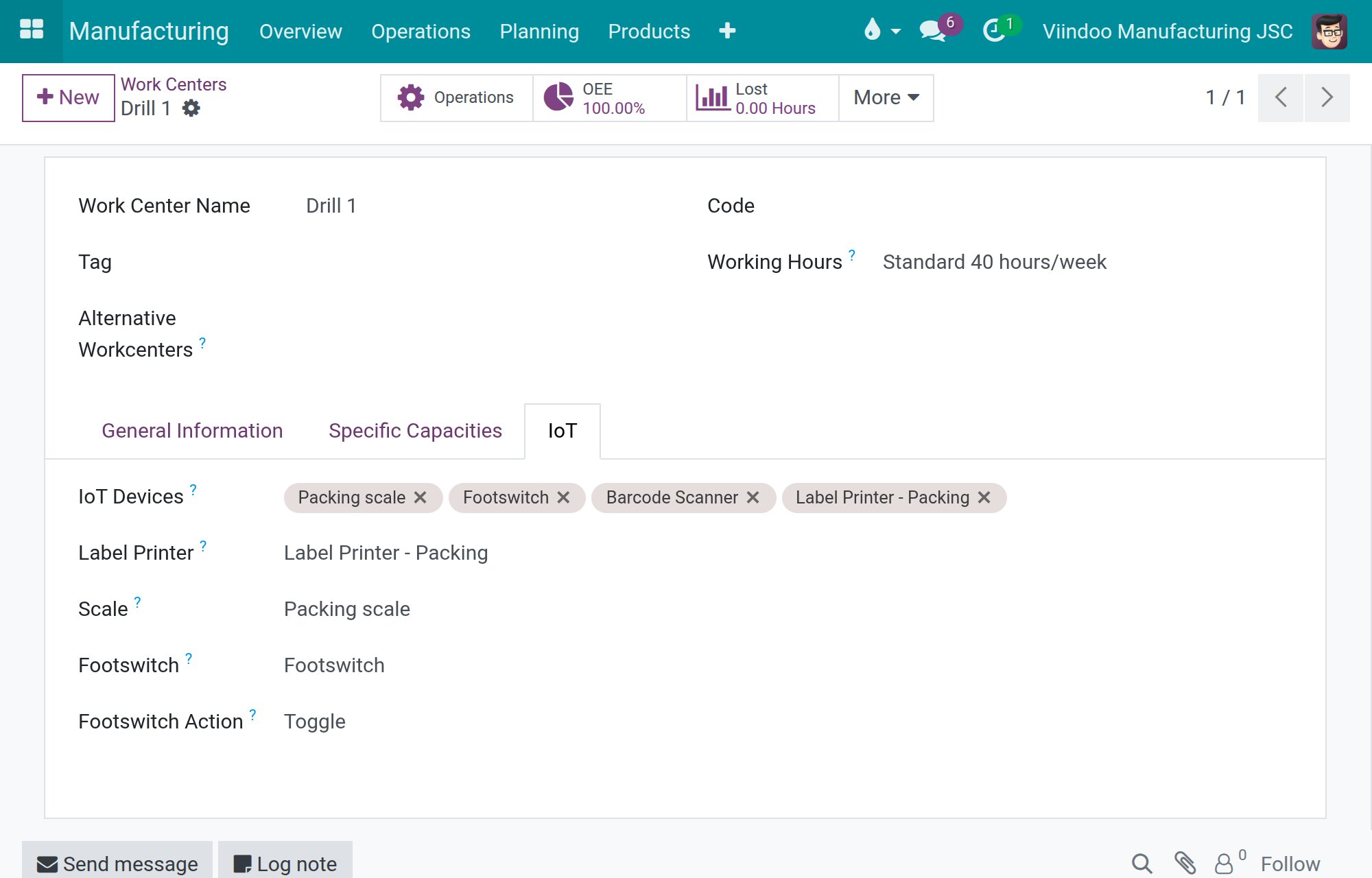
Open Manufacturing ‣ Configuration ‣ Work Centers and open the work center.
Go to the IoT page.
In IoT Devices, add the devices that stand at this station.
Choose the Label Printer, the Scale and the Footswitch of the station. Each list only offers devices of the right kind that you attached in the previous step.
If you chose a Footswitch, choose its Footswitch Action:
Start,Pause,ToggleorFinish.Togglepauses a running order and starts it again when it is paused.Save.
A device that does not belong to this station is refused with a reason when you save: a device must first be one of the IoT Devices of the work center before you can choose it for a role, and a device of another company cannot be attached.
To free a device, remove it from the IoT Devices of the work center. A work order shows a button only when its work center has the matching device chosen, so a station with nothing chosen shows no IoT button at all.
The IoT page, where devices are attached, comes with Manufacturing / Administrator. If you hold that right and still do not see the page, ask the administrator to check that your account holds Internet of Things (IoT) / User.
How does the operator read the weight of the produced quantity?
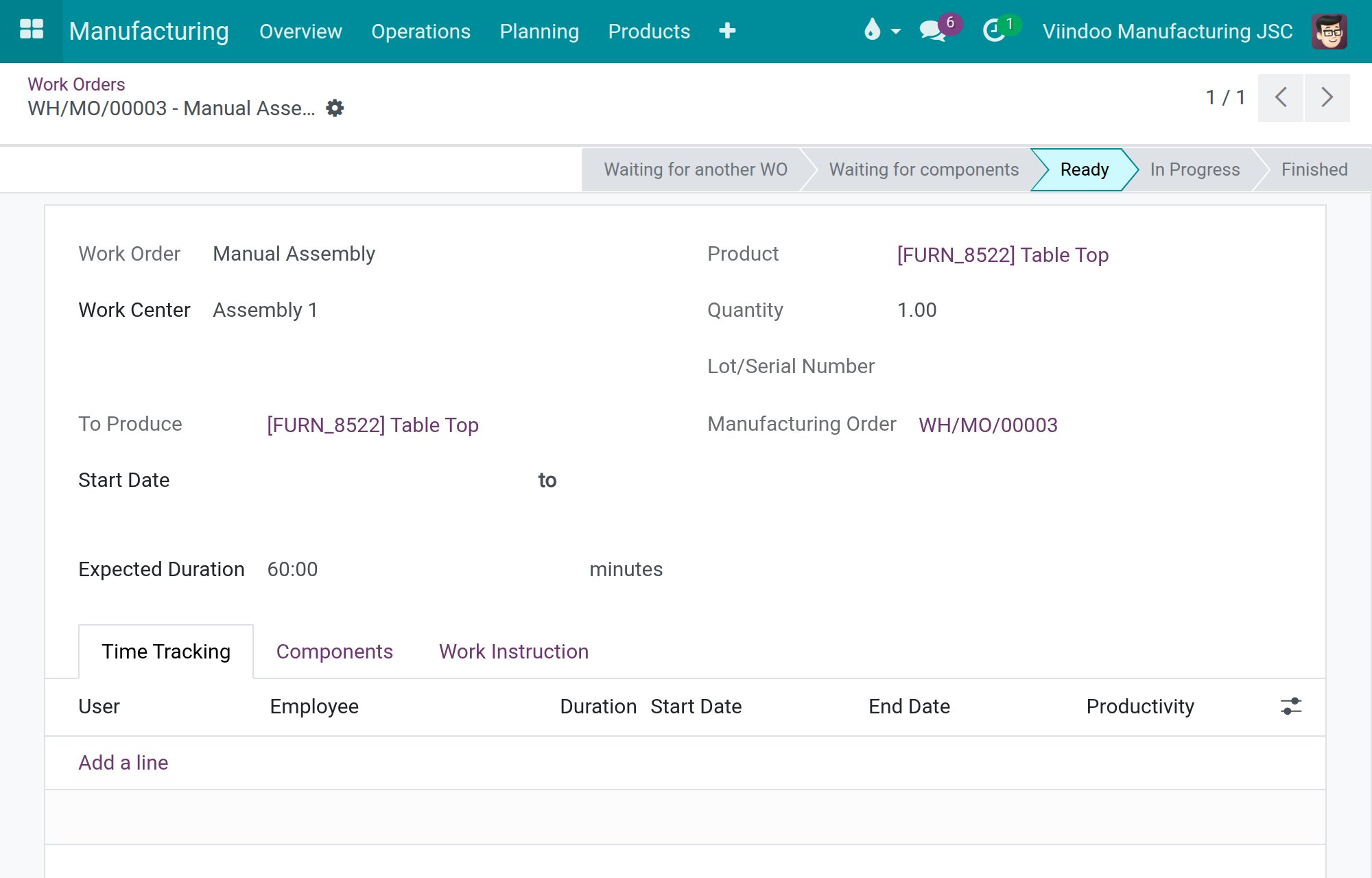
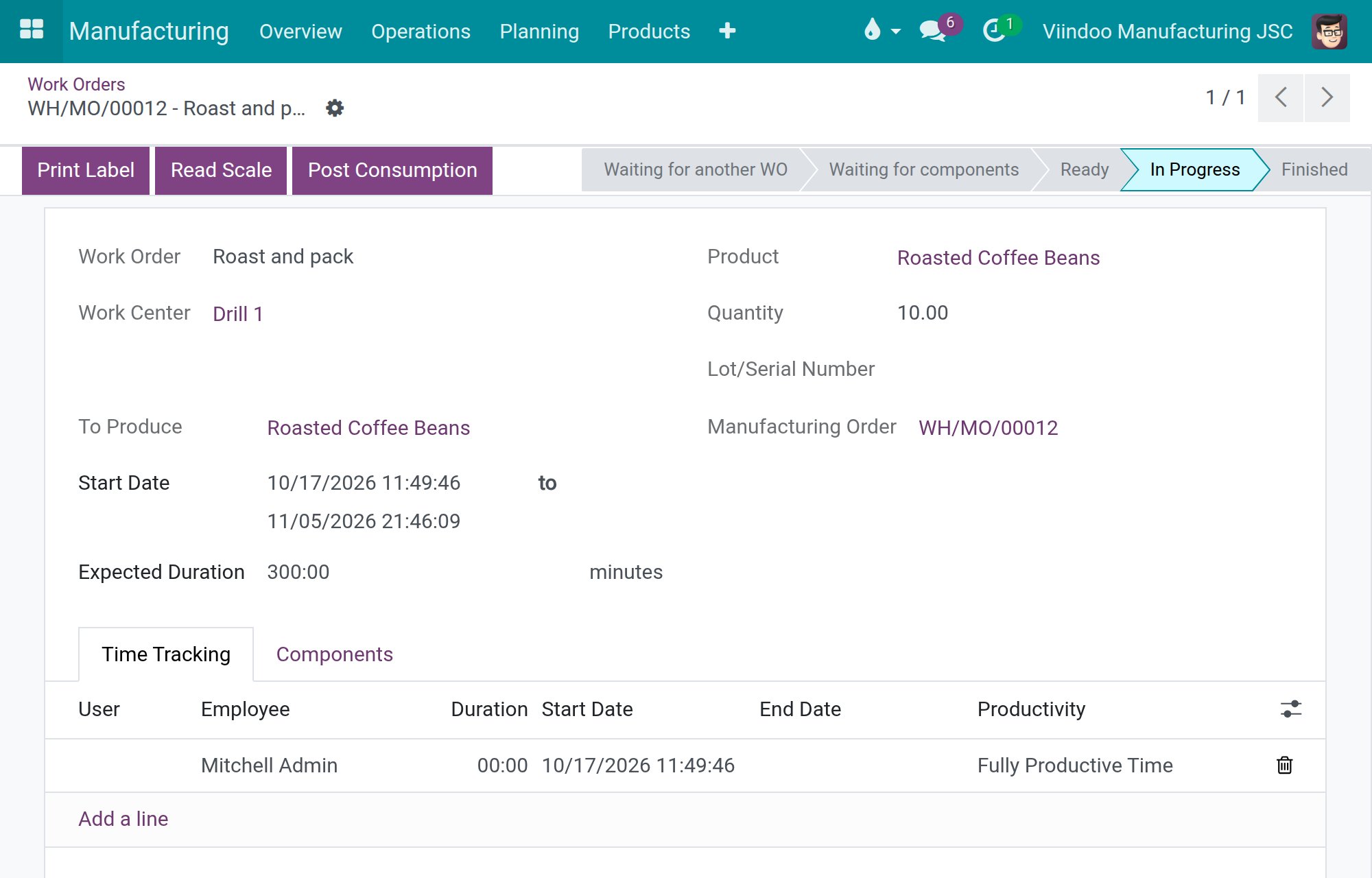
Open Manufacturing ‣ Operations ‣ Work Orders and open the work order you are running. Start it if it is not started yet.
Put the product on the scale and wait until the weight is steady.
Click Read Scale. One tap takes one fresh reading at that moment.
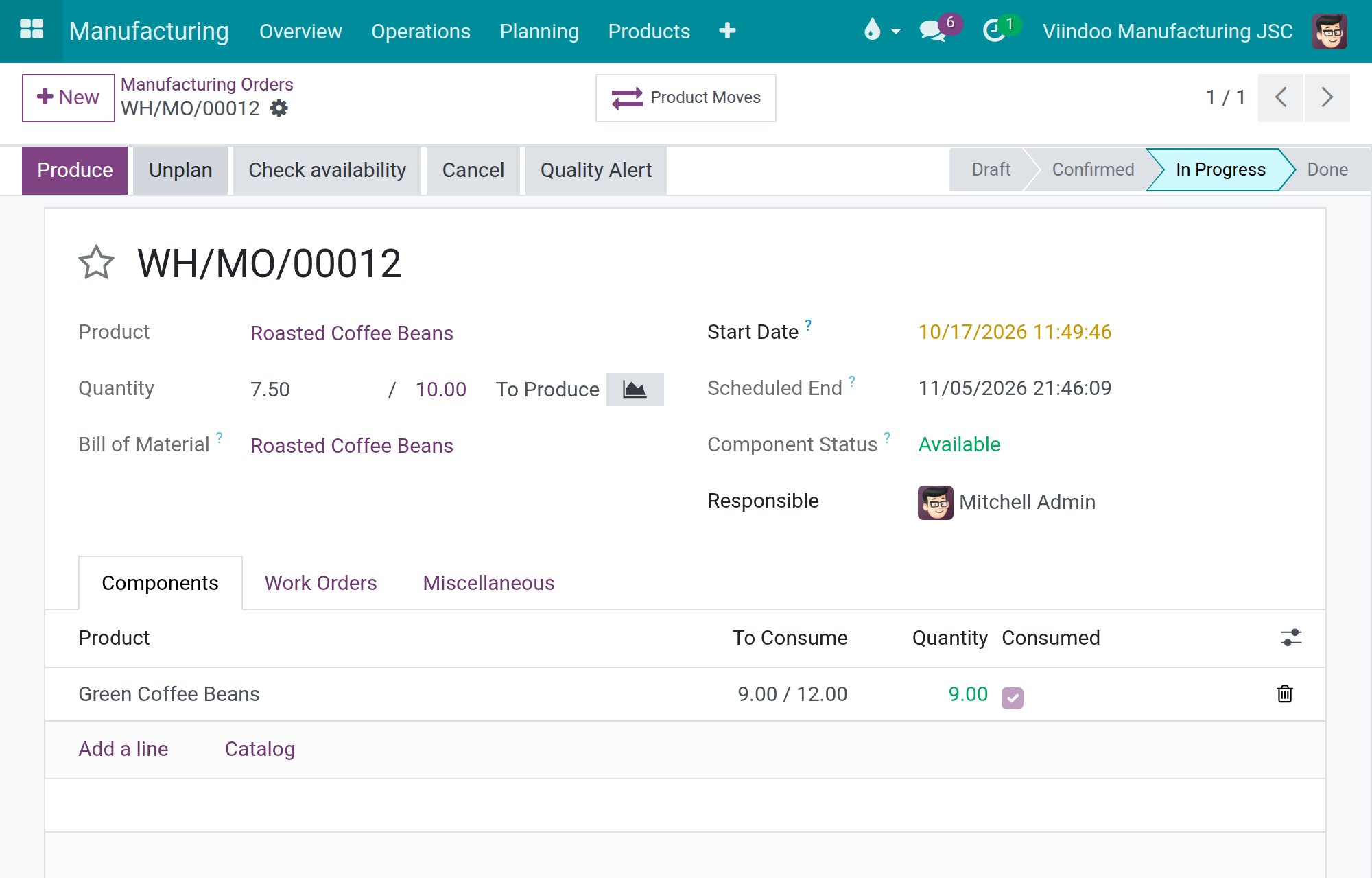
Open the manufacturing order with the link Manufacturing Order. Its Quantity now shows the weight, converted into the unit of the order, and the components to consume follow the new quantity.
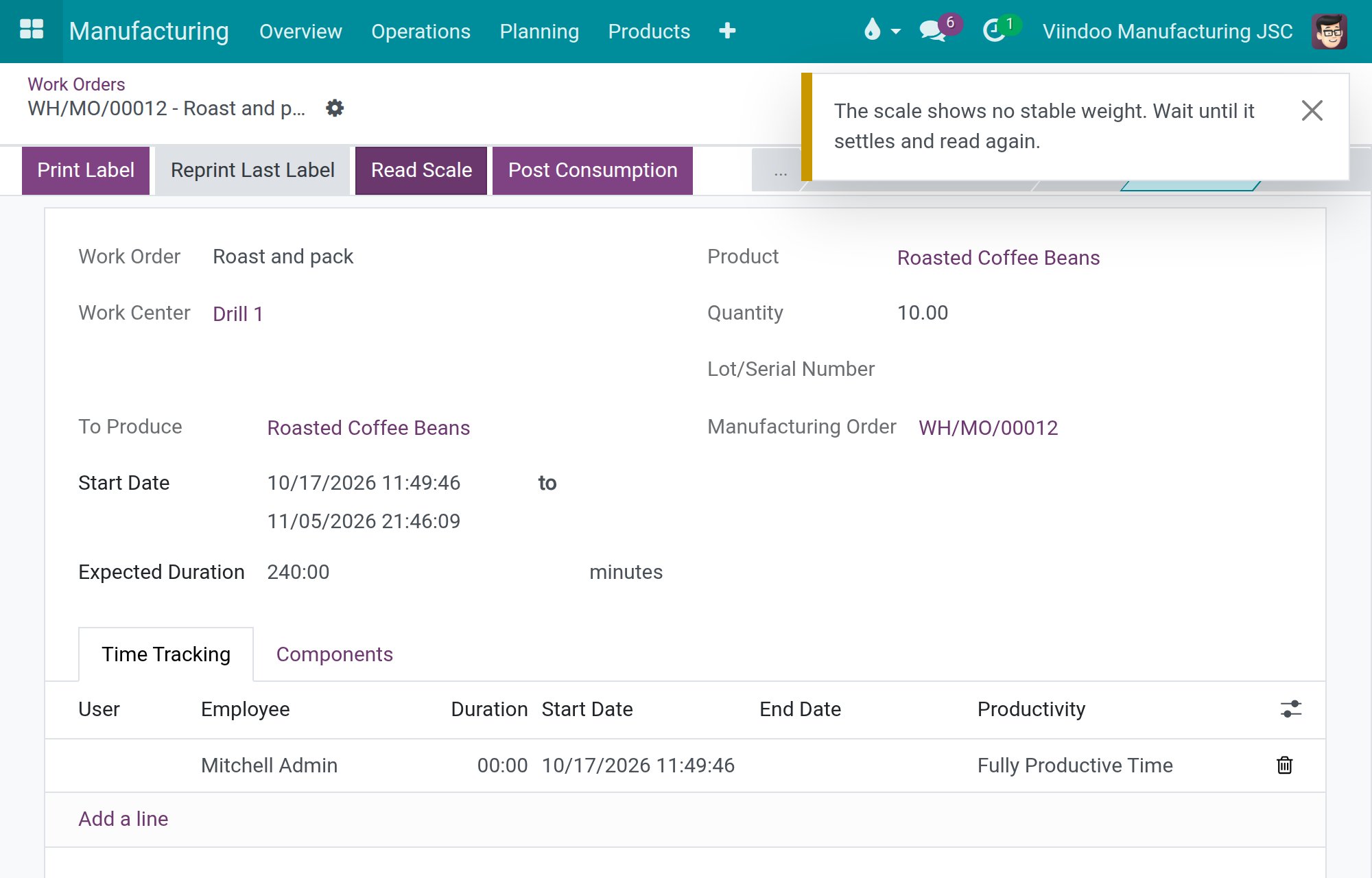
The reading is refused, and nothing changes, in these cases:
the scale shows 0 or an unsteady weight - a message asks you to wait until it settles and read again;
the order is counted in Units or in another unit that is not a weight - a scale reading can never become a count;
the order is not in production, for instance a draft order.
How does the operator print the label?
On the work order, click Print Label.
The label goes to the label printer of the station. The form reloads when the print is sent.
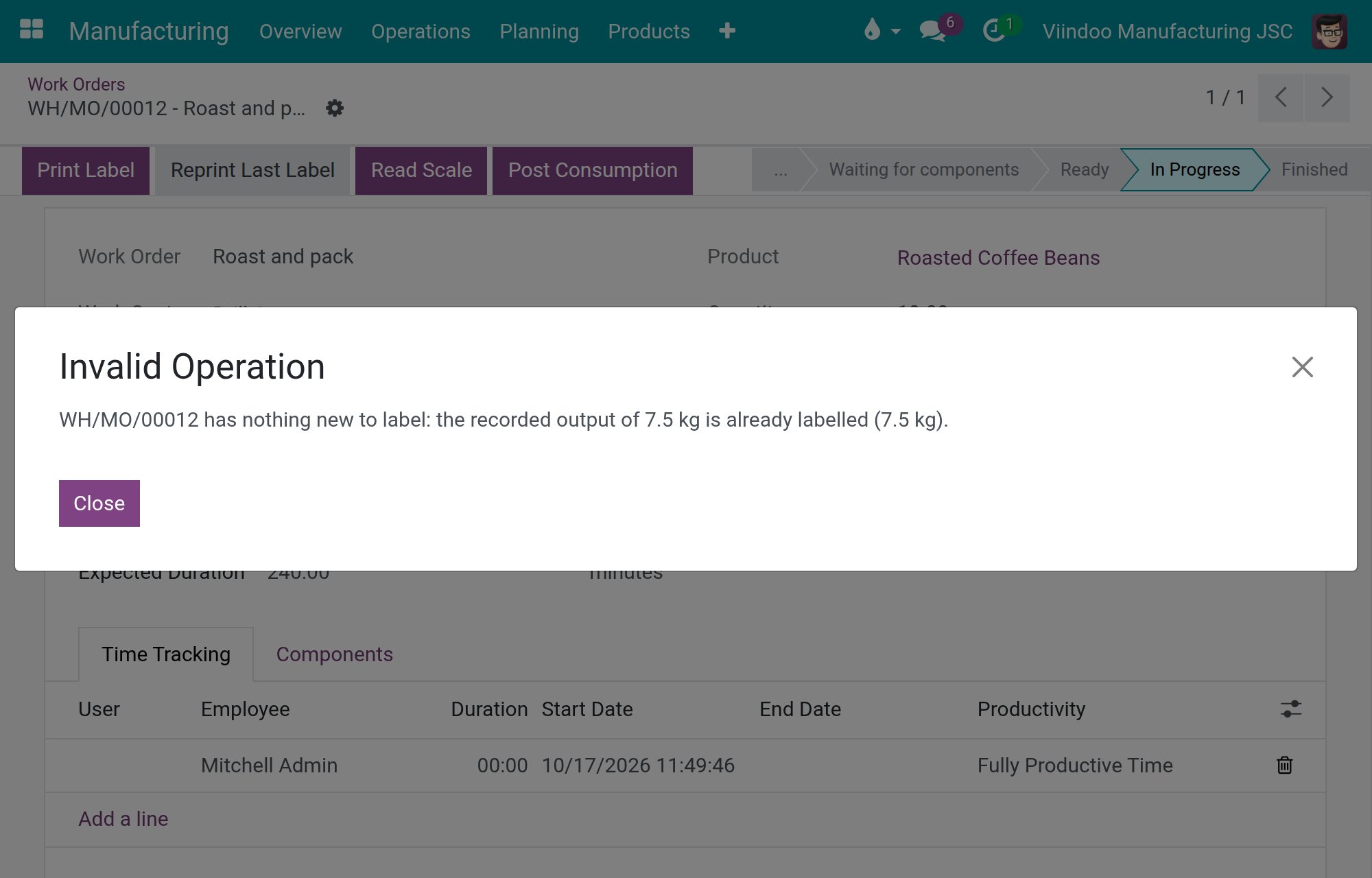
Each print covers only the output that was recorded but is not labelled yet, so no label is printed twice. For example, record 2 and print, then record 3 more and print again: the second print is for 3.
While the order is in progress, the label is for the main product.
When the order is done, one print covers the remaining quantity of the main product and each by-product, once.
For products counted in Units, one label is printed per whole unit.
If there is nothing new to label, or no output is recorded yet, a message says so and nothing is printed. If the printer is offline, a message names the printer and says the label was not printed.
After the print, the manufacturing order gets a note in its chatter: one note says the label has printed when the box confirms it, and another says the print was never confirmed when no confirmation arrives within the Device Action Timeout.
How does the operator work hands-free with the footswitch?
When the station has a footswitch, opening its work order on a screen claims the footswitch for that screen. A press then does what the work center’s Footswitch Action says: start, pause, toggle or finish the work order, exactly as the matching button would.
If another screen opens the same station, the footswitch goes to that screen and your screen shows Footswitch handed to another screen. Open the work order again on your screen to take it back. Nothing is ever recorded twice.
How does the team leader reprint the last label?
Use this only when a print was accepted by the printer but no label came out, for instance after a jam or an empty roll.
Open the work order from Manufacturing ‣ Operations ‣ Work Orders.
Click Reprint Last Label. The button appears once a label has been printed for the order, and only for users with Manufacturing / Administrator; operators never see it.
Confirm the question.
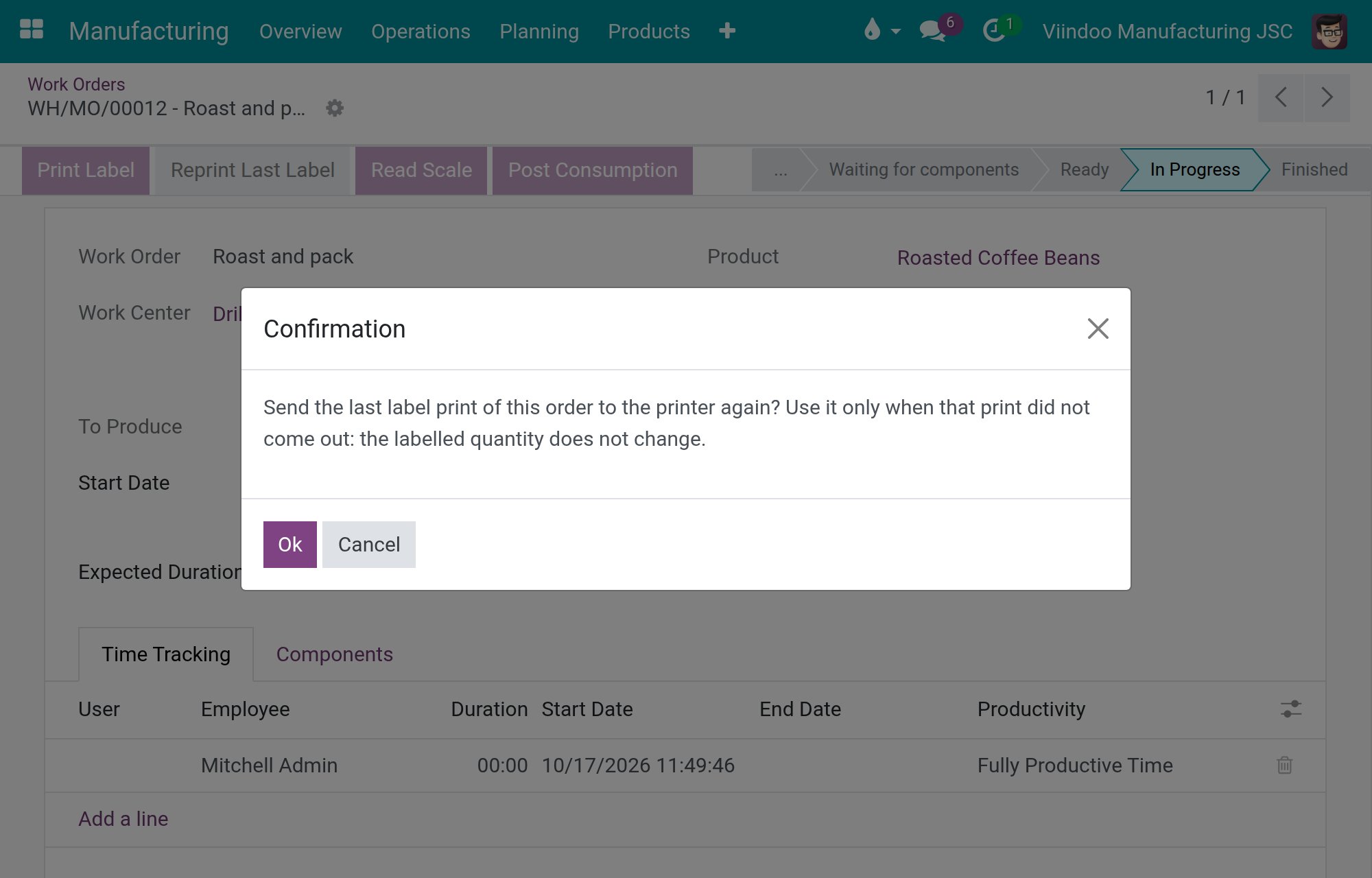
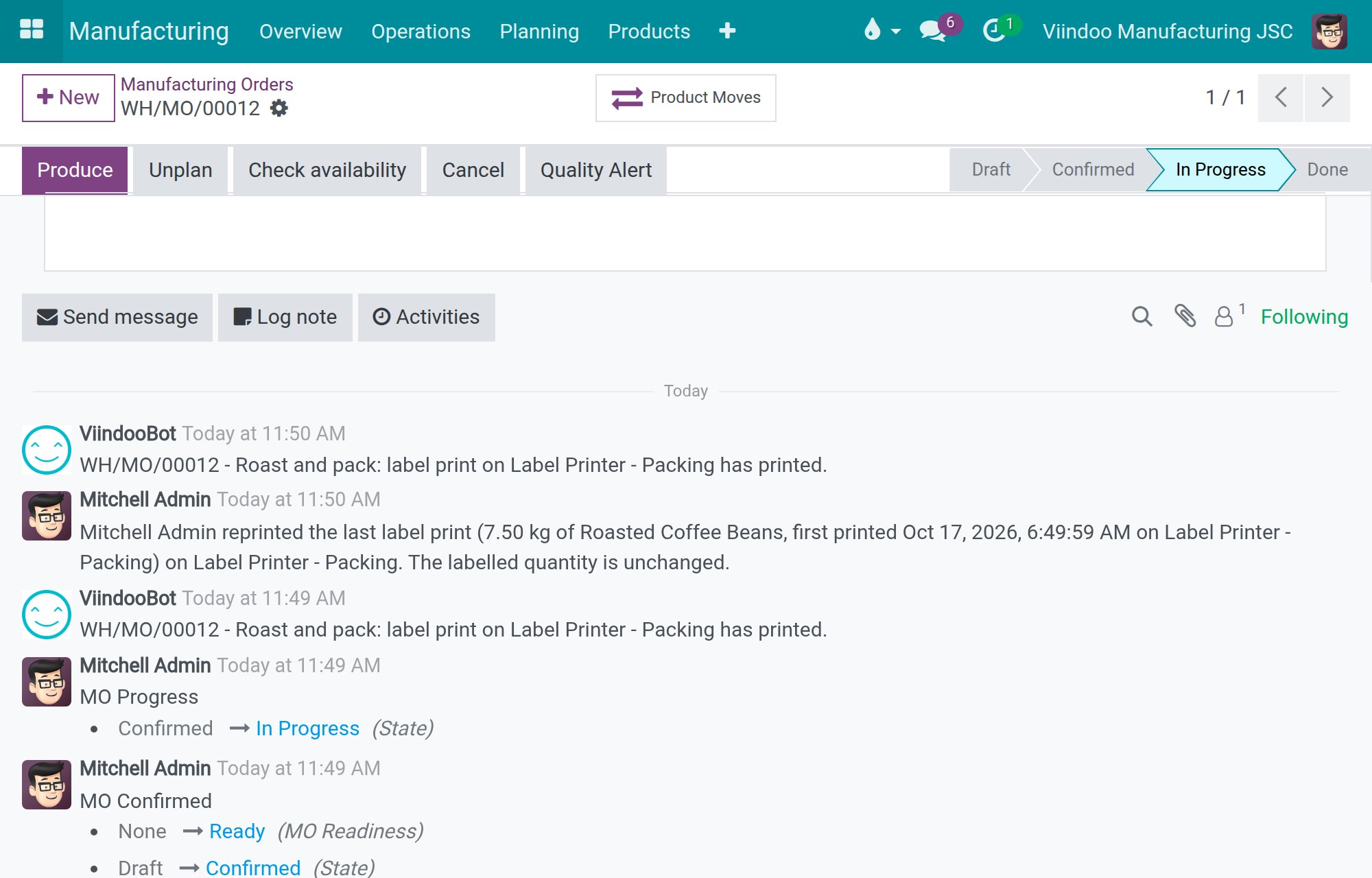
The same print is sent again to the label printer of this work order’s station. What counts as labelled does not change, so a later Print Label continues from where it was. The manufacturing order records who reprinted the label, when it was first printed and on which printer.
The reprint is refused with a reason when the station has no label printer, or when the last print was made for another kind of printer (a label printer or a standard printer) than the one of this station. Print the labels from the station that has the right printer instead.
What happens when the box or a device fails?
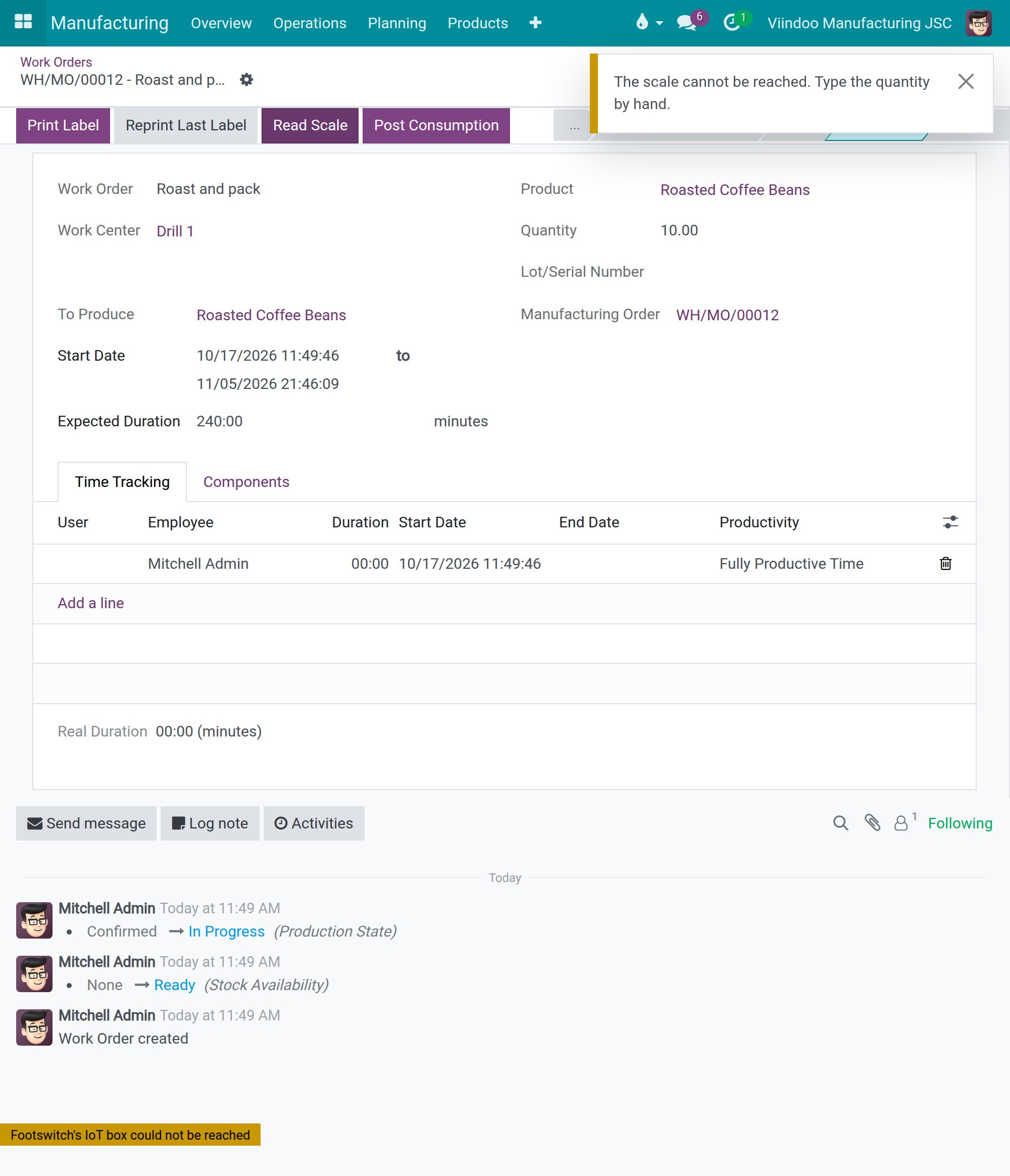
The scale cannot be reached. A message asks you to type the quantity by hand. Open the manufacturing order and type the quantity in Quantity.
The footswitch’s box cannot be reached. The badge Footswitch’s IoT box could not be reached appears at the bottom of the work order. Work the order without the footswitch until the box answers again; the badge then disappears by itself.
The printer is offline. The message names the printer and nothing is marked as labelled, so you can print again once the printer is back.
If your browser asks for permission to reach devices on your local network, allow it: the browser talks to the IoT box directly.
Common errors
Problem |
What to do |
|---|---|
The Print Label or Read Scale button does not appear. |
The work center of the work order has no label printer or no scale chosen. Ask the production manager to choose one on the IoT page of the work center. |
Reprint Last Label does not appear. |
Either nothing was printed yet for this order, or your account does not have Manufacturing / Administrator. |
Print Label says there is nothing new to label. |
All the recorded output is already labelled. Record the new output first, then print again. |
Read Scale says the order is not in production or is counted in Units. |
Start the work order, or type the quantity by hand if the product is counted in pieces. |
Nothing came out although no message appeared. |
Wait for the Device Action Timeout. If the box never confirmed the print, the manufacturing order gets a note saying so; then use Reprint Last Label. |
I cannot choose a device for the label printer, scale or footswitch. |
The device must first be in the IoT Devices of the work center, and be of the right kind. |
FAQ
Does an operator need an IoT access right? No. Operators work with the buttons of the work order with Manufacturing / User. Attaching devices is the production manager’s job, with Manufacturing / Administrator.
What happens to a work center without devices? Nothing changes: its work orders show no IoT button.
Can I attach two scales to one work center? You can attach several devices, but only the one chosen as Scale, Label Printer or Footswitch is used.
Does Read Scale keep reading while I move the product? No. One tap takes one reading; tap again for a new one.
Next steps
How to use IoT devices on the Shop Floor: use the same devices on the Shop Floor screen.
How to read quality measurements from an IoT instrument: read quality measurements from the scale of the work center.