
Estimates Management
Viindoo provides a comprehensive estimate management solution that helps businesses optimize the process of creating and controlling estimates. With the ability to create master estimates and sub-estimates, users can easily allocate costs and revenues to each item, thereby building a clear and accurate financial plan.
The application also supports assigning managers for each estimate, ensuring that every item is monitored and adjusted in a timely manner. The estimate approval process is also simplified, saving time and enhancing transparency in cost approval, ensuring that estimates always comply with the company’s budget and standards.
Requirements
This tutorial requires the installation of the following applications/modules:
Create and assign the estimates
The estimates in Viindoo are designed follow the parent-child structure. You can have a master estimate and some its sub-estimates. The estimate expenses and estimate incomes of the master estimate will be inheritanced from its sub estimates.
Master Estimates
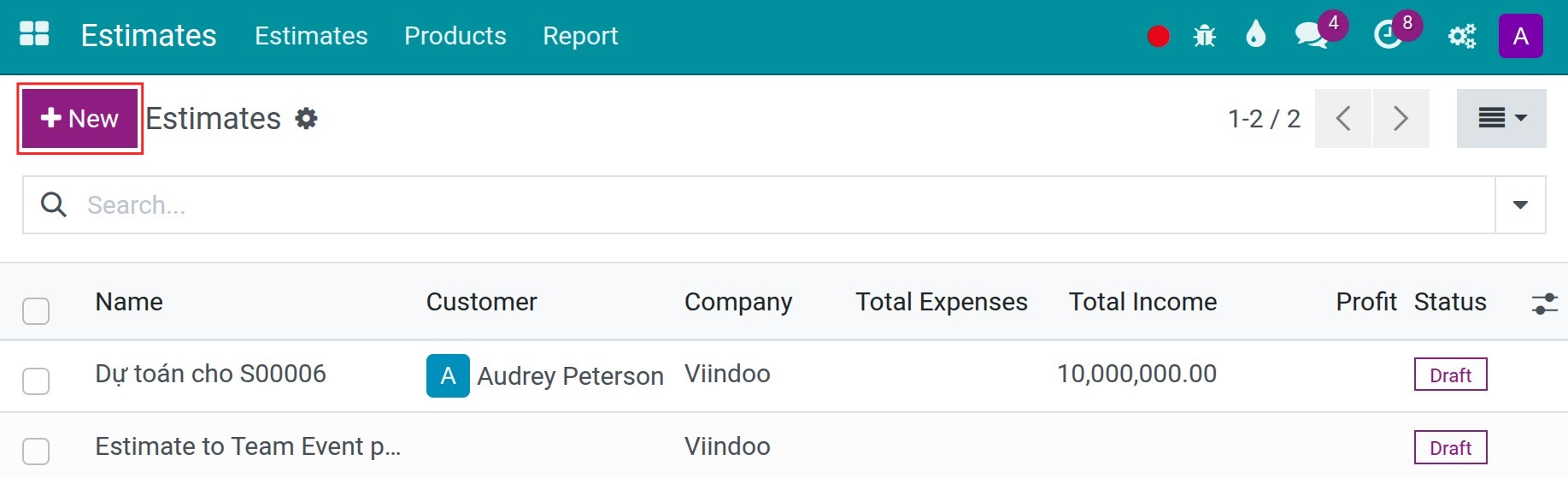
Navigate to Estimate app, press New to create a new estimate:
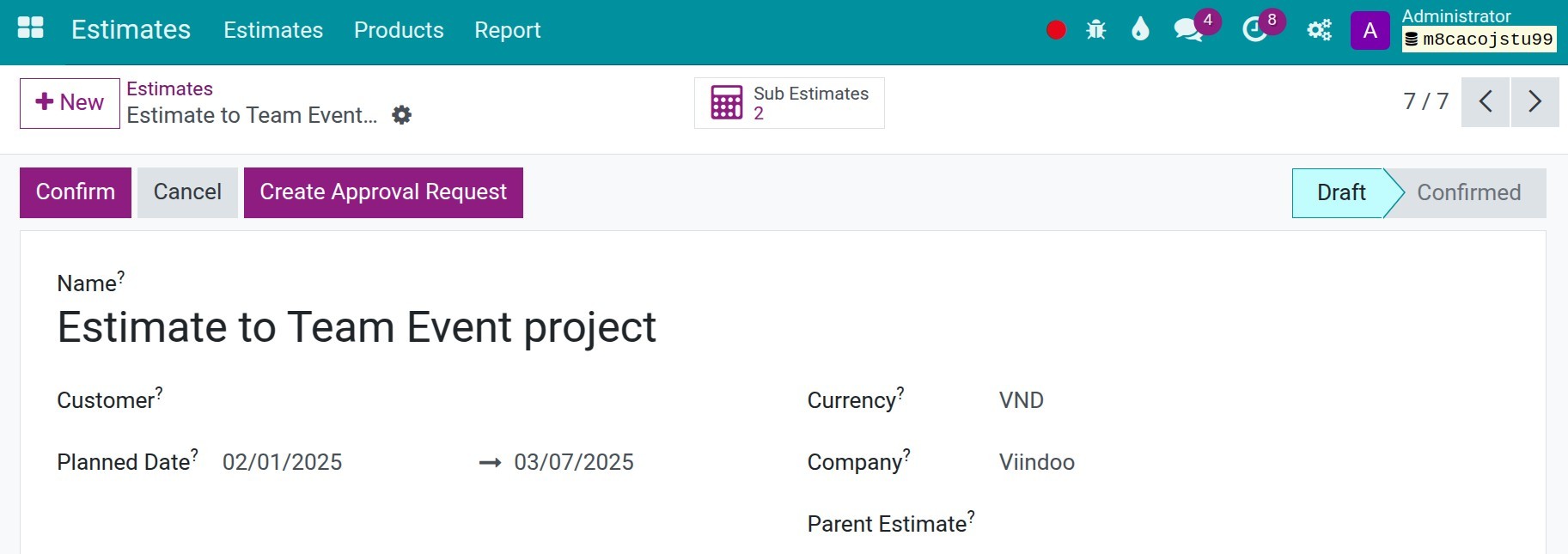
In while:
Name: Input the name of the estimate.
Customer: Choose the customer if the estimate is related to this customer.
Planned Date: Assign the start and end planned date.
Currency: The default currency of the recent company but you can choose the other valid currency of the estimate.
Company: The default company.
Parent Estimate: Keep it blank.
Based on your business process, you can do the estimate by your own or create sub-estimate and then assign to other departments to do it.
Sub-estimates
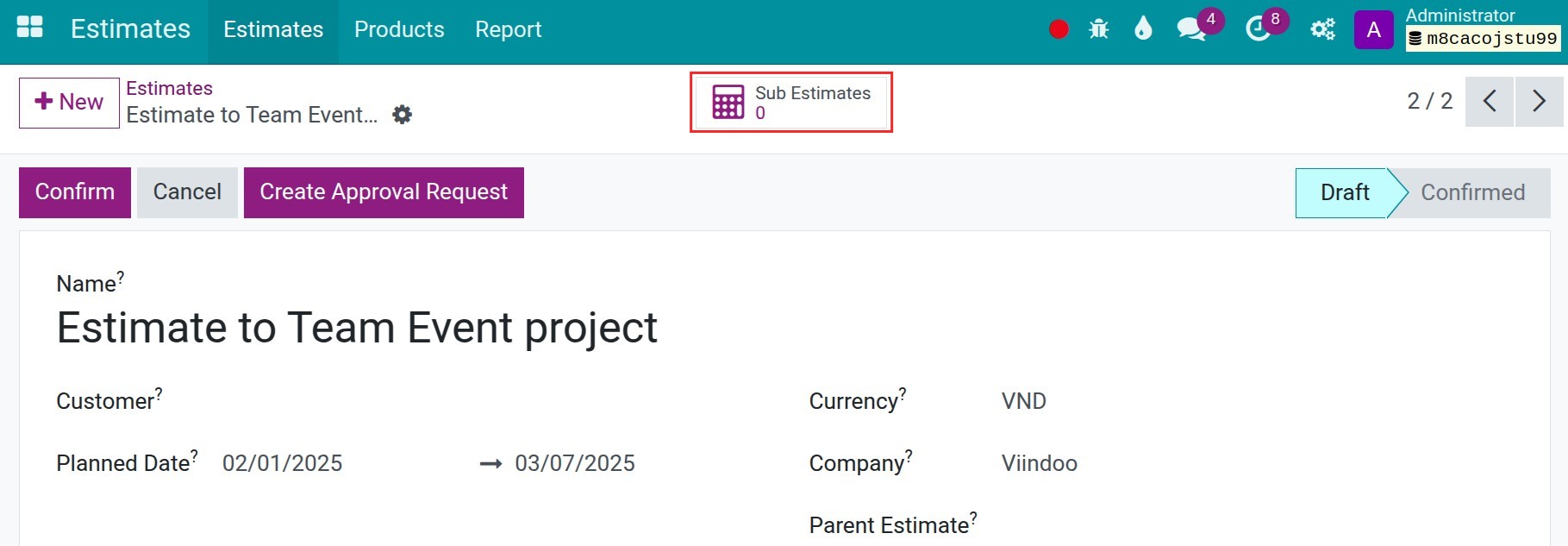
On the master estimate, press to Sub Estimates button, press New to create its sub-estimates.
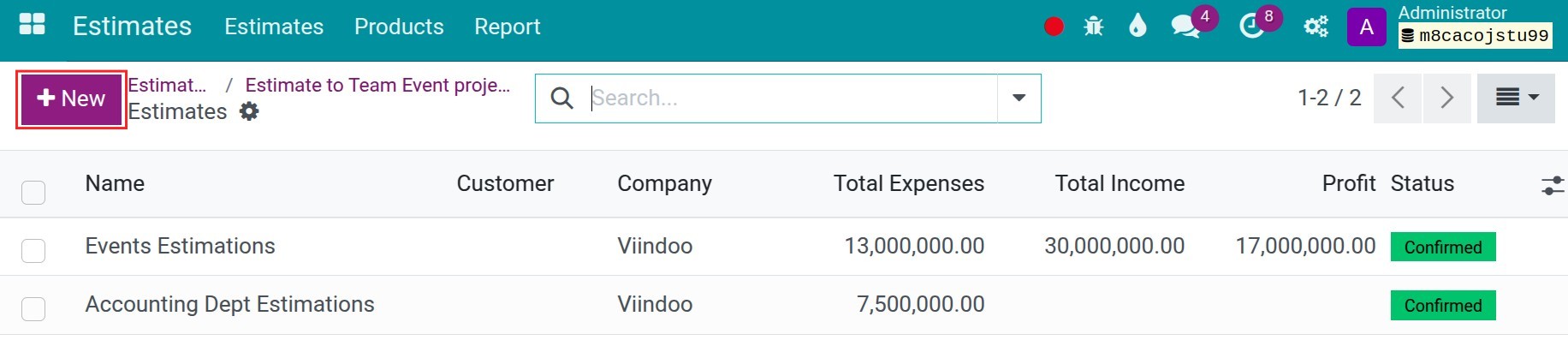
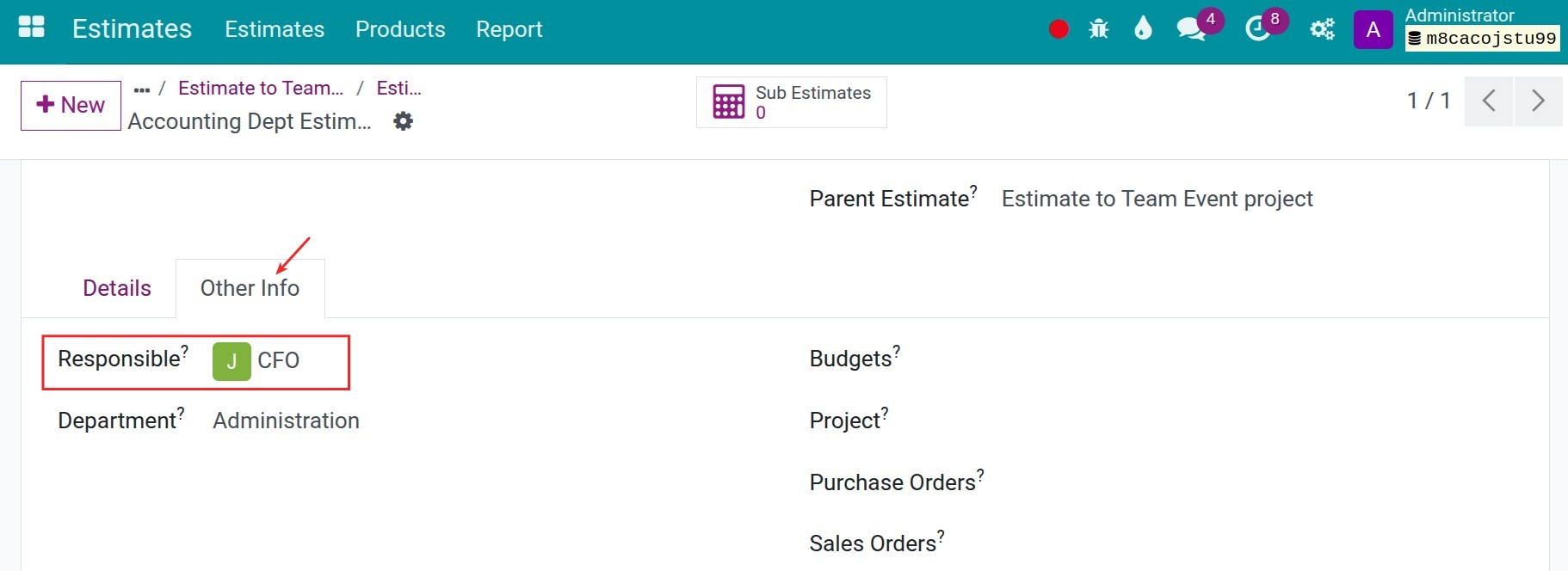
The general information of the sub-estimates is from the master estimate. The person is chosen in the the Responsible field will have the rights to access to this estimate, its sub estimates and do the estimate process.
Estimates process
When the assigned person receives the sub-estimate, they will start the estimate process by pressing Add a product to add a new line of expense or income. Based on your responsibility, you can do the expense estimate, the income estimate, or both.
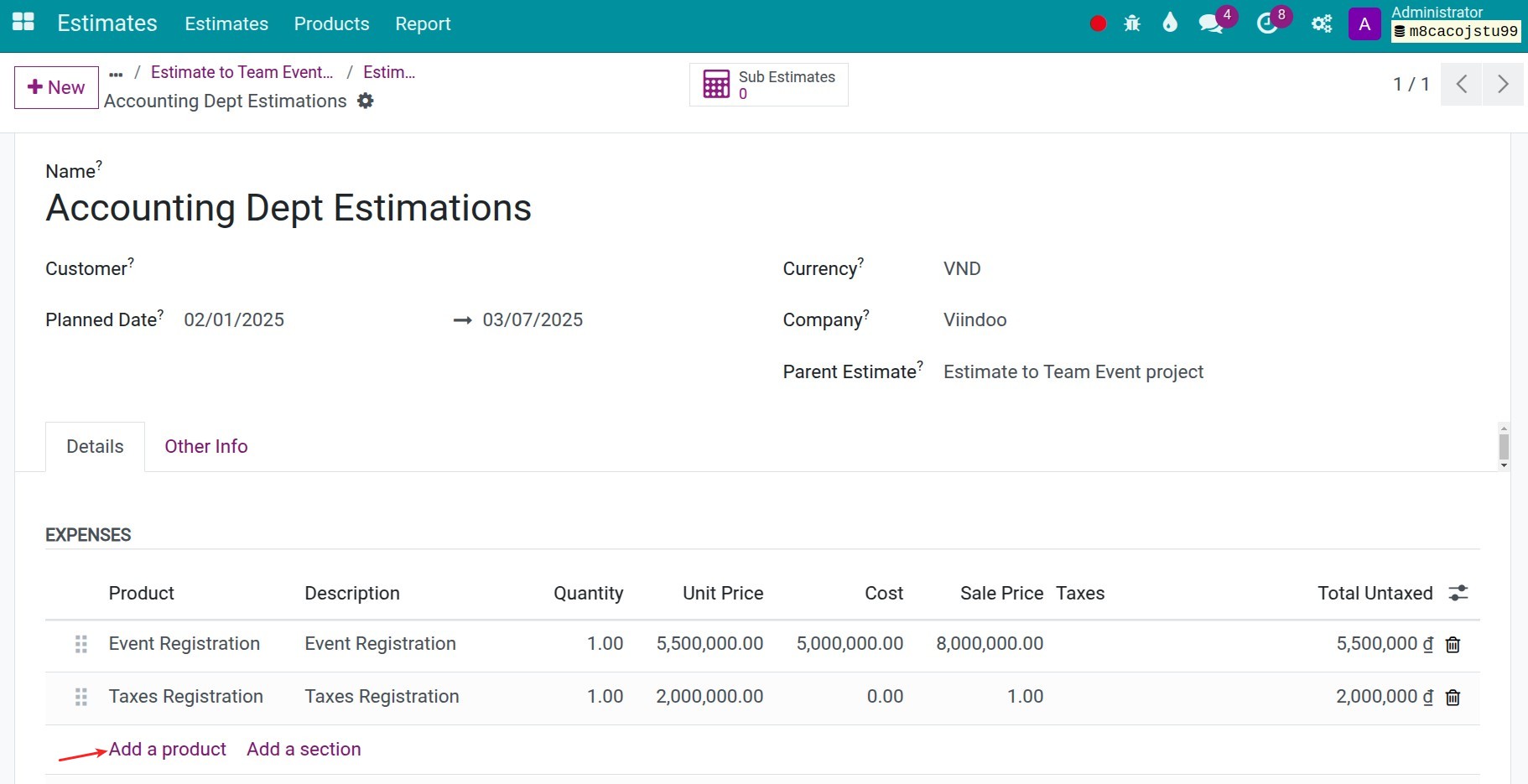
Product: Choose the products present for the expenses.
Quantity: Input the number of products or expenses.
Unit Price: Input the unit price.
The system will calculate the total amount of those expenses. Besides the above informations need to be inputted, the system provide you some referenced information such as:
Cost: The cost of the products to referred to the recent cost of this product.
Sale Price: The sale price of the products.
Purchase Price: The purchase price of the products.
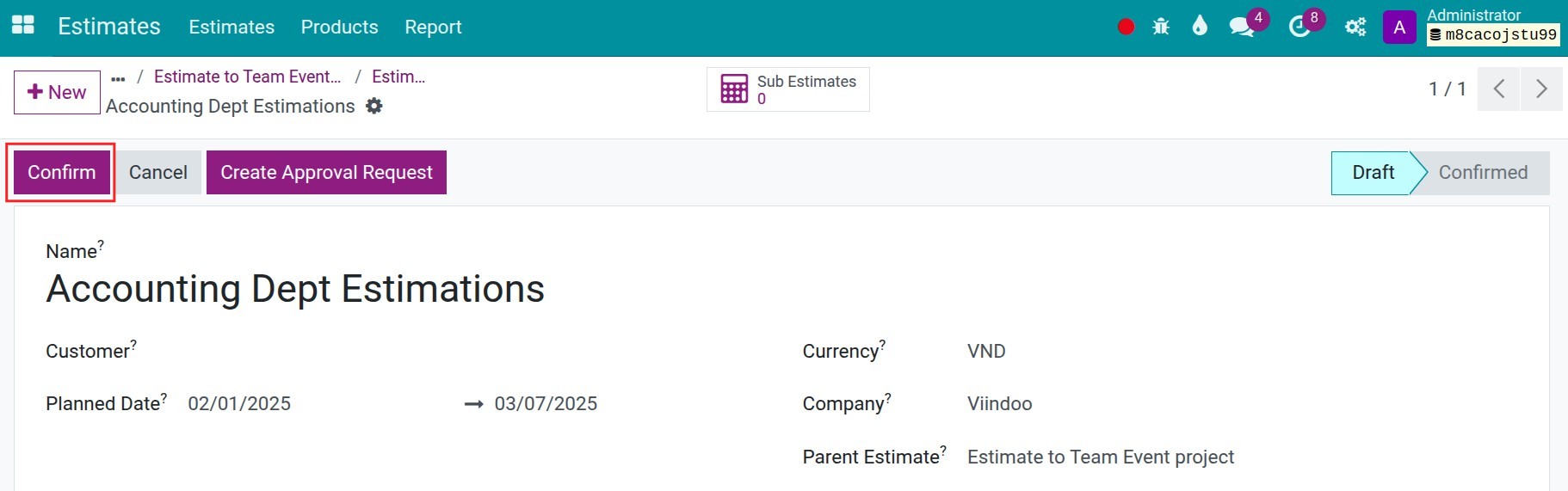
When you finish, you can press the Confirm button to finish your estimations.
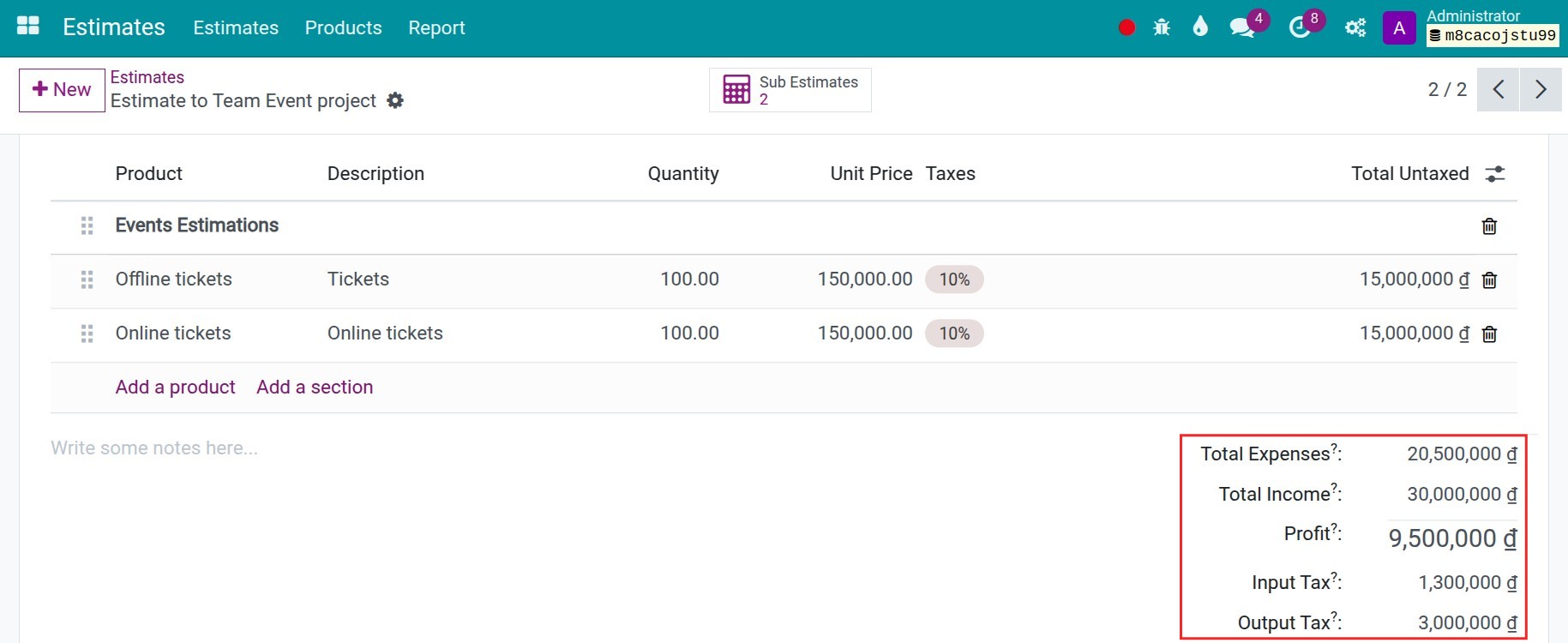
Whenever the sub-estimates are compeletted, the estimations will be auto-summarized to the master estimate.

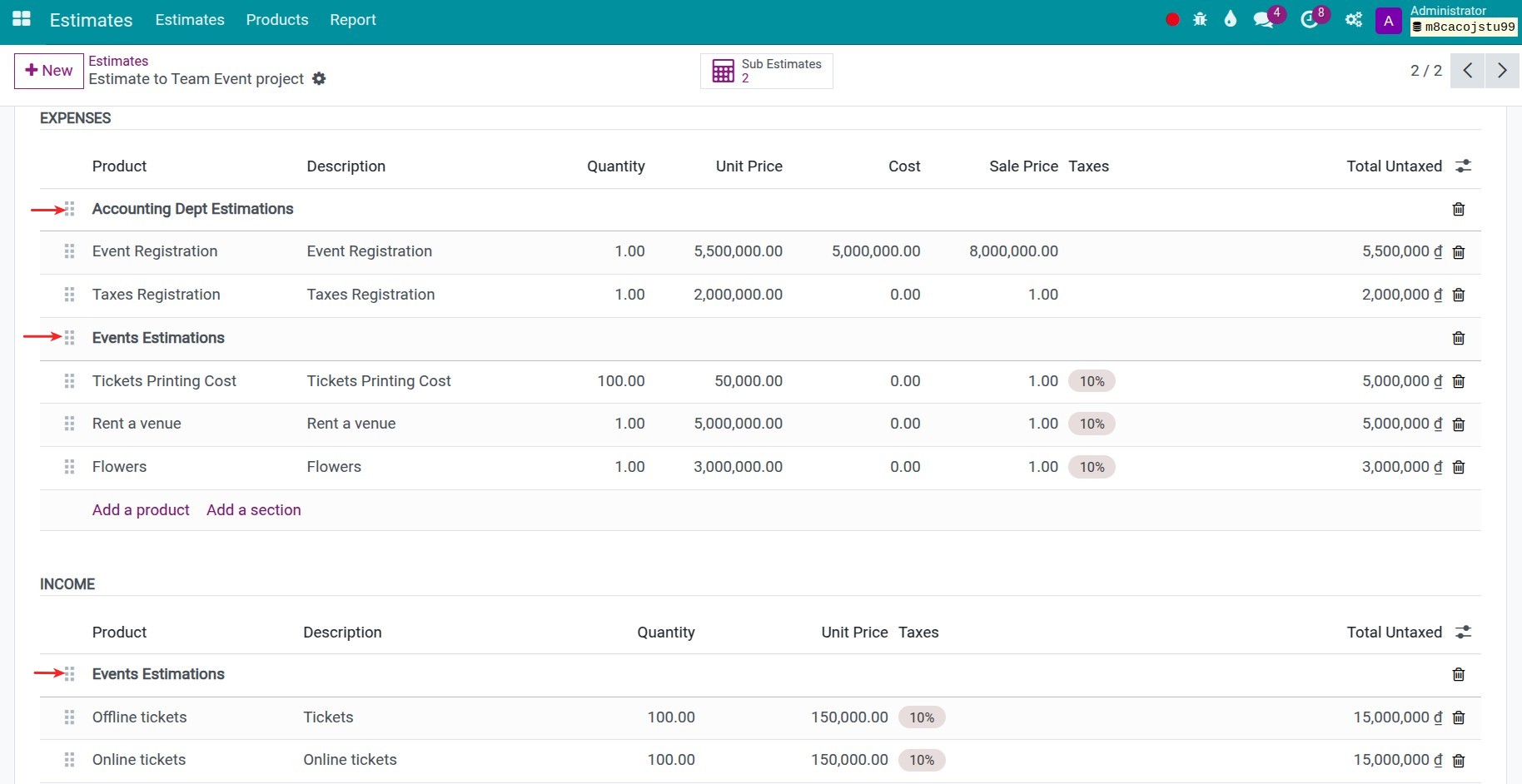
In the master estimate, you also can see the estimate profit:
Estimate approval process
To do the approval process of estimates, you need to:
Install the module viin_estimate_approval;
Define the list of approvers by configuring the approval types.
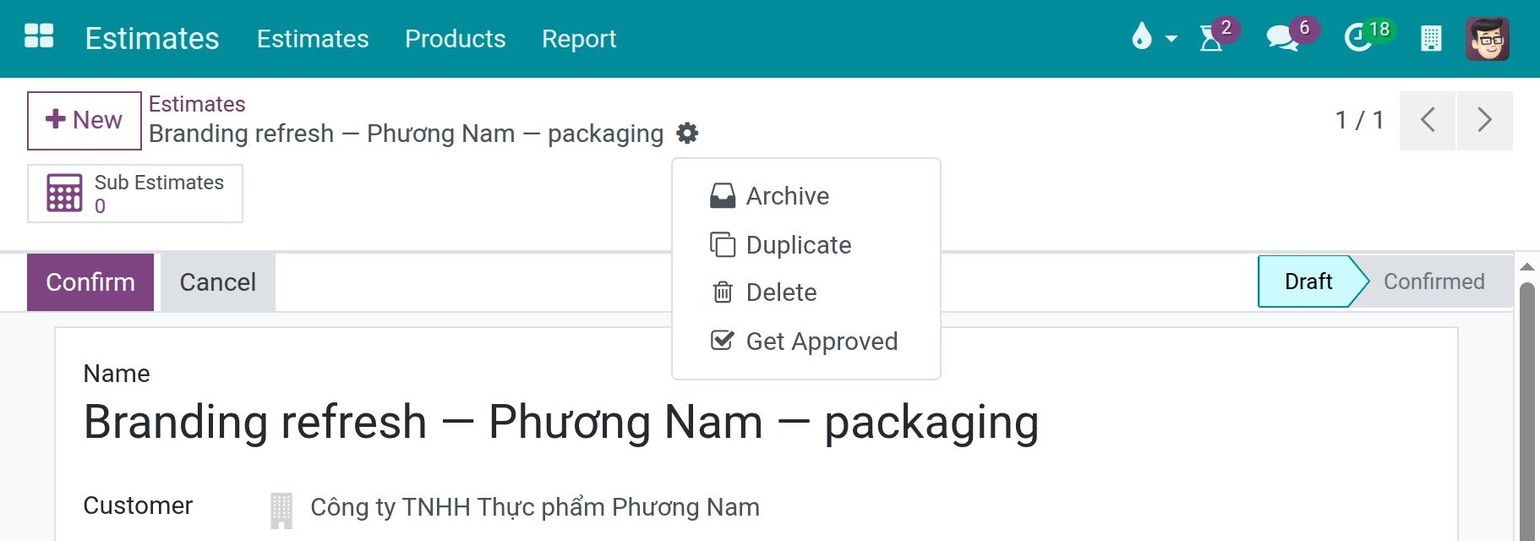
On an estimate, either a master estimate or a sub-estimate, click the gear icon next to its name and choose Get Approved. In the Submit for Approval window, keep the Estimate request type and click Create Approval Request.
After that you can process the approval follow the article How to create and approve a request
When the last required approver approves the request, the estimate is confirmed in the same step.
The estimate stays as it is when the request is refused, cancelled or set back to draft, and when it was already confirmed or cancelled by hand.
The Confirm, Cancel and Set to Draft buttons of the estimate stay available whatever the state of its request. When someone confirms or cancels the estimate by hand while its request is pending, a note is added to the request so the approvers see it. If the estimate is deleted, its approval request is kept with a note.
See also
Related articles:
Optional modules: