
How to export and import data in Viindoo
To export, select records in a list view and click Actions ‣ Export, choose the fields and download an XLSX or CSV file. To import, open the list view of the records, click the gear icon, choose Import records, upload an Excel (.xlsx, .xls, .xlsm), OpenDocument (.ods) or CSV file, click Test, then Import. Importing a file that contains the records’ External IDs updates those records instead of creating new ones.
Who |
Any user can export the records they can see. Importing requires the right to create or edit those records. |
App |
All apps with list views (the examples below use products) |
Before you start
Know how to filter records, to export only what you need.
The examples use the product list of the Sales app (
Salesinstalled). Other lists, such as Contacts, work the same way.Some import options are shown only in developer mode.
How do I export records to Excel or CSV?
Open the list view and filter the records you want. Tick the records to export, then click Actions ‣ Export. To export every record of the list without ticking them, open the gear icon next to the view title and choose Export All.
![Records ticked in a list view and the Export action in the Actions menu]()
In the export window, choose the format and the fields (see the table below), then click Export. The file is downloaded and opens in any spreadsheet software (Microsoft Excel, Google Sheets, LibreOffice…).
![Export window with the format, available fields and fields to export]()

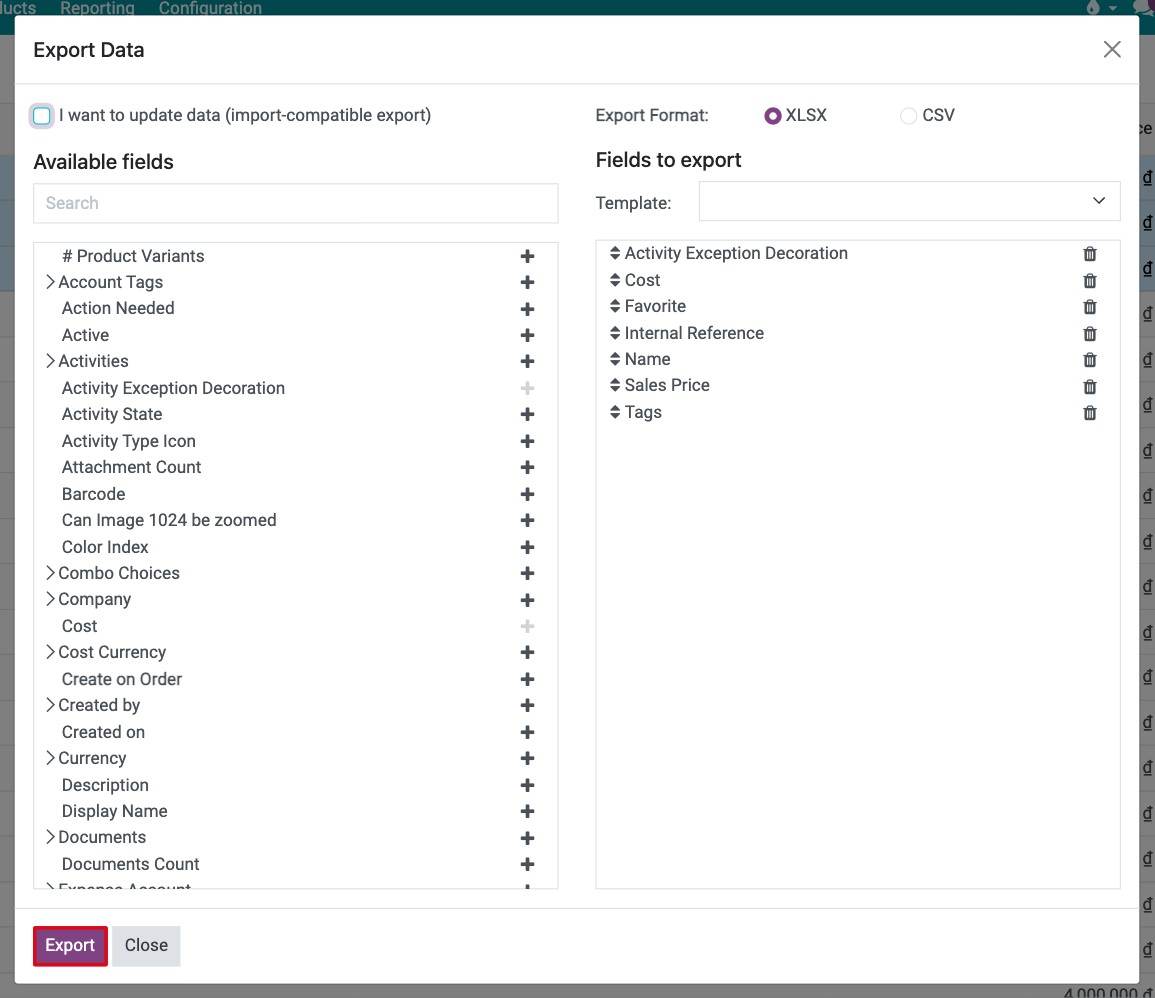
Option |
What it does |
|---|---|
I want to update data (import-compatible export) |
Tick it when you will edit the file and import it back: only fields that can be imported are listed, and the file includes the External ID column. Leave it unticked for a report. |
Export Format |
XLSX keeps the spreadsheet format; CSV is plain text separated by commas. |
Available fields |
The fields you can export. Click the arrow next to a field to see its sub-fields, or use the search box. |
+ icon (or double-click) |
Adds the field to Fields to export. |
Drag handle in Fields to export |
Changes the column order: the higher a field, the further left its column. |
Trash icon |
Removes the field from the export. |
Template |
Saves the list of fields to reuse: choose New template, type a name next to Save as: and click the save icon. Next time, pick the template instead of selecting the fields again. |
How do I import records from a file?
Open the list view of the records to import, for example Sales ‣ Products ‣ Products, click the gear icon next to the view title and choose Import records.
![Gear menu of the product list view with the Import records option]()
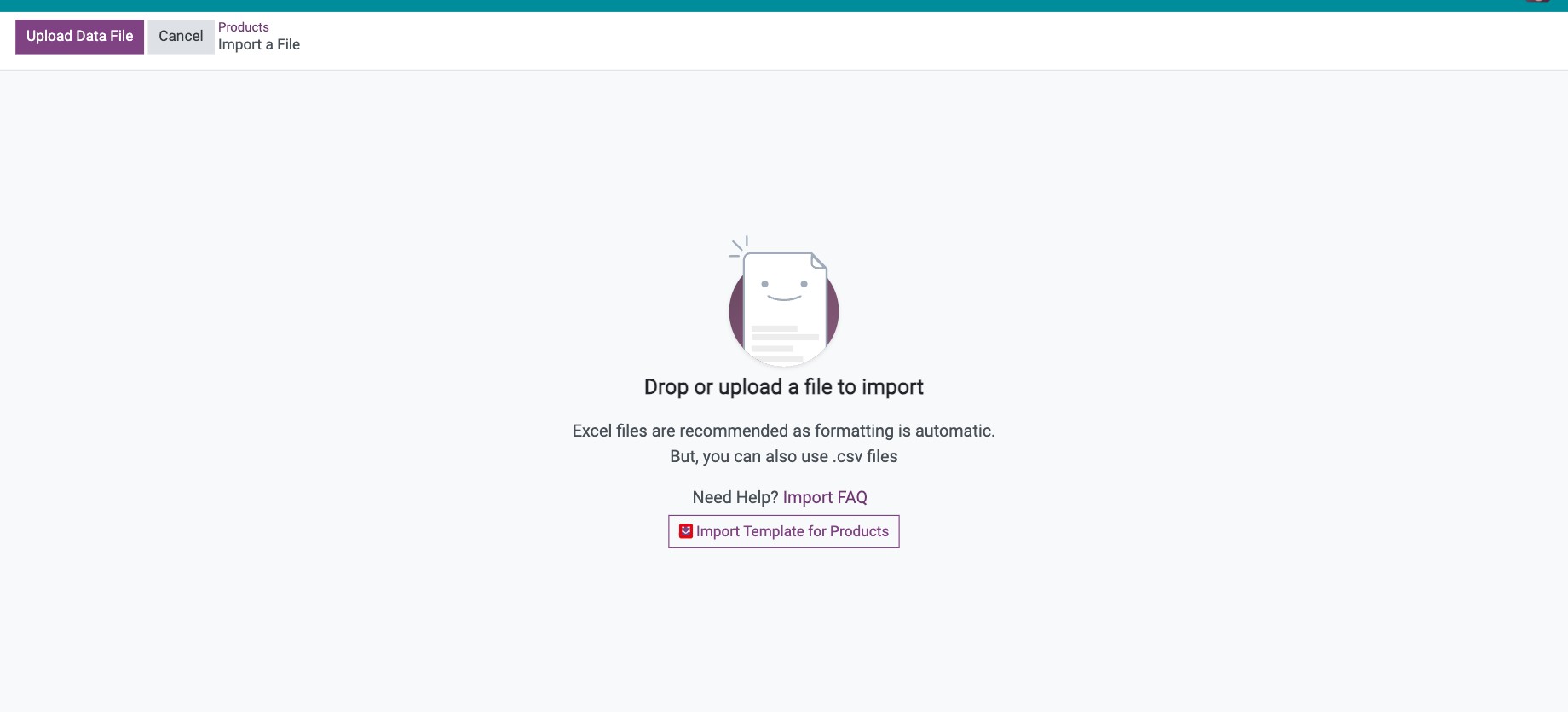
Get a file with the right columns. If Viindoo offers a template, click it, for example Import Template for Products. Otherwise, export one record with I want to update data (import-compatible export) ticked and use the file as your template.
![Import a File screen with the Import Template for Products link]()
Fill in the file: one record per row, one field per column. Follow the rules in How do I fill in the import file correctly?.
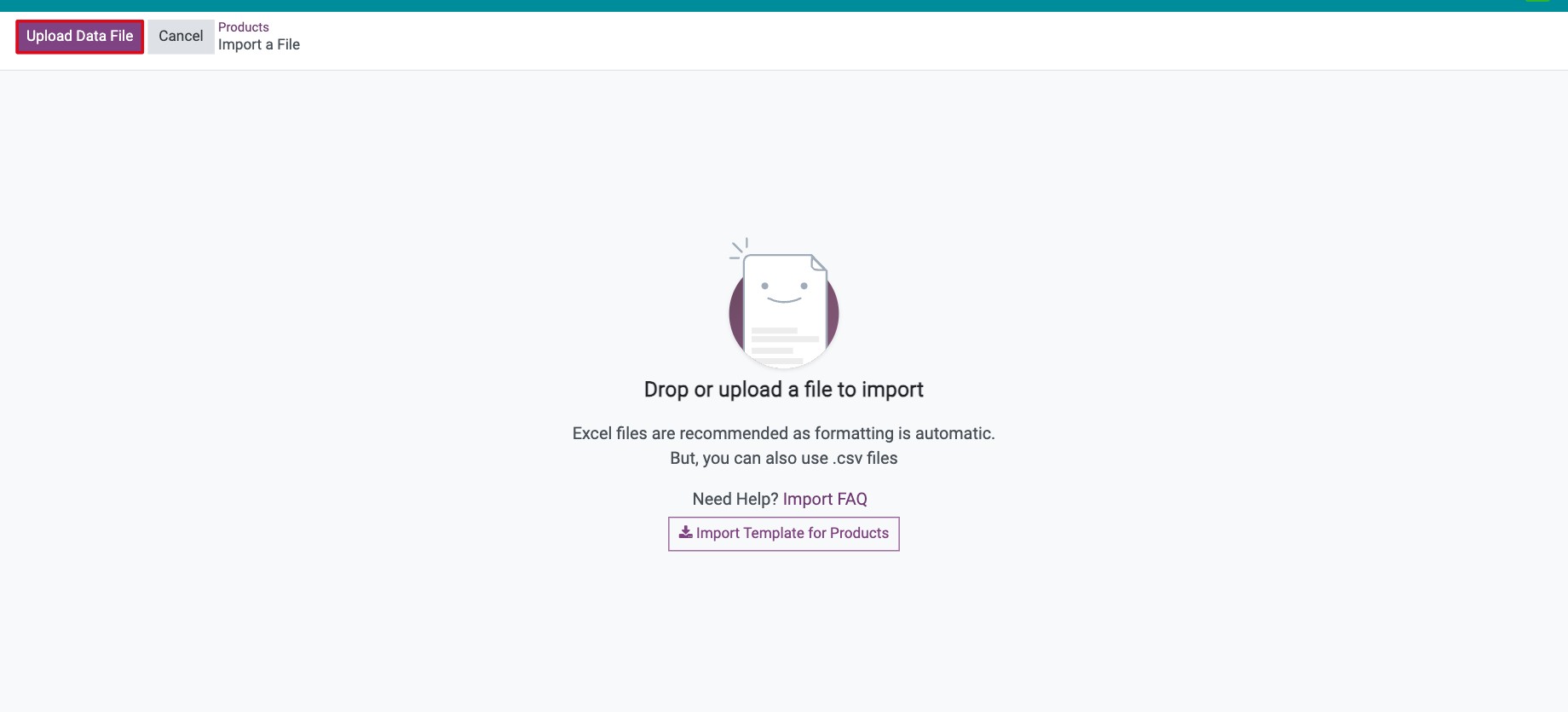
Back on the import screen, click Upload Data File and choose your file.
![Upload Data File button on the import screen]()
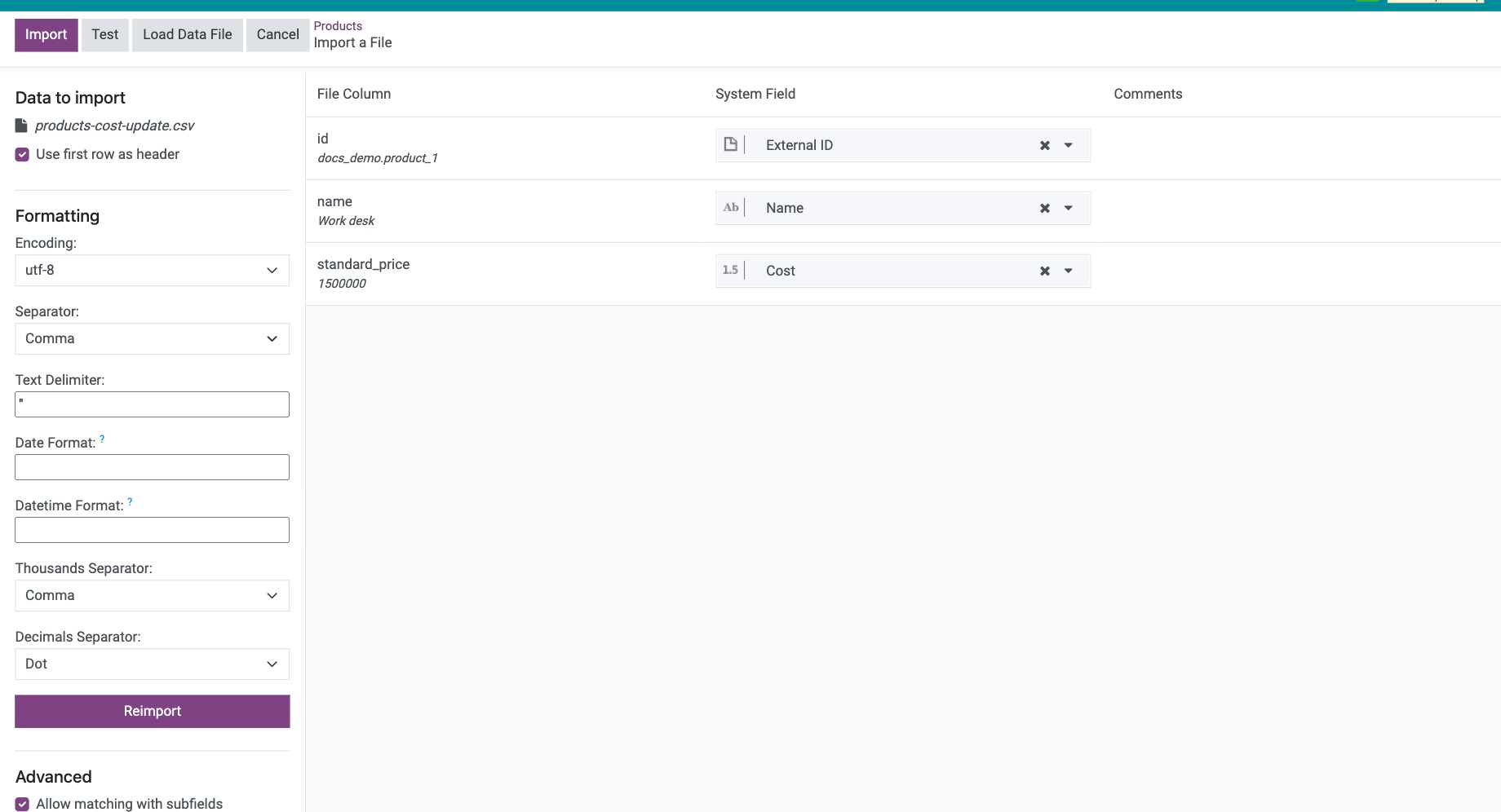
Check that each column of the file is matched to the right Viindoo field. Remove a column you do not want to import with the x next to its field. Set the options if needed (see the table below).
![Import screen with the file columns matched to fields and the import options]()
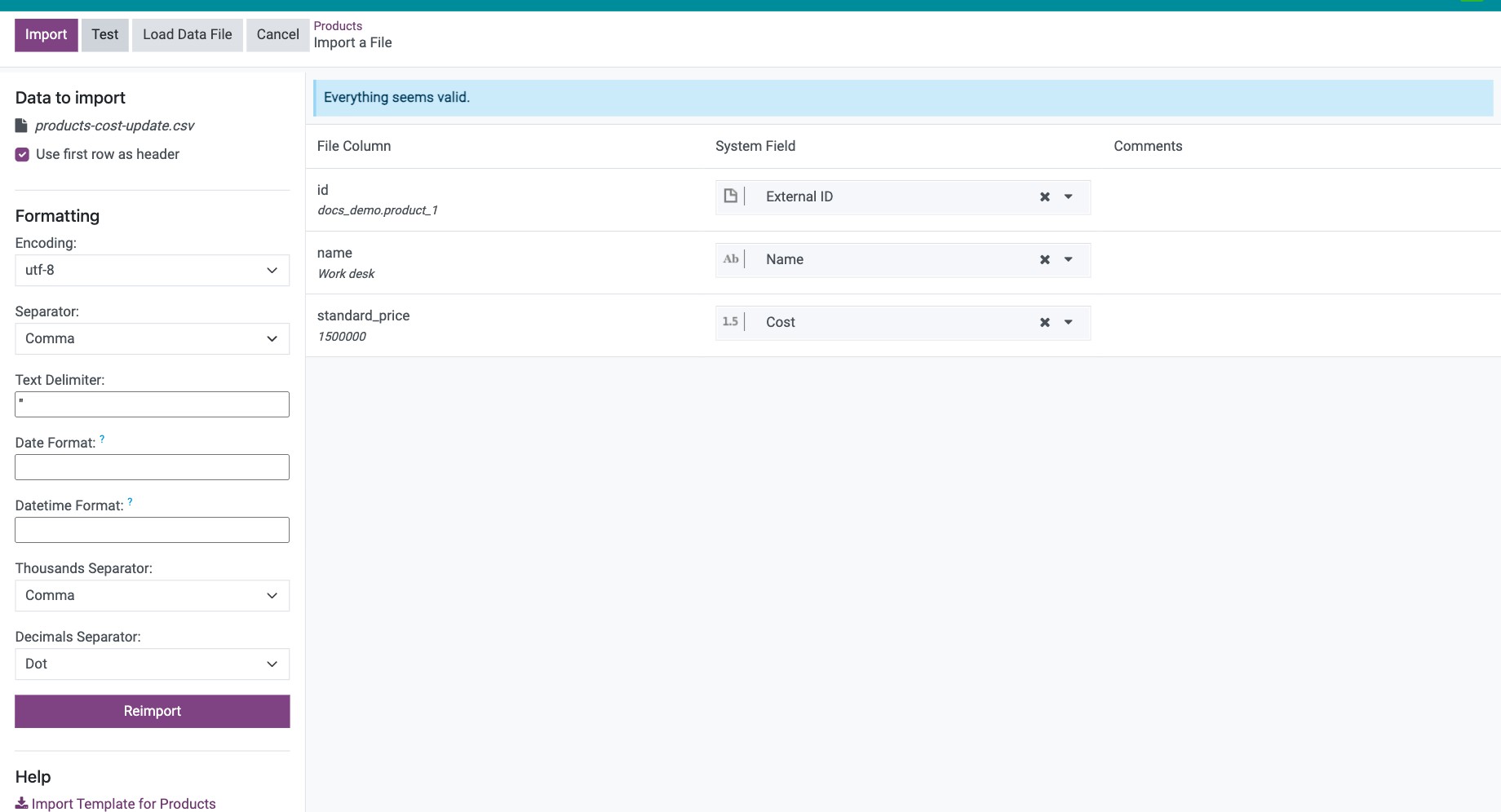
Click Test. When Viindoo shows Everything seems valid., click Import. If errors are shown, fix the file, click Load Data File to load it again and test again.
![Everything seems valid message after clicking Test]()

The imported records now appear in the list view.
Button or option |
What it does |
|---|---|
Test |
Checks the whole file without saving anything. Always test first. |
Import |
Saves the records. It reads Resume if an import was paused. |
Load Data File |
Replaces the file with another one (or a corrected version). |
Sheet |
For a file with several sheets, the sheet to import. |
Use first row as header |
Treats the first row as column titles and matches them to fields. |
Formatting (CSV only) |
Encoding, Separator, Text Delimiter, Date Format, Thousands Separator and Decimal. |
Allow matching with subfields (developer mode) |
Lets you match a column to a field of a related record, for example the External ID of the product category. |
Track history during import (developer mode) |
Logs the changes made by the import in the chatter of each record. |
How do I fill in the import file correctly?
Data |
Rule |
|---|---|
Text (names, references) |
Type it as it should appear, for example 2015 Dom Perignon Brut Champagne. |
Numbers (prices, quantities) |
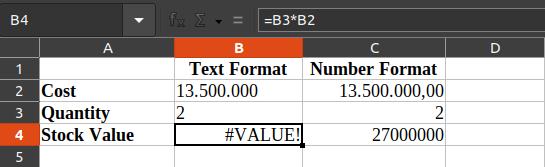
Format the cells as numbers, not text. A number stored as text may be rejected or read wrongly. |
Dates and times |
Use one date format for the whole column. For CSV files, choose the same format in Date Format on the import screen. |
Related records (category, unit, vendor…) |
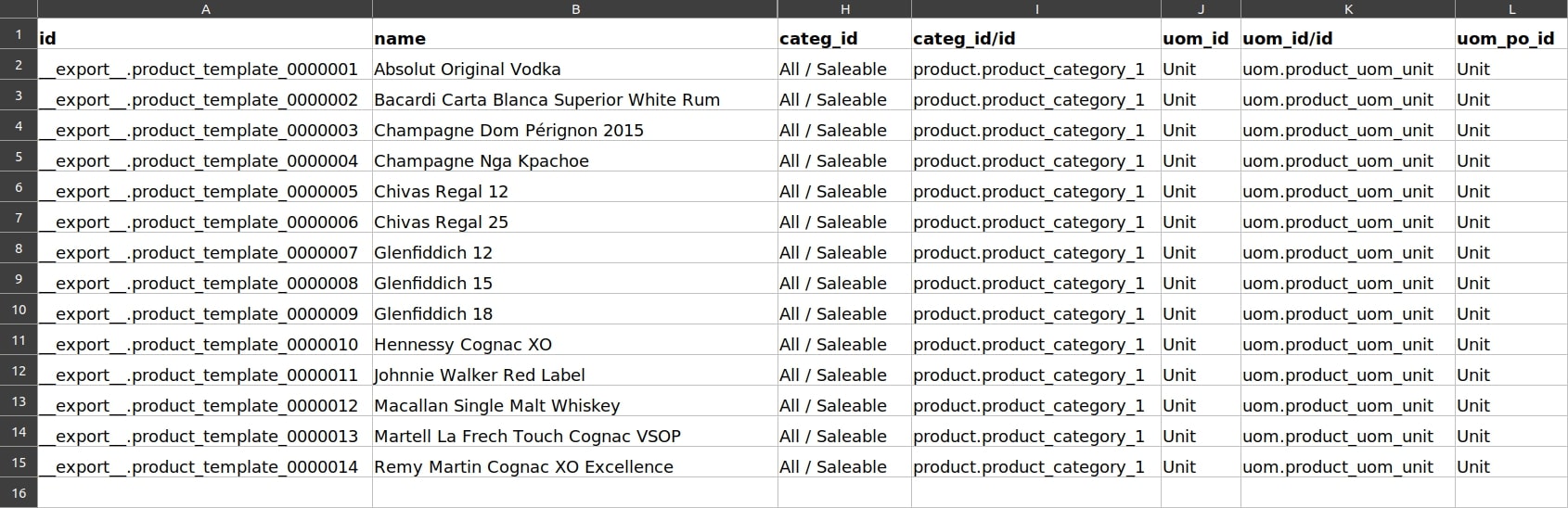
The related record must already exist. Refer to it by its exact name, or better by its External ID when several records have the same name. |
What is an External ID?
An External ID is a code that identifies one record in the whole database and never changes, for
example product.product_category_1 for the product category Saleable. In developer mode, find all
External IDs in Settings ‣ Technical ‣ Sequences & Identifiers ‣ External Identifiers.

To link a product to a category, put the category’s External ID in the category column and match it to Product Category / External ID (requires Allow matching with subfields).
When you import new records, you can fill in your own External IDs in the External ID column, for example
prod_0001. If you leave it empty, Viindoo creates one. Choosing your own makes later updates easier because you already know each record’s ID.
How do I update existing records in bulk?
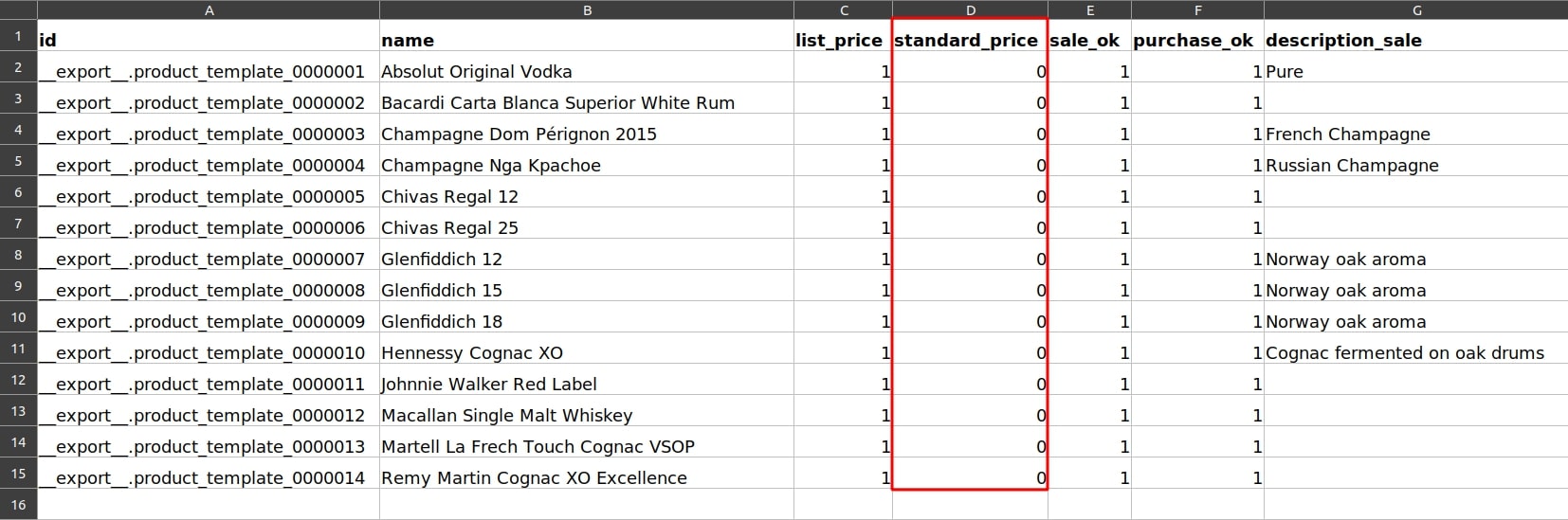
Import a file that contains the records’ External IDs: Viindoo updates the matching records instead of creating new ones. Example: filling in the cost of products imported without one.
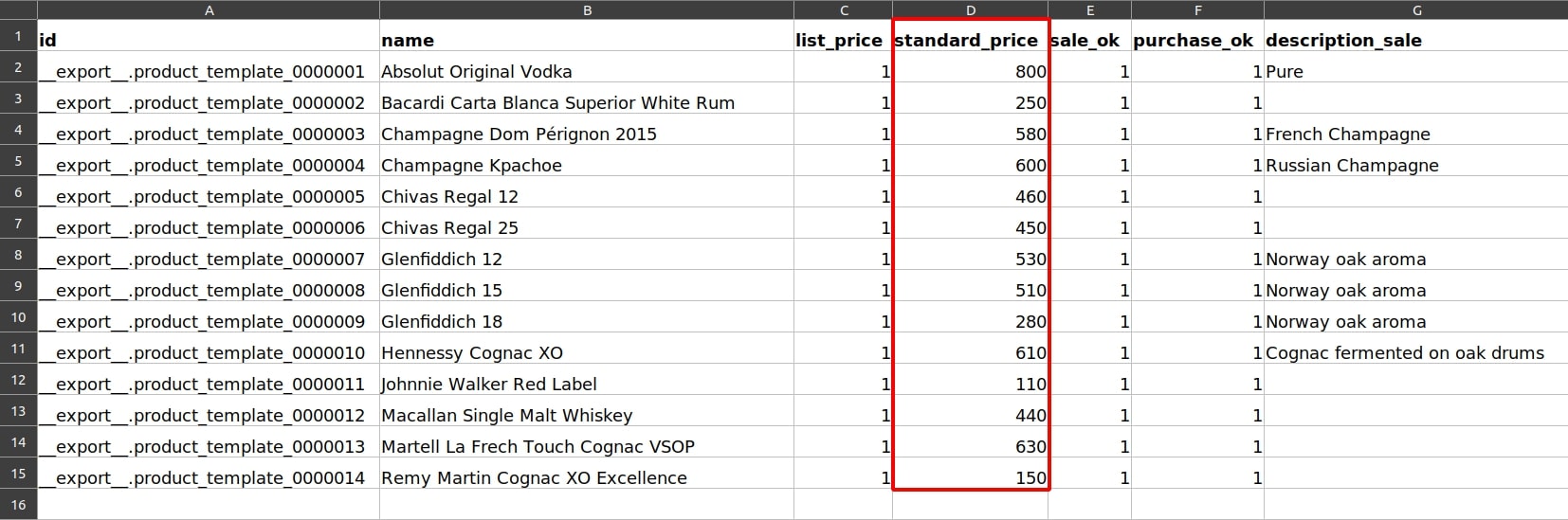
Export the products with I want to update data (import-compatible export) ticked, including the field to update, here Cost (
standard_price).![Exported file with the External ID column and empty costs]()
Fill in the new values in the file. Keep the External ID column unchanged.
![Exported file with the costs filled in]()
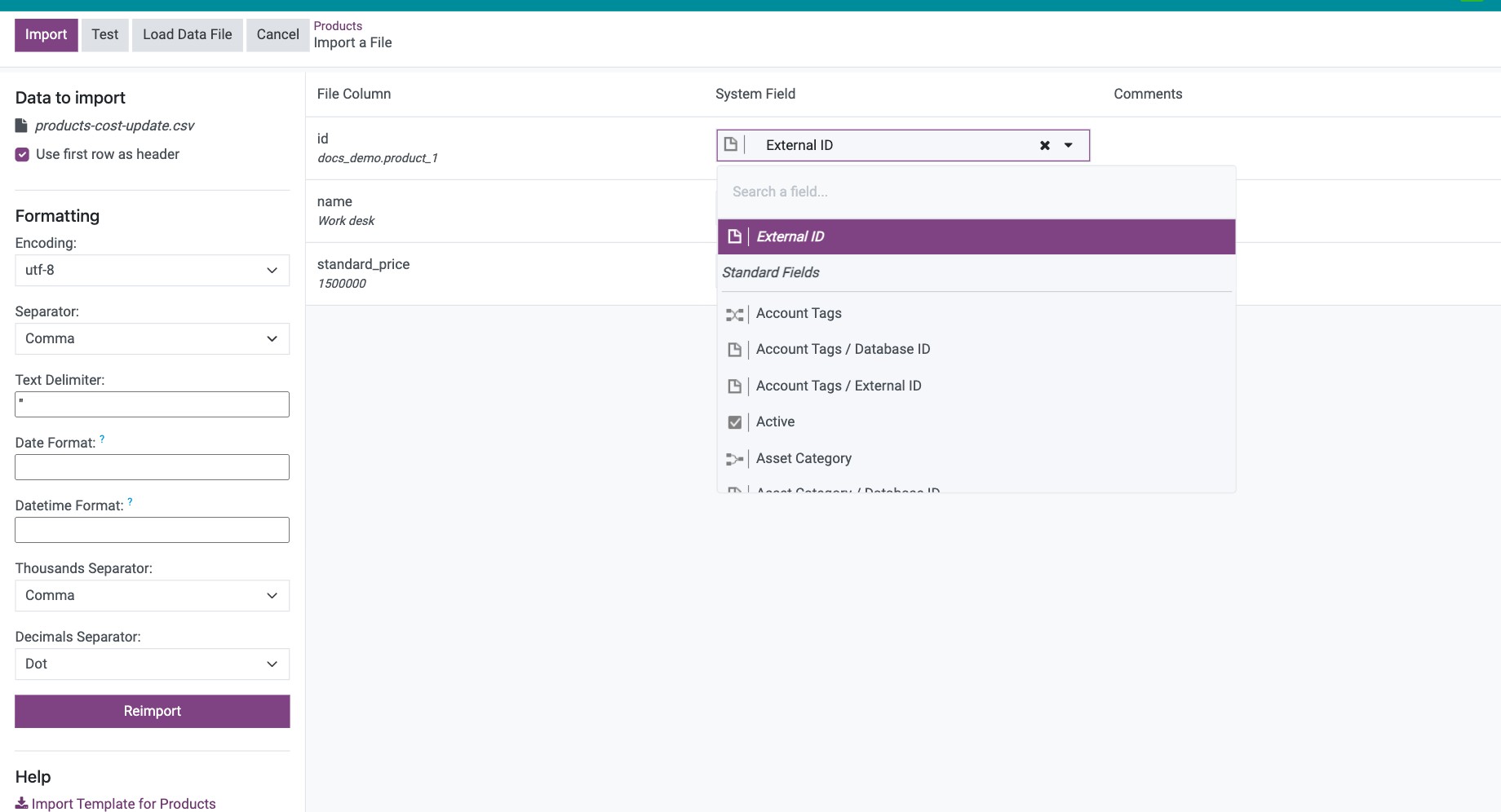
Import the file as in How do I import records from a file?. Keep only the columns to update (External ID and Cost) and remove the others with x.
![Import screen with only the External ID and Cost columns kept]()
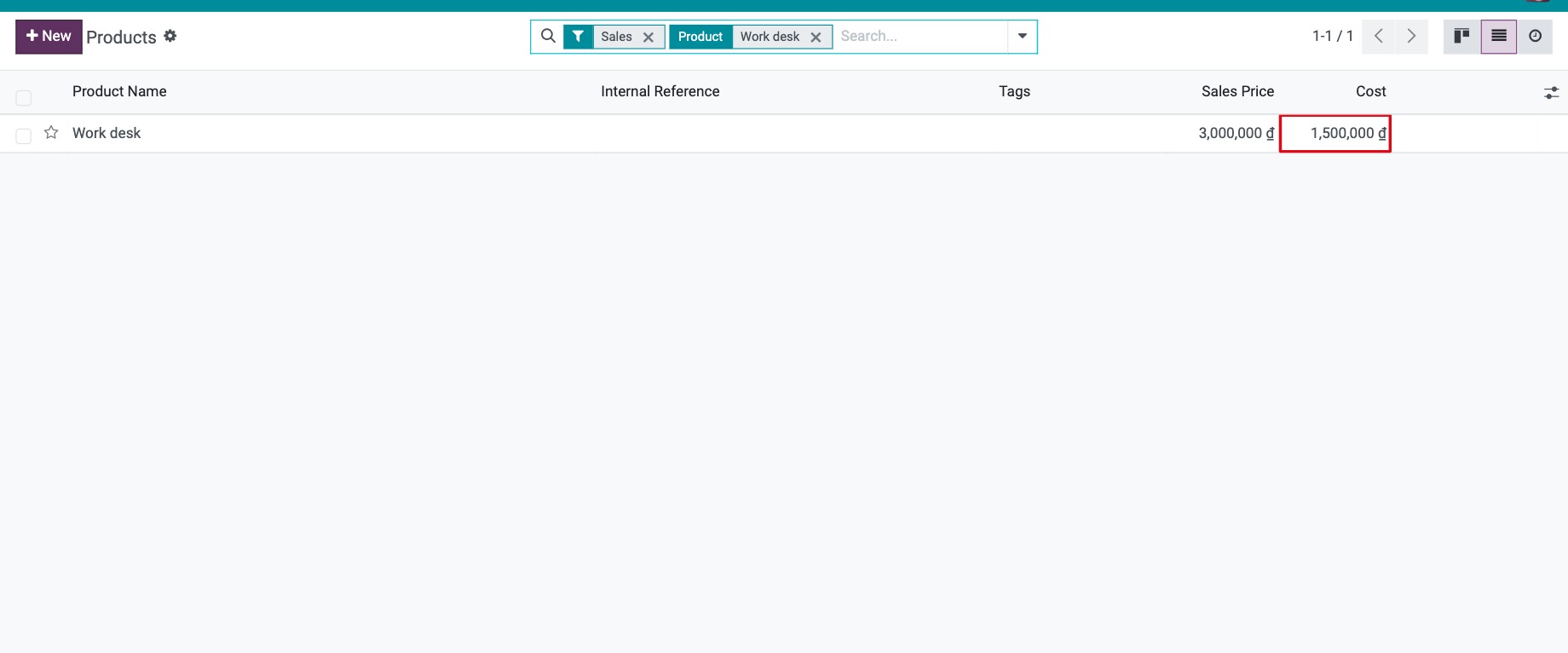
Click Test, then Import. The products now show the new cost.
![Product list showing the cost updated by the import]()
Common errors
Message |
What to do |
|---|---|
Missing required value for the field ‘…’ |
A mandatory field is empty in some rows, or its column is not matched to a field. Fill it in or match the column. |
No matching record found for … in field ‘…’ |
The related record (category, unit, vendor…) does not exist or its name is different. Create it first, fix the name, or use its External ID. |
‘…’ does not seem to be a valid date for field ‘…’ |
The date format of the cell does not match. Use one format for the column (and set Date Format for CSV files). |
Unknown value ‘…’ for boolean field ‘…’ |
Use 1/0, true/false or yes/no in yes/no columns. |
The import created duplicates instead of updating records. |
The file had no External ID column, or it was not matched. Export again with I want to update data (import-compatible export) ticked. |
Next steps
How to create a new product: what each product field means before you fill in the import file.
Views and reports: which view should I use?: analyze the imported data in pivot and graph views.