
How to archive an employee who leaves the job
You archive an employee in Employees > Employees > Employees: open the employee, click the gear icon, choose Archive, then register the departure reason and date. The employee is hidden from the daily lists but all the records of the employee, such as contracts, payslips and time off, are kept, so you can look them up whenever needed. Archiving an employee does not archive the user account and the contact of that employee: you archive them separately when the person no longer needs access to the system.
Requirements
This tutorial requires the installation of the following applications/modules:
Who can archive an employee?
Archiving an employee: users whose access right for Employees is Officer: Manage all employees or Administrator. A user with the Contracts right Administrator can archive employees too.
Archiving a user account: users who have the access right Administration: Access Rights, for example an administrator of the system.
Before you start
Settle the contract of the employee: confirm the last working day, and the contract that is running. The departure window can set the end date of the contract for you.
If the employee moves to another department or company of the group instead of leaving, use How to transfer an employee.
How to archive an employee record?
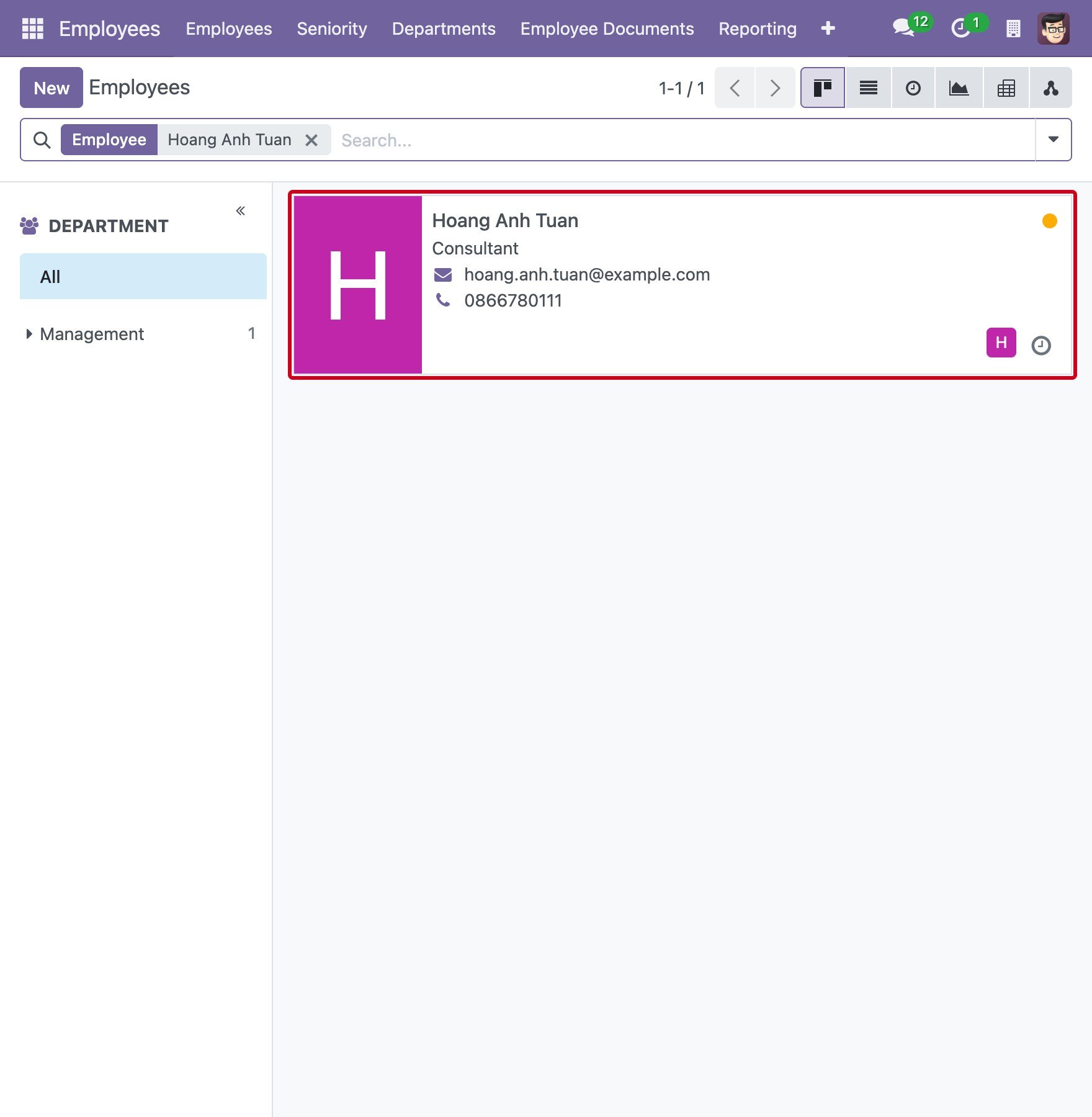
Go to Employees > Employees > Employees and find the employee, for example by typing the name in the search box. Open the employee record.
![Search the employee in the list of employees]()
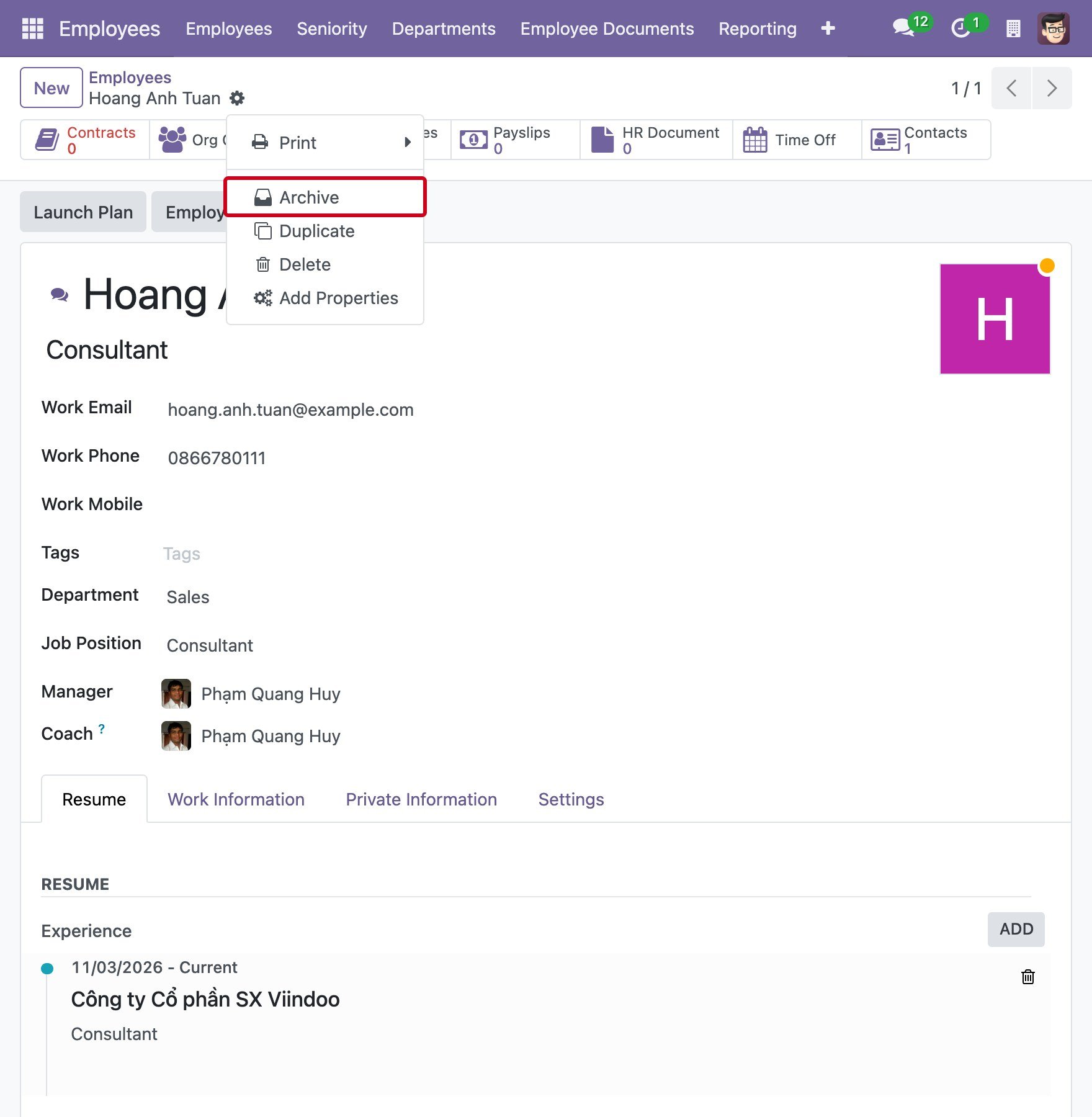
Click the gear icon next to the name of the employee and select Archive.
![The Archive action in the gear menu of the employee record]()
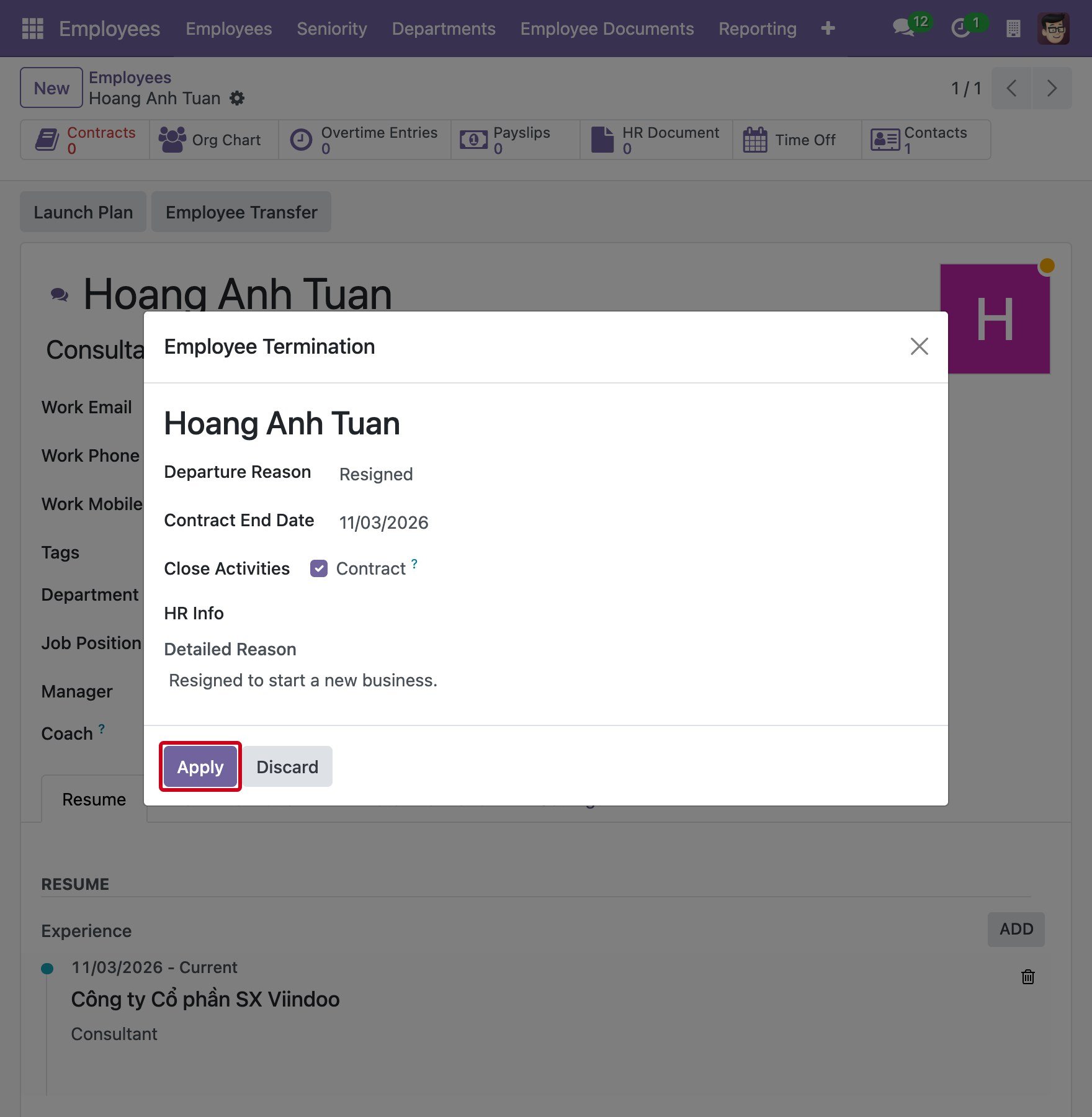
The Employee Termination window opens.
Fill in the window, then click Apply.
![The Employee Termination window with the departure reason and the detailed reason]()
Field
What to enter
Departure Reason
Click the field and choose a reason: Fired, Resigned, Retired or Employee transfer. You can add more reasons in Employees > Configuration > Employee > Departure Reasons.
Contract End Date
The last day of the employee. The system suggests today, or the end date of the last expired contract of the employee. You can change it. It cannot be earlier than the start date of the running contract.
Close Activities > Contract
Tick it to close the contract of the employee: the running contract gets the end date above and becomes Expired, and the contracts that are still New are cancelled. The box is ticked by default for users with the Contracts right Administrator. Leave it empty if you want to handle the contract yourself.
Detailed Reason
Free text to explain the departure. It is recorded in the chatter of the employee.
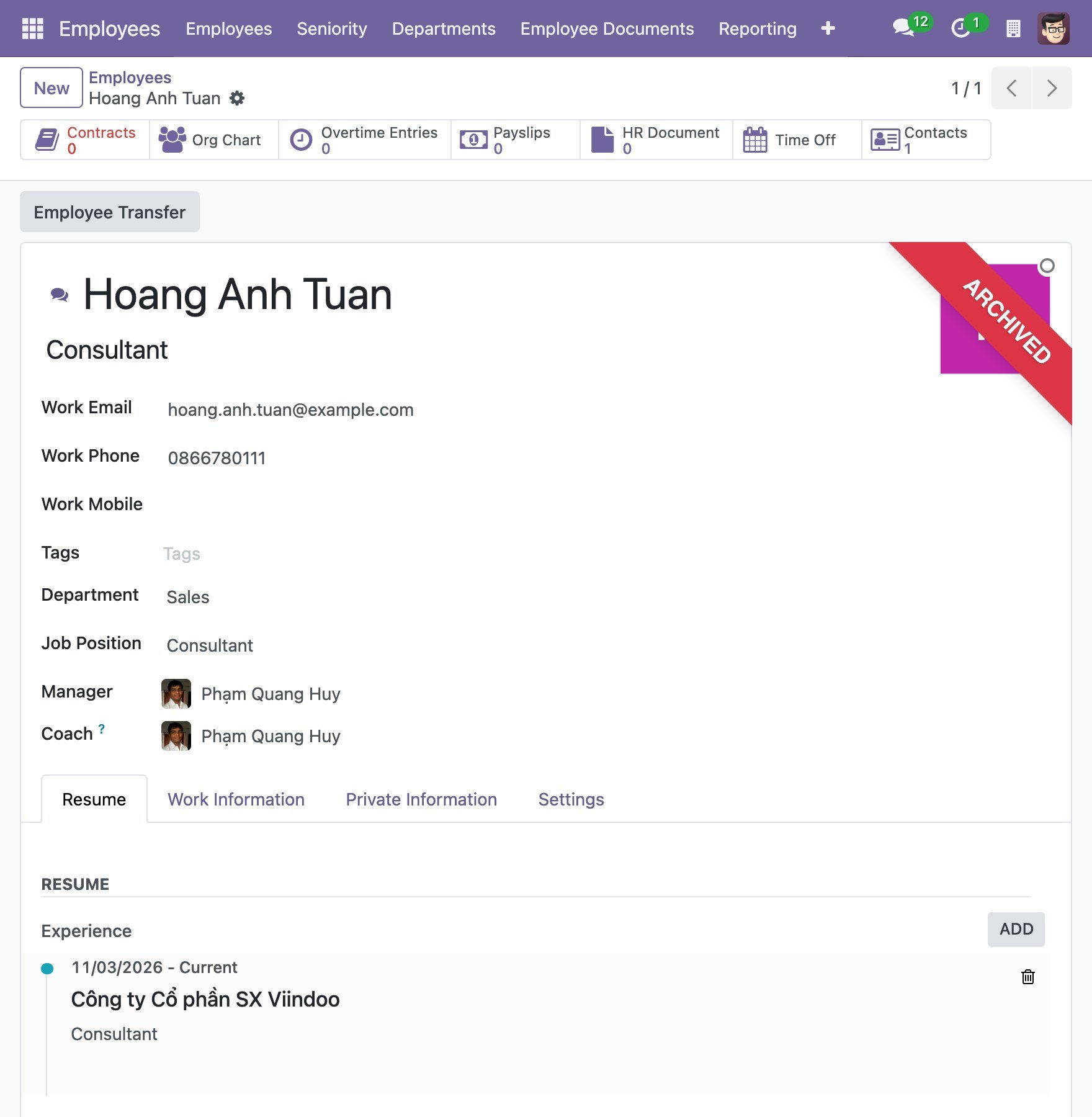
After you click Apply, the employee record shows the ARCHIVED ribbon.
![The archived employee record with the ARCHIVED ribbon]()
To see the archived employees again, go to Employees > Employees > Employees, open Filters and select Archived. The filter Terminated Last 30 Days shows the employees who left recently.
What happens when you archive an employee?
The employee no longer appears in the lists, the organization chart and the selection fields, but the record can be found with the filter Archived.
The employees who had this person as Manager or Coach lose that link and need a new one.
If the application Time Off is installed, the time off requests that end after the departure date are cancelled or deleted, and the allocations of the employee end on the departure date.
The user account and the contact of the employee stay active until you archive them, as shown below.
How to archive the user account of the employee?
If the employee has a user account, archive it when the person leaves, so that nobody can log in with it any more.
Go to Settings > Users & Companies > Users and open the user account of the employee.
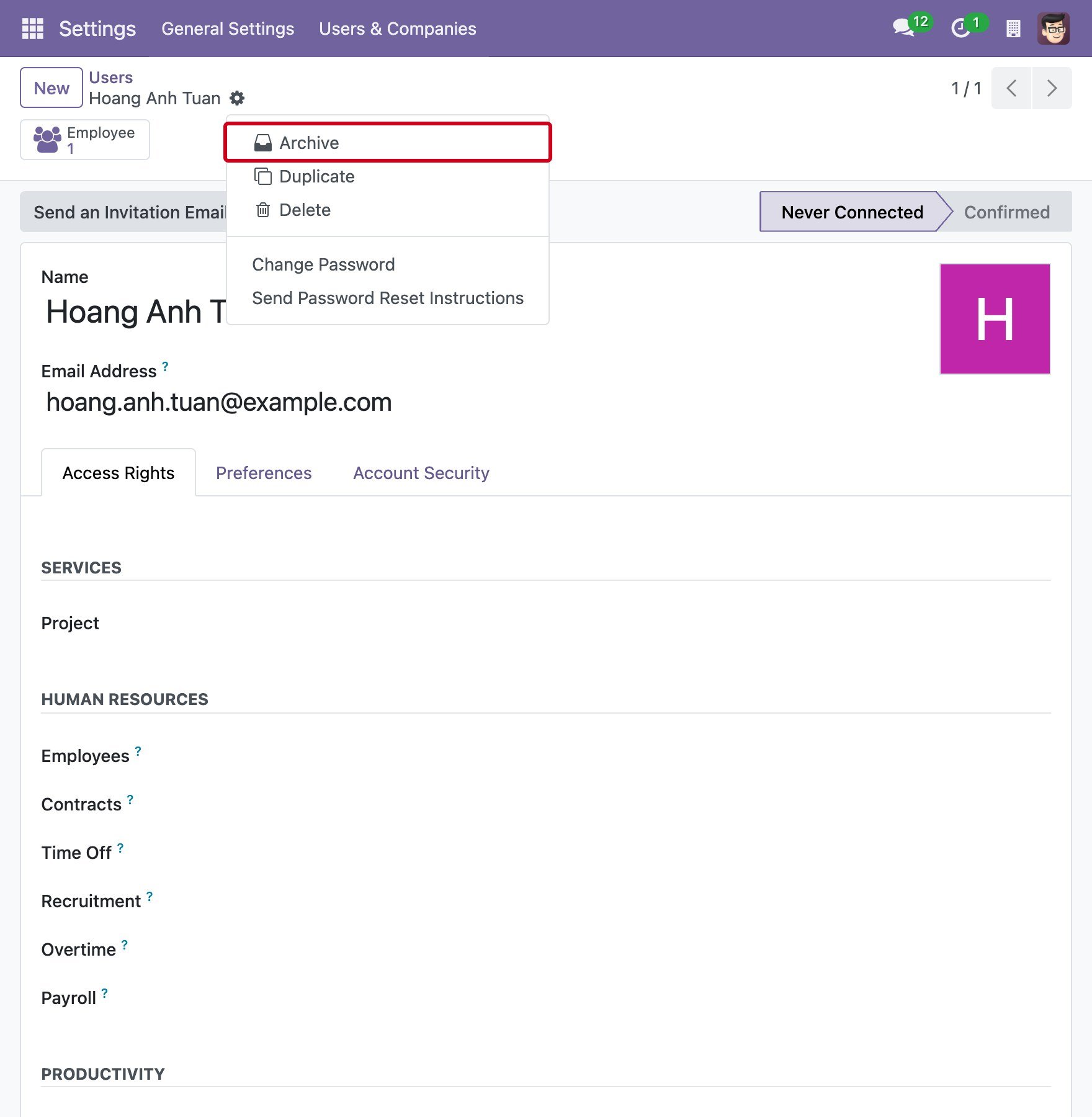
Click the gear icon and select Archive.
![The Archive action in the gear menu of the user account]()
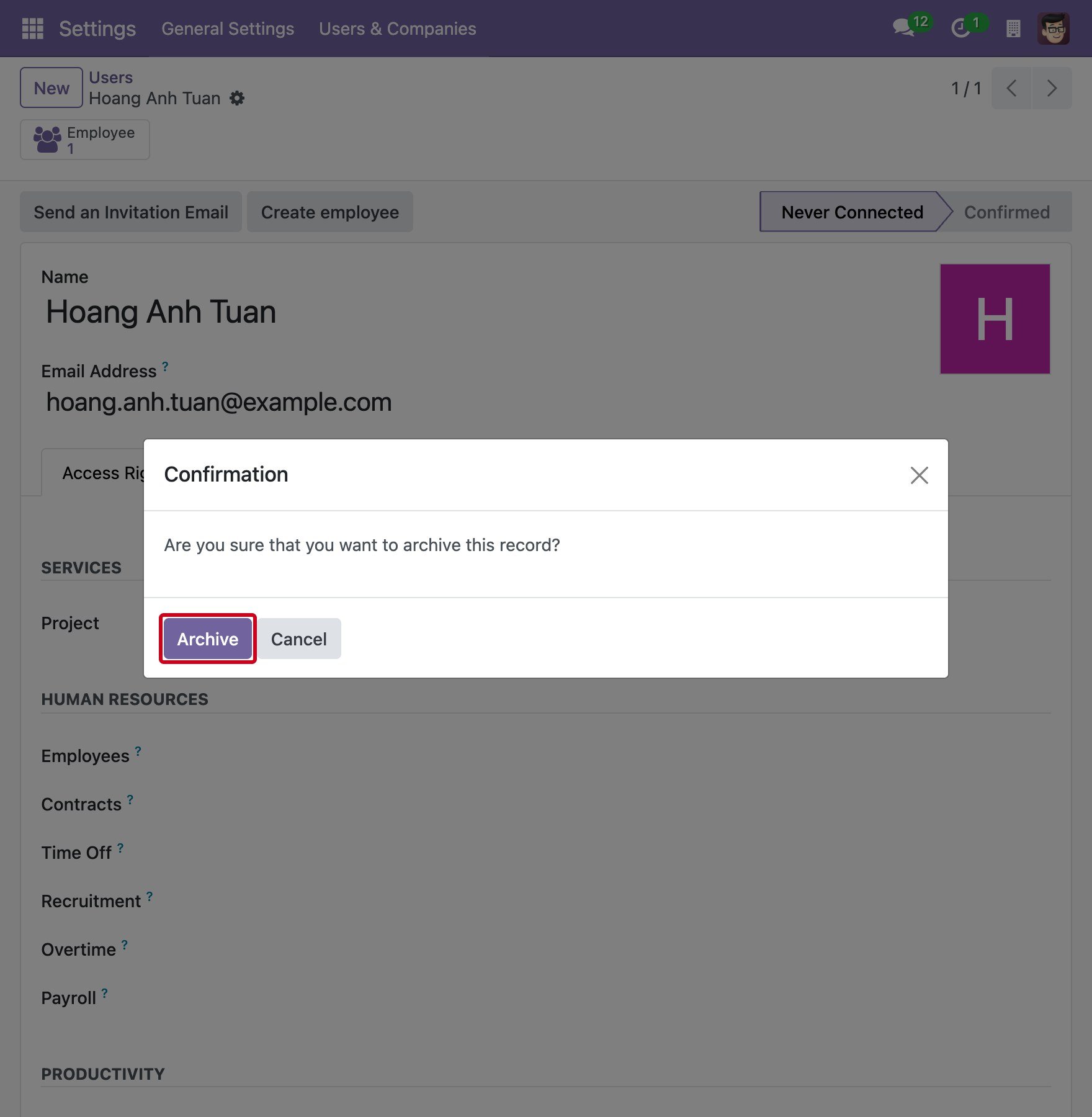
Click Archive in the confirmation window.
![The confirmation window to archive the user account]()
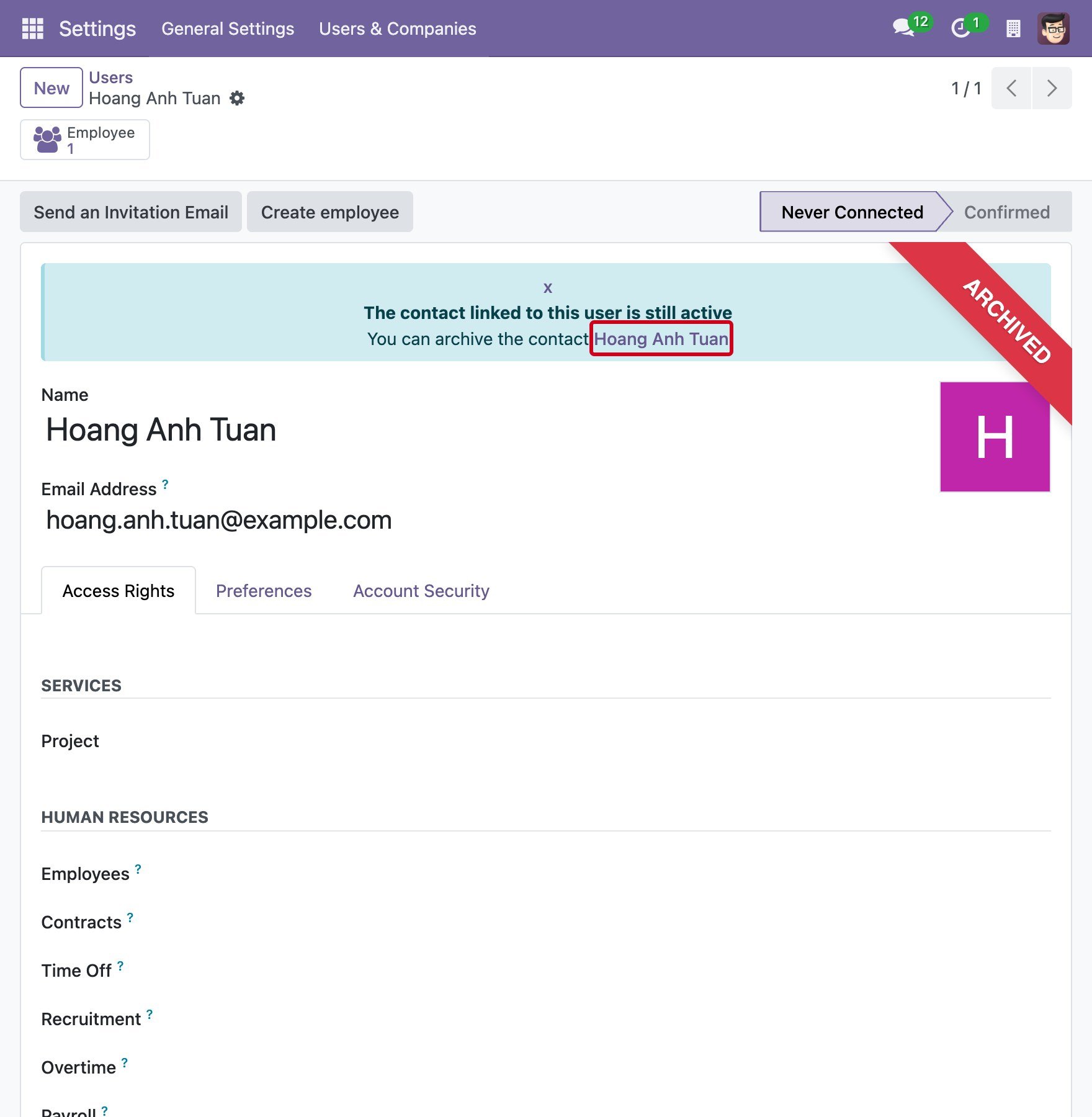
The user account shows the ARCHIVED ribbon. The system also reminds you that the contact linked to this user is still active, and gives you the link to the contact.
![The archived user account with the reminder about the linked contact]()
How to archive the contact linked to the user account?
In the reminder of the archived user account, click the name of the contact. The contact opens.
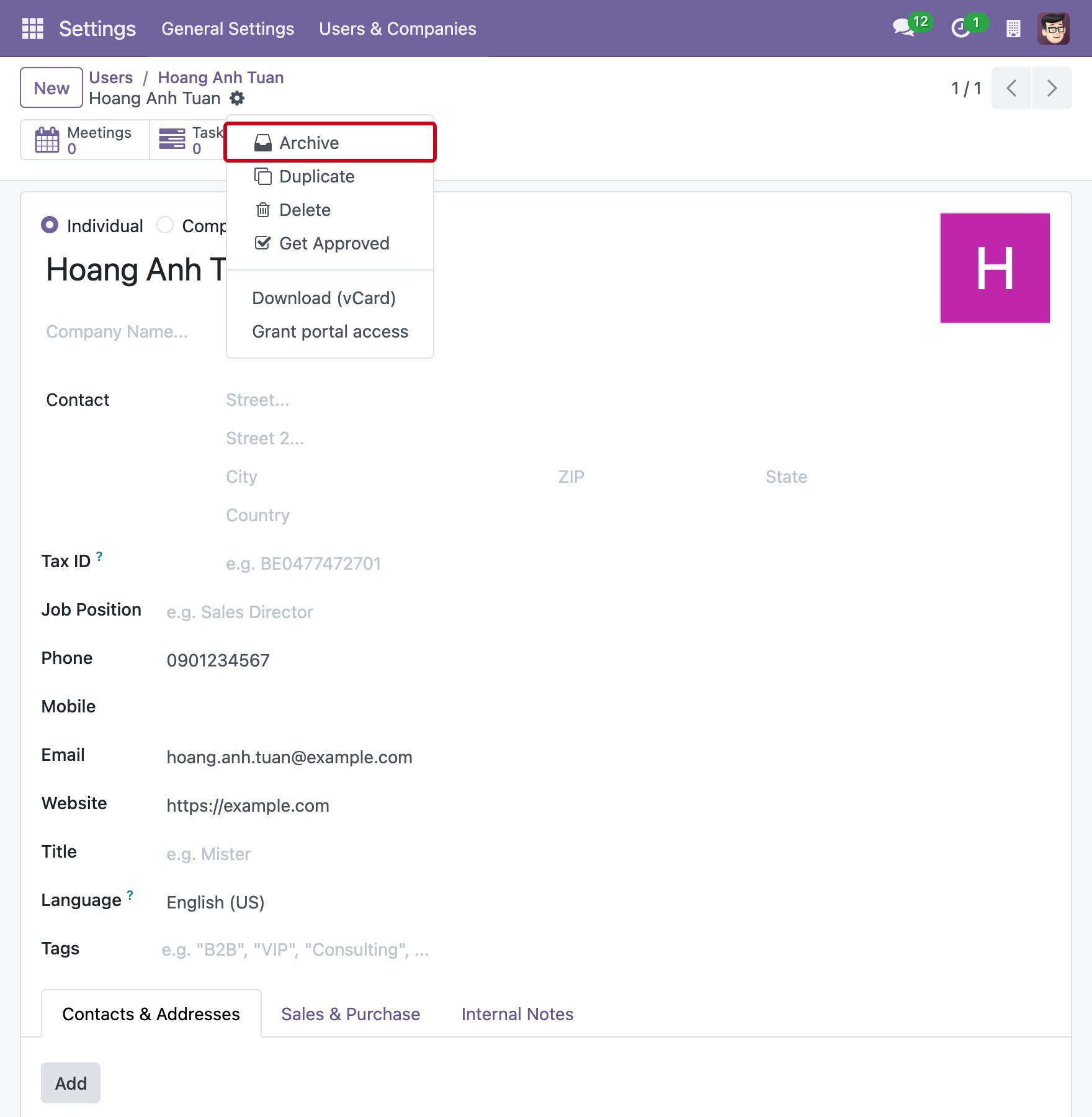
Click the gear icon and select Archive.
![The Archive action in the gear menu of the linked contact]()
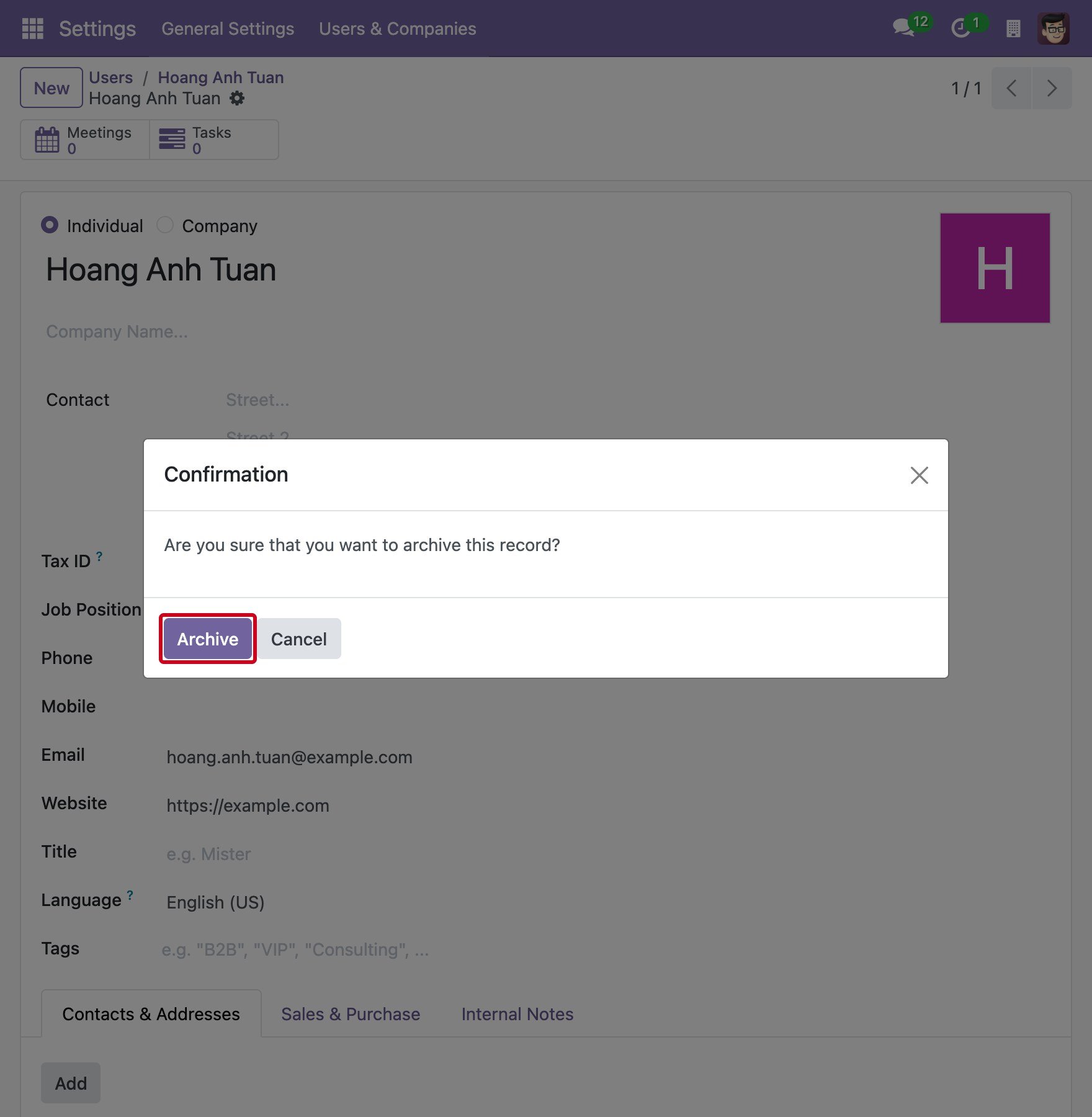
Click Archive in the confirmation window.
![The confirmation window to archive the linked contact]()
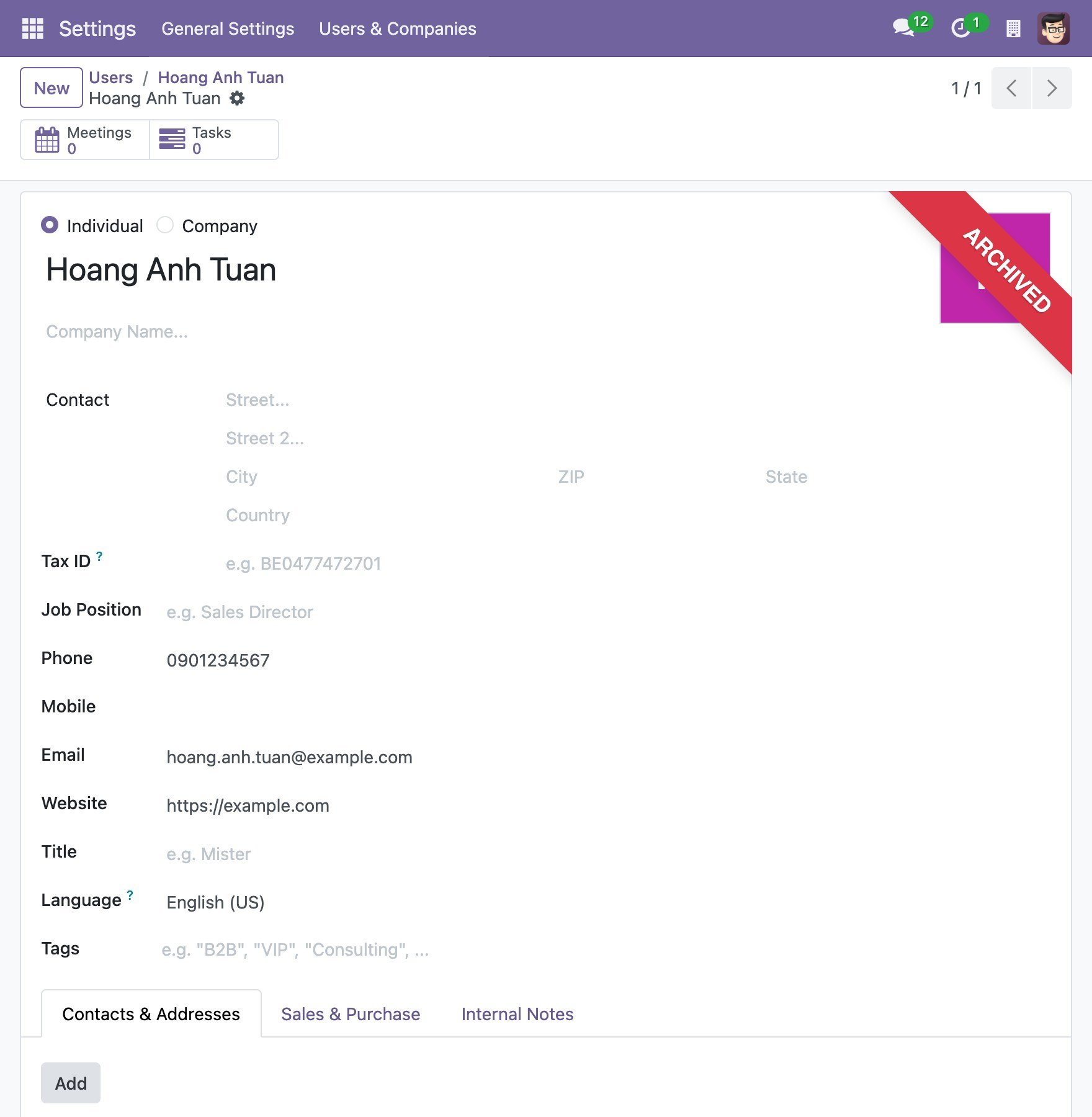
The contact shows the ARCHIVED ribbon.
![The archived contact with the ARCHIVED ribbon]()
Note
Archive the contact only when it is not used for anything else, for example when the person is not also a customer or a vendor of your company.
Common problems
Problem |
What to do |
|---|---|
The message Departure date can’t be earlier than the start date of current contract appears. |
Change Contract End Date to a date on or after the start date of the running contract. |
The employee is still in the list. |
Check that the Employee Termination window was completed with Apply. Closing the window without applying leaves the employee unchanged. |
You cannot find the archive action of the user account. |
Ask an administrator who has the access right Administration: Access Rights to archive the user account. |
You archived the employee by mistake. |
Open the employee with the filter Archived, click the gear icon and select Unarchive. The departure reason and date are cleared. |
See also
Related article
Optional module