
Deconsolidate an air import MAWB into house shipments
Guide information
Requirements
This tutorial requires the installation of the following applications/modules:
Freight Air Consolidation (LCAF) (installs Freight Air Management, Freight Consolidation and Freight Forwarder Management with it)
An inbound MAWB carries cargo for several consignees who never see each other’s paperwork. Deconsolidating it into one house shipment per consignee, as soon as the master itself is recorded, is what lets Viindoo later send the right Arrival Notice and the right Delivery Order (D/O) to each company on its own - splitting late, after the cargo is already counted, means re-entering figures you already had. If a term below is new to you, see the Freight forwarding glossary.
Running scenario: Hai Long Logistics receives one master shipment on Vietnam Airlines flight VN0301, MAWB 738-45217211, routing NRT (Narita) -> SGN (Tan Son Nhat), ETD 2026-12-02 09:00 / ETA 2026-12-02 14:30 (ATA 2026-12-02 15:10, 40 minutes late), forwarded by origin agent Narita Air Cargo Partners K.K., for 3 consignees:
Vietnam Fashion Retail Co., Ltd. (Ho Chi Minh City) - apparel, 90 kg / 0.7 CBM, HAWB
HLLNRTSGN2612-601.Mekong Electronics Trading Co., Ltd. (Can Tho) - electronic components, 130 kg / 0.5 CBM, HAWB
HLLNRTSGN2612-602.Hai Phong Cosmetics Import Co., Ltd. (Hai Phong) - cosmetics, 60 kg / 0.5 CBM, HAWB
HLLNRTSGN2612-603.
Total: 280 kg gross / 1.7 CBM - chargeable weight (CW) 283.9 kg at 167 kg/CBM. Vietnam Airlines bills the master air freight at USD 2.40/kg CW, USD 681.36 in total.
Before you start
The MAWB, the 3 HAWBs, the manifest and each house’s invoice/packing list have already been received from the origin agent by email - this happens outside Viindoo (see Known limitations). Reconcile the 3 HAWBs’ declared pieces against the MAWB by hand first.
You are in the User: All Shipments group or Administrator, or you are the Responsible of the shipment with User: Own Shipments - on any other shipment Own Shipments is read-only. See What Own, All and Admin can do inside a shipment. In this guide, Hoa (Documentation) does the work.
Step 1: Record the inbound MAWB as a master air shipment
Hai Long is not the origin agent - the MAWB and its 3 HAWBs exist in Hai Long’s own system only once someone enters them by hand, and nothing else below has anything to attach to until then.
Go to and click New (context already sets Shipment Role Master (Consol), Main Transport Mode Air). Fill in:
Direction: Import.
Carrier: Vietnam Airlines.
Departure Airport: Narita International Airport.
Arrival Airport: Tan Son Nhat International Airport.
ETD / ETA: 2026-12-02 09:00 / 2026-12-02 14:30.
Click Confirm, then enter 738-45217211 in MBL No. The Bill of Lading fields are hidden while the shipment is Draft. For this air shipment, MBL No. holds the MAWB number.
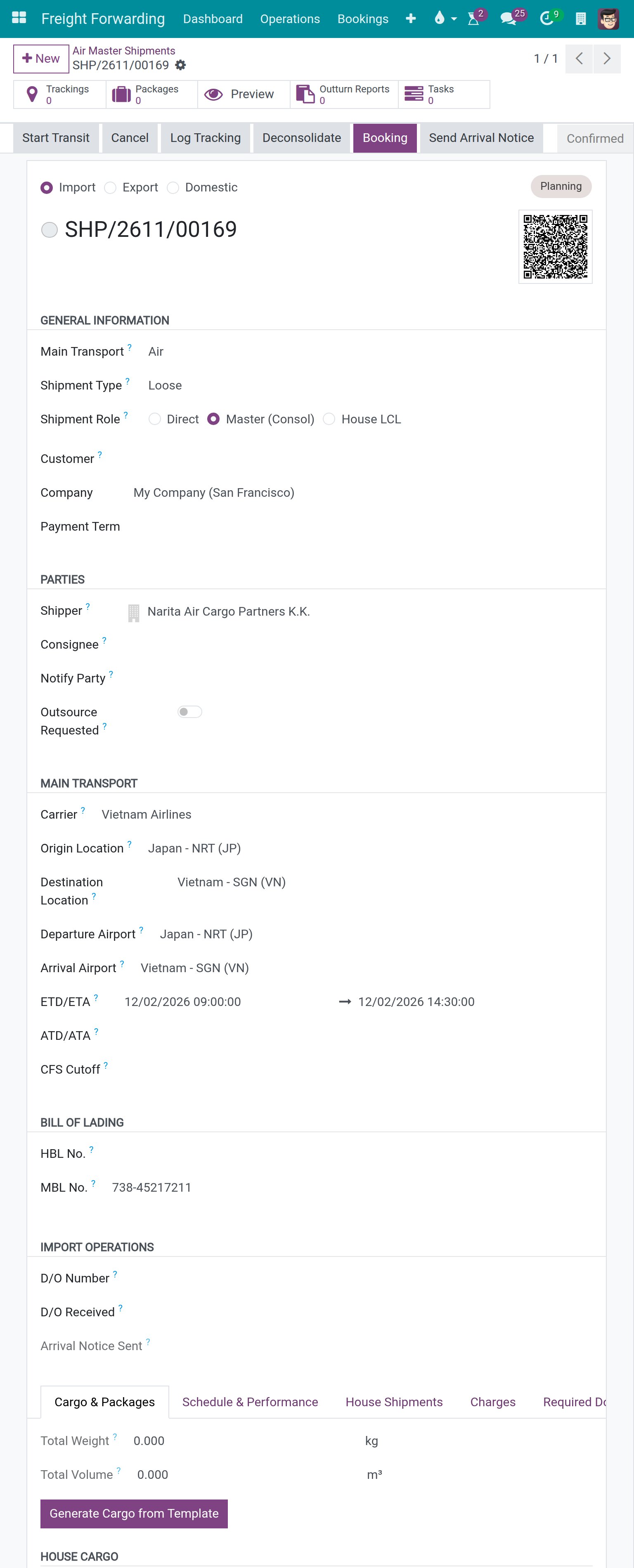
After the airline confirms the flight has landed, edit ATA (same field group) to the real arrival time, 2026-12-02 15:10. If the airline’s own D/O to Hai Long has already arrived, also record D/O Number / D/O Received in Import Operations (visible once Direction is Import).
Warning
This master has no free-storage-time field. The free-time dates only exist on a container, and an air master has no container. Check the handling terminal’s current terms for this airport and cargo category; then record the confirmed deadline, location and source in the Chatter. Do not calculate it from ATA alone.
Tip
Step 1 is done when: the master shows Direction Import, Shipment Role
Master (Consol), an ATA value, and MBL No. reads 738-45217211 (even though the
field is labelled MBL No.).
Step 2: Deconsolidate the master into 3 house shipments
The paperwork already says which cargo belongs to which consignee - splitting now, before the physical count, means the Arrival Notice and the D/O later go out under each company’s own name instead of one document shared by 3 customers.
On the master, click Deconsolidate in the header - visible because Shipment Role is Master (Consol) and Direction is Import. Because this master is Air, Viindoo opens the air-specific dialog automatically. Add 3 lines with Consignee, HAWB No., Commodity, Pieces, Weight (kg) and Volume (CBM) from the scenario above, and show the optional Shipper column (column toggle at the end of the header) to enter a different shipper per house, then click Create House Shipments.
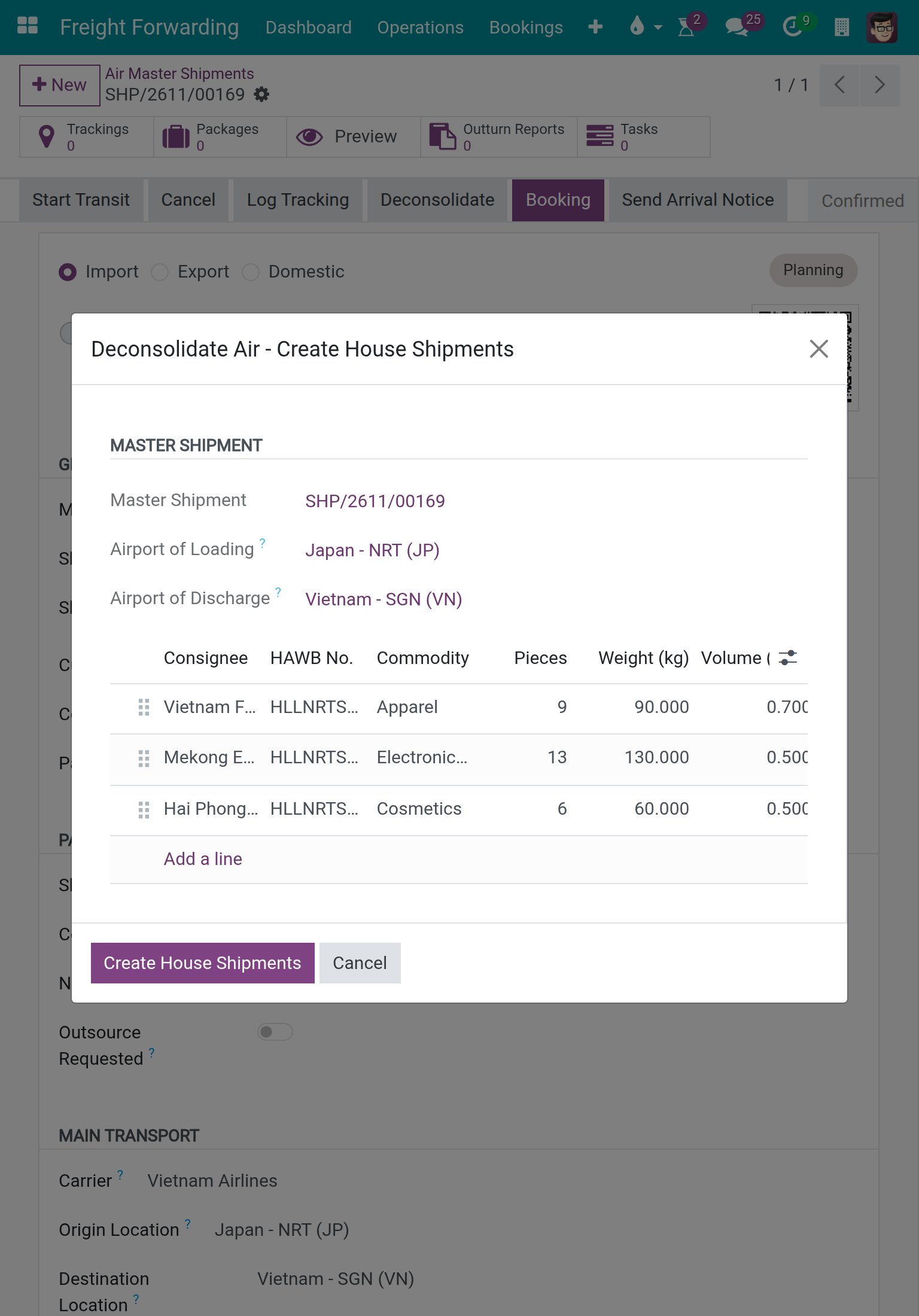
After you click Create House Shipments, 3 house shipments appear in Draft (Direction Import, Shipment Role House), each with MBL No., Carrier, planned dates, ATA and the airports copied from the master (a house keeps the master’s ATA when you confirm it), plus one cargo line from the Commodity/Weight/Volume entered. The wizard does not create package records. Open each house, click the Packages smart button, then New, and enter the goods description, Weight and Volume. Use the declared totals for each house: 90 kg / 0.7 CBM, 130 kg / 0.5 CBM and 60 kg / 0.5 CBM respectively. Save, return to the house and click Confirm.
After you click Confirm on a house:
The status bar moves to Confirmed.
The Send Arrival Notice button becomes available - it stays hidden while the house is still Draft.
Tip
The dialog shows the master’s Airport of Loading and Airport of Discharge, and copies both to each new house. It does not total the three lines’ Weight and Volume against the master, so check them against the cargo manifest before continuing: 90 + 130 + 60 = 280 kg and 0.7 + 0.5 + 0.5 = 1.7 CBM.
Tip
Step 2 is done when: all 3 houses show Confirmed, one consignee/HAWB each matching the running scenario, and 90 + 130 + 60 kg / 0.7 + 0.5 + 0.5 CBM adds up to 280 kg / 1.7 CBM.
Step 3: Confirm the actual count with an Outturn Report
What is actually measured when the cargo is checked - not what the origin agent declared on the manifest - is the figure Hai Long reconciles with the origin agent, and any shortage claim is based on.
On the master, click the Outturn Reports smart button (visible for Shipment Role Master (Consol), Direction Import), then New. Master Shipment is already filled in; leave Container empty - an air master has none. Viindoo generates 3 lines, one per house, with Manifest Weight/Volume from each house’s total package weight and volume entered in Step 2. Enter the Actual Weight/Volume measured and set Discrepancy for each line:
House 1 (Vietnam Fashion Retail): OK.
House 2 (Mekong Electronics Trading): Shortage - actual 125 kg / 0.48 CBM, 5 kg short of the 130 kg manifest.
House 3 (Hai Phong Cosmetics Import): OK.
Click Confirm.
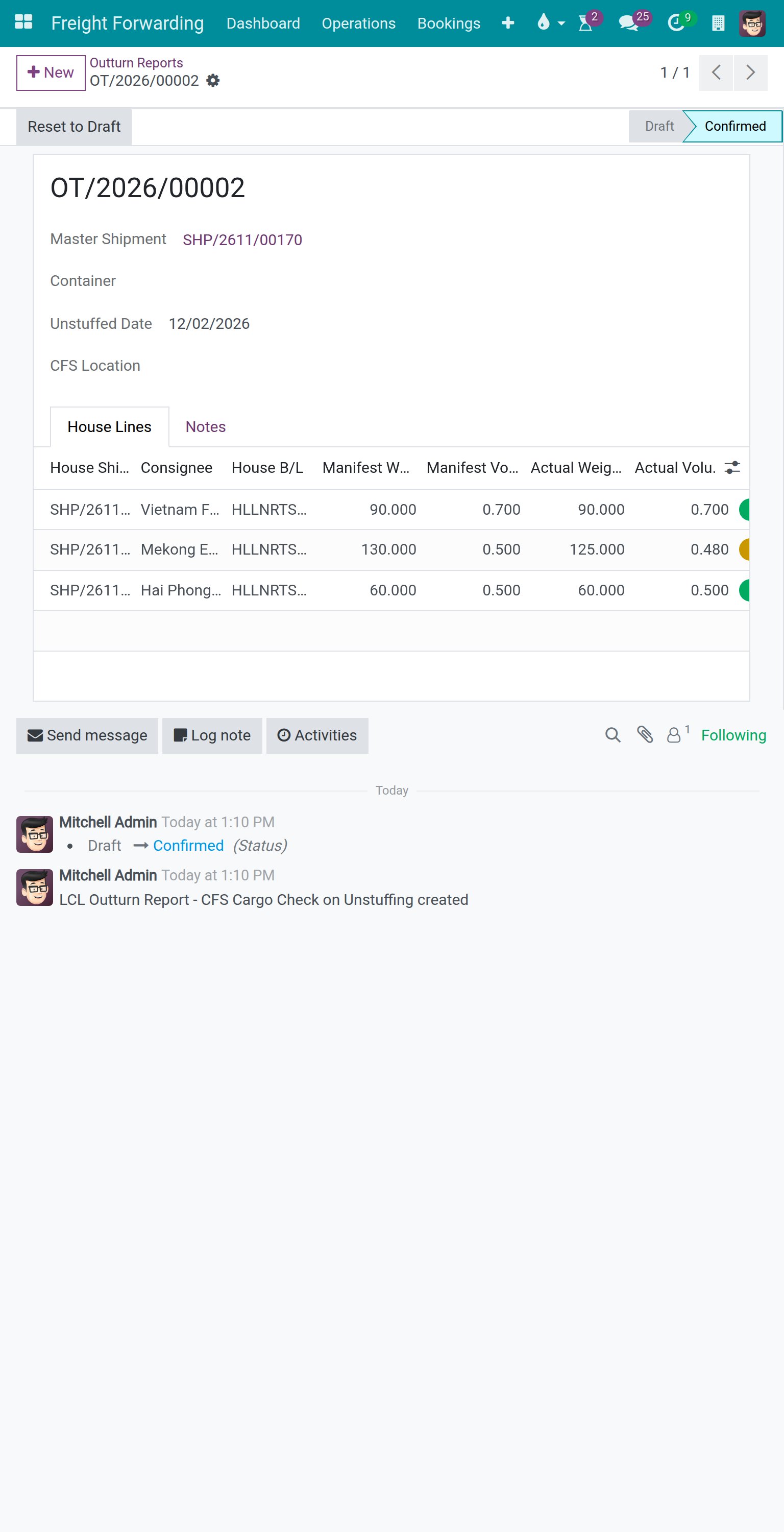
After you click Confirm, each line’s actual figures are written back onto the matching house’s CFS Actual Weight (kg) / CFS Actual Volume (CBM) fields - the label still reads “CFS” even though air cargo has no CFS; it is the same field the sea LCL flow uses.
Note
Nothing stops the next step from continuing for House 1 and House 3 while House 2’s shortage is investigated separately - each house is a separate record.
Tip
Step 3 is done when: the report shows Confirmed, all 3 lines have an Actual Weight/Actual Volume and a Discrepancy, and House 2 shows Shortage while the other 2 show OK.
Decide: confirm release approval before issuing the D/O
There is no field on the house shipment for the consignee’s payment status - this is a policy call made outside Viindoo, before clicking Issue D/O below.
Option |
Use when |
What changes |
|---|---|---|
Wait for release approval |
The payment, credit or document-release condition is not yet confirmed |
Accounting or the release owner verifies the condition required by the customer agreement and company procedure before Ops clicks Issue D/O; the system does not block an early click |
Issue the D/O under a prepaid or credit approval |
The origin agent or Accounting has confirmed the applicable authorization |
Record the approver and source in the Chatter; the system does not verify the authorization |
If you are unsure which condition applies, pause and ask Accounting or the release owner before clicking Issue D/O. See Known limitations for what Viindoo does not check.
Step 4: Send the Arrival Notice, issue the D/O and release cargo
Each consignee only needs to know about its own cargo - 1 Arrival Notice naming all 3 companies would expose one customer’s shipment to the other 2. Each also collects cargo only with its own D/O, and the release timestamp belongs to that house alone.
Open each house individually (not the master) and click Send Arrival Notice - visible once Direction is Import, status is Confirmed/In Transit/Done, and not sent yet. The recipient is that house’s own Consignee/Notify Party; the template is automatically Freight: Air Arrival Notice for Air. Click Send - Arrival Notice Sent is stamped once the mail reaches at least 1 recipient outside Hai Long’s own company.
Warning
If the consignee/notify party has no valid email on file, sending fails and no timestamp is written - see Troubleshooting below.
Once Accounting or the release owner has confirmed the condition required by the customer agreement and company procedure (see Decide above), click Issue D/O in the header. If you also want the D/O filed as a required document, use Issue Air D/O on the house’s Required Documents tab instead - it stamps the same D/O Issued.
Important
Viindoo does not check whether the house has been paid before letting you click Issue D/O. The button only checks that the Arrival Notice was sent and that no D/O was issued yet - the release-approval rule from Decide above is enforced by Accounting, not by the system.
Once the consignee has collected its cargo, click Cargo Released - visible once D/O Issued has a value. It records the date in the Cargo Released at CFS field, a name carried over from sea LCL.
Tip
Step 4 is done when: all 3 houses show, in order, Arrival Notice Sent, D/O Issued and Cargo Released.
Step 5: Review the master’s air freight allocation basis
Vietnam Airlines bills the air freight once, on the master - without allocating it, no house shows the cost that actually belongs to it, so none of the 3 houses’ profitability is right.
First record the buy charge on the master’s Charges tab: Air Freight, Vendor Vietnam Airlines, Currency USD, Quantity 283.9 (kg, the MAWB’s chargeable weight), Unit Price 0 and Cost Price 2.40 - USD 681.36 in total. This is a buy-only cost line, not a customer charge. Then click Allocate Costs in the header, keep the Air Freight charge selected and click Prepare Allocation to review the proposed split. The preview lists each house with its CBM, the Suggested Ratio (%) by volume and an editable Allocation Ratio (%).
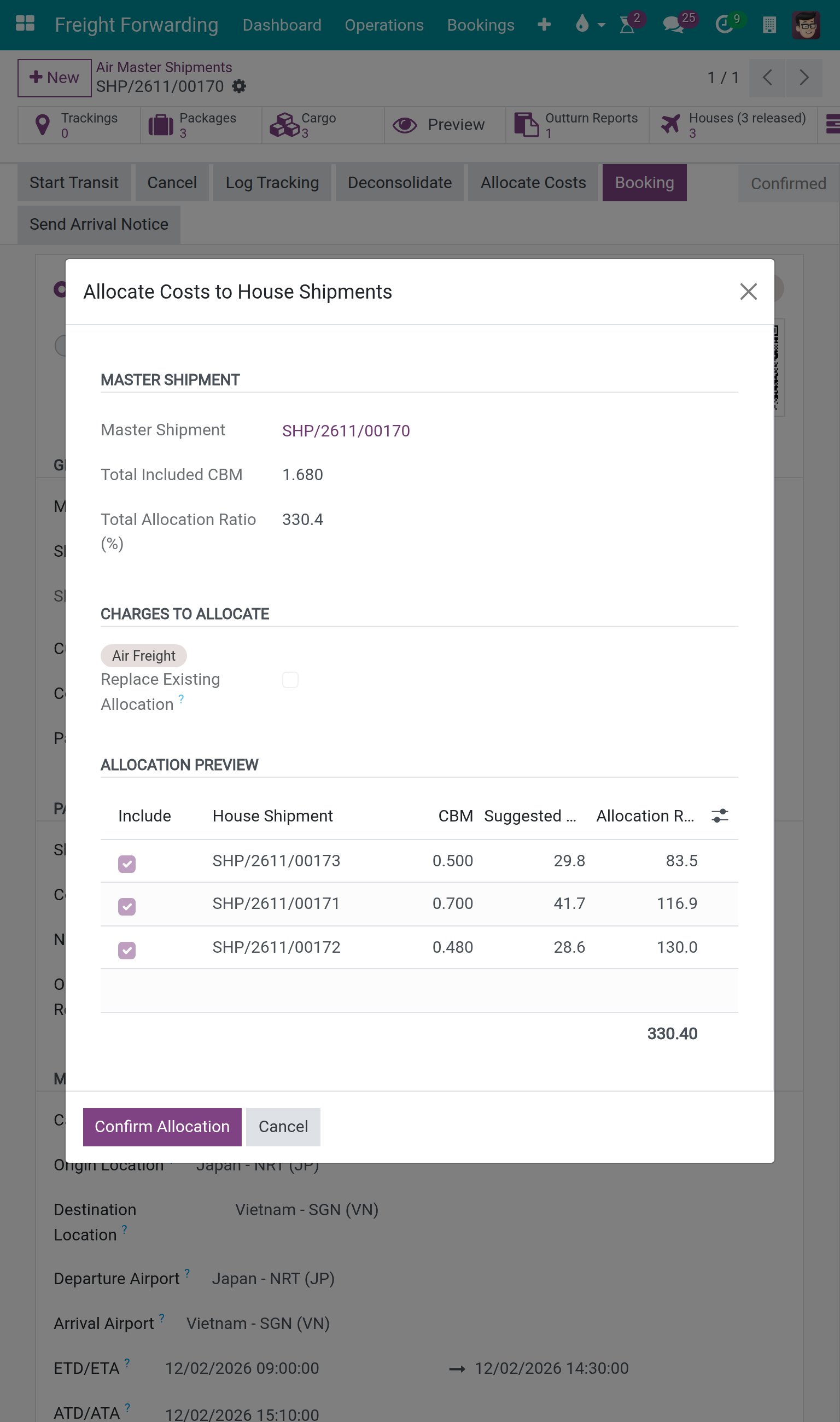
These CBM values come from the confirmed Outturn Report, including House 2’s actual 0.48 CBM. The suggested ratios round to 100.1%; the wizard divides the cost by the total of the Allocation Ratio (%) column, so the ratios do not have to add up to 100.
Warning
The suggested ratio is always by CBM (volume). Vietnam Airlines bills this charge by weight, so confirming the suggestion as it stands would put the cost on the wrong basis. Type the chargeable weight of each house into Allocation Ratio (%) instead: 116.9 kg for House 1 (0.7 CBM x 167 kg/CBM), 130 kg for House 2 (its gross weight is higher than its 83.5 kg volumetric weight) and 83.5 kg for House 3 (0.5 CBM x 167 kg/CBM). The column totals 330.4.
Click Confirm Allocation. Each house receives its own Air Freight cost line, USD 241.07 / 268.09 / 172.20 for the USD 681.36 total.
Decide: choose the cost allocation basis
Option |
Use when |
What changes |
|---|---|---|
Accept the system’s CBM-based suggestion |
The approved agreement explicitly allocates this cost by volume |
Confirm the allocation as proposed; for the measured 0.700 / 0.480 / 0.500 CBM, the charge would split as USD 283.84 / 194.67 / 202.84 |
Enter the chargeable weights as ratios |
Master cost is airline freight billed by weight, as here, and P&L should reflect that |
Replace the ratios with 116.9 / 130 / 83.5 kg (330.4 kg in total) before you confirm: the charge splits as USD 241.07 / 268.09 / 172.20 of the USD 681.36 total |
Use the suggested volume split only when CBM is the approved basis for this cost. If the charge should be shared by chargeable weight, change the ratios as shown above, or ask Accounting which basis to follow before you confirm. To redo an allocation, run the wizard again with Replace Existing Allocation ticked.
Tip
Step 5 is done when: the master has the USD 681.36 Air Freight buy charge, the allocation is confirmed on the basis Accounting approved, and each house shows its own Air Freight cost line (USD 241.07 / 268.09 / 172.20 for the chargeable-weight basis).
See also
The same wizard also allocates sea LCL master costs - full walkthrough at Allocate shared master costs to house shipments.
Known limitations
Step |
What Viindoo does today |
What you do instead |
|---|---|---|
Steps 1-2 - sea-only fields left blank on Air |
No free-storage clock on the master (only a container has one); this version’s Deconsolidate dialog shows the master airports and copies them to the houses |
Confirm free time with the handling agent or current terminal tariff for this airport and cargo category; record the deadline and source, and verify the airport values shown in the dialog before creating the houses |
D/O Master and house D/O - no payment gate |
Neither Deconsolidate nor Issue D/O checks that the airline or the house has been paid |
Confirm the release authorization required by the customer agreement and company procedure outside Viindoo at both points - see Decide before Step 4 |
All steps - field labels reuse sea terminology |
MBL No., HBL No., CFS Actual Weight/CBM and Cargo Released at CFS are sea LCL field names, reused unchanged for Air |
Read the value, not the field label |
Step 4 - no dedicated customs milestone |
The Import Operations group has no customs-clearance field for an Air house |
Log customs clearance in the Chatter, or in the shipment tracking history (see Log tracking updates and notify the customer; check the recipient before notifying the customer) |
Step 5 - no chargeable-weight option |
The wizard suggests the split by CBM only; the chargeable weight is not computed for you |
Type the chargeable weight of each house into Allocation Ratio (%) before you confirm (see Step 5) |
Troubleshooting
Create House Shipments does nothing
Symptom: The Deconsolidate dialog is still empty, clicking Create House Shipments shows “Add at least one consignee line before deconsolidating.” Cause: the dialog has no consignee line yet.
Fix: Add at least 1 Consignee/HAWB line, then click Create House Shipments again.
Issue D/O is missing on a house
Symptom: A house is Confirmed, Direction Import, but Issue D/O is not there. Cause: the button only shows once Arrival Notice Sent has a value.
Fix: Complete Send Arrival Notice on that house first (Step 4).
The Arrival Notice cannot be sent because no one can receive it
Symptom: Clicking Send Arrival Notice shows “Cannot send Arrival Notice for shipment “SHP/26xx/000nn”: no party outside your own company can be reached by email.” followed by one line per party, for example “Consignee (Vietnam Fashion Retail Co., Ltd.): no email on file”. Cause: no Consignee or Notify Party outside Hai Long’s own company has an email.
Fix: Add an email address to the Consignee (or Notify Party) partner record, then click Send Arrival Notice again.
Allocate Costs is missing on the master
Symptom: The master already has all 3 houses, but Allocate Costs is not there. Cause: The button only shows on a master that has houses and at least one cost charge not yet allocated or committed to a vendor bill - here, the Air Freight line from Vietnam Airlines is missing or already allocated.
Fix: Complete Step 2 (all 3 houses exist) and make sure the master has at least 1 purchase charge line (for example, the Air Freight cost billed by Vietnam Airlines) before opening the wizard again.