
Set up carriers, agents, ports, airports and border crossings
Guide information
Requirements
This tutorial requires the installation of the following applications/modules:
Freight Forwarder Management - installing it also installs its base dependency, Logistics Shipment.
Freight Road - optional, only needed if you register border crossings for cross-border road shipments.
Every shipment, booking and rate card in Viindoo Freight Forwarding points to a partner record marked as a carrier or an overseas agent, and to a port record marked as a sea port or an airport. Set these up once, correctly, and Sales and Operations pick the right carrier, agent and port from a list instead of retyping details that never quite match on the next shipment. Skip a step here, and a rate card you create later simply does not show up on the screen where Pricing expects to find it. If a term here is new to you, see the Freight forwarding glossary.
Running scenario: Hai Long Logistics works with carrier ONE, overseas agent Pacific Coast Forwarding Agency, Inc., and the ports Hai Phong Port (POL) and Port of Los Angeles (POD) used on every FCL export in this guide.
Mark a partner as a carrier or an overseas agent
A rate card only appears where Pricing expects to find it if the partner behind it is flagged correctly: Carrier Rates lists rates from partners with Is Forwarder Carrier ticked, Agent Rates lists them for Is Forwarder Agent. A partner that looks right in every other way still will not appear on either list if this checkbox is off.
Go to (or ) and open the partner, or click New.
Tick:
Is Forwarder Carrier: for a shipping line, airline or trucking company. ONE Line already has it ticked.
Is Forwarder Agent: for an overseas partner who issues documents or collects charges on your behalf at the other end. Tick it for Pacific Coast Forwarding Agency, Inc.
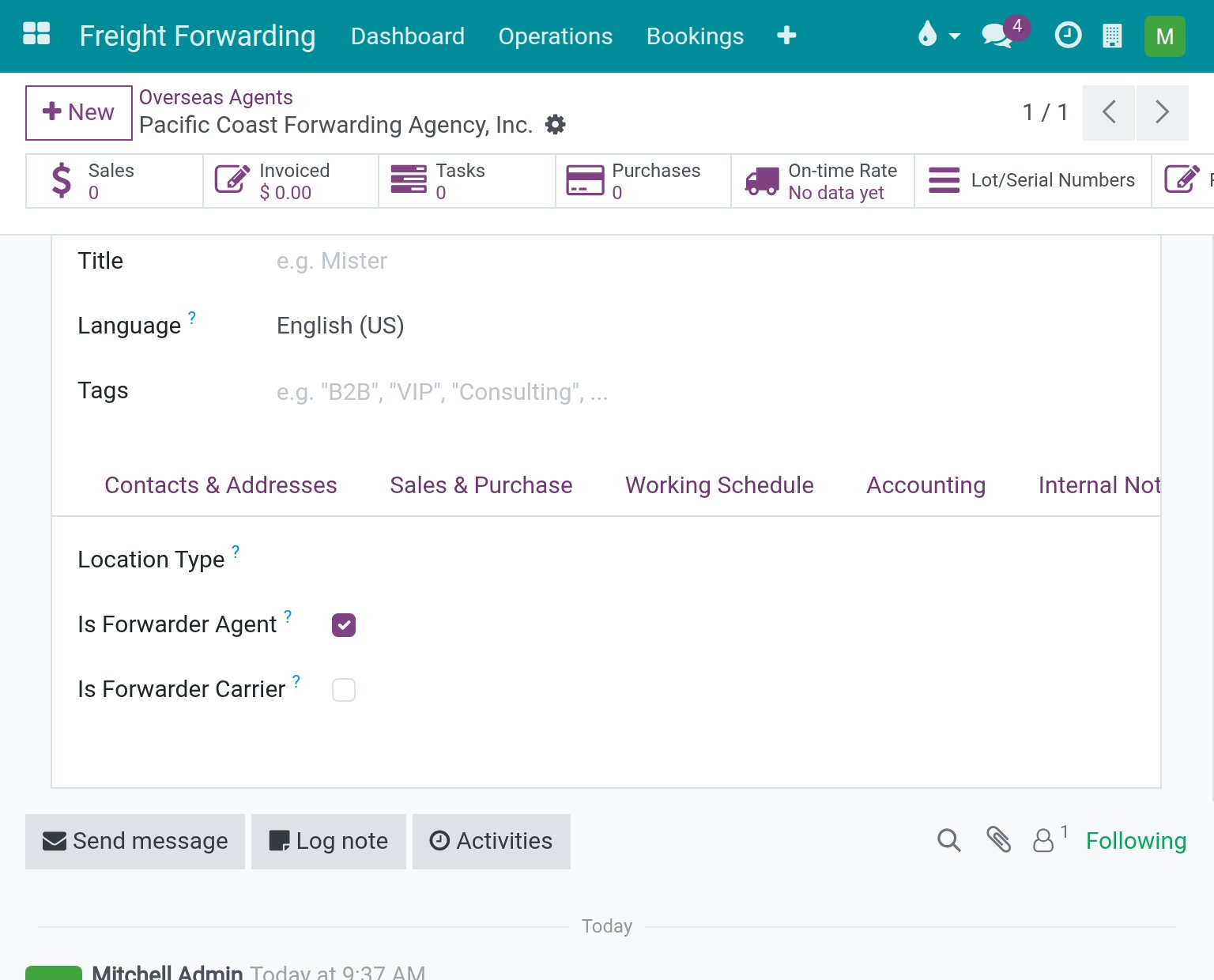
After you save:
The partner appears in the Carriers or Overseas Agents list.
Its rate cards become visible in Carrier Rates or Agent Rates.
Note
The Carrier field on a booking does not filter by this checkbox - any contact can still be typed there. Ticking Is Forwarder Carrier only controls which partners appear in the Carriers list and in Carrier Rates, not what you can select on a booking.
See also
Once ONE Line and Pacific Coast Forwarding Agency, Inc. are flagged, their rates are set up in Maintain carrier rates and vessel schedules.
Tip
The setup is correct when: Pacific Coast Forwarding Agency, Inc. appears under Overseas Agents, ONE Line appears under Carriers, and a rate card you create for the agent shows up in Agent Rates.
Create a sea port or an airport
The Origin/Destination fields on a shipment (POL, POD, or a departure/arrival airport) only accept a contact record marked as a sea port or an airport. Hai Phong Port and Port of Los Angeles already exist with this flag - creating them again produces a second record with the same port code that is easy to select by mistake (see Troubleshooting).
Before creating anything, search the existing list: go to (or ) and filter by name or port code.
If the port is genuinely missing, click New and fill in:
Name: the port’s name, e.g. Hai Phong Port.
Port Code: the port’s code, e.g. HPH. The installed ports mix three-letter codes such as HPH with full UN/LOCODEs such as USLAX, so search by both before creating one.
Country: the port’s country.
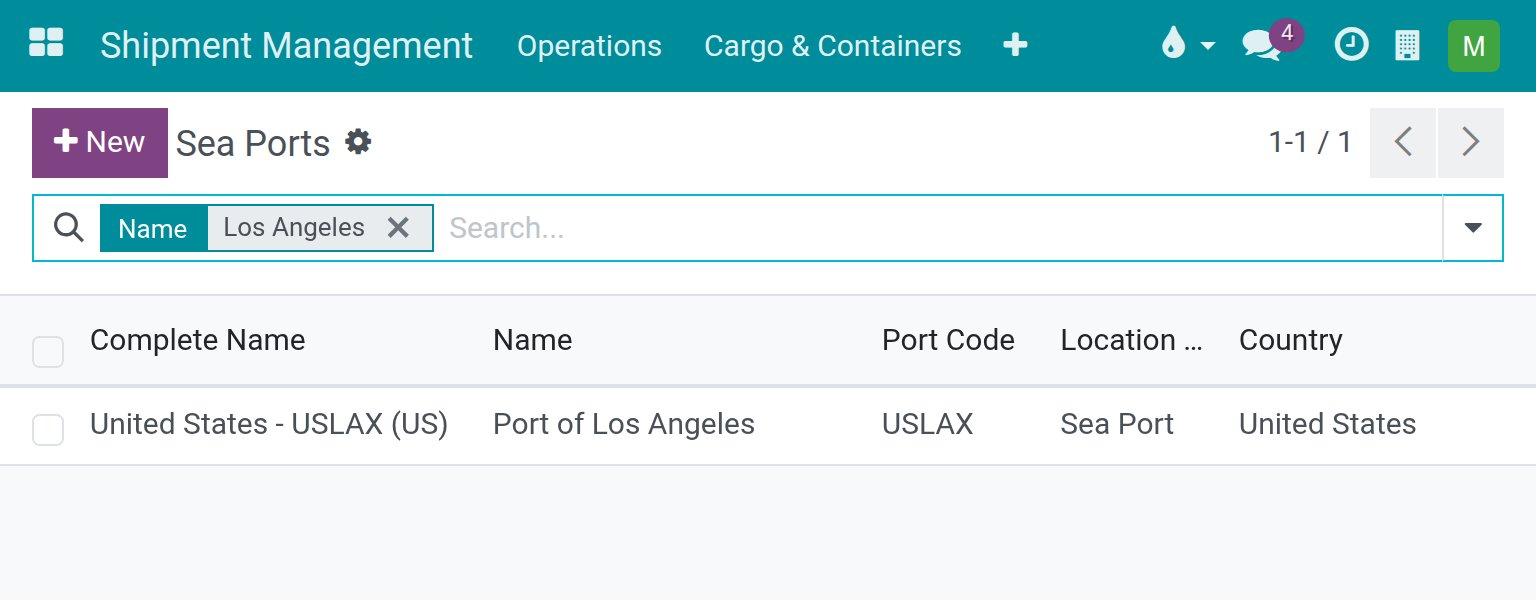
After you save, Complete Name fills in by itself, in the form “<Country> - <Port Code> (<Country Code>)”.
Note
Complete Name is computed from Country and Port Code every time the record is saved - it is not a field you type into directly.
Tip
The setup is correct when: Hai Phong Port’s Complete Name reads “Vietnam - HPH (VN)”, and it can be selected as the POL of an FCL export shipment.
Check or add coordinates for a port
Coordinates place the port on the journey map Viindoo draws between two ports and on the tracking widget customers see on the portal. A port without coordinates leaves a gap on that map. The ports installed with Viindoo, Hai Phong Port and Port of Los Angeles included, already carry their coordinates; a port you create does not, until you set them.
Open the port (for example Hai Phong Port) and go to the Geolocation tab.
On a port that has no coordinates yet, click Compute based on address to fill Lat and Long from the port’s address, or enter both by hand from the coordinates the port publishes. Save.
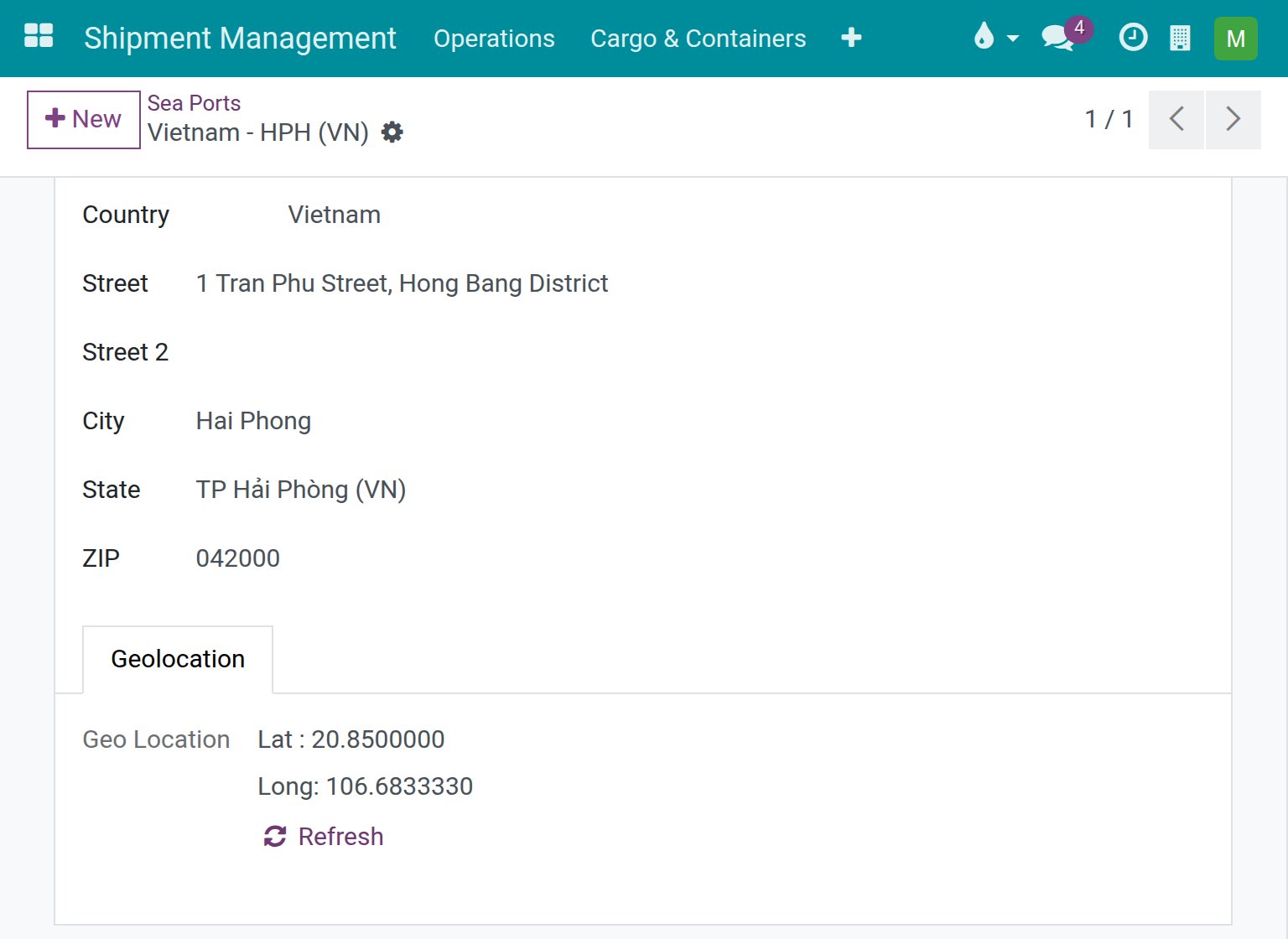
Once a port has both coordinates, the button reads Refresh and recalculates them from the port’s address.
Tip
The setup is correct when: Lat and Long of every port you use are filled in and the Refresh button shows on the Geolocation tab.
Register a border crossing (road freight only)
Skip this section if Hai Long only ships by sea or air. A road booking that crosses a land border needs a border crossing record to fill its Border Crossing field.
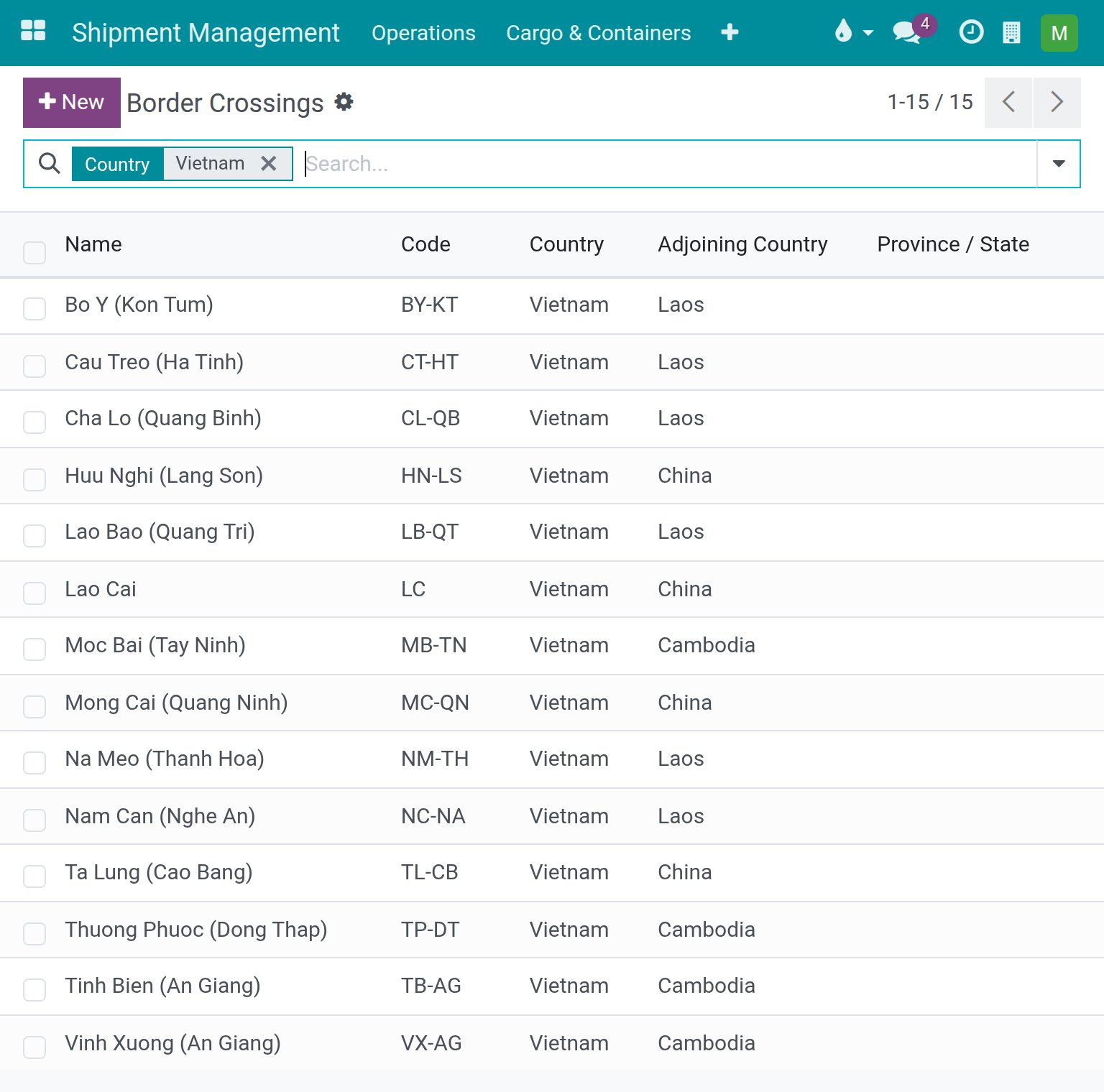
Go to .
Note
15 border crossings between Vietnam and China, Laos and Cambodia already exist once Freight Road is installed, including Huu Nghi (Lang Son) and Lao Bao (Quang Tri) used later in this guide - you rarely need to add one.
If you do need to add one, fill in Name, Code, Country (your side), Adjoining Country (the other side) and Province/State.
Tip
The setup is correct when: a road booking for the Ha Noi -> Con Minh shipment can select Huu Nghi (Lang Son) in the Border Crossing field.
Troubleshooting
Two ports with the same name appear when choosing POL
Symptom: typing “Hai Phong” in POL returns two near-identical results.
Cause: there is no uniqueness constraint on port code, and the search matches both name and port code, so it is easy to create a duplicate port without noticing until a search turns up two.
Fix:
Search the Sea Ports list by port code (e.g. HPH for Hai Phong Port) before creating a new record.
If a duplicate already exists, keep the one already referenced on shipments and merge the other into it: select both contacts in the Contacts list, then . Merging moves the shipments, sales orders, rate cards and charges of the duplicate onto the contact you keep.
Note
You cannot simply delete the duplicate. A port or a container type still used on a rate card (even an expired one), a shipment, a sales order or a charge cannot be deleted, and the standard “You cannot delete this record because it is used elsewhere” message appears. For a port, merge the contacts as above. For a container type, open the rate cards that use it, change them to another container type, then delete the container type.
A carrier’s rate card doesn’t show up in Carrier Rates
Symptom: you created a rate card for a new carrier (e.g. Wan Hai Lines) but Carrier Rates doesn’t show it.
Cause: the partner hasn’t ticked Is Forwarder Carrier - the Carrier Rates list filters on that checkbox.
Fix: open the partner’s contact, tick Is Forwarder Carrier, and save.