
How to record a lead or an opportunity
When a potential customer contacts you, record it in CRM: open CRM ‣ Leads and click New if your company qualifies requests first, or click New in CRM ‣ Sales ‣ My Pipeline to create an opportunity directly. Fill in the customer, what they need, the expected revenue and who follows it up; the record then appears in the pipeline of that salesperson and sales team.
Who |
Salespeople (any Sales access right). Turning on Leads needs a Sales Administrator. |
App |
CRM |
Before you start
Create your sales teams.
Lead or opportunity: which one should I create?
A lead is a request that is not qualified yet: you do not know if the person has a real need, a budget or the authority to buy. Leads have their own list and are not in the pipeline.
An opportunity is a qualified deal that you follow stage by stage in My Pipeline.
If you do not need a qualification step, keep the Leads setting off and create opportunities directly. To check a lead before converting it, many teams use BANT: Budget, Authority (can this person decide?), Need and Timeline.
How do I turn on leads?
Go to CRM ‣ Configuration ‣ Settings.
Tick Leads and click Save.
![Leads option in the CRM settings of Viindoo]()
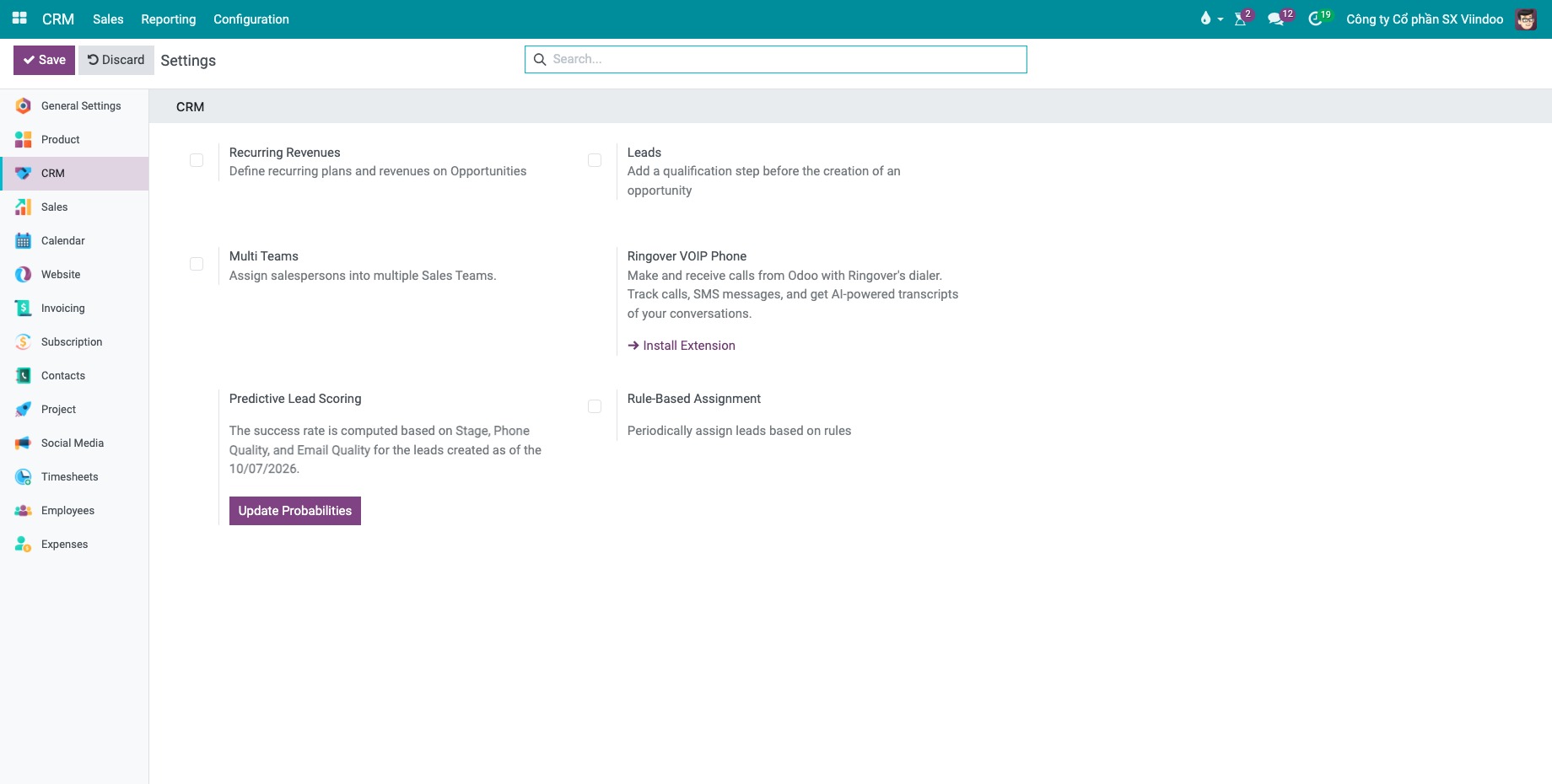
The CRM ‣ Leads menu appears, and each sales team gets a Leads option.
How do I create a lead?
Go to CRM ‣ Leads and click New.
![Empty lead form in the Viindoo CRM app]()
Type what the customer needs as the title, for example 10 electric motorbikes for a delivery fleet, and fill in the fields described in Which fields should I fill in?.
Leave the form or click the save icon (cloud); the lead is saved.
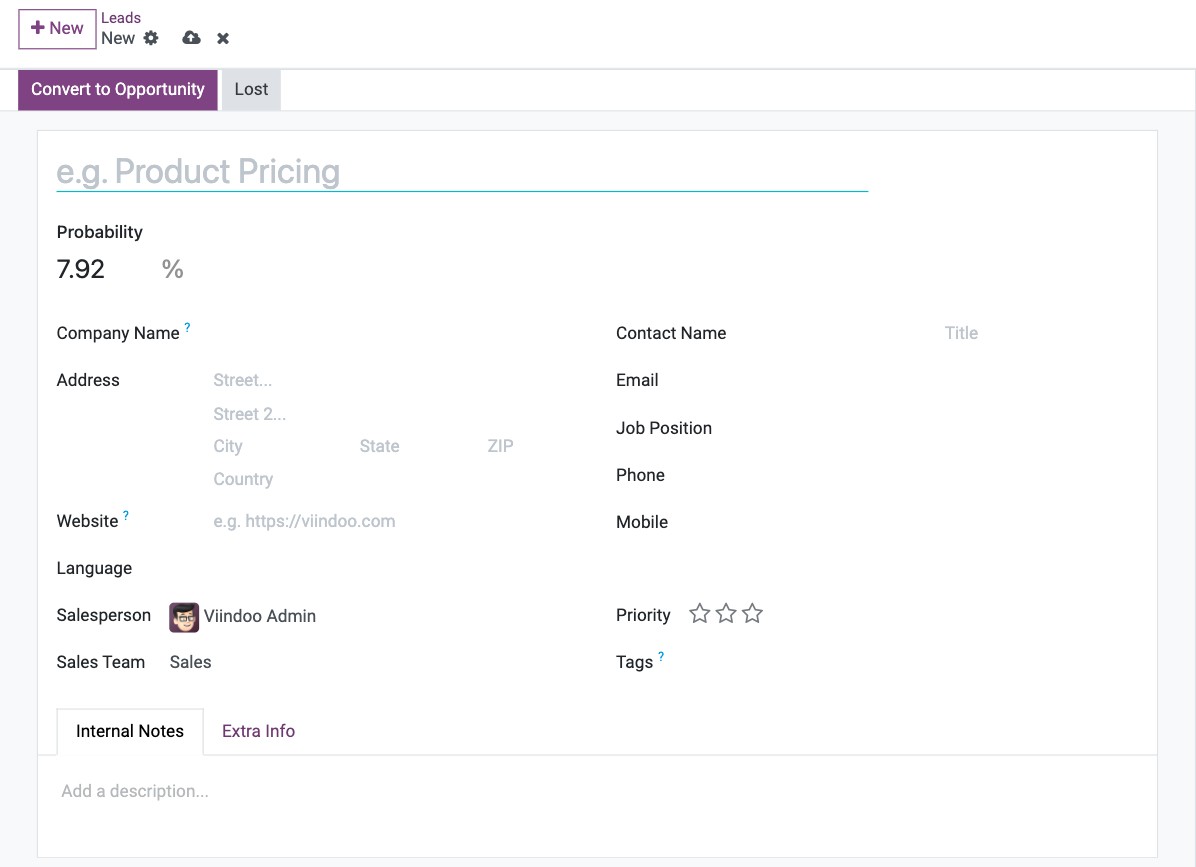
When the lead is qualified, convert it into an opportunity.
How do I create an opportunity directly?
Go to CRM ‣ Sales ‣ My Pipeline and click New.
In the card that opens in the first column, choose the customer in Contact, type the opportunity name, the email, phone and expected revenue, then click Add. Click Edit instead to open the full form.
The opportunity appears in the first stage of your pipeline.
Which fields should I fill in?
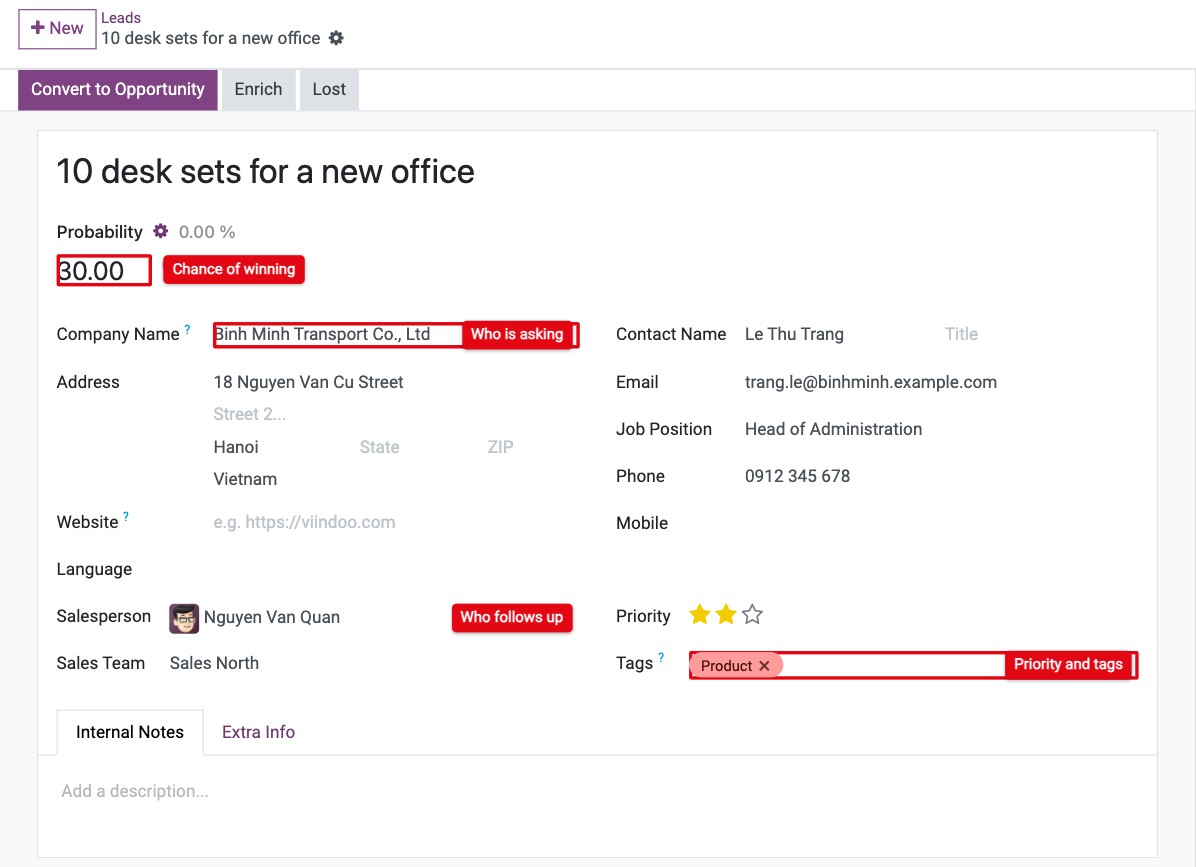
Field |
What it is used for |
|---|---|
Expected Revenue (opportunities only) |
The amount you expect to sell. It feeds the pipeline totals and the Forecast report. Leads do not have it: add it when you convert the lead. |
Probability |
The chance of winning, in %. It is updated from the stage and history; you can type your own value. |
Customer, Company Name, Contact Name, address, Email, Phone |
Who the request comes from. If the email or company matches an existing contact, Viindoo links it. |
Salesperson and Sales Team |
Who follows up. The record appears in their pipeline and in the team’s figures. |
Priority (stars) and Tags |
How hot the request is and what it is about, for example Product or Service. Use them to filter and group. |
Extra Info tab ‣ Campaign, Medium, Source, Referred By |
Where the request comes from (for example a Facebook source and a Banner medium). These fields are filled automatically for requests from the website, email or live chat, and are used in reports to compare channels. |
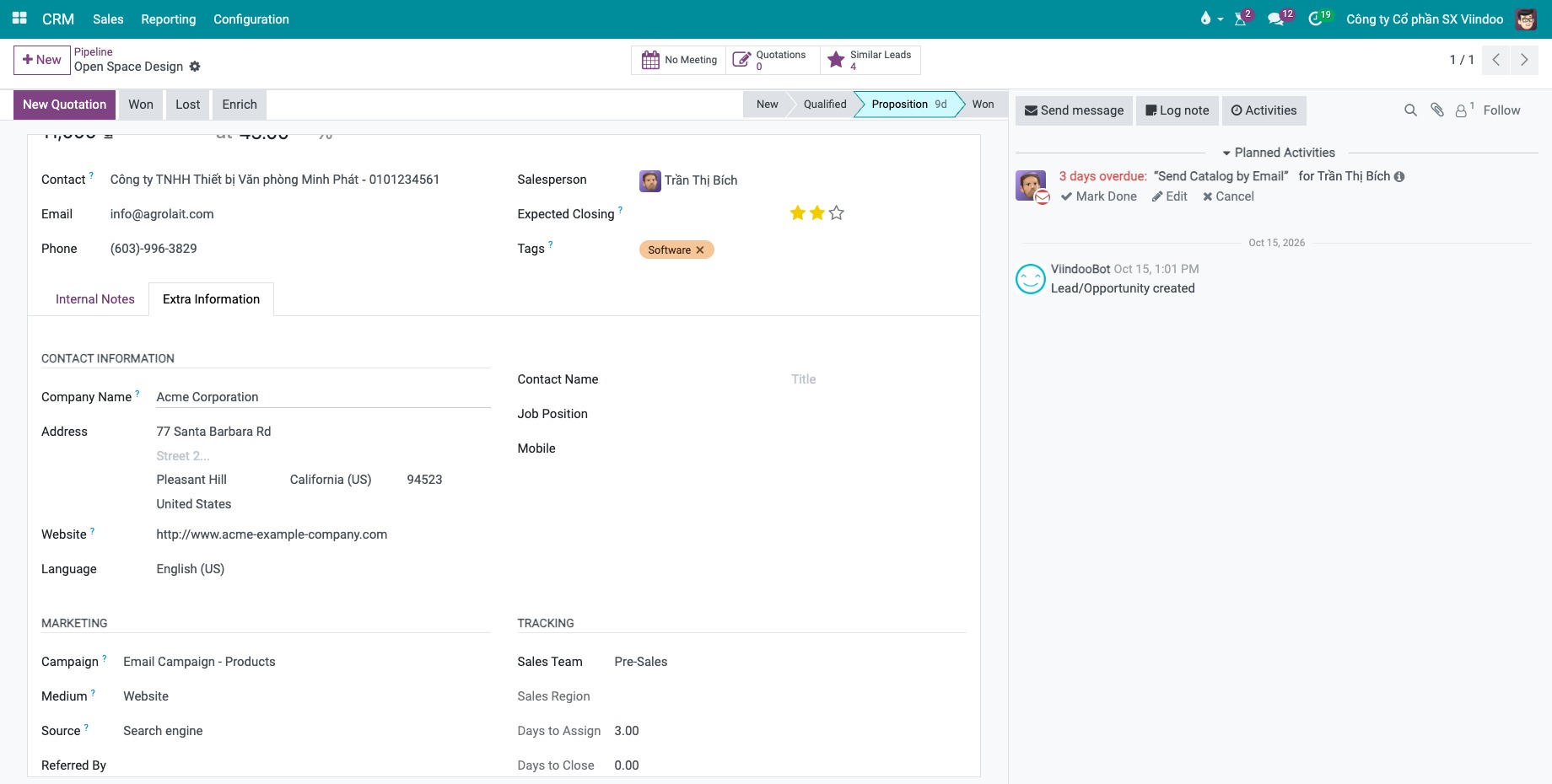
The Company field appears in the Extra Info tab only when you use several companies.
How do I add my own fields (properties)?
If you need information that has no field, for example the Vehicle model of interest:
On the lead or opportunity form, click the gear icon next to the title and choose Add Properties.
Type the property name, choose its type (text, number, selection, date, …) and press Enter.
![New property being added to a lead in Viindoo CRM]()
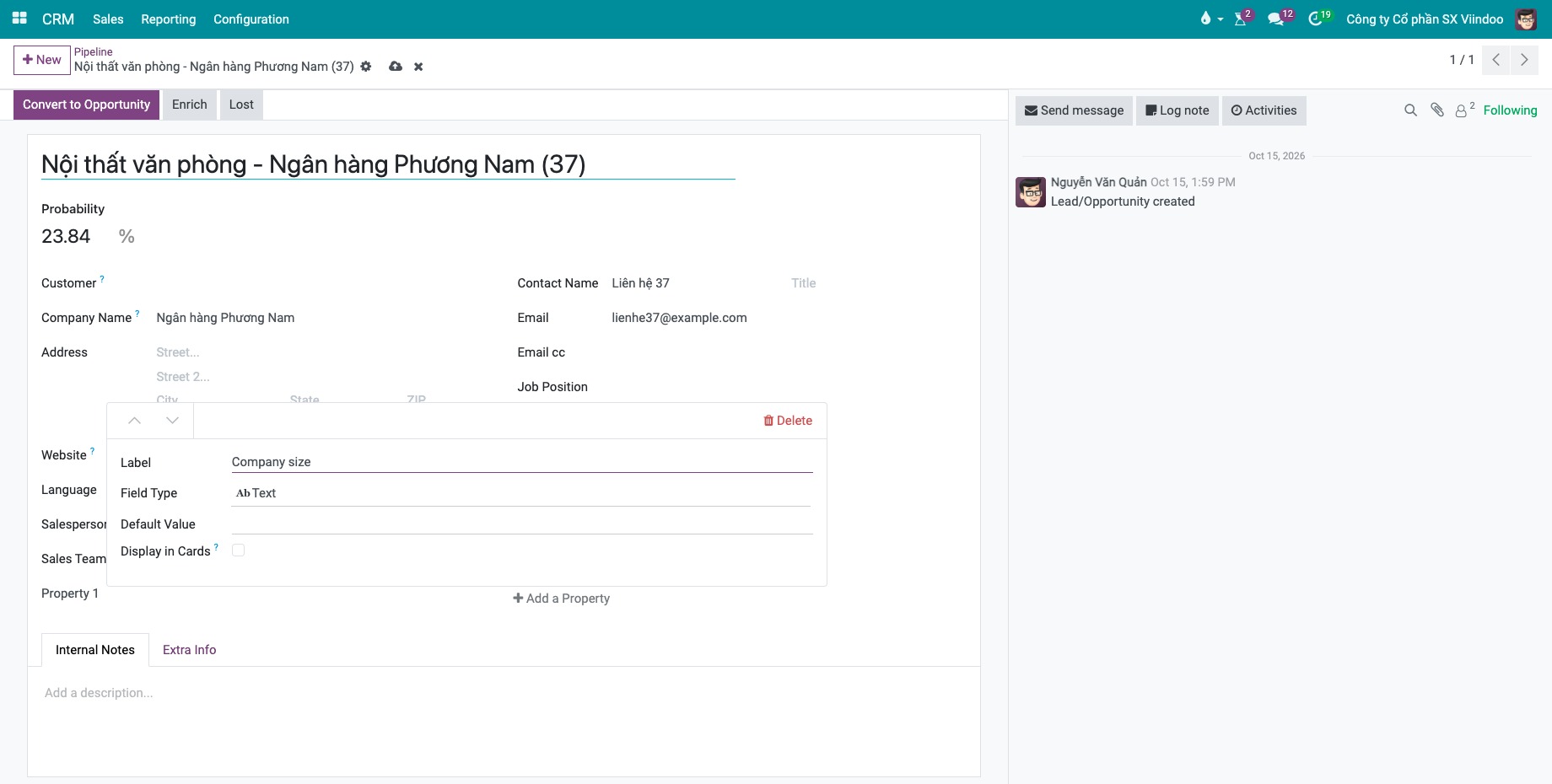
Properties are shared by all leads and opportunities of the same Sales Team, so every member of the team sees the same extra fields. You can group the pipeline by a property.
Common errors
Problem |
What to do |
|---|---|
There is no Leads menu. |
The Leads setting is off. Create opportunities from My Pipeline, or ask an Administrator to turn on Leads. |
A property you added is missing on another lead. |
That lead belongs to another sales team. Properties are defined per sales team. |
A colleague cannot see the lead you created. |
Their access right is User: Own Documents Only and the lead is assigned to you. Change the Salesperson or their access right. |