
How to read the real-time stock reports
Open and choose the report that answers your question: Stock for the quantity of each product, Locations for where it is, Moves History and Moves Analysis for what moved, and Warehouse Analysis for how fast your receipts and deliveries are. All reports update in real time and can be filtered, grouped and exported.
Who |
Users with the Inventory Administrator access right. |
App |
Inventory ‣ Reporting |
Before you start
Install the Inventory app (see How to install Inventory and give users access to it).
Products track inventory. The Locations report needs Storage Locations in the Inventory settings.
Know how to filter and group records.

Which report should I open?
Report |
Answers |
Menu |
|---|---|---|
Stock |
How much of each product do I have, and how much is free, incoming and outgoing? |
Reporting ‣ Stock |
Locations |
Where is each product, lot and package, and how much is reserved? |
Reporting ‣ Locations |
Moves History |
Which products moved, when, from where to where? |
Reporting ‣ Moves History |
Moves Analysis |
How many stock moves per operation type, and of what quantity? |
Reporting ‣ Moves Analysis |
Warehouse Analysis |
How long do my transfers take, and how many are late? |
Reporting ‣ Warehouse Analysis |
Valuation, Stock Age |
What is the stock worth, and how old is it? These need the accounting modules. |
Reporting ‣ Valuation / Stock Age Report |
How do I see the stock of each product?
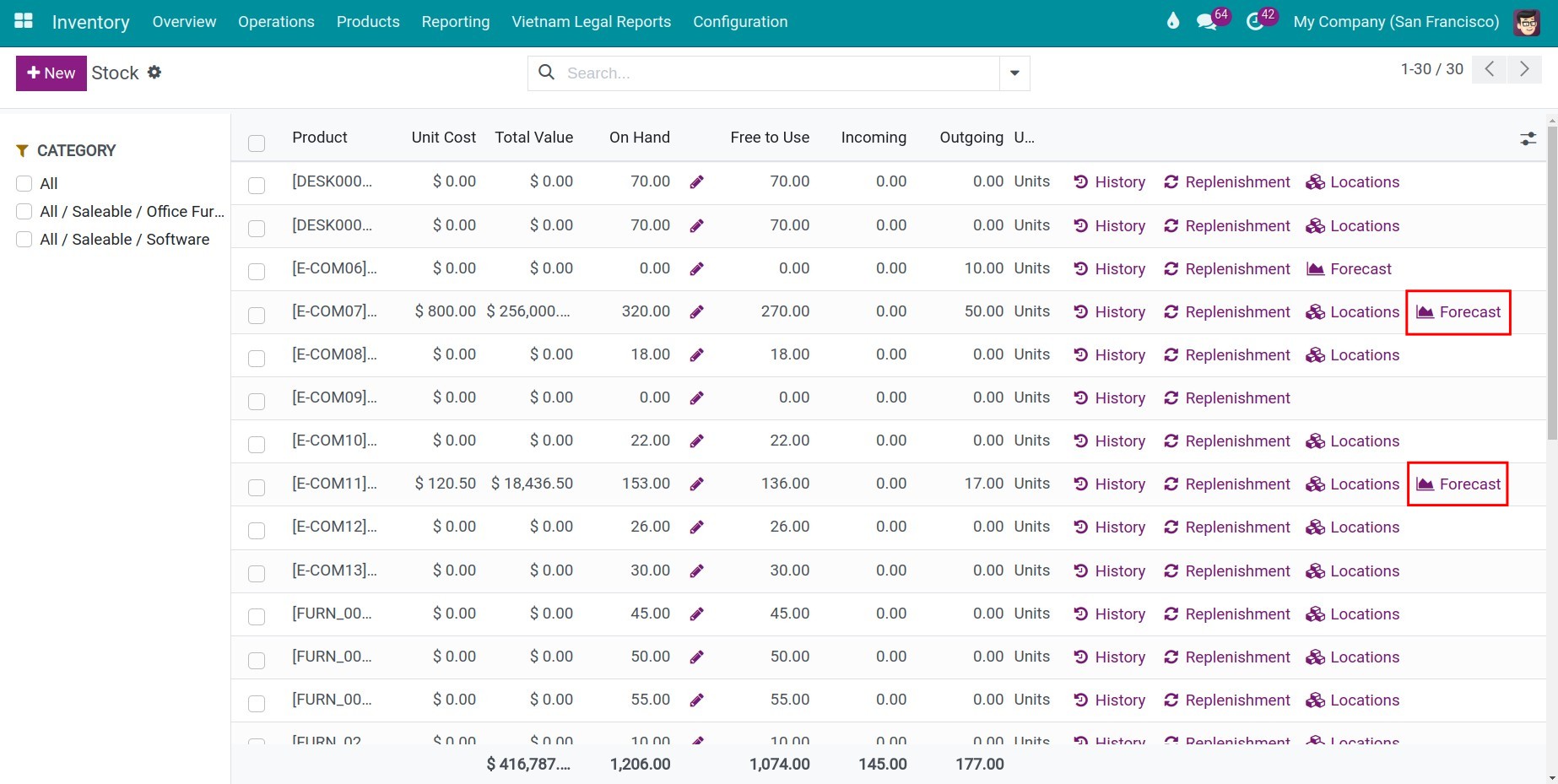
Go to . The list shows, for each product, the On Hand quantity, the quantity Free to Use, and the Incoming and Outgoing quantities. Show Forecasted with the column selector. In a company with several warehouses, use the panel on the left to pick one warehouse or a product category.
Click Inventory at Date and choose a date to see the stock as it was on that day.
![Inventory at Date window of the Stock report]()
At the end of a line, History opens the moves of the product, Replenishment its reordering rules, Locations where it is stored, and Forecast its forecast report.

How do I see where products are stored?
Go to . Filter by warehouse or product, or group by product category.

Column |
Meaning |
|---|---|
Location |
The place where the product is stored, internal or transit. |
Product |
A product that tracks inventory and has stock there. |
Package, Lot/Serial Number, Owner |
The package, the lot or serial number and the owner of the stock (see consignment). |
On Hand Quantity |
Quantity physically in the location. |
Reserved Quantity |
Part of it already reserved for outgoing transfers. Free stock = on hand - reserved. |
Unit |
Unit of measure of the product. |
How do I see what moved?
lists the done moves of products by default: date, reference, product, lot, source, destination and quantity. Use it to trace a product.
![Moves History report with the done stock moves]()
is a pivot of the stock moves, by default per operation type. Change the rows, columns and measures to analyze flows, for example the quantity received per warehouse.
![Moves Analysis report as a pivot table of quantities and counts per operation type]()


How do I measure the performance of receipts and deliveries?
Go to . By default it shows the transfers done in the last 30 days as a bar chart by week. Switch to the pivot view to analyze by operation type, warehouse and product category. The measures include the Delay (Days) (how late the transfer is against its expected date) and the Cycle Time (Days) (from creation to done), as averages. Use the filters Done Receipts, Done Deliveries and Done Transfers.


In the chart view you can switch between bar, line and pie charts. In the pivot view, click the plus sign next to a row or column heading to add a level, and click Download xlsx to export.
If you also install Viin Warehouse - Enterprise Presentation, a cohort view is added to Warehouse Analysis to follow the completion of receipts and deliveries over time.
What do I get when I also install accounting?
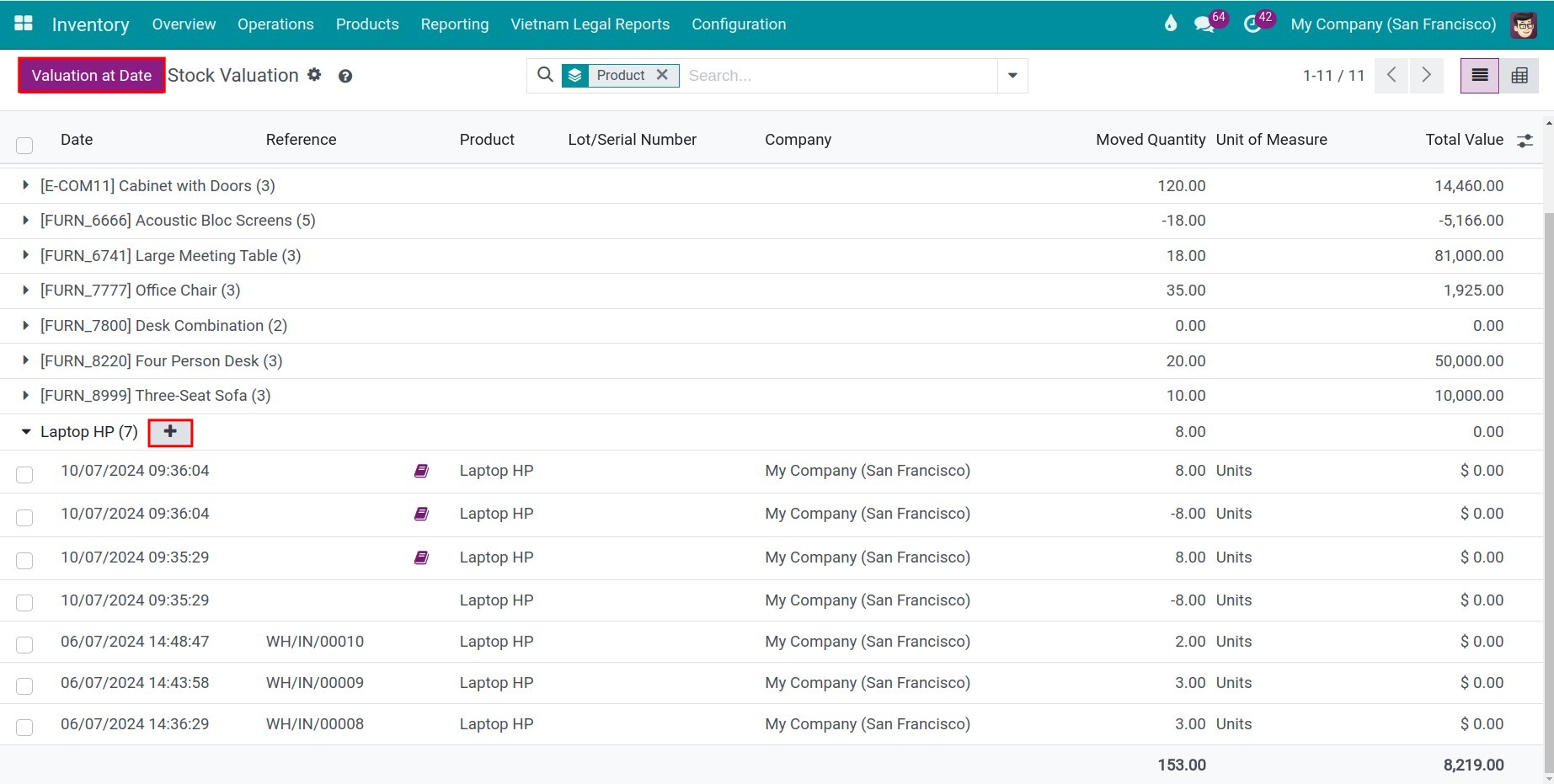
If you also install Accounting (WMS Accounting), shows the quantity and the value of the stock, with Valuation at Date and the option to revalue a product with a Current Value, an Added Value, a Reason, a Journal, a Counterpart Account and an Accounting Date.

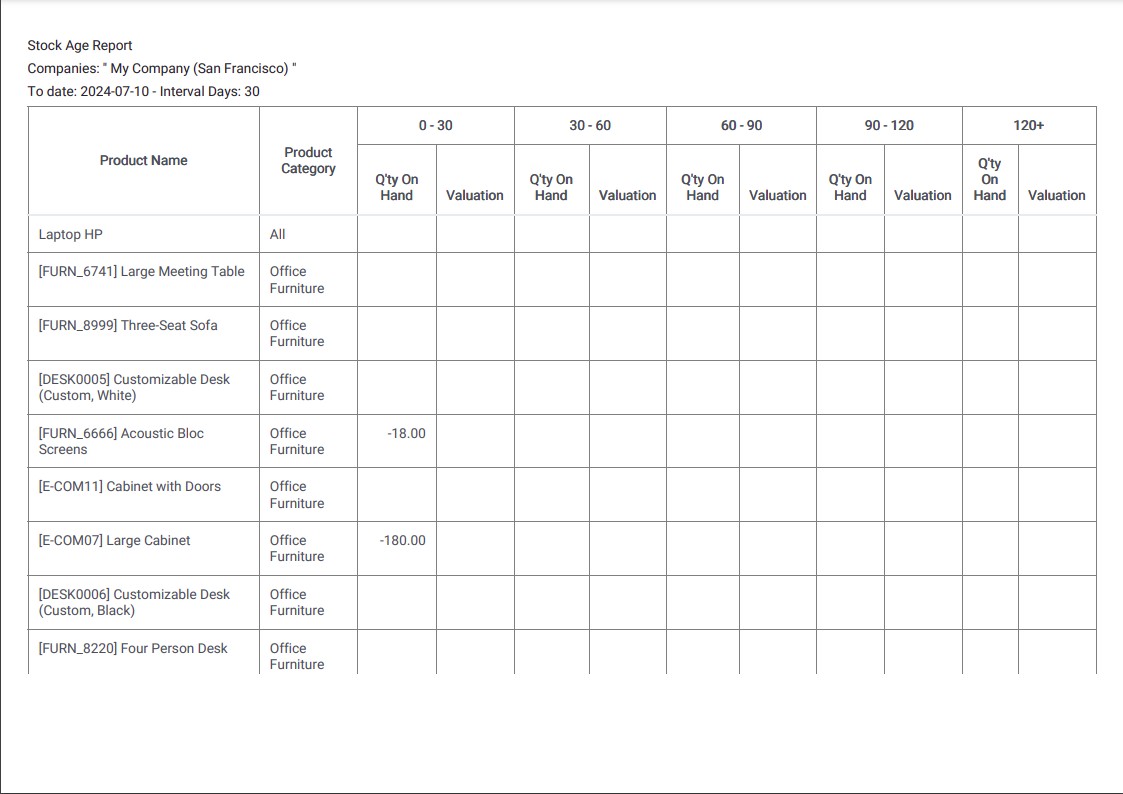
The module Stock Age Report adds Reporting ‣ Stock Age Report to analyze how long products have been in stock, to find slow and fast movers. It prints in PDF or XLSX.

What should I see when it works?
Each report shows the current figures of your warehouses and follows every validated transfer immediately.
Common problems
Problem |
What to do |
|---|---|
The Reporting menu is missing. |
Only Inventory Administrators see it. Change the access right of the user. |
There is no Locations report. |
Turn on Storage Locations in . |
Warehouse Analysis is empty. |
The default filter shows the transfers done in the last 30 days. Remove it or change the period. |
There is no Valuation report. |
It comes with the accounting modules. Install them to see it. |
Next steps
How to print the Vietnamese legal stock reports: print the legal stock reports of Vietnam.
How to read the product forecast report: read the forecast of a product.
Version notes
The Moves Analysis report no longer needs developer mode.
The Inventory Aging report of earlier guides is no longer in the Reporting menu.
Inventory at Date is on the Stock report.
The Vietnam Legal Stock Reports and Accounting & Finance modules are optional: Vietnam Legal Stock Reports, Accounting & Finance.