
How to plan calls, emails and meetings with your customers
Every follow-up action with a customer (a call, an email, a meeting, sending a quotation) is an activity with a type, a due date and a person responsible. Schedule it from the Activities button of a lead or opportunity; the coloured clock on the pipeline card and the clock icon in the top bar remind you what is due, so no customer is forgotten.
Who |
Salespeople schedule activities; a Sales Administrator sets up activity types. |
App |
CRM |
Before you start
Have a lead or opportunity, see How to record a lead or an opportunity.
How do I schedule an activity on an opportunity?
Open the lead or opportunity and click Activities at the top of the chatter. (On the pipeline, you can also click the clock icon on the card.)
Choose the Activity Type (for example Call), and check the Summary, Due Date and Assigned to. Add a note if needed.
![Schedule Activity window with activity type, summary, due date and assigned user]()
Click Schedule. If the activity is already done (for example you just called), click Schedule & Mark as Done to log it.
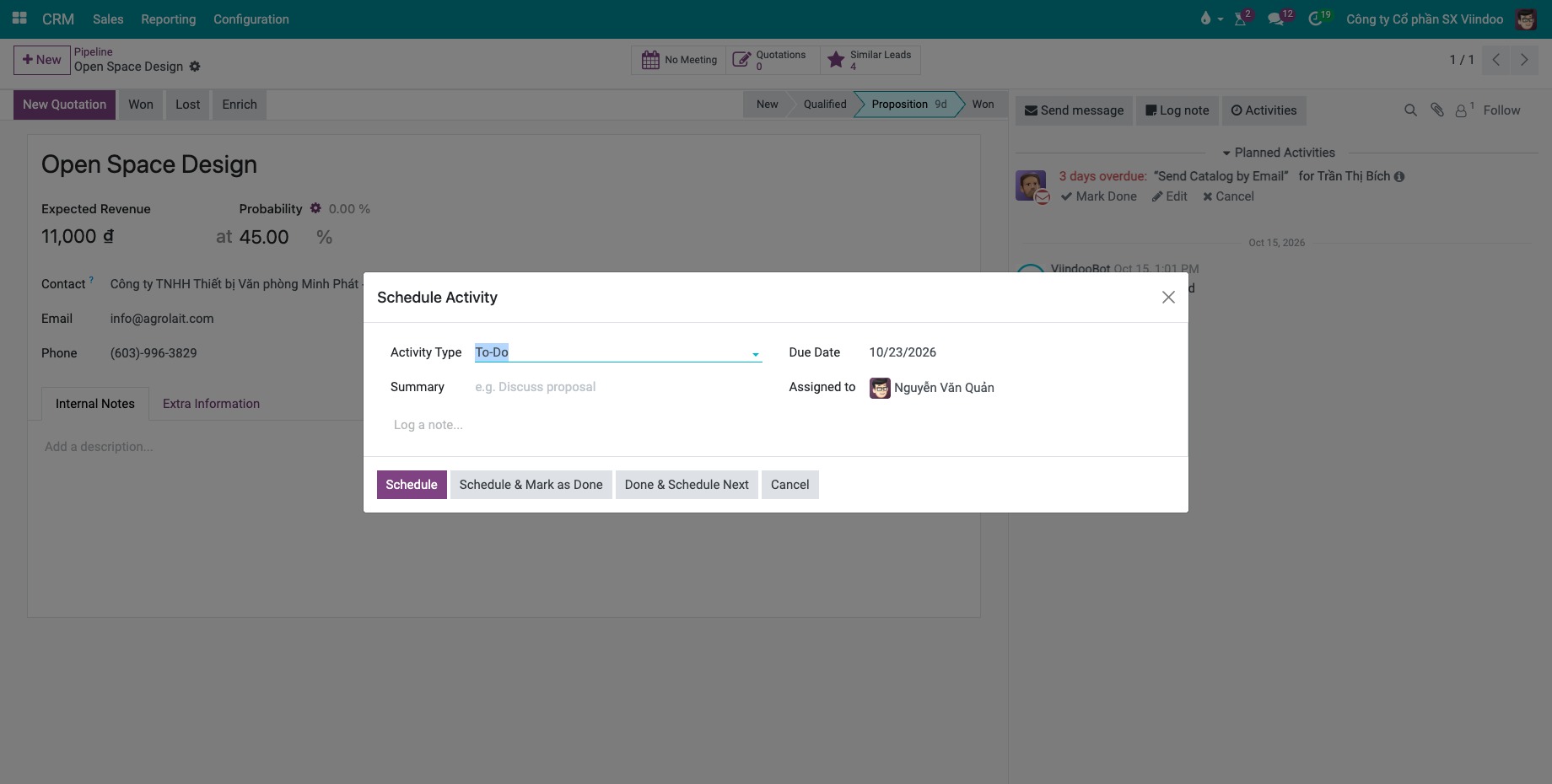
The activity appears in the chatter of the record and in the to-do list of the person assigned, who is notified.
How do I see what is due?
On the pipeline, the clock on each card shows the next activity: green for later, orange for today, red for overdue. When a record has several activities, the most urgent one is shown.
![Opportunity cards with red, orange and green activity clocks in the CRM pipeline]()
The clock icon in the top bar lists your activities that are overdue, due today and planned, across all apps.
CRM ‣ Sales ‣ My Activities lists all your activities on leads and opportunities.

When an activity is done, click its Mark Done link in the chatter and write the result (for example Customer wants a test drive on Friday). The feedback is logged in the chatter, and Viindoo can propose the next activity.
How do I set up activity types?
Go to CRM ‣ Configuration ‣ Activities ‣ Activity Types and click New (or open an existing type).
![Activity type form with action, default user, default summary and next activity]()
Fill in the fields below. The form is saved when you leave it.
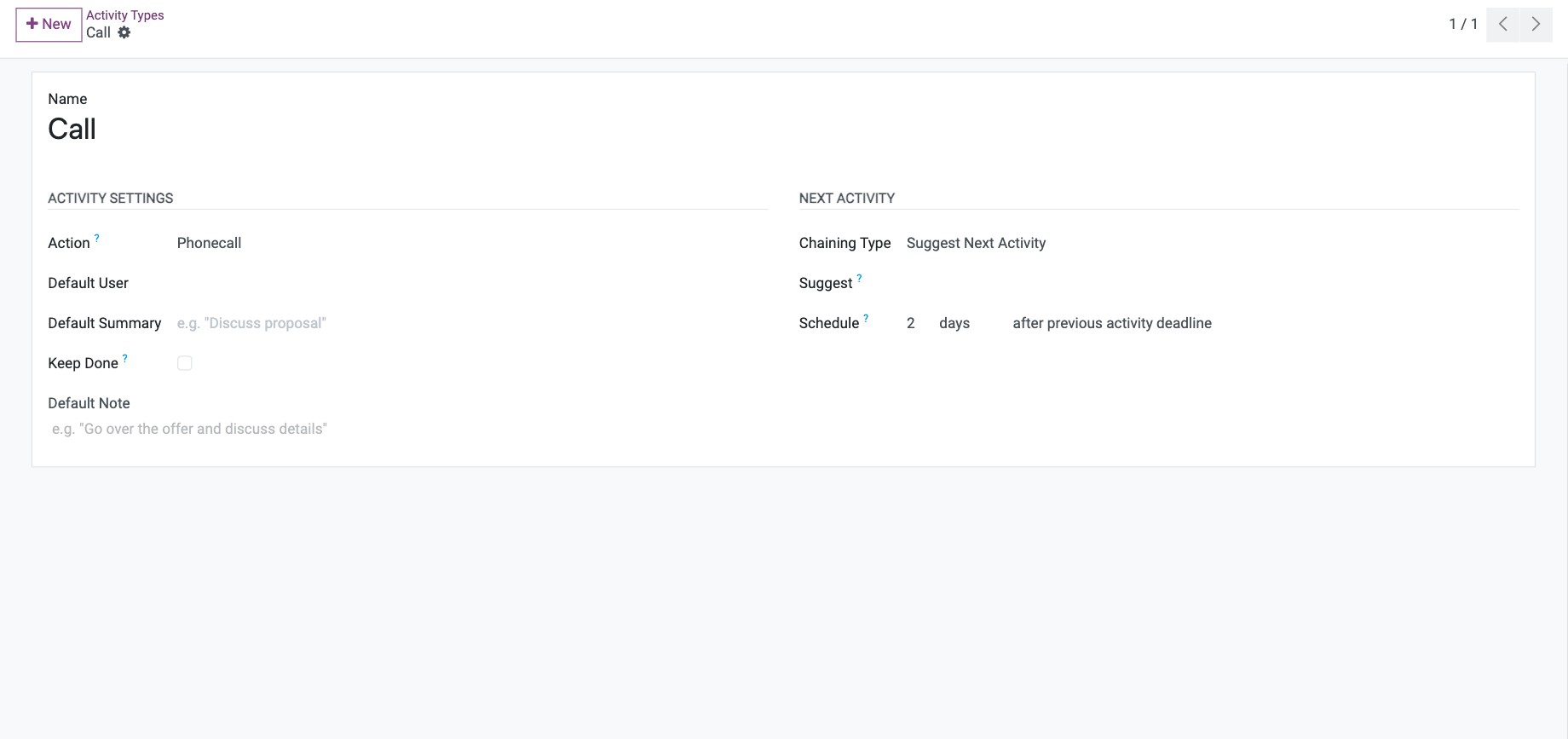
Field |
What it does |
|---|---|
Name |
For example Test drive. |
Action |
What happens when the activity is opened: Phonecall, Meeting (opens the calendar), Upload Document (marked as done when a document is uploaded) or None. |
Default User |
Who the activity is assigned to by default. |
Default Summary |
The summary pre-filled when you choose this type. |
Keep Done |
Keep done activities visible in the activity view. |
Chaining Type, Suggest / Trigger, Schedule |
What comes next: Viindoo either suggests next activity types or creates one automatically, due a number of days after the previous one. |
Activity Plans (CRM ‣ Configuration ‣ Activities ‣ Activity Plans) schedule several activities at once, for example Call ‣ Send quotation ‣ Follow-up call.
Common errors
Problem |
What to do |
|---|---|
The assigned colleague does not see the activity. |
Their access right is User: Own Documents Only and the opportunity belongs to someone else. Assign the opportunity to them or change their access right. |
An activity type is missing from the list. |
The type is restricted to another model (field Model, visible in developer mode). Clear it or create a type for CRM. |
Next steps
Schedule activities: activities in all apps.