
How to buy a product in a different unit of measure
When your vendor sells a product by the dozen, box or roll but you count it by the unit, set the vendor’s unit as the product’s Purchase Unit. RFQs and purchase orders then use that unit and its price, while sales and stock keep using the product’s Unit of Measure. Turn on Units of Measure in the Purchase settings first.
Who |
Purchase administrators turn on the setting; buyers set the unit on products. |
App |
Purchase |
Before you start
Install Purchase.
The purchase unit must be in the same category as the product’s unit, for example Units and Dozens (category Unit). To create units, see How to use different units of measure on a product.
How do I turn on units of measure?
Go to Purchase ‣ Configuration ‣ Settings.
In Products, tick Units of Measure and click Save.
The Unit of Measure and Purchase Unit fields now appear on products, and a UoM column appears on RFQ lines.
How do I set the purchase unit of a product?
Go to Purchase ‣ Products ‣ Products and open the product, or click New.
On the General Information tab, check the Unit of Measure you sell and stock the product in, for example Units.
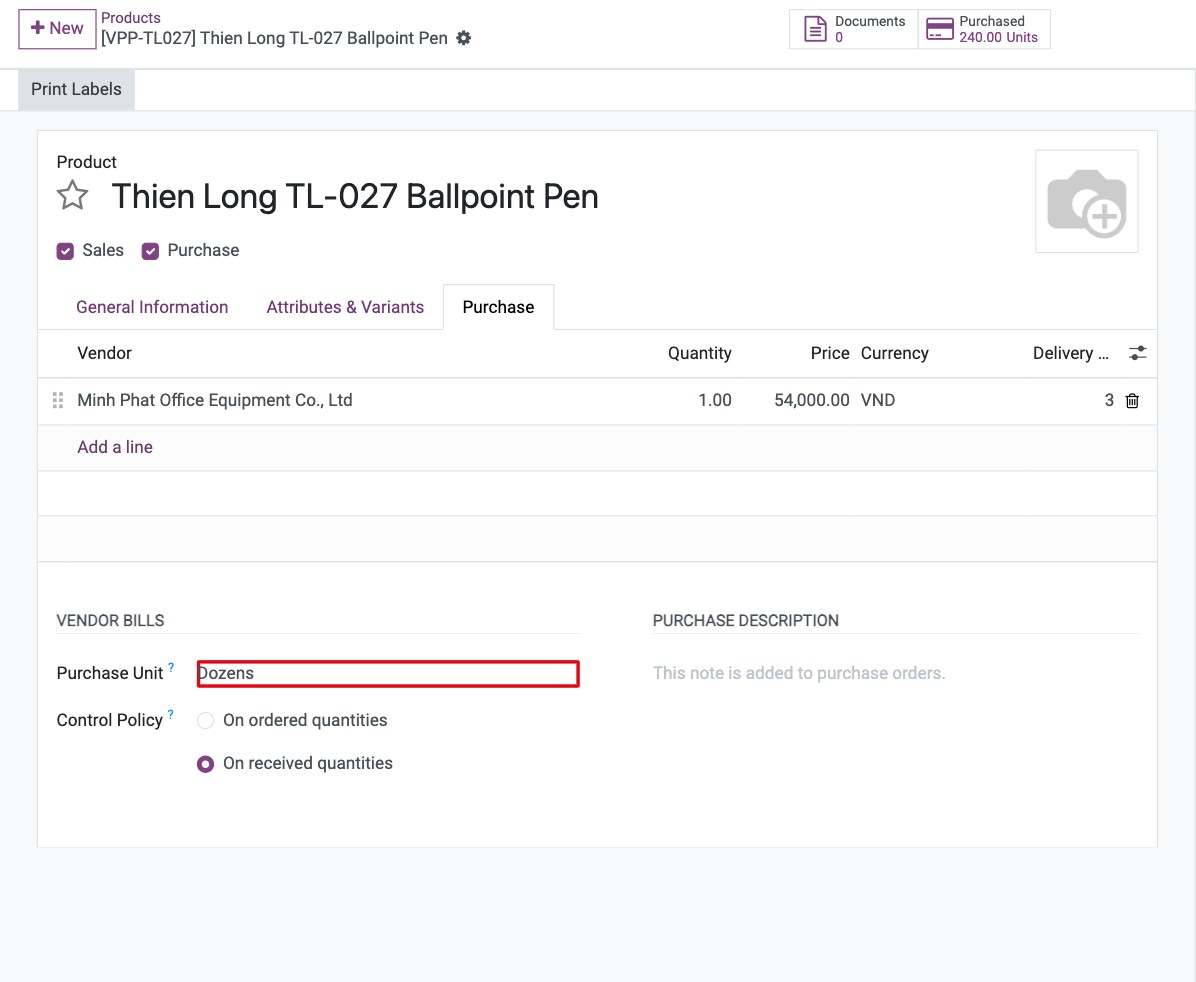
On the Purchase tab, in Vendor Bills, select the Purchase Unit, for example Dozens, and save.
![Purchase Unit field set to Dozens on the Purchase tab of the product]()
On the same tab, enter the vendor prices for the purchase unit, for example the price of one dozen. See How to set vendor prices for a product.
How is the purchase unit used on an RFQ?
Create an RFQ and add the product.
Viindoo fills in the Purchase Unit in the UoM column and the vendor price per that unit. Enter the Quantity in that unit, for example 10 dozens.
![RFQ line with the quantity in dozens and the price per dozen]()
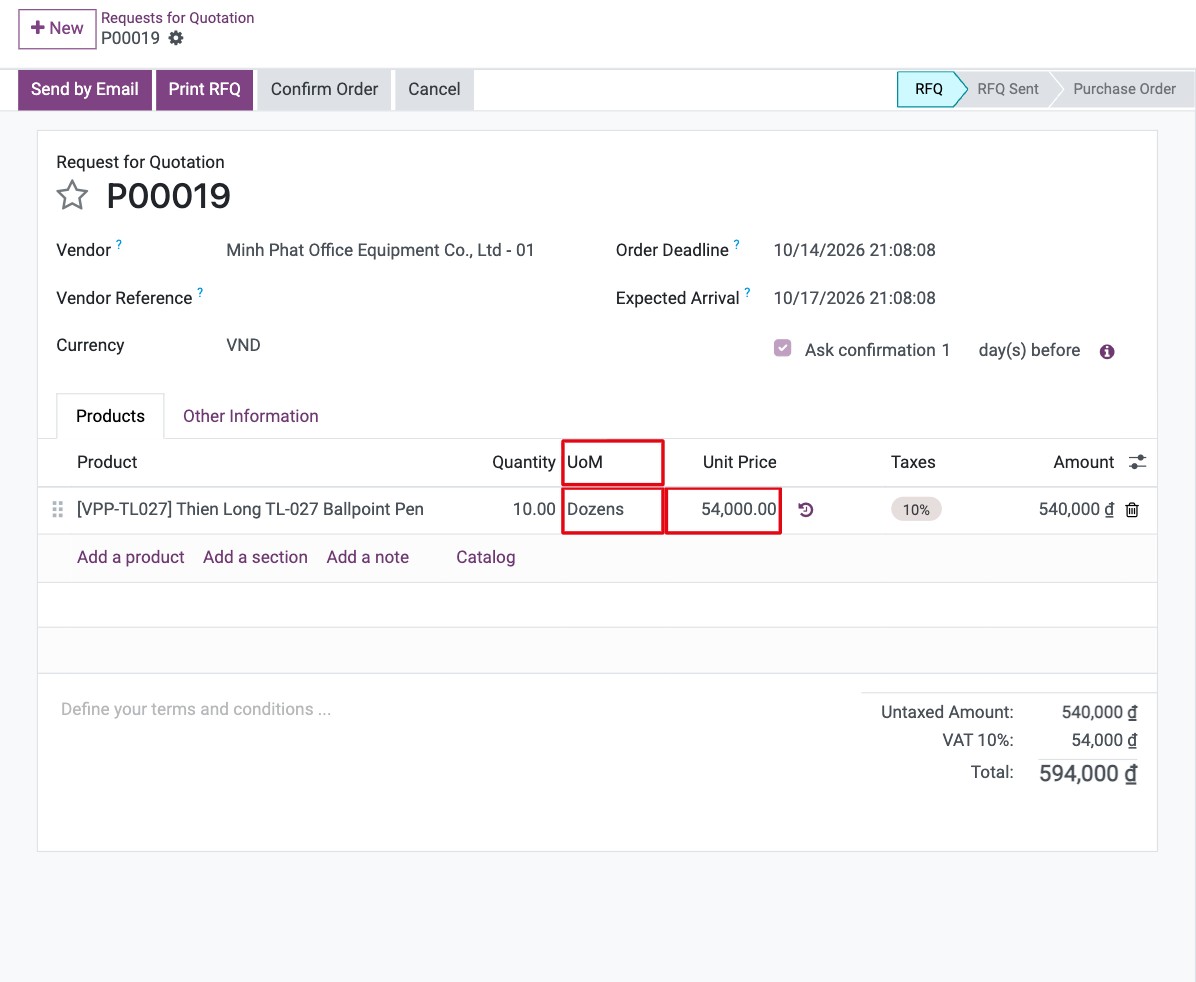
You should now see the line quantity, price and amount in the purchase unit (10 dozens x price of a dozen). You can still change the unit on a line to another unit of the same category; the price is converted. If you also install Inventory, the receipt converts the quantity to the product’s unit (10 dozens = 120 units in stock).
Common errors
Message |
What to do |
|---|---|
The Purchase Unit field or the UoM column is missing. |
Turn on Units of Measure in Purchase ‣ Configuration ‣ Settings. |
The default Unit of Measure and the purchase Unit of Measure must be in the same category. |
Choose a purchase unit of the same category as the Unit of Measure (the list only offers units of that category). |
The RFQ price is 12 times too high or too low. |
The vendor price is entered for the wrong unit. Vendor prices are per Purchase Unit; correct the price on the Purchase tab. |
Next steps
How to set vendor prices for a product: set vendor prices and quantity breaks.
How to create a purchase order: send the RFQ.
Version notes
Units of Measure can be turned on from the Purchase settings; Inventory is no longer needed.
The field is named Purchase Unit and sits on the Purchase tab of the product (it was Purchase UoM on the General Information tab).