
How to reorder products automatically with reordering rules
A reordering rule keeps a product between a minimum and a maximum quantity. When the forecasted quantity falls below the Min Quantity, Viindoo creates a request for quotation (RFQ) to the product’s vendor for the quantity needed to reach the Max Quantity. You set it up on the product: tick Track Inventory, add a vendor, tick the Buy route, then add the rule with the Reordering Rules button.
Who |
Purchase or inventory managers (Inventory access right Administrator to see all reordering rules) |
App |
Purchase, Inventory |
How do I prepare the product?
Go to Purchase ‣ Products ‣ Products and open the product. On the General Information tab, select Goods as Product Type and tick Track Inventory.
![Product Type Goods and Track Inventory ticked on the product form]()
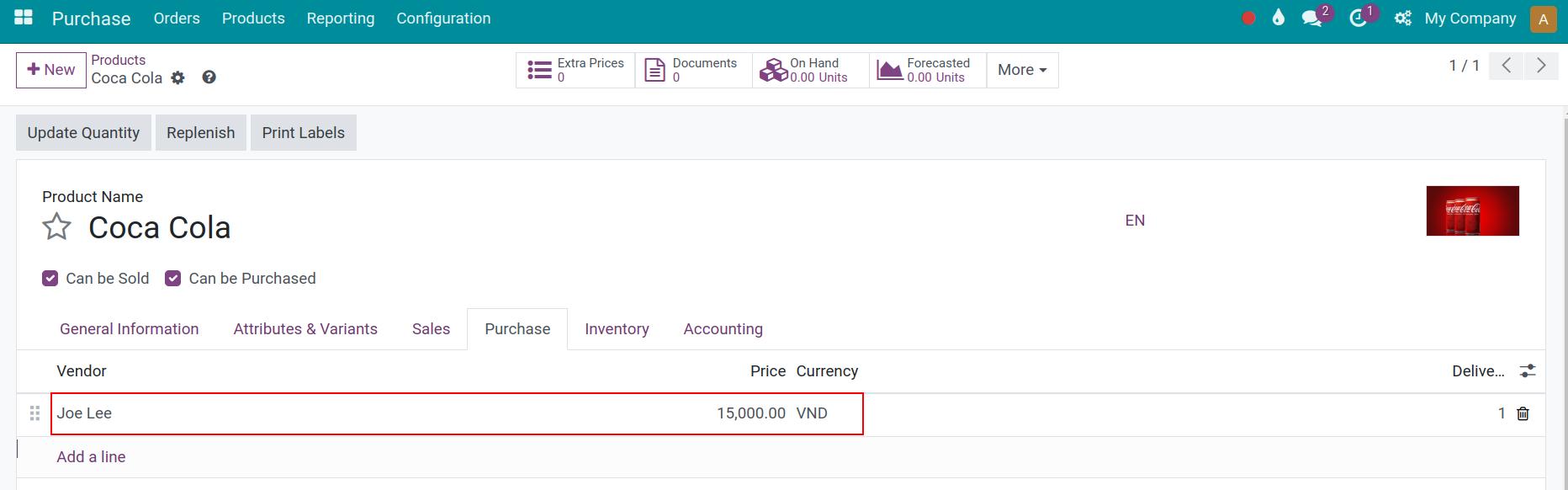
On the Purchase tab, click Add a line and add the vendor with its price and Delivery Lead Time. If you add several vendors, the vendor on the first line is used.
![Vendor line on the Purchase tab of the product]()
On the Inventory tab, tick Buy in Routes, then save.
![Buy route ticked on the Inventory tab of the product]()


How do I create a reordering rule?
On the product, click the Reordering Rules button at the top, then New.
![Reordering Rules button on the product form]()
Fill in the new line (see the table below) and save it.
![New reordering rule line with location, min, max and quantity multiple]()


You should now see a button with Min: and Max: and your quantities on the product. With the Auto trigger, Viindoo checks the rule each time stock leaves the location (for example when a delivery is confirmed) and again every day.
Which fields does a reordering rule use?
Field |
What it does |
If left wrong or empty |
|---|---|---|
Location |
The stock location to keep supplied, usually WH/Stock. Shown when you use several locations. |
Only one rule per product and location is allowed. |
Route |
How the product is replenished. Leave it empty to use the product routes, or choose Buy to always create an RFQ. Hidden by default: show it from the column settings. |
With another route (for example manufacturing), no RFQ is created. |
Trigger |
Auto: Viindoo creates the RFQ by itself. Manual: the need is only listed in Inventory ‣ Operations ‣ Replenishment until someone clicks Order. |
With Manual, nothing is ordered until someone orders it. |
Min Quantity (Min) |
When the forecasted quantity goes below it, a replenishment starts. |
0 means a replenishment only starts when the forecast is negative. |
Max Quantity (Max) |
The quantity Viindoo orders up to. |
Must be greater than or equal to Min Quantity. |
Quantity Multiple |
The ordered quantity is rounded up to a multiple of it, for example a pack of 6. Hidden by default. |
0 means no rounding. |
On Hand, Forecast, To Order |
Read only: current stock, stock after planned receipts and deliveries, and the quantity Viindoo will order. |
What happens when stock goes below the minimum?
Example: the product Bottled water 500 ml has 15 units on hand and this rule:
Min Quantity: 12
Max Quantity: 36
Quantity Multiple: 6 (the vendor sells packs of 6)

A delivery of 4 units is confirmed, for example from a sales order. The forecast drops to 11, below the minimum of 12, so Viindoo creates an RFQ to the vendor for 30 units:
36 - 11 = 25 units are needed to reach the maximum;
25 is rounded up to the next multiple of 6, which is 30.
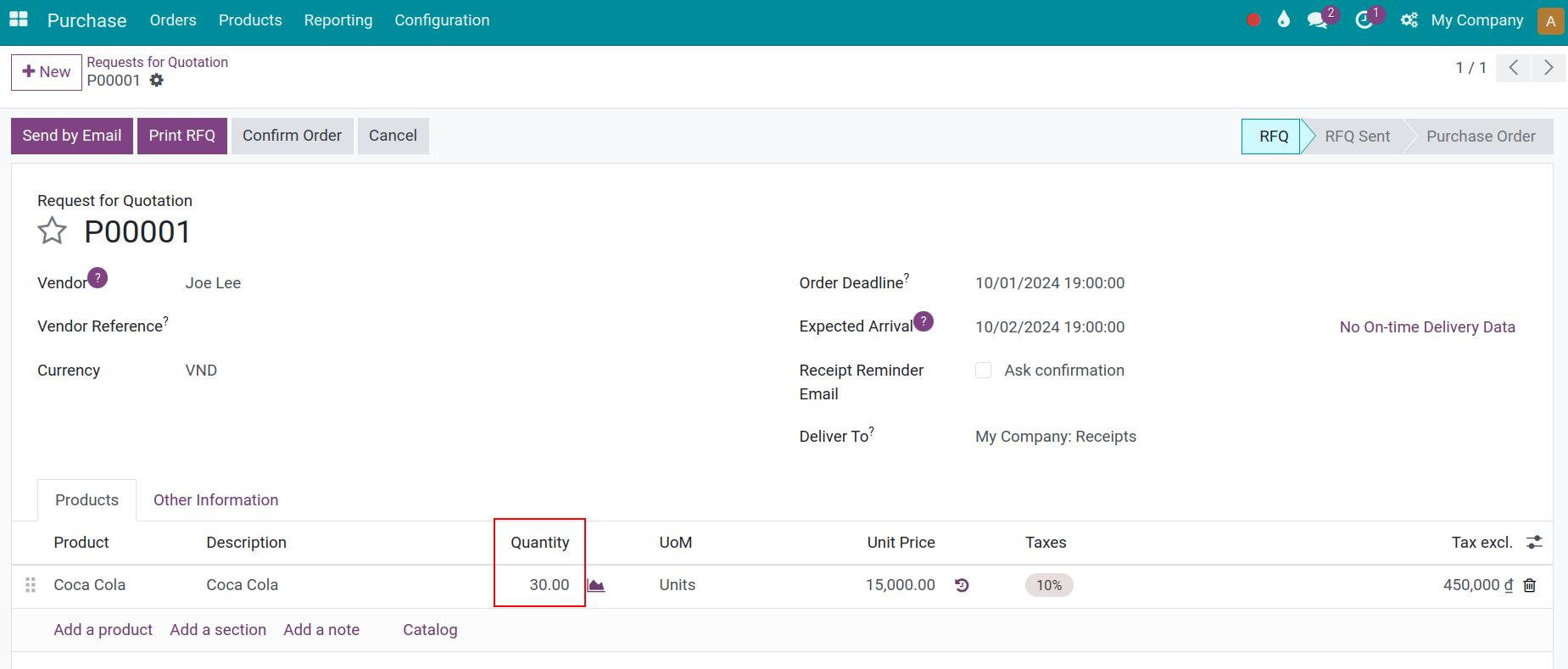
The RFQ shows the rule in Source Document. If an RFQ to the same vendor is still in draft, Viindoo adds the line to it instead of creating a new one. Check the RFQ and confirm it.
Common errors
Message |
What to do |
|---|---|
There is no matching vendor price to generate the purchase order for product … (no vendor defined, minimum quantity not reached, dates not valid, …). Go on the product form and complete the list of vendors. |
Add a vendor on the Purchase tab of the product, and check its minimum quantity and validity dates. With the Auto trigger, this message is posted as an activity on the product. |
The minimum quantity must be less than or equal to the maximum quantity. |
Enter a Max Quantity at least equal to Min Quantity. |
A replenishment rule already exists for this product on this location. |
Edit the existing rule instead of creating a second one. |
Qty Multiple must be greater than or equal to zero. |
Enter 0 or a positive Quantity Multiple. |
No RFQ is created although the stock is below the minimum. |
Check that the product has Track Inventory ticked, the Buy route, a vendor and the Auto trigger. A manual rule waits in Inventory ‣ Operations ‣ Replenishment. |
Next steps
How to set vendor prices for a product: set vendor prices, minimum quantities and lead times used by the RFQ.
How to buy a product in a different unit of measure: order in packs or boxes.
How to set up replenishment rules: minimum stock and make to order: other ways to replenish stock.
Version notes
The product type Storable Product is replaced by Goods with Track Inventory ticked.
The rule is created directly in the list opened by the Reordering Rules button; the button then shows Min: and Max:.