
How to analyze your leads and opportunities in reports
Go to CRM ‣ Reporting ‣ Pipeline (or Leads) to analyze your deals: for example the expected revenue by stage, the number of opportunities won by salesperson, or which source brings the most leads. Switch between a chart and a pivot table, choose the Measures, filter and group the data, and export the pivot table to Excel.
Who |
Salespeople see their own figures; users with User: All Documents or Administrator see those of the whole company. |
App |
CRM |
Before you start
Know how to filter and group and how to use charts and pivot tables.
Which report should I open?
Menu |
Use it to see |
|---|---|
CRM ‣ Reporting ‣ Pipeline |
Opportunities: number, expected revenue, probability, days to close, by stage, salesperson, team, source, lost reason… |
CRM ‣ Reporting ‣ Leads |
The same for leads. |
CRM ‣ Reporting ‣ Forecast |
Expected revenue of open opportunities by expected closing month. |
CRM ‣ Reporting ‣ Activities |
Calls, emails and meetings by salesperson and type. |
CRM ‣ Reporting ‣ Conversion Analysis |
How deals flow from stage to stage, see How to see where deals are won or lost with a Sankey chart. Only when you also install the Viin CRM Sankey View module. |
How do I read the pipeline as a chart?
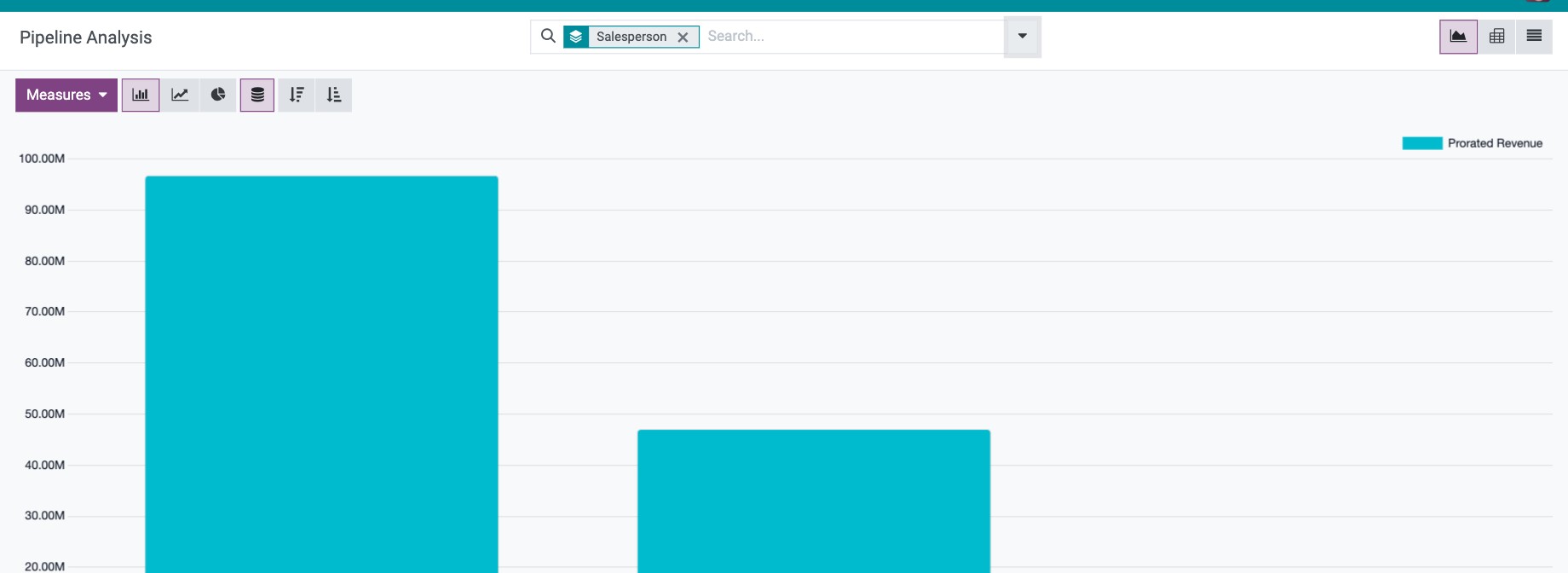
Go to CRM ‣ Reporting ‣ Pipeline. The chart opens by default.
![Pipeline report as a bar chart in Viindoo CRM]()
Choose the chart type with the buttons above it: bar, line or pie. The sort buttons order the bars by value.
Click Measures to choose what to add up, for example Expected Revenue instead of the default Prorated Revenue, or Count for the number of opportunities.
![Measures menu of the pipeline report with Expected Revenue selected]()
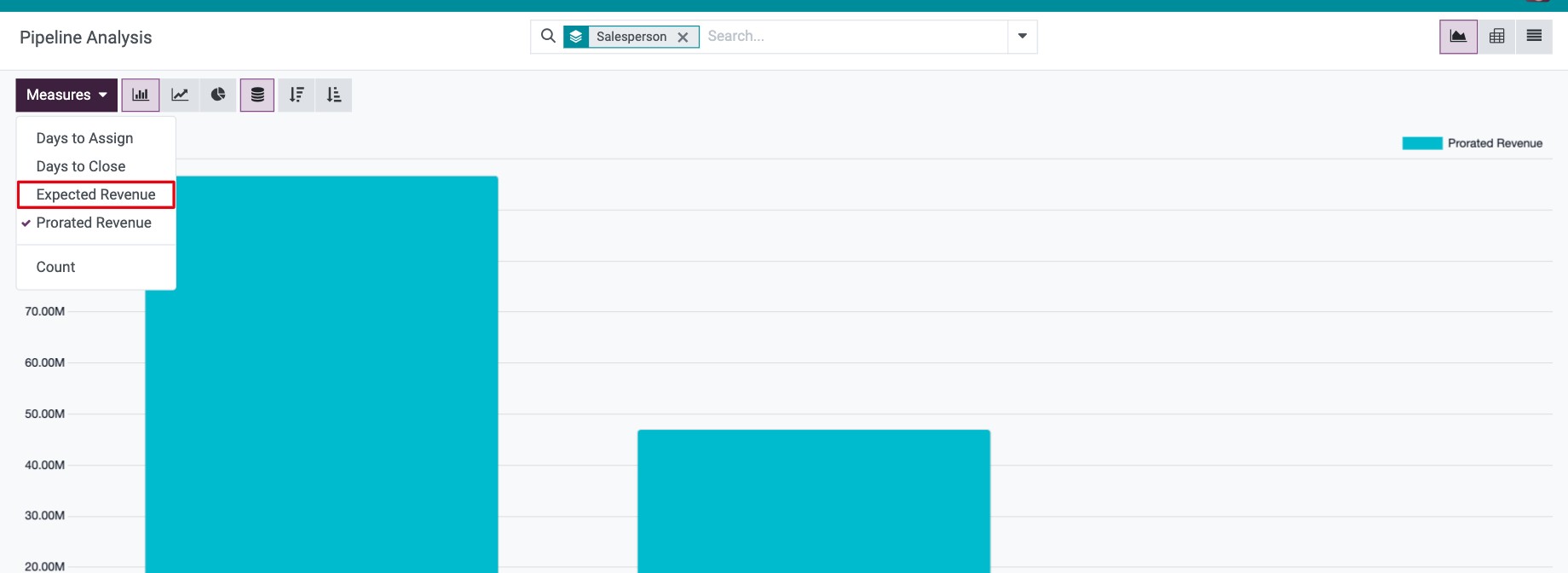
Click a bar or a slice to open the list of the opportunities behind it.
How do I analyze it in a pivot table?
Click the pivot icon (table) at the top right.
![Pipeline report as a pivot table by salesperson and stage]()
Click a row or column header to add a level (for example Salesperson then Stage), or the header Total to collapse it.
Use the buttons above the table to flip the axes, expand all rows or download the table as an Excel file.
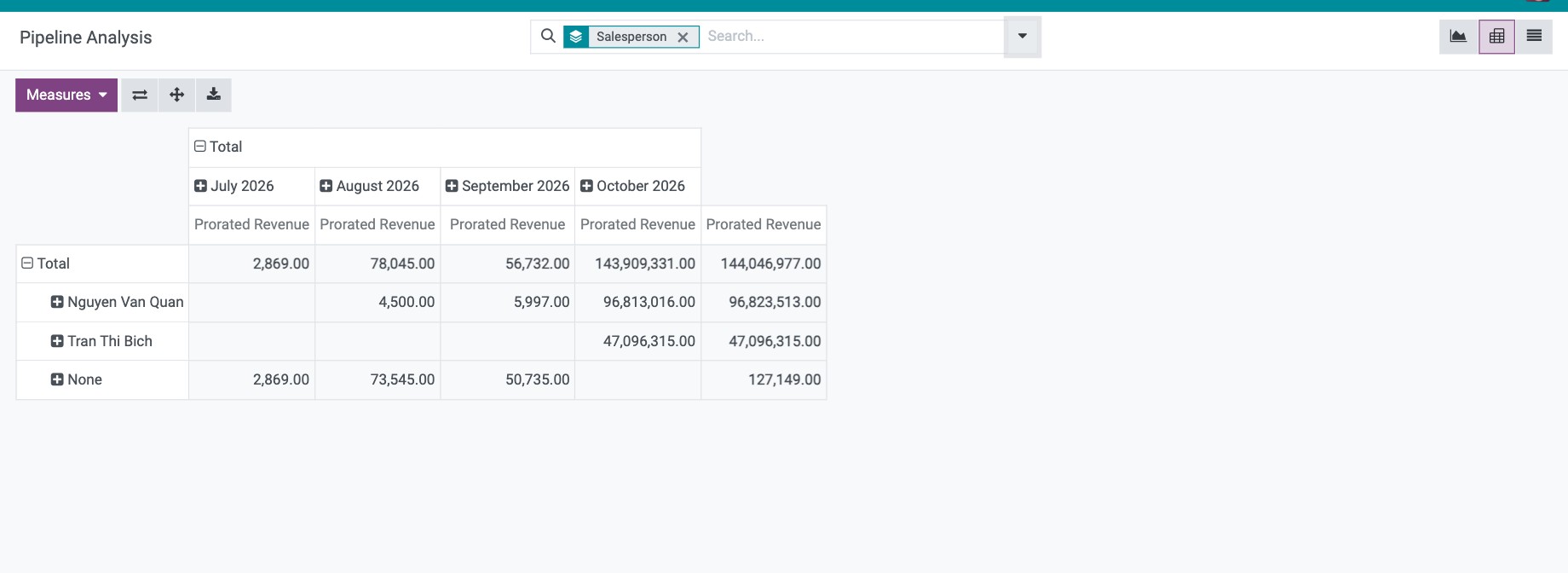
Click a number to open the opportunities it counts.
How long do my opportunities take to close (cohort view)?
The cohort view groups opportunities by the period they were created in and shows, for each period after that, the share of them already closed. It is available when you also install the Viin CRM module (it installs the Viin Cohort View module with it).
Go to CRM ‣ Reporting ‣ Pipeline (or Leads, or CRM ‣ Sales ‣ My Pipeline) and click the Cohort icon among the view icons at the top right.
![Cohort view of opportunities by creation week with the percentage closed in the following weeks]()
Read the table:
each row is a creation period (a week by default), and the Count column is the number of opportunities created in it;
the columns +0, +1, +2… are the periods after creation: each cell is the percentage of these opportunities closed (won, or lost) by the end of that period;
the Average row is the average of each column.
Click Day, Week, Month or Year to change the period, Measures to weigh the table by another figure (for example Expected Revenue), or the download icon to get the table as an Excel file.
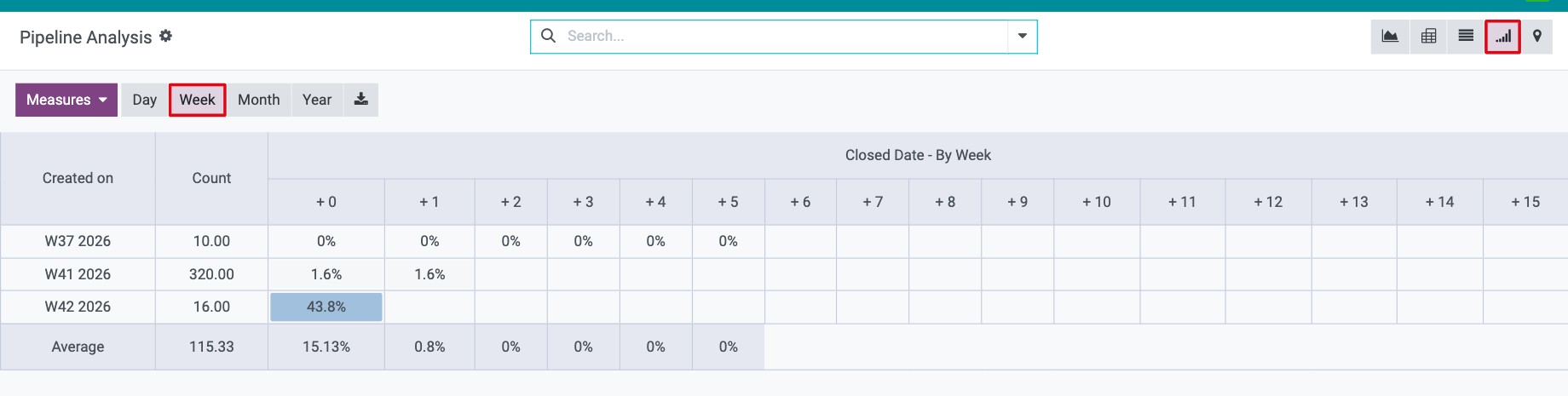
Click a cell to open the opportunities it counts. Lost opportunities are archived: add the Lost filter to include them.
How do I filter and group the data?
Open the search panel (arrow in the search bar) and choose:
Filters: for example Won, Lost, Active, or a period on the expected or actual closing date;
Group By: for example Salesperson, Sales Team, Stage, Source or Lost Reason.
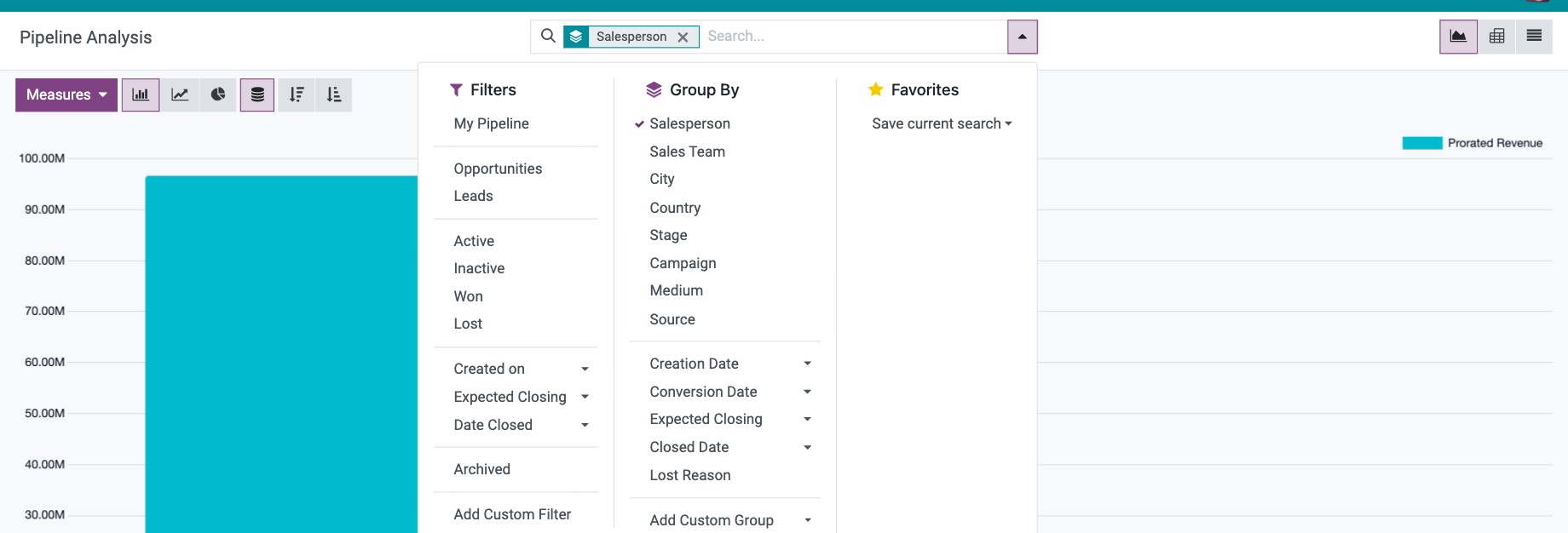
To reuse a combination, click Save current search in Favorites.
Common errors
Problem |
What to do |
|---|---|
The report shows only your own opportunities. |
Your access right is User: Own Documents Only. Ask for User: All Documents if you need the team or company figures. |
Lost opportunities are missing. |
They are archived. Add the Lost filter. |
There is no Cohort icon or Conversion Analysis menu. |
Install the Viin CRM module (cohort view) or the Viin CRM Sankey View module (conversion chart). |
Next steps
How to see where deals are won or lost with a Sankey chart: see where deals are lost along the pipeline.