
Apply Make to Stock for Production on Order in Viindoo
Make to order always produces the whole quantity ordered, even when part of it is in stock. To use the stock first and produce only the shortfall, give the product a reordering rule with a minimum of 0, a maximum of 0 and a multiple of 1. Each confirmed sales order then creates or increases a manufacturing order for exactly what is missing.
Who |
Inventory and production users who plan the stock. |
App |
Inventory, Sales, Manufacturing |
Before you start
Install the Manufacturing and Sales apps.
The product has the Manufacture route and a bill of materials.
One manufacturing order per sales order needs the Procurement Group column, shown with Multi-Step Routes in Inventory ‣ Configuration ‣ Settings.
How do I create the 0/0/1 rule?
Click the Reordering Rules smart button of the product, click New and add a line with Min 0, Max 0 and Multiple Quantity 1, see Manufacturing plans with Make to Stocks (MTS) rules in Viindoo. Show Multiple Quantity with the optional columns icon.

When a confirmed sales order makes the forecast of the product fall below 0, the rule creates a manufacturing order for the shortfall only: the stock on hand is used first.
How does it differ from make to order?
0/0/1 rule |
Replenish on Order (MTO) |
|
|---|---|---|
Quantity produced |
Only what the stock does not cover. |
The whole quantity ordered. |
Products made |
Go to the general stock and can serve any order. |
Are kept for the sales order that caused them. |
Link to the sales order |
None by itself; use the Allocation report. |
A smart button on the sales order and on the manufacturing order. |
What happens with several sales orders?
By default the Procurement Group of the rule is empty: the needs of all sales orders go into the same manufacturing order while it is not planned yet. This suits products made in batches.
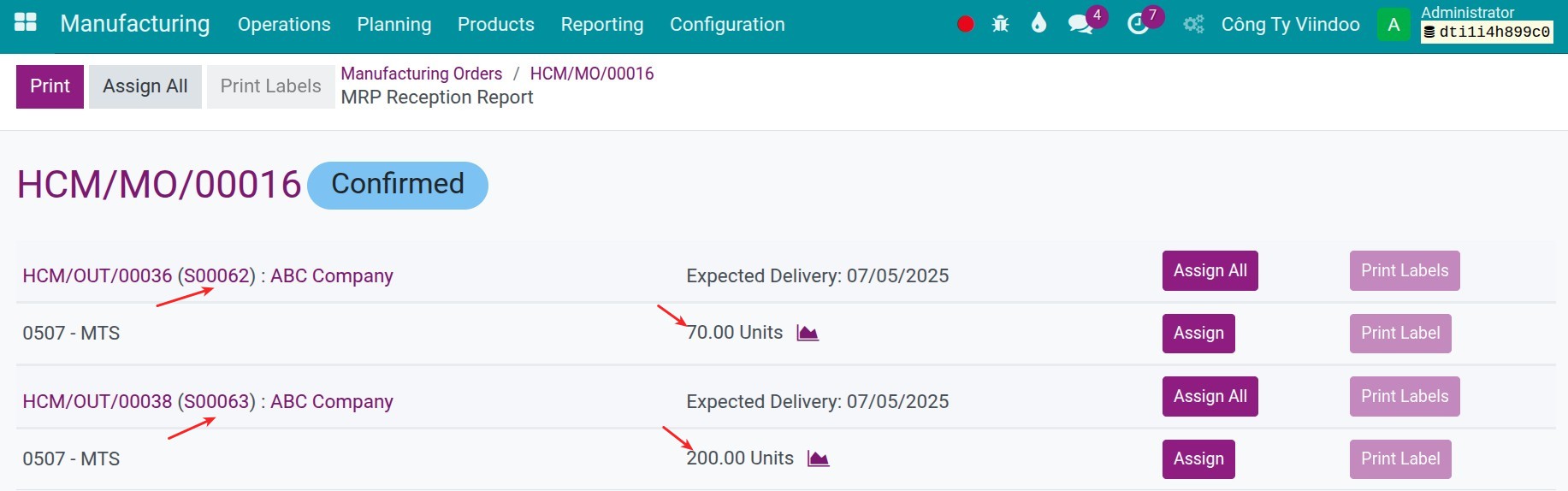
For example, 30 units are in stock. A first sales order of 100 units creates a manufacturing order of 70 units; a second sales order of 200 units adds 200 units to it.
Confirm the first sales order.
![The first sales order of 100 units]()
A manufacturing order of 70 units is created.
![The manufacturing order of 70 units created by the rule]()
Confirm the second sales order: the same manufacturing order now makes 270 units.
![The manufacturing order increased to 270 units]()


How do I link the manufacturing order to the sales orders?
Go to Manufacturing ‣ Configuration ‣ Settings, tick Allocation Report for Manufacturing Orders and click Save.
![The Allocation Report for Manufacturing Orders setting]()
On the manufacturing order, click Allocation. The report lists the deliveries that wait for the product.
![The Allocation button of the manufacturing order]()
![The allocation report of the manufacturing order]()
Click Assign on the delivery of each sales order to keep the products made for it.
![The deliveries assigned to the manufacturing order]()



How do I get one manufacturing order per sales order?
Type a name in the Procurement Group of the rule and create it. Each sales order then gets its own manufacturing order: in the example, 70 units for the first order and 200 units for the second.


Common errors
Problem |
What to do |
|---|---|
No manufacturing order is created. |
Check the Manufacture route and the bill of materials of the product, and that the rule is for the warehouse of the sales order. |
A second sales order creates a new manufacturing order instead of adding to the first. |
The first order is already planned, has a responsible, or has another date: the need goes into a new order. |
The Procurement Group column is missing. |
Turn on Multi-Step Routes in the Inventory settings, then show the column. |
The Allocation button is missing. |
Tick Allocation Report for Manufacturing Orders in the Manufacturing settings. |
Next steps
Manufacturing report in Gantt: plan the manufacturing orders.
See also
Related articles
Optional modules