
Produce part of an order and create a backorder
When a manufacturing order cannot be finished in one go, record the quantity really produced and mark it as done. Viindoo asks whether the rest is still to be made: a backorder keeps it as a new order with the same reference, while No Backorder closes the order with what was produced.
Who |
Production planners and supervisors with the Manufacturing ‣ User access right. |
App |
Manufacturing |
Before you start
Install the Manufacturing app.
The product has a bill of materials and the order is confirmed.
Producing needs the Manufacturing ‣ User access right.
The example of this article is a furniture workshop that makes an Oak wall shelf from shelf boards, shelf brackets and wood screws.
How do I produce part of an order?
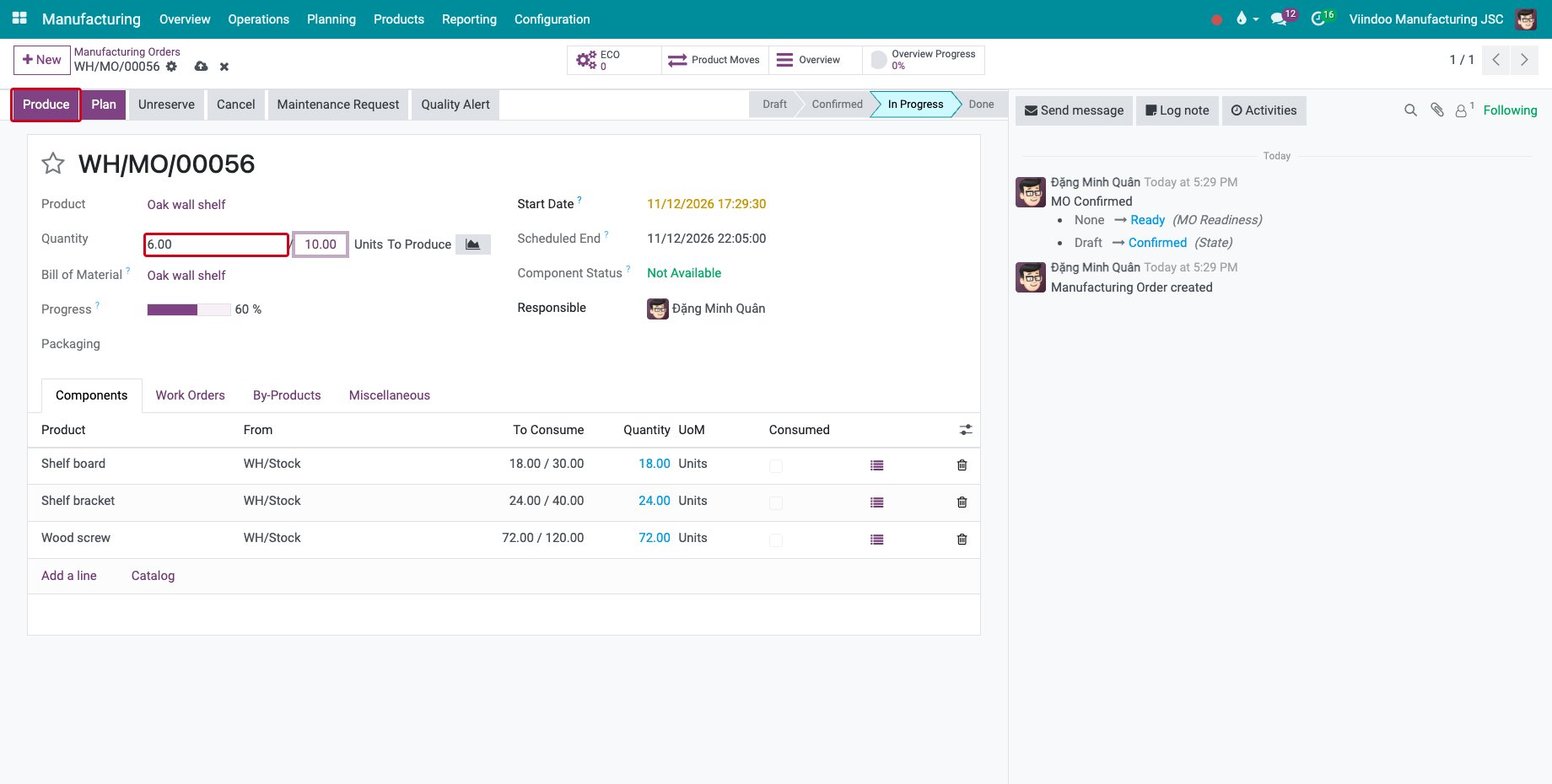
Open the order in Manufacturing ‣ Operations ‣ Manufacturing Orders. In Quantity, type the quantity produced, here 6 of the 10 ordered. The quantities of the components follow, and the main button becomes Produce.
![An order of 10 shelves with 6 being produced and the Produce button]()
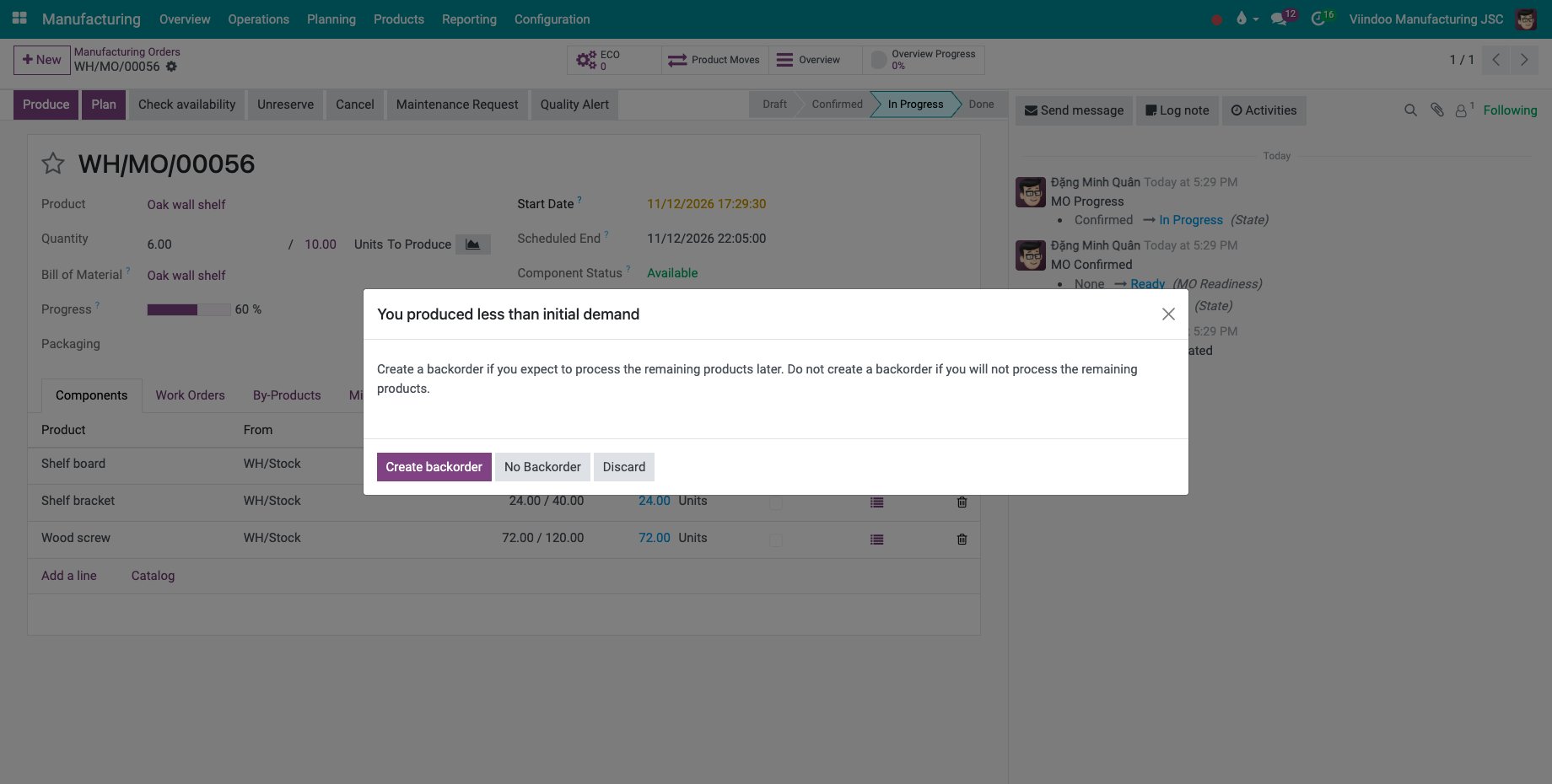
Click Produce. The window You produced less than initial demand opens.
![The window You produced less than initial demand]()
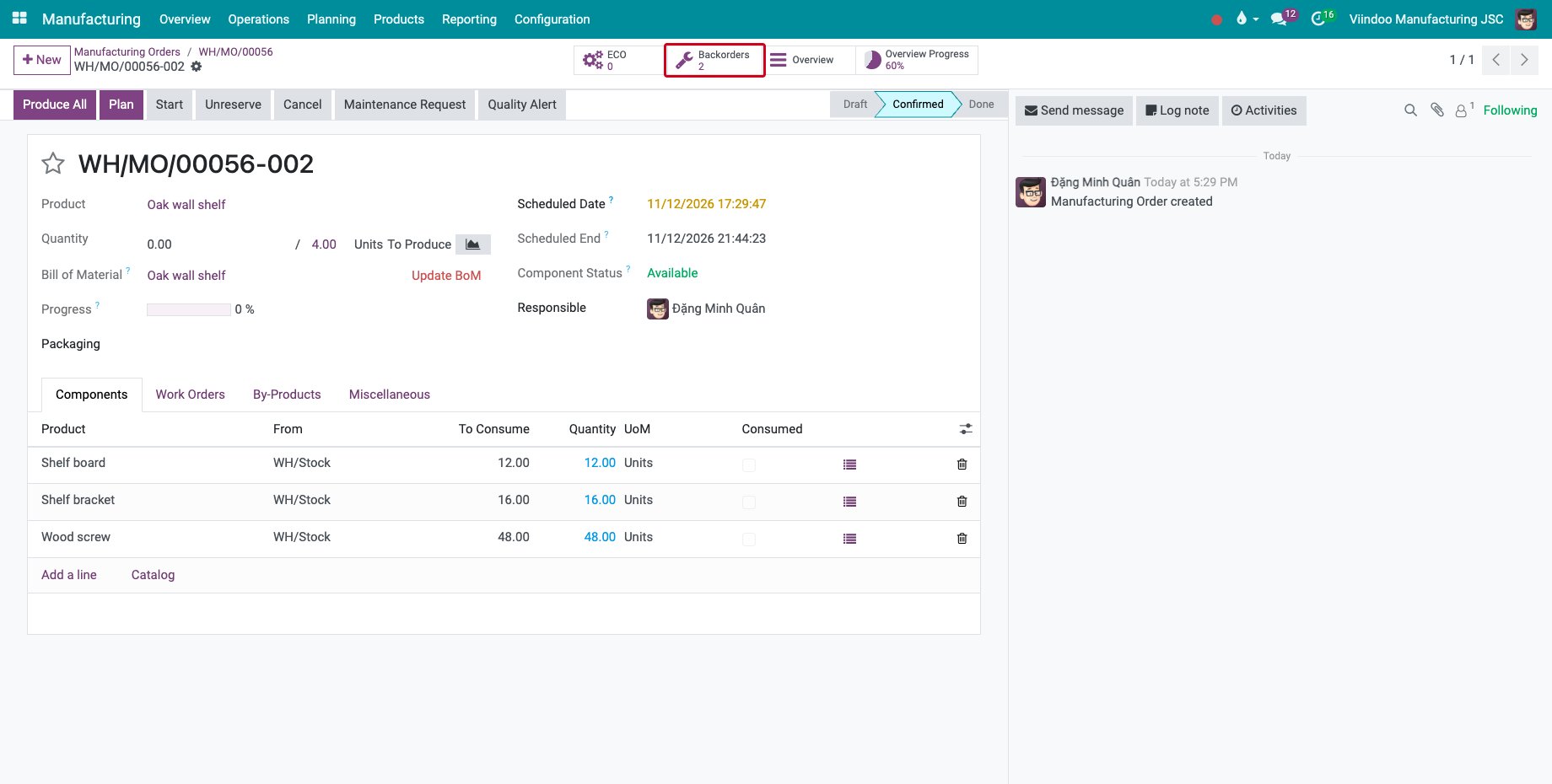
Click Create backorder if the rest will be produced later. The order is done with 6 units and gets the suffix -001; a new order -002 for the 4 remaining units opens. The Backorders button counts the orders of the series.
![The backorder of 4 shelves with the Backorders button]()
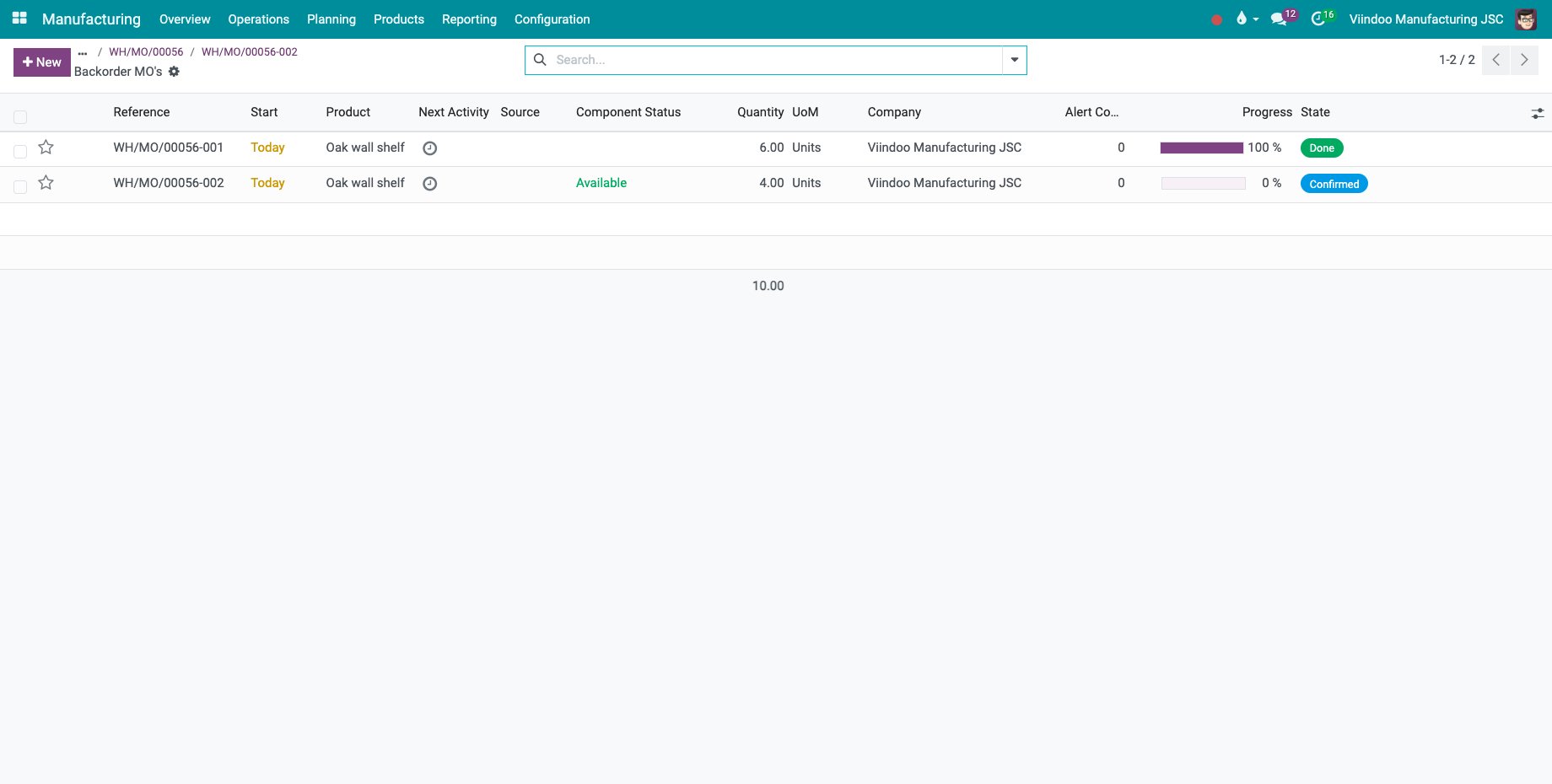
Click Backorders to see the done order and the backorder side by side.
![The done order and its backorder in the list]()
Click No Backorder instead when the rest will not be produced: the order is done with the quantity produced and nothing is kept for later. Discard leaves the order as it was.
How do I close several orders at once?
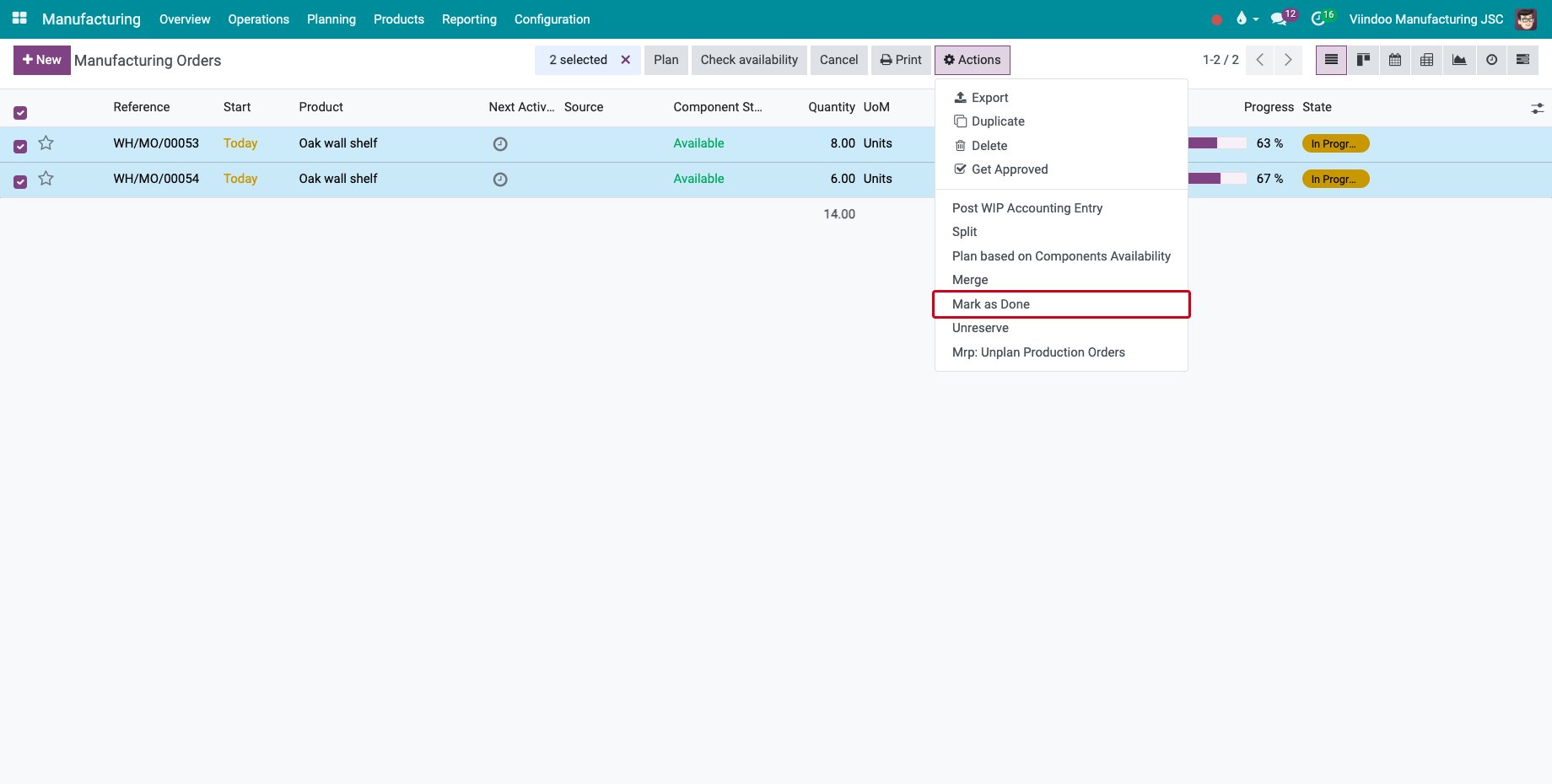
Record the quantity produced on each order, then select the orders in the list of manufacturing orders and choose Actions ‣ Mark as Done.
![Mark as Done in the Actions menu of two selected orders]()
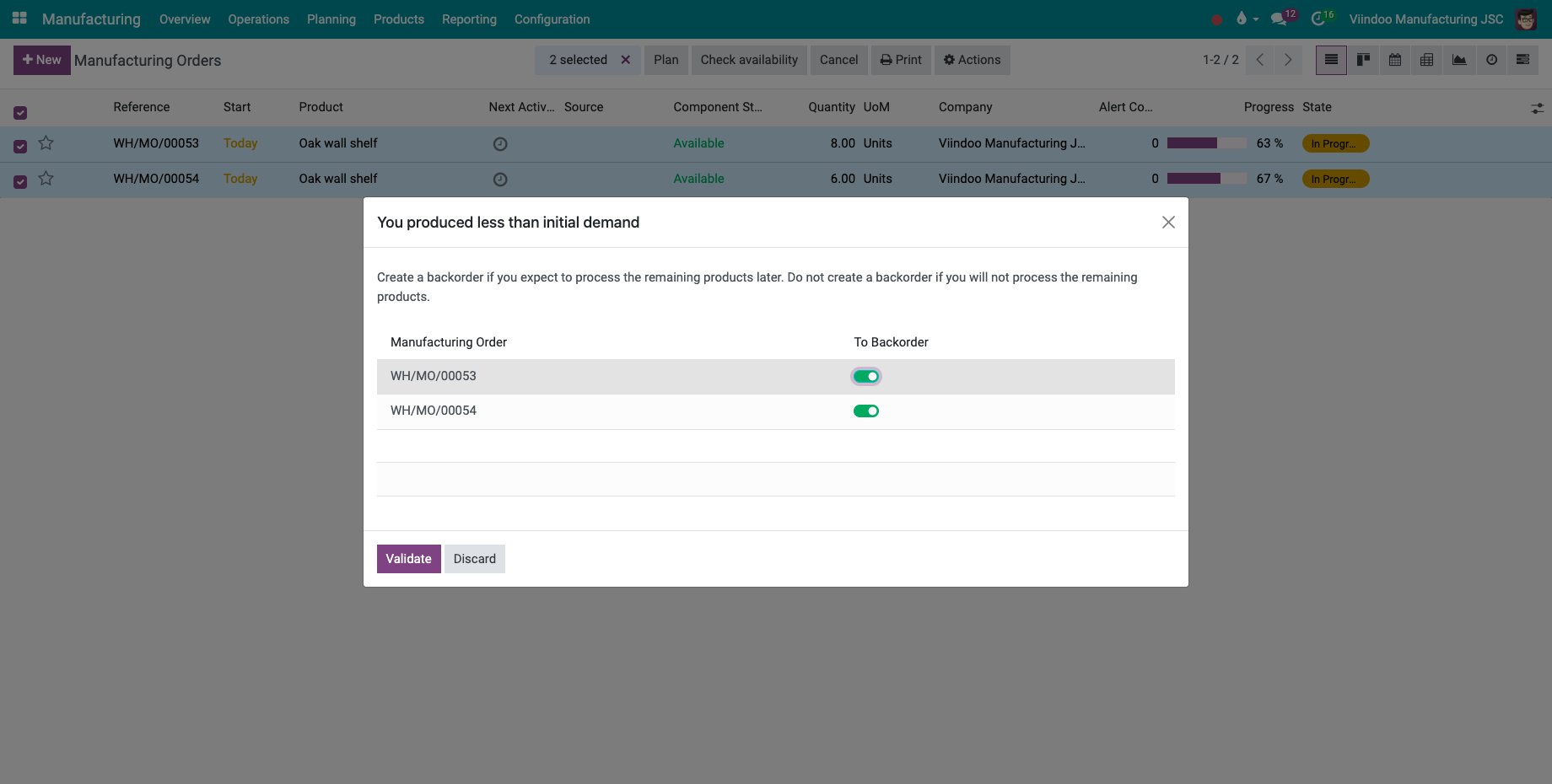
The window lists every order that is short, with a To Backorder switch. Turn it off for the orders whose rest is not needed and click Validate.
![One To Backorder switch per order]()
How do I produce many serial-numbered products in one batch?
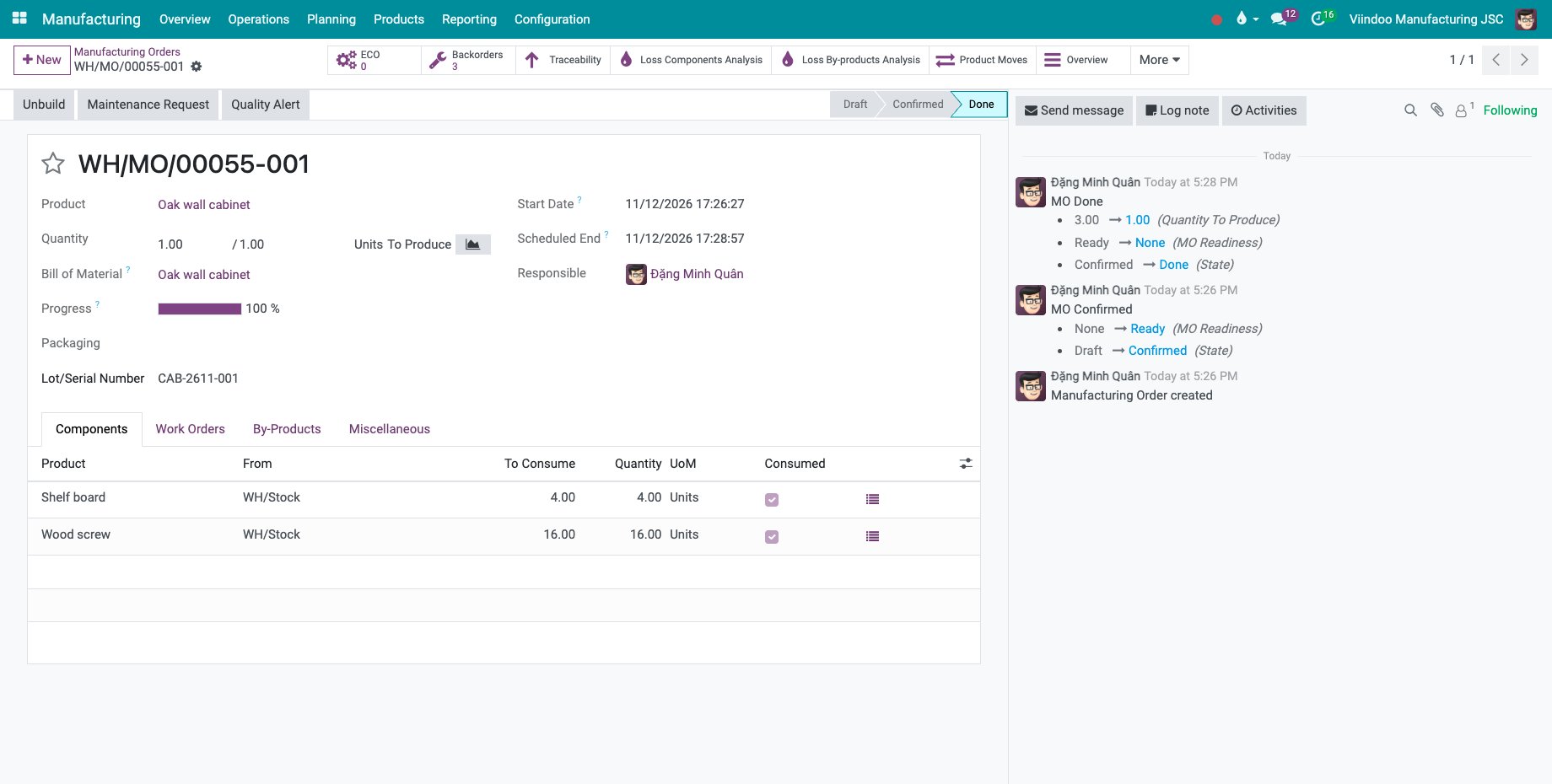
For a product tracked by serial number, an order of several units can be produced in one step. The example is an order of 3 Oak wall cabinets.
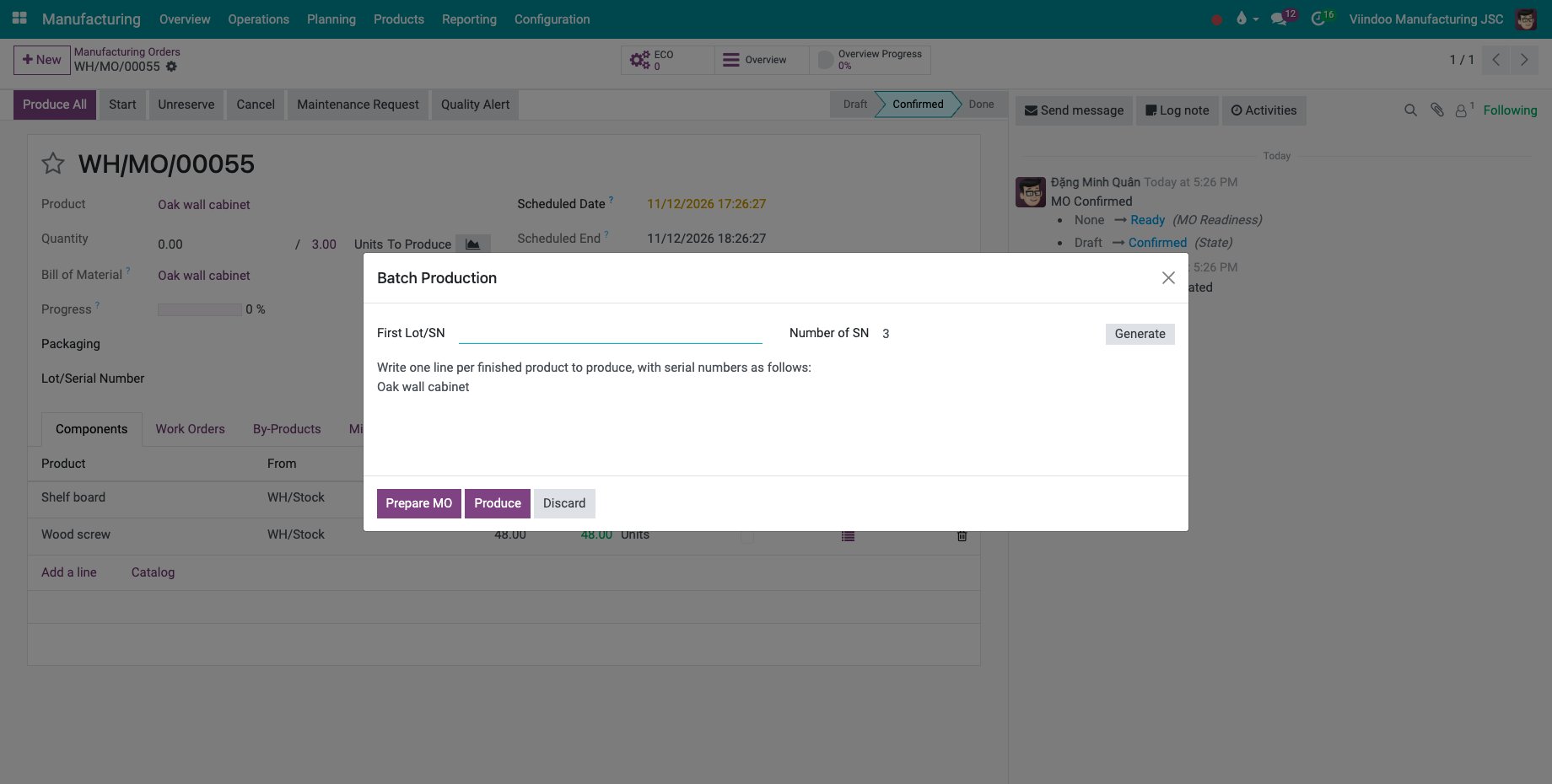
On the order, with nothing recorded yet, click Produce All. The window Batch Production opens.
![The Batch Production window]()
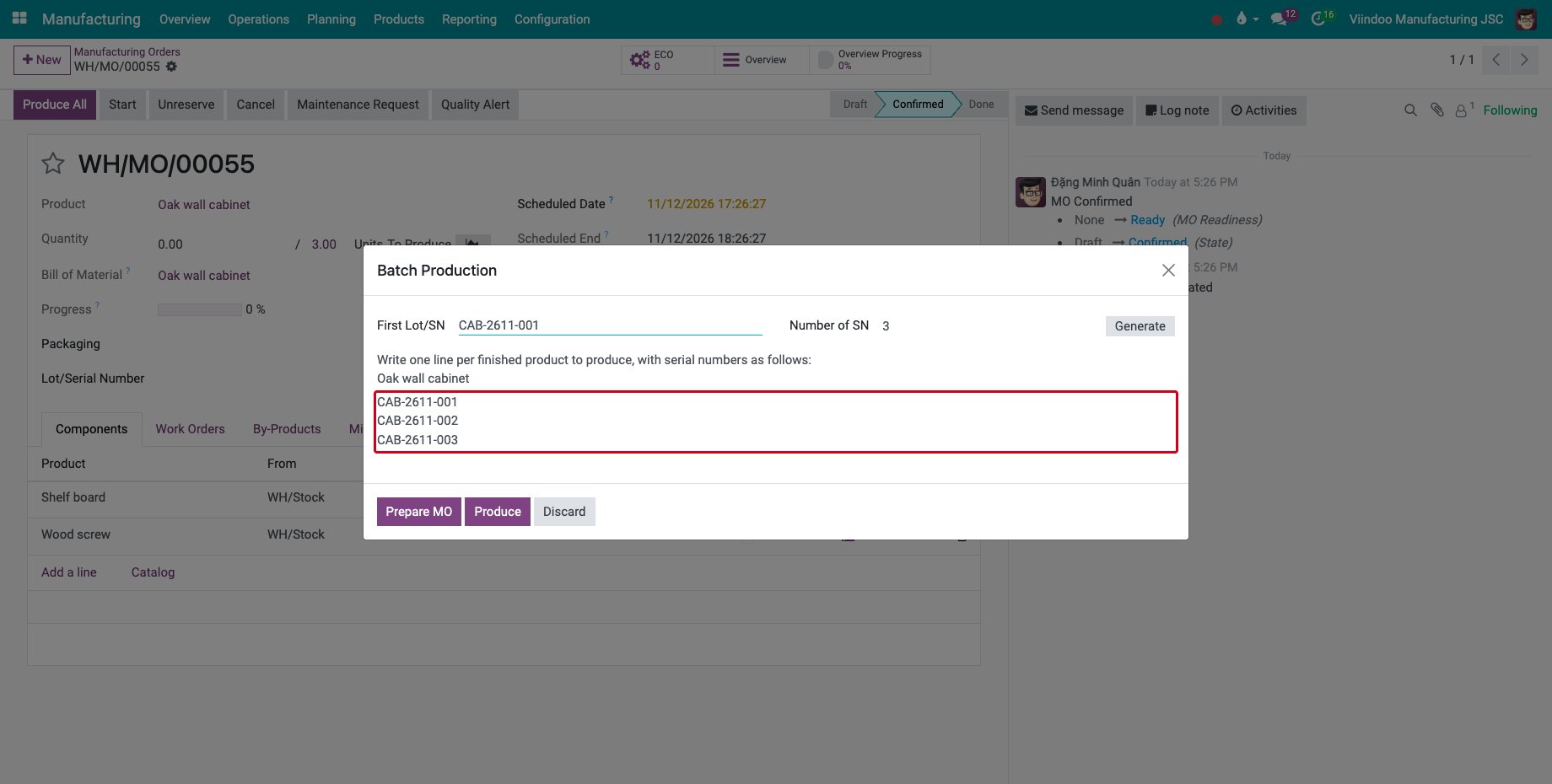
Type the First Lot/SN and the Number of SN, then click Generate: one line per finished product is written, with its serial number. You can also type the lines yourself, as the help text above them explains.
![Three serial numbers generated in the Batch Production window]()
Click Produce. Each serial number gets its own done order (-001, -002, -003), all linked by the Backorders button. Prepare MO only prepares the orders without producing them.
![A done order with its serial number and the Backorders button]()
Common errors
Problem |
What to do |
|---|---|
The button reads Produce All although less was made. |
Type the quantity produced in Quantity first: Produce appears when the quantity is neither 0 nor the ordered quantity. |
A message asks for the quality checks first. |
Quality checks apply to the product. Do them before you produce, see How to integrate Quality Control with Manufacturing orders. |
The rest was closed by mistake with No Backorder. |
Create a new manufacturing order for the missing quantity. |
Next steps
Split, merge and change the quantity of manufacturing orders: change an order before it is produced.
Track manufacturing order progress: follow an order and its backorders together.
Record output, materials and scrap at the machine: record the quantity made and the scrap at the machine.
Close an order at the machine and record on behalf: close the order on the Shop Floor tablet and create the backorder there.
Quality checks on the Shop Floor: do the quality checks of the work orders on the tablet.