
Quality checks on the Shop Floor
The quality checks of a work order appear on the same tablet the operator uses to run the job. The operator records Pass, Fail or a measurement at the machine, at the moment of the check. A job does not start while its checks are still to do or a blocking check has failed, and the order does not close while a finished product check is still to do. Recording the output is never held by quality.
Who |
Machine operators (Manufacturing ‣ User), who record the checks; quality inspectors (Quality ‣ User), who reopen a failed check and record the checks they are responsible for. |
App |
Shop Floor, Quality |
Before you start
Install the Shop Floor Control - Quality module. It installs itself when Shop Floor Control and Manufacturing Quality Control are both installed.
Create the control points in Quality ‣ Quality Control ‣ Quality Controls ‣ Control Points, see How to integrate Quality Control with Manufacturing orders.
The checks are created when the manufacturing order is confirmed: a control point on a component gives a check on the work order where the component is used, a control point on the finished product gives a check on the order.
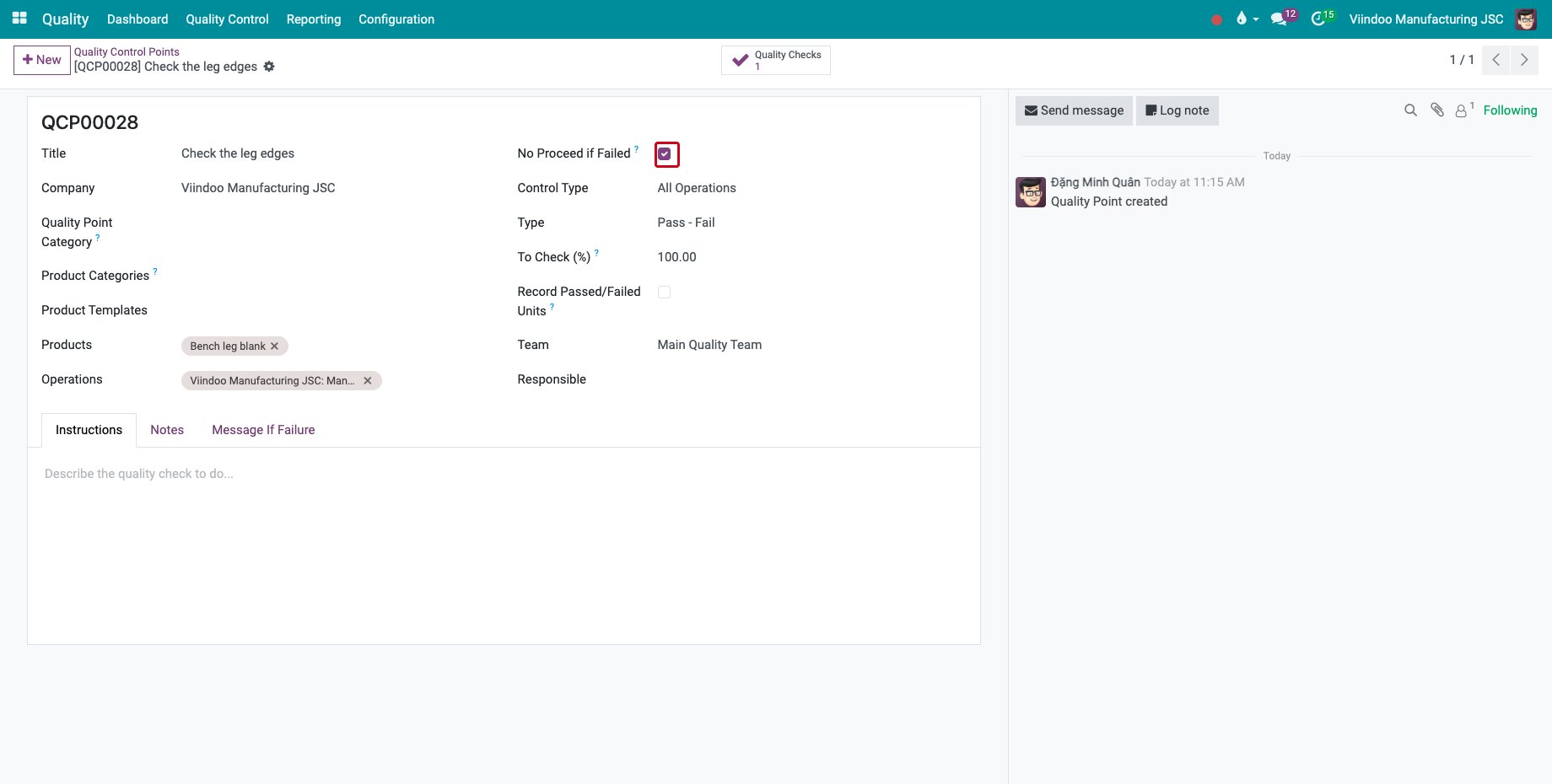
The example is an Oak bench. Its Cut the bench legs operation has two checks on the leg blanks: Check the leg edges, a Pass - Fail check with No Proceed if Failed, and Leg length, a measure of 450 mm with a tolerance of 448 - 452 mm. Final bench inspection is a check of the finished bench for which Ngô Thanh Tâm, the quality inspector, is responsible.
Which control point settings matter on the tablet?
Type: Pass - Fail, Measure or Take a Picture; each check shows the controls of its type.
Responsible: only this person can record Pass or the measurement. Leave it empty if anyone may do it. Anyone who works on the job can still record Fail.
No Proceed if Failed: a failed result stops the work until the quality team releases it.
The Message If Failure tab: the instruction the tablet shows when the result is Failed.
How do I record the checks before I start?
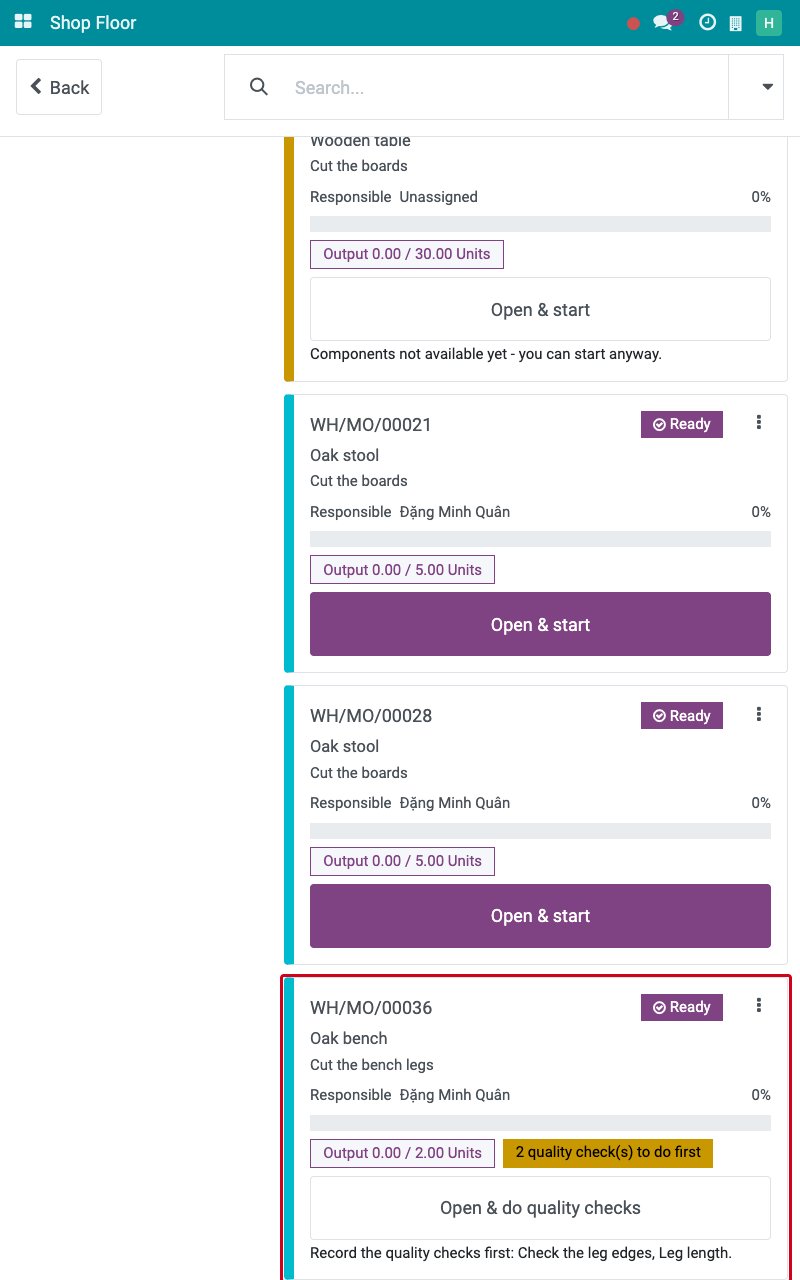
On the job board, a card held by quality shows how many checks are to do first and offers Open & do quality checks.
![A card held by two quality checks]()
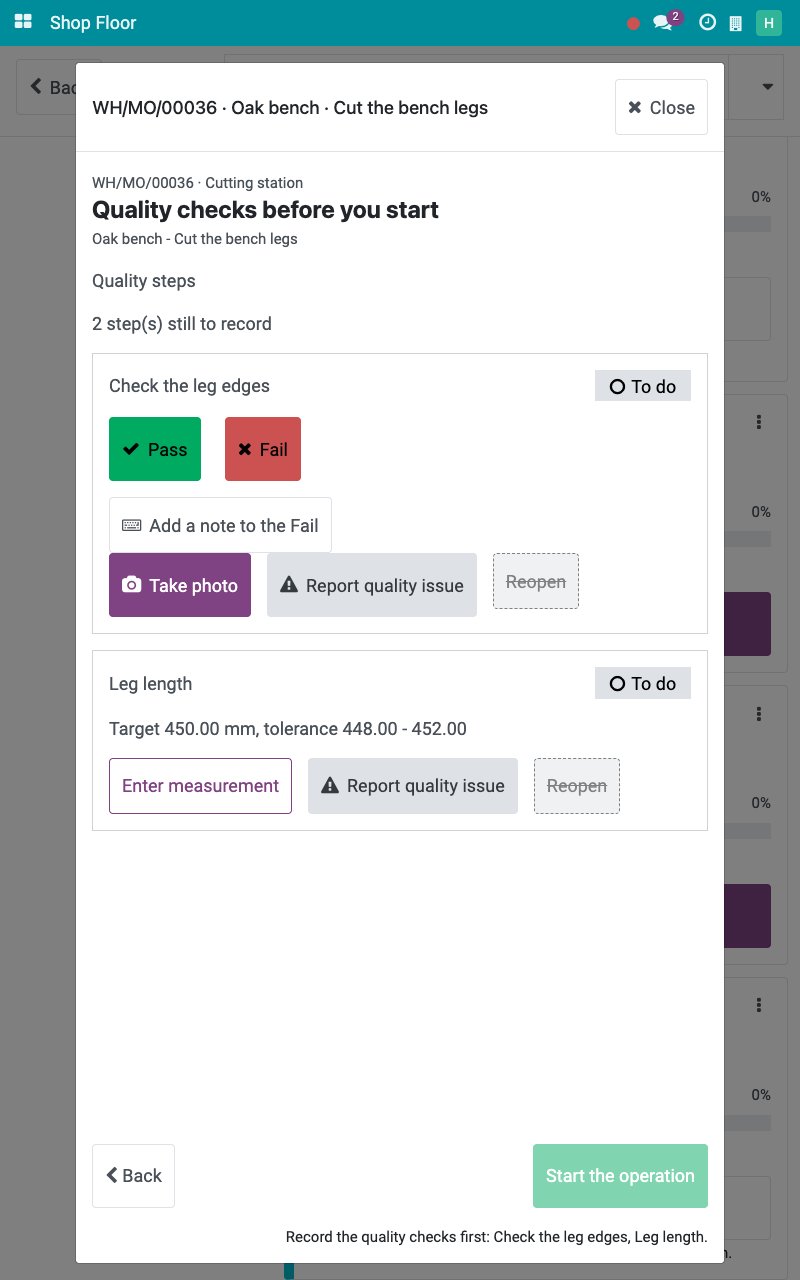
Tap Open & do quality checks. The screen Quality checks before you start lists each check with its status. Start the operation stays greyed out and the reason is written under it.
![The quality checks to record before the start]()
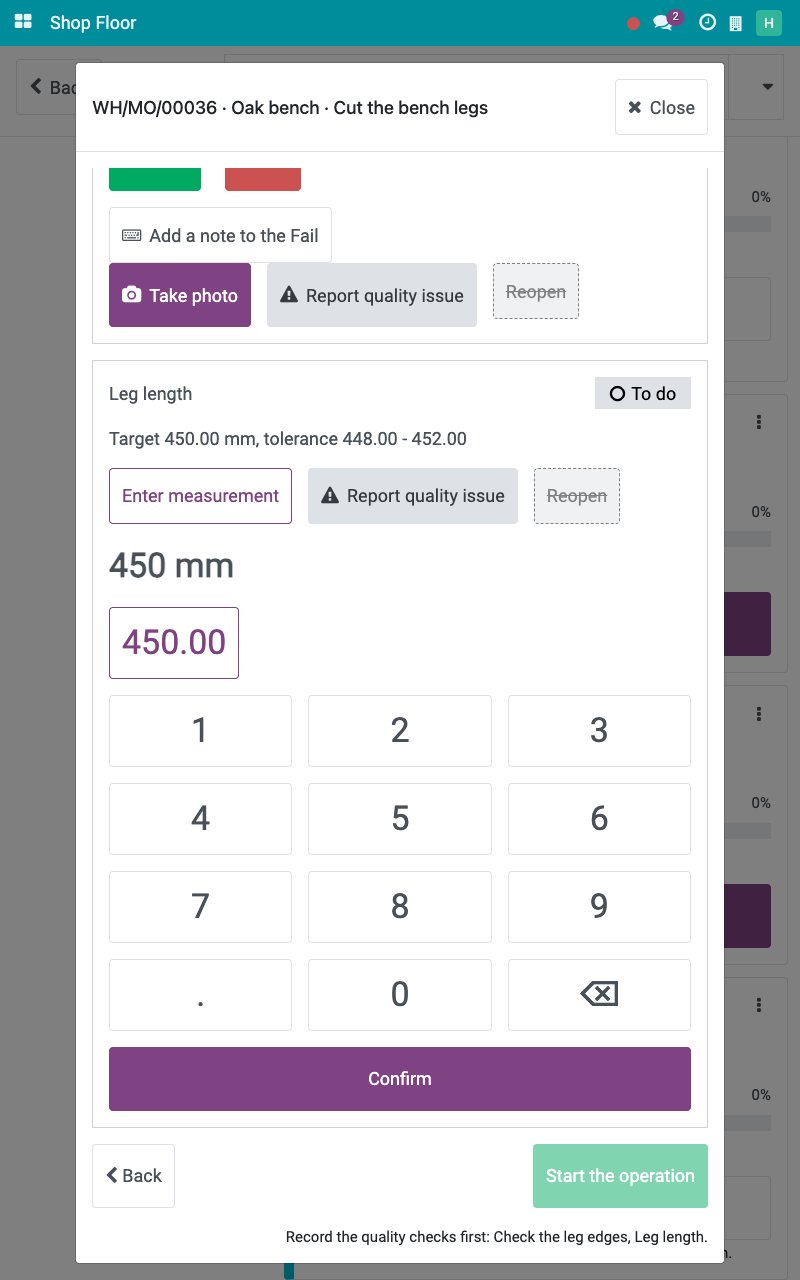
On a Measure check, read the target and the tolerance, tap Enter measurement, tap the reading on the number pad and tap Confirm. The check shows the value and the verdict that the tolerance gives.
![A measurement on the number pad]()
On a Pass - Fail check, tap Pass when the result is good. A wrong Pass can be taken back with Reopen.
When no check is left to do, tap Start the operation.
What happens when a blocking check fails?
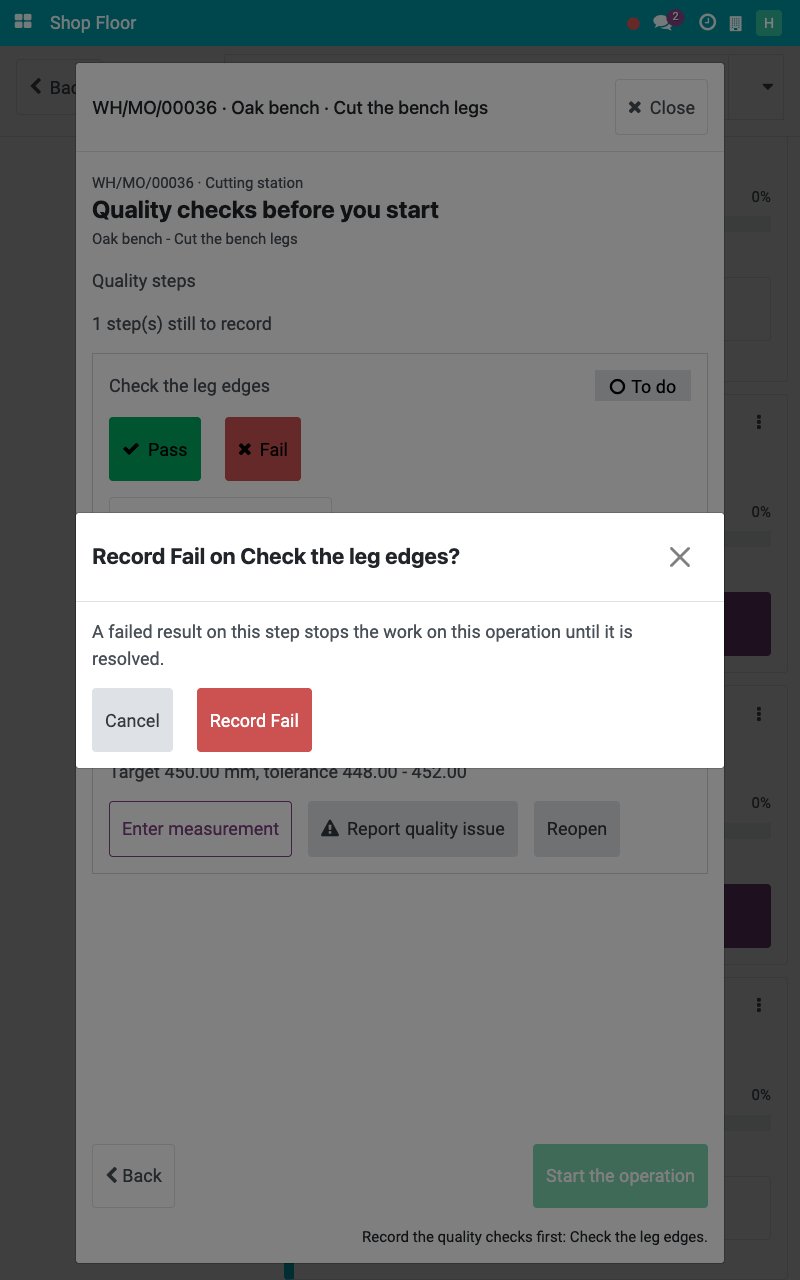
Tap Fail on the check. For a control point with No Proceed if Failed, the question Record Fail on …? warns that the work on the operation stops until it is resolved. Tap Record Fail.
![The confirmation of a failed check]()
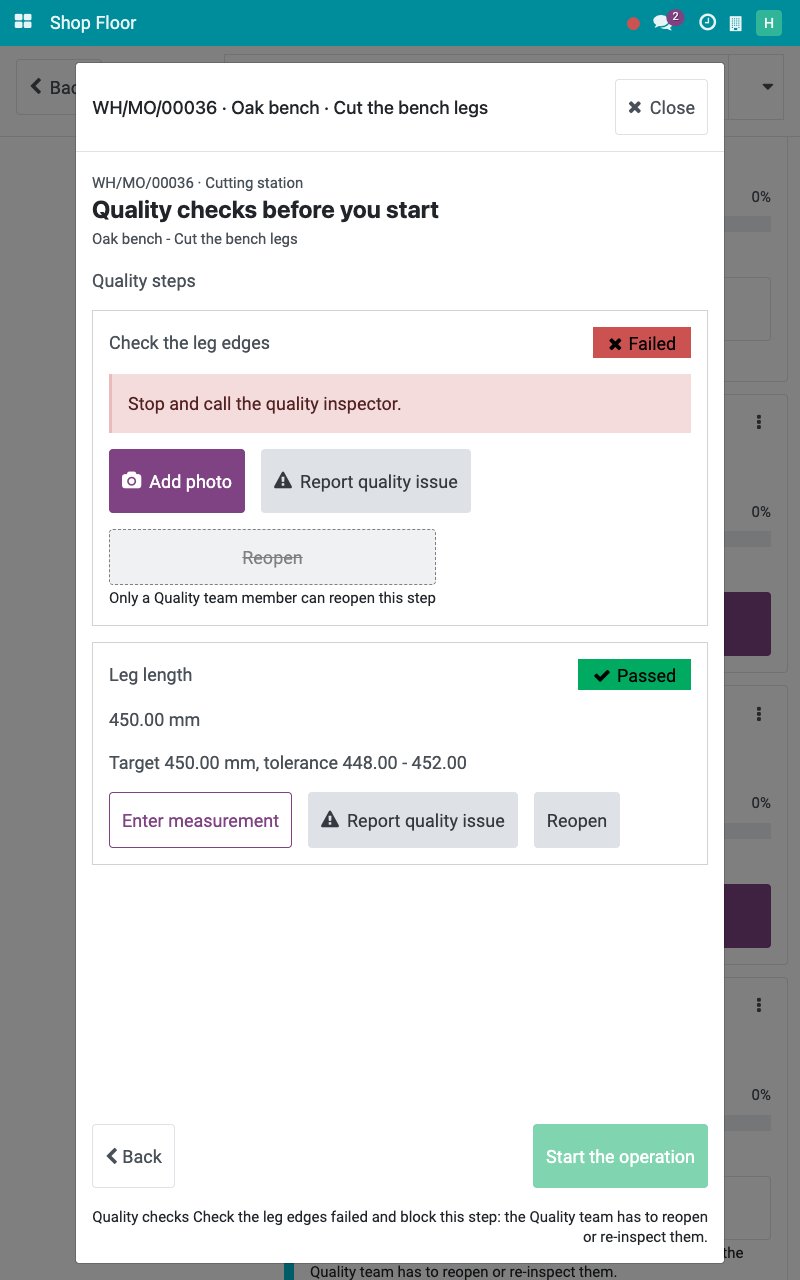
The check shows Failed with the message of the control point. Start the operation is greyed out and Reopen is reserved for the quality team. Call the quality inspector.
![A failed check that blocks the start of the operation]()
A Fail on a control point without No Proceed if Failed does not hold the job; the quality team still sees it. Tap Report quality issue on a check to raise a quality alert without leaving the job.
How does the inspector release a failed check?
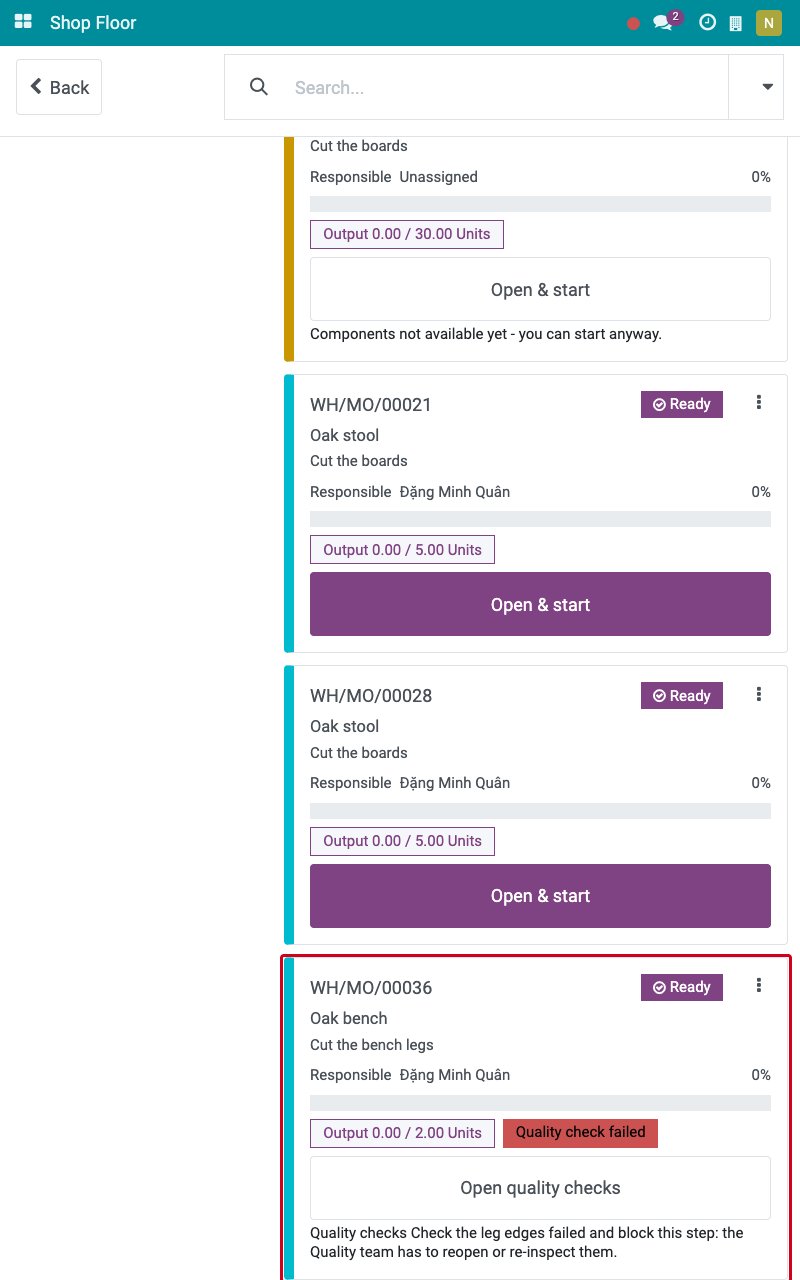
The inspector opens the job board on their tablet. The card shows Quality check failed.
![A card with a failed quality check]()
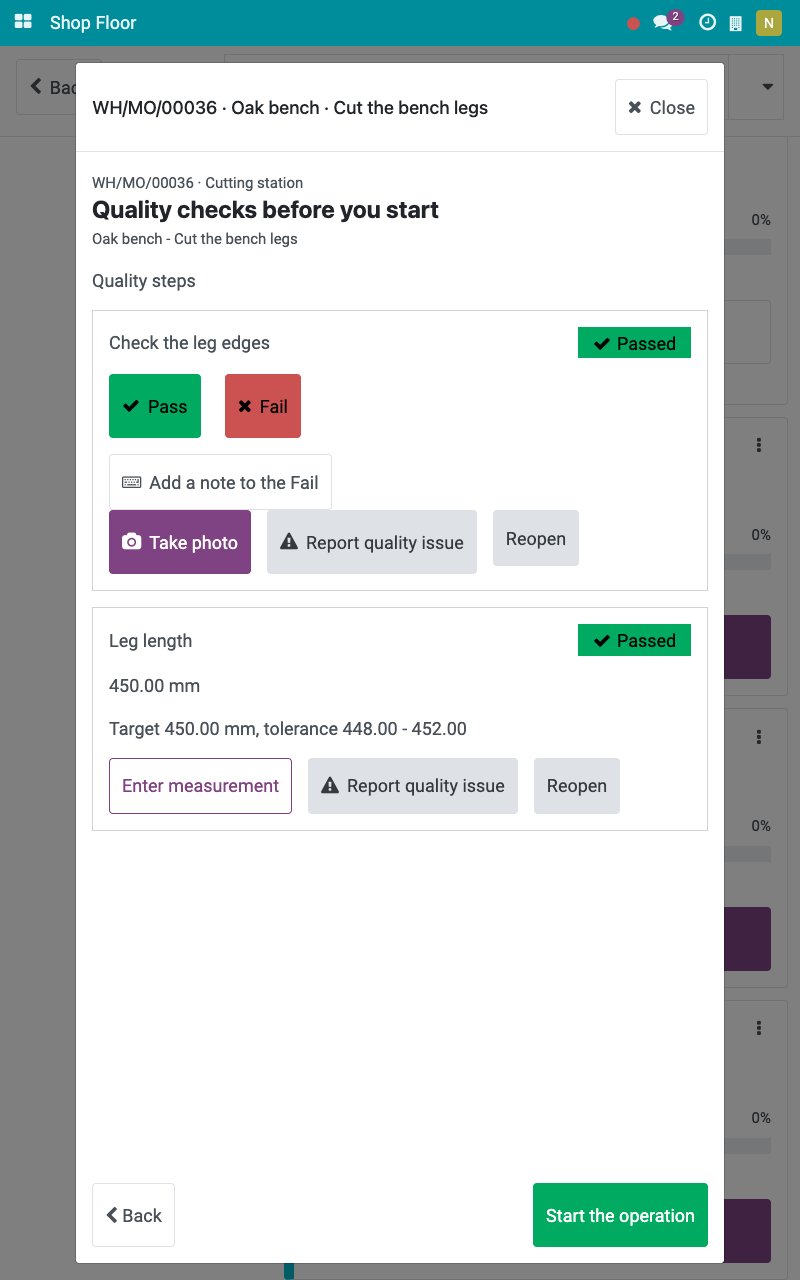
The inspector opens the card, taps Reopen on the failed check, inspects the product and taps Pass or Fail. When nothing else holds the job, Start the operation is active again.
![The checks passed after the inspector reopened the failed one]()
How do I check the finished product before the order closes?
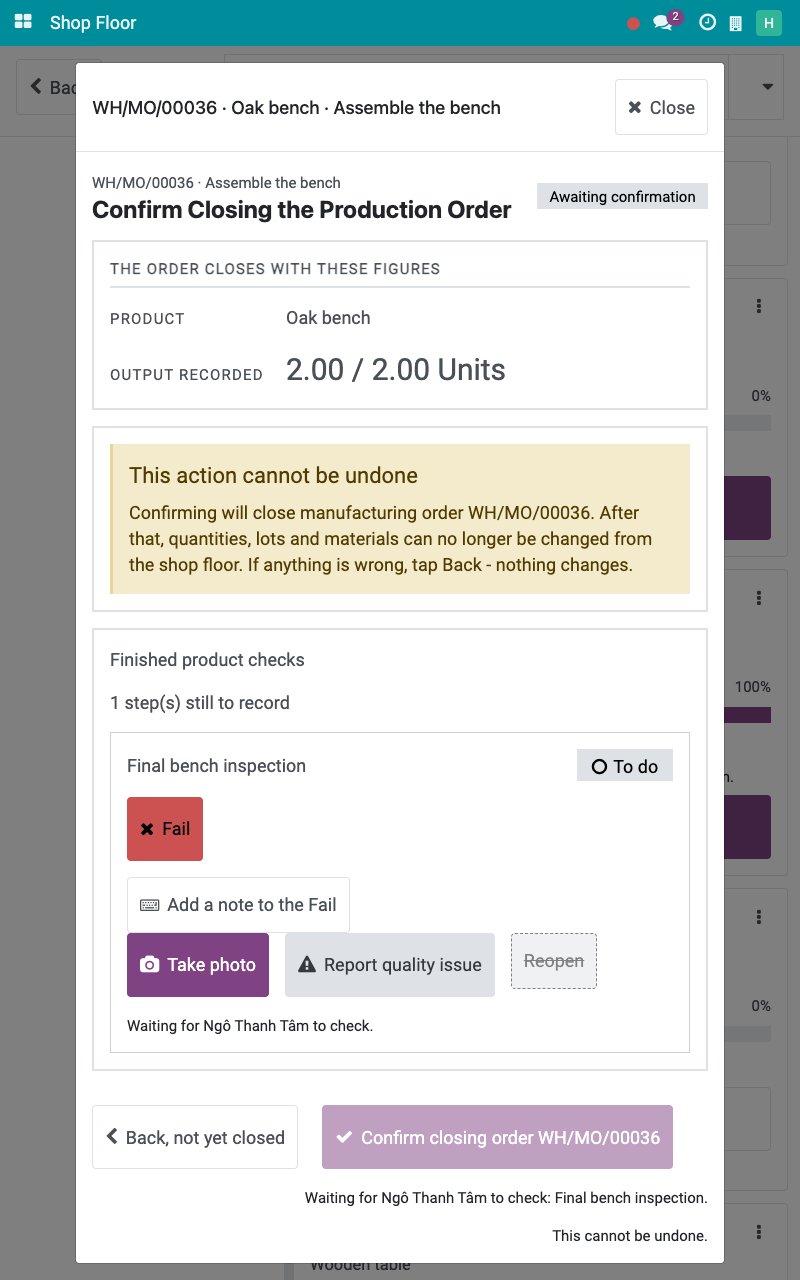
After the last operation, the screen Confirm Closing the Production Order lists the Finished product checks. While a check is to do, Confirm closing order is greyed out and the screen says who the order waits for.
![The closing of the order waiting for a finished product check]()
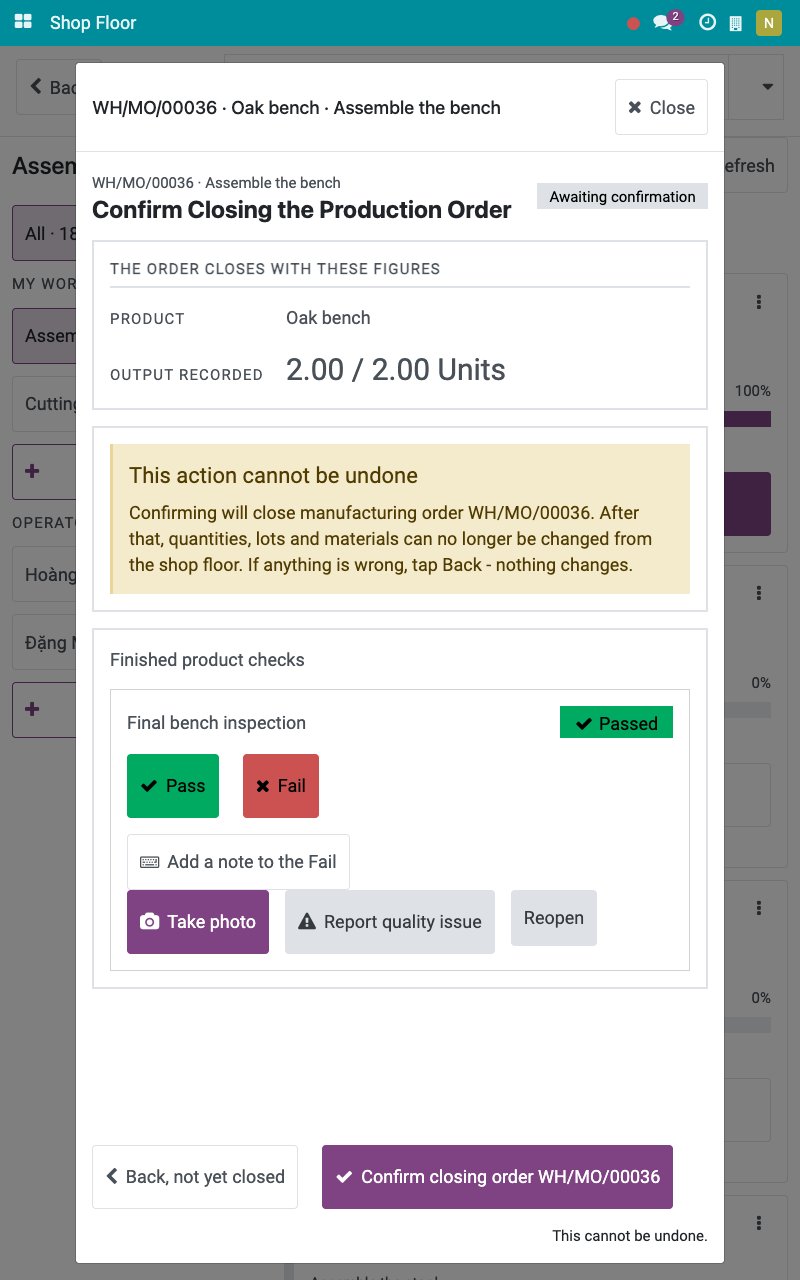
The person responsible for the check opens Close the order on their tablet and taps Pass. The order can then be closed.
![The finished product check passed on the closing screen]()
Common errors
Problem |
What to do |
|---|---|
Start the operation is greyed out. |
Read the sentence under the button: record the checks it lists, or call the quality team to reopen a failed check. |
A check shows Waiting for … to check and there is no Pass. |
The control point names another person as Responsible. Ask that person to record it. |
Reopen is greyed out on a failed check. |
Only the quality team reopens a failed check. |
The checks do not appear on the job. |
Check the product and the operation type of the control point, and that it existed before the order was confirmed. |
Next steps
Close an order at the machine and record on behalf: close the order.
Create Quality Alerts: handle the quality alerts.
See also
Related articles