
Set up freight services and local charges
Guide information
Requirements
This tutorial requires the installation of the following applications/modules:
Freight Forwarder Management (installs Logistics Accounting automatically)
Every charge line on a shipment points to a product. If a freight service or a local charge is not classified correctly, the quotation wizard cannot find a rate for it and the line is priced at zero - Sales then has to work out and type the charge by hand, and a charge like a port fee is easy to forget. A local charge tied to a specific port also carries that port’s code in its own name, so invoices for different ports never look identical on a customer’s statement. If a term such as Full Container Load (FCL) or Terminal Handling Charge (THC) is new to you, see the Freight forwarding glossary.
Running scenario: Hai Long Logistics confirms the Ocean Freight - FCL service already in the system, then ties the installed Terminal Handling Charge (THC) to Hai Phong Port, before quoting and booking the FCL export for Nhat Long Footwear.
Classify a freight service
The Shipment Type you pick here decides how Viindoo prices the service later - per container for FCL, or per weight/volume for LCL and LTL - and which fields show on the product form.
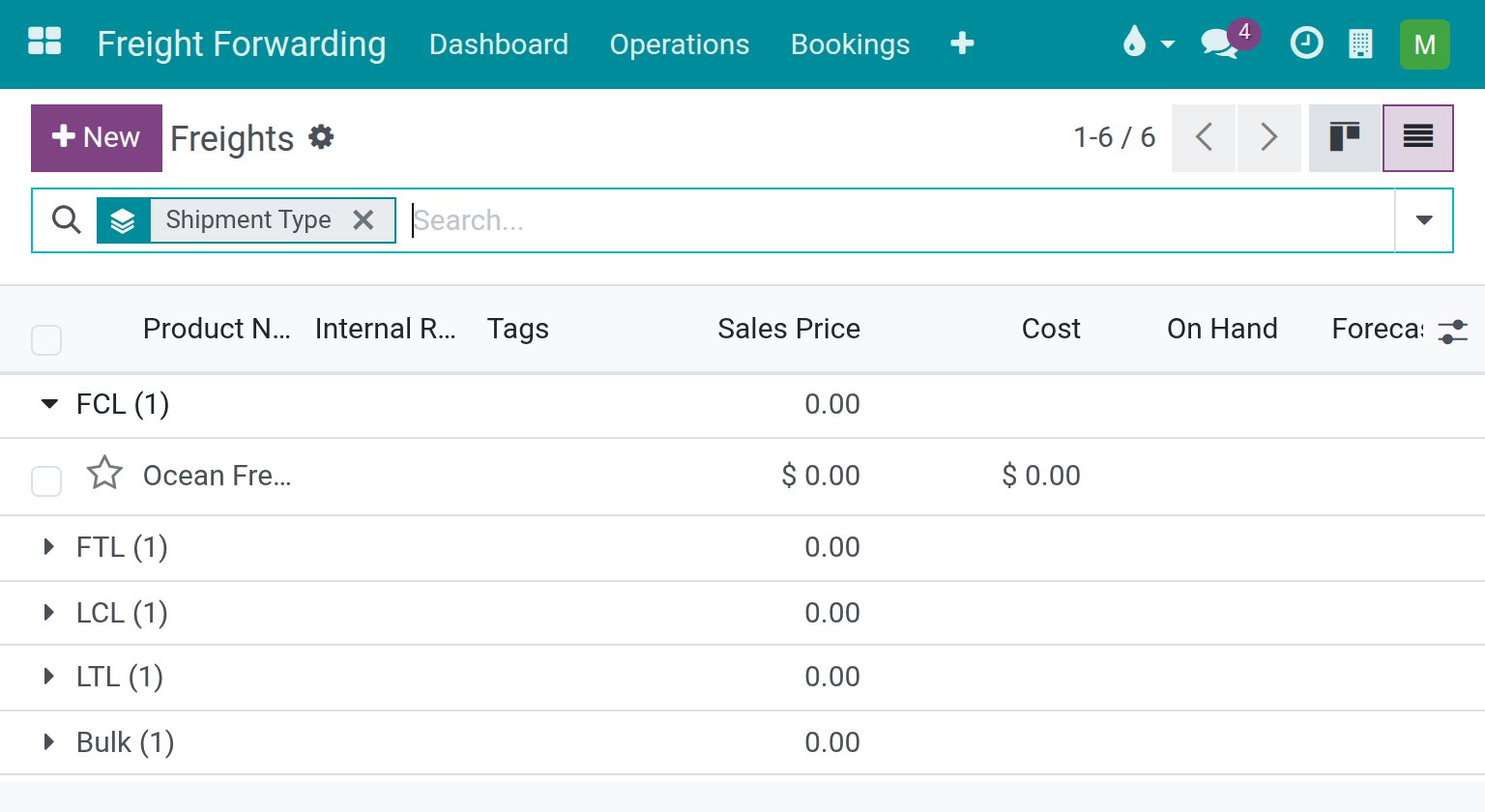
Go to . The list is already filtered to freight services and grouped by Shipment Type.
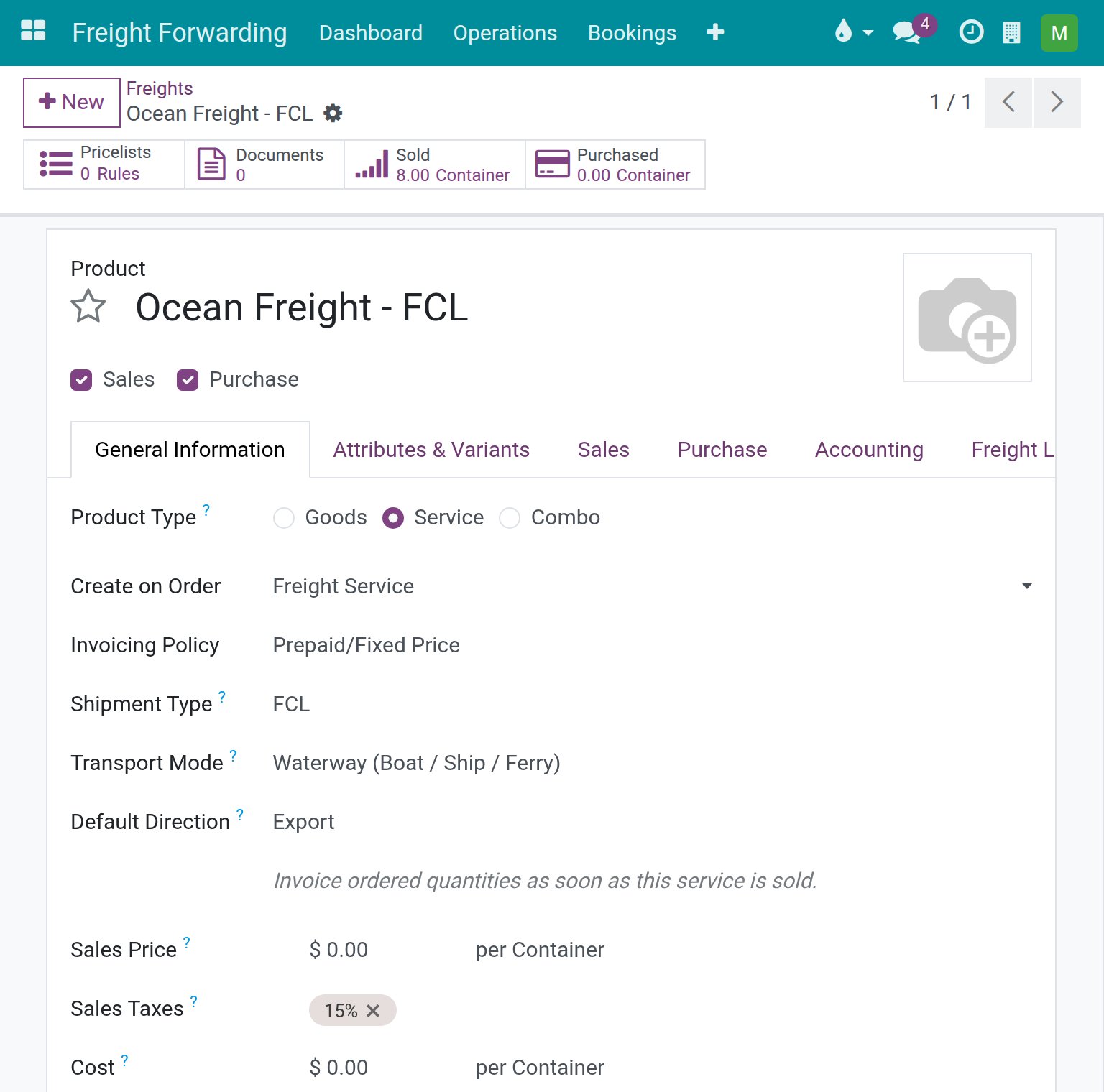
Open the existing Ocean Freight - FCL product (or click New to classify another service) and confirm:
Product Type: Service.
Create on Order: Freight Service.
Shipment Type: FCL.
Transport Mode: Waterway (Boat / Ship / Ferry) - required whenever Create on Order is Freight Service.
Note
Create on Order is what marks a service as a freight service or a local charge, and a freight or local charge classification only exists on a product whose Product Type is Service - saving any other combination is refused. Viindoo does not stop you from changing Create on Order to another value after the product has been used on shipments, so after editing a freight or local charge product for another reason, re-open it and confirm Create on Order is still what you expect (see Known limitations).
Note
A purchase of a service is billed on ordered quantities by default: the Control Policy on the product’s Purchase tab starts at On ordered quantities, so Create Bill works on the purchase order of a freight or local charge product without changing it.
Tip
The setup is correct when: Ocean Freight - FCL appears in the Freights list, grouped under Shipment Type FCL, and the FCL quotation wizard of Quote a full container load for sea export lists a price for it.
See also
Maintain carrier rates and vessel schedules - enter the buy and sell prices this service uses.
One value of Create on Order per service
Create on Order holds a single value for a product. A service that is classified as Freight Service or Local Charge therefore cannot also use Project & Task to open a task list on the sales order. A service you set to Project & Task with a Project Template does open that project when its sales order is confirmed, but it is no longer a freight service: it leaves the Freights list, and its sales order line does not by itself generate a shipment. Keep the freight services that price a shipment as Freight Service, and use a separate service product for the project work. See Run shipment tasks in a project for the project integration.
Classify a local charge tied to a port
A local charge that costs a different amount at each port needs its own product per port. The quotation wizard only adds a local charge whose Port is the POL (origin charges) or the POD (destination charges) of the quote, so a local charge with no port is never added for you. Two optional fields narrow it further: Charge Side (Origin or Destination; empty means both ends) and Applies to Shipment Types (empty means every shipment type). The charge is added only when the port, the side and the shipment type all match, so an FCL quote does not list LCL-only charges such as CFS Handling, and the origin-only Seal Fee is not added at the destination.
Go to .
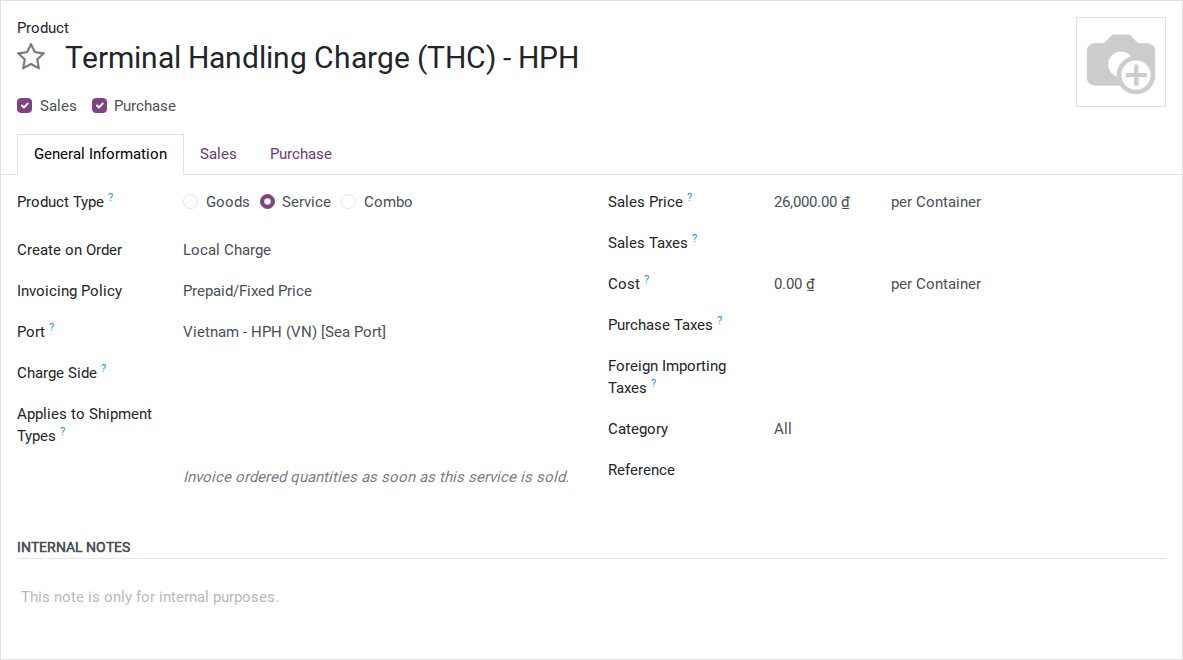
Open the existing Terminal Handling Charge (THC) product (or click New) and set:
Create on Order: Local Charge.
Port: Hai Phong Port.
Note
In the Port field, each port is listed with its type, for example Vietnam - HPH (VN) [Sea Port], so a sea port and an airport that share a code are easy to tell apart.
As soon as you set Port, the product name changes on its own to add the port’s short
code at the end, so Terminal Handling Charge (THC) becomes a name ending in HPH. That
code comes from the port record’s Port Code field, not from the full UN/LOCODE - Hai
Phong Port uses the code HPH, not VNHPH. Clearing Port puts the
name back to the original, unsuffixed one.
Create a local charge for a port with no existing product
The installed CFS Handling Fee only covers Dinh Vu CFS - Hai Phong and Port of Los Angeles - quoting an LCL shipment through Hai Phong Port needs its own product, the same way as any other port the installed data does not already cover.
Go to and click New.
Set:
Name: CFS Handling Fee.
Create on Order: Local Charge.
Port: Hai Phong Port.
Sales Price: 15 (in the company currency, per unit of measure - choose CBM as the Unit of Measure when the charge is billed by volume).
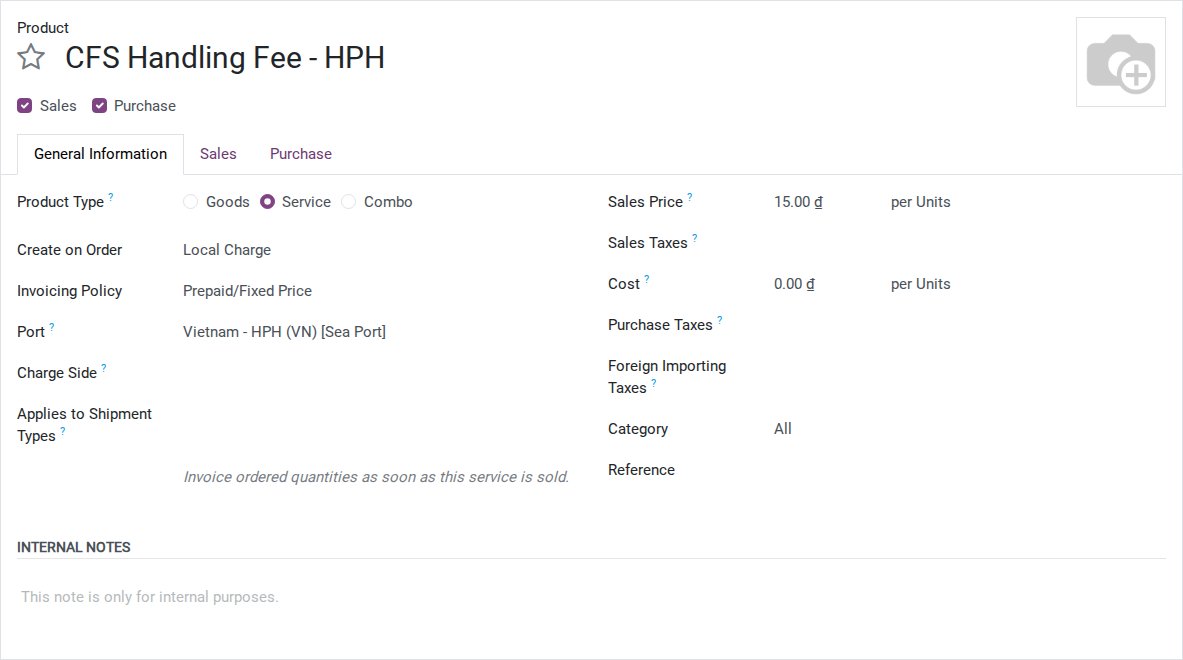
The form above leaves both fields empty. Set Applies to Shipment Types to the LCL shipment type, and Charge Side to Origin for a fee charged at the port of loading. With both fields empty, the quotation wizard adds the fee to every quotation through Hai Phong Port, including full container load quotations, where CFS handling does not apply, and you would have to delete the line by hand each time.
See also
Quote an LCL shipment by volume and weight - where this local charge prices the CFS handling line of an LCL quote.
Decide whether a local charge needs its own port
Option |
Use when |
What changes |
|---|---|---|
Set Port |
The charge arises at a specific port (THC, D/O fee, and similar) and you want the quotation wizard to add it |
The product name gains a port-code suffix; the quotation wizard adds it when that port is the POL or the POD and the Charge Side and Applies to Shipment Types you set (if any) match the quote; you need one product per port |
Leave Port empty |
The charge is the same everywhere and Sales adds it to the quote by hand (for example, a customs declaration fee) |
The name stays as entered; one product covers every shipment, but the quotation wizard never adds it |
Set Port only when this product should be generated for that specific port and automatically added by the quotation wizard when the port matches the POL or POD. Leave it empty when the charge is not location-specific or is added manually. Confirm the product behavior with Sales/Pricing before changing a shared catalog item.
Tip
The setup is correct when: with Port set to Hai Phong Port, the product name ends in HPH, and the FCL quotation wizard for Hai Phong Port to Port of Los Angeles adds it as an origin local charge (see Quote a full container load for sea export).
Known limitations
Step |
What Viindoo does today |
What you do instead |
|---|---|---|
Classify a freight service |
Nothing blocks changing Create on Order away from Freight Service or Local Charge after the product is already in use on quotations or shipments |
Re-check Create on Order yourself after any later edit to a freight or local charge product |
Troubleshooting
The local charge name does not gain the port code I expected
Symptom: After choosing Port and saving, the product name does not change, or it changes to an unexpected suffix.
Cause: The suffix comes from the port record’s Port Code field - if Port Code is
empty, Viindoo uses the port’s full name instead; if Port Code is a short code that is not the
UN/LOCODE you expected (as with Hai Phong Port, whose code is HPH rather than
VNHPH), the suffix will not match the code you assumed.
Fix:
Open the port’s record and check its Port Code before assigning it to a local charge.
Correct the port’s Port Code first if your team expects it to match a specific code, then re-open the local charge and re-save it.
A newly created freight service gets a name I did not type
Symptom: Leaving Name empty (or “/”) while creating a new freight product results in a system-generated name built from the shipment direction and route, such as the origin and destination joined by an arrow-style symbol.
Cause: Viindoo only fills the name automatically when it is left empty or as “/”; it builds the value from the product’s freight legs, shipment type and direction.
Fix: Type a clear name yourself when creating the product (for example, Ocean Freight - FCL) if you do not want the auto-generated one.
See also
Related articles