
Overtime to Compensatory Time Off Workflow
Compensatory time off is a policy that allows employees to accumulate time off based on the overtime they have worked. Instead of receiving overtime pay, they may convert those hours into compensatory time off to be used later.
Audience: HR officers and Time Off administrators who set up the conversion, and employees and managers who use it.
Requirements
This tutorial requires the installation of the following applications/modules:
Before carrying out the process of creating and approving a compensatory time off request, check the following information:
Employees labor contracts are in the Running stage.
Module Installation
To install Overtime - Compensatory Time Off, follow these steps:
Access Apps, use the search bar to search for the Overtime - Compensatory Time Off, then click Activate. When this module is activated, the system also installs the related modules when their parent modules are present:

Configuration
Go to . Two settings control the conversion:
Compensatory Time Off Type: the time off type that receives the converted hours. By default it is the Compensatory Days type.
Default Compensatory Leave Expiration Days: the number of days the converted time off stays valid, counted from the day it is allocated. Enter 0 for no expiration.

Users with Time Off Administrator rights can open to review the type that you selected.

Compensatory Time Off Request Workflow
The overall process from accumulating leave days to using them includes the following steps:
Employees request overtime and tick Compensatory Time Off instead of overtime pay.
The overtime request is approved by the manager.
The system allocates compensatory time off based on the actual overtime hours.
Employees take the time off from the allocation.
Employees submit an overtime request
When an employee works overtime on the system, the employee accesses and clicks Create Request, as described in Make Overtime Approval Requests.

In the Overtime tab, click Mass Registration. In the Massive Overtime Planning window, tick Compensatory Time Off so that the system records the overtime as compensatory leave instead of salary. The window works in the My Overtime Plan Only mode for an individual request:

or in the By Department mode for a team:

Note
Users who have at least the Team Approval access right in the Overtime access group can use the mass registration in the system.
Alternatively, users can create an overtime plan or make a mass schedule in advance, tick Compensatory Time Off on it, then use that plan to create an overtime approval request.

The Compensatory Time Off column of the list of overtime plans shows which plans are converted.

Click Submit to move the request from Draft to To Approve status.

Compensatory Overtime Approval
The approval or refusal of compensatory overtime requests is handled in the same way as the standard overtime approval process. Approvers review the overtime request details and approve, refuse, or cancel it according to company regulations.

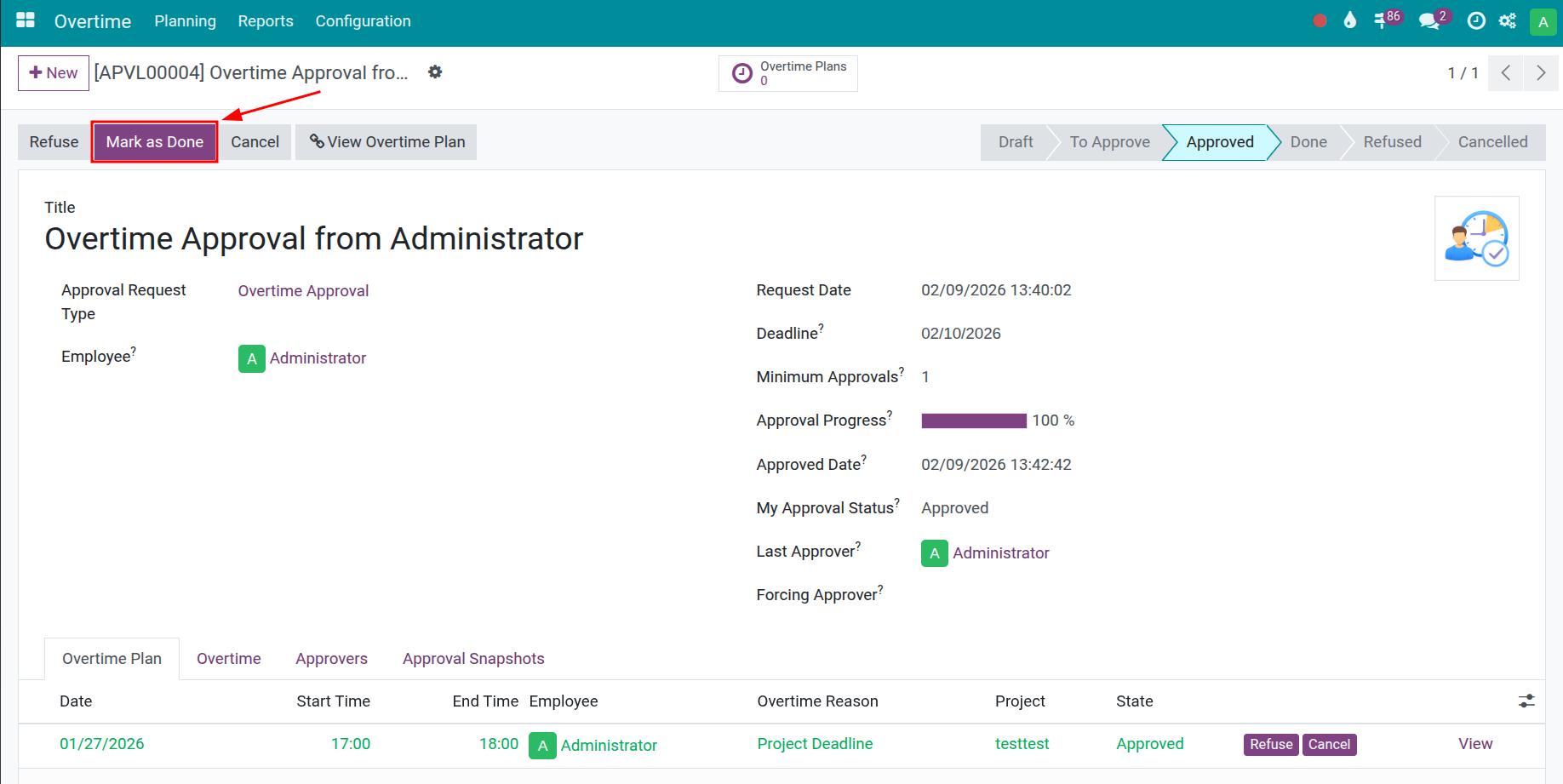
After the request is approved, click Mark as Done when the overtime has been carried out and checked.
See also
Tracking Compensatory Time Off Hours
After the overtime request is approved, the system automatically creates and validates a time off allocation for the employee. Its amount is the actual overtime hours divided by the daily working hours of the employee’s working schedule, and it expires after the number of days set in the settings. If the plan is changed so that the actual hours become 0, or Compensatory Time Off is unticked, the allocation is removed.
Employees can see their days in . Time Off officers see the allocations of all employees in , where the converted allocations are named after the overtime plan.
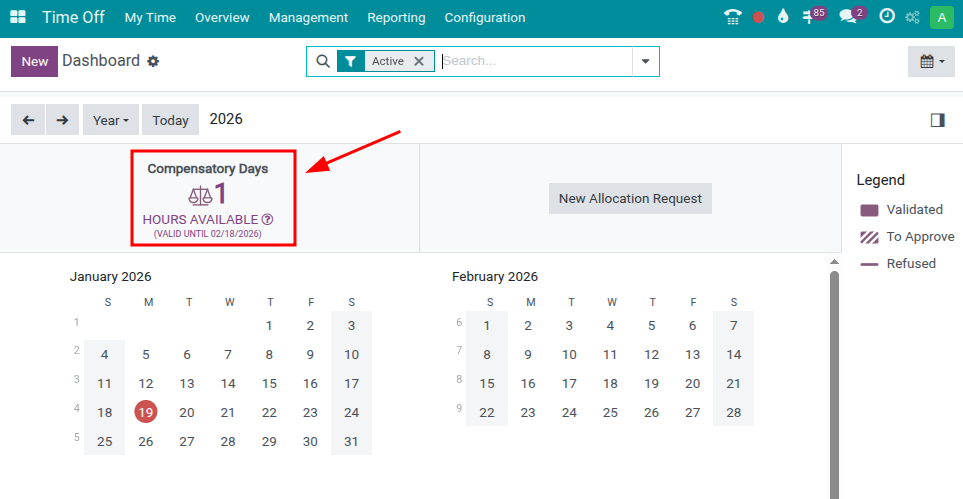
Open an allocation to see the details of the converted time off.

See also
Related article
Optional modules