
How to get started with the Internet of Things app
Internet Of Things (IoT) connects the devices plugged into a Viindoo IoT Box - receipt printers, label printers, office printers, barcode scanners, scales, footswitches and screens - to Viindoo, so that the apps that need this hardware (Point of Sale, Manufacturing, Quality and the Shop Floor screen) can use it.
This app is where people look after the hardware: they connect a box to the database with a one-time pairing code, see which boxes and devices are connected, name them, test them, read what each box reports about itself and decide which integrations are switched on. The people who use the hardware every day - a cashier, a manufacturing operator - use it from their own app and need no IoT access right.
The Viindoo IoT Box works with Viindoo Cloud, or your own Viindoo server.
Who |
The IoT Administrator activates the app, gives the access rights and chooses the integrations. Activating an app needs the Administrator (Settings) access right. |
App |
Who uses this app
Role |
What they do |
Access right to assign |
|---|---|---|
Maintenance / IT Technician |
Checks that boxes and devices are connected, opens a box’s page and reads its logs. |
Internet of Things (IoT): User |
IoT Integrator |
Sets up and pairs boxes, names boxes and devices, tests devices and pairs a box again. |
Internet of Things (IoT): IoT Box Creator |
IoT Administrator |
Configures the app (log retention, action timeout, integrations) and is the only role that reads a box’s settings code. |
Internet of Things (IoT): Administrator |
Each right includes the one above it in the table: an IoT Box Creator can do everything a User can, and an Administrator can do everything an IoT Box Creator can.
How do I activate the Internet of Things app?
Open Apps.
Search for
Internet Of Things.Click Activate.
The integration apps (Point of Sale, Manufacturing, Quality, Shop Floor) are switched on separately, from the Settings page described below.
How do I give the IoT access rights?
Open Settings ‣ Users & Companies ‣ Users and open the person.
On the Access Rights tab, find Internet of Things (IoT) in the Other column.
Choose one of the three levels the list offers: User, IoT Box Creator or Administrator.
Save.
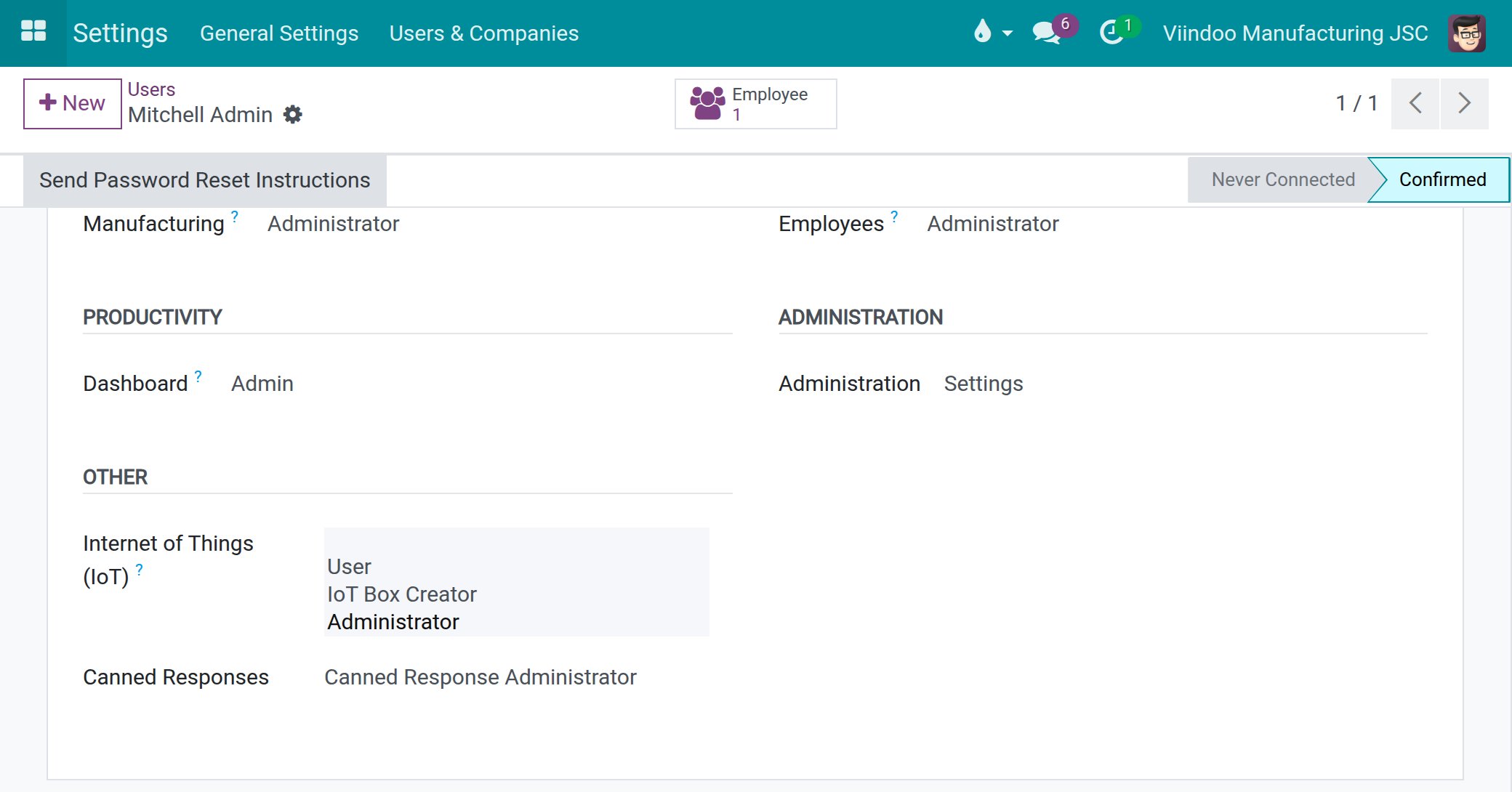
Give these rights to the people who look after the hardware. A cashier, a manufacturing operator or a quality inspector needs none of them: they use the hardware from their own app once a box is paired and its devices are assigned.
Which settings does the app have?
Open IoT ‣ Configuration ‣ Settings (Administrator only).
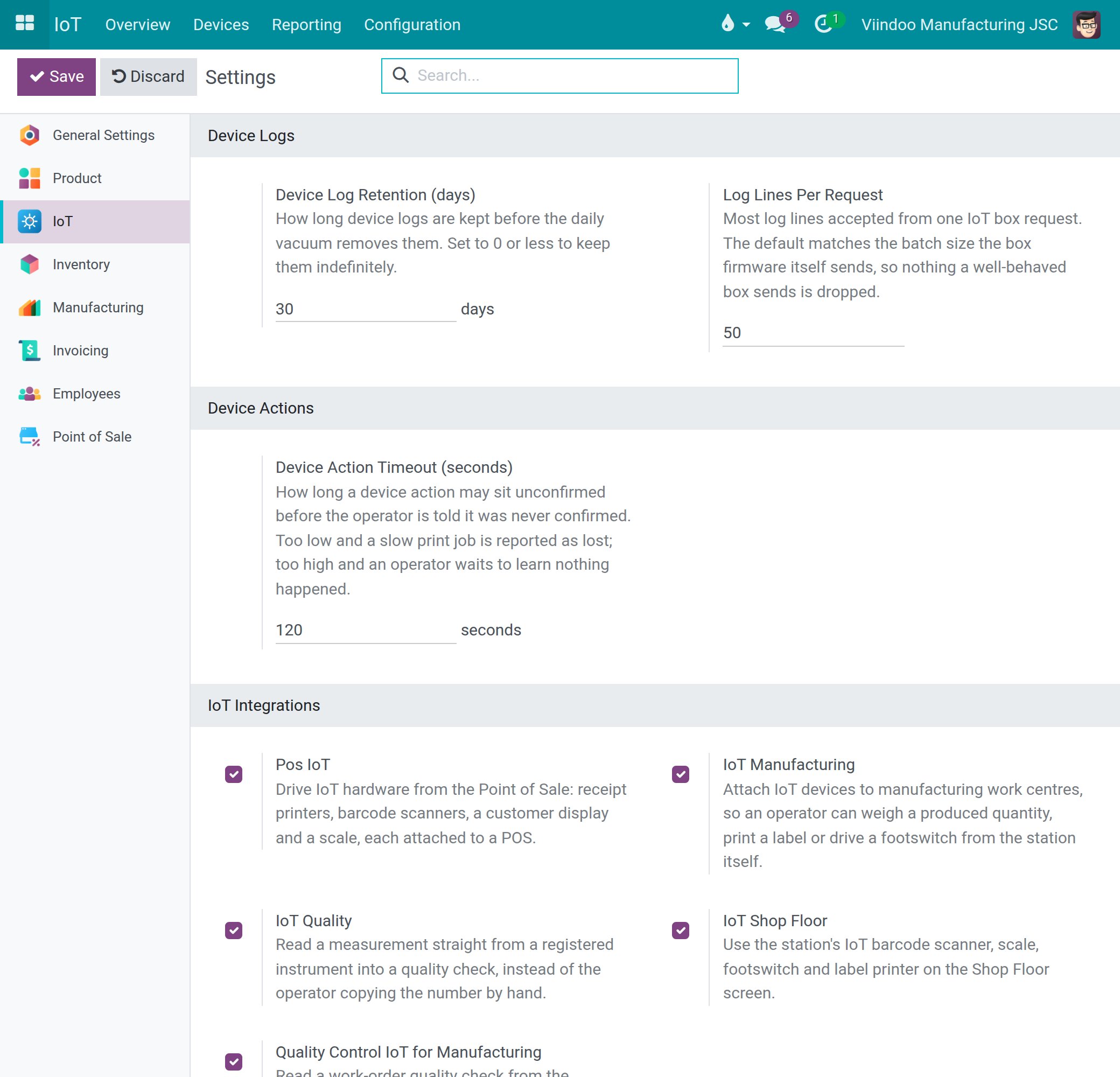
Device Log Retention (days) - how long device logs are kept before the daily cleanup removes them. Set 0 or less to keep them indefinitely. The default is 30 days.
Log Lines Per Request - the most log lines accepted from one request of an IoT box. The default is 50.
Device Action Timeout (seconds) - how long a device action (a print job, for example) may stay unconfirmed before the operator is told it was never confirmed. Too low, and a slow job is reported as lost; too high, and the operator waits without an answer. The default is 120 seconds.
IoT Integrations - switch on the integration apps: Pos IoT, IoT Manufacturing, IoT Quality, IoT Shop Floor and Quality Control IoT for Manufacturing. A row shows a checkbox when the app is available on this database, or a Purchase or Learn more link when it is not. Quality Control IoT for Manufacturing installs itself once IoT Manufacturing and IoT Quality are both present; untick it here if you do not want it.
What are the steps from a new box to a working device?
What you need before you set up an IoT box: the board, the card, the power supply, the devices and the network the box needs.
How to download, check and write the IoT box image: download the box software, check it and write it to the card.
How to start the IoT box and connect it to your network: start the box, connect it to your network and open its page.
How to connect an IoT box to Viindoo: pair the box with your database and give it a name.
How to connect and test devices on an IoT box: plug in the devices, test them and make each browser reach the box.
Use IoT devices in Viindoo apps: assign the devices in Point of Sale, Manufacturing, the Shop Floor and Quality.
Common errors
Problem |
What to do |
|---|---|
A row on Settings shows Purchase or Learn more. |
That app is not available on this database yet, so there is nothing to switch on. |
A cashier or a manufacturing operator asks for an IoT access right. |
They need none. They use the hardware from their own app once the box is paired and its devices are assigned. |
Next steps
What you need before you set up an IoT box: check what you need before you buy a box.
How to monitor and maintain IoT boxes: watch boxes and devices once they are running.