
How to create leads from the contact form of your website
By default, the Contact Us form of your website only sends you an email. In the website editor, set the form’s Action to Create an Opportunity: every request a visitor sends then creates a lead (or an opportunity, if you do not use leads) in CRM, with the visitor’s name, company, email, phone and question, and the Medium Website so you can measure this channel.
Who |
A website designer (to change the form); salespeople follow up the leads. |
App |
Website and CRM |
Before you start
Install the Website and CRM apps (see How to install, upgrade and uninstall apps and modules). Installing both also installs the module that links them.
Your website is published.
How do I make the contact form create leads?
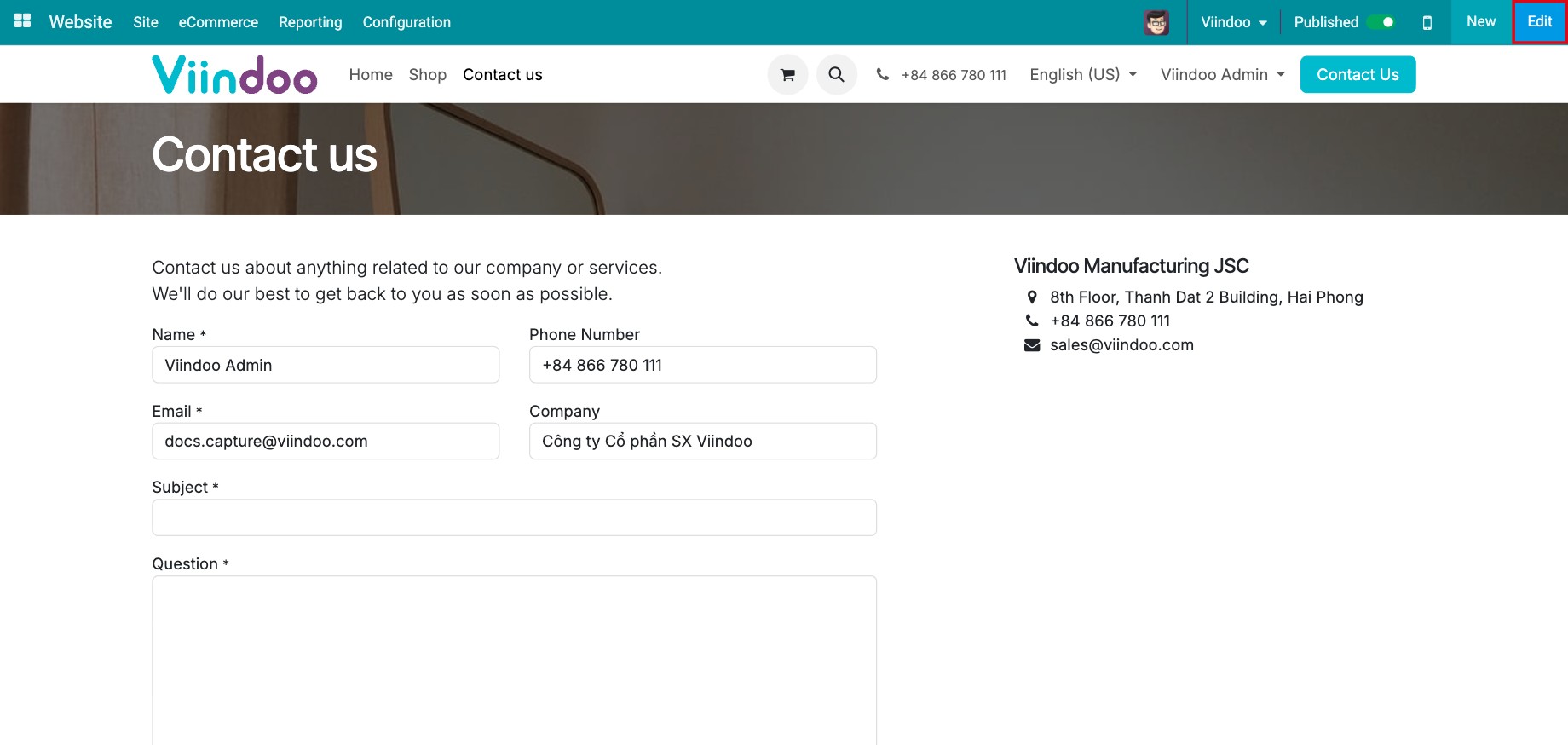
On your website, open the Contact Us page (or any page with a form) and click Edit.
![Contact Us page of a Viindoo website with name, phone, email, company, subject and question fields]()
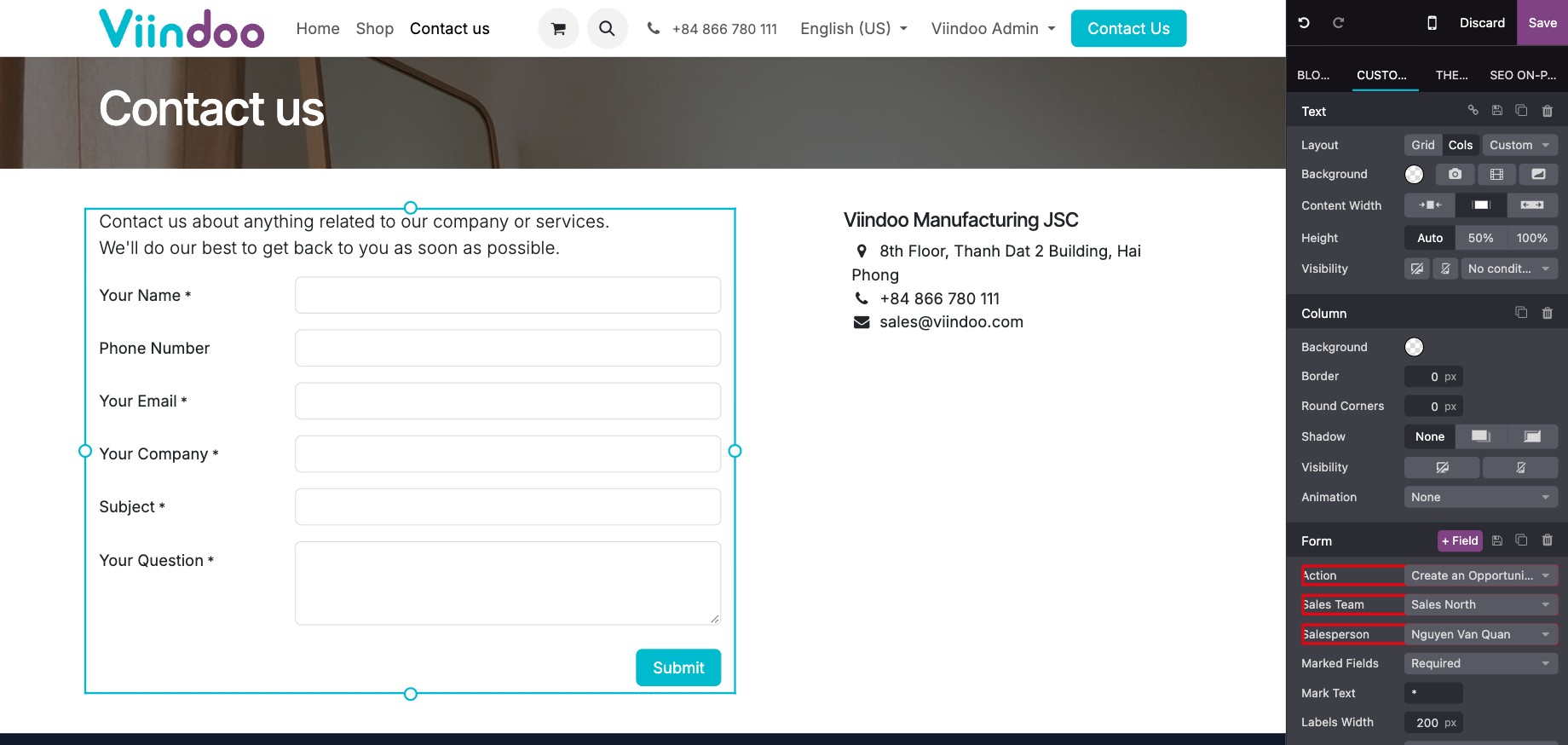
Click inside the form. In the right panel, change Action from Send an E-mail to Create an Opportunity.
Choose the Sales Team and Salesperson who receive the requests.
![Form options in the website editor with the Action Create an Opportunity]()
Click Save.
Each request is then created:
as a lead if the chosen sales team uses Leads, otherwise as an opportunity in the first stage;
for the sales team and salesperson chosen in step 3; without them, it is not assigned;
with Medium Website.
To add or remove fields on the form, see How to create and design a new webpage on your Website.
What does the salesperson see?
A visitor fills in the form and clicks Submit:
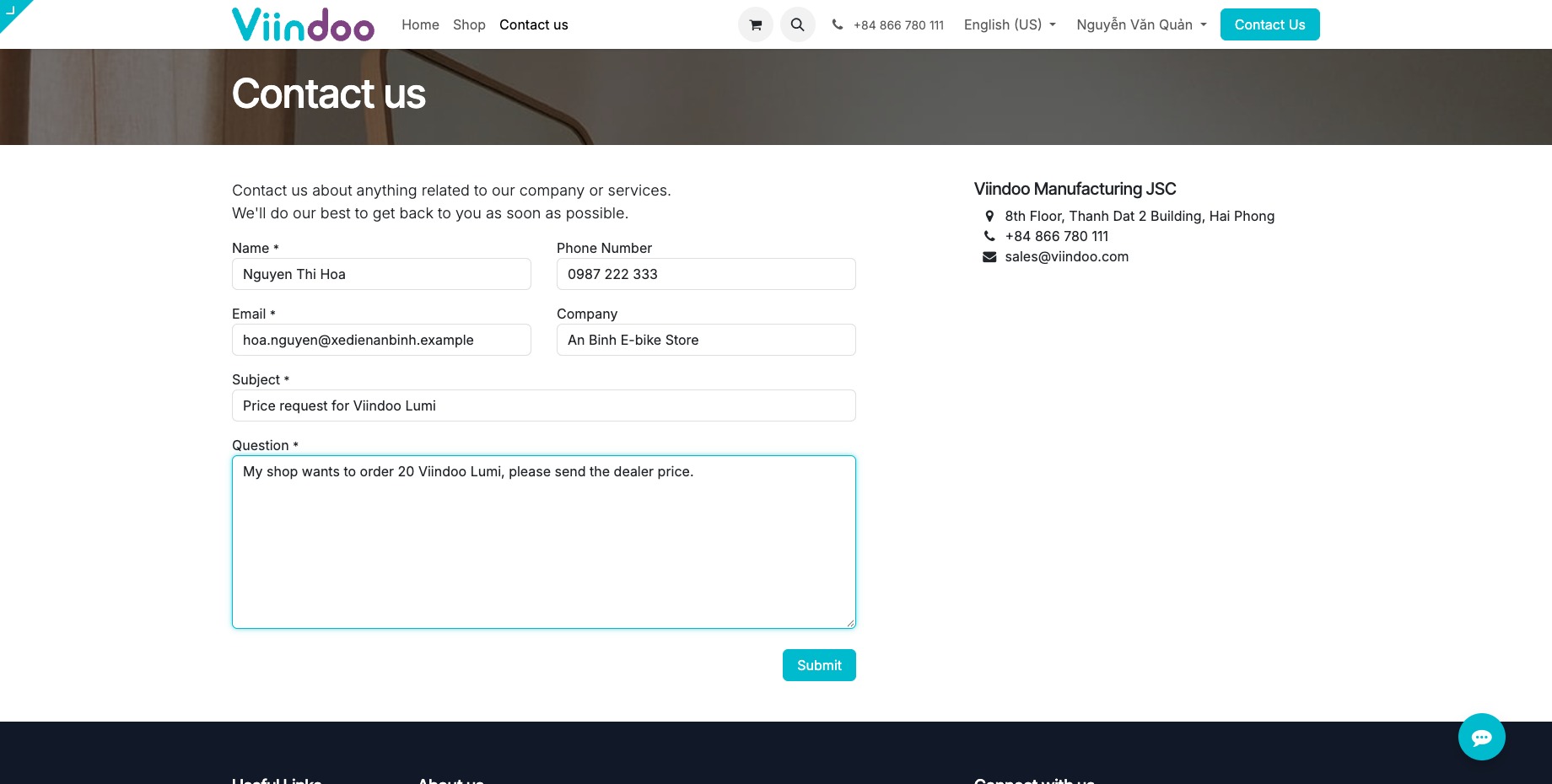
The new lead appears in CRM ‣ Leads (or in My Pipeline):
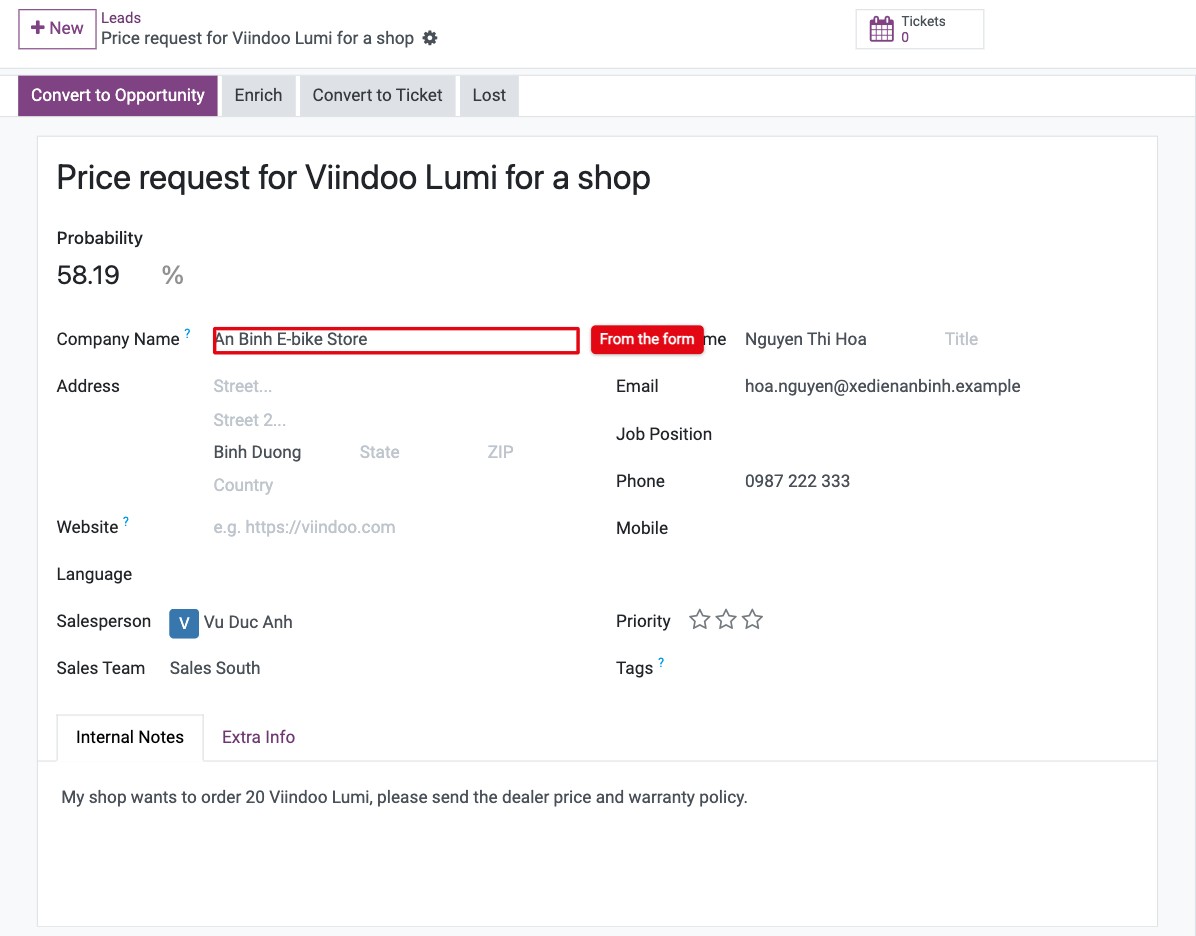
The subject is the title; name, company, email and phone are filled in.
The visitor’s question is in the Internal Notes tab.
Medium is Website in the Extra Info tab. To also fill Campaign and Source, share links made with the link tracker, see How to track your clicks and visitors with Link Trackers.
If Viindoo recognizes the visitor, a Page views button shows the pages they visited before writing to you, and Similar Leads shows other requests from the same person.
Common errors
Problem |
What to do |
|---|---|
The form sends an email but no lead is created. |
The form Action is still Send an E-mail (the default). Change it to Create an Opportunity. |
Website leads are not assigned to anyone. |
Choose the Sales Team and Salesperson in the form options (step 3). |
The visitor’s question is missing. |
The form field was renamed or removed. Check that the question field is still mapped to the lead description in the form options. |
Next steps
How to record a lead or an opportunity: qualify the lead.
How to create a lead from a live chat conversation: answer visitors in real time.