
How to set up employee document types
Document types group the documents of employees by purpose (National ID, Passport, Labor Contract, Social Security Card, and so on). Define them in Employees > Configuration > Document Type, with who keeps the original and how many days before the expiry date the system sends a notification.
Who does this |
Application |
|---|---|
A user with the Officer: Manage all employees access level or higher. Only an Administrator can delete a document type. |
Employees |
Requirements
This tutorial requires the installation of the following applications/modules:
Installation
Open the Viindoo Apps, search for Employee Documents, then click Activate. When the module is already installed, its card has no Activate button, as in the example below.
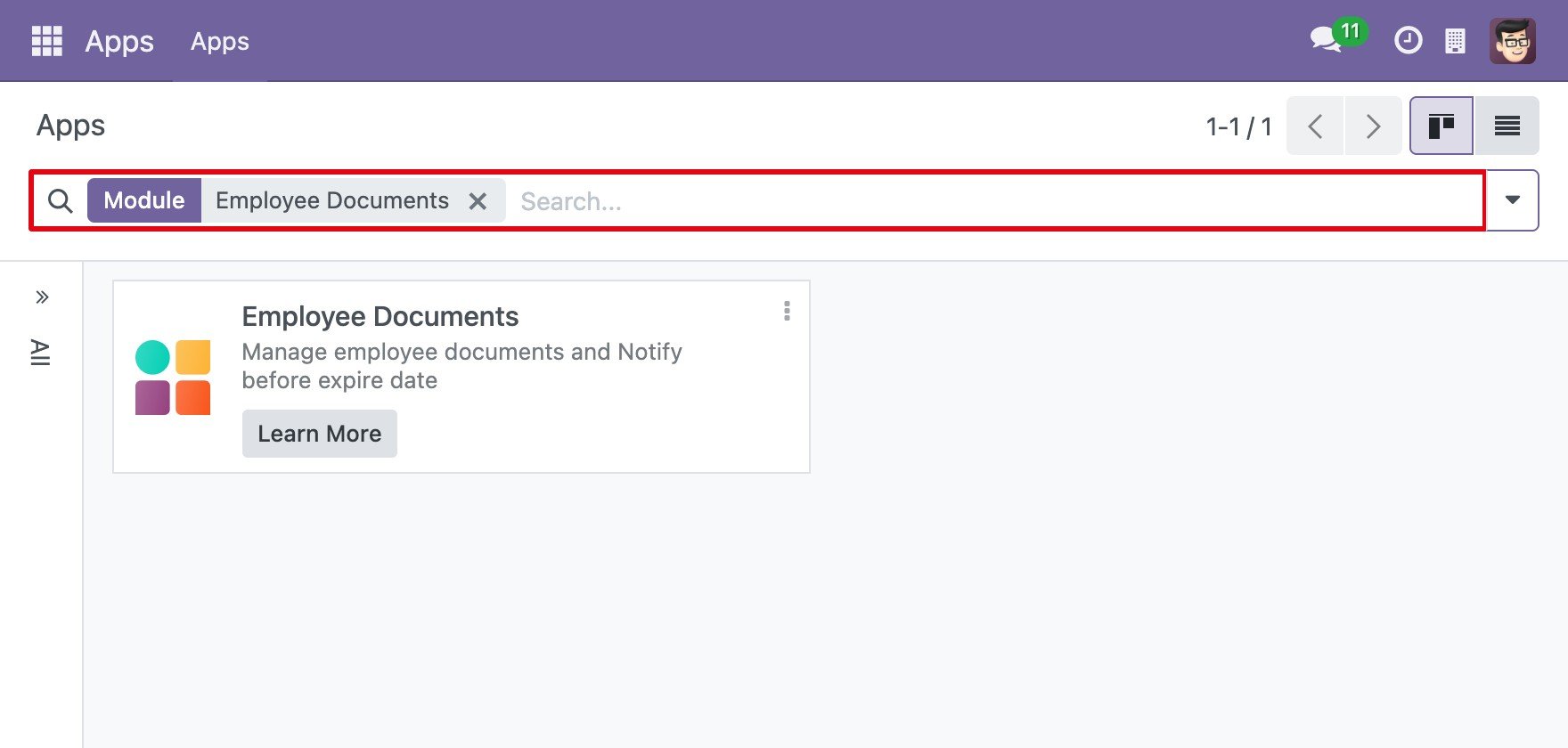
Create employee document type
How do I create a document type?
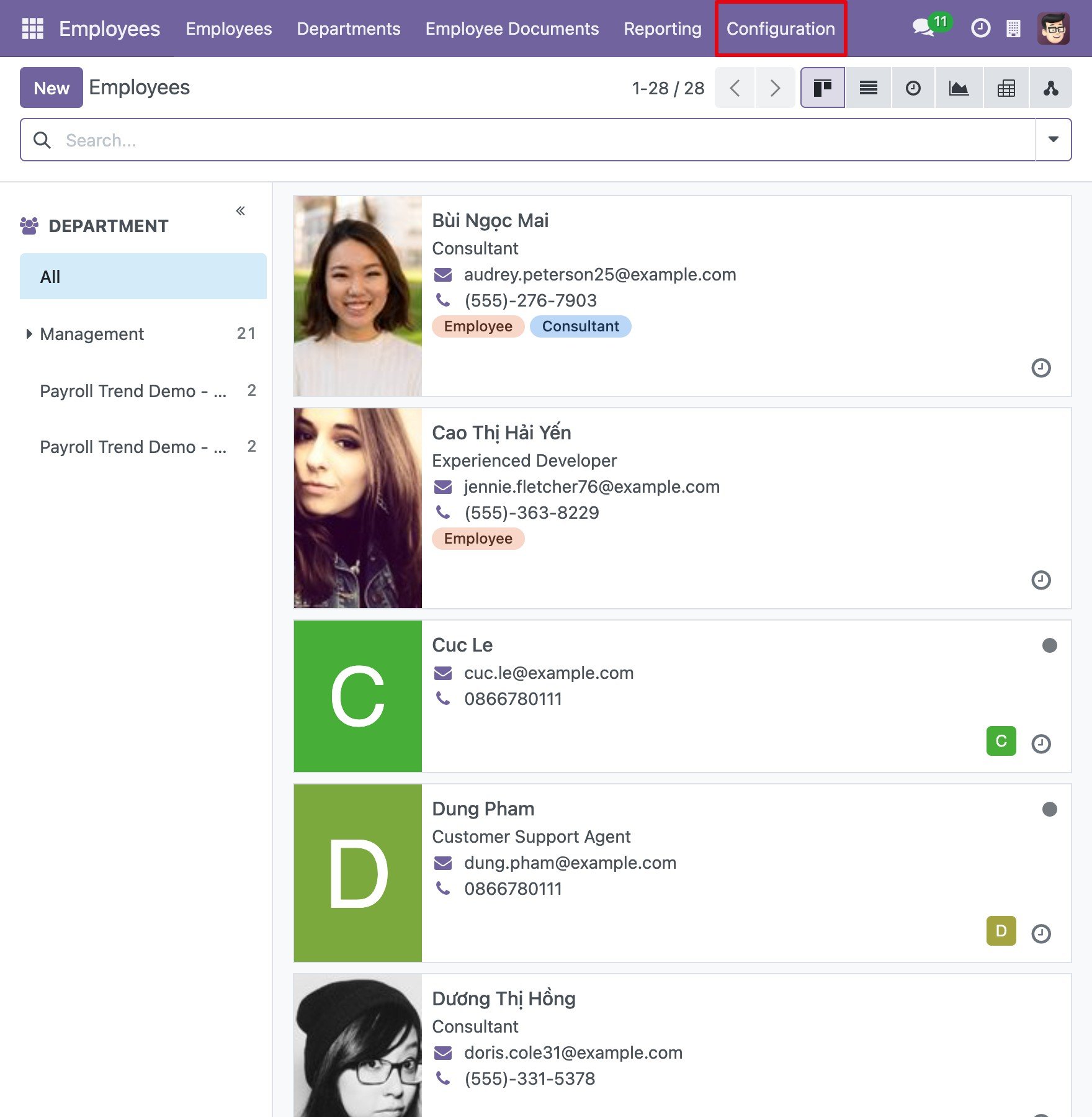
Go to the Employees application.
![The Employees application menu]()
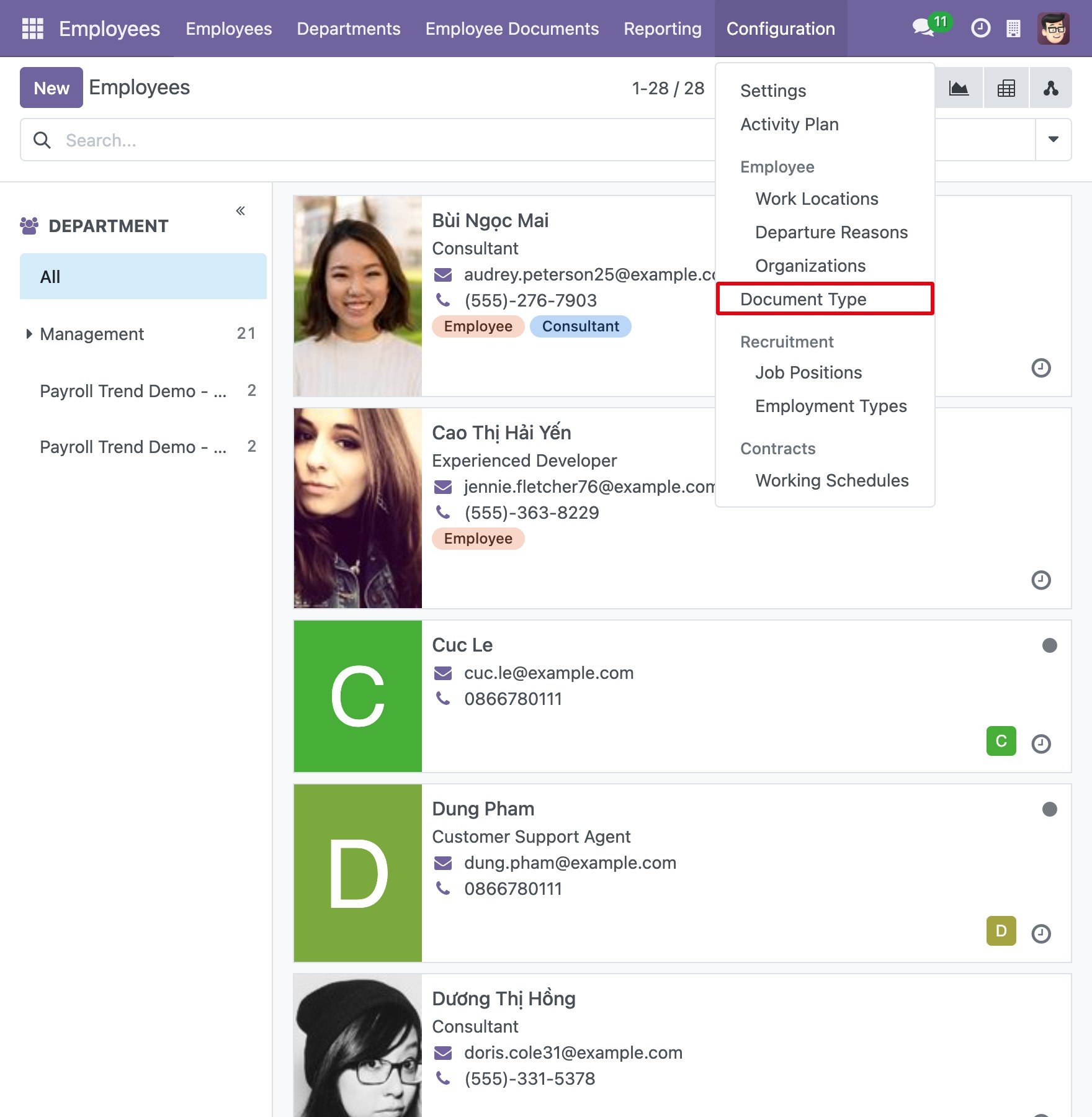
Open .
![The Document Type entry in the Configuration menu of Employees]()
Four types already exist: National ID, Passport, Labor Contract and Social Security Card. Click New to create another one, or click a type to edit it.
![The list of employee document types]()
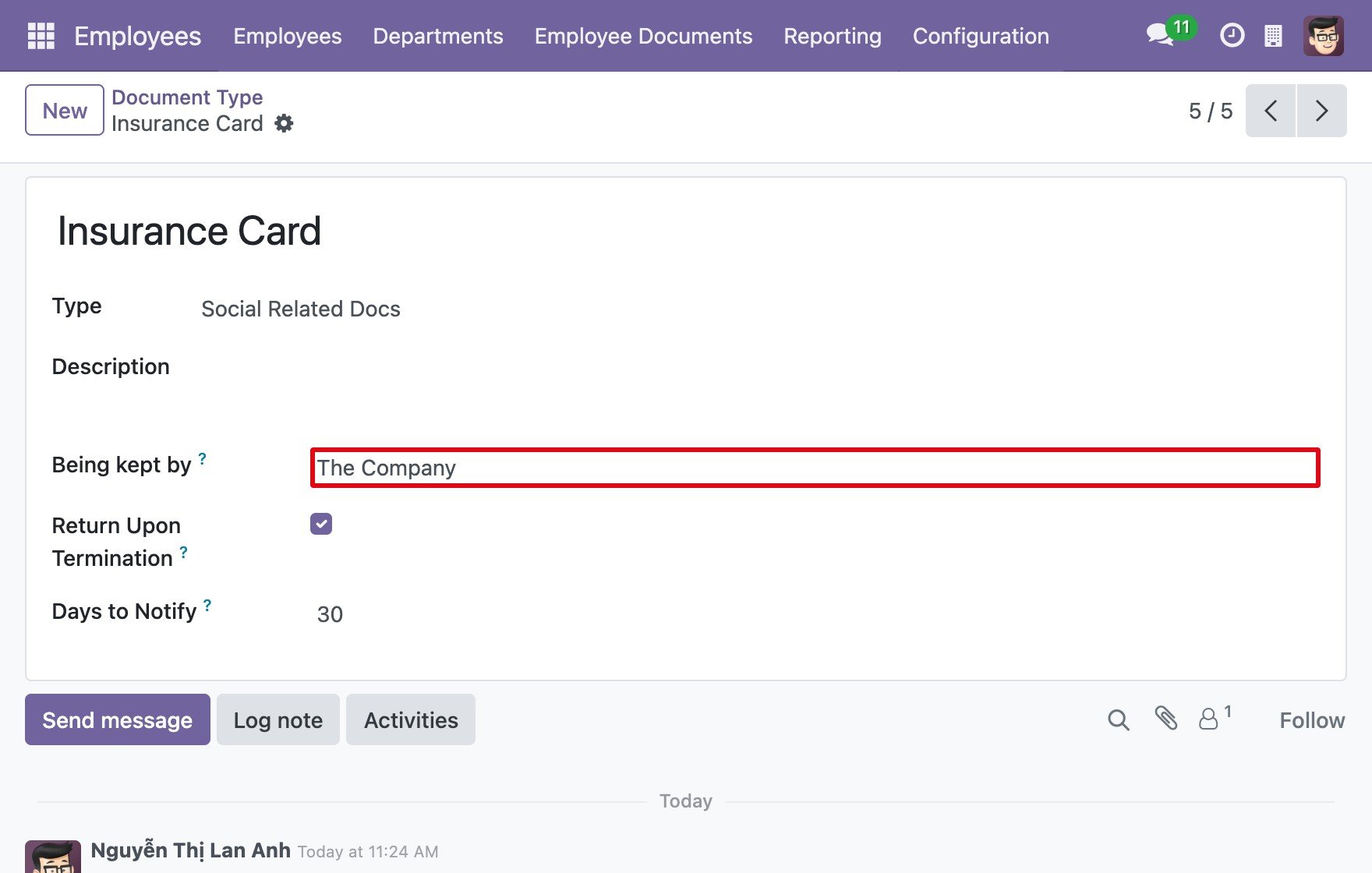
Fill in the form.
![The employee document type form]()
Save.

Important fields
Field |
Effect |
If left empty or wrong |
|---|---|---|
Name (title of the form) |
Name of the document type, for example Insurance Card. |
The type cannot be saved. |
Type |
Purpose of the document: National ID, Passport, Labor Contract, Social Related Docs or Others. |
Defaults to National ID. |
Description |
Free text description. |
Nothing is shown. |
Being kept by |
Who holds the original: the employee or the company. |
Defaults to the employee. |
Return Upon Termination |
Shown only when the company keeps the document. When ticked, the company has to give the original back to the employee when they leave. |
Not ticked: the original is not flagged for return. |
Days to Notify |
How many days before the expiry date a notification is sent. The default is 7 days. |
Must be filled; the default applies. |
If the employee keeps the document, Return Upon Termination is hidden and cannot be ticked.
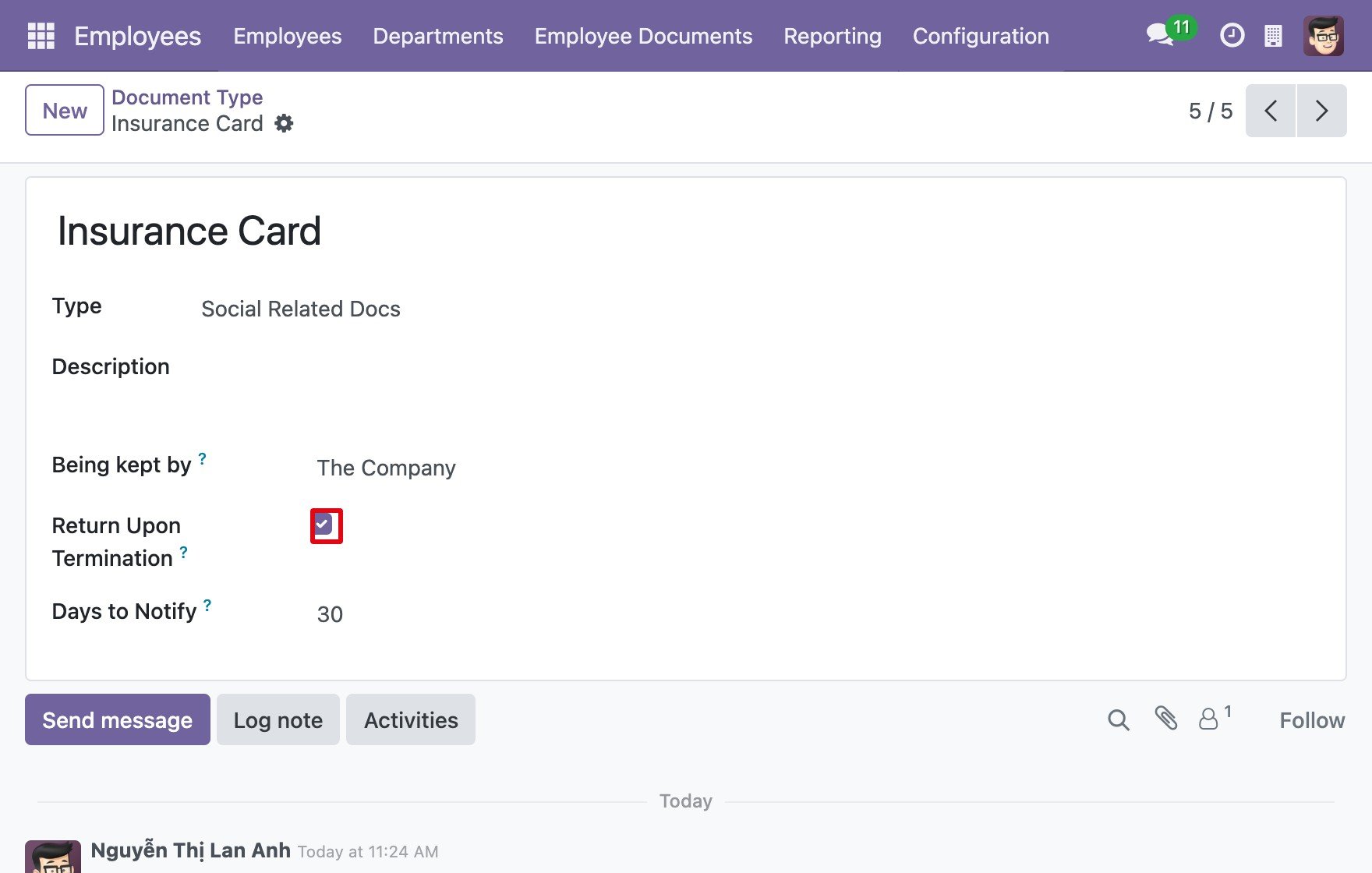
Expected result
The new type can be chosen when you create an employee document.
Common problems
Problem |
Cause |
What to do |
|---|---|---|
The Document Type menu is missing. |
Employee Documents is not installed, or the user cannot open Configuration. |
Install the module and grant the Officer: Manage all employees level. |
Return Upon Termination is not shown. |
Being kept by is set to the employee. |
Set Being kept by to the company. |
See also
Related article
Optional module