
Application of BoMs in Viindoo Sales
With the Bills of Material Type Kit, you can configure various components for a product kit to sell later on. This means that when a sales order is confirmed, the system will automatically generate a delivery slip containing all the components of the product kit.
Requirements
This tutorial requires the installation of the following applications/modules:
Sales - the kit is sold on a sales order
Bills of Materials configuration
Configure a product kit
Go to Manufacturing > Products > Products, press New to create a new product.
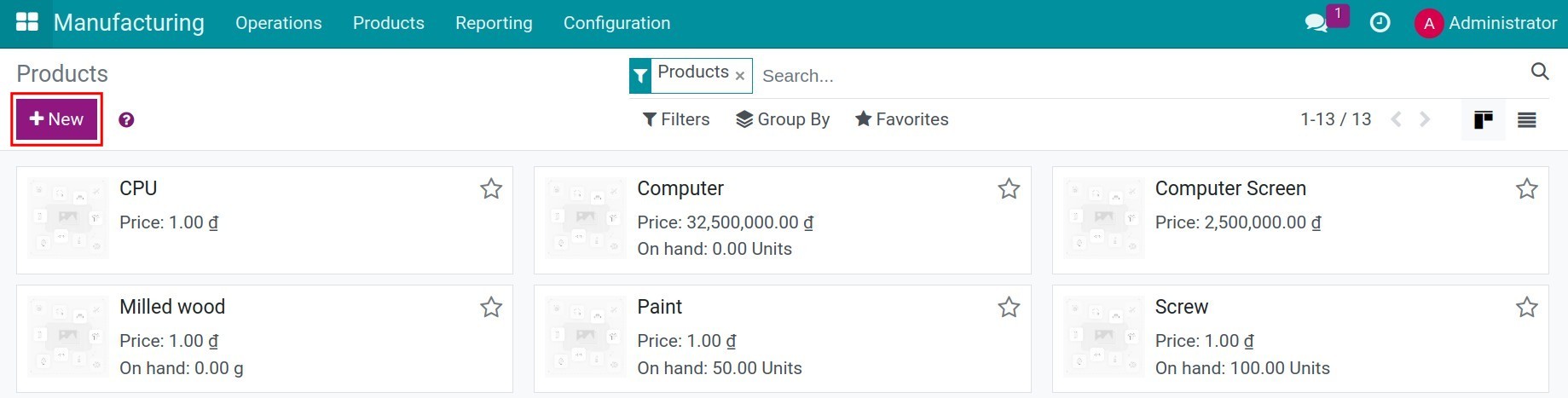
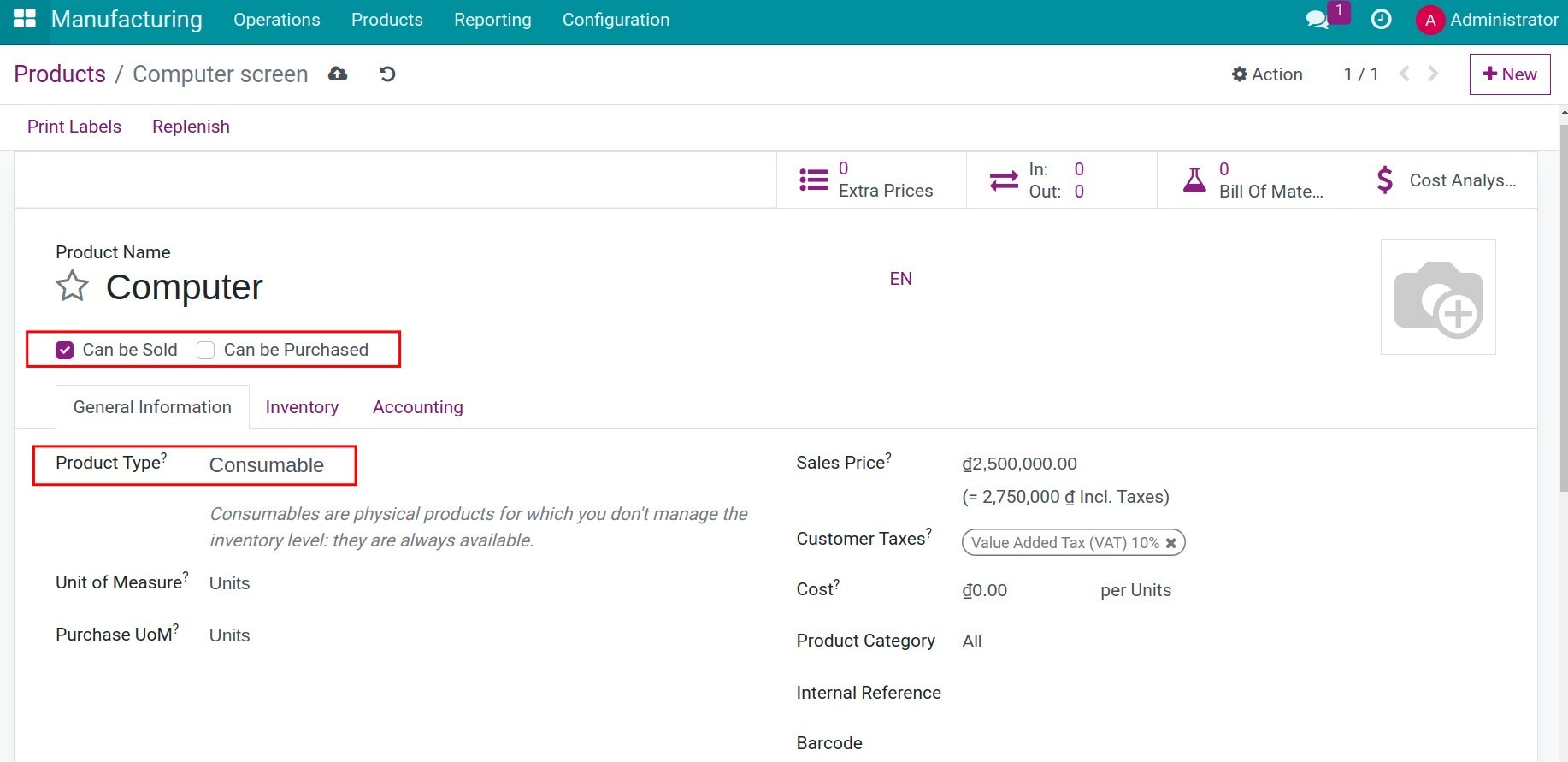
On the product form, configure the following information:
Only select Sales, do not select Purchase since the given product will not be purchased.
On the General Information tab (see How to create a new product):
Product Type: select Goods. You do not need to enable Track Inventory for the kit itself: the stock is tracked on its components.
Note
A kit is not manufactured, so you do not need to enable the Manufacture route on the product kit.
Then press Save button to record the configuration.
Configure components of the product
You can create components for the product kit following instruction in the Step to create a new product article.
Configure BoM Kit
Navigate to Manufacturing > Products > Bills of Materials, and select New to create a new Bill of Materials.
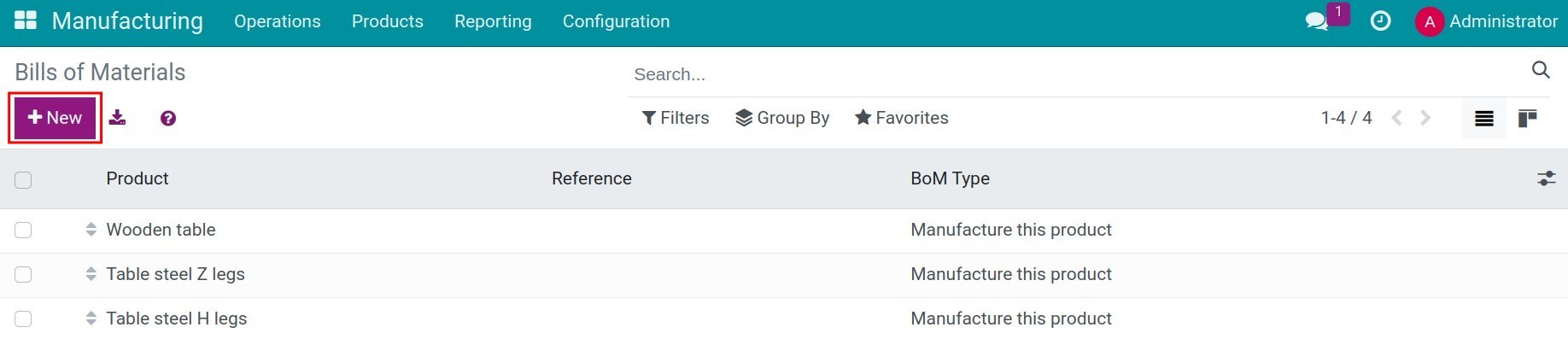
From here, you can configure all the information related to the BoM:
Product: select the created product in the previous step, which will be managed as a kit;
Quantity: the quantity of the mentioned product;
BoM Type: select Kit;
Components Tab: press Add a line to add the components to your BoM Kit;
Component: add products that will be parts of the BoM Kit;
Standard Quantity: components quantity.
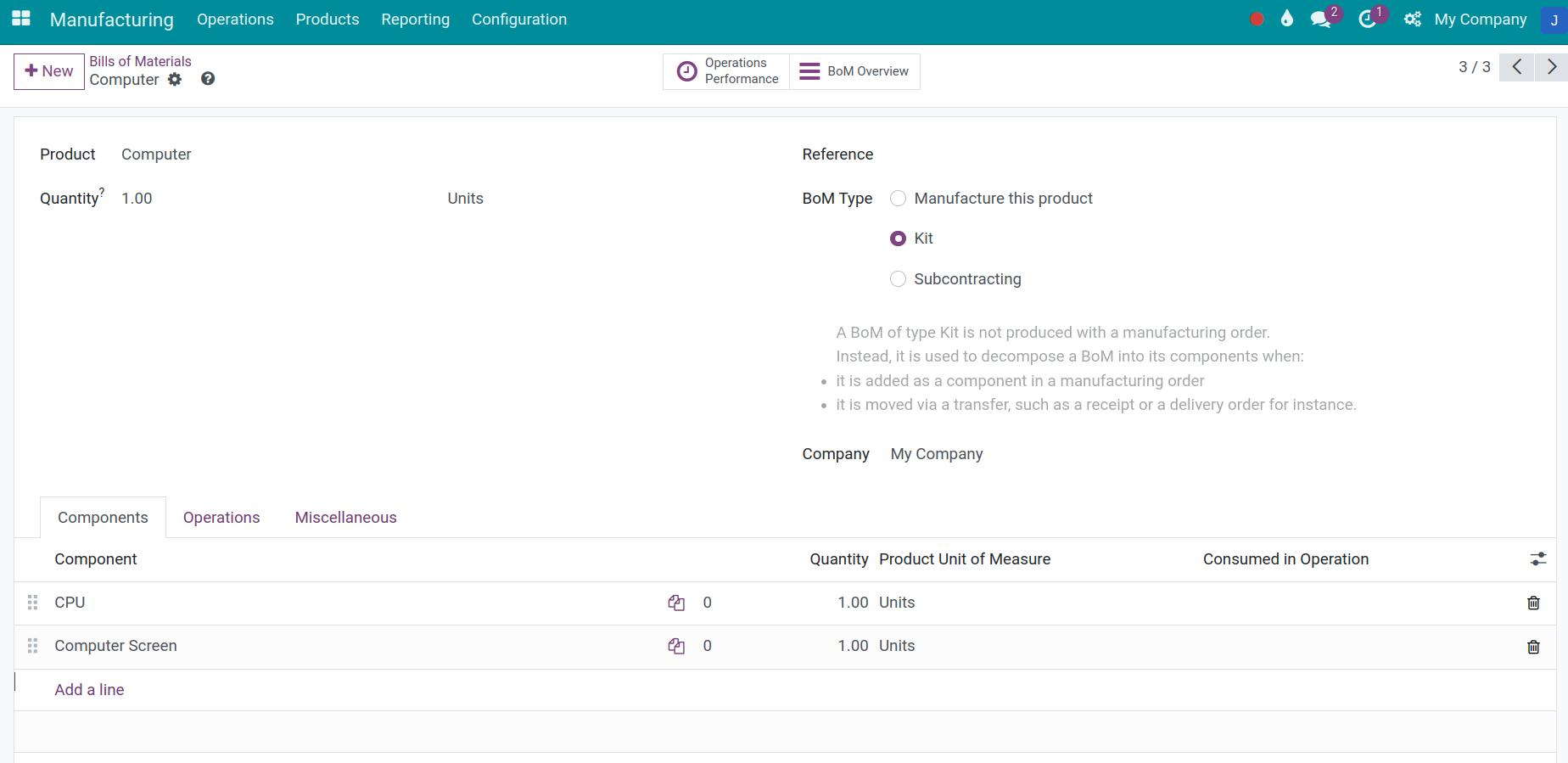
Use the default settings for the rest of the configuration then press Save to finish the BoM creation.
Selling product kit
Navigate to Sales > Orders > Quotations to create a new orders for the product kit:
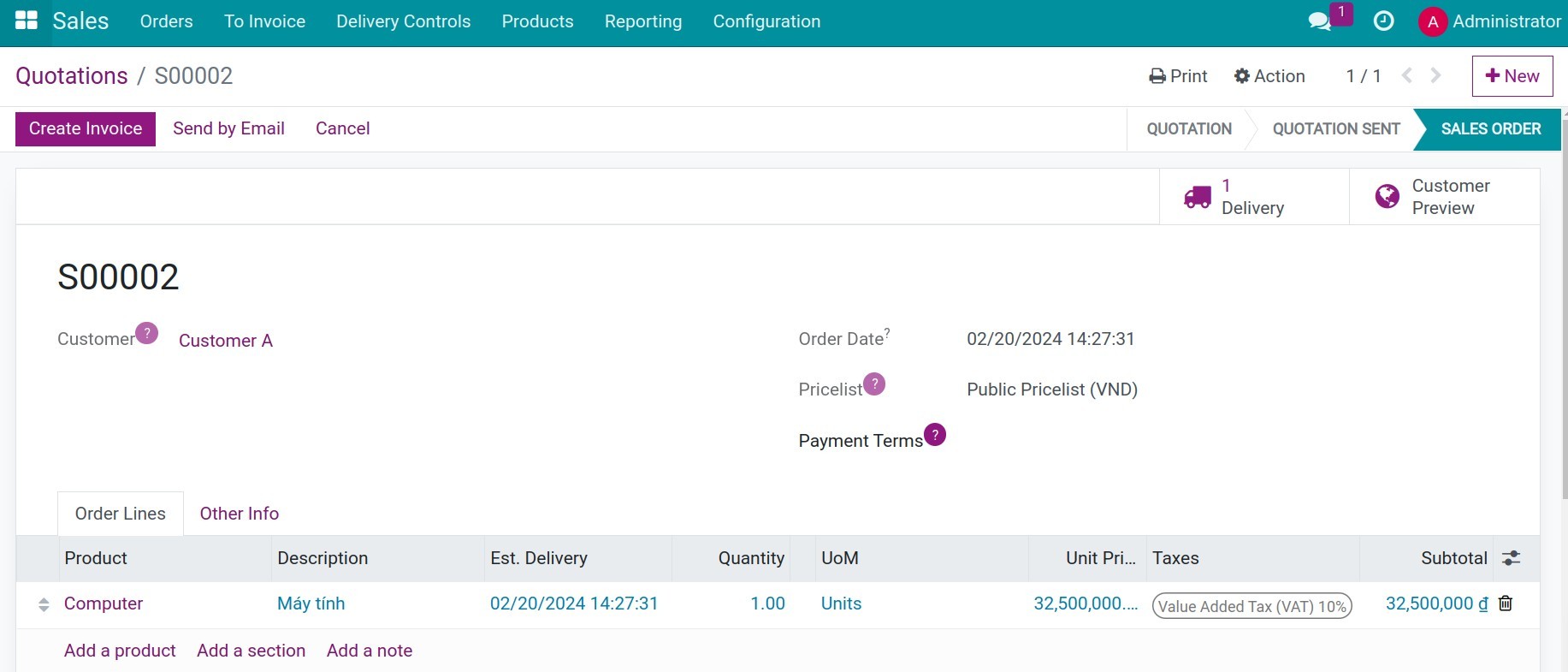
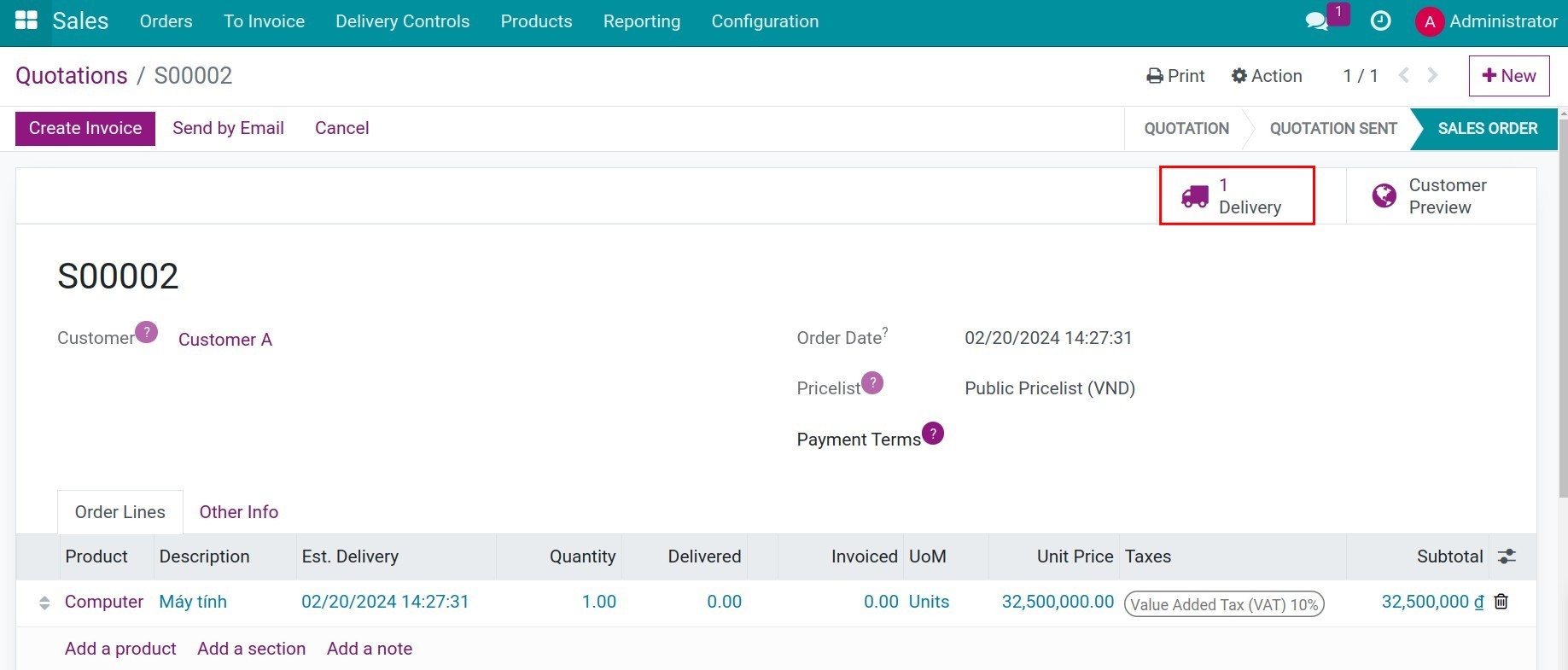
Once the sales order is confirmed, a delivery slip is generated and displayed on the Delivery smart button at the top of the sales order.
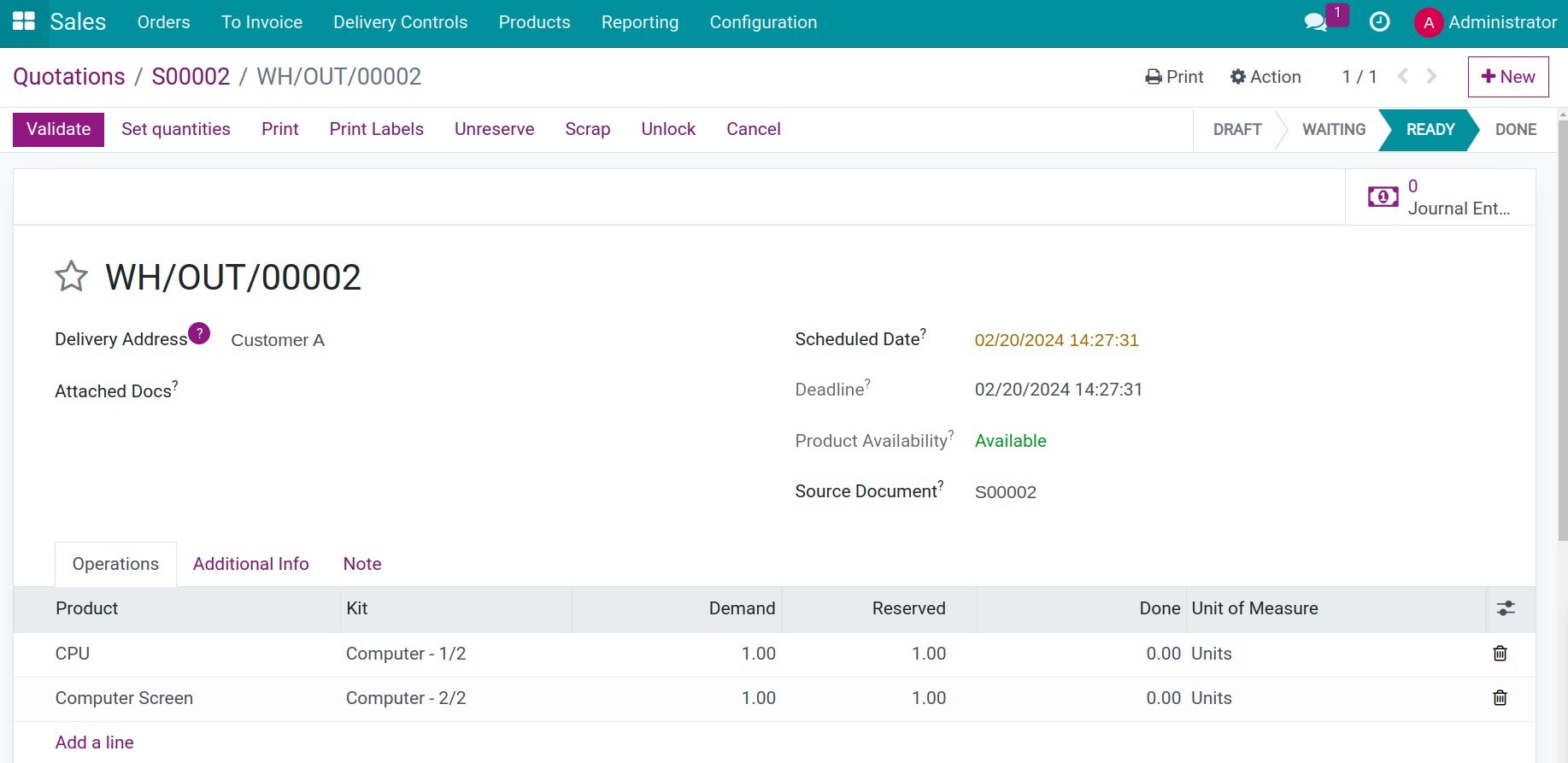
On this delivery slip, you can see the components along with the respective quantities as configured previously on the BoM.
See also
Related article
Optional module