
How to transfer an employee
You transfer an employee to another department or job position with the Employee Transfer button on the employee form. The system records the transfer, updates the employee, creates a draft contract addendum with the new department and job position, and splits the salary from the transfer date. This guide shows each step and what you have to check afterwards.
Who can transfer an employee?
Users whose access right for Employees is Officer: Manage all employees or Administrator can transfer employees and confirm the addendum.
Before you start
Create the departments and job positions the employee moves to.
Make sure the employee has a running contract that started before the transfer date. Without it, the transfer is recorded but no addendum is created.
How to transfer an employee?
Go to Employees > Employees and open the employee.
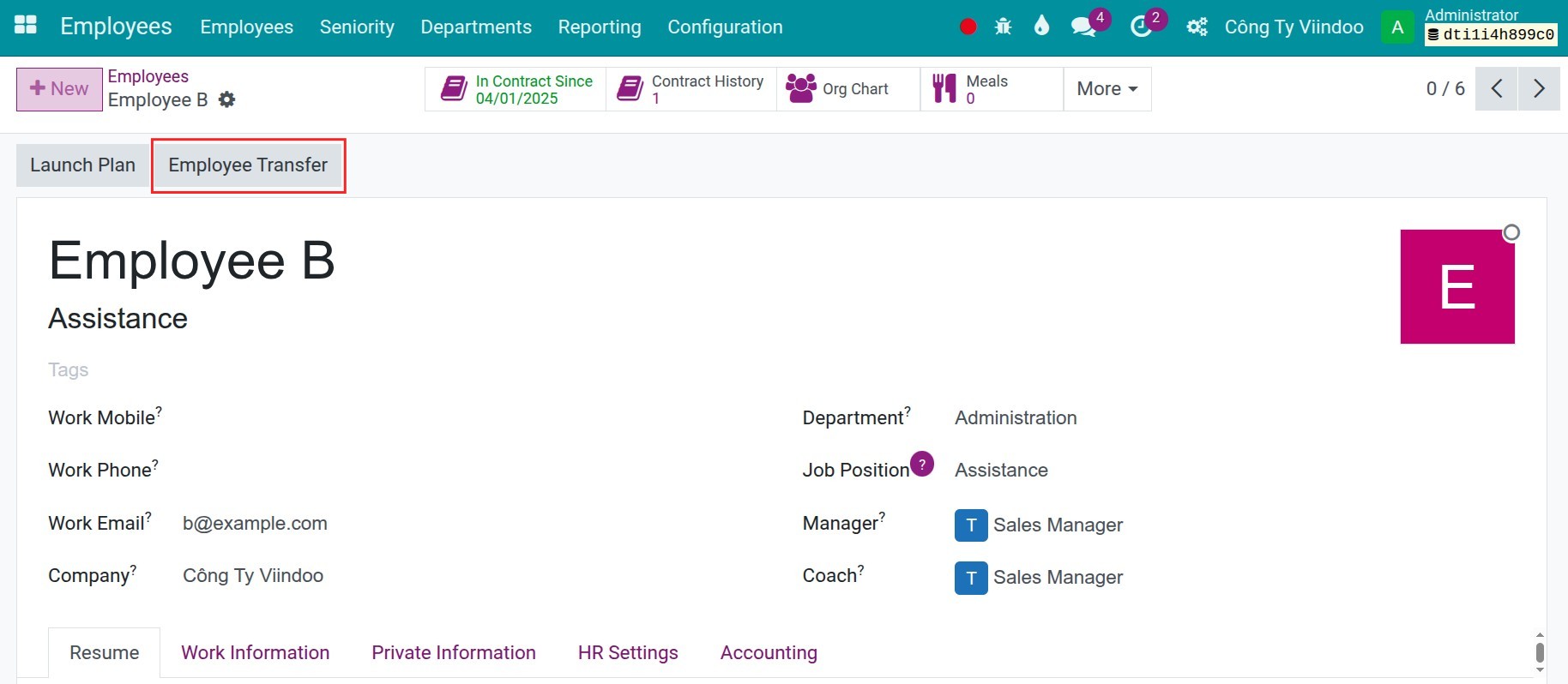
Click Employee Transfer.
![The Employee Transfer button on the employee form]()
Fill in the transfer information, then click Confirm.
![The Transfer information dialog]()
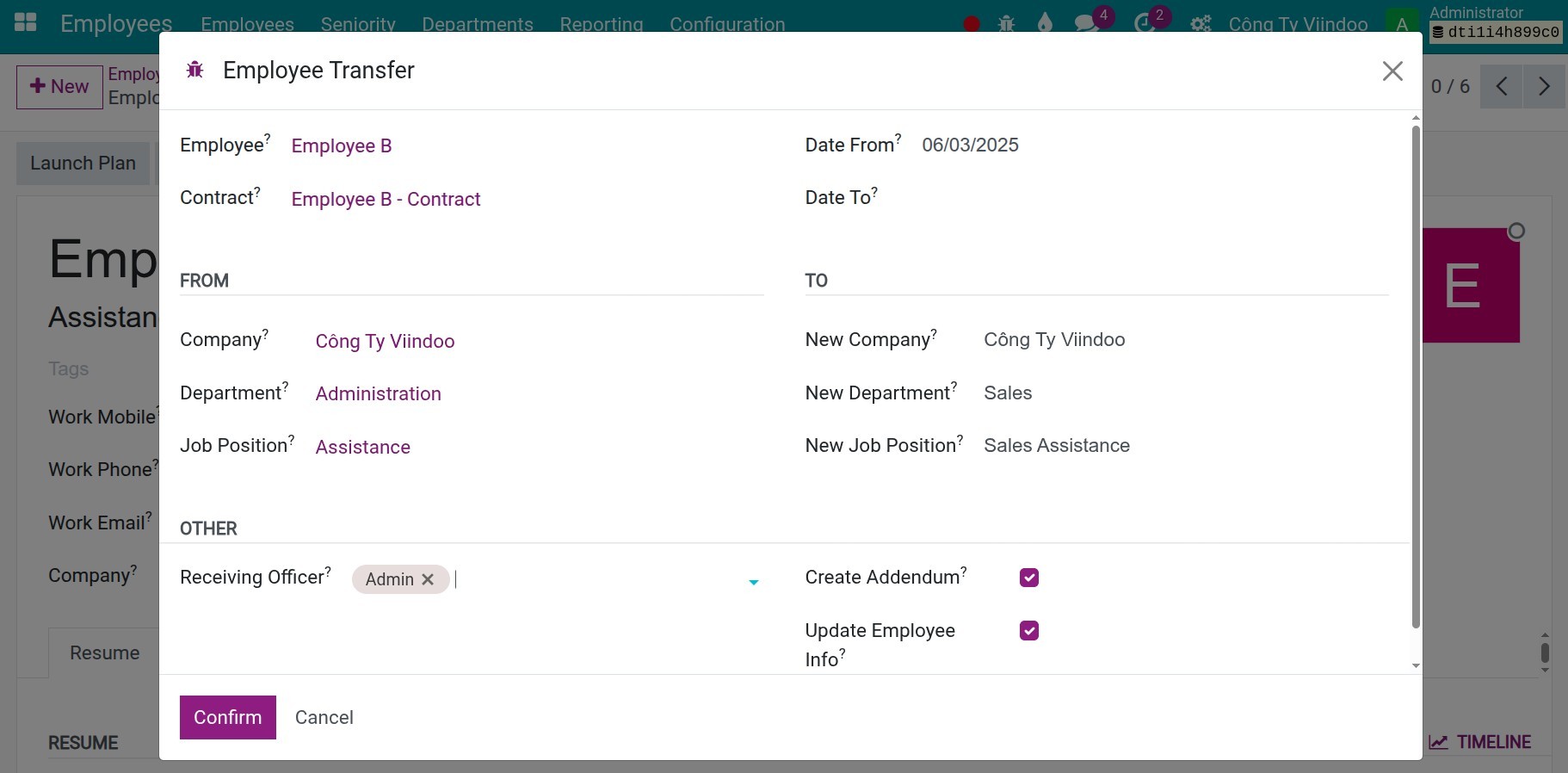
Field |
What to enter |
|---|---|
Date From |
The transfer start date. It is today by default. |
Date To |
The transfer end date. Leave it blank for a long-term or indefinite transfer. |
New Company |
The destination company. It is shown only when you work with several companies. |
New Department |
The destination department. It is required when you transfer to another company. |
New Job Position |
The destination position. |
Receiving Officer |
The users who receive the notification of the transfer. Only HR officers of the destination company can be chosen. |
Create Addendum |
Tick it to create a draft addendum of the employee’s contract when you confirm the transfer. It is ticked by default and is shown when the employee stays in the same company. |
Update Employee Info |
Tick it to update the employee when you confirm the transfer. It is ticked by default. |
Archive Employee |
Shown only when you transfer the employee to another company. Tick it to archive the employee in the current company after the transfer. |
The Contract, Department and Job Position at the top of the dialog show the current situation and cannot be edited. The new department and the new job position cannot both be the same as the current ones.
What happens when I confirm the transfer?
The employee’s department and job position are updated at once when Update Employee Info is ticked, even if Date From is in the future.
The employee’s chatter logs the transfer and the link of the new addendum, and the new department’s manager is notified.
A to-do activity named Receiving Employee Transfer is created for you, due on the Date From of the transfer, to remind you to check and process the addendum.
The Transfer History smart button of the employee lists all the transfers of this employee.
How to review and confirm the contract addendum?
After the transfer, the system creates a draft addendum that contains the transfer details. You can add more adjustments if needed.
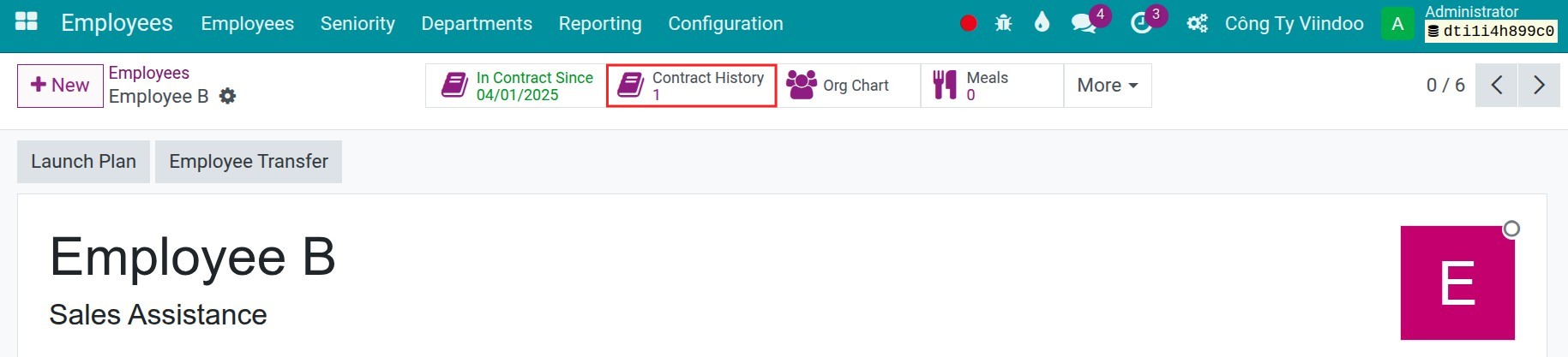
On the employee form, click the Contract History smart button.
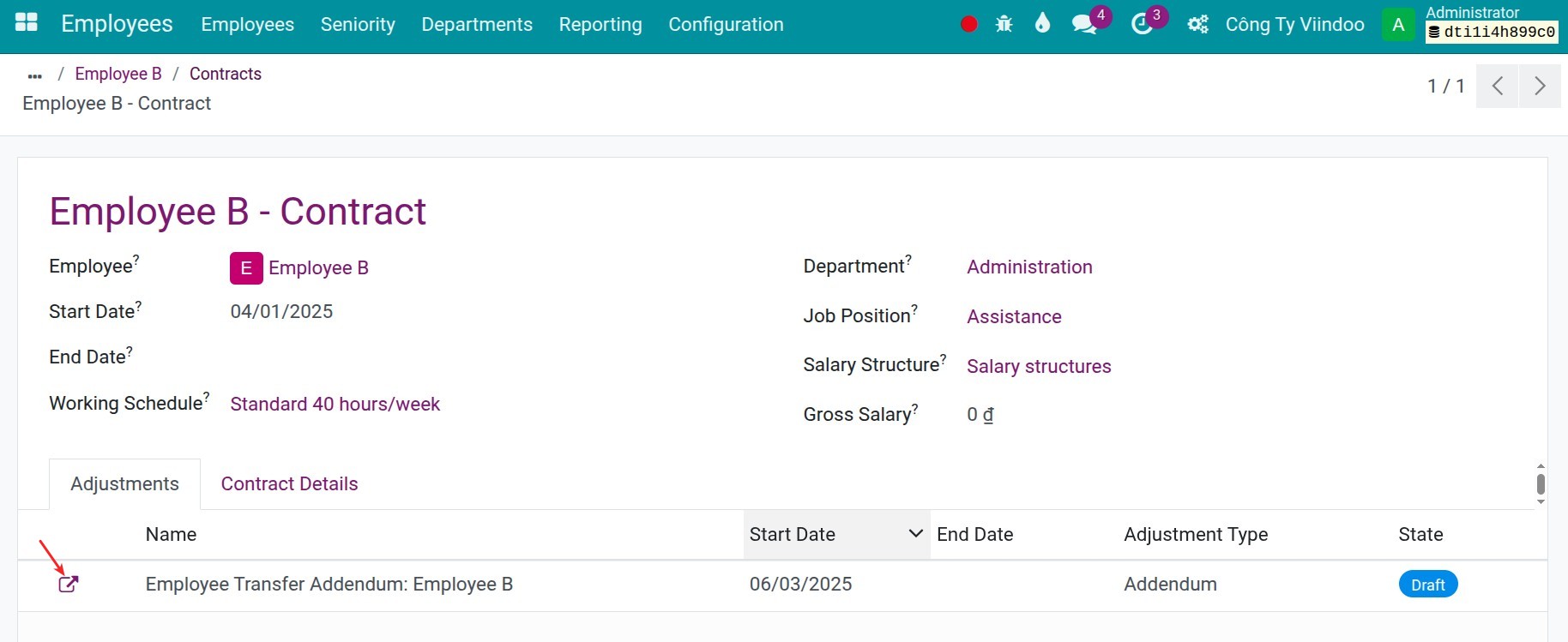
Open the contract. Its Adjustments tab lists the new addendum with its start date, type and state.
![The contract history of the employee]()
![The Adjustments tab of the contract with the draft addendum]()
Open the addendum to review it.
![The addendum created by the transfer]()
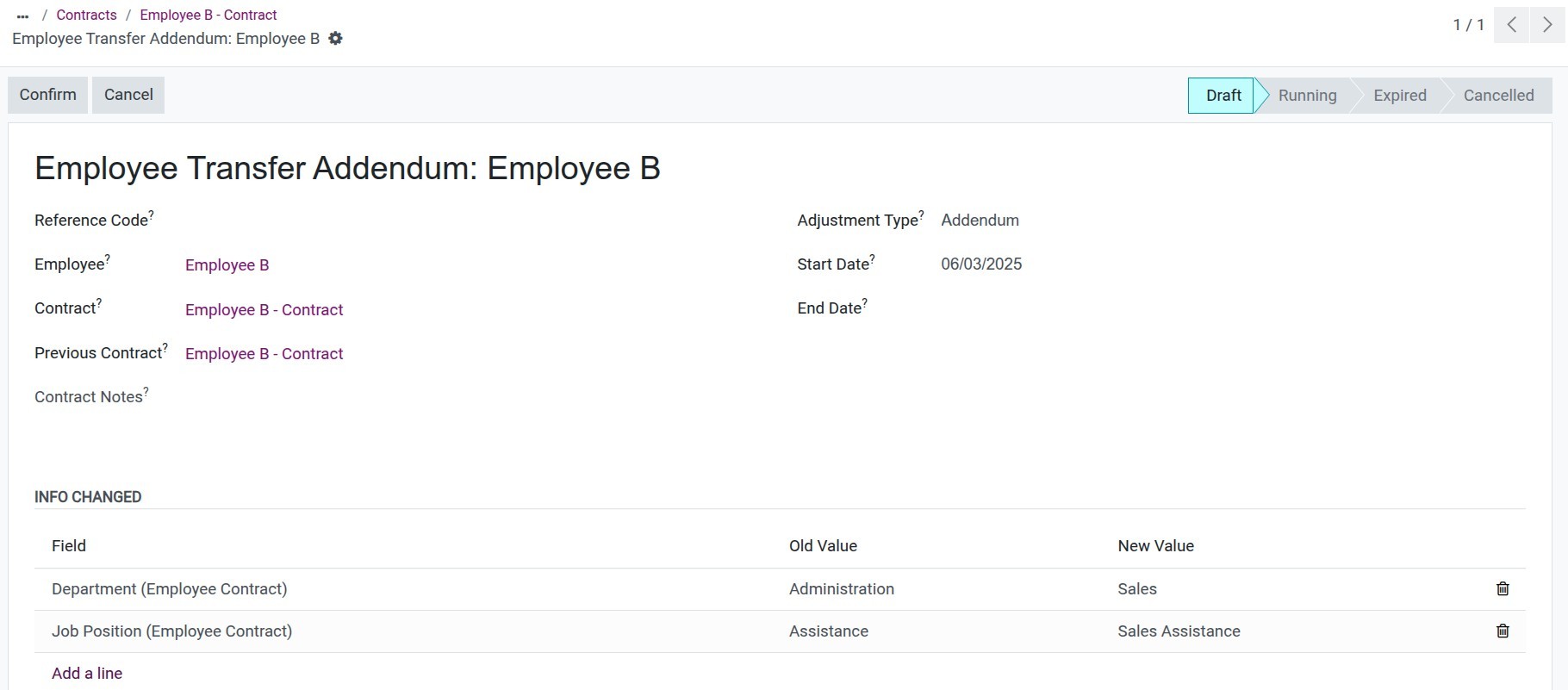
On the addendum, you can edit the following information:
Reference Code: the reference code of the addendum.
Contract Notes: the notes of the addendum.
Adjustment Type: change the type if needed.
Addendum: if you are making an addendum.
Decision: if you are making a decision.
Modifier: if you are making a modifier.
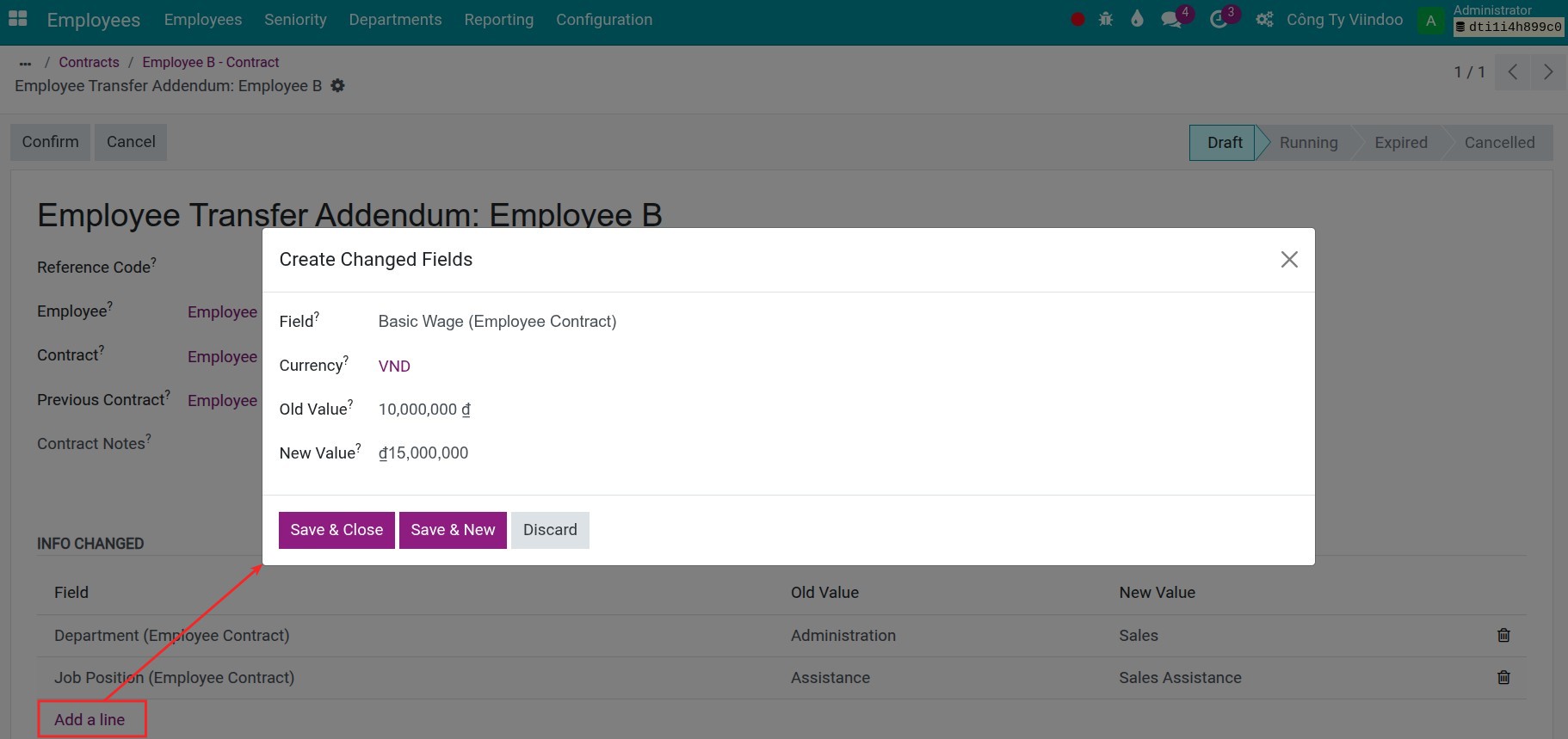
Info Changed: the department and job position of the transfer are already listed. Click Add a line to include other adjustments:
Field: select the field you want to adjust, for example Basic Wage, Working Schedule, Salary Structure or Contract Type.
New Value: enter or choose the new value. The Old Value is shown for comparison.
If the field holds a number, you can directly overwrite it. For example, you can update the Basic Wage.
![Changing the basic wage on the addendum]()
If the field holds a choice, you can choose a different option. For example, you can choose another Working Schedule.
![Changing the working schedule on the addendum]()
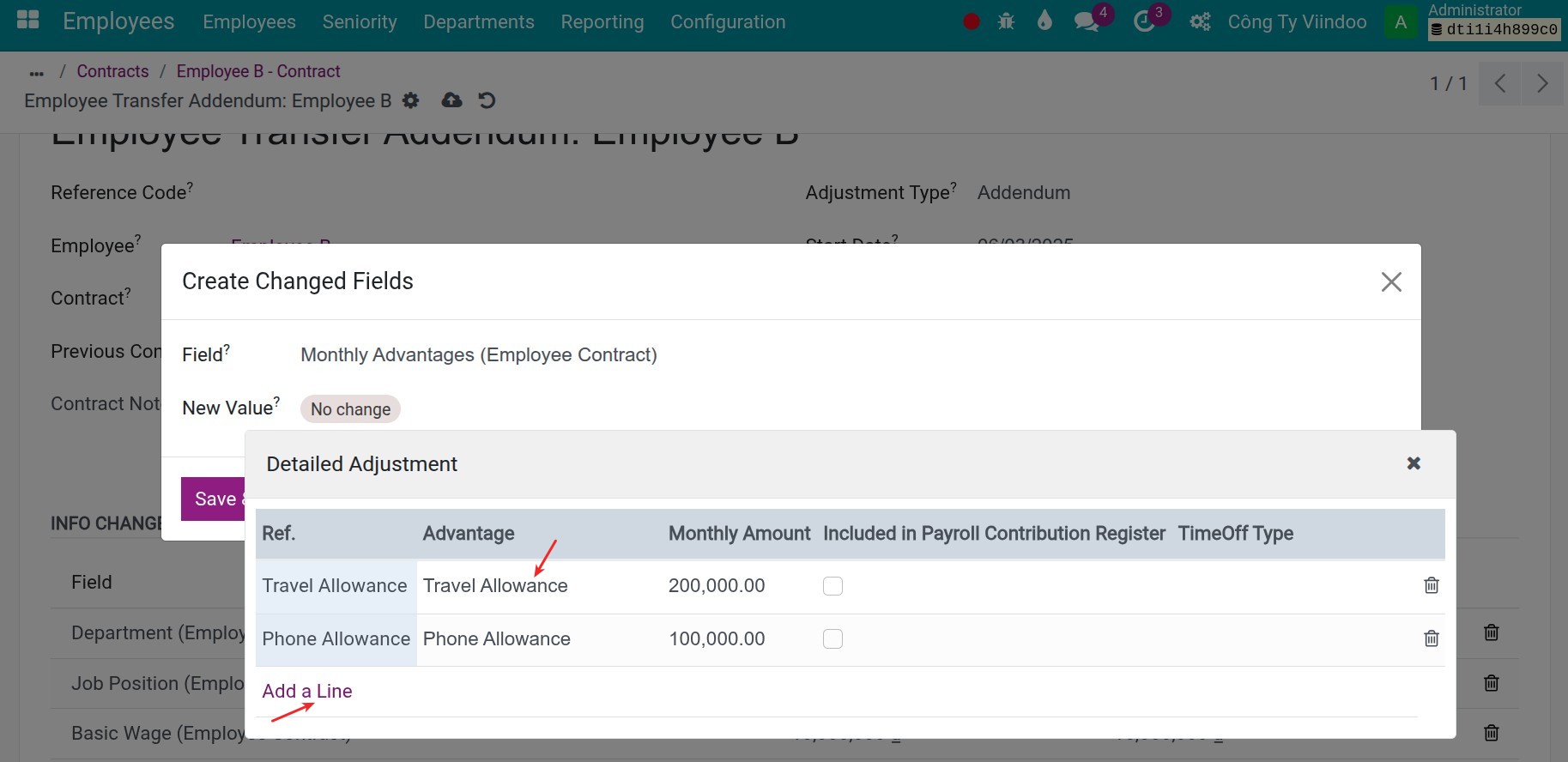
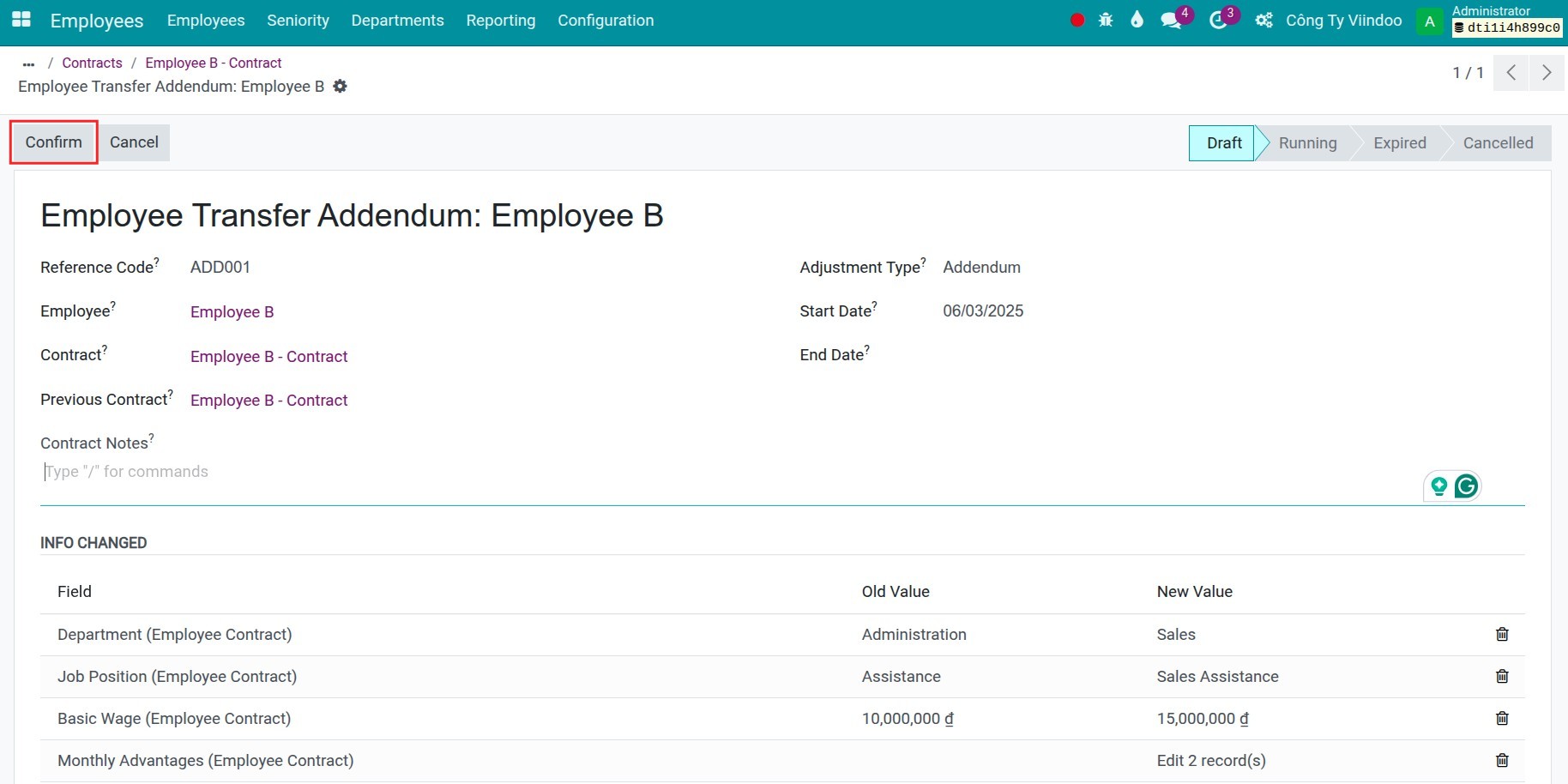
Once all adjustments are made, click Confirm to validate and activate the addendum. Its state changes from Draft to Running. The new values apply to the employee’s contract from the start date of the addendum, and the previous contract ends the day before.
How is the salary of a transferred employee calculated?
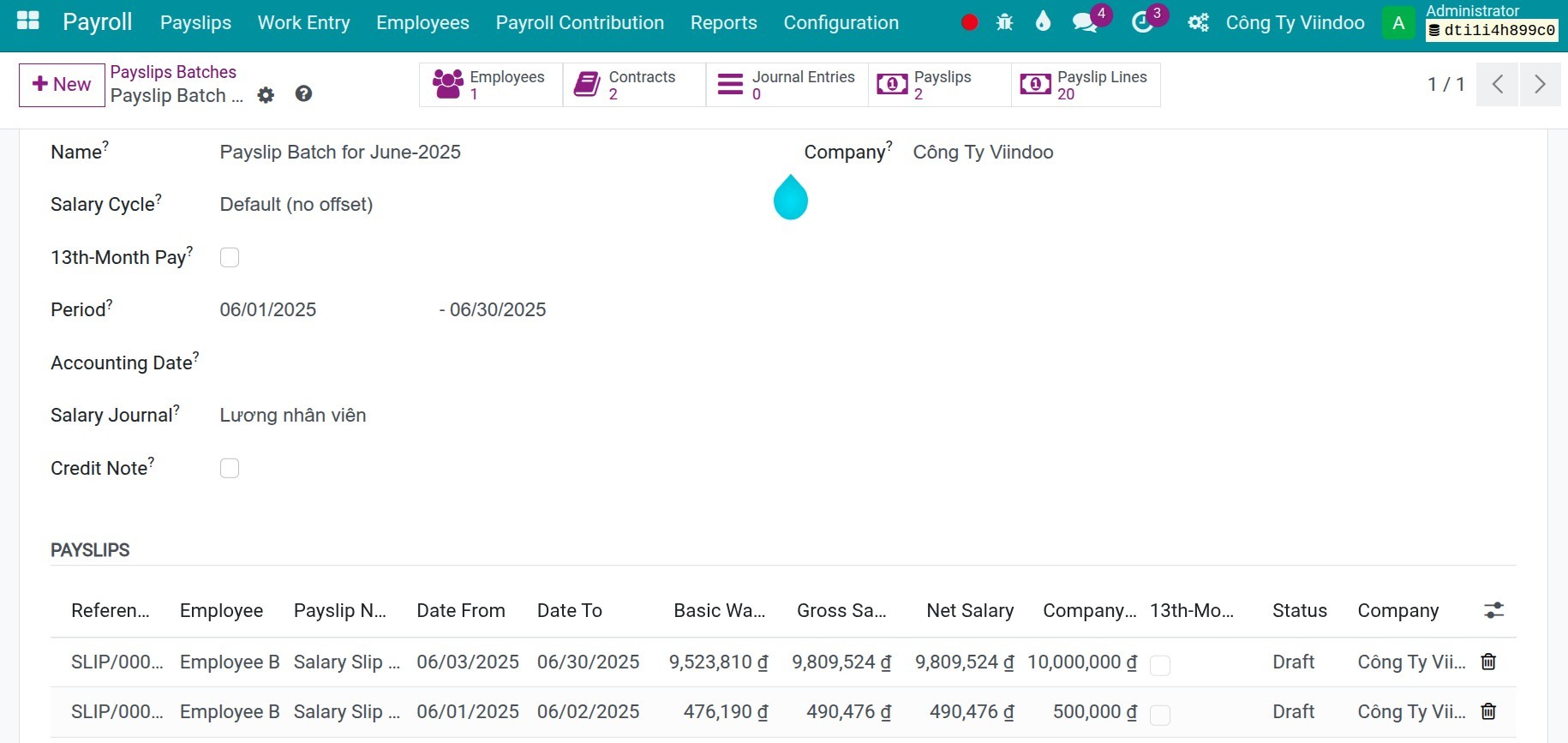
The salary calculation for a transferred employee is the same as for any other employee, with one special case. If the transfer start date does not fall on the first day of the month, the system generates two or more payslips, one for each period of the contract, so that each part of the month is calculated with its own contract information.
Common problems
Problem |
What to do |
|---|---|
The message “You need to set a new department or new Job position to initiate the employee transfer” appears. |
Choose a new department or a new job position. |
The message “Both the new department and new job position cannot be the same as the current department and job position” appears. |
Change at least one of them. |
The message “The Date from must be earlier than the date to” appears. |
Correct the transfer dates. |
The chatter says “Contract addendum not yet created”. |
The employee has no running or expired contract that started before Date From. Create the contract, then add the adjustment on it. |
See also
Related article
Optional module