
How to troubleshoot an IoT box
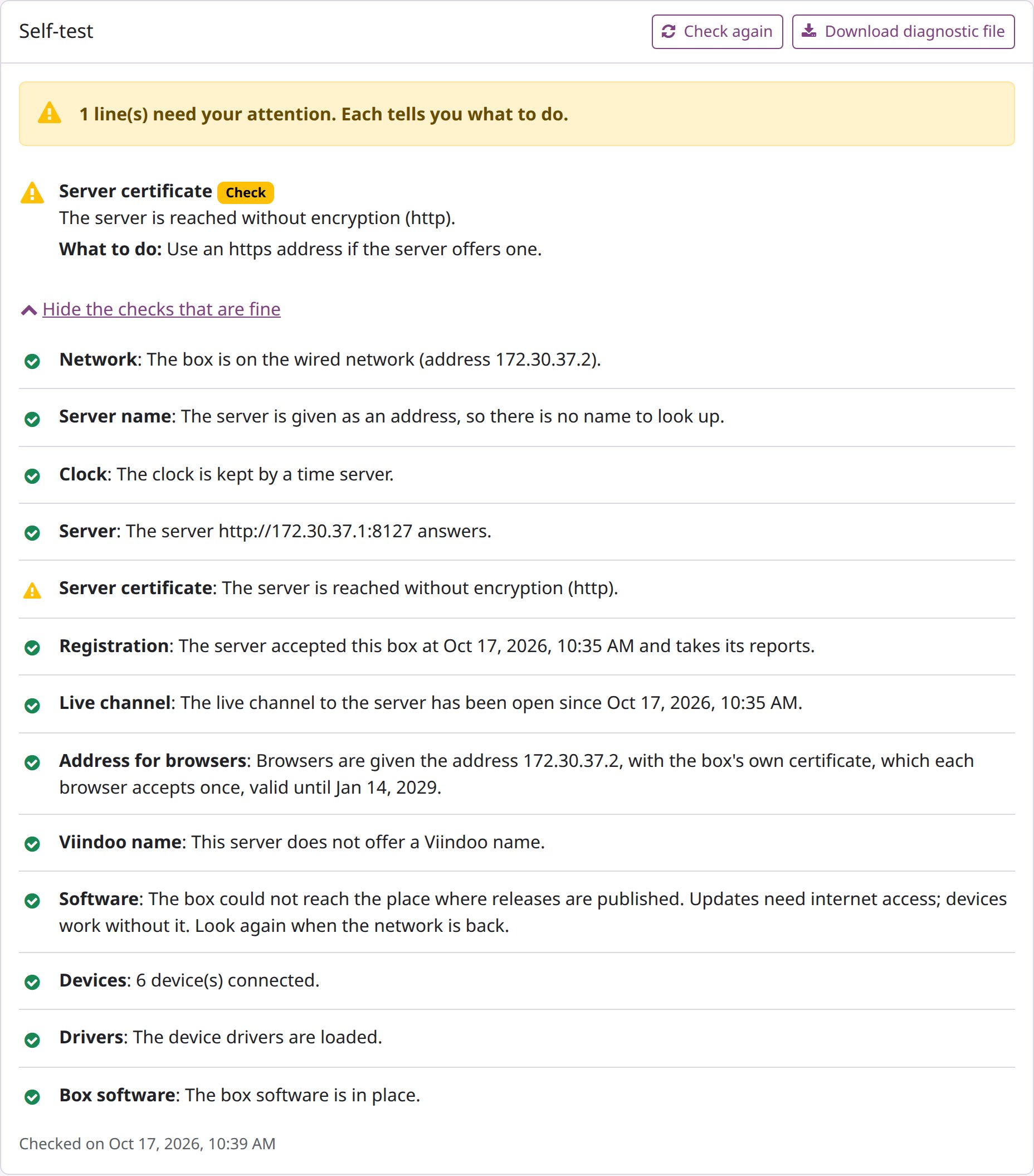
Open the box page at http://<box address> and read its self-test: each line that needs you says
what to do. The tables below list every self-test line and every message of the box page and of
Viindoo, with its cause and what to do.
Who |
The Maintenance / IT Technician, the IoT Integrator and the IoT Administrator. |
App |
What does each self-test line mean?
The box runs its self-test when it starts and every five minutes; Check again runs it at once. Each line is OK, Check, Failed or Checking, and each line that needs you says what to do.
Line |
What it checks |
When it needs you, and what to do |
|---|---|---|
Network |
The box has an address and a gateway. |
No address: plug in a cable or choose a Wi-Fi network. An address it gave itself: check that the router hands out addresses (DHCP), then restart the box. Own Wi-Fi network: join your Wi-Fi. No gateway: check that the router gives one. |
Server name |
The network knows the server’s name. |
Unknown name: check the address you typed. No answer: check internet access and the router’s name service. |
Clock |
A time server keeps the clock, or it agrees with the server. |
No time server: let the box reach one (UDP port 123) or set the clock from the server. Wrong clock: Set the clock from the server. Server clock differs: ask the server’s administrator to correct it. |
Server |
The server answers. |
Not resolved, timed out, refused, no route, secure connection failed: check the server address, the firewall and the proxy between the box and the server. |
Server certificate |
The server’s certificate can be trusted. |
Reached with |
Registration |
The server accepted the box and takes its reports. |
Not connected yet: Connect. The server no longer knows this box (its record was archived or deleted, or a Re-pair code for it was used): if the record was archived, unarchive it and nothing else is needed; otherwise reset the box with the reset file (see What if nobody can unlock the box?), then pair it with a new code - Re-pair on its record, or Connect an IoT Box. Cannot send its reports: check the Server line. |
Live channel |
The channel for print and screen commands is open. |
Lost: check the Server line. Waiting: see Registration. Off: restart the box. |
Address for browsers |
The box has an address and a valid certificate for browsers. |
No usable address: connect the network. Just after an address change: Checking while the box makes a certificate for the new address (see What happens when the box’s address changes?). Certificate ending or ended, or not issued for the current address: install a new certificate (your own) or restart the box (its own). A new certificate the box made but does not serve yet: restart the box. |
Viindoo name |
Whether the box has a Viindoo name. |
Nothing to do (see The Viindoo name). |
Software |
Updates (see How does the box update its software?). |
A release is offered: Go to Software. A newer image is needed: write a newer image. The release cannot be read, could not be downloaded or failed to apply: look again later and contact support if it stays. |
Devices |
How many devices are connected. |
Nothing - plug a device in. |
Drivers, Box software |
The device drivers and the box software are in place. |
Download the diagnostic file and send it to support. |
Messages when pairing on the box page
Message |
Cause |
What to do |
|---|---|---|
This is not a pairing link. |
The |
Copy the whole Pairing Link with its copy button, or use Address and code. |
No pairing code was typed. |
The code field is empty. |
Type the code Viindoo shows. |
The address of the server is not an address. |
Something follows the server name (a path, a space). |
Type only |
The certificate you pasted cannot be read. / … is not the root of an authority. |
The pasted text is not a root certificate in PEM. |
Paste the root certificate of the authority that issued the server’s certificate. |
The name of the server cannot be resolved. |
Typing mistake, or no name service or internet for the box. |
Check the address and the Network and Server name lines. |
The server does not answer. |
Firewall, proxy or a wrong address. |
Check the path between the box and the server. |
The server does not offer pairing for Viindoo IoT boxes. |
Wrong address, the IoT app is not installed, or the server hosts several databases and none is selected. |
Use the address that opens this database; install the IoT app. |
The clock of the box is wrong, so secure connections fail. |
The box’s clock is more than five minutes off. |
Set the clock from the server, then Back to connecting. |
The server does not know this code. / This code is too old. / This code was already used. |
Wrong, expired (15 minutes) or used code. |
Generate a new code in Viindoo and copy it exactly. |
This box is already registered as <name>. |
A record of this box already exists in this database. |
Open that box in Viindoo, click Re-pair and use its code. The first code stays usable. |
This box is already registered in this database, under another company. |
The record belongs to a company you cannot see. |
Ask an administrator of the database. |
The server could not complete the pairing. |
An error on the server. |
Try again with the same code; the server’s administrator reads the server log. |
The server refused the pairing (<word>). |
The server answered a reason this box does not know. |
Update the box, or give that word to support. |
The box could not complete the pairing. |
Another change was in progress on the box. |
Try again in a moment; then send the diagnostic file to support. |
Nothing was changed: the box needs its settings code. |
The box is paired and the code prompt was cancelled. |
Choose Connect again and type the settings code. |
The box does not come back. |
The box did not return within five minutes of its restart. |
Wait, reload the page; check power and cable, then switch it off and on. |
Messages when pairing in Viindoo
Message |
Cause |
What to do |
|---|---|---|
The IoT box <name> is archived, and an archived box cannot be paired. |
Re-pair on an archived box. |
Unarchive it first. |
You cannot connect an IoT box for the company <company>. |
That company is not among your allowed companies. |
Choose one of your companies. |
Only the user who started pairing an IoT box can change it or generate its pairing code. |
Another user’s pairing window. |
Start a new pairing. |
This pairing code has already been generated. |
Generate Pairing Code clicked twice in one window. |
Start again. |
Messages about the settings code and the clock
Message |
Cause |
What to do |
|---|---|---|
This is not the settings code of this box. |
Wrong code, or the box was paired again. |
Read Box Settings Code again on the box record. |
This page was opened from another web site, so the box refuses the change. |
The page was opened through another site. |
Open the box page at the box’s own address. |
Nothing was changed: this change needs the settings code of the box. |
The code prompt was cancelled. |
Try again and type the code. |
This is not the server of the box. |
Another server address was typed in the clock dialog. |
Use the address of the box’s server. |
The certificate of the server cannot be checked, so its time is not read. |
Unpaired box and an untrusted server certificate. |
Pair the box first, or use a server with a public certificate. |
The server did not tell the time. |
That address did not return a time. |
Try another address of the same server. |
A time server already keeps the clock of the box. |
A time server is reachable. |
Nothing to set. |
Messages about devices on the box page
Message or symptom |
Cause |
What to do |
|---|---|---|
A print test is cancelled after 30 seconds, or the print job stops. |
The printer did not take the job: off, out of paper, cover open, cable or network. |
Do what the page says under the test, then test again. |
The test was sent to the printer, but the box could not follow it, so it cannot tell whether the printer took it. |
The print service took the test without a job number the box can follow. |
Look at the printer: check whether the page came out. |
The print server of the box did not answer, so the test could not finish. |
The box’s print service stopped answering. |
Restart the box, then try again. |
This device is not connected any more. |
The device was unplugged. |
Plug it in again and wait a few seconds. |
A test of this device is already running. |
Two tests at once. |
Wait and try again. |
The device did not answer in time. / The device failed during the test. |
Cable, power or the device. |
Check them, unplug and plug the device again. |
The print queue of this printer is missing. |
The printer was unplugged meanwhile. |
Unplug it, plug it in again and wait two minutes. |
The scale gave no weight. |
No load, cable, or serial settings. |
Put a load on, check the cable and choose a protocol the box reads. |
The box stopped answering while listening. |
Network between this device and the box. |
Check the network and reload the page. |
This device is tested with Listen. / A screen is tested by looking at it … / This device has no test. |
That kind has no test of this sort. |
Use Listen, or look at the screen. |
Only an office printer can be made a label printer. / This printer already stands as a label printer … |
The printer is already a receipt or label printer. |
Nothing to do. |
The kind of printer was not understood. / This is not an address of a printer. / This name does not fit the kind of printer you chose. |
A field of Add a network printer. |
Correct the field. |
The box already has a print queue for this address. |
That printer was already added. |
Look for it under Devices. |
The print service of the box is not running. / The print service refused the printer. |
The box’s print service. |
Restart the box; check the address; then send the diagnostic file to support. |
A scanner types into fields instead of scanning. |
It was taken for a keyboard. |
Use as barcode scanner. |
A label printer prints a full page or unreadable text. |
A ZPL printer taken for an office printer. |
This is a label printer. |
A device is plugged in but not listed. |
Printers take up to two minutes; a scale must answer a protocol the box reads. |
Wait; check the scale’s serial settings. |
Messages when testing a device from Viindoo
Message |
Cause |
What to do |
|---|---|---|
You are not allowed to send a test print. |
The user is not an IoT Box Creator. |
Ask an IoT Box Creator or an administrator. |
Nothing was printed: the printer is not connected to its box. |
The box or the printer is disconnected. |
Check the box and the printer. |
The box did not confirm the test print. / The box has not confirmed the test print yet. |
No confirmation within Device Action Timeout (seconds). |
Look at the printer; check the box page. |
The box refused the request or the device gave no value. / The box did not answer in time. / This browser cannot reach the box. |
This browser cannot read the box: network, certificate not accepted, or the browser’s local-network permission. |
Use Check connection from this browser on the box. |
This printer cannot be tested from Viindoo. / This device cannot be tested from here. |
The box did not report the printer’s kind, or the device has no test. |
Use the test on the box page. |
Messages when installing your own certificate
Message |
What to do |
|---|---|
The certificate cannot be read. / The private key cannot be read. |
Paste them as text, from |
The certificate has no common name, which the box needs. |
Ask for a certificate that has one. |
The private key is protected by a password. |
Remove the password from the key, then paste it again. |
The key does not belong to this certificate. |
Paste the key made with the certificate request. |
The certificate is not valid yet. / The certificate has expired. |
Check the box’s clock and the certificate’s dates; ask for a new one. |
The name is not a host name. / The certificate was not issued for this name. |
Type a name the certificate covers, such as |
The box could not install the certificate and keeps the one it had. |
Try again; then send the diagnostic file to support. |
Other messages and symptoms
Message or symptom |
Cause |
What to do |
|---|---|---|
The certificate of the box was not issued for <address>, so browsers will warn. |
Your own certificate does not cover that address, or the box could not make a new certificate of its own for it. |
Your own certificate: install one that covers the address. The box’s own: restart the box, as the line says; if it says to contact support, send the diagnostic file. |
The box made itself a new certificate, but its web server still serves the earlier one. |
The box’s web server did not load the new certificate. |
Restart the box. |
The server no longer knows this box. |
Its record in Viindoo was archived or deleted, or a Re-pair code for it was used. |
Archived: unarchive the record. Otherwise: reset file, then a new code (Re-pair or Connect an IoT Box). The box’s Pair again cannot help here: the settings code it asks is on no record. |
This page cannot reach the box. |
Your device is not on the box’s network, or the box is off. |
Check the network and the power; the page tries again by itself. |
The box could not use this Wi-Fi network. |
The box did not start to join the network. |
Check the name and the password, then try again. |
This network name cannot be used. / This password cannot be used. |
The name is longer than 32 characters, or the name or the password holds a line break, a tab or another control character. |
Check the name or the password and try again. |
The box is changing its Wi-Fi by itself at this moment. |
The box is going back to the network it keeps, or starting its own network. |
Wait a minute, then try again. |
The box could not disconnect. / The box could not restart. / The level was not changed. / The box could not set a new password. |
The action failed on the box. |
Try again; switch the box off and on, or send the diagnostic file to support. |
This level is not offered for the whole box. |
Debug was chosen for the whole box in Log levels. |
Choose another level. |
The box did not answer. |
Network between your device and the box. |
Check that you are on the same network and the box is on. |
This box does not offer this function. |
The box software is older than the page. |
Update the box, or ask support. |
The box answered “<word>”, which this page does not know. |
An answer this page has no text for. |
Try again; then send the diagnostic file to support. |
The box did not understand the request. / The choice was not understood. |
The page is out of date. |
Reload the page and try again. |
The box is missing from IoT ‣ Overview after pairing. |
The pairing code window was closed before the code was accepted. |
Reload the list. |
The box shows Disconnected in Viindoo. |
The box stopped reporting (power, network, live channel). |
Read the Server, Registration and Live channel lines on the box page. |
The box page is unreachable after joining a Wi-Fi network. |
Your device is still on the box’s own network. Or the join failed (wrong password, network out of reach) and the box went back to the network it was on, or to its own network. |
Join the same Wi-Fi and open |
The box lost its Wi-Fi and its own network |
The box opens its own network only after ten minutes without any address; until then it tries to join its network again. |
Wait, or plug in a network cable. |
The box is not ready yet stays on. |
The box software is starting or undoing an update. |
Wait 15 minutes; then switch the box off and on; then contact your Viindoo administrator. |
A device works on one PC and not on another. |
That PC has not accepted the box, or cannot reach it. |
Check connection from this browser on that PC. |
The settings code is refused after pairing again. |
The code changes with each pairing. |
Read it again on the box record. |
Nobody can unlock the box, or its server is gone. |
Use the reset file (see What if nobody can unlock the box?). |
Troubleshooting
A box shows no IoT Home Page link. The box has not reported an address yet. Check that it is powered and on the network, then read its self-test.
A device stays Disconnected. Open the device and its box, check Last Seen, and read the Warning, Error and Critical lines in the logs, then the self-test on the box page.
A device works on the box page but not in the app. The box page runs on the box; the app runs in each user’s browser. Click Check connection from this browser on that PC (see How do I make each browser reach the box?), and check that the device is assigned in the app.
An operator was told an action was Never Confirmed. No confirmation arrived within the timeout; it does not always mean failure. Check the logs for the box and the device. If confirmations regularly arrive late, raise Device Action Timeout (seconds).
A row on Settings shows Purchase or Learn more. That app is not available on this database yet, so there is nothing to switch on.
A label printer is not offered where a label is printed. Open the device and check that its Printer Kind is Label Printer. If not, click This is a label printer on the box page.
The box page asks for a code nobody has. An IoT Administrator reads it on the box record (Box Settings Code). If the database is gone, or the code on the record is refused, use the reset file.
FAQ
Who can pair a new IoT box? An IoT Box Creator or an Administrator.
Who can read a box’s settings code? Only an Administrator, on the box record. The box’s own credentials are shown on no screen.
Does a cashier or a manufacturing operator need an IoT access right? No. They use the hardware from their own app once the box is paired and its devices are assigned.
Can I rename the box itself? No. Its host name stays for its whole life. Set the name your team sees in Box Name.
Can the box have a fixed IP address? Not from the box page. Your router can reserve an address for it; without one, the box follows a new address by itself (see What happens when the box’s address changes?).
How long does Viindoo take to show that a box is down?
Viindoo checks every minute and shows a box disconnected once it has not reported for two minutes, so
two to three minutes after its last report. An administrator can change the waiting time with the
system parameter viin_iot.box_presence_grace_seconds (in seconds; a value below 90 is raised to
90).
What happens to old device logs? They are kept for the number of days set in Device Log Retention (days), then removed by a daily cleanup.