
How to limit what a location holds with storage categories
A storage category sets the limits of a location: the maximum weight, the capacity per product or package, and whether it may hold mixed products. Create the category in , apply it to a location, then create a putaway rule with Closest Location and this category. When you receive goods, Viindoo suggests a location of this category that still has room, and the parent location otherwise.
Who |
Users with the Inventory Administrator access right. |
App |
Inventory ‣ Configuration |
Before you start
Install the Inventory app.
Turn on Storage Locations in . It shows the Storage Categories menu.
Create the locations to limit (see How to create a warehouse and its locations) and enter the Weight of your products on their Inventory tab if you limit by weight.
How do I turn on storage categories?
Go to , tick Storage Locations in the Warehouse section and click Save. There is no separate option for storage categories.

How do I create a storage category?
Go to and click New.
Fill in the category (see the table below), for example Heavy-duty rack with a Max Weight of 500 kg, and click Save.
![Storage category form with the name, Allow New Product and Max Weight]()
Enter the Weight of the products on the Inventory tab of each product. Viindoo adds the weight of the goods you receive to the weight already in the location and compares it with Max Weight.
![Weight field on the Inventory tab of a product]()


Field |
Effect |
If wrong or empty |
|---|---|---|
Storage Category |
The name of the category. |
Required. |
Allow New Product |
If the location is empty: the location accepts a product only when it is empty. If all products are same: it accepts only the product it already holds. Allow mixed products: it accepts any product. |
A location refuses goods that do not match this rule. |
Max Weight |
The most the location can hold, in kg. Viindoo counts the goods in stock and the goods already planned to arrive. |
Goods that would exceed it go to another location, or to the parent location. |
Capacity by Product |
A maximum quantity for a product. Click Add a line, choose the Product and the Quantity. |
Over this quantity, the location is not suggested for the product. |
Capacity by Package |
A maximum number of packages of a Package Type (needs Packages turned on). |
Over this number, the location is not suggested for the package. |
How do I apply the category to a location?
Go to and open the location, for example Stock/Shelf A.
Choose the Storage Category and click Save.
![Storage Category field on a location form]()

How do I make Viindoo suggest these locations?
Create a putaway rule that looks for the category.
Go to and click New.
Choose the Product (or the Product Category), set When product arrives in and Store to to the parent location (for example Stock), choose Closest Location in Sublocation and the category in Having Category. Click Save.
![Putaway rule with the Closest Location sublocation and the storage category]()

See How to configure putaway rules in a warehouse for the other fields.
How do I see the suggested location on a receipt?
In the example, a Steel Filing Cabinet weighs 40 kg and Stock/Shelf A is a Heavy-duty rack of 500 kg.
Create a receipt of 10 cabinets (400 kg) and click Mark as Todo. On the line, click the list icon at the end of the line to open the stock move: the Store To column shows Stock/Shelf A.
![Stock move window of a receipt of 10 cabinets with Shelf A suggested as the destination]()
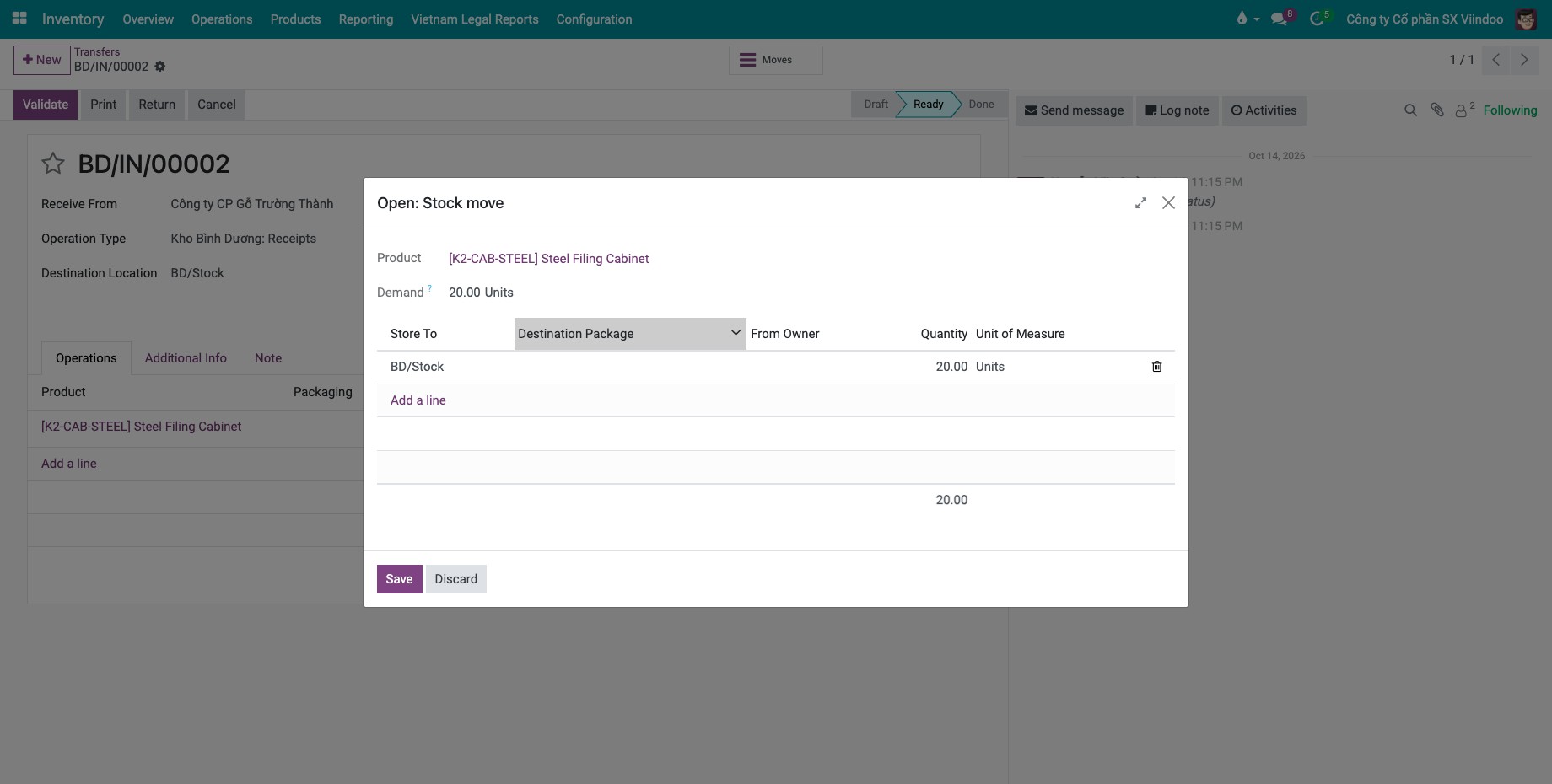
Create a second receipt of 20 cabinets (800 kg). It is more than the rack can hold, so Viindoo suggests the parent location Stock instead.
![Stock move window of a receipt of 20 cabinets with the parent stock location suggested]()

You can follow the result by category in : search by Storage Category.

Common errors
Message |
What to do |
|---|---|
Selected storage category does not exist in the ‘store to’ location or any of its sublocations |
No sub-location of Store to uses the category. Apply the category to a location first. |
The suggested location is the parent although the shelf looks empty. |
The goods already on the shelf, and those planned for it on other receipts, count towards Max Weight. Check them and the Weight of the product. |