
Create Quality Alerts
To report a quality problem, click Report Quality Issue on the quality check that found it, or Quality Alert on the transfer or the manufacturing order. The alert opens with the check, product, lot and work order already filled. Add the root cause, the priority and the corrective and preventive actions, then move the alert through its stages until it is solved.
Who |
Users with the Quality ‣ User access right manage the alerts: they edit an alert, move its stage and plan its actions. Any other employee can report an alert and discuss it. |
App |
Quality |
Before you start
Install the Quality module. To report an alert from a transfer or a manufacturing order, also install Stock Quality Control and Manufacturing Quality Control.
Set up the quality teams, the alert stages, the quality actions and the root causes, see Getting started with Viindoo Quality.
How do I report a quality problem from a quality check?
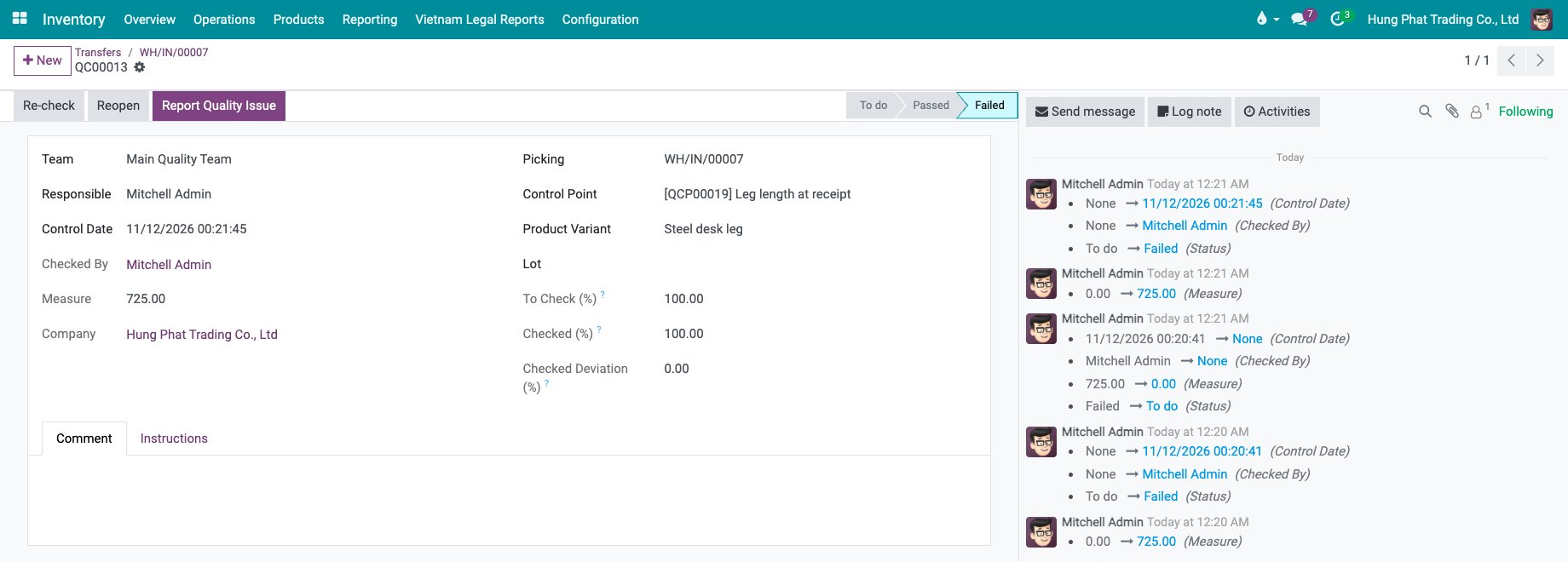
This example continues the failed check of the steel desk leg of How to Integrate Quality Control with Transfers.
Open the quality check. The failed check shows the status Failed and the highlighted Report Quality Issue button.
![A failed quality check with the highlighted Report Quality Issue button]()
Click Report Quality Issue. The alert is created and opens with the data of the check. Fill in the tags, the root cause, the priority and the description, then click Save.
![A quality alert with its tag, root cause, priority and description]()
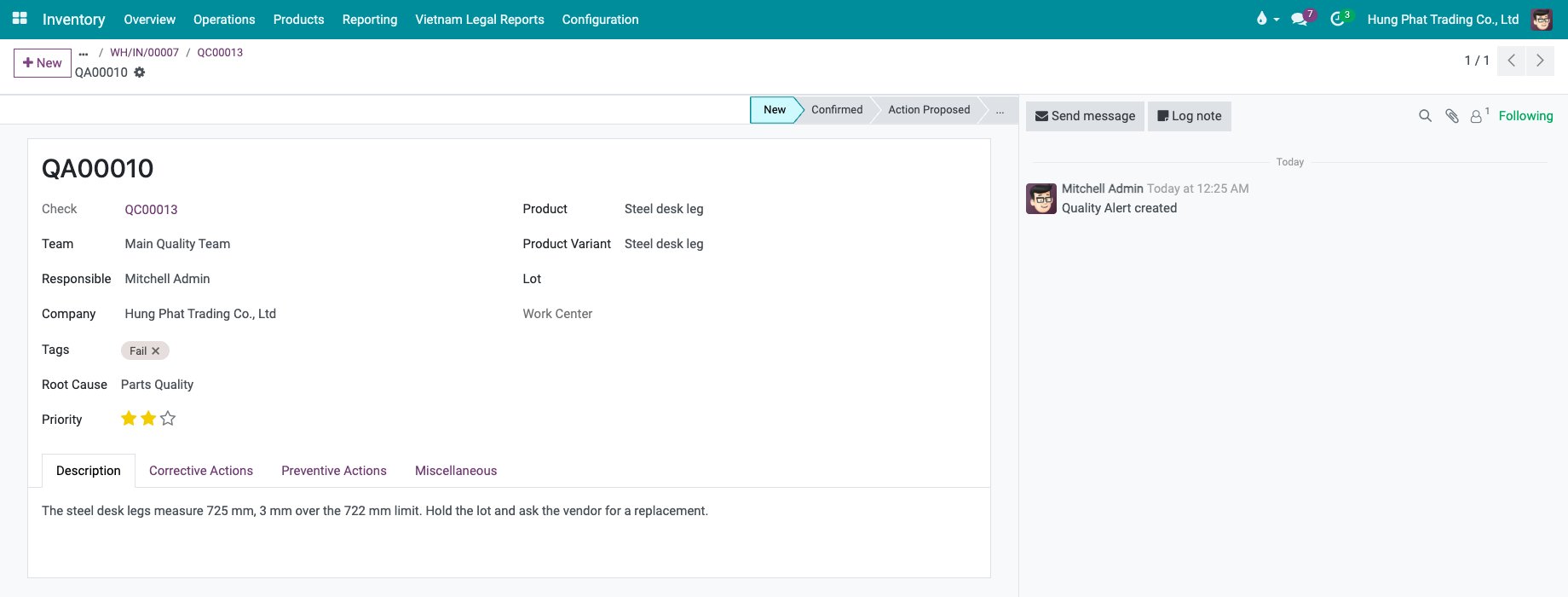
Field |
What it does |
If it is wrong |
|---|---|---|
Check |
The quality check that raised the alert. It is filled in and cannot be changed. |
None. |
Team, Responsible |
The quality team and the person who handle the alert. They come from the check. |
The alert shows on the dashboard card of another team. |
Product, Product Variant, Lot, Work Center |
The goods concerned, taken from the check, the transfer or the work order. The variant shows when the product variants are activated. |
Quality reports group the alert under the wrong product. |
Tags |
Labels that sort the alerts, for example Fail. |
None. |
Root Cause |
The reason of the problem, chosen in the list of quality reasons. |
The analysis by root cause is not reliable. |
Priority |
Three stars: one for Low, two for High, three for Very High. No star is Normal. |
The urgent alerts are not seen first. |
Description |
The details of the problem. |
The team lacks the information to act. |
A check that passed can also raise an alert: the Report Quality Issue button stays on every check.
How do I plan the corrective and preventive actions?
Open the Corrective Actions tab and click Add a line.
Choose the Action. The responsible person of the action is filled in, and you can change it. Enter the Deadline. The Product comes from the alert.
![The Corrective Actions tab with a Re-testing action and its deadline]()
Do the same in the Preventive Actions tab for the actions that keep the problem from coming back, then click Save.
![The Preventive Actions tab with a Process Modification action and its deadline]()
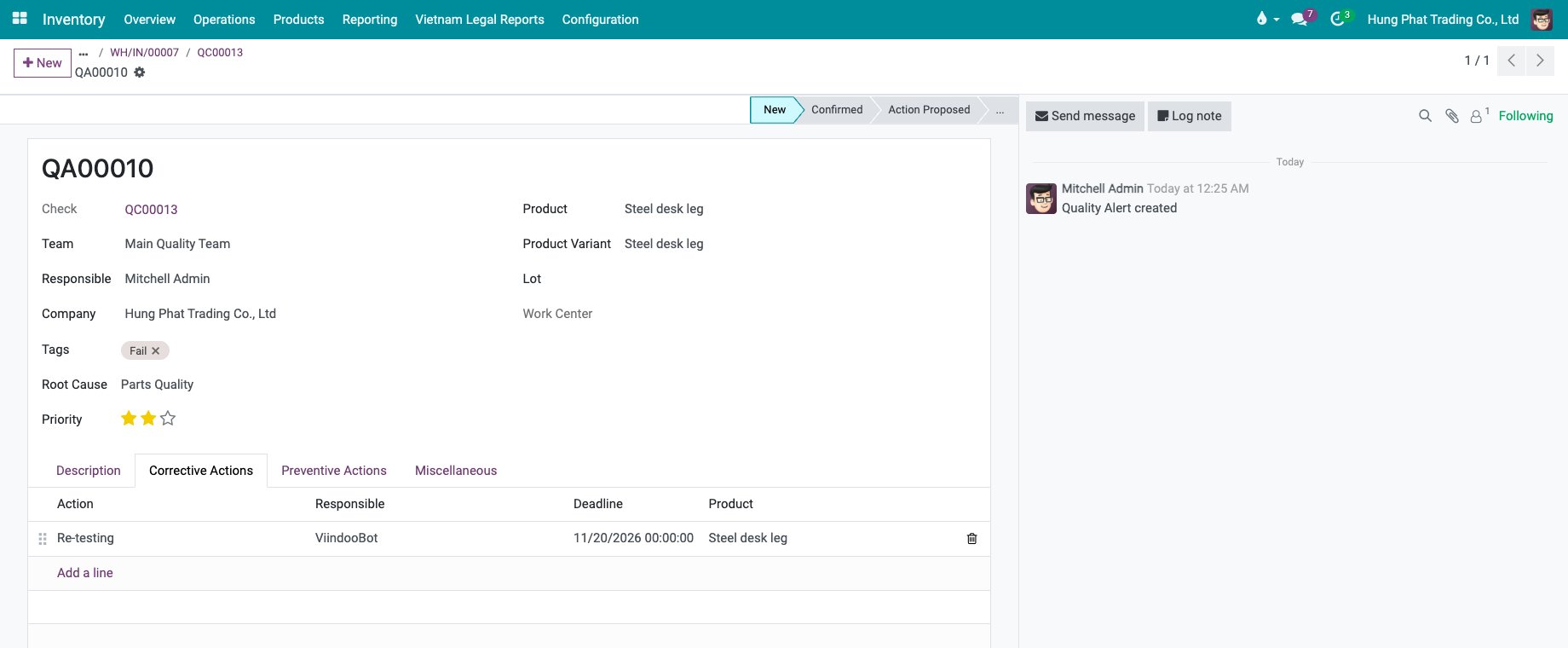
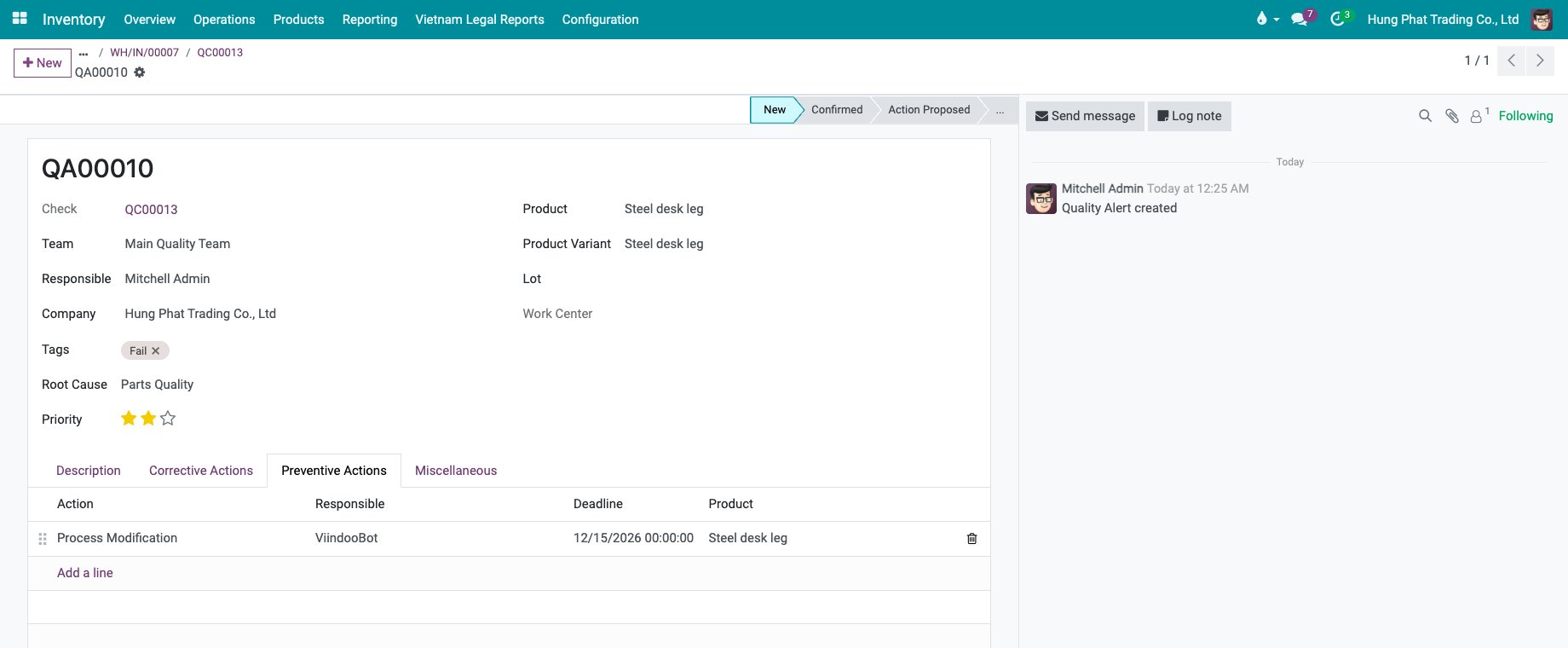
A corrective action repairs the problem found, a preventive action stops it from happening again. The actions come from the list of quality actions, see Getting started with Viindoo Quality.
How do I follow an alert to the end?
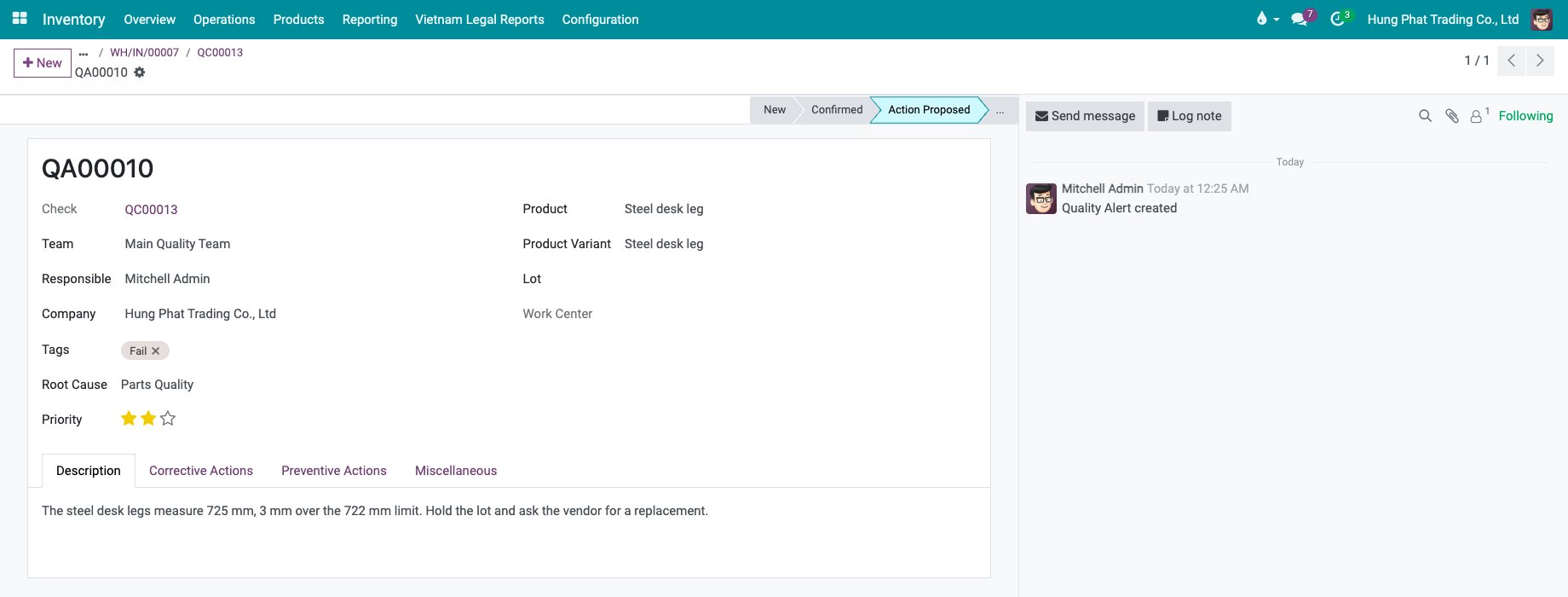
Click a stage in the status bar to move the alert, for example from New to Confirmed and Action Proposed. Only a user with the Quality ‣ User access right moves the stage.
![A quality alert in the Action Proposed stage]()
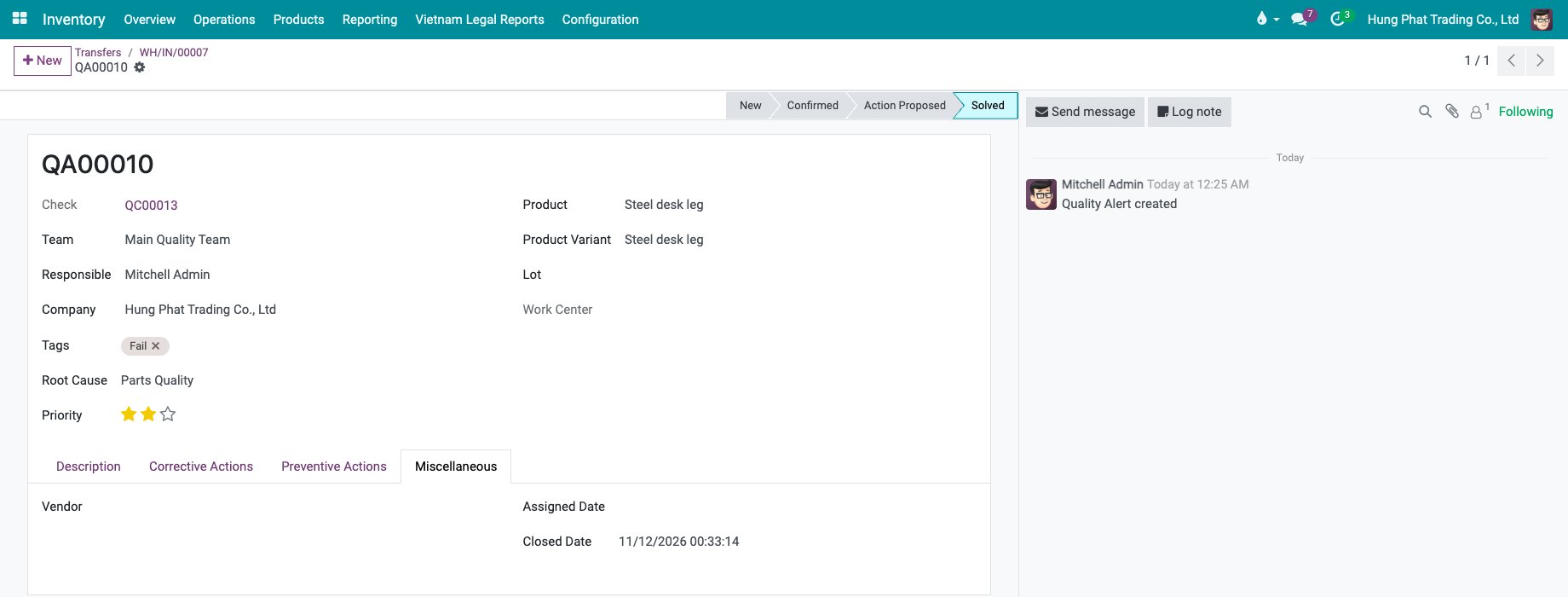
When the actions are done, click … at the end of the status bar and choose Solved. The Miscellaneous tab shows the closing date.
![A solved quality alert with its closing date in the Miscellaneous tab]()
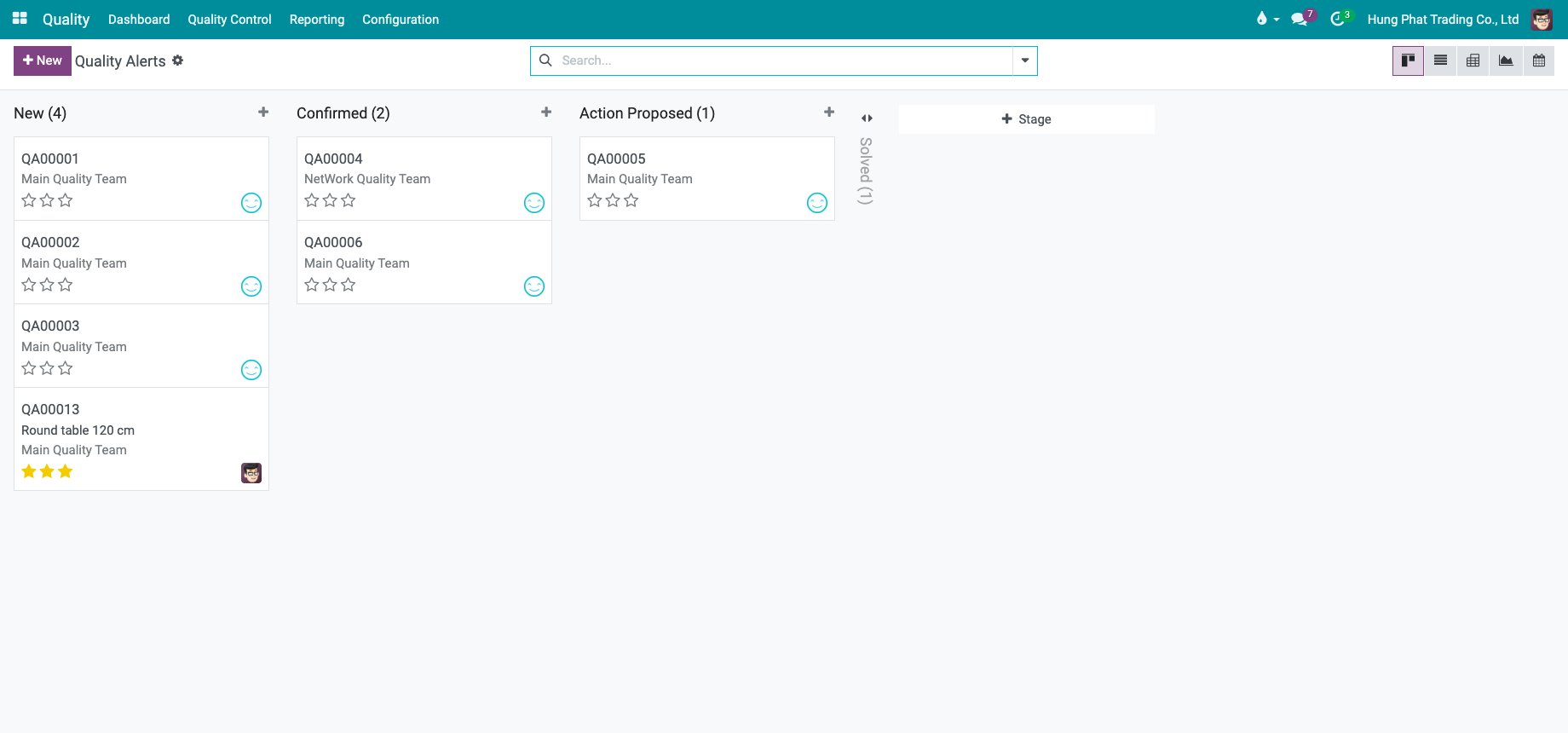
A solved alert no longer counts on the dashboard. To see all the alerts, go to Quality ‣ Quality Control ‣ Alerts ‣ Quality Alerts: the kanban view shows one column per stage.
How do I report an alert from a transfer?
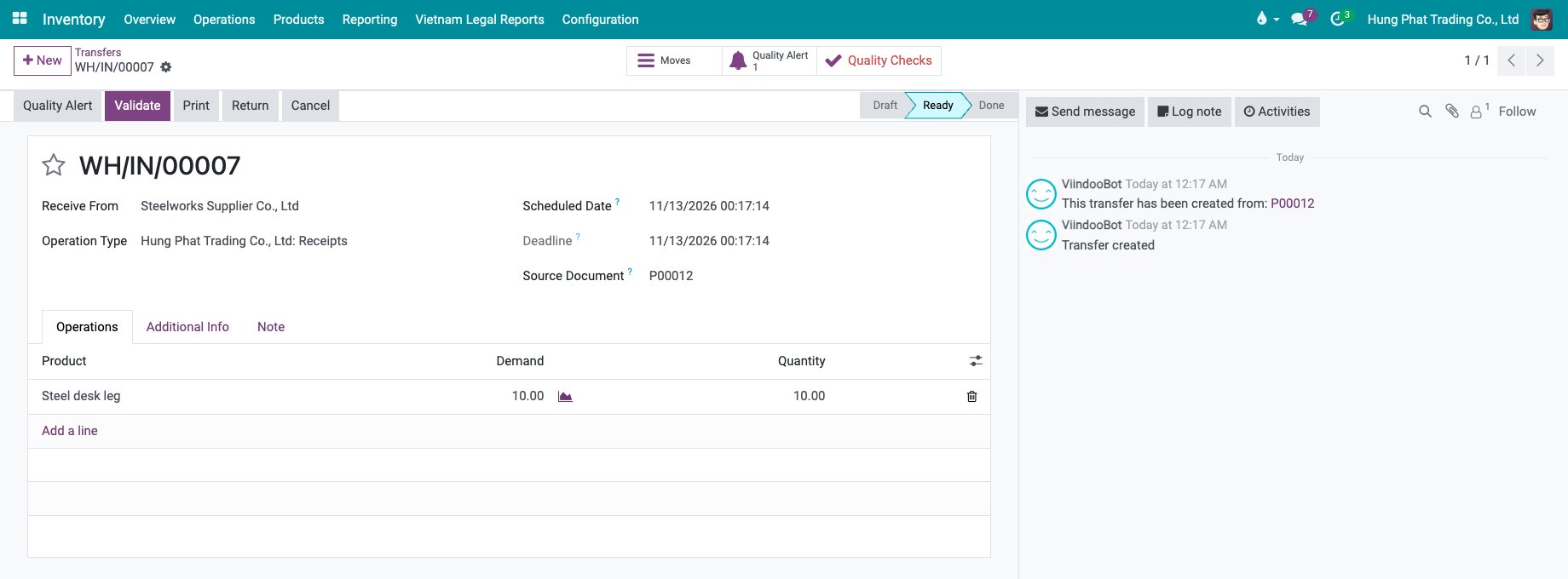
On a receipt, a delivery or an internal transfer that has quality checks, the Quality Alert button in the header opens a new alert. The button is highlighted while a check has failed and no alert exists. The new alert takes the product and the lot of the first failed check, or of the first check when none failed.
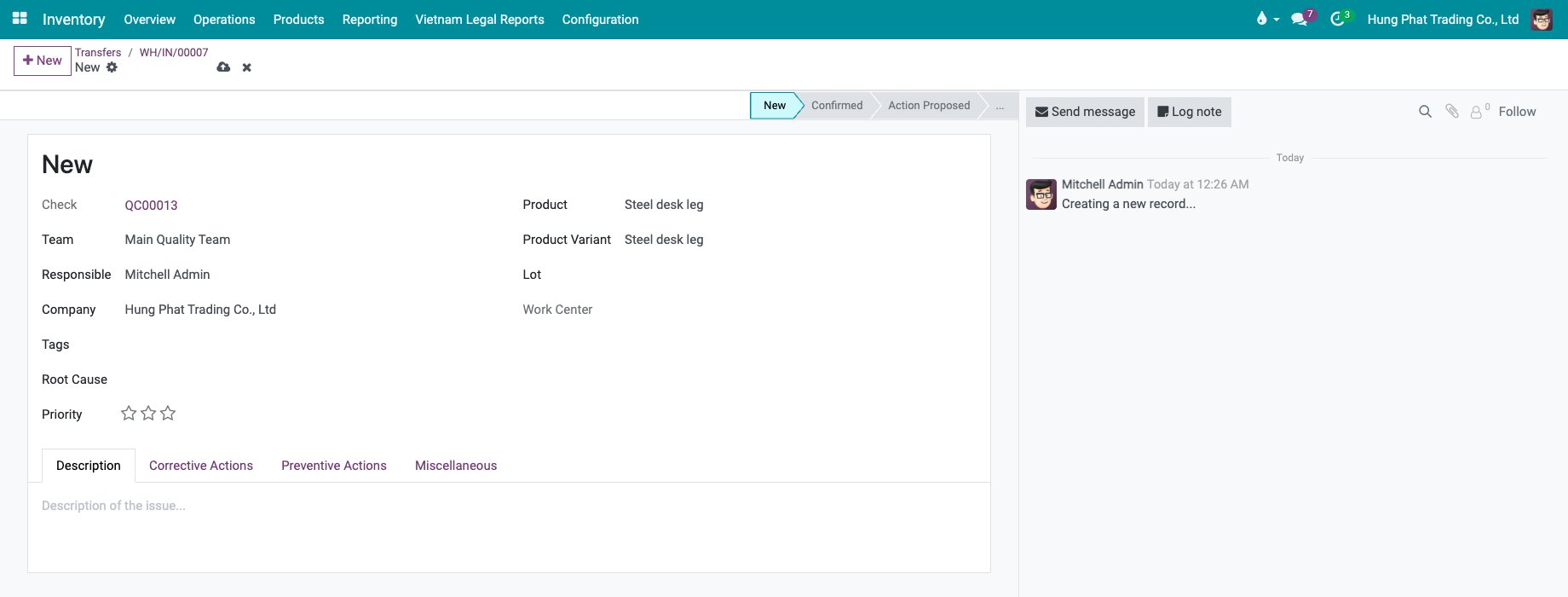
After you save, the Quality Alert smart button of the transfer shows the number of alerts and opens them.
How do I report an alert from a manufacturing order?
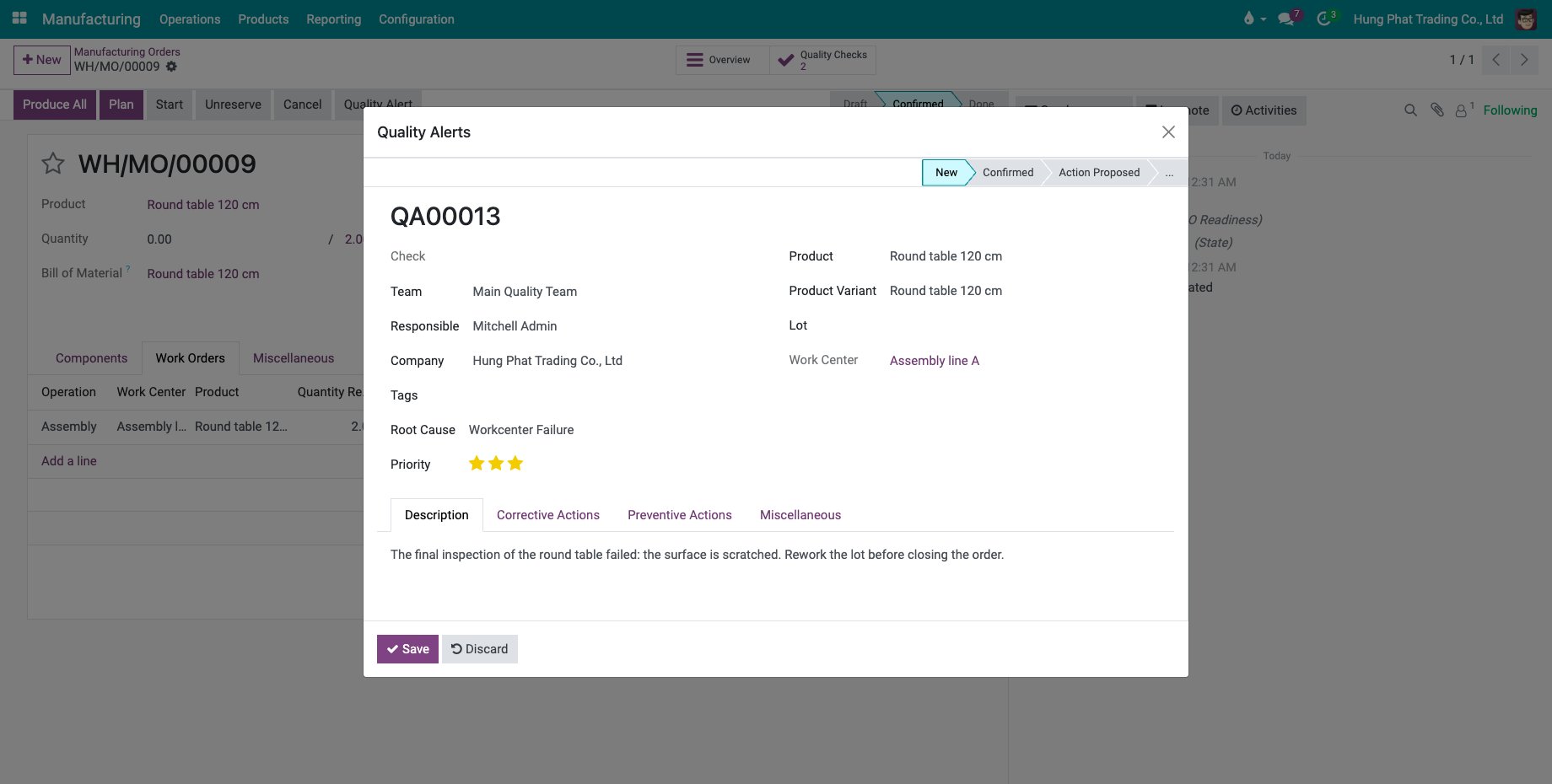
On a manufacturing order, click Quality Alert in the header. A window opens with the product, the work order and the work center of the order. Fill it in and click Save.
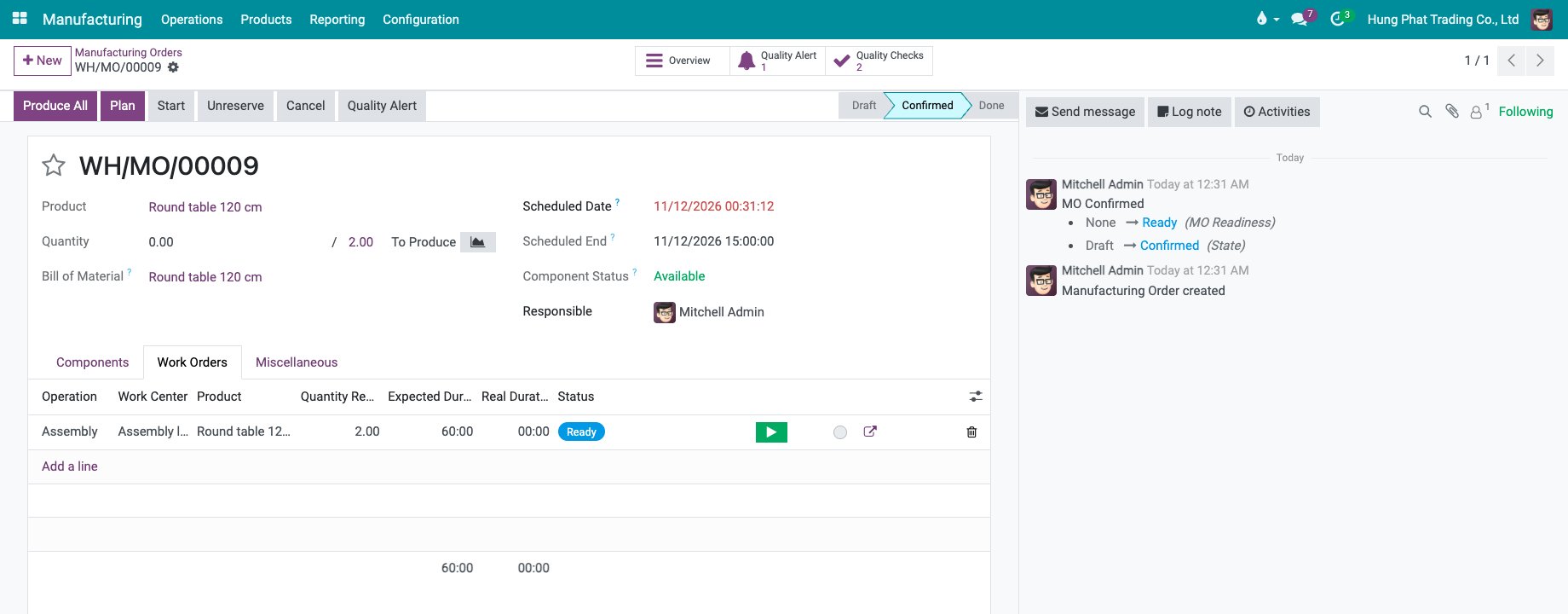
The order then shows the Quality Alert smart button with the number of alerts, and the alert count also shows in the list of manufacturing orders and on the work center card. A work order in progress has its own Quality Alert button.
Common errors
Problem |
What to do |
|---|---|
The fields of an existing alert cannot be edited. |
Only a user with the Quality ‣ User access right edits an existing alert. |
The Quality Alert button is missing on a transfer. |
The transfer has no quality check. See How to Integrate Quality Control with Transfers. |
A solved alert still counts on the dashboard. |
Tick Alert Processed on the Solved stage, see Getting started with Viindoo Quality. |
Next steps
Create control points and quality checks: define what to inspect and record the checks.
Getting started with Viindoo Quality: set up the teams, stages, actions and root causes.
See also
Related articles
Optional modules