
How to resupply a warehouse from another warehouse
To move products from one warehouse to another, open the destination warehouse in , tick the source warehouse in Resupply From and save. Viindoo creates a route named <Destination>: Supply Product from <Source>. Select that route on your products and products are then moved between the warehouses automatically (Make to Order or minimum stock rule) or when you click Replenish.
Every resupply creates two transfers that go through a transit location: a delivery from the source warehouse, then a receipt in the destination warehouse.
Who |
Users with the Inventory Administrator access right. Inventory Users can then process the transfers. |
App |
Inventory |
Before you start
Install the Inventory app and create at least 2 warehouses (see How to create a warehouse and its locations).
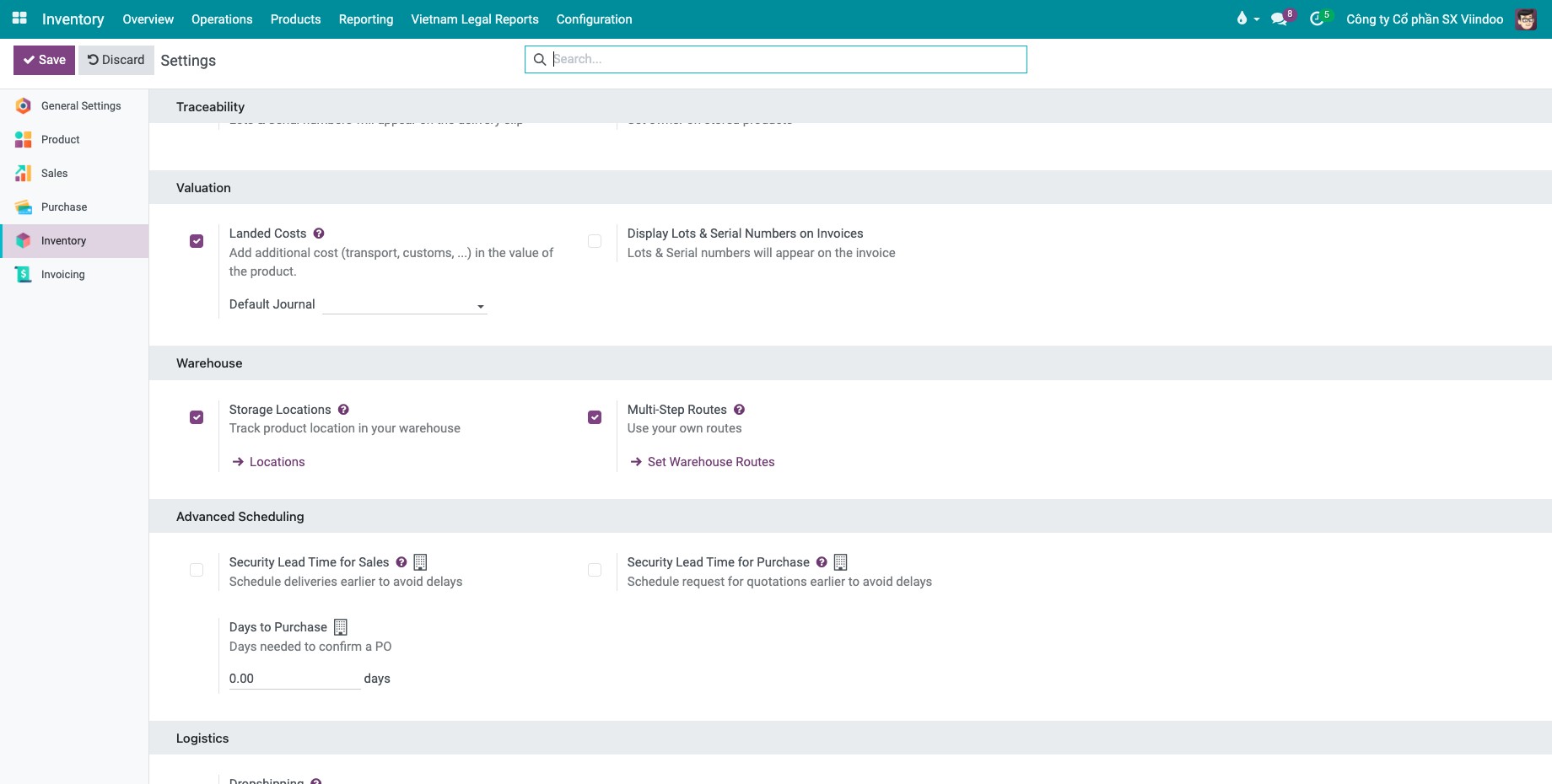
Turn on Storage Locations and Multi-Step Routes in , then click Save.
![Storage Locations and Multi-Step Routes turned on in the Inventory settings]()
The products to move are tracked in inventory (Track Inventory ticked on the product).
How do I set up the resupply route between two warehouses?
Go to and open the warehouse that receives the products.
On the Warehouse Configuration tab, tick the warehouses that may resupply it in Resupply From, then click Save.
![Warehouse form with the Resupply From field listing the warehouses that can resupply it]()
Go to . You should see one new route per source warehouse, for example Quang Ninh Warehouse: Supply Product from Viindoo Manufacturing JSC.
![Routes list with the new Supply Product from route of the destination warehouse]()
Open the route to check where it can be selected and which rules it runs.
![Route form with the Applicable On choices and the two pull rules through the transit location]()
Applicable On: the places where the route can be selected: Product Categories, Products, Packagings or Warehouses. The route of a resupply can be selected on products and on product categories. A product uses the routes selected on the product together with those of its category; when several routes can supply it, Viindoo takes the one with the lowest sequence number.
Rules: the first rule pulls from the stock of the source warehouse to the transit location, the second pulls from the transit location to the stock of the destination warehouse.
Open a rule if you need to see its Supply Method. Keep the default values for a resupply: the first rule is Take From Stock and the second one is Trigger Another Rule, which asks the first rule for the goods.
![Stock rule form with the Supply Method choices]()
Supply Method
Effect
Take From Stock
The products are taken from the available stock of the source location of the rule.
Take From Stock, if unavailable, Trigger Another Rule
Viindoo takes what is available, and asks another rule (for example Buy or Manufacture) only for the missing quantity.
Trigger Another Rule
The available stock of the source location is ignored. Viindoo looks for another rule to bring the whole quantity there.


How do I resupply automatically when a sales or manufacturing order is confirmed?
This is the Make to Order (MTO) method. Products move only when an order needs them, so you keep no extra stock.
Go to , filter on Archived, tick Replenish on Order (MTO) and click Actions ‣ Unarchive, so that the route can be selected on products.
Open the product category () and select the resupply route and Replenish on Order (MTO) in the Routes field. To do it for one product only, select both routes in the Routes field of the Inventory tab of the product instead.
![Product category form with the resupply route selected in the Routes field]()
Confirm a sales order or a manufacturing order for the product, with the destination warehouse as the warehouse of the order. Viindoo creates the two transfers of the resupply.
![Delivery and receipt transfers created between two warehouses after confirming a sales order]()

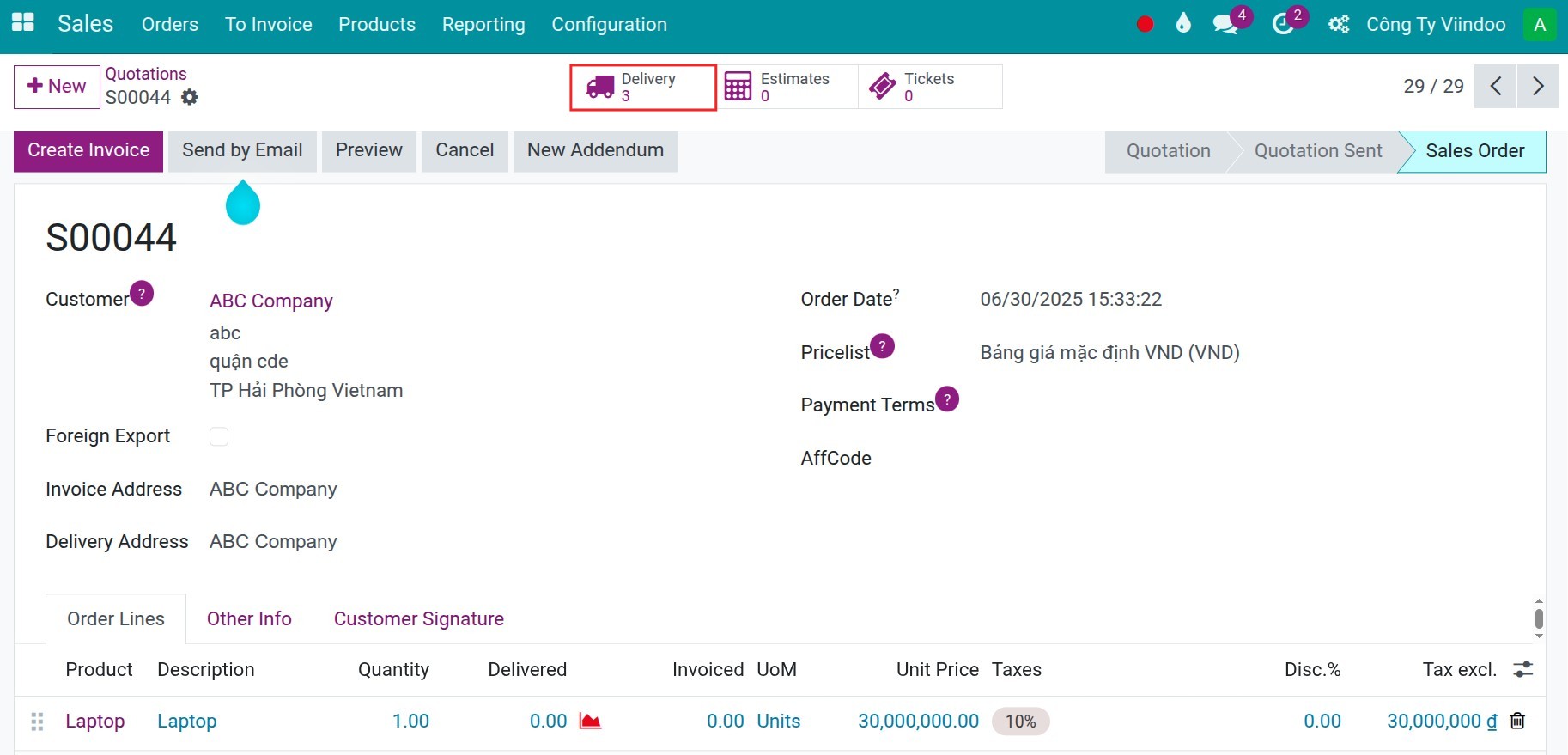
You should now see the delivery from the source warehouse in and the receipt in the destination warehouse in . Validate each transfer when the goods really leave and arrive.
If you also install Sales or Manufacturing, the order gives the demand that triggers the resupply.
How do I resupply when stock goes below a minimum?
This is the Make to Stock (MTS) method, based on reordering rules.
Go to and click New.
Choose the Product, the Location of the destination warehouse (for example QN/Stock), and enter the Min and Max quantities.
Show the optional Route and Trigger columns with the column selector at the right of the header. In Route, choose the Supply Product from route of the resupply.
![Replenishment list with a reordering rule whose route is the resupply from another warehouse]()
When the forecast of the product at the destination goes below the minimum, select the line and click Replenish ‣ Order. Viindoo creates the two transfers. A rule with the Auto trigger does it for you when the daily scheduler runs.
![Replenishment list after clicking Order, with the notification that the replenishment order was generated]()
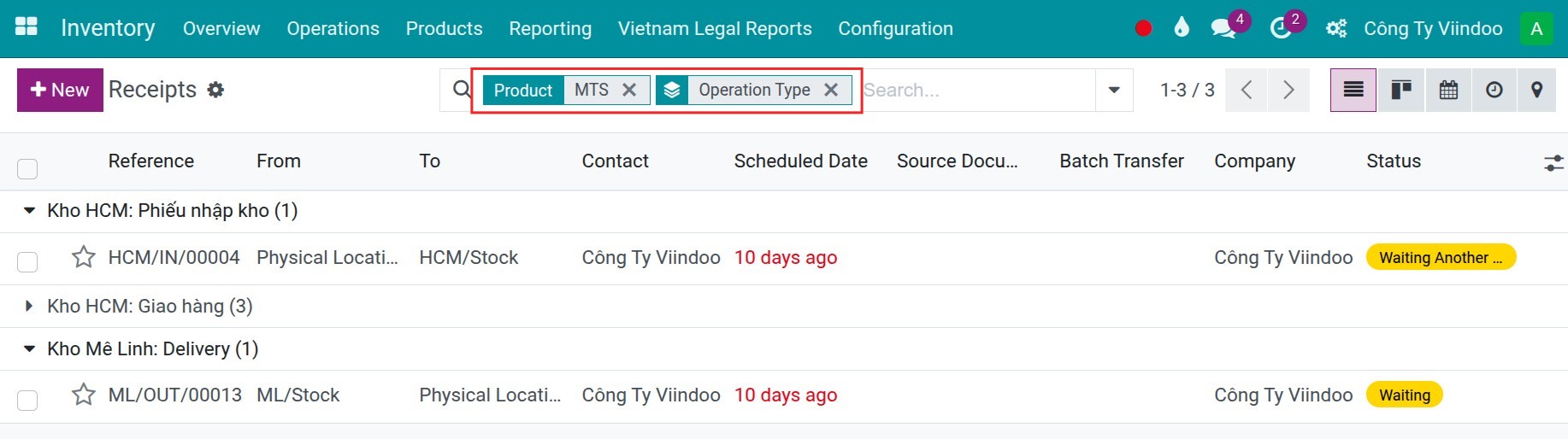
Search for the transfers by product and operation type in or Deliveries.
![Receipts list filtered by product to find the transfers created by the replenishment]()


Note
If a transfer between the same two locations is still open, Viindoo adds the new product lines to it instead of creating a new pair of transfers.
How do I resupply one product manually?
Use this when you need products now, without a rule.
Open the product and click Replenish in the buttons above the form.
![Replenish button on the product form]()
You can also open the forecast report of the product (the Forecasted button) and click Replenish there.
![Forecast report of a product with the Replenish button]()
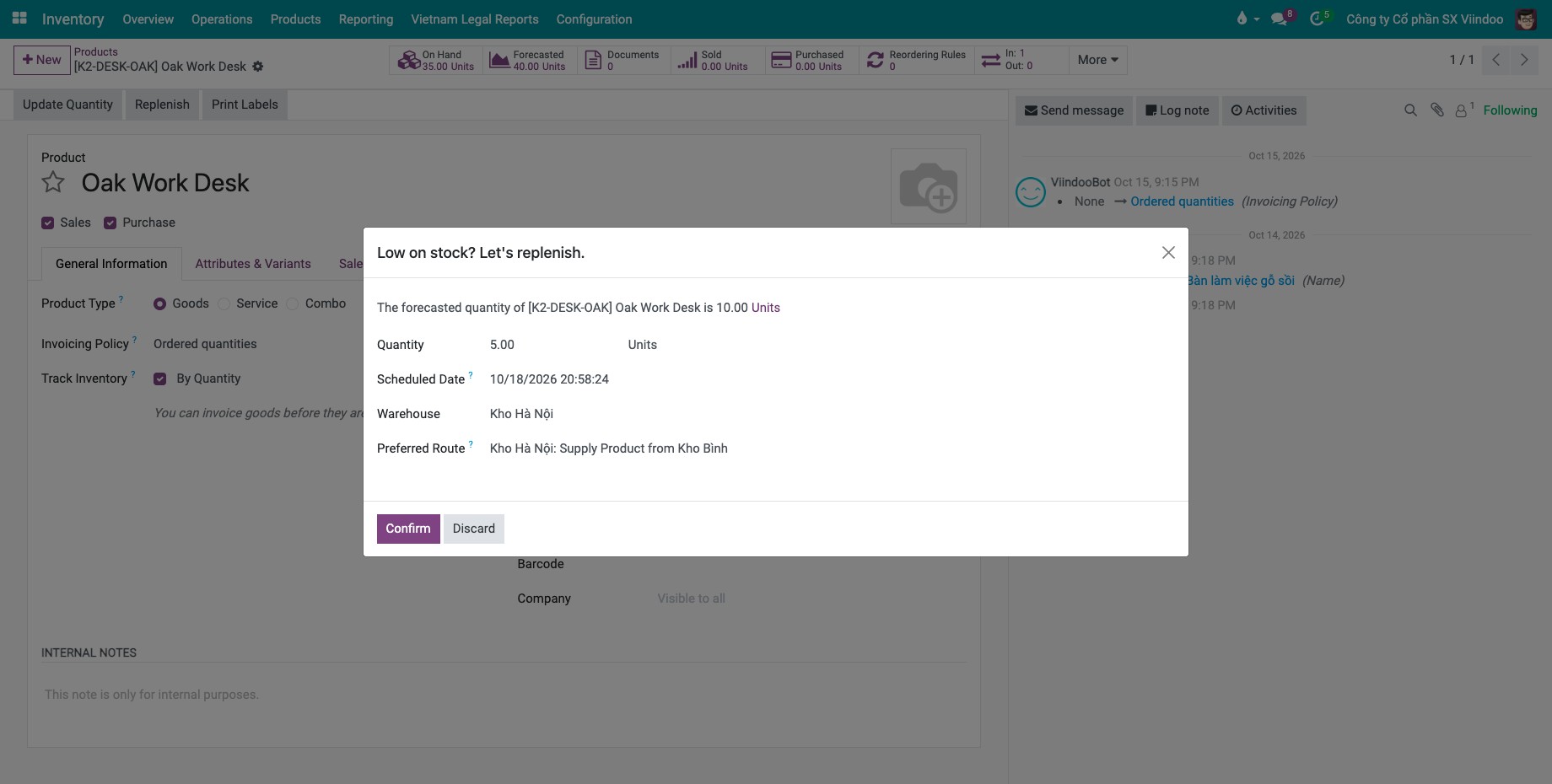
Enter the Quantity, the Scheduled Date and the destination Warehouse, and choose the resupply route in Preferred Route.
![Replenish window with quantity, scheduled date, warehouse and the preferred route]()
Click Confirm. Viindoo creates the two transfers between the warehouses.


Note
The route is offered in Preferred Route only if it can be selected on products, as set in Applicable On.
What should I see when it works?
A delivery from the source warehouse to Inter-warehouse transit, and a receipt from that transit location to the stock of the destination warehouse, both linked to each other.
After you validate both transfers, the quantity has left the source stock and is in the destination stock.
Common problems
Problem |
What to do |
|---|---|
Resupply From is not shown in the warehouse form. |
Create a second warehouse and turn on Multi-Step Routes. |
The route is not offered in Preferred Route or on the product. |
Check Applicable On in the route, and that the route is not archived. |
Products are not moved although stock is below the minimum. |
Check that the reordering rule has the resupply route, that the source warehouse has the quantity, and that the scheduler has run (for a rule with the Auto trigger), or click Replenish ‣ Order for a manual one. |
A replenishment rule already exists for this product on this location. |
A product has one reordering rule per location. Edit the existing rule. |
Next steps
How to replenish stock with automatic or manual reordering rules: choose between automatic and manual reordering rules.
How to use routes and pull or push rules to supply a location: understand pull and push rules.
Version notes
In this version a reordering rule is created in , and the route and trigger are columns of that list.
With the supply method Take From Stock, if unavailable, Trigger Another Rule, the next rule is asked only for the missing quantity, not for the whole quantity as the guide of the previous version said.
If you also install Inventory Backdate you can enter the date of past transfers. The Multi Warehouse Access Control modules for Purchase and Sales limit users to their own warehouses.