
Cash on hand management
The cash box of your company is a cash journal. You record each receipt or payment as a transaction, group the transactions of a day in a cash register to compare them with the cash you counted, then reconcile them with the invoices and bills.
This guide is for bookkeepers and cashiers who keep the cash book. The example records 7,260,000 VND received from a customer.
Requirements
This tutorial requires the installation of the following applications/modules:
Who can do this, and where?
Task |
Role needed |
Application |
|---|---|---|
Record cash transactions, count the cash and reconcile |
Bookkeeper |
Accounting |
How do I record a cash receipt or a cash payment?
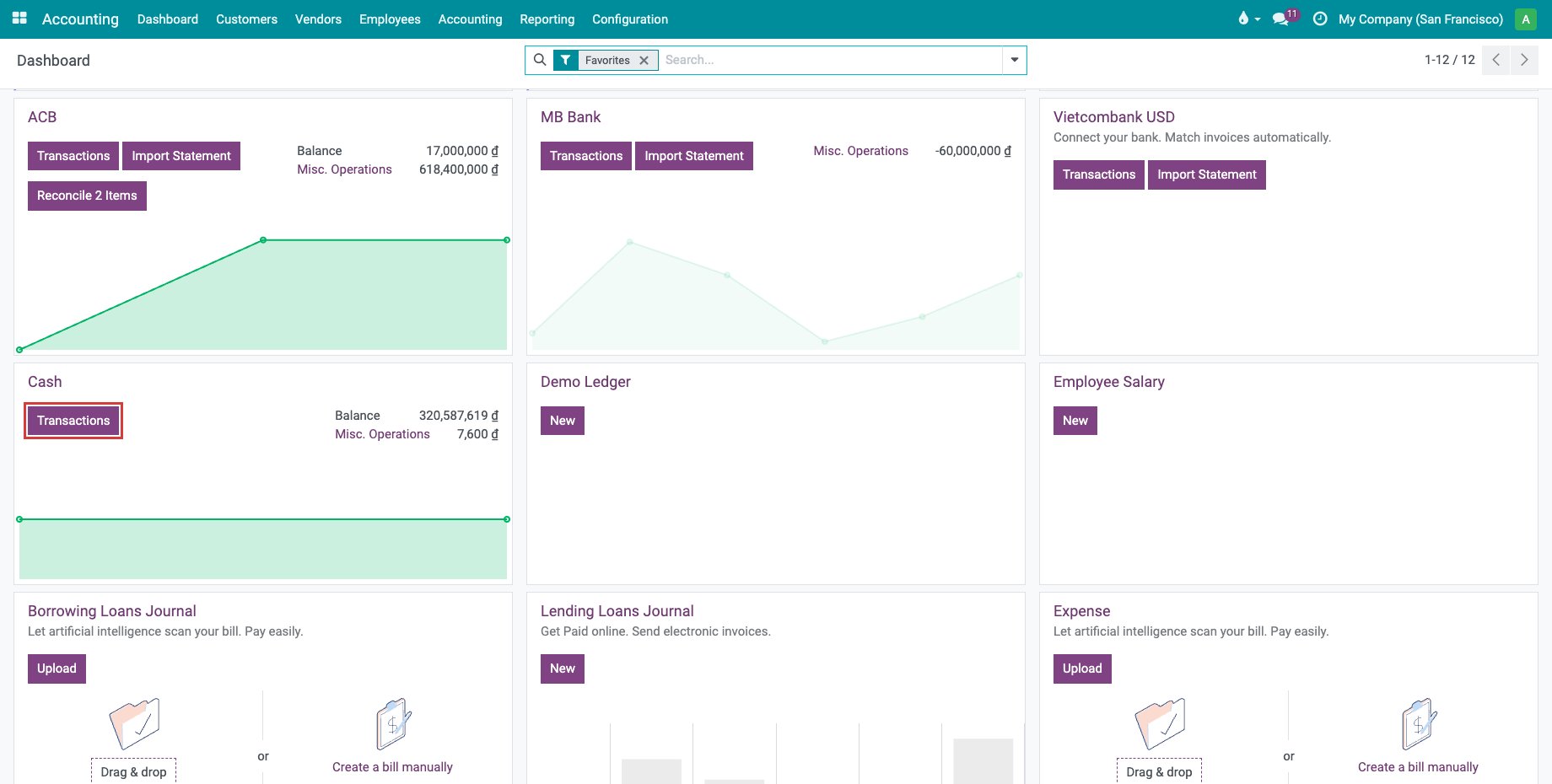
Go to . On the card Cash, click Transactions.
![The Accounting dashboard with the Transactions button of the Cash journal highlighted]()
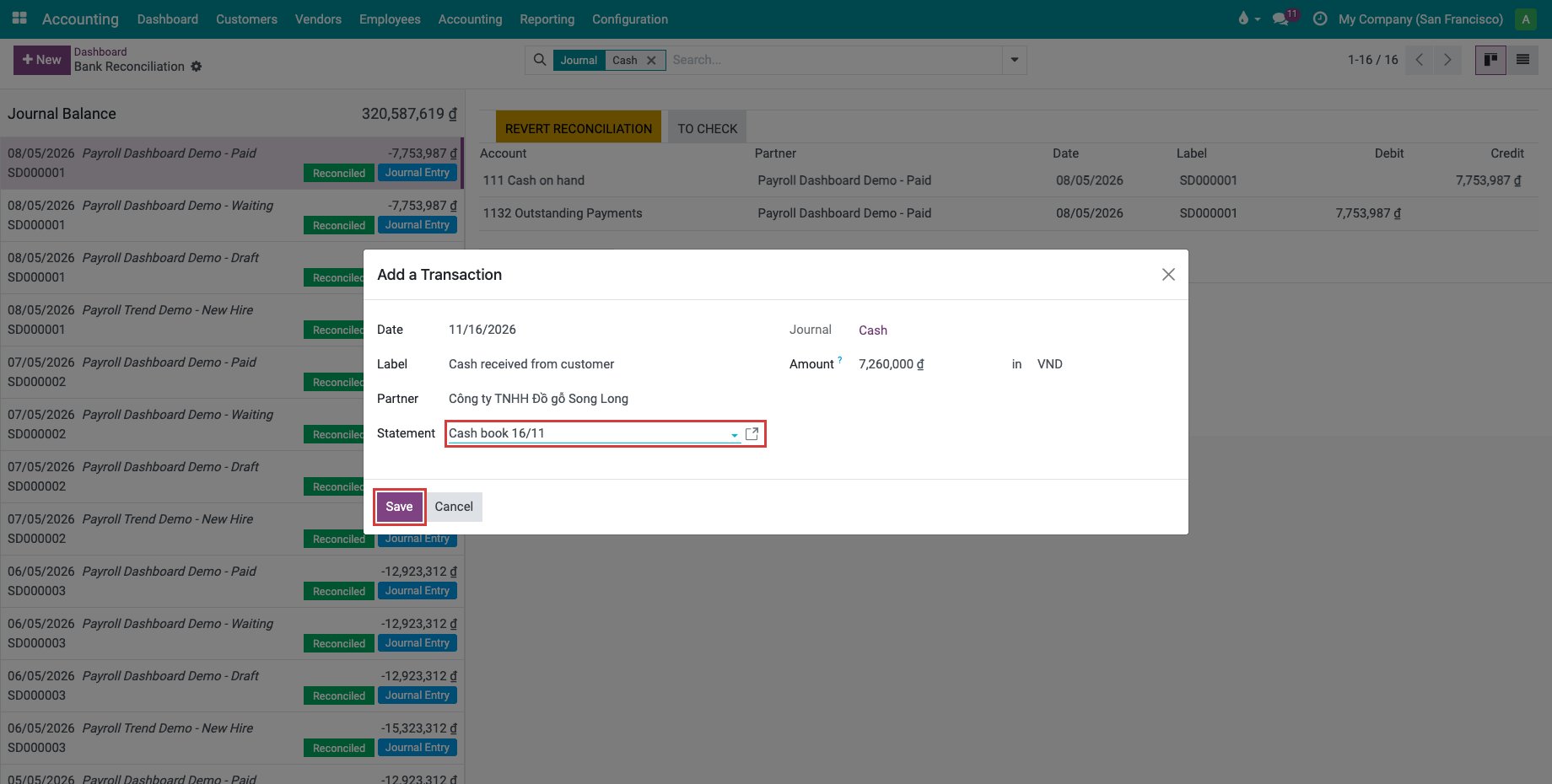
Click New. In the window Add a Transaction, enter:
Date: the date of the receipt or payment.
Label: a short description that is easy to search, for example with the date.
Partner: the customer, the vendor or the employee who pays or receives the cash.
Amount: a positive number for cash received, a negative number for cash paid out.
Statement: the name of the cash register of the day, for example Cash book 16/11. Type a new name and choose Create to open the register.
Click Save.
![The window Add a Transaction on the Cash journal with a statement name and an amount of 7,260,000]()
Fill in the partner on every transaction, it is what lets you reconcile the transaction with the right invoice or bill.
How do I check the cash against the count?
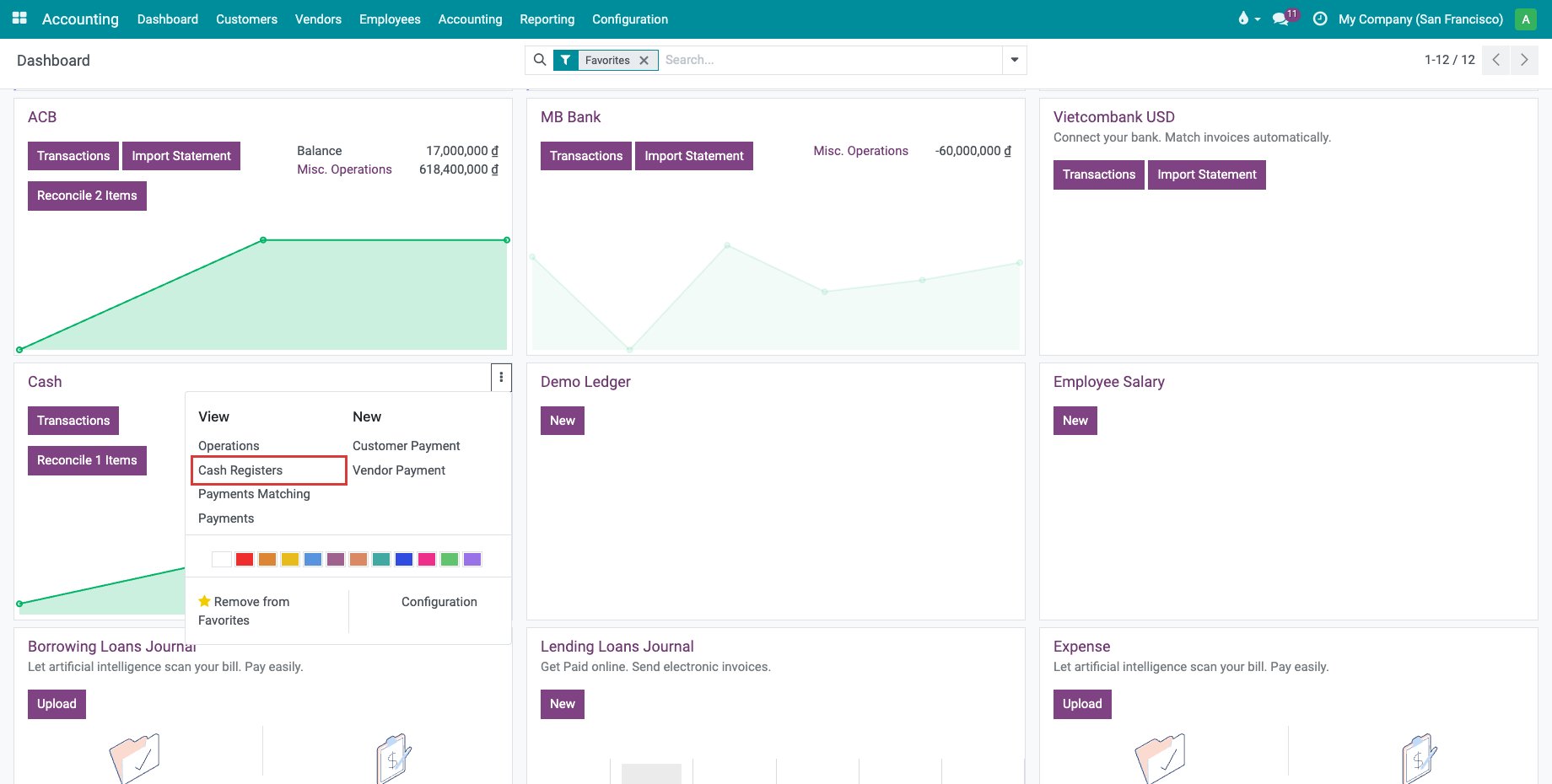
On the dashboard, click the three dots of the card Cash and choose Cash Registers under View. Open the register of the day.
![The menu of the Cash journal card with Cash Registers highlighted]()
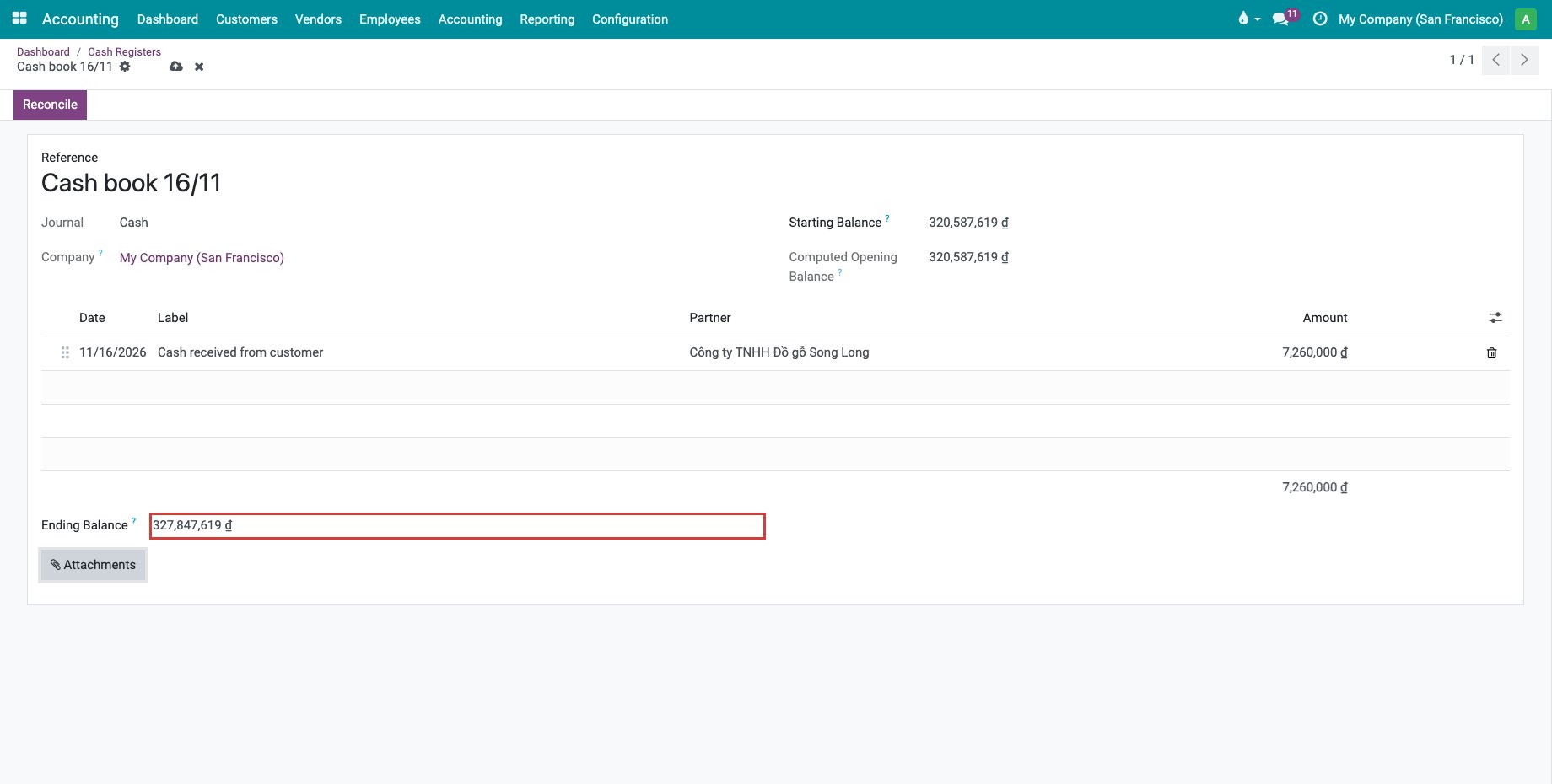
Check the field Starting Balance: it must equal Computed Opening Balance, the balance of the cash journal before this register. A register created from the window Add a Transaction starts at 0, so enter the amount of Computed Opening Balance in Starting Balance. While the two differ, a warning says that the opening balance differs from the books.
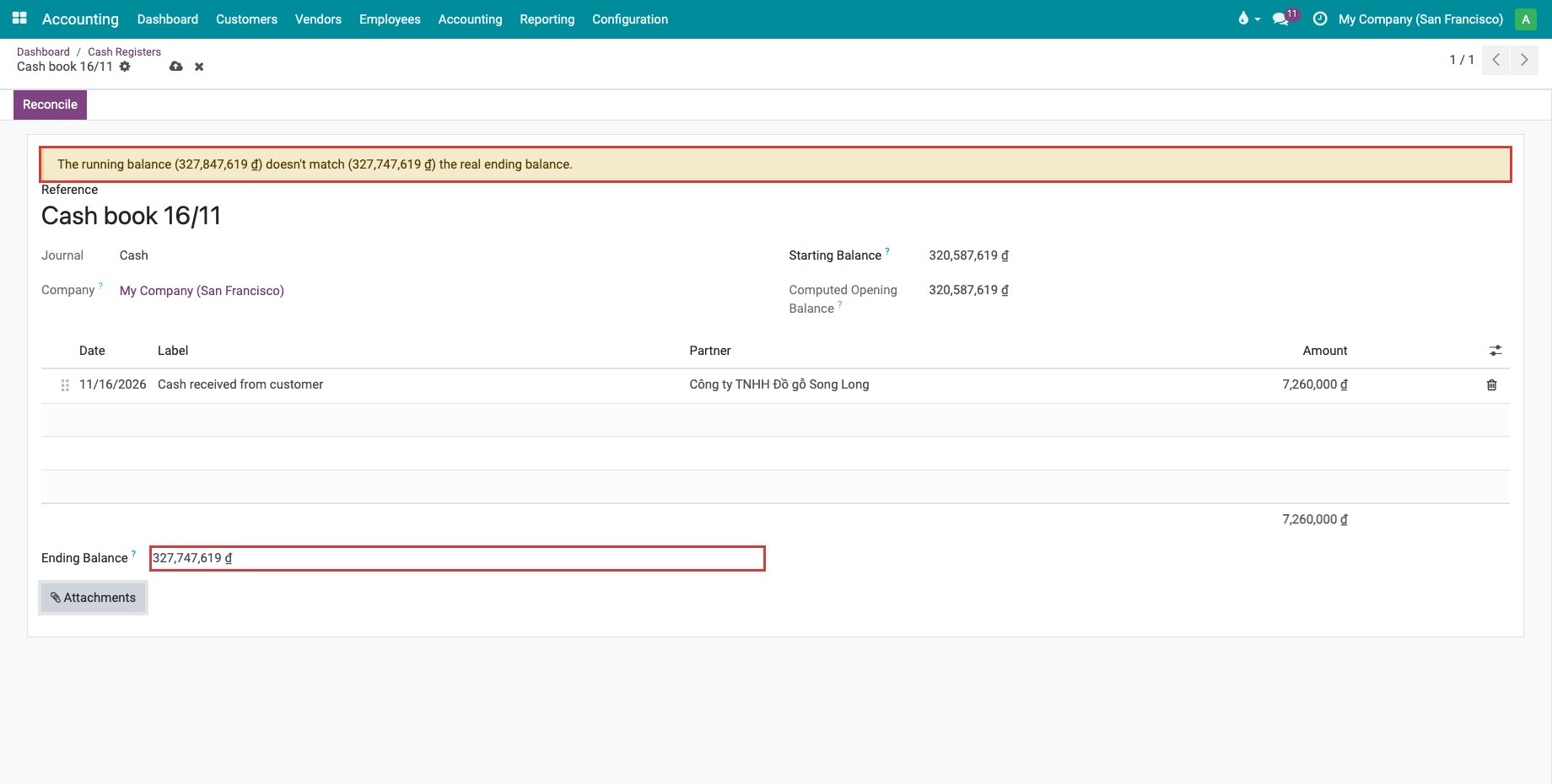
Count the cash in the box and enter the amount in the field Ending Balance. The register compares it with the running balance of its transactions. When they differ, a warning appears: The running balance doesn’t match the real ending balance.
![A cash register with an ending balance of 327,747,619 and the warning that the running balance of 327,847,619 does not match]()
Look for the missing or wrong transaction, correct it, or correct the counted amount. The warning disappears when the two amounts are equal.
![A cash register whose ending balance of 327,847,619 matches the running balance]()
How do I reconcile the cash transactions?
Click Reconcile on the card Cash of the dashboard, or on the register.
The open invoices of the partner are listed in the tab Match Existing Entries, and the one with the same amount is proposed. Click an invoice to match it, or click the trash icon of a line to take it out.
Click Validate.
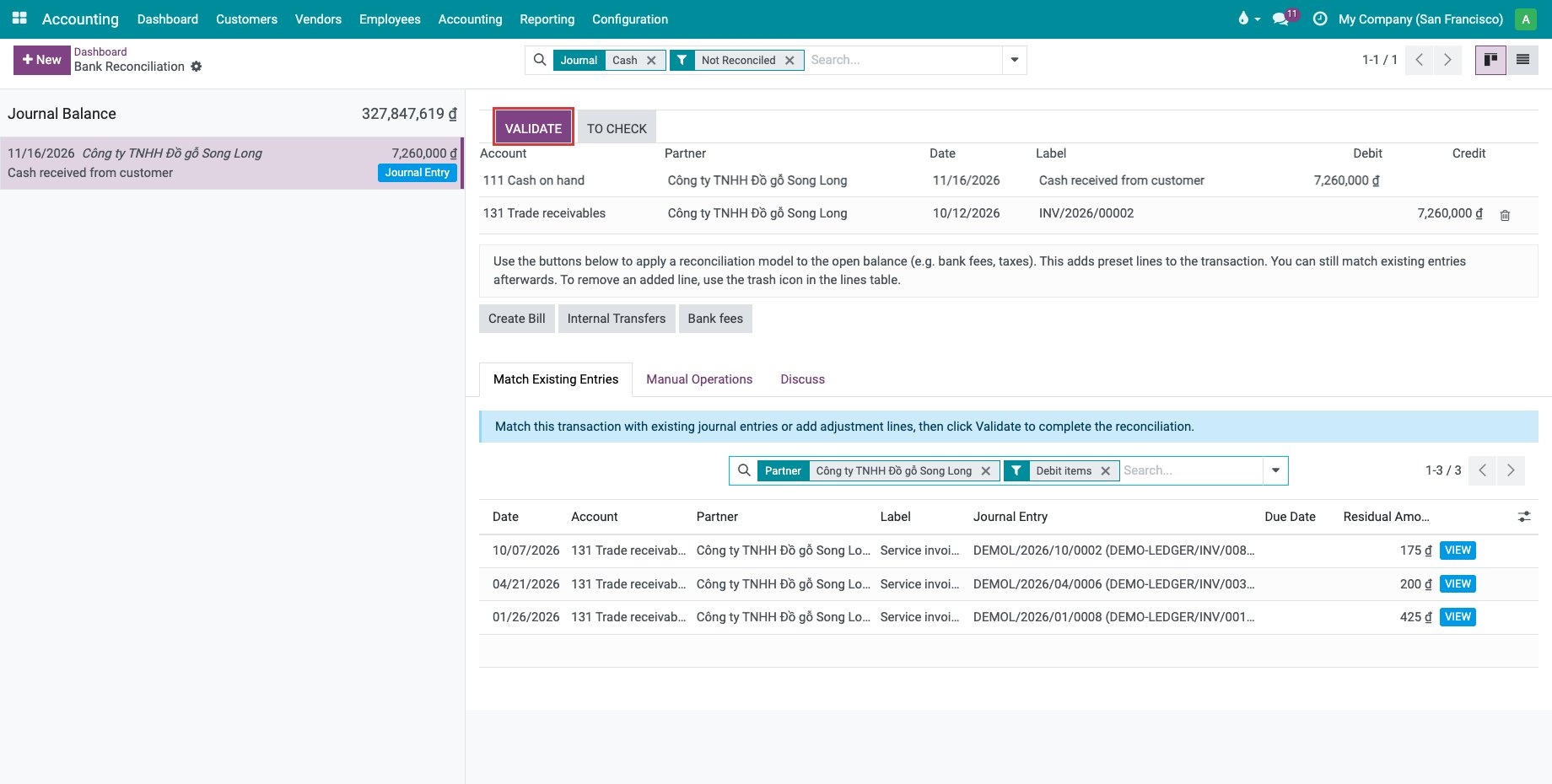
The invoice is Paid. A payment of a vendor bill is reconciled the same way with a negative amount. If nothing matches, choose the account in the tab Manual Operations or apply a reconciliation model, see Reconciliation models in Viindoo Accounting.
What should I see afterwards?
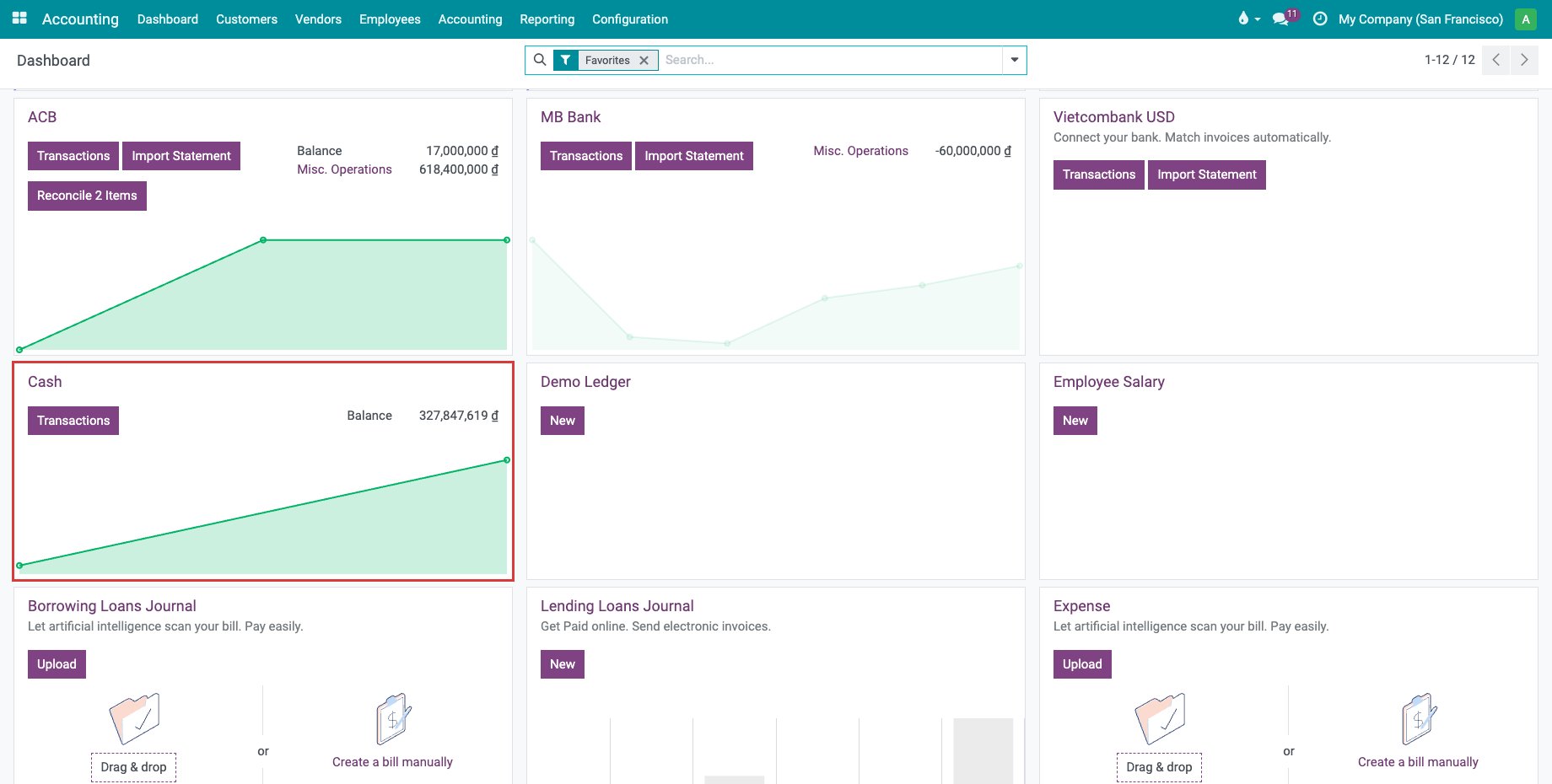
The card Cash of the dashboard shows the new balance.
![The Cash journal card of the dashboard with its balance]()
The register of the day lists the transactions and its warning is gone when the count matches.
Common problems
Problem |
Cause |
What to do |
|---|---|---|
The register shows the warning about the running balance |
The counted ending balance differs from the running balance of the transactions. |
Find the missing or wrong transaction, or correct the counted amount. |
The invoice is not proposed in the tab Match Existing Entries |
The list is filtered on the partner of the transaction, and the invoice belongs to another partner. |
Set the right partner on the transaction, or remove the filter Partner to see every open item. |
Next steps
See also
Related article
Optional module