
How to start the IoT box and connect it to your network
Put the written card in the board, plug in a network cable, then the power supply, and open
http://<address of the box> from a computer or a phone on the same network. Without a cable, the
box opens its own Wi-Fi network Viindoo-IoT-<hardware address>, where you choose your Wi-Fi.
Who |
The IoT Integrator who sets up the box. Changing a setting of a paired box needs its settings code, which only an IoT Administrator reads. |
App |
Before you start
You have written the image to the card: How to download, check and write the IoT box image.
What does the box do at its first start?
At its first start the box gives itself a host name viindoo-iot-<last 4 characters of the board's
serial number> (for example viindoo-iot-1a2b), makes its own certificate and announces itself on
the local network. The host name never changes afterwards.
How do I start the box with a network cable?
The network cable is the preferred way.
Put the card in the board, plug in the network cable, then the power supply.
Find the box’s address (see How do I find the box’s address?) and open
http://<address>from a computer or a phone on the same network.
While the box software starts, or undoes an update, every address of the box shows the page The box is not ready yet. It checks again by itself and opens the box page as soon as the box answers. If nothing changes after 15 minutes, unplug the power supply, wait ten seconds and plug it in again.
How do I connect the box to Wi-Fi?
When the box starts with no cable and no Wi-Fi network it can join, it opens its own open Wi-Fi
network named Viindoo-IoT-<hardware address>: Viindoo-IoT- followed by the hardware address of
the box, without colons.
Join that network from a computer or a phone.
Open
http://10.11.12.1. The Network section shows Own Wi-Fi network of the box.Click Wi-Fi. In Name of the Wi-Fi network, choose your network from the list of networks the box found, or type its name. A hidden network is not in the list: type its name exactly.
In Password (leave empty for a network without one), type the password of the network, or leave it empty for an open network.
Keep Keep this network after a restart ticked, so that the box joins this network again by itself after every restart. Untick it to use the network only until the box restarts.
Click Join the network. On a paired box the page first asks the settings code.
The page says The box is joining <name>. and This page loses contact with the box. Connect your device to the same network the box joined and wait a minute. Do so, then open the box by the link under On a device on that network, open the box by its name: (
http://<host name>.local), or, as the page says next, by the address it has on that network (see How do I find the box’s address?).
In these cases the box does not try to join, and the page says why:
This network name cannot be used: a Wi-Fi network name has 1 to 32 characters (fewer when it holds accented letters or symbols) and holds no line break, tab or other control character. Check the name and try again.
This password cannot be used: it holds a line break, a tab or another control character, which a Wi-Fi password does not have. Check the password and try again.
The box is changing its Wi-Fi by itself at this moment: it is going back to the network it keeps, or starting its own network. Wait a minute, then try again.
A wrong password is not shown on the page, because the box joins after the page has answered. When
the join fails, the box goes back to the network it had before. If it has no network left, it opens
its own network Viindoo-IoT-<hardware address> again: join it and check the name and the password.
A network that asks for a user name as well as a password (802.1X) cannot be joined.
Once the box keeps a network, it looks after it by itself:
At every start, after a power cut too, the box joins the network it keeps before anything else.
After a router restart or a weak signal, the box joins its network again: after one minute, then less and less often, at least every five minutes.
The box opens its own network only after ten minutes without any address, or at start when it cannot join the network it keeps. A router that restarts is back long before.
While its own network is open, the box keeps looking for its network and goes back to it when it hears it, for instance when the router came back after the box. It never does so while someone may be setting the box up through its own network: for ten minutes after a device connects to it, and for ten minutes after each use of the box page.
Plugging in a network cable closes the box’s own network, once nobody is setting the box up through it.
Forget the saved network forgets it for good: the box stays on it until it restarts, then never joins it again. A join asked before you clicked Forget the saved network is not kept either.
How do I find the box’s address?
HDMI screen: the identification page shows Viindoo IoT Box, the host name, each network connection with its address and the line “To set up this box, open http://<address> in a browser on the same network.” Each text of this page is in English, with its Vietnamese below it.
USB receipt printer: when the box finds a USB receipt printer, it prints a status ticket titled
Viindoo IoT Boxwith the IP address and aHomepage:line. Open that address.Router: look for the host name in the router’s list of devices (DHCP leases).
By name:
http://<host name>.local(for examplehttp://viindoo-iot-1a2b.local).
A .local name only works on the same network segment. It does not work across VLANs or routers,
on a guest network that isolates clients, through a VPN, or on networks that filter multicast. Use
the address from the screen, the ticket or the router there.
What is on the box page?
The box page is where you connect the box to Viindoo, check that it is healthy and test its devices. Its language follows your browser; the English and Tiếng Việt buttons at the top switch it.
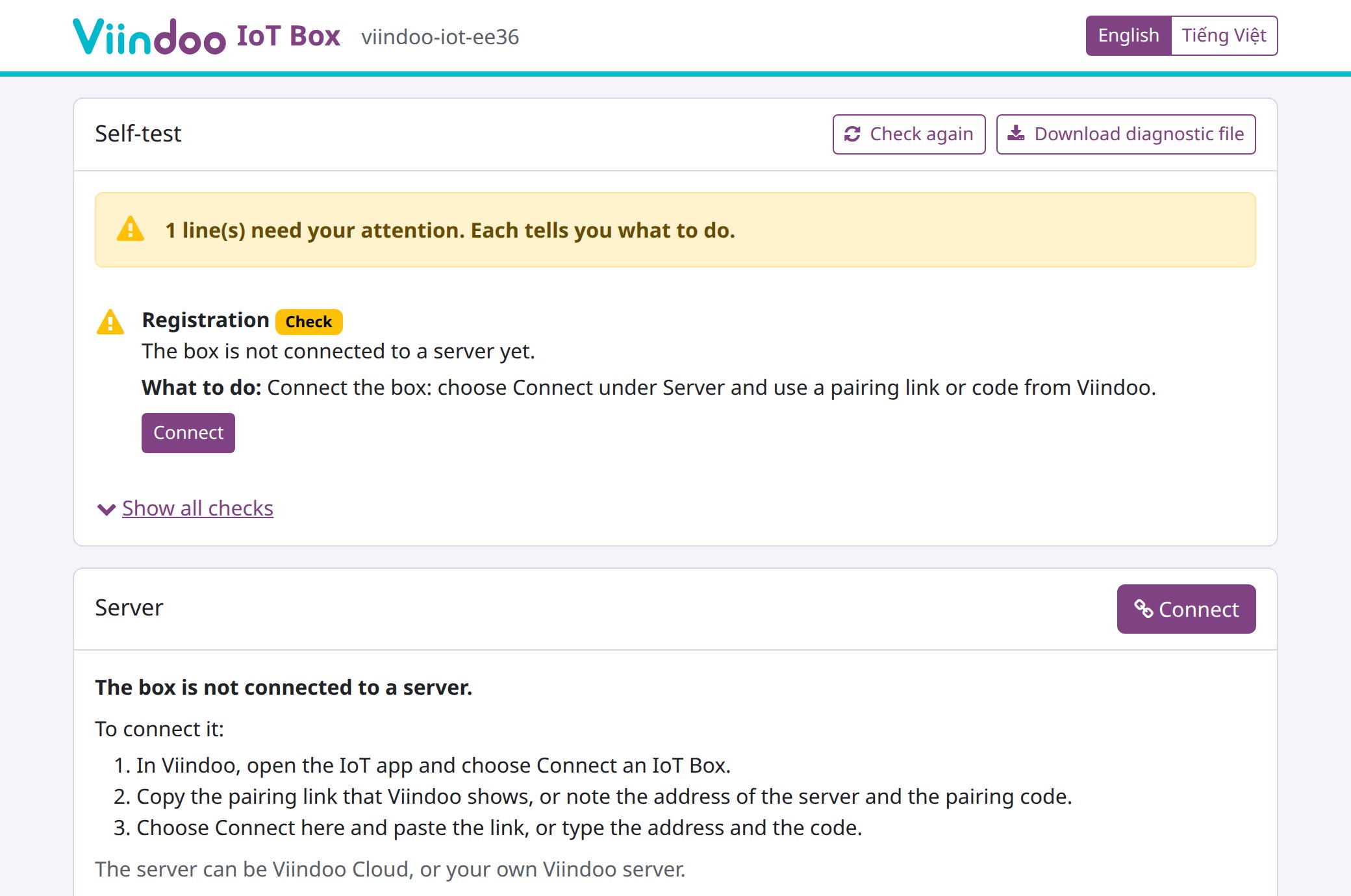
From top to bottom:
Self-test - every check the box runs on itself. Lines that need you come first, each with What to do: and, often, a button that does it. Show all checks lists the lines that are fine; Download diagnostic file saves a file for support. The full list is in What does each self-test line mean?.
Server - whether the box is connected to Viindoo, with Connect (or Pair again and Disconnect once paired).
Network - how the box is connected and its address, with the Wi-Fi button.
Devices - every device the box found, with its test.
Software - the installed release and its updates.
Advanced (click Show) - certificate, address given to browsers, the box’s own name and identifiers, logs, clock, shell password and restart.
The footer links to the Documentation of the Internet of Things app and to support (apps.support@viindoo.com).
What is the settings code?
Once a box is paired, every change of a setting on its page - pairing again, disconnecting, Wi-Fi, adding a printer, switching a scanner, the certificate, log levels, restart, the shell password and the update choices - asks for the box’s Settings code. Reading the page, the tests, the logs and the diagnostic file never need it.
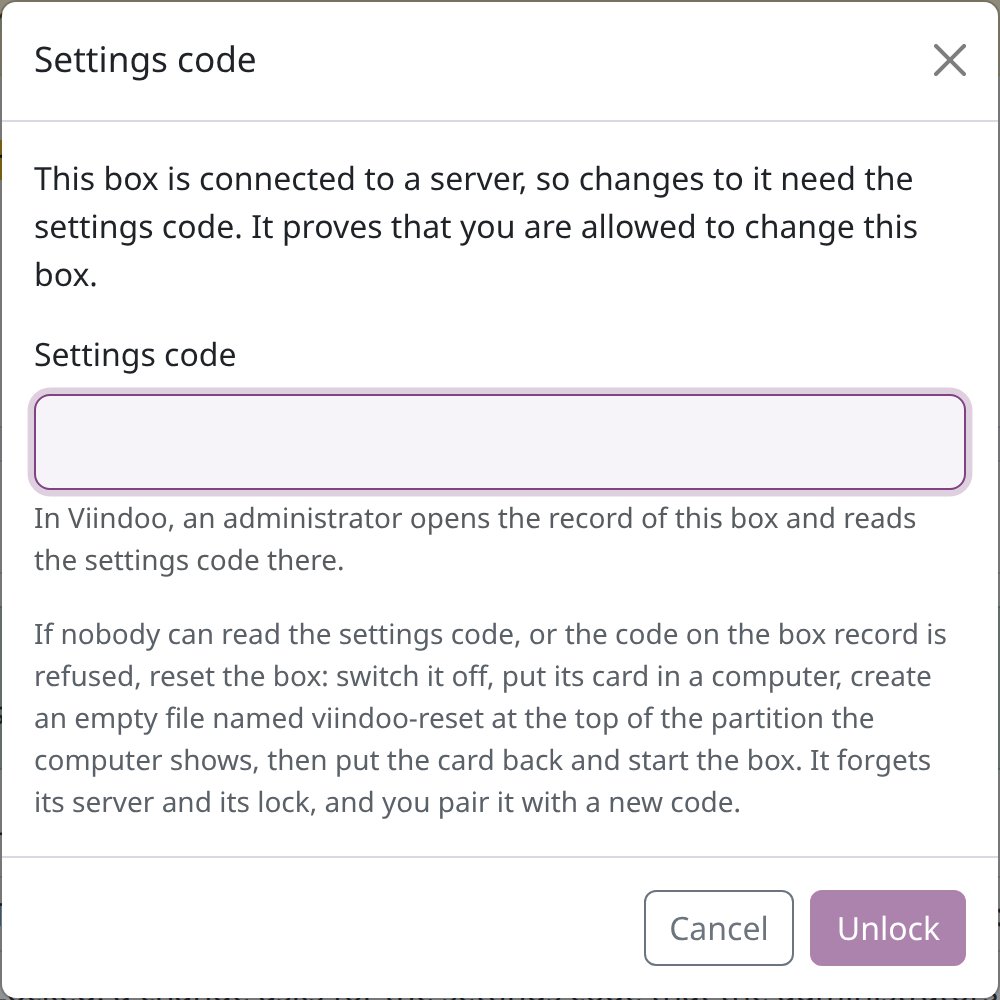
An IoT Administrator reads the code in Viindoo: open the box (IoT ‣ Overview, click its card) and look at Box Settings Code in the Advanced group; the copy button copies it. One right code unlocks that browser tab for 15 minutes. The code changes each time the box is paired again. The Settings code dialog also says what to do when nobody can read the code, or when the code on the box record is refused: reset the box, as below.
What if nobody can unlock the box?
If the box’s server is gone, nobody can read its code, or the code on its record is refused, reset it:
Switch the box off and take out the card.
Put the card in a PC. Open the partition the PC shows (the boot partition).
Create an empty file named
viindoo-reset(orviindoo-reset.txt) at the top of that partition.Put the card back and start the box.
At that start the box forgets its server, its credential (and with it the lock), the certificates it trusted for the server and its Viindoo name, then deletes the file. It keeps the Update automatically choice and its Wi-Fi network, and it keeps the name you typed with your own certificate only while that certificate is installed and issued for that name. Then pair it with a new code: Re-pair on its record in Viindoo, or Connect an IoT Box if the record was deleted.
Common errors
Problem |
What to do |
|---|---|
The box is not ready yet stays on. |
Wait 15 minutes; then switch the box off and on; then contact your Viindoo administrator. |
The box page is unreachable after joining a Wi-Fi network. |
Join the same Wi-Fi and open |
The box lost its Wi-Fi and its own network |
The box opens its own network only after ten minutes without any address; until then it tries to join its network again. Wait, or plug in a network cable. |
|
The name only works on the same network segment. Use the address from the screen, the ticket or the router. |
More messages are listed in How to troubleshoot an IoT box.
Next steps
How to connect an IoT box to Viindoo: pair the box with your Viindoo database.