
How to create a ticket for Viindoo Support
To ask Viindoo for help, go to viindoo.com/ticket, choose the ticket type (Issue for a problem, Change Request for a change to the product or project), describe the situation and click Submit. You receive a confirmation email with a View Ticket link where you follow the status and talk with the support team.
Who |
Any Viindoo customer or user. Logging in to viindoo.com first is recommended. |
Where |
The viindoo.com website (not inside your database) |
Before you start
If you have an account on viindoo.com, Login first: your orders, invoices and payments help the team answer faster, and your name and email are filled in for you.
Prepare screenshots or a screen recording of the problem, shared as links.
How do I create a ticket?
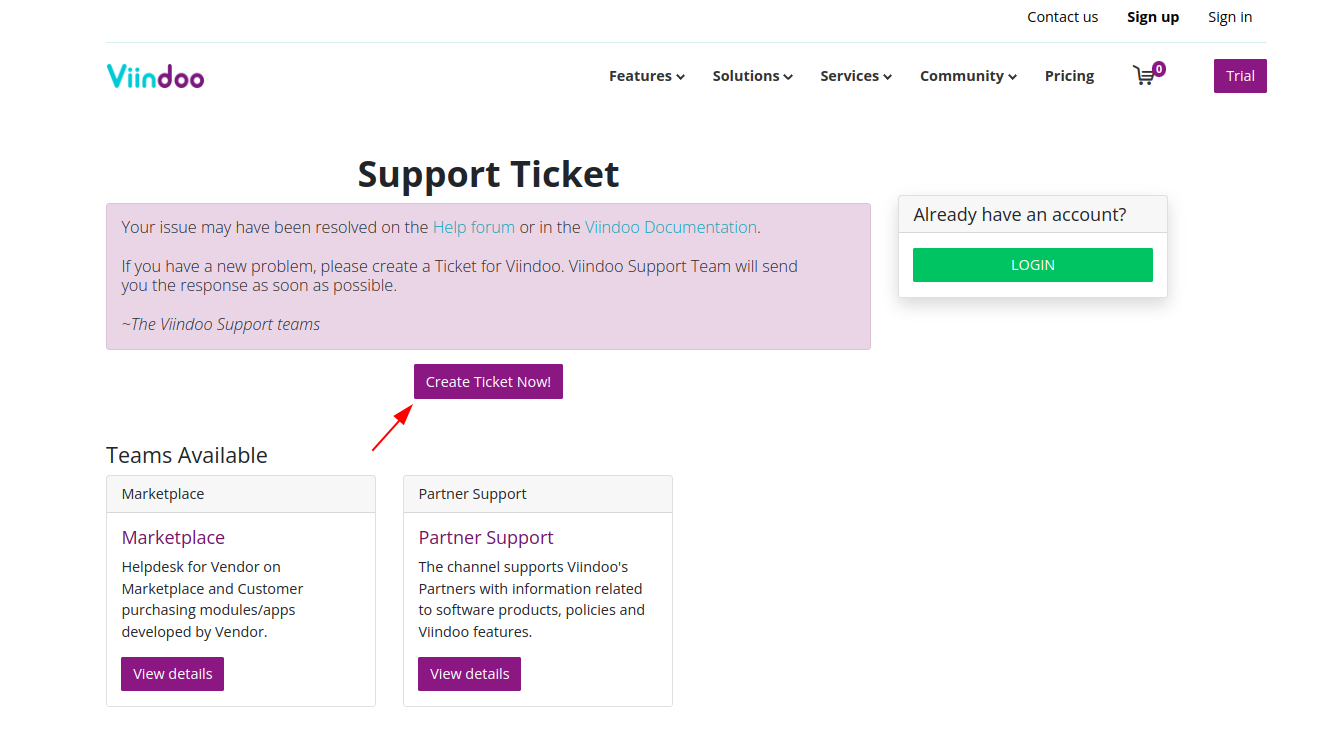
Open viindoo.com/ticket, or click Helpdesk at the top of this documentation and choose Create Ticket Now!.
![Create a ticket page on the Viindoo website]()
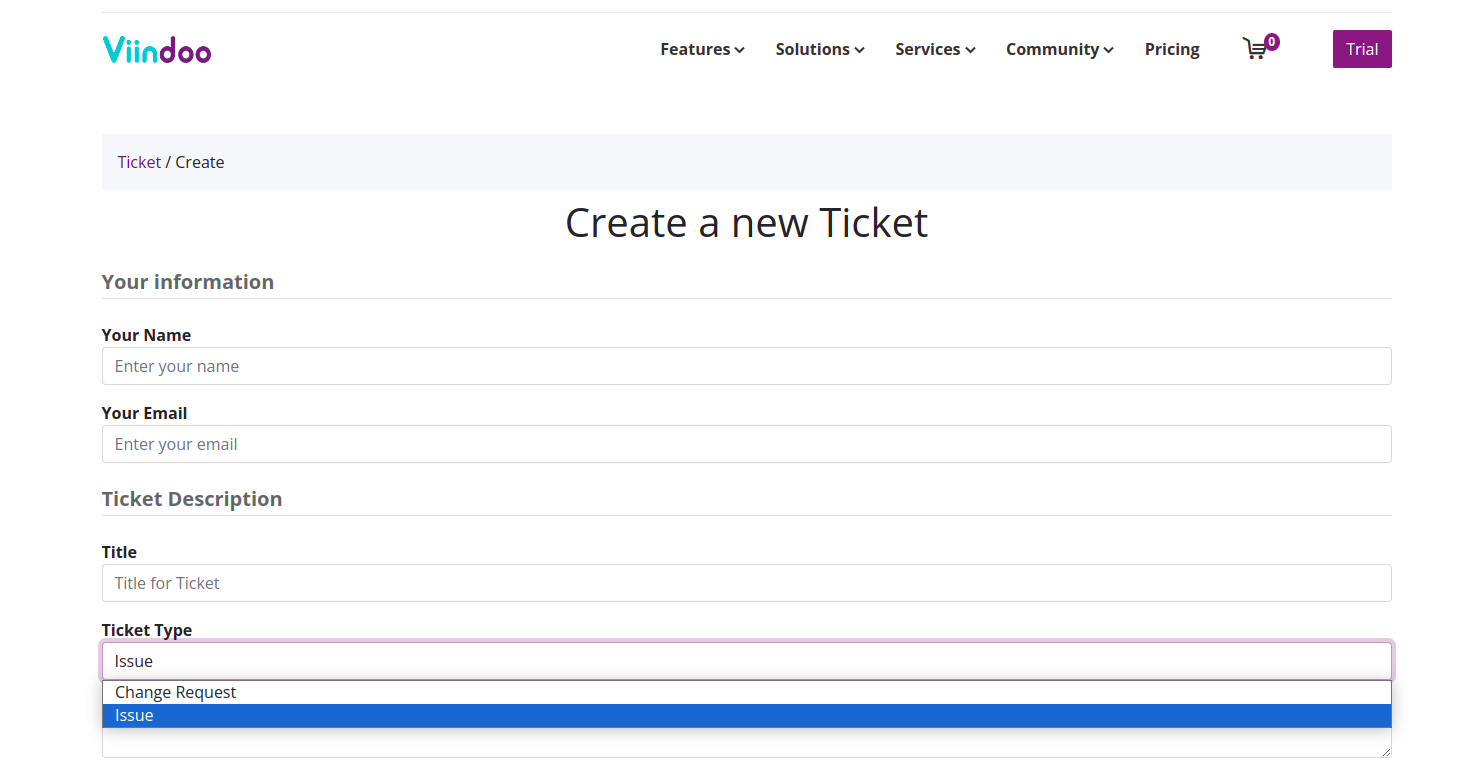
If you are not logged in, enter Your Name and Your Email. Enter a short Title (one sentence) and choose the Ticket Type: Issue or Change Request.
![Ticket form with your information, title and ticket type]()
Fill in the fields of the type you chose (see What should I write for an issue? or What should I write for a change request?), then click Submit.
![Confirmation that the ticket was created]()
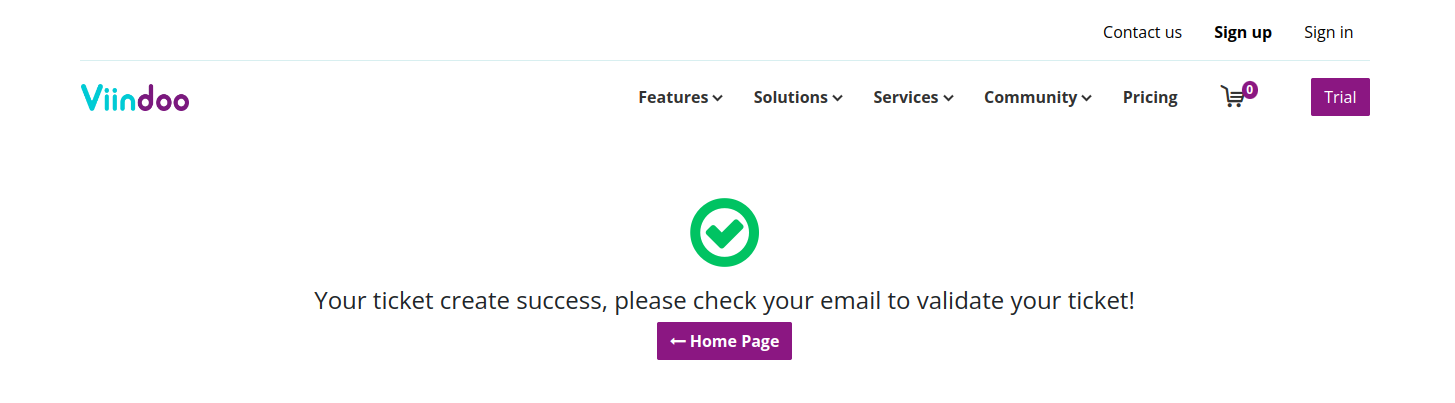
You receive an email confirming that the ticket was created.
What should I write for an issue?
Choose Issue for any problem while using Viindoo software or services.
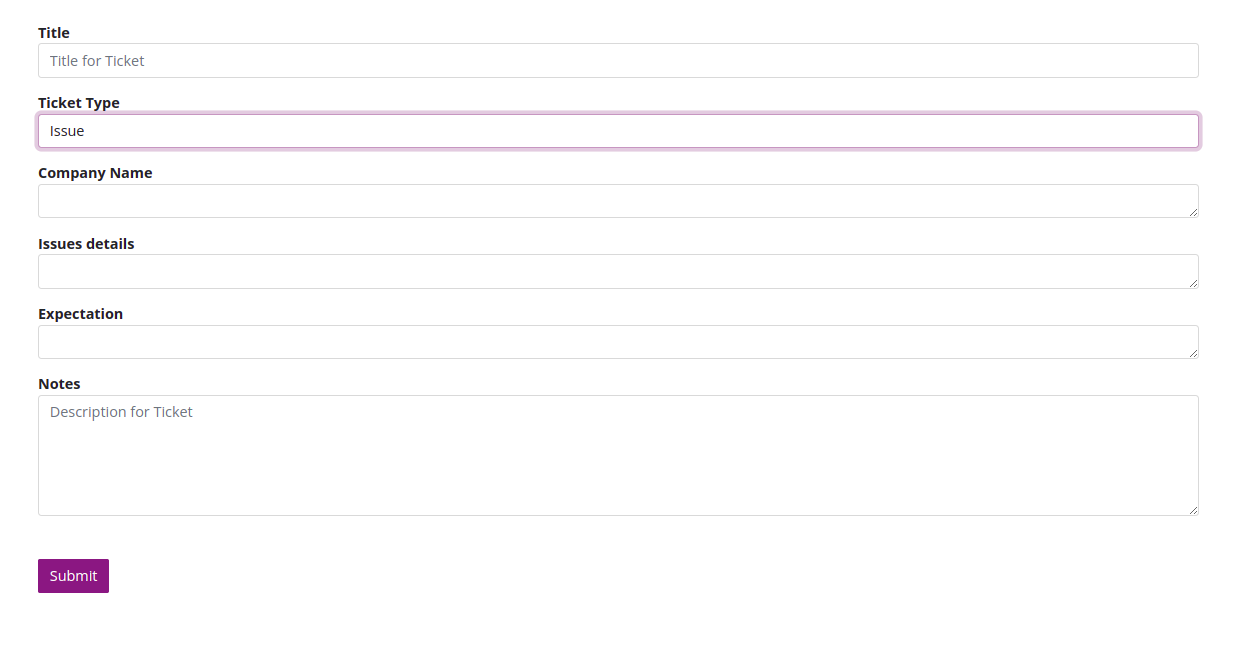
Field |
What to write |
|---|---|
Company Name |
The full name of your company. |
Issue details |
What you did, what happened and where (menu, record), so the team can reproduce it. |
Expectation |
What you expected to happen. |
Notes |
Links to screenshots or recordings, and any other useful detail. |
What should I write for a change request?
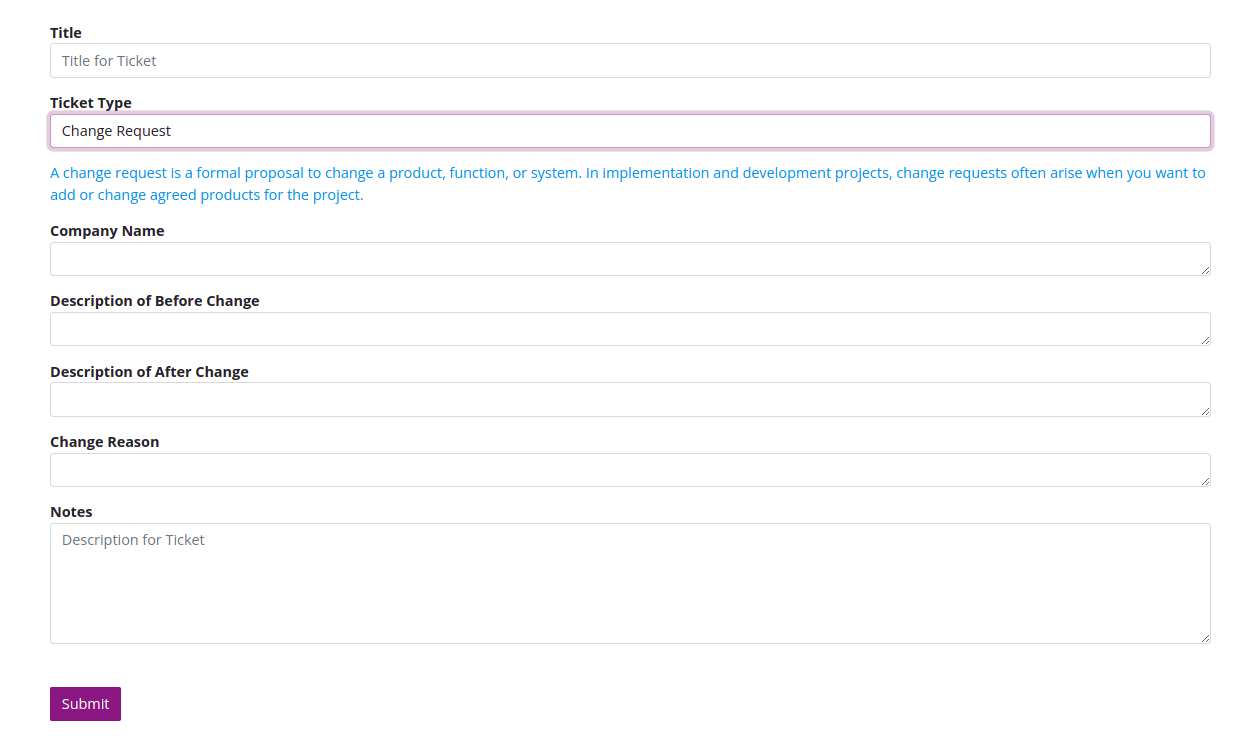
Choose Change Request to propose a change to a product, function or system, for example to add or change something agreed in your implementation project.
Field |
What to write |
|---|---|
Company Name |
The full name of your company. |
Description of Before Change |
How the product, function or system works today. |
Description of After Change |
How it should work after the change. |
Change Reason |
Why the change is needed. |
Notes |
Links to screenshots or recordings, and any other useful detail. |
How do I follow my ticket?
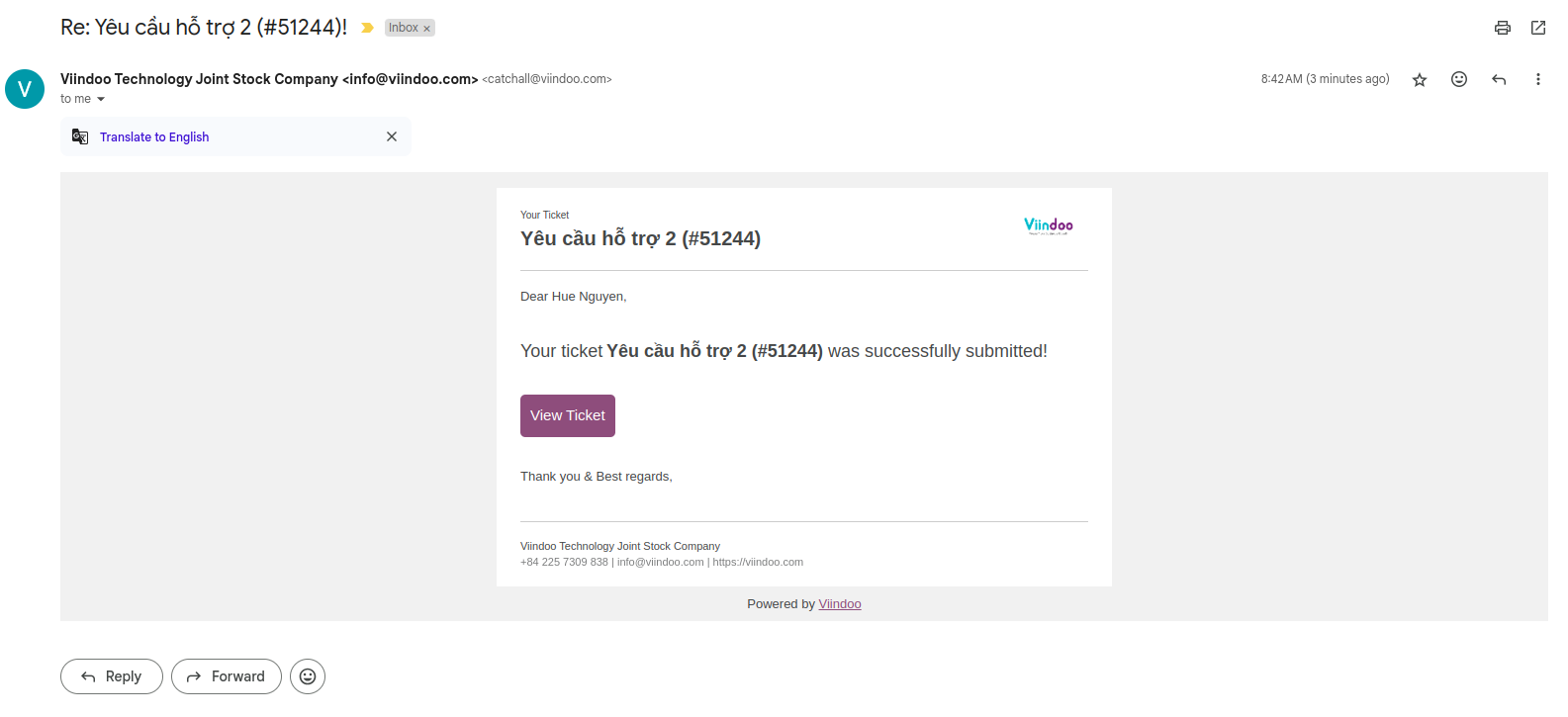
Open the confirmation email and click View Ticket.
![Confirmation email with the View Ticket button]()
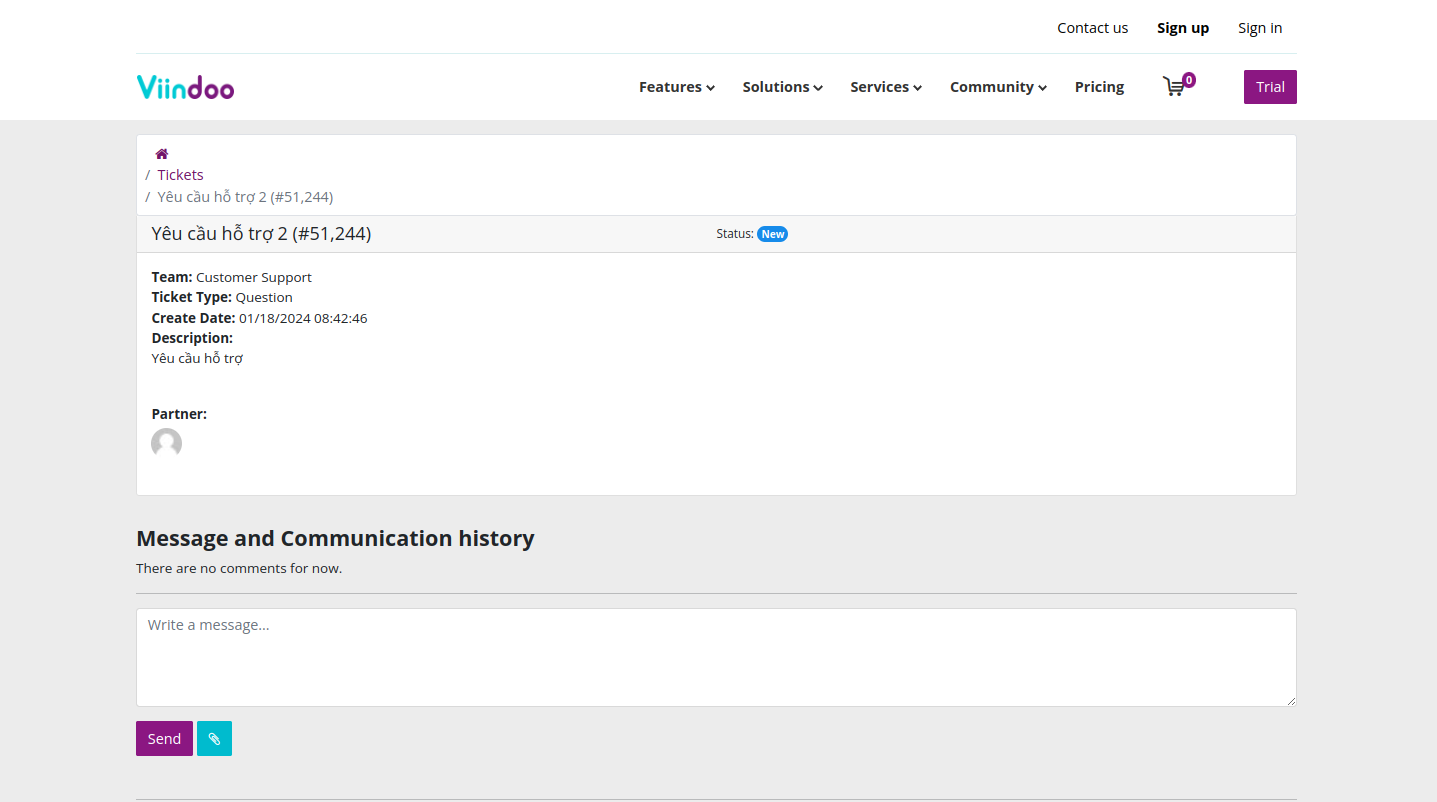
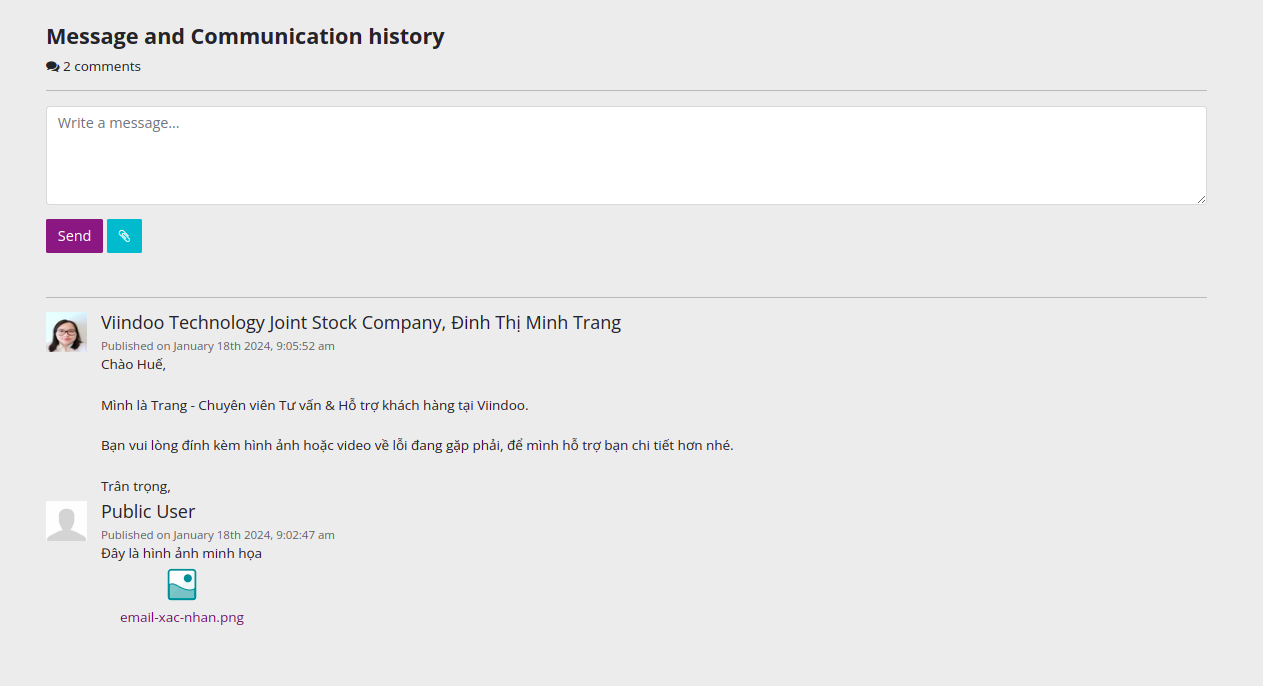
The ticket page shows its details and status (see the table below). Write in the message area to answer questions or add images and videos. Every message is also sent to your mailbox, and you can reply by email.
![Ticket page with team, type, dates, status and assignee]()
Status |
Meaning |
|---|---|
New |
Your ticket has been recorded. |
Assigned |
A person in charge has been assigned (shown in Assign to). |
In-progress |
The ticket is being handled. |
Done |
The ticket is resolved (Done Date is shown). |
Canceled |
The ticket has been canceled. |
You receive an email each time the status changes.
Common problems
Problem |
What to do |
|---|---|
You did not receive the confirmation email. |
Check your spam folder and that Your Email was typed correctly. If you were logged in, the email of your viindoo.com account is used. |
The team asks for more information. |
Reply on the ticket page or to the email, with steps, screenshots or a recording. |
Next steps
Ask the Viindoo user community on the Viindoo Forum: your question may already have an answer.
How to sign up and create your Viindoo instance: create a database to try a change before requesting it.