
Set time limit and Create live survey sessions
Requirements
This tutorial requires the installation of the following applications/modules:
Set a time limit for the survey
In the Viindoo system, users can set a time limit for surveys, which allows enterprises to create more challenging tests.
When the time is exceeded, the question or survey will be automatically closed.
Survey Time Limit
To set a time limit for a survey, first, go to the Surveys module, then create or select an existing survey. Then, on the Options tab, navigate to the Time & Scoring section and enable the Survey Time Limit feature to configure the survey time limit (by minutes).
The Time & Scoring section is not shown for the Survey type, and the Survey Time Limit is not available for the Live session type (use the question time limits below instead).
Let’s set the survey time limit to 10 minutes. Press Save button to save the setting.

Press Share to share this survey with participants.
When the participants start a survey, a countdown timer will appear to count the remaining time.
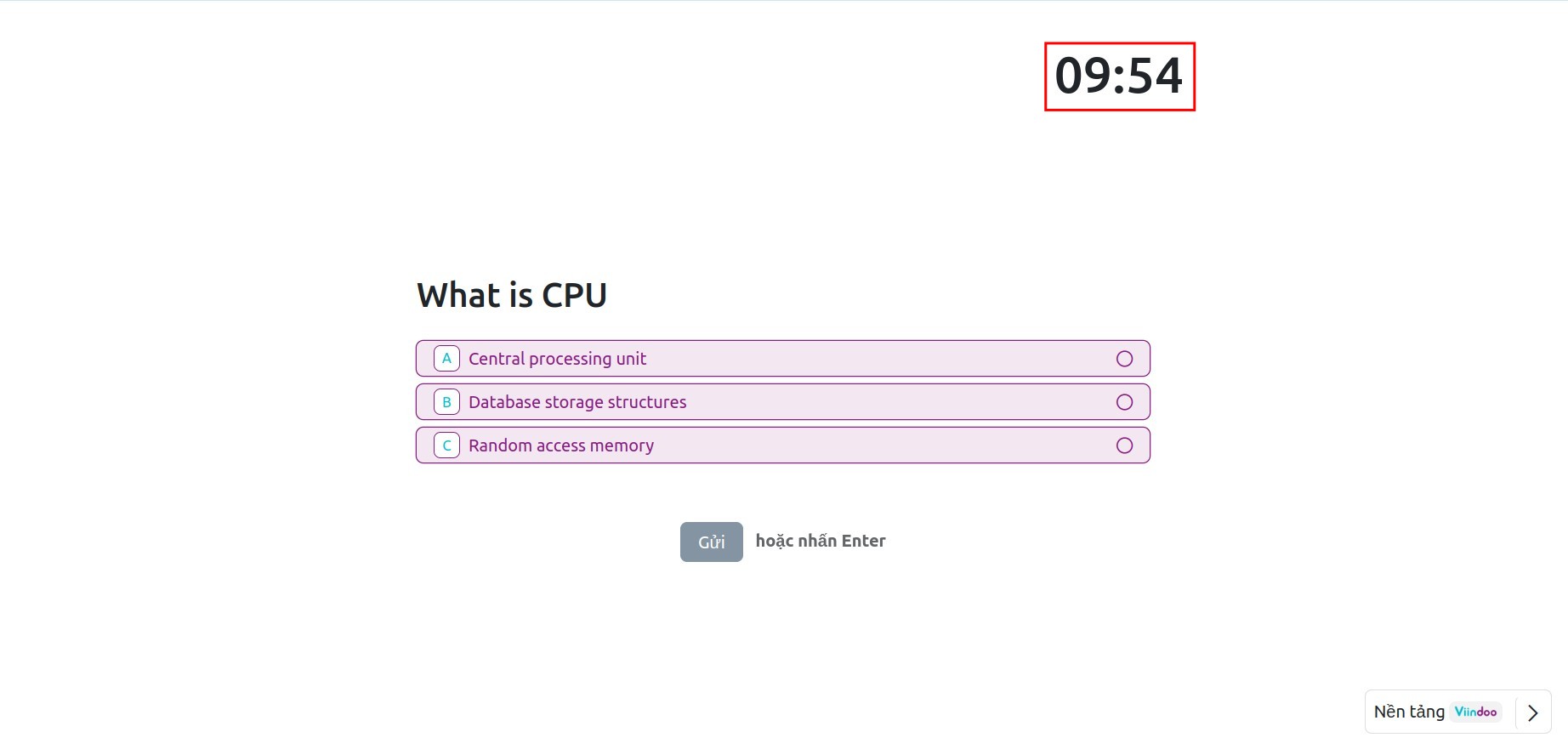
When the countdown timer ends at 0, the survey will automatically close. All unanswered questions will count as zeros.
Note
This feature can operate independently without having to create a live session.
Question Time Limit
To limit the time for each question of the surveys, follow these steps:
Go to the Surveys module, and select a survey.
At the survey view, choose or create a new question. See details: Create questions in a Survey.
In the Create Sections and Questions window of the question, select the Options tab then go to the Live Sessions section.
Activate the Time Limit (seconds) feature.
Enter the time limit of this question (seconds).

When the live survey session begins, the time will start counting down automatically for the configured question. Users won’t be able to select any answers when this countdown ends.

Note
This feature only operates on the live session. The section is available for surveys of the Live session and Custom types that are not certifications; for other surveys it only shows the message Time limits are only available for Live Sessions.
If Reward quick answers is activated on the survey (see below), every question gets the time limit of the survey by default. A time limit that you enter on a question replaces it for that question.
Create a live survey session
Main functions of creating live survey sessions:
Create a live survey session, which allows you to create questions for multiple attendees at the same time.
Manage the online questions system.
Count the activities of the live survey session.
Set question time limit.
Set up live survey session
To set up live survey session options, enter the Surveys module, select a survey of the Live session or Custom type. In the surveys view, navigate to Options ‣ Live Session:
Session Code: the code that attendees type to join the session. It is part of the session link.
Session Link: the link attendees open to join the session. Click the copy icon next to it to copy the link.
Reward quick answers: when this option is activated, the number of points received will be calculated based on the submit time. Attendees get more points if they answer quickly.
Time limit (seconds): appears when Reward quick answers is activated. It is the default time given to each question to receive additional points for right answers.

Manage live survey session
To start a live session, click on Create Live Session at the survey interface.

The session manager screen is displayed (it can be shown on a projector). The title and the description of the survey are shown, and the manager can control the live session:
The number of attendees who joined and are waiting for the session is shown in the Waiting for attendees… box. Attendees join by opening the session link, or by scanning the QR code next to it.
Click the copy icon next to the link at the bottom to copy the link of the live session.
Click the Start button to start the live survey session.

When you click the Start button and start a live survey session, the first question is displayed with:
The link to join the session at the top left.
The countdown timer of the question, if the question has a time limit.
The progress bar that shows the number of attendees who have confirmed the answer in the total number of attendees.
The chart of the answers. Click Show Results to display the number of responses of each answer, then Show Correct Answer(s) to display the right answer.
The button at the right side to proceed to the next question.

Warning
When the moderator proceeds with the next question, all attendees will be obligated to move to a new question. Questions without any answer will be counted as unanswered.
The live survey session feature is available only to surveys that are not marked with Is a Certification.