
How to adjust a time off request
To change the dates of a time off request, go to Time Off ‣ Management ‣ Time Off, open the request and click Adjust Dates. Enter the new start and end dates and click Confirm: the request keeps its status and its duration is recalculated. Use it when an employee extends or shortens a leave, instead of cancelling the request and creating a new one.
Who |
Users with the Time Off ‣ Administrator access right. |
App |
Time Off, with the Viin Time-Off module |
Before you start
Install the Viin Time-Off module, which adds the Adjust Dates button.
The time off type of the request must be set to Take Time Off in Day, see How to create a time off type.
Create the time off request to adjust.
How do I find the request to adjust?
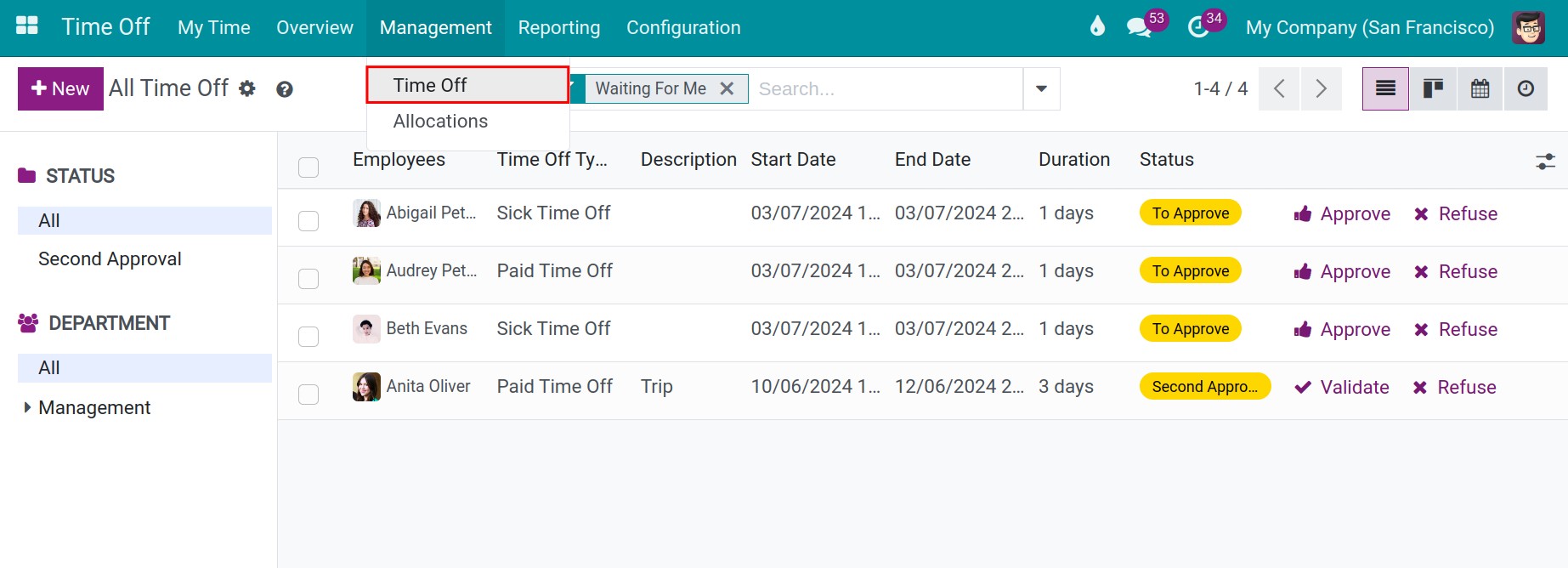
Go to Time Off ‣ Management ‣ Time Off. The list opens with the default filter Waiting For Me, which shows the requests that wait for your approval.
![The list of time off requests with the default filters]()
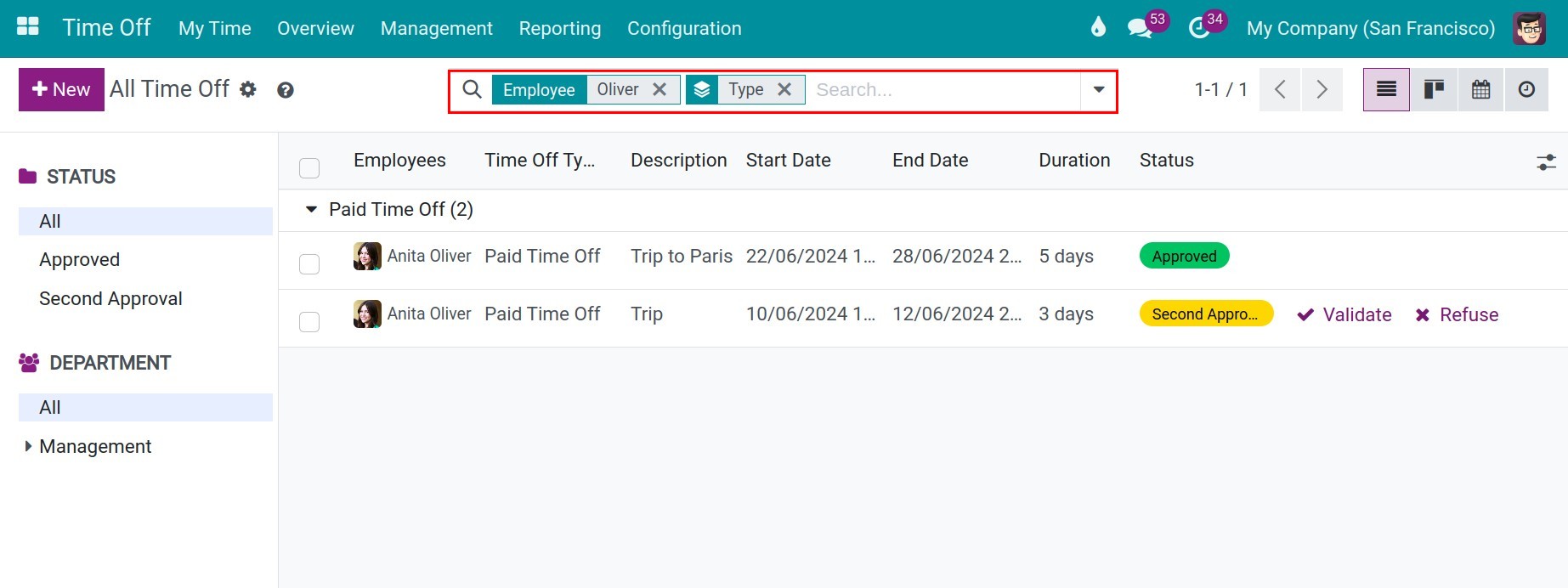
To find an approved request, remove the default filters, then type the name of the employee in the search box and press Enter. Use Group By to group the requests, for example by type.
![The time off requests of one employee after searching by name]()
How do I adjust the dates?
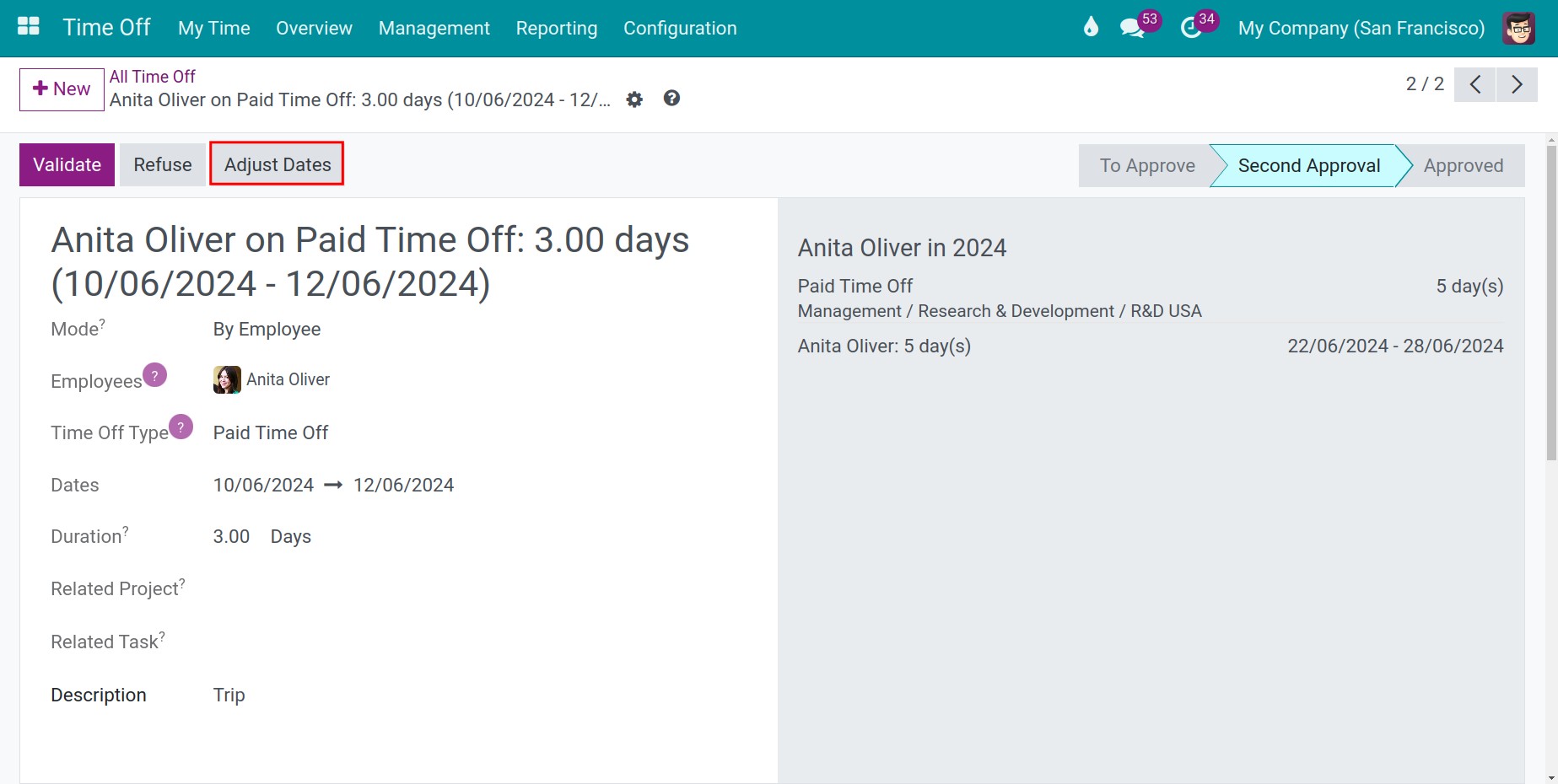
Open the request and click Adjust Dates.
![A time off request with the Adjust Dates button]()
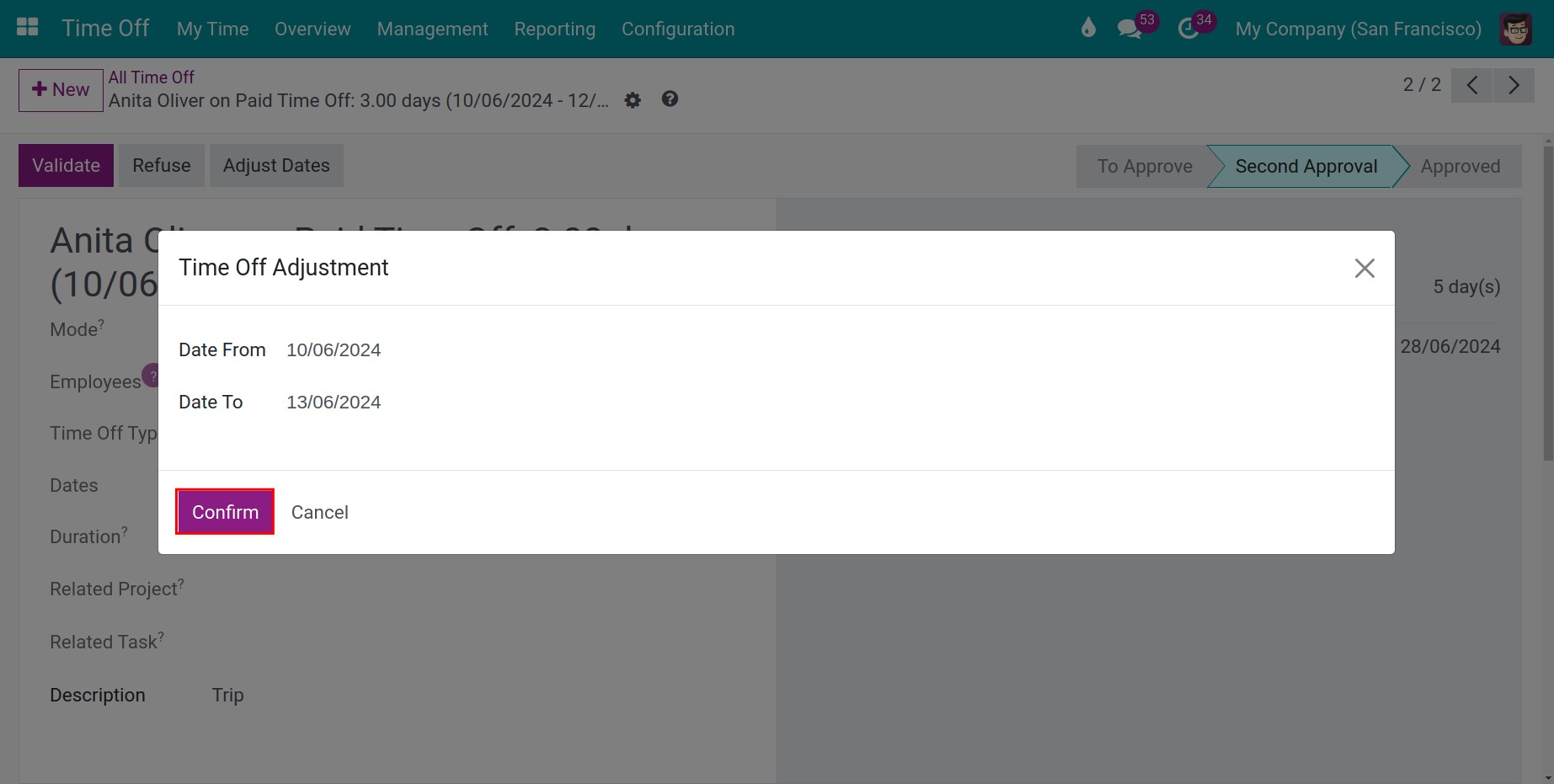
In the Time Off Adjustment window, enter the new start and end dates, then click Confirm.
![The Time Off Adjustment window with the new dates]()
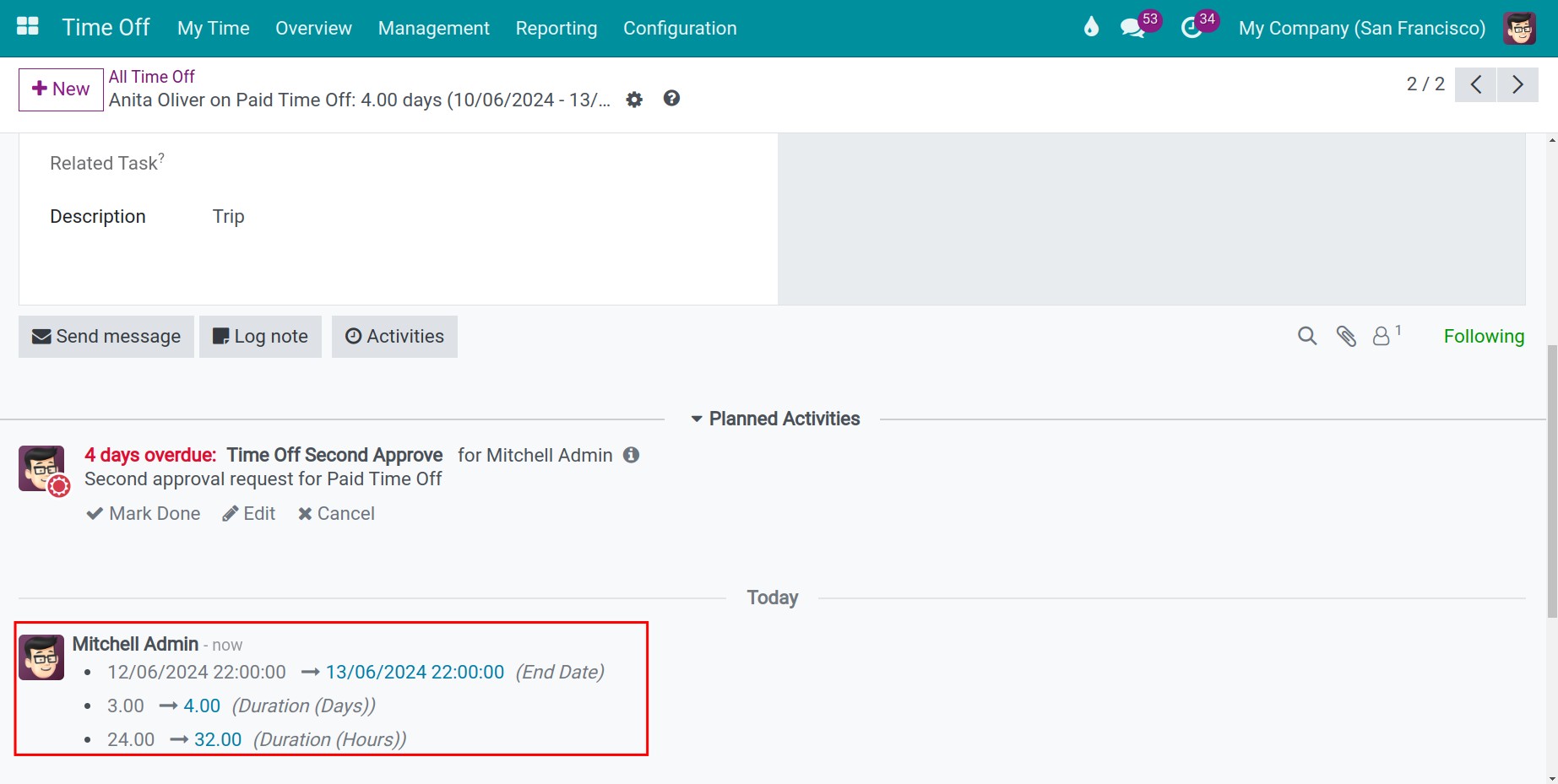
The dates and the duration of the request are updated, and the change is recorded in the chatter of the request with the name of the user who made it.
Common errors
Problem |
What to do |
|---|---|
There is no Adjust Dates button. |
Install the Viin Time-Off module and sign in with the Time Off ‣ Administrator access right. |
The message Time Off Type with mode calculated by day can adjust appears. |
The type of the request is set to half days or hours. Only requests of types set to Take Time Off in Day can be adjusted. |
The message Date From must be less than Date To appears. |
The start date is after the end date. Enter the dates again. |
Next steps
How to track time off with reports: follow the time off of your employees.