
How to control when vendor bills are created
The Control Policy of a product decides what you can bill from a purchase order: with On ordered quantities you can create the vendor bill as soon as the order is confirmed; with On received quantities you can only bill what has been received. Set the default for new products in Purchase ‣ Configuration ‣ Settings ‣ Bill Control, change it per product on the product’s Purchase tab, then click Create Bill on the confirmed order. The Billing Status of the order tells you whether there is anything left to bill.
Who |
A Purchase Administrator sets the default and the product policy. A Purchase user with access to vendor bills creates the bills. |
App |
Purchase, Invoicing |
Before you start
Install the Purchase app (Invoicing is installed with it).
Know how to create a purchase order.
How do I choose the default policy for new products?
Go to Purchase ‣ Configuration ‣ Settings. In the Invoicing section, choose the Bill Control:
Ordered quantities: you can bill the ordered quantity as soon as the order is confirmed.
Received quantities: you can only bill the quantity received so far, and bill again when more is received. This is the default.
![Bill Control setting with the Ordered quantities and Received quantities options]()
Click Save.
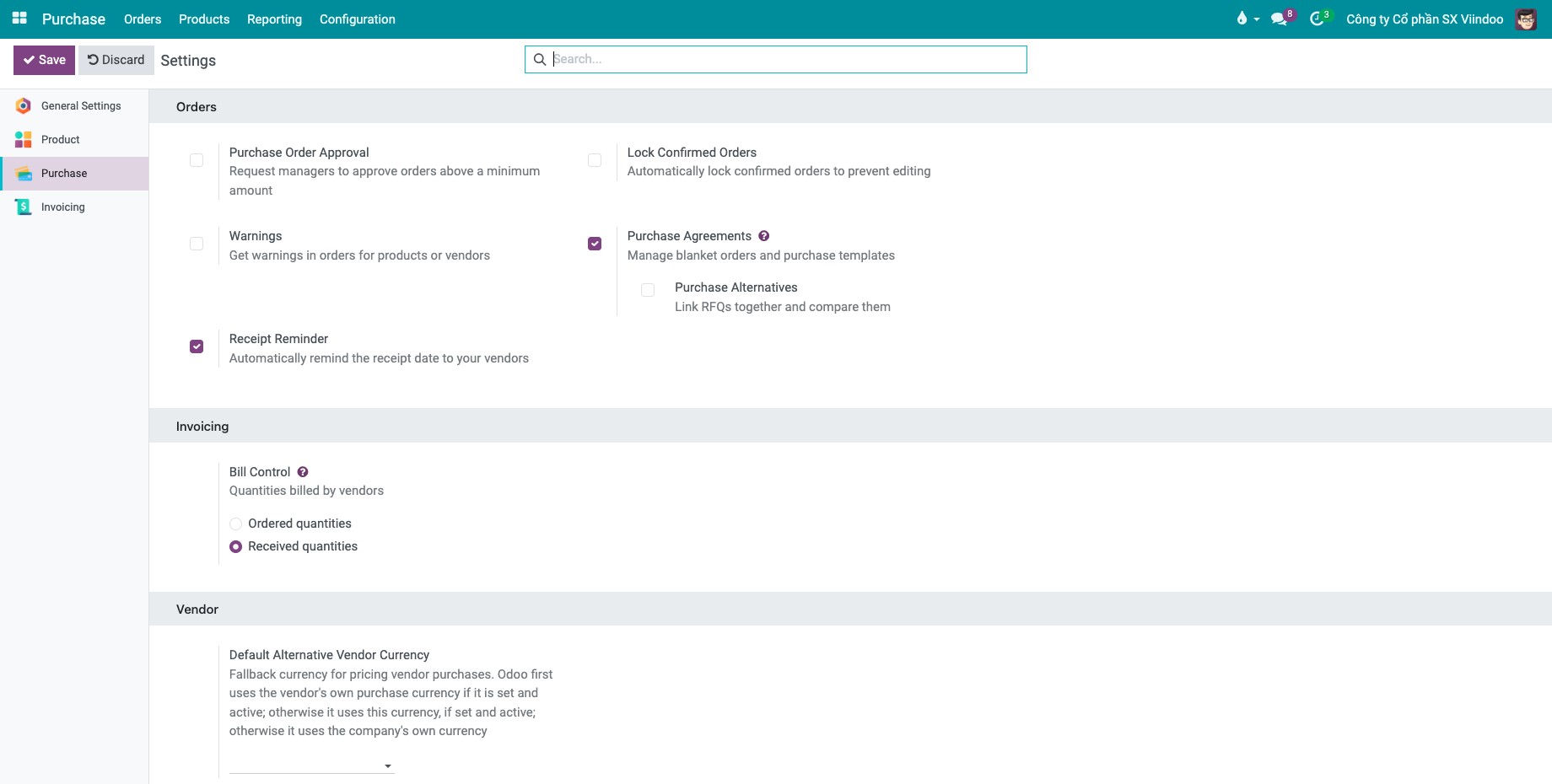
The setting only applies to products you create afterwards. Existing products keep their own policy, and a new service always starts with On ordered quantities.
How do I set the policy of one product?
Go to Purchase ‣ Products ‣ Products and open the product.
On the Purchase tab, in Vendor Bills, choose the Control Policy: On ordered quantities or On received quantities. The change is saved automatically.
![Control Policy field on the Purchase tab of a product]()
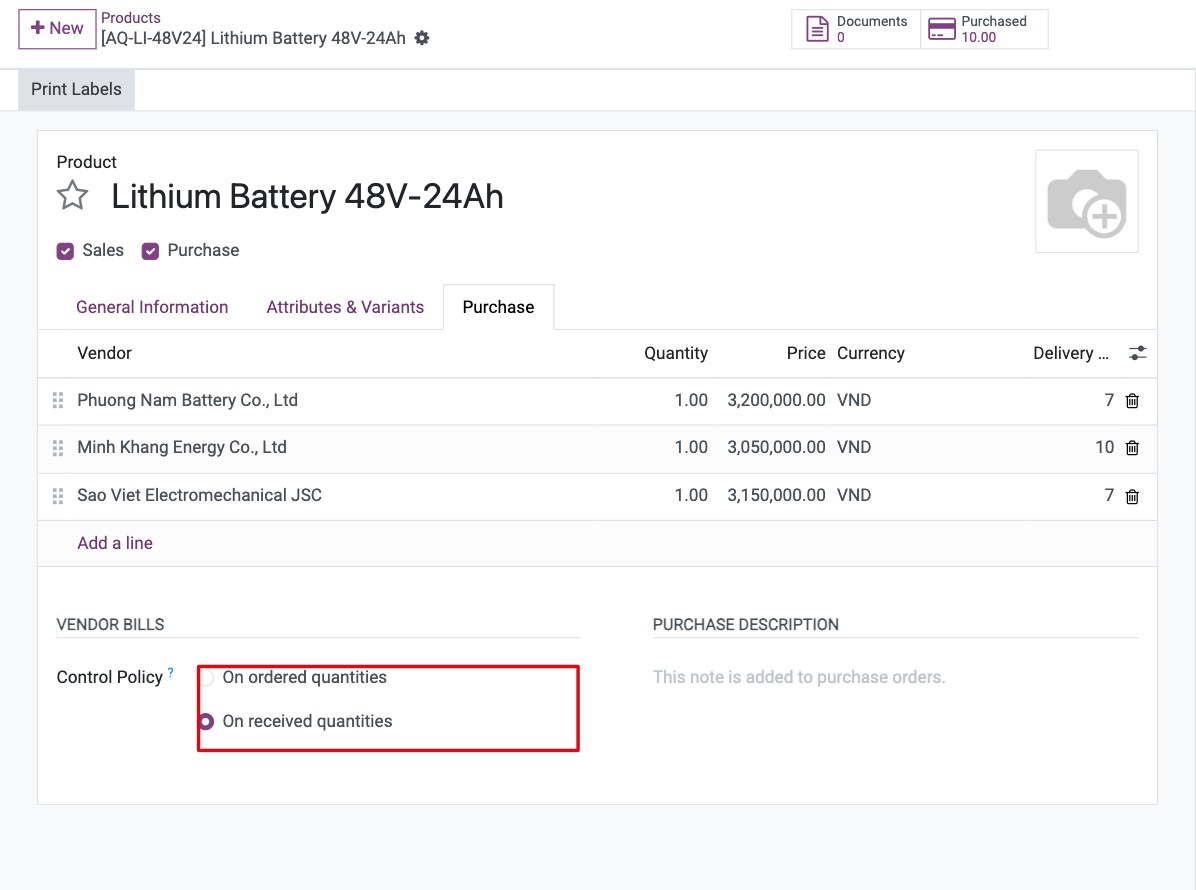
Set the policy before you order the product. On orders already confirmed, the quantity to bill is only recalculated when the line changes, for example when you enter a received quantity.
How do I bill an order based on ordered quantities?
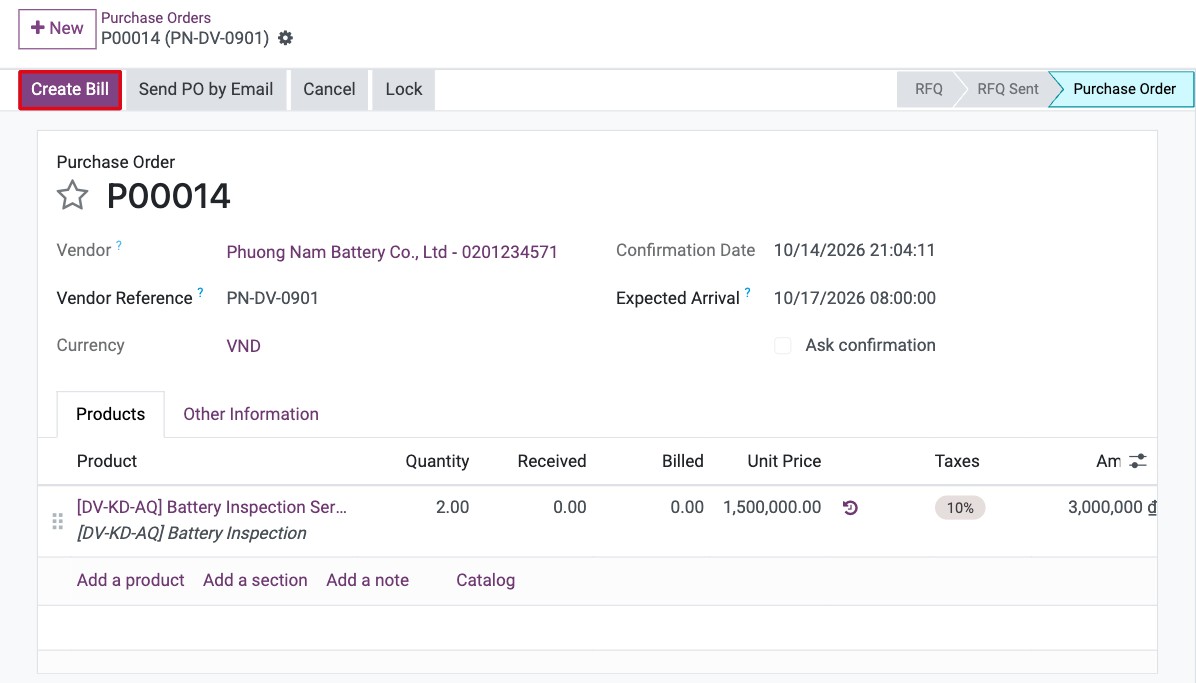
Open the confirmed purchase order. Its products use On ordered quantities, so Create Bill is the highlighted button.
![Confirmed purchase order whose lines are billed on ordered quantities, with the Create Bill button]()
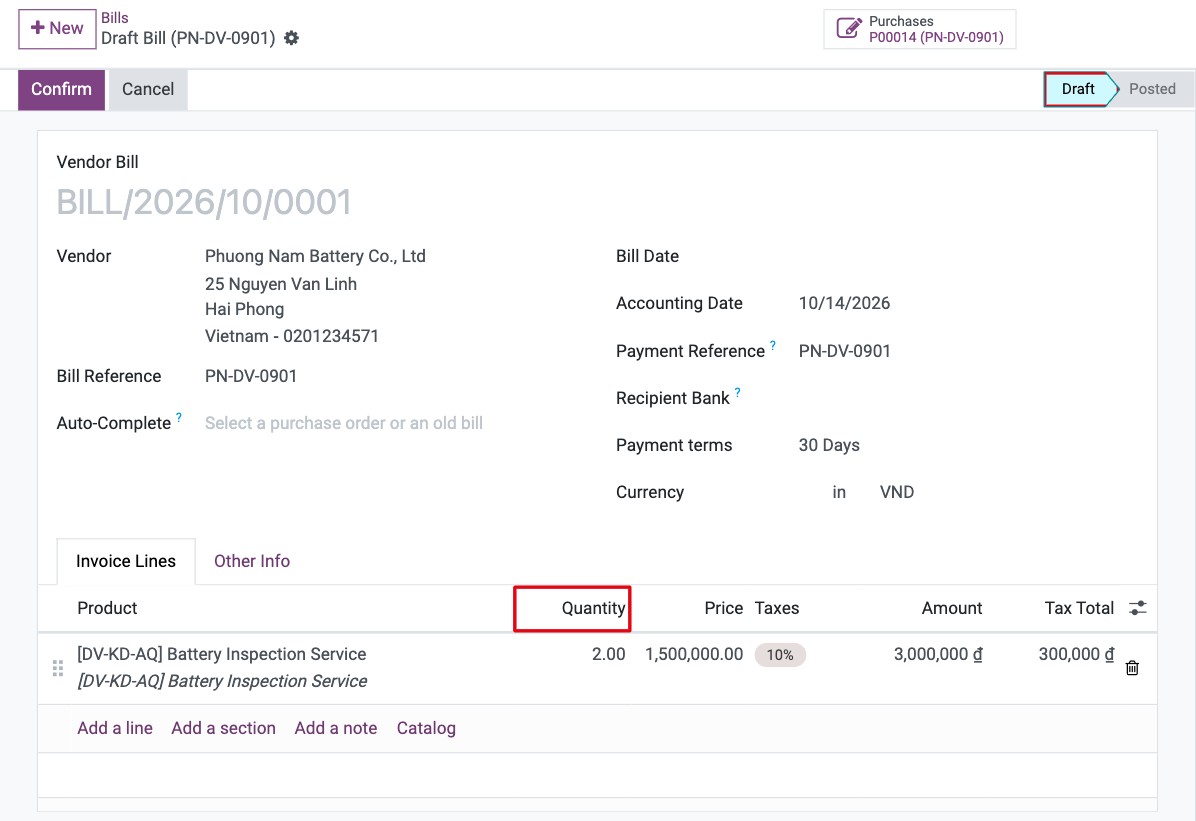
Click Create Bill. Viindoo creates a draft vendor bill with the ordered quantities, the vendor reference and the payment terms of the order.
![Draft vendor bill created from the purchase order with the ordered quantity]()
Check the bill against the vendor’s invoice and confirm it, or pass it to your accountant (see Vendor Bills Management).
How do I bill an order based on received quantities?
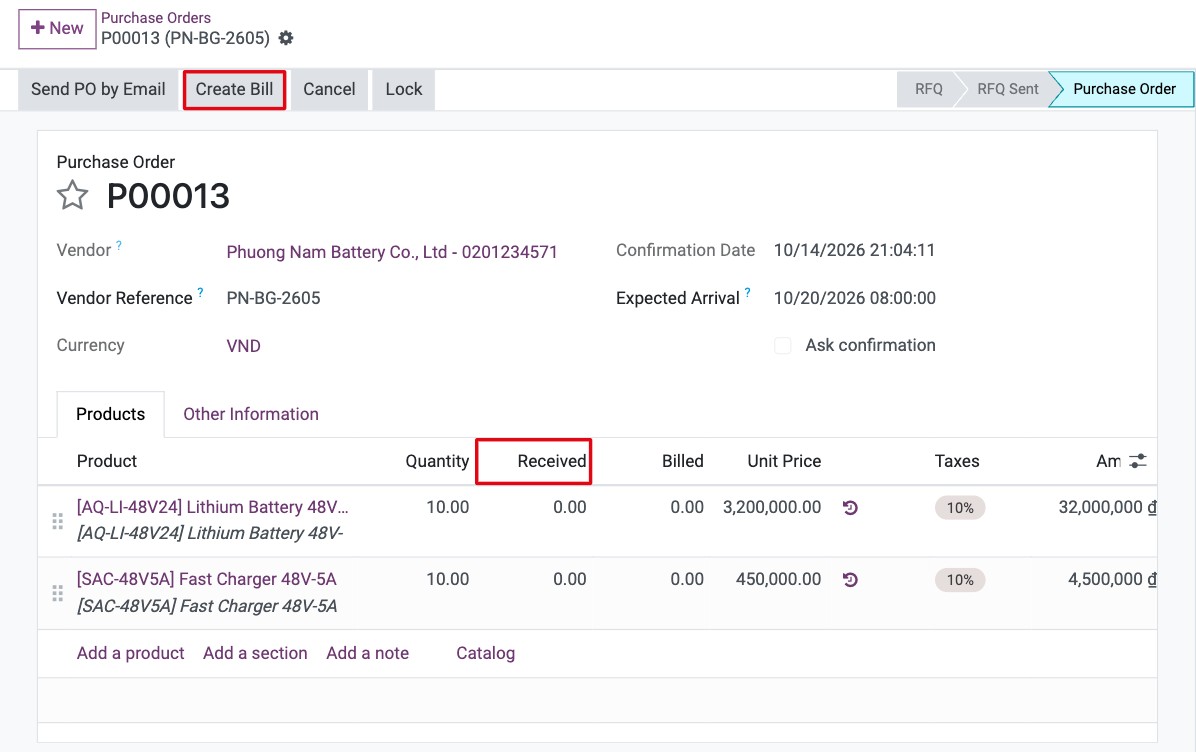
Open the confirmed purchase order. On the Products tab, the Received column shows what has been received; nothing can be billed while it is 0.
![Purchase order billed on received quantities with the Received column at 0]()
When the goods arrive, enter the Received quantity on each line.
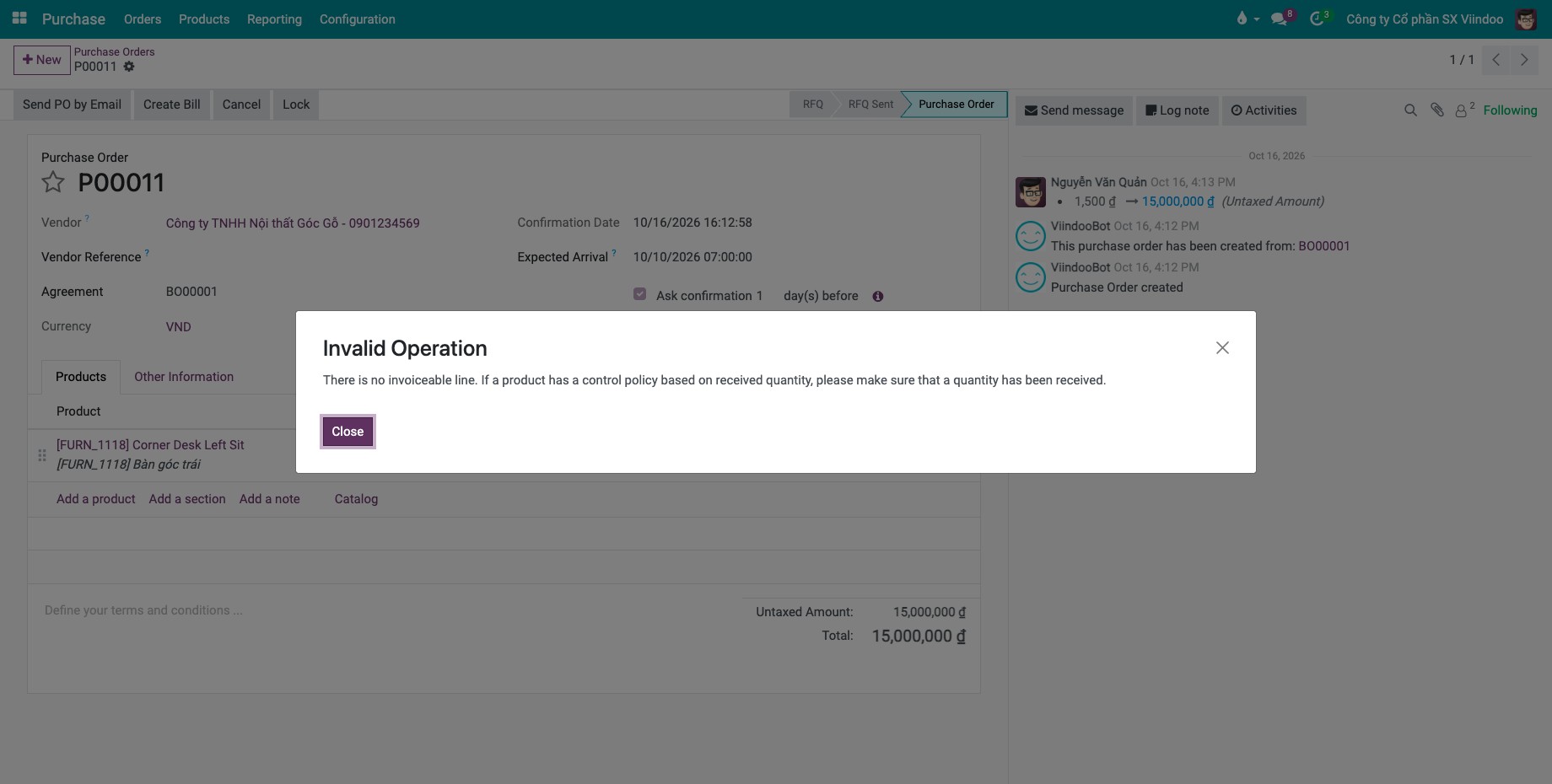
Click Create Bill. The bill contains only the received quantities that are not billed yet. If nothing has been received, Viindoo shows the message below and creates no bill.
![Invalid Operation message There is no invoiceable line when nothing has been received]()
If you also install Inventory, the Received quantity is filled in when you validate the receipt of the order instead of by hand.
How do I know what is left to bill?
Open the order and look at Billing Status on the Other Information tab. The Vendor Bills button opens the bills already created from the order. To see the status of many orders, add the Billing Status column to the purchase order list.
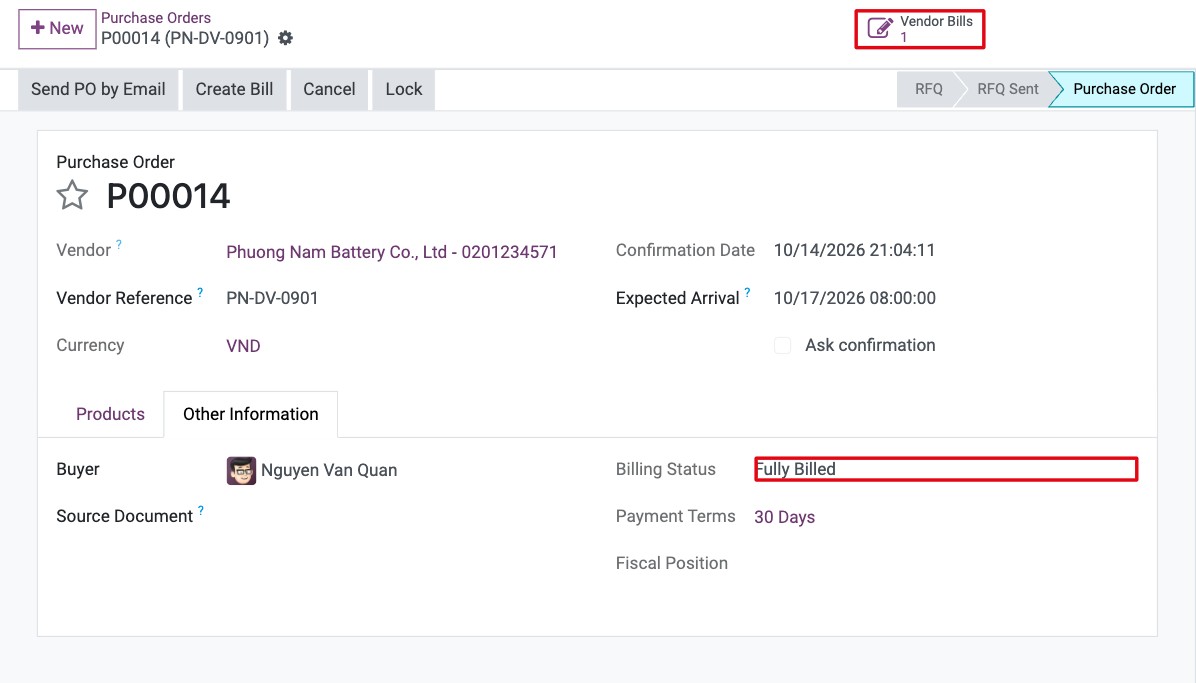
Billing Status |
Meaning |
|---|---|
Nothing to Bill |
There is nothing to bill yet, for example the goods are billed on received quantities and nothing has been received. An RFQ also has this status. |
Waiting Bills |
At least one line has a quantity to bill. Click Create Bill. |
Fully Billed |
Everything that can be billed is on vendor bills. |
Common errors
Message or problem |
What to do |
|---|---|
There is no invoiceable line. If a product has a control policy based on received quantity, please make sure that a quantity has been received. |
Enter the Received quantity on the lines (or validate the receipt if Inventory is installed), then click Create Bill again. |
The Control Policy field is missing on the product. |
Only a Purchase Administrator sees it. Ask your administrator to change the policy. |
The order stays Waiting Bills after you created a bill. |
Some quantities are not billed yet, for example more was received after the first bill. Click Create Bill again to bill the rest. |
Next steps
How to create vendor bills for many orders: create the bills of many orders at once.
How to pay a vendor in advance for a purchase order: pay the vendor before the bill.
Related apps: Purchases Lines Numbering, Purchase Confirmation Backdate.
Version notes
Compared with the version 17 guide, the Bill Control setting is only the default for new products, and the received quantity is entered on the order when Inventory is not installed.