
How to get started with Helpdesk and set up access
Helpdesk lets your company record every support request from customers and from your own employees as a ticket, assign it to a team, follow it through stages and measure how fast it is solved. To start, open Apps, search for Helpdesk and click Activate. Then open each user in Settings ‣ Users & Companies ‣ Users, go to the Access Rights tab and choose the level of the Helpdesk field: leave it blank for an employee who only raises and follows tickets, User for a team leader or agent, Administrator for the person who configures Helpdesk.
Who |
Users with the Administration ‣ Settings access right (install the app and set the access rights), then every Helpdesk user (daily work). |
App |
Helpdesk |
Before you start
Create the users who will work on tickets, see How to link Employees and Users.
Make sure your company can send and receive email if customers write to a team by email, see How to connect Viindoo to your own mail servers.
Install the Helpdesk module. It needs no other application to start.
How do I install the Helpdesk app?
Go to Apps, type Helpdesk in the search box and press Enter.
Click Activate on the Helpdesk card. If the card only shows Learn More, the app is already installed.
Open the main menu. The Helpdesk app now appears next to your other applications.
![The main menu with the Helpdesk app highlighted]()

The installation also creates the default stages, three ticket types and a General team, so you can open a first ticket right away.
What does each Helpdesk menu show?
Click Helpdesk in the main menu. The Overview opens first: a dashboard at the top and one card per helpdesk team below it.
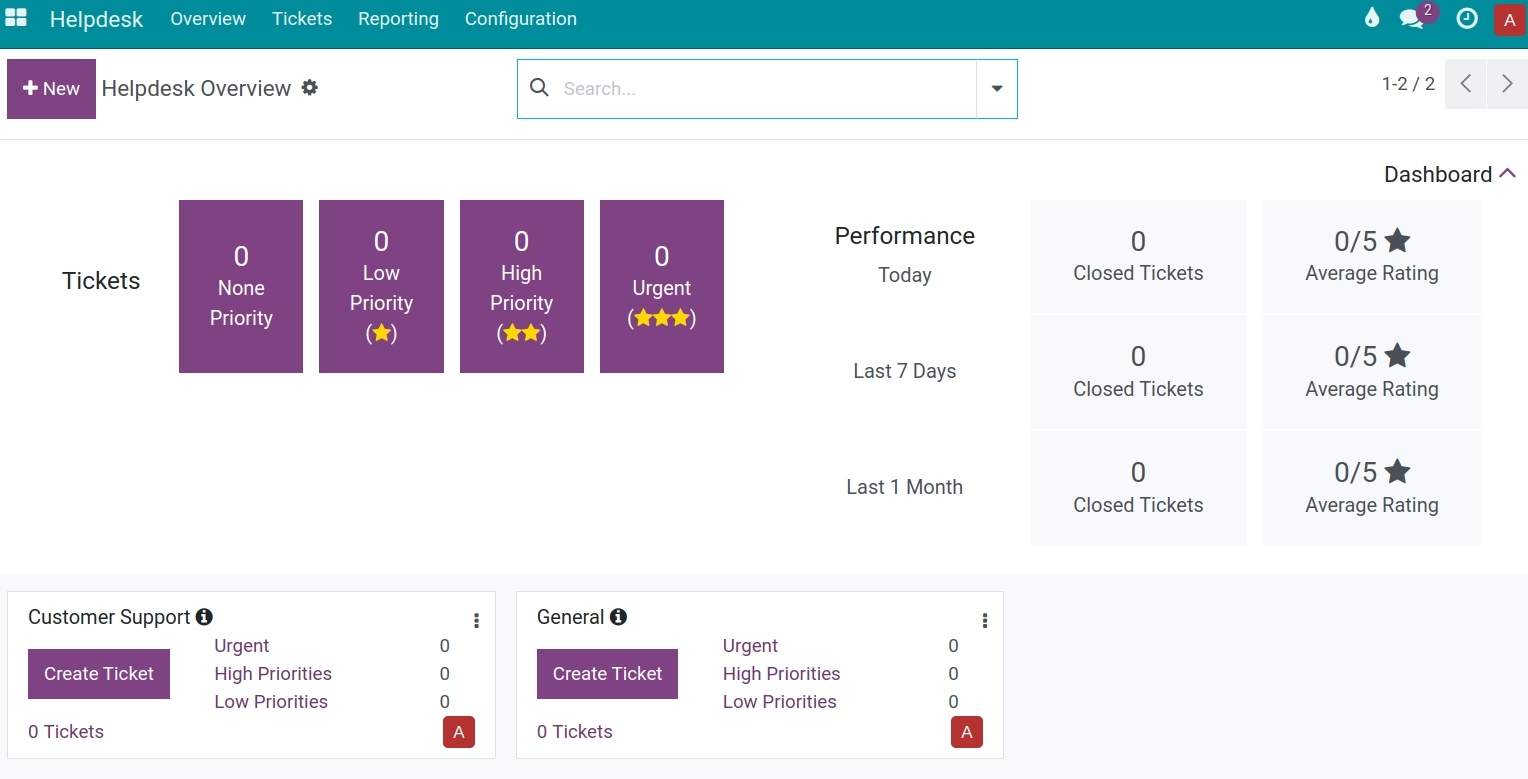
Menu |
What you do there |
|---|---|
Overview |
See the number of open tickets by priority, the tickets closed today, in the last 7 days and in the last month with their average rating, and the cards of the teams. On a card, click Create Ticket to open a new ticket for that team, or click the ticket count to see the team’s tickets. |
Tickets ‣ My Tickets |
The tickets you created. |
Tickets ‣ Assigned to me |
The tickets that are assigned to you. |
Tickets ‣ All Tickets |
Every ticket of the company. Only for Administrator. |
Reporting |
The Tickets Report and the SLA Analysis. Only for Administrator, see How to create and manage helpdesk tickets. |
Configuration |
Settings, Stages, Ticket Types, Ticket Tags, Helpdesk Teams and SLA Policy. Only for Administrator, see How to set up Helpdesk: stages, teams, ticket types, SLA and ratings. |
How do I give a user access to Helpdesk?
Go to Settings ‣ Users & Companies ‣ Users.
![The Settings menu with Users highlighted]()
Open the user and click the Access Rights tab. In the Services group, choose the level of the Helpdesk field.
![The Helpdesk access right on a user form]()
Click Save.


Access right |
What the user sees and does |
|---|---|
Blank |
The Overview and the Tickets ‣ My Tickets and Assigned to me menus. Creates tickets, works on the tickets that he created, that are assigned to him or that he follows, and deletes the tickets he created. A team shows only if its Visibility lets him see it. |
User |
Everything above, and for the teams he leads: all the tickets of the team, the team form (open it with Edit Team in the card menu of the Overview) and the stages of the team. He has no Reporting and no Configuration menu. |
Administrator |
Every ticket and every team, the All Tickets menu, Reporting and Configuration. |
If you also install other applications, the same tickets gain more screens, see How to integrate Helpdesk with other applications.
Common errors
Problem |
What to do |
|---|---|
A user does not see the Helpdesk app. |
Check that the user is an internal user. A portal user cannot open the back office, so the app is not available to him. |
A user cannot see Reporting or Configuration. |
These menus are for the Administrator level only. Change the Helpdesk field of the user. |
A user cannot see a team on the Overview. |
The team Visibility is Invited internal users. Add the user to the team members or choose All internal users, see How do I create a helpdesk team?. |
Next steps
How to set up Helpdesk: stages, teams, ticket types, SLA and ratings: set up the stages, teams, ticket types, tags, SLA policies and ratings.
How to create and manage helpdesk tickets: create a ticket, move it through the stages and read the reports.